PDF has a fixed layout and is easy to distribute, but once its content has been generated, it is difficult to modify within the body text. For documents such as contracts, reports, and notices, you often need to indicate the confidentiality level, copyright ownership, or usage states such as "Draft" and "Sample" without affecting the reading of the body content. Besides the text watermarks mentioned above, image watermarks made from a company logo, seal, or warning image are also quite common: they float over the content as semi-transparent images, conveying the brand and status information clearly without harming the readability of the original.
Spire.PDF for JavaScript loads, draws, and saves PDFs directly in the browser via WebAssembly, managing input and output files through a virtual file system (VFS) without requiring a backend server. Image watermarking usually takes two forms: one places a single image watermark at a specified position on the page (such as the center of the page), which can be achieved directly by loading the image with PdfImage.FromFile and combining the transparency settings of the page canvas with the DrawImage method; the other repeats the image across the whole page, which can be done with the PdfTilingBrush tiling brush.
This article covers two core features:
For installation and project setup, refer to Integrating Spire.PDF for JavaScript in a React Project. The examples below assume Spire.PDF is installed and the WebAssembly module is initialized.
Add a Single Image Watermark to PDF
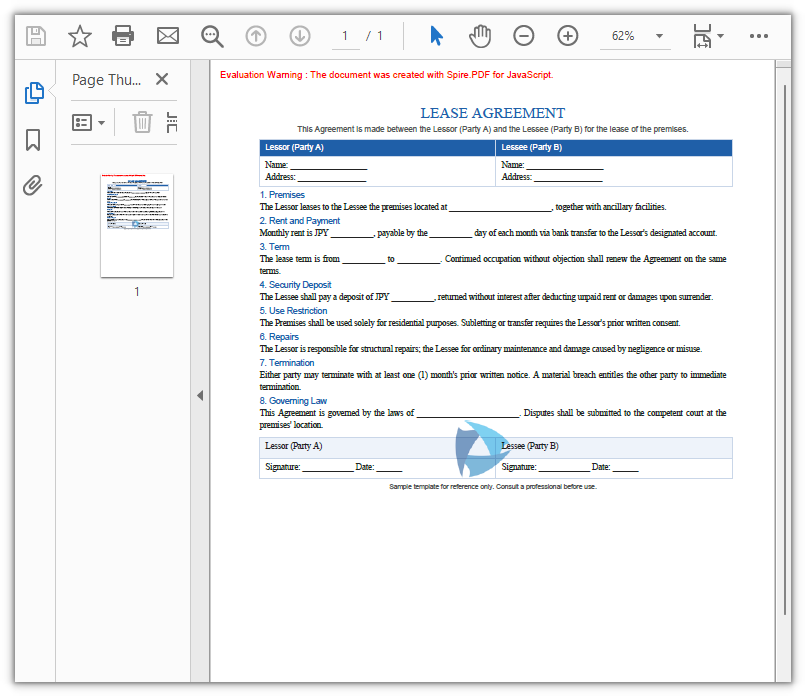
A single image watermark places a semi-transparent image at a specified position on the page (in this example, the center of each page), suitable for placing a company logo or warning sign in a prominent position of the document. The approach is as follows: load the image from a file with PdfImage.FromFile; then, on the canvas of each page, save the state with Save, set the transparency and blend mode with SetTransparency, draw the image at the centered position with DrawImage, and finally restore the canvas state with Restore.
function App() {
  const addSingleImageWatermark = async () => {
    // Get the Spire.PDF WASM module
    const pdfModule = window.wasmModule?.spirepdf;

    // Check whether the WASM module is ready
    if (!pdfModule) {
      alert('Spire.PDF is not ready yet');
      return;
    }

    // Load the PDF file to be watermarked into VFS
    const inputFileName = 'Lease_Agreement_EN.pdf';
    await window.spire.FetchFileToVFS(inputFileName, "", `${process.env.PUBLIC_URL}/data/`);

    // Load the watermark image into VFS
    const inputImageName = 'logo.png';
    await window.spire.FetchFileToVFS(inputImageName, "", `${process.env.PUBLIC_URL}/data/`);

    // Create a PdfDocument object and load the PDF document
    let doc = new pdfModule.PdfDocument();
    doc.LoadFromFile(inputFileName);

    // Load the watermark image from a file
    let image = pdfModule.PdfImage.FromFile(inputImageName);

    // Loop through all the pages in the document
    for (let i = 0; i < doc.Pages.Count; i++) {
      // Get the specified page
      let page = doc.Pages.get_Item(i);

      // Save the canvas state, and set the semi-transparency (alpha 0.5) with the Multiply blend mode
      page.Canvas.Save();
      page.Canvas.SetTransparency({ alphaPen: 0.5, alphaBrush: 0.5, blendMode: pdfModule.PdfBlendMode.Multiply });

      // Compute the centered drawing position: subtract the image size from the page size and halve the result
      let position = new pdfModule.PointF(
        (page.Canvas.Size.Width - image.Width) / 2,
        (page.Canvas.Size.Height - image.Height) / 2
      );

      // Draw the watermark image at the center of the page
      page.Canvas.DrawImage({ image: image, point: position });

      // Restore the previous state of the canvas
      page.Canvas.Restore();
    }

    // Define the output file name and save the document
    const outputFileName = 'SingleImageWatermark.pdf';
    doc.SaveToFile(outputFileName);
    doc.Close();

    // Read the generated file from VFS and trigger the download
    const fileArray = window.dotnetRuntime.Module.FS.readFile(outputFileName);
    const blob = new Blob([fileArray], { type: 'application/pdf' });
    const url = URL.createObjectURL(blob);
    const a = document.createElement('a');
    a.href = url;
    a.download = outputFileName;
    a.click();
    URL.revokeObjectURL(url);
  };

  return (
    <div style={{ textAlign: 'center', height: '300px' }}>
      <h1>Add Single Image Watermark To PDF</h1>
      <button onClick={addSingleImageWatermark}>
        Generate
      </button>
    </div>
  );
}

export default App;
PDF document after adding the single image watermark
Add a Tiled Image Watermark to PDF
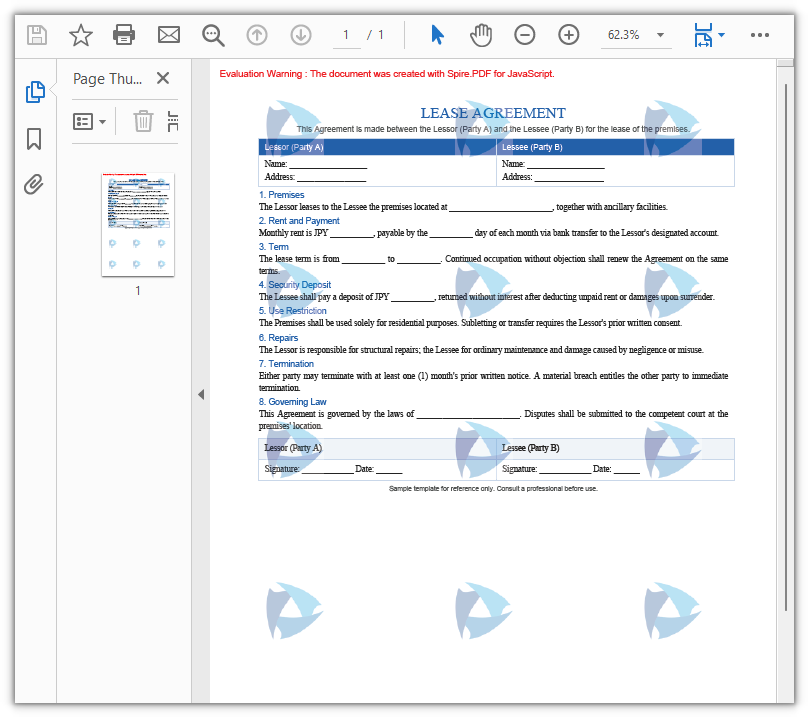
When you need the watermark to fill the whole page and form a faint background texture, use a tiled image watermark. The approach is as follows: load the image with PdfImage.FromFile; divide the page into tiling cells according to the page size with PdfTilingBrush; inside the graphics context of the brush, lower the transparency with SetTransparency and draw the image within the cell with DrawImage; finally fill the whole page with the brush using DrawRectangle so that the image repeats row by row and column by column, covering the entire page.
function App() {
  const addTiledImageWatermark = async () => {
    // Get the Spire.PDF WASM module
    const pdfModule = window.wasmModule?.spirepdf;

    // Check whether the WASM module is ready
    if (!pdfModule) {
      alert('Spire.PDF is not ready yet');
      return;
    }

    // Load the PDF file to be watermarked into VFS
    const inputFileName = 'Lease_Agreement_EN.pdf';
    await window.spire.FetchFileToVFS(inputFileName, "", `${process.env.PUBLIC_URL}/data/`);

    // Load the watermark image into VFS
    const inputImageName = 'logo.png';
    await window.spire.FetchFileToVFS(inputImageName, "", `${process.env.PUBLIC_URL}/data/`);

    // Create a PdfDocument object and load the PDF document
    let doc = new pdfModule.PdfDocument();
    doc.LoadFromFile(inputFileName);

    // Load the watermark image from a file
    let image = pdfModule.PdfImage.FromFile(inputImageName);

    // Loop through all the pages in the document
    for (let i = 0; i < doc.Pages.Count; i++) {
      // Get the specified page
      let page = doc.Pages.get_Item(i);

      // Create a tiling brush: use one third of the page width and one fifth of the page height as the tiling cell
      let size = new pdfModule.SizeF({
        width: page.Canvas.Size.Width / 3,
        height: page.Canvas.Size.Height / 5
      });
      let brush = new pdfModule.PdfTilingBrush({ size: size });

      // Set the watermark transparency to 30%
      brush.Graphics.SetTransparency({ alpha: 0.3 });

      // Draw the watermark image at the center of the tiling cell
      let point = new pdfModule.PointF(
        (brush.Size.Width - image.Width) / 2,
        (brush.Size.Height - image.Height) / 2
      );
      brush.Graphics.DrawImage({ image: image, point: point });

      // Fill a whole-page rectangle with the tiling brush so that the image watermark tiles across the entire page
      let rect = new pdfModule.RectangleF({
        location: new pdfModule.PointF(0, 0),
        size: page.Canvas.Size
      });
      page.Canvas.DrawRectangle({ brush: brush, rectangle: rect });
    }

    // Define the output file name and save the document
    const outputFileName = 'TiledImageWatermark.pdf';
    doc.SaveToFile(outputFileName);
    doc.Close();

    // Read the generated file from VFS and trigger the download
    const fileArray = window.dotnetRuntime.Module.FS.readFile(outputFileName);
    const blob = new Blob([fileArray], { type: 'application/pdf' });
    const url = URL.createObjectURL(blob);
    const a = document.createElement('a');
    a.href = url;
    a.download = outputFileName;
    a.click();
    URL.revokeObjectURL(url);
  };

  return (
    <div style={{ textAlign: 'center', height: '300px' }}>
      <h1>Add Tiled Image Watermark To PDF</h1>
      <button onClick={addTiledImageWatermark}>
        Generate
      </button>
    </div>
  );
}

export default App;
PDF document after adding the tiled image watermark
FAQ
How to control the transparency of an image watermark
Reason: An image watermark is layered over the body content as an image; if its transparency is not lowered, it will obscure the content underneath.
Solution: Before drawing, save the canvas state with Save, and then set the transparency with SetTransparency, whose value is specified by alphaPen and alphaBrush ranging from 0 (fully transparent) to 1 (opaque). To make the watermark blend naturally with the background, you can also specify a blend mode through blendMode, such as PdfBlendMode.Multiply. After drawing, restore the canvas state with Restore to avoid affecting subsequent drawing:
// Save the canvas state, set the semi-transparency and the Multiply blend mode, then draw the watermark image
page.Canvas.Save();
page.Canvas.SetTransparency({ alphaPen: 0.5, alphaBrush: 0.5, blendMode: pdfModule.PdfBlendMode.Multiply });
page.Canvas.DrawImage({ image: image, point: position });
page.Canvas.Restore();
How to specify the position of an image watermark
Reason: If no position is passed, DrawImage draws the image at the default coordinates, making it impossible to precisely control where the watermark lands.
Solution: DrawImage supports passing a PointF position or x, y coordinates. To center the image, subtract the image size from the page size and halve the result to get the centering coordinates:
// Compute the centered position: subtract the image size from the page size and halve the result
let point = new pdfModule.PointF(
  (page.Canvas.Size.Width - image.Width) / 2,
  (page.Canvas.Size.Height - image.Height) / 2
);

// Draw the watermark image at the specified position
page.Canvas.DrawImage({ image: image, point: point });
How to adjust the density of a tiled image watermark
Reason: The density of a tiled image watermark is determined by the size (tiling cell size) of the PdfTilingBrush tiling brush.
Solution: The smaller the tiling cell, the denser the repeated images; the larger the cell, the sparser they are. Set size to a certain ratio of the page width and height to tile the images row by row and column by column — for example, using one third of the page width and one fifth of the page height as one cell yields a moderately spaced watermark texture. To make it sparser, increase the divisor (such as Width / 4); to make it denser, decrease the divisor:
// Create a tiling brush: use one third of the page width and one fifth of the page height as the tiling cell
let size = new pdfModule.SizeF({
  width: page.Canvas.Size.Width / 3,
  height: page.Canvas.Size.Height / 5
});
let brush = new pdfModule.PdfTilingBrush({ size: size });
Get a Free License
If you want to remove the evaluation messages in the resulting documents or get rid of functional limitations, contact sales to obtain a 30-day temporary license.
