The same deck often needs more or fewer slides for different occasions: add two case-study pages for a client meeting, then drop the outdated ones after the previous version has been used. Doing this by hand in desktop software means someone babysitting the file, and it is hard to fold into a batch Web workflow; doing it server-side means uploading the file first, which takes it off the user's device.
This article shows how to add and delete PowerPoint slides directly in the browser with Spire.Presentation for JavaScript. Everything runs in the browser on WebAssembly — no Office install, no backend, and the file stays on the user's device.
The article covers three features:
- Add PowerPoint slides at the end
- Insert PowerPoint slides at a specific position
- Delete PowerPoint slides
For installation and project setup, see How to Integrate Spire.Presentation for JavaScript in a React Project. The examples below assume Spire.Presentation is installed and the WebAssembly module is initialized.
Add PowerPoint Slides at the End
Spire.Presentation for JavaScript adds a new slide at the end of a presentation with the Slides.Append() method. What gets added depends on the arguments:
| Call | What it appends |
|---|---|
Slides.Append() |
A new slide with the default (blank) layout |
Slides.Append({ template: <layout object> }) |
A new slide built from the given layout |
Slides.Append({ slide }) |
A copy of an existing slide |
To build a slide from a specific layout, get the layout object first: ppt.Masters.get_Item(0).Layouts.get_Item(i) — the i-th layout under the first slide master (i is 0-based).
The steps are as follows:
- Get the Spire.Presentation WASM module and confirm it is ready.
- Read the sample presentation and the font into the VFS, create a
Presentationobject, and load the file. - Add slides at the end with
Presentation.Slides.Append()(passtemplateorslideto choose the content). - Save the result with
Presentation.SaveToFile(). - Read the result back from the VFS and trigger a browser download.
The code for adding PowerPoint slides:
function App() {
  const addSlides = async () => {
    // Get the Spire.Presentation WASM module
    const pptModule = window.wasmModule?.spirepresentation;

    // Check whether the module is ready
    if (!pptModule) {
      alert('Spire.Presentation is not ready yet');
      return;
    }

    // Load the sample presentation and the font
    await window.spire.FetchFileToVFS('SamplePresentation.pptx', "", `${process.env.PUBLIC_URL}/data/`);
    await window.spire.FetchFileToVFS('ARIALUNI.TTF', "/Library/Fonts/", `${process.env.PUBLIC_URL}/font/`);

    // Create a Presentation instance and load the presentation
    const ppt = new pptModule.Presentation();
    ppt.LoadFromFile('SamplePresentation.pptx');

    // Append in turn: default layout, a chosen layout, a clone of the first slide
    ppt.Slides.Append();
    ppt.Slides.Append({ template: ppt.Masters.get_Item(0).Layouts.get_Item(1) });
    ppt.Slides.Append({ slide: ppt.Slides.get_Item(0) });

    // Save the result
    const outputFileName = 'SlidesAdded.pptx';
    ppt.SaveToFile({ file: outputFileName, fileFormat: pptModule.FileFormat.Pptx2013 });
    ppt.Dispose();

    // Read the generated file from the VFS and trigger a download
    const fileArray = window.dotnetRuntime.Module.FS.readFile(outputFileName);
    const blob = new Blob([fileArray], { type: 'application/vnd.openxmlformats-officedocument.presentationml.presentation' });
    const url = URL.createObjectURL(blob);
    const a = document.createElement('a');
    a.href = url;
    a.download = outputFileName;
    a.click();
    URL.revokeObjectURL(url);
  };

  return (
    <div style={{ textAlign: 'center', height: '300px' }}>
      <h1>Add PowerPoint Slides</h1>
      <button onClick={addSlides}>
        Add Slides
      </button>
    </div>
  );
}

export default App;
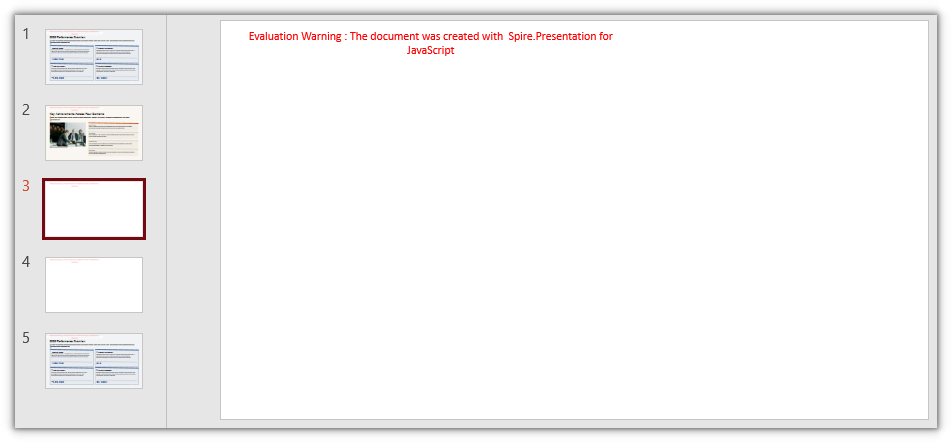
After appending three slides to the end:
Insert PowerPoint Slides at a Specific Position
Slides.Insert() takes an index that sets where the slide goes: it is inserted at that index and the slides after it shift back. The content is again decided by the arguments:
| Call | What it inserts |
|---|---|
Slides.Insert({ index, template: <layout object> }) |
A new slide built from the given layout, inserted at index |
Slides.Insert({ index, slide }) |
A copy of an existing slide inserted at index |
The layout object is obtained the same way as for Slides.Append().
The steps are as follows:
- Get the Spire.Presentation WASM module and confirm it is ready.
- Read the sample presentation and the font into the VFS, create a
Presentationobject, and load the file. - Insert slides at the given positions with
Presentation.Slides.Insert(). - Save the result with
Presentation.SaveToFile(). - Read the result back from the VFS and trigger a browser download.
The code for inserting PowerPoint slides:
function App() {
  const insertSlides = async () => {
    // Get the Spire.Presentation WASM module
    const pptModule = window.wasmModule?.spirepresentation;

    // Check whether the module is ready
    if (!pptModule) {
      alert('Spire.Presentation is not ready yet');
      return;
    }

    // Load the sample presentation and the font
    await window.spire.FetchFileToVFS('SamplePresentation.pptx', "", `${process.env.PUBLIC_URL}/data/`);
    await window.spire.FetchFileToVFS('ARIALUNI.TTF', "/Library/Fonts/", `${process.env.PUBLIC_URL}/font/`);

    // Create a Presentation instance and load the presentation
    const ppt = new pptModule.Presentation();
    ppt.LoadFromFile('SamplePresentation.pptx');

    // Insert in turn: a chosen layout, a clone of the first slide
    ppt.Slides.Insert({ index: 1, template: ppt.Masters.get_Item(0).Layouts.get_Item(1) });
    ppt.Slides.Insert({ index: 2, slide: ppt.Slides.get_Item(0) });

    // Save the result
    const outputFileName = 'SlidesInserted.pptx';
    ppt.SaveToFile({ file: outputFileName, fileFormat: pptModule.FileFormat.Pptx2013 });
    ppt.Dispose();

    // Read the generated file from the VFS and trigger a download
    const fileArray = window.dotnetRuntime.Module.FS.readFile(outputFileName);
    const blob = new Blob([fileArray], { type: 'application/vnd.openxmlformats-officedocument.presentationml.presentation' });
    const url = URL.createObjectURL(blob);
    const a = document.createElement('a');
    a.href = url;
    a.download = outputFileName;
    a.click();
    URL.revokeObjectURL(url);
  };

  return (
    <div style={{ textAlign: 'center', height: '300px' }}>
      <h1>Insert PowerPoint Slides</h1>
      <button onClick={insertSlides}>
        Insert Slides
      </button>
    </div>
  );
}

export default App;
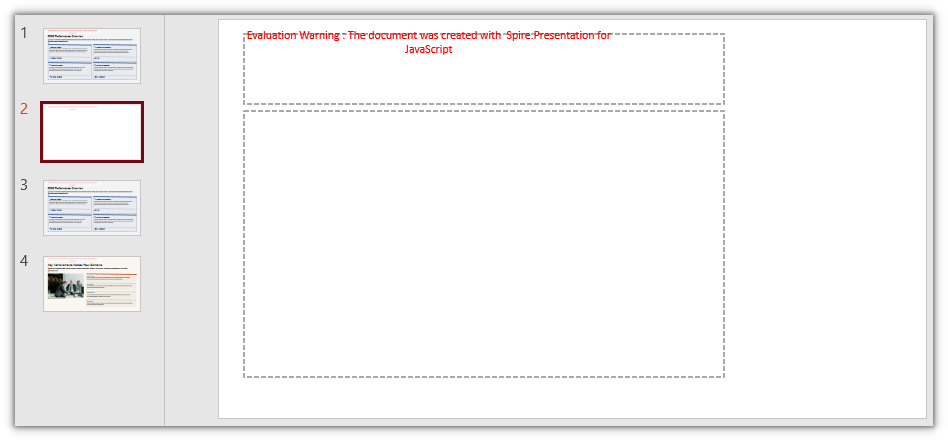
After inserting two slides in the middle:
Delete PowerPoint Slides
Spire.Presentation for JavaScript can delete slides too, with Slides.RemoveAt() or Slides.Remove(). They target a slide differently:
| Method | Based on |
|---|---|
Slides.RemoveAt(index) |
The position of the slide (0-based index) |
Slides.Remove(slide) |
The slide object itself |
Each removal shifts the index of every later slide back by one.
The steps are as follows:
- Get the Spire.Presentation WASM module and confirm it is ready.
- Read the sample presentation and the font into the VFS, create a
Presentationobject, and load the file. - Delete a slide by index with
Presentation.Slides.RemoveAt(). - Save the result with
Presentation.SaveToFile(). - Read the result back from the VFS and trigger a browser download.
The code for deleting PowerPoint slides:
function App() {
  const removeSlides = async () => {
    // Get the Spire.Presentation WASM module
    const pptModule = window.wasmModule?.spirepresentation;

    // Check whether the module is ready
    if (!pptModule) {
      alert('Spire.Presentation is not ready yet');
      return;
    }

    // Load the sample presentation and the font
    await window.spire.FetchFileToVFS('SamplePresentation.pptx', "", `${process.env.PUBLIC_URL}/data/`);
    await window.spire.FetchFileToVFS('ARIALUNI.TTF', "/Library/Fonts/", `${process.env.PUBLIC_URL}/font/`);

    // Create a Presentation instance and load the presentation
    const ppt = new pptModule.Presentation();
    ppt.LoadFromFile('SamplePresentation.pptx');

    // RemoveAt deletes by index: once the first slide is gone, the slides after it shift back
    ppt.Slides.RemoveAt(0);

    // Save the result
    const outputFileName = 'SlidesRemoved.pptx';
    ppt.SaveToFile({ file: outputFileName, fileFormat: pptModule.FileFormat.Pptx2013 });
    ppt.Dispose();

    // Read the generated file from the VFS and trigger a download
    const fileArray = window.dotnetRuntime.Module.FS.readFile(outputFileName);
    const blob = new Blob([fileArray], { type: 'application/vnd.openxmlformats-officedocument.presentationml.presentation' });
    const url = URL.createObjectURL(blob);
    const a = document.createElement('a');
    a.href = url;
    a.download = outputFileName;
    a.click();
    URL.revokeObjectURL(url);
  };

  return (
    <div style={{ textAlign: 'center', height: '300px' }}>
      <h1>Delete PowerPoint Slides</h1>
      <button onClick={removeSlides}>
        Remove Slides
      </button>
    </div>
  );
}

export default App;
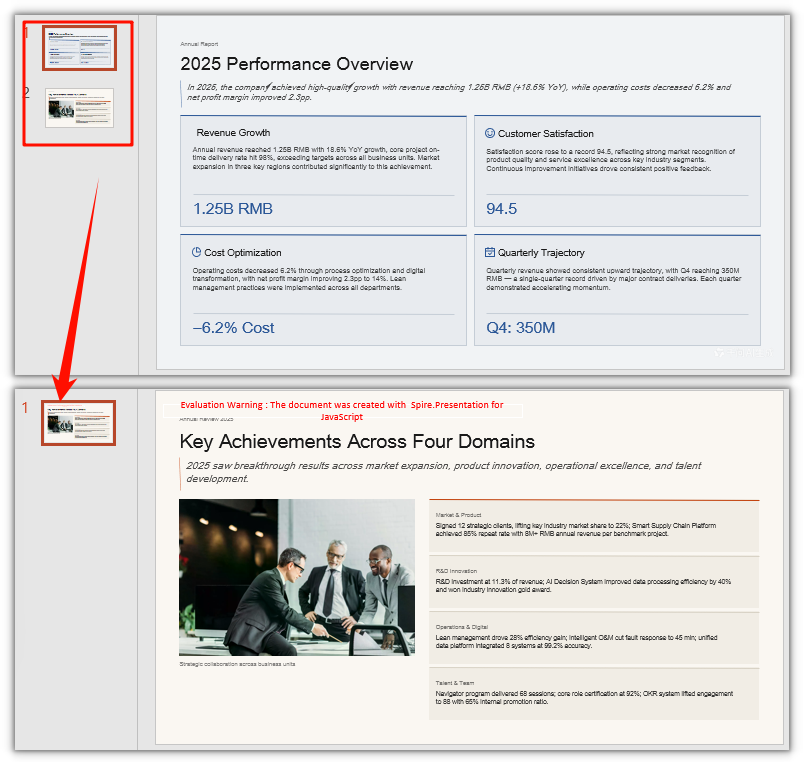
After deleting a slide:
Delete a Slide by Object
Slides.RemoveAt() above deletes by index; Slides.Remove() takes a slide object instead. To point at a page, fetch it with Slides.get_Item(index) and hand it to Slides.Remove():
// Delete by object: fetch the second slide, then remove it
ppt.Slides.Remove(ppt.Slides.get_Item(1));
FAQ
Do the files need to be uploaded to a server
Not with the usage in this article. Spire.Presentation for JavaScript runs in the browser on WebAssembly, and presentations are read and written locally through a virtual file system (VFS) — adding, deleting, and saving all happen locally, and the library itself does not send files to a server. Whether a file leaves the device in the end depends on the other code you add to the page.
Can I add or delete several slides at once
Yes, just call in a loop: call Slides.Append() / Slides.Insert() several times to add or insert; when deleting several slides, handle the indices in order, or it is easy to delete the wrong slide or go out of range (see the last question).
Why does a new Presentation already contain a blank slide
Cause: A presentation created with new Presentation() already contains one blank slide; Append() only adds to the end and does not replace it.
Fix: To start from empty, remove it first, then append the slides you need:
let ppt = new pptModule.Presentation();

// Remove the blank slide it comes with
ppt.Slides.RemoveAt(0);

// Then append as needed
ppt.Slides.Append({ template: ppt.Masters.get_Item(0).Layouts.get_Item(1) });
Why is Append() without arguments a blank page
Cause: With no arguments it creates a slide with the default (blank) layout, so there are no ready-made title or body placeholders and it looks like an empty page.
Fix: To get ready-made placeholders, pass a layout that has them, or clone an existing slide; you can also add content yourself on the new page with Shapes.AppendShape():
// Build from a layout, so the page comes with title and content placeholders
ppt.Slides.Append({ template: ppt.Masters.get_Item(0).Layouts.get_Item(1) });

// Clone the first slide, and its content comes along
ppt.Slides.Append({ slide: ppt.Slides.get_Item(0) });
Why do I delete the wrong slide, or hit an index-out-of-range error, when removing several slides
Cause: Slides is indexed by position, and every removal shifts the index of the slides after it back by one. When you delete "front to back" with fixed indices (RemoveAt(0), RemoveAt(1), …), the second step no longer deletes the slides you meant; and once an index goes past the current count (Slides.Count - 1), RemoveAt throws.
Fix: Do not use increasing fixed indices for several deletions; delete the current first slide (index 0) every time — the slides after it fill in automatically:
// Delete the first three slides: always remove index 0 and the following slides shift up
for (let i = 0; i < 3; i++) {
  ppt.Slides.RemoveAt(0);
}
Get a Free License
If you want to remove the evaluation message from the result document or lift the feature limits, contact sales for a temporary license valid for 30 days.
