The header and footer in Excel are text or images placed at the top and bottom of every printed page. The text or images in the header and footer can display basic information about the page or document, such as the file name, company logo, page number, date and time. Spire.XLS for JavaScript completes this directly in the browser based on WebAssembly, managing input/output files through a virtual file system (VFS), with no backend service required.
The PageSetup class provided by Spire.XLS for JavaScript can configure the page of an Excel workbook, including setting the header and footer. The LeftHeader, CenterHeader, RightHeader, LeftFooter, CenterFooter, RightFooter properties in this class add content to the left, center and right of the header or footer. To add fields to the header or footer or to set the text format of the header and footer, you can use the format codes listed in the table below.
| Code | Description |
|---|---|
&P |
Current page number |
&N |
Total number of pages |
&D |
Current date |
&T |
Current time |
&G |
Picture |
&A |
The worksheet name |
&F |
The file name |
&B |
Bold text |
&I |
Italic text |
&U |
Underline text |
&"Font Name" |
The font name, e.g. &"Arial" |
& + Integer |
The font size, e.g. &12 |
&K + 16-digit color code |
The font color, e.g. &KFF0000 |
This article introduces two core features:
For installation and project configuration, refer to Integrating Spire.XLS for JavaScript in a React Project. The examples below assume Spire.XLS is installed and the WebAssembly module is initialized.
Add an Image and Formatted Text to the Header
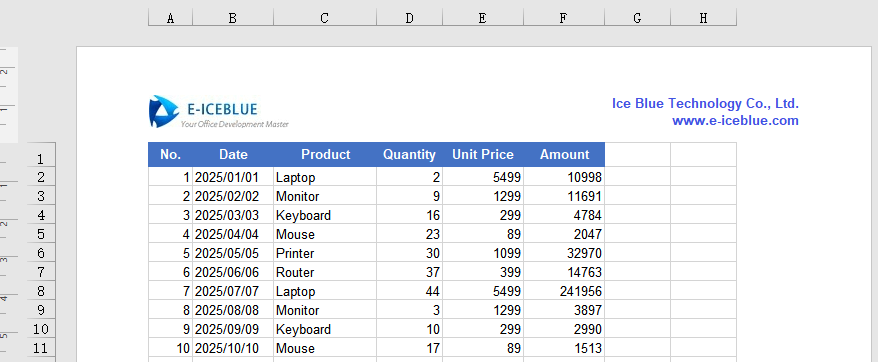
The header sits at the top of every page and is a natural place for a company logo, a document name or other fixed information. Putting the image on the left and text with its own font and color on the right gives every printed or previewed page the same identification without adding it page by page.
Adding an image and formatted text to the header:
| Syntax | Result |
|---|---|
new xlsModule.Stream(imgFileName) |
Reads the image stream from the VFS |
sheet.PageSetup.LeftHeaderImage = image |
Sets the image as the left header image |
sheet.PageSetup.LeftHeader = "&G" |
Displays the image in the left header |
sheet.PageSetup.RightHeader = "&\"Arial\"&B&10&K4253E2..." |
Writes text with the specified font, bold, size and color in the right header |
sheet.ViewMode = xlsModule.ViewMode.Layout |
Switches to Page Layout view for previewing |
workbook.SaveToFile(...) |
Saves the workbook with the header to the VFS |
The steps are:
- Load the font, Excel file and image into the VFS.
- Create a
Workbookobject, load the Excel file withLoadFromFile(), and get the first worksheet withWorkbook.Worksheets.get(0). - Use
Streamto load the image, and set it as the image source of the left header through thePageSetup.LeftHeaderImageproperty. - Use the
PageSetup.LeftHeaderproperty to display the image in the left header. - Use the
PageSetup.RightHeaderproperty to insert formatted text in the right header. - Switch the worksheet to Page Layout view with
ViewMode.Layoutto preview the header. - Use the
Workbook.SaveToFile()method to save the workbook, then release resources withWorkbook.Dispose().
Here is a complete code example showing how to add an image and formatted text to the header of a worksheet in React:
function App() {
  const addImageAndTextToHeader = async () => {
    // Get the Spire.XLS WASM module
    const xlsModule = window.wasmModule?.spirexls;

    // Check whether the module is ready
    if (!xlsModule) {
      alert('Spire.Xls is not ready yet');
      return;
    }

    // Load the font, Excel file and image into the VFS
    await window.spire.FetchFileToVFS('ARIAL.TTF', '/Library/Fonts/', `${process.env.PUBLIC_URL}/font/`);
    const inputFileName = 'HeaderFooter.xlsx';
    await window.spire.FetchFileToVFS(inputFileName, '', `${process.env.PUBLIC_URL}data/`);
    const imgFileName = 'logo.png';
    await window.spire.FetchFileToVFS(imgFileName, '', `${process.env.PUBLIC_URL}data/`);

    // Load the workbook
    const workbook = new xlsModule.Workbook();
    workbook.LoadFromFile({ fileName: inputFileName });

    // Get the first worksheet
    const sheet = workbook.Worksheets.get(0);

    // Load the image and set it as the image source of the left header
    const image = new xlsModule.Stream(imgFileName);
    sheet.PageSetup.LeftHeaderImage = image;
    sheet.PageSetup.LeftHeader = "&G";

    // Add formatted text to the right header
    sheet.PageSetup.RightHeader = "&\"Arial\"&B&10&K4253E2Ice Blue Technology Co., Ltd.  \n www.e-iceblue.com";

    // Switch to Page Layout view to preview the header and footer
    sheet.ViewMode = xlsModule.ViewMode.Layout;

    // Save the document
    const outputFileName = 'HeaderImageAndText_output.xlsx';
    workbook.SaveToFile({ fileName: outputFileName, version: xlsModule.ExcelVersion.Version2010 });

    // Release resources
    workbook.Dispose();

    // Read the converted file from the VFS and trigger a download
    const fileArray = window.dotnetRuntime.Module.FS.readFile(outputFileName);
    const blob = new Blob([fileArray], { type: 'application/vnd.openxmlformats-officedocument.spreadsheetml.sheet' });
    const url = URL.createObjectURL(blob);
    const a = document.createElement('a');
    a.href = url;
    a.download = outputFileName;
    a.click();
    URL.revokeObjectURL(url);
  };

  return (
    <div style={{ textAlign: 'center', height: '300px' }}>
      <h1>Add Image and Formatted Text to Header</h1>
      <button onClick={addImageAndTextToHeader}>
        Start
      </button>
    </div>
  );
}

export default App;
The worksheet after adding an image and formatted text to the header:
Add the Current Date and Page Number to the Footer
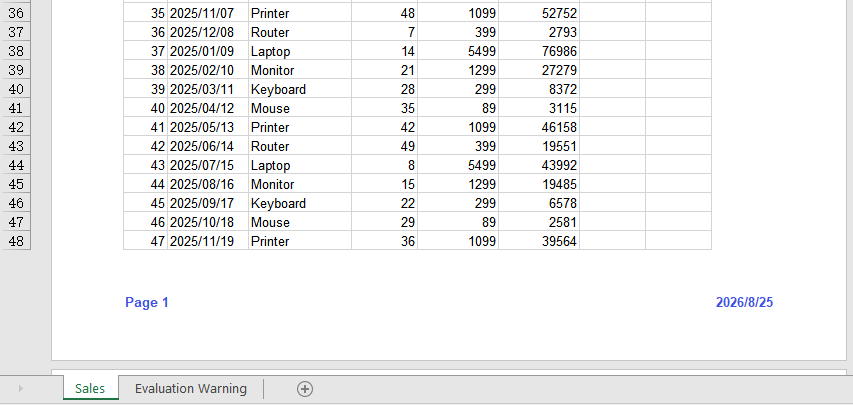
The footer sits at the bottom of every page and is commonly used for page numbers and dates. Both update automatically as pages are printed, so there is no need to maintain them in the sheet body; placing them on the left and right also helps readers find their position when paging through a report.
Adding the current date and page number to the footer:
| Syntax | Result |
|---|---|
sheet.PageSetup.LeftFooter = "...&P..." |
Shows the current page number in the left footer |
sheet.PageSetup.RightFooter = "...&D" |
Shows the current date in the right footer |
sheet.ViewMode = xlsModule.ViewMode.Layout |
Switches to Page Layout view for previewing |
workbook.SaveToFile(...) |
Saves the workbook with the footer to the VFS |
The steps are:
- Load the font and Excel file into the VFS.
- Create a
Workbookobject, load the Excel file withLoadFromFile(), and get the first worksheet withWorkbook.Worksheets.get(0). - Use the
PageSetup.LeftFooterproperty to add a formatted page number to the left footer, customizing its format as you like. - Use the
PageSetup.RightFooterproperty to add the current date to the right footer, and change the appearance of the date text as needed. - Switch the worksheet to Page Layout view with
ViewMode.Layoutto preview the footer. - Use the
Workbook.SaveToFile()method to save the workbook, then release resources withWorkbook.Dispose().
Here is a complete code example showing how to add the current date and page number to the footer of a worksheet in React:
function App() {
  const addDateAndPageNumberToFooter = async () => {
    // Get the Spire.XLS WASM module
    const xlsModule = window.wasmModule?.spirexls;

    // Check whether the module is ready
    if (!xlsModule) {
      alert('Spire.Xls is not ready yet');
      return;
    }

    // Load the font and Excel file into the VFS
    await window.spire.FetchFileToVFS('ARIAL.TTF', '/Library/Fonts/', `${process.env.PUBLIC_URL}/font/`);
    const inputFileName = 'HeaderFooter.xlsx';
    await window.spire.FetchFileToVFS(inputFileName, '', `${process.env.PUBLIC_URL}data/`);

    // Load the workbook
    const workbook = new xlsModule.Workbook();
    workbook.LoadFromFile({ fileName: inputFileName });

    // Get the first worksheet
    const sheet = workbook.Worksheets.get(0);

    // Add the page number to the left footer; &P represents the current page number
    sheet.PageSetup.LeftFooter = "&\"Arial\"&B&10&K4253E2Page &P";

    // Add the current date to the right footer; &D represents the current date
    sheet.PageSetup.RightFooter = "&\"Arial\"&B&10&K4253E2&D";

    // Switch to Page Layout view to preview the header and footer
    sheet.ViewMode = xlsModule.ViewMode.Layout;

    // Save the document
    const outputFileName = 'FooterDatePageNumber_output.xlsx';
    workbook.SaveToFile({ fileName: outputFileName, version: xlsModule.ExcelVersion.Version2010 });

    // Release resources
    workbook.Dispose();

    // Read the converted file from the VFS and trigger a download
    const fileArray = window.dotnetRuntime.Module.FS.readFile(outputFileName);
    const blob = new Blob([fileArray], { type: 'application/vnd.openxmlformats-officedocument.spreadsheetml.sheet' });
    const url = URL.createObjectURL(blob);
    const a = document.createElement('a');
    a.href = url;
    a.download = outputFileName;
    a.click();
    URL.revokeObjectURL(url);
  };

  return (
    <div style={{ textAlign: 'center', height: '300px' }}>
      <h1>Add Current Date and Page Number to Footer</h1>
      <button onClick={addDateAndPageNumberToFooter}>
        Start
      </button>
    </div>
  );
}

export default App;
The worksheet after adding the current date and page number to the footer:
FAQ
Headers and footers are not visible in Excel
Cause: An Excel worksheet is in Normal view by default, and headers and footers are only displayed in Page Layout view or when printing.
Solution: Switch the worksheet to Page Layout view in code with sheet.ViewMode = xlsModule.ViewMode.Layout;, or switch to the "Page Layout" view manually in Excel.
The picture in the header is not displayed
Cause: Only the image source (such as LeftHeaderImage) was set, but the &G placeholder was not used in the corresponding header text, or the image file was not loaded into the VFS correctly.
Solution: Make sure the image has been loaded into the VFS with FetchFileToVFS() and add &G to the header string, for example sheet.PageSetup.LeftHeader = "&G";.
How can the current page number and total page count appear together?
Cause: The footer used only the &P field, so it shows the current page number without any information about the total number of pages.
Solution: Put both &P and &N in the footer string, for example sheet.PageSetup.LeftFooter = "&P / &N";. When printing or previewing, the two fields are replaced with the current page number and the total page count respectively.
Obtain a Free License
Spire.XLS for JavaScript offers a 30-day full-featured free trial license with no functional limitations. Apply here to evaluate before purchasing.
