Importing an Excel file in Python typically involves more than just reading the file. In most cases, the data needs to be converted into Python structures such as lists, dictionaries, or other formats that can be directly used in your application.
This transformation step is important because Excel data is usually stored in a tabular format, while Python applications often require structured data for processing, integration, or storage. Depending on how the data will be used, it may be represented as a list for sequential processing, a dictionary for field-based access, custom objects for structured modeling, or a database for persistent storage.
This guide demonstrates how to import Excel file in Python and convert the data into multiple structures using Spire.XLS for Python, with practical examples for each approach.
Overall Implementation Approach and Quick Example
Importing Excel data into Python is essentially a two-step process:
- Load Excel file – Load the Excel file and access its raw data
- Transform data – Convert the data into Python structures such as lists, dictionaries, or objects
This separation is important because in real-world applications, simply reading Excel is not enough—the data must be transformed into a format that can be processed, stored, or integrated into systems.
Key Components
When importing Excel data using Spire.XLS for Python, the following components are involved:
- Workbook – Represents the entire Excel file and is responsible for loading data from disk
- Worksheet – Represents a single sheet within the Excel file
- CellRange – Represents a group of cells that contain actual data
- Data Transformation Layer – Your Python logic that converts cell values into target structures
Data Flow Overview
The typical workflow looks like this:
Excel File → Workbook → Worksheet → CellRange → Python Data Structure
Understanding this pipeline helps you design flexible import logic for different scenarios.
Quick Example: Import Excel File in Python
Before running the example, install Spire.XLS for Python using pip:
pip install spire.xls
If needed, you can also download Spire.XLS for Python manually and include it in your project.
The following example shows the simplest way to import Excel data into Python:
from spire.xls import *

workbook = Workbook()
workbook.LoadFromFile("SalesReport.xlsx")

data = []
sheet = workbook.Worksheets[0]

# Get the used cell range
cellRange = sheet.AllocatedRange

# Get the data from the first row
for col in range(cellRange.Columns.Count):
    data.append(sheet.Range[1, col +1].Value)

print(data)

workbook.Dispose()
Below is a preview of the data imported from the Excel file:
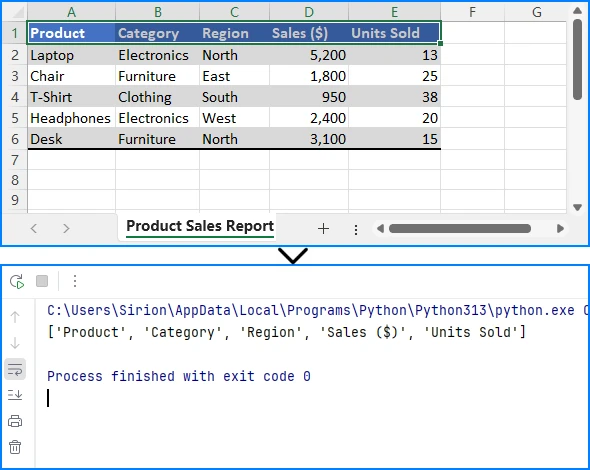
This minimal example demonstrates the fundamental workflow: initialize a workbook, load the Excel file, access the worksheet and cell data, and then dispose of the workbook to release resources.
For more advanced scenarios, such as reading Excel files from memory or handling file streams, see how to import Excel data from a stream in Python.
Import Excel Data in Python as a List
One of the simplest ways to import Excel data in Python is to convert it into a list of rows. This structure is useful for iteration and basic data processing.
Example
from spire.xls import *

# Load the Workbook
workbook = Workbook()
workbook.LoadFromFile("SalesReport.xlsx")

# Get the used range in the first worksheet
sheet = workbook.Worksheets[0]
cellRange = sheet.AllocatedRange

# Create a list to store the data
data = []
for row_index in range(cellRange.RowCount):
    row_data = []
    for cell_index in range(cellRange.ColumnCount):
        row_data.append(cellRange[row_index + 1, cell_index + 1].Value)
    data.append(row_data)

workbook.Dispose()
Technical Explanation
Importing Excel data as a list treats each row in the worksheet as a Python list, preserving the original row order.
How the code works:
- A nested loop is used to traverse the worksheet in a row-first (row-major) pattern
- The outer loop iterates through rows, while the inner loop accesses each cell
- Index offsets (
+1) are applied because Spire.XLS uses 1-based indexing
Why this design works:
- AllocatedRange limits iteration to only populated cells, improving efficiency
- Row-by-row extraction keeps the structure consistent with Excel’s layout
- The intermediate row_data list ensures clean aggregation before appending
This structure is ideal for sequential processing, simple transformations, or as a base format before converting into dictionaries or objects.
If you want to load more than just text and numeric data, see How to Read Excel Files in Python for more data types.
Import Excel Data as a Dictionary in Python
If your Excel file contains headers, importing it as a dictionary provides better data organization and access by column names.
Example
from spire.xls import *

workbook = Workbook()
workbook.LoadFromFile("SalesReport.xlsx")

sheet = workbook.Worksheets[0]
cellRange = sheet.AllocatedRange

rows = list(cellRange.Rows)

headers = [cellRange[1, cell_index + 1].Value for cell_index in range(cellRange.ColumnCount)]

data_dict = []
for row in rows[1:]:
    row_dict = {}
    for i, cell in enumerate(row.Cells):
        row_dict[headers[i]] = cell.Value
    data_dict.append(row_dict)

workbook.Dispose()
Technical Explanation
Importing Excel data as a dictionary converts each row into a key-value structure using column headers.
How the code works:
- The first row is extracted as headers
- Each subsequent row is iterated and processed
- Cell values are mapped to headers using their column index
Why this design works:
- Both headers and row cells follow the same column order, enabling simple index-based mapping
- This removes reliance on fixed column positions
- The result is a self-descriptive structure with named fields
This method is useful when you need structured data access, such as working with JSON, APIs, or labeled datasets.
Import Excel Data into Custom Objects
For structured applications, you may need to import Excel data into Python objects to maintain type safety and encapsulate business logic.
Example
class Employee:
    def __init__(self, name, age, department):
        self.name = name
        self.age = age
        self.department = department

from spire.xls import *
from spire.xls.common import *

workbook = Workbook()
workbook.LoadFromFile("EmployeeData.xlsx")

sheet = workbook.Worksheets[0]
cellRange = sheet.AllocatedRange

employees = []
for row in list(cellRange.Rows)[1:]:
    name = row.Cells[0].Value
    age = int(row.Cells[1].Value) if row.Cells[1].Value else None
    department = row.Cells[2].Value

    emp = Employee(name, age, department)
    employees.append(emp)

workbook.Dispose()
Technical Explanation
Importing Excel data into objects maps each row to a structured class instance.
How the code works:
- A class is defined to represent the data model
- Each row is read and its values are extracted
- Values are passed into the class constructor to create objects
Why this design works:
- The constructor acts as a controlled transformation point
- It allows validation, type conversion, or preprocessing
- Data is no longer loosely structured, but aligned with domain logic
This is ideal for applications with clear data models, such as backend systems or business logic layers.
Import Excel Data to Database in Python
In many applications, Excel data needs to be stored in a database for persistent storage and querying.
Example
import sqlite3
from spire.xls import *

# Connect to SQLite database
conn = sqlite3.connect("sales.db")
cursor = conn.cursor()

# Create table matching the Excel structure
cursor.execute("""
CREATE TABLE IF NOT EXISTS sales (
    product TEXT,
    category TEXT,
    region TEXT,
    sales REAL,
    units_sold INTEGER
)
""")

# Load the Excel file
workbook = Workbook()
workbook.LoadFromFile("Sales.xlsx")

# Access the first worksheet
sheet = workbook.Worksheets[0]
rows = list(sheet.AllocatedRange.Rows)

# Iterate through rows (skip header row)
for row in rows[1:]:
    product = row.Cells[0].Value
    category = row.Cells[1].Value
    region = row.Cells[2].Value

    # Remove thousand-separators and convert to float
    sales_text = row.Cells[3].Value
    sales = float(str(sales_text).replace(",", "")) if sales_text else 0

    # Convert units sold to integer
    units_text = row.Cells[4].Value
    units_sold = int(units_text) if units_text else 0

    # Insert data into the database
    cursor.execute(
        "INSERT INTO sales VALUES (?, ?, ?, ?, ?)",
        (product, category, region, sales, units_sold)
    )

# Commit changes and close connection
conn.commit()
conn.close()

# Release Excel resources
workbook.Dispose()
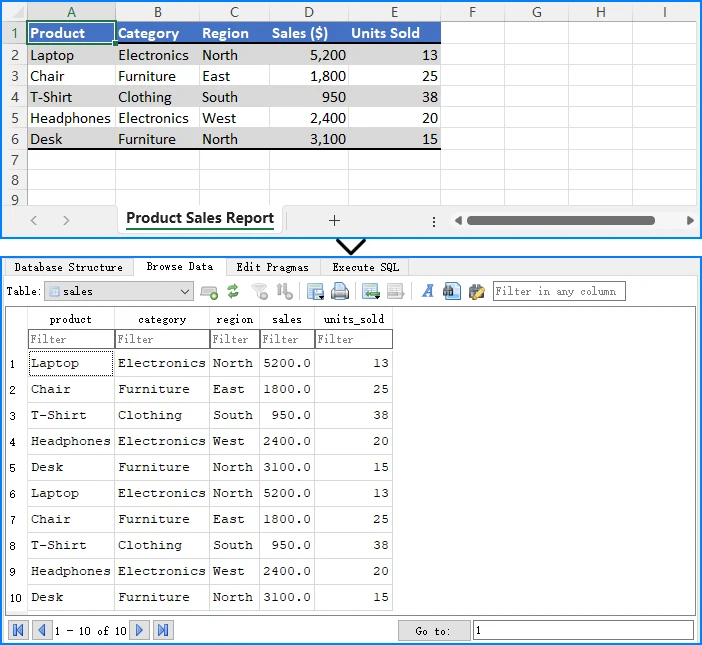
Here is a preview of the Excel data and the SQLite database structure:
Technical Explanation
Importing Excel data into a database converts each row into a persistent record.
How the code works:
- A database connection is established and a table is created
- The table schema is aligned with the Excel structure
- Each row is read and inserted using parameterized SQL queries
Why this design works:
- Schema alignment ensures consistent data mapping
- Data normalization (e.g., numeric conversion) improves compatibility
- Parameterized queries provide safety and proper type handling
When to use this approach:
This approach is suitable for data storage, querying, and integration into larger data pipelines.
For a more detailed guide on importing Excel data into Databases, check out How to Transfer Data Between Excel Files and Databases.
Why Use Spire.XLS for Importing Excel Data
The examples in this guide use Spire.XLS for Python because it provides a clear and consistent way to access and transform Excel data. The main advantages in this context include:
-
Structured Object Model The library exposes components such as Workbook, Worksheet, and CellRange, which align directly with how Excel data is organized. This makes the data flow easier to understand and implement. See more details on Spire.XLS for Python API Reference.
-
Focused Data Access Layer Instead of handling low-level file parsing, you can work directly with cell values and ranges, allowing the import logic to focus on data transformation rather than file structure.
-
Format Compatibility It supports common Excel formats, such as XLS and XLSX, and other spreadsheet formats, such as CSV, ODS, and OOXML, enabling the same import logic to be applied across different file types.
-
No External Dependencies Excel files can be processed without requiring Microsoft Excel to be installed, which is important for backend services and automated environments.
Common Pitfalls
Incorrect File Path
Ensure the Excel file path is correct and accessible from your script. Use absolute paths or verify the current working directory.
import os
print(os.getcwd())  # Check current directory
Missing Headers
When importing as a dictionary, verify that your Excel file has headers in the first row. Otherwise, the keys will be incorrect.
Memory Management
Always dispose of the workbook object after processing to release resources, especially when processing large files.
workbook.Dispose()
Data Type Conversion
Excel cells may return different data types than expected. Validate and convert data types as needed for your application.
Import vs Read Excel in Python
In Python, "reading" and "importing" Excel files refer to related but distinct steps in data processing.
Read Excel focuses on accessing raw file content. This typically involves retrieving cell values, rows, or specific ranges without changing how the data is structured.
Import Excel includes both reading and transformation. After extracting the data, it is converted into structures such as lists, dictionaries, objects, or database records so that it can be used directly within an application.
In practice, reading is a subset of importing. The distinction lies in the goal—reading retrieves data, while importing prepares it for use.
Conclusion
Importing Excel file in Python is not just about reading data—it's about converting it into structures that your application can use effectively. In this guide, you learned how to import Excel file in Python as a list, convert Excel data into dictionaries, map Excel data into Python objects, and import Excel data into a database.
With Spire.XLS for Python, you can easily import Excel data into different structures with minimal code. The library provides a consistent API for handling various Excel formats and complex content, making it suitable for a wide range of data processing scenarios.
To evaluate the full performance of Spire.XLS for Python, you can apply for a 30 day trial license.
FAQ
What does it mean to import Excel file in Python?
Importing Excel means converting Excel data into Python structures such as lists, dictionaries, or databases for further processing and integration into your applications.
How do I import Excel data into Python?
You can use libraries like Spire.XLS for Python to load Excel files and convert their content into usable Python data structures. The process involves loading the workbook, accessing the worksheet, and iterating through cells to extract data.
Can I import Excel data into a database using Python?
Yes, you can read Excel data and insert it into databases like SQLite, MySQL, or PostgreSQL using Python. This approach is commonly used for data migration and backend system integration.
What is the best structure for importing Excel data?
The best structure depends on your use case. Lists are suitable for simple iteration, dictionaries for structured data access by column names, objects for type safety and business logic, and databases for persistent storage and querying.
Do I need Microsoft Excel installed to import Excel files in Python?
No, libraries like Spire.XLS for Python work independently and do not require Microsoft Excel to be installed on the system.
