Background
Excel is widely used to organize data manipulations like arithmetic operations. Excel provides many built-in functions which automate a number of types of calculation. Functions are pre-programmed formulate for example, the square-root function, trigonometric functions, logarithms etc. Excel has more than 300 functions covering a range of statistical, mathematical, financial and logical operations. There is no doubt that using a function offers a shortcut method.
Calculate Formulas in XLS Document
Microsoft Excel is a powerful tool which has many uses, the most basic feature of which is performing functions. The aim of this article is to help you perform simple arithmetic operations on values in programming by using excel functions. Spire.Xls for .NET can help you easily create a new excel document or load an existing excel document into program, and calculate data of designated cell by function. Applied in Console platform, WinForm and Asp.net, It provide different types of mathematical functions, statistical functions , logic functions ,and string functions to calculate data with C# codes.
The following is the method example of using Console application to show how Spire.XLS for .NET realizes the calculation formula:
Step 1: Build a console application, and add spire.XLS.dll, Spire.Common.dll assembly.
Step 2: Instantiate an object of Spire.Xls.WorkBook, and add a “WorkSheet” in WorkBook object.
Workbook workbook = new Workbook();
Worksheet sheet = workbook. Worksheets[0];
Step 3: Set the value and format in Cell A1 and Cell A3.veiwing the C# Code.
//set Column A, B, C width
sheet.SetColumnWidth(1, 32);
sheet.SetColumnWidth(2, 16);
sheet.SetColumnWidth(3, 16);

// Set value of Cell A1
sheet.Range[currentRow++, 1].Value = "Examples of formulas :";
// Set value of Cell A2.
sheet.Range[++currentRow, 1].Value = "Test data:";

// Set text format Of Cell A1
CellRange range = sheet.Range["A1"];
range.Style.Font.IsBold = true;
range.Style.FillPattern = ExcelPatternType.Solid;
range.Style.KnownColor = ExcelColors.LightGreen1;
range.Style.Borders[BordersLineType.EdgeBottom].LineStyle = LineStyleType.Medium;
Step 4: Set some cells value and then to sum up some cells data and the results will be displayed in one of the cells.
sheet.Range[currentRow, 2].NumberValue = 7.3;
sheet.Range[currentRow, 3].NumberValue = 5;
sheet.Range[currentRow, 4].NumberValue = 8.2;
sheet.Range[currentRow, 5].NumberValue = 4;
sheet.Range[currentRow, 6].NumberValue = 3;
sheet.Range[currentRow, 7].NumberValue = 11.3;
//Create arithmetic expression string about cells

currentFormula = "=Sheet1!$B$3 + Sheet1!$C$3+Sheet1!$D$3+Sheet1!$E$3+Sheet1!$F$3+Sheet1!$G$3";
//Caculate arithmetic expression about cells
formulaResult = workbook.CaculateFormulaValue(currentFormula);
value = formulaResult.ToString();
sheet.Range[currentRow, 2].Value = value;
Step 5: Respectively set value and text format of Cell A4, B4.
sheet.Range[++currentRow, 1].Value = "Formulas"; ;
sheet.Range[currentRow, 2].Value = "Results";
range = sheet.Range[currentRow, 1, currentRow, 2];
range.Style.Font.IsBold = true;
range.Style.KnownColor = ExcelColors.LightGreen1;
range.Style.FillPattern = ExcelPatternType.Solid;
range.Style.Borders[BordersLineType.EdgeBottom].LineStyle = LineStyleType.Medium;
Step 6: Realize calculation simple expression.
// Create arithmetic tables enclosed type string
currentFormula = "=33*3/4-2+10";
sheet.Range[++currentRow, 1].Text = currentFormula;
// Caculate arithmetic expression
formulaResult = workbook.CaculateFormulaValue(currentFormula);
value = formulaResult.ToString();
sheet.Range[currentRow, 2].Value = value;
Step 7: Realize some mathematic functions.
//absolute value function .
currentFormula = "=ABS(-1.21)";
sheet.Range[currentRow, 1].Text = currentFormula;
sheet.Range[currentRow++, 2].Formula = currentFormula;
Step 8: Realize some logic function.
//NOT function
//Create NOT function string
currentFormula = "=NOT(true)";
sheet.Range[currentRow, 1].Text = currentFormula;
//Caculate NOT function
formulaResult = workbook.CaculateFormulaValue(currentFormula);
value = formulaResult.ToString();
sheet.Range[currentRow, 2].Value = value;
sheet.Range[currentRow, 2].HorizontalAlignment = HorizontalAlignType.Right;
Step 9: Realize some string handling functions.
//Get the substring
// Build substring function
currentFormula = "=MID(\"world\",4,2)";
sheet.Range[++currentRow, 1].Text = currentFormula;
//Caculate substring function
formulaResult = workbook.CaculateFormulaValue(currentFormula);
value = formulaResult.ToString();
sheet.Range[currentRow, 2].Value = value;
sheet.Range[currentRow, 2].HorizontalAlignment = HorizontalAlignType.Right;
Step 10: Realize a random function.
// Random function
// Create random function string.
currentFormula = "=RAND()";
sheet.Range[++currentRow, 1].Text = currentFormula;
//Caculate random function
formulaResult = workbook.CaculateFormulaValue(currentFormula);
value = formulaResult.ToString();
sheet.Range[currentRow, 2].Value = value;
Step 11: Save workbook object as file.
workbook.SaveToFile("formulaTest.xls",ExcelVersion.Version97to2003);
Viewing the full c# code
using Spire.Xls;

namespace XlsCalculateFormula
{
    class Program
    {
        static void Main(string[] args)
        {
            // Instantiate a new Workbook object
            Workbook workbook = new Workbook();

            // Access the first worksheet in the workbook
            Worksheet sheet = workbook.Worksheets[0];

            int currentRow = 1;
            string currentFormula = string.Empty;
            object formulaResult = null;
            string value = string.Empty;

            // Set column widths for columns A, B, and C (1-based index)
            sheet.SetColumnWidth(1, 32);
            sheet.SetColumnWidth(2, 16);
            sheet.SetColumnWidth(3, 16);

            // Set the value of Cell A1
            sheet.Range[currentRow++, 1].Value = "Examples of formulas :";
            // Set the value of Cell A2
            sheet.Range[++currentRow, 1].Value = "Test data:";
            // Set the style of Cell A1
            CellRange range = sheet.Range["A1"];
            range.Style.Font.IsBold = true;
            range.Style.FillPattern = ExcelPatternType.Solid;
            range.Style.KnownColor = ExcelColors.LightGreen1;
            range.Style.Borders[BordersLineType.EdgeBottom].LineStyle = LineStyleType.Medium;

            // Populate test data in row 3 (columns B to G)
            sheet.Range[currentRow, 2].NumberValue = 7.3;
            sheet.Range[currentRow, 3].NumberValue = 5; ;
            sheet.Range[currentRow, 4].NumberValue = 8.2;
            sheet.Range[currentRow, 5].NumberValue = 4;
            sheet.Range[currentRow, 6].NumberValue = 3;
            sheet.Range[currentRow, 7].NumberValue = 11.3;
            // Define a formula that sums the values in cells B3 through G3
            currentFormula = "=Sheet1!$B$3 + Sheet1!$C$3+Sheet1!$D$3+Sheet1!$E$3+Sheet1!$F$3+Sheet1!$G$3";
            // Calculate the result of the formula
            formulaResult = workbook.CalculateFormulaValue(currentFormula);
            value = formulaResult.ToString();
            sheet.Range[currentRow, 2].Value = value;


            // Set the value and format of two head cell
            sheet.Range[++currentRow, 1].Value = "Formulas"; ;
            sheet.Range[currentRow, 2].Value = "Results";
            sheet.Range[currentRow, 2].HorizontalAlignment = HorizontalAlignType.Right;
            range = sheet.Range[currentRow, 1, currentRow, 2];
            range.Style.Font.IsBold = true;
            range.Style.KnownColor = ExcelColors.LightGreen1;
            range.Style.FillPattern = ExcelPatternType.Solid;
            range.Style.Borders[BordersLineType.EdgeBottom].LineStyle = LineStyleType.Medium;

            // --- Arithmetic Expression Example ---

            // Define a basic arithmetic formula
            currentFormula = "=33*3/4-2+10";
            sheet.Range[++currentRow, 1].Text = currentFormula;
            // Calculate and display the result
            formulaResult = workbook.CalculateFormulaValue(currentFormula);
            value = formulaResult.ToString();
            sheet.Range[currentRow, 2].Value = value;

            // --- Mathematical Function: ABS (Absolute Value) ---

            // Define an ABS function formula
            currentFormula = "=ABS(-1.21)";
            sheet.Range[++currentRow, 1].Text = currentFormula;
            // Calculate and display the absolute value
            formulaResult = workbook.CalculateFormulaValue(currentFormula);
            value = formulaResult.ToString();
            sheet.Range[currentRow, 2].Value = value;


            // --- Statistical Function: SUM ---

            // Define a SUM function formula
            currentFormula = "=SUM(18,29)";
            sheet.Range[++currentRow, 1].Text = currentFormula;
            // Calculate and display the sum
            formulaResult = workbook.CalculateFormulaValue(currentFormula);
            value = formulaResult.ToString();
            sheet.Range[currentRow, 2].Value = value;

            // --- Logical Function: NOT ---
            // Define a NOT function formula
            currentFormula = "=NOT(true)";
            sheet.Range[currentRow, 1].Text = currentFormula;
            // Calculate and display the logical result
            formulaResult = workbook.CalculateFormulaValue(currentFormula);
            value = formulaResult.ToString();
            sheet.Range[currentRow, 2].Value = value;
            sheet.Range[currentRow, 2].HorizontalAlignment = HorizontalAlignType.Right;

            // --- Text Function: MID (Substring Extraction) ---
            // Define a MID function to extract characters from a string
            currentFormula = "=MID(\"world\",4,2)";
            sheet.Range[++currentRow, 1].Text = currentFormula;
            // Calculate and display the substring result
            formulaResult = workbook.CalculateFormulaValue(currentFormula);
            value = formulaResult.ToString();
            sheet.Range[currentRow, 2].Value = value;
            sheet.Range[currentRow, 2].HorizontalAlignment = HorizontalAlignType.Right;

            // --- Random Number Function: RAND() ---
            // Define a RAND function to generate a random number between 0 and 1
            currentFormula = "=RAND()";
            sheet.Range[++currentRow, 1].Text = currentFormula;
            // Calculate and display the random value
            formulaResult = workbook.CalculateFormulaValue(currentFormula);
            value = formulaResult.ToString();
            sheet.Range[currentRow, 2].Value = value;

            // Save the workbook to a file
            workbook.SaveToFile("formulaTest2.xls", ExcelVersion.Version97to2003);
            System.Diagnostics.Process.Start("formulaTest2.xls");
        }
    }
}
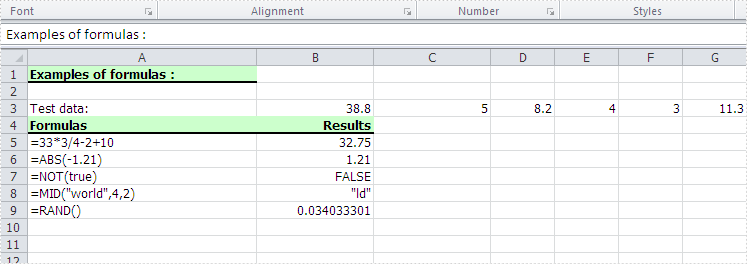
Screenshot: