Cómo dividir un PDF en C# .NET: Guía práctica
Tabla de contenidos
Instalar con NuGet
PM> Install-Package Spire.PDF
Enlaces relacionados
En el mundo del desarrollo de software y la gestión de documentos, saber cómo dividir PDF en C# es una habilidad fundamental para los desarrolladores de .NET. Ya sea que necesite separar informes grandes en partes más pequeñas, extraer páginas específicas para su distribución u organizar el contenido de manera más eficiente, dividir archivos PDF mediante programación puede ahorrar una cantidad significativa de tiempo y esfuerzo.

Esta guía explora cómo dividir archivos PDF en C# utilizando la biblioteca Spire.PDF for .NET — una solución de procesamiento de PDF robusta y sin dependencias.
- Introducción a Spire.PDF for .NET
- Dividir un documento PDF en C# - Ejemplos de código
- Consejos avanzados para la división de PDF
- Preguntas frecuentes (demos en VB.NET)
- Conclusión
Introducción a Spire.PDF for .NET
Spire.PDF es una biblioteca de .NET rica en funciones que ofrece:
- Capacidades completas de manipulación de PDF
- Cero dependencias de Adobe Acrobat
- Soporte para .NET Framework, .NET Core, .NET 5+, MonoAndroid y Xamarin.iOS
Antes de que pueda comenzar a dividir un PDF en múltiples archivos en aplicaciones de C#, es necesario instalar la biblioteca a través del Administrador de paquetes NuGet.
- Abra su proyecto de C# en Visual Studio.
- Haga clic con el botón derecho en el proyecto en el Explorador de soluciones y seleccione "Administrar paquetes NuGet".
- En la ventana del Administrador de paquetes NuGet, busque "Spire.PDF".
- Seleccione la versión apropiada de la biblioteca y haga clic en "Instalar". NuGet descargará y agregará las referencias necesarias a su proyecto.
Método alternativo: descargue manualmente la DLL desde el sitio web oficial de Spire.PDF y haga referencia a ella en su proyecto.
Dividir un documento PDF en C# - Ejemplos de código
Ahora que la biblioteca está configurada en su proyecto, veamos cómo dividir un PDF en .NET. Existen diferentes escenarios para dividir un PDF, como dividirlo en páginas individuales o dividirlo en múltiples PDF según un número específico de páginas. Cubriremos ambos casos comunes.
Dividir PDF en páginas individuales
El siguiente es el ejemplo de código en C# para dividir un documento PDF en archivos PDF individuales, cada uno con una sola página del documento original:
using Spire.Pdf;

namespace SplitPDFIntoMultipleFiles
{
    class Program
    {
        static void Main(string[] args)
        {
            // Especificar la ruta del archivo de entrada
            string inputFile = "C:\\Users\\Administrator\\Desktop\\Terms of Service.pdf";

            // Especificar el directorio de salida
            string outputDirectory = "C:\\Users\\Administrator\\Desktop\\Output\\";

            // Crear un objeto PdfDocument
            PdfDocument pdf = new PdfDocument();

            // Cargar un archivo PDF
            pdf.LoadFromFile(inputFile);

            // Dividir el PDF en múltiples PDF de una página
            pdf.Split(outputDirectory + "output-{0}.pdf", 1);
        }
    }
}
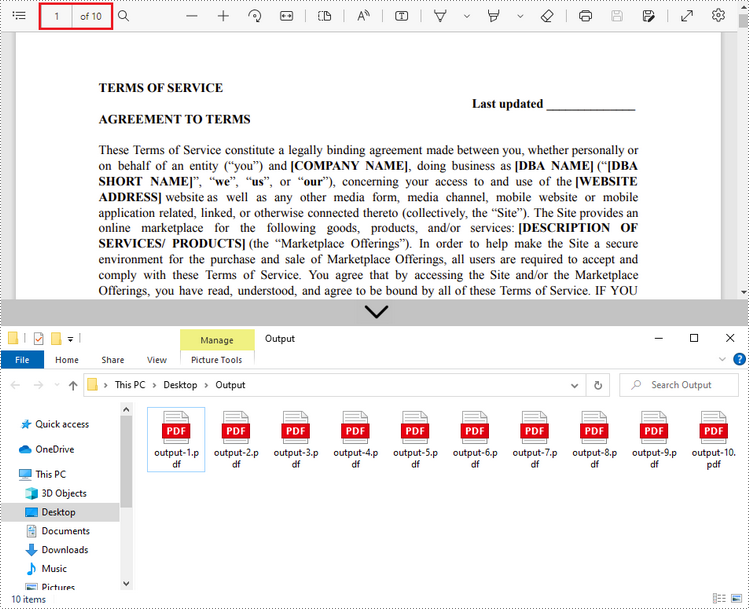
Al llamar al método Split(), puede dividir el documento PDF de entrada (que contiene 10 páginas) en 10 archivos individuales.
Dividir PDF en múltiples archivos por rangos de páginas
Suponga que desea dividir un PDF grande en varios PDF más pequeños, cada uno con un número específico de páginas. Puede crear dos o más documentos PDF nuevos y luego importar la página o el rango de páginas del PDF de origen a ellos.
Estos son los pasos generales para dividir un archivo PDF por páginas en C#:
- Cargue el PDF de origen.
- Cree dos PDF vacíos para contener las páginas divididas.
- Dividir páginas de PDF:
- Use el método InsertPage() para importar una página específica del PDF de origen al primer PDF nuevo.
- Use el método InsertPageRange() para importar un rango de páginas del PDF de origen al segundo PDF nuevo.
- Guarde ambos PDF nuevos en el directorio de salida.
Ejemplo de código en C#:
using Spire.Pdf;

namespace SplitPdfByPageRanges
{
    class Program
    {
        static void Main(string[] args)
        {
            // Especificar la ruta del archivo de entrada
            string inputFile = "C:\\Users\\Administrator\\Desktop\\Terms of Service.pdf";

            // Especificar el directorio de salida
            string outputDirectory = "C:\\Users\\Administrator\\Desktop\\Output\\";

            // Cargar el archivo PDF de origen al inicializar el objeto PdfDocument
            PdfDocument sourcePdf = new PdfDocument(inputFile);

            // Crear dos nuevos documentos PDF
            PdfDocument pdf1 = new PdfDocument();
            PdfDocument pdf2 = new PdfDocument();

            // Insertar la primera página del PDF de origen en el primer documento
            pdf1.InsertPage(sourcePdf, 0);

            // Insertar el resto de las páginas del PDF de origen en el segundo documento
            pdf2.InsertPageRange(sourcePdf, 1, sourcePdf.Pages.Count - 1);

            // Guardar los dos documentos PDF
            pdf1.SaveToFile(outputDirectory + "output-1.pdf");
            pdf2.SaveToFile(outputDirectory + "output-2.pdf");
        }
    }
}
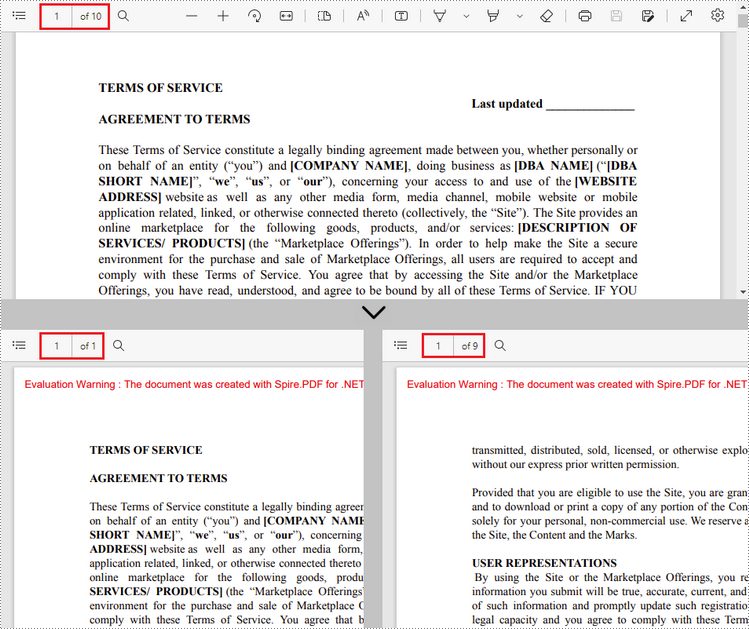
Al ejecutar este código, puede extraer la página 1 y las páginas 2-10 del PDF de entrada en 2 archivos PDF separados.
Consejos avanzados para la división de PDF
-
Rangos de páginas dinámicos: para dividir en múltiples rangos (por ejemplo, páginas 1-3, 5-7), cree objetos PdfDocument adicionales y ajuste el índice de inserción de páginas del método InsertPageRange().
-
Convenciones de nomenclatura de archivos: use patrones descriptivos al nombrar los archivos de salida a través del parámetro destFilePattern del método Split() para organizar mejor los archivos (por ejemplo, report_part-{0}.pdf).
-
Manejo de errores: agregue bloques try-catch para manejar excepciones durante las operaciones de archivo.
try
{
    /* Código de división de PDF */
}
catch (Exception ex)
{
    Console.WriteLine("Error: " + ex.Message);
}
Preguntas frecuentes (demos en VB.NET)
P1: ¿Cómo elimino las marcas de agua en el archivo de salida?
R: Puede solicitar una licencia de prueba aquí (válida por 30 días) para eliminar las marcas de agua y las limitaciones. O puede probar la edición Community gratuita.
P2: ¿La división conserva los hipervínculos/campos de formulario?
R:
| Elementos | ¿Se conserva? |
| Hipervínculos | ✅ Sí |
| Campos de formulario | ✅ Sí |
| Anotaciones | ✅ Sí |
| Firmas digitales | ❌ No (requiere el contexto completo del documento) |
P3: ¿Puedo dividir una sola página de PDF en múltiples páginas/archivos?
R: Sí. Spire.PDF también admite la división horizontal o vertical de una página de PDF en dos o más páginas. Tutorial: Dividir una página de PDF en múltiples páginas en C#
P4: ¿Existe una demostración en VB.NET para dividir archivos PDF?
R: Como biblioteca nativa de .NET, Spire.PDF funciona de manera idéntica tanto en C# como en VB.NET. Por lo tanto, puede usar alguna herramienta de conversión de código (por ejemplo, Telerik Code Converter) para traducir instantáneamente los ejemplos de C# a VB.NET.
Conclusión
Spire.PDF simplifica la división de PDF en C# con métodos intuitivos. Ya sea que necesite una división básica página por página o una división más avanzada basada en rangos de páginas, la biblioteca proporciona la funcionalidad necesaria. Siguiendo esta guía, puede implementar eficientemente la división de PDF en sus aplicaciones de C# o VB.NET, mejorando la productividad y la gestión de documentos.
Dónde obtener ayuda
Consejo profesional: combine la división con las funciones de conversión de Spire.PDF para extraer páginas como imágenes u otros formatos de archivo.
C# .NET에서 PDF 나누는 방법: 실용 가이드
목차
NuGet으로 설치
PM> Install-Package Spire.PDF
관련 링크
소프트웨어 개발 및 문서 관리 분야에서 C#에서 PDF를 분할하는 방법은 .NET 개발자에게 필수적인 기술입니다. 큰 보고서를 작은 부분으로 나누거나, 배포를 위해 특정 페이지를 추출하거나, 콘텐츠를 더 효율적으로 구성해야 할 때 프로그래밍 방식으로 PDF 파일을 분할하면 상당한 시간과 노력을 절약할 수 있습니다.
이 가이드에서는 강력하고 종속성이 없는 PDF 처리 솔루션인 Spire.PDF for .NET 라이브러리를 사용하여 C#에서 PDF 파일을 분할하는 방법을 살펴봅니다.
Spire.PDF for .NET 소개
Spire.PDF는 다음과 같은 기능을 제공하는 풍부한 기능의 .NET 라이브러리입니다.
- 포괄적인 PDF 조작 기능
- Adobe Acrobat에 대한 종속성 없음
- .NET Framework, .NET Core, .NET 5+, MonoAndroid 및 Xamarin.iOS 지원
C# 애플리케이션에서 PDF를 여러 파일로 분할하기 전에 NuGet 패키지 관리자를 통해 라이브러리를 설치해야 합니다.
- Visual Studio에서 C# 프로젝트를 엽니다.
- 솔루션 탐색기에서 프로젝트를 마우스 오른쪽 버튼으로 클릭하고 "NuGet 패키지 관리"를 선택합니다.
- NuGet 패키지 관리자 창에서 "Spire.PDF"를 검색합니다.
- 적절한 버전의 라이브러리를 선택하고 "설치"를 클릭합니다. NuGet이 필요한 참조를 다운로드하여 프로젝트에 추가합니다.
대체 방법: Spire.PDF 공식 웹사이트에서 DLL을 수동으로 다운로드하여 프로젝트에서 참조합니다.
C#에서 PDF 문서 분할 - 코드 예제
이제 라이브러리가 프로젝트에 설정되었으므로 .NET에서 PDF를 분할하는 방법을 살펴보겠습니다. PDF를 개별 페이지로 분할하거나 특정 페이지 수에 따라 여러 PDF로 분할하는 등 다양한 시나리오가 있습니다. 두 가지 일반적인 경우를 모두 다룰 것입니다.
PDF를 개별 페이지로 분할
다음은 PDF 문서를 각기 원본 문서의 한 페이지만 포함하는 개별 PDF 파일로 분할하는 C# 코드 예제입니다.
using Spire.Pdf;

namespace SplitPDFIntoMultipleFiles
{
    class Program
    {
        static void Main(string[] args)
        {
            // 입력 파일 경로 지정
            string inputFile = "C:\\Users\\Administrator\\Desktop\\Terms of Service.pdf";

            // 출력 디렉토리 지정
            string outputDirectory = "C:\\Users\\Administrator\\Desktop\\Output\\";

            // PdfDocument 객체 생성
            PdfDocument pdf = new PdfDocument();

            // PDF 파일 로드
            pdf.LoadFromFile(inputFile);

            // PDF를 여러 개의 한 페이지 PDF로 분할
            pdf.Split(outputDirectory + "output-{0}.pdf", 1);
        }
    }
}
Split() 메서드를 호출하여 입력 PDF 문서(10페이지 포함)를 10개의 개별 파일로 분할할 수 있습니다.
페이지 범위별로 PDF를 여러 파일로 분할
큰 PDF를 각각 지정된 수의 페이지를 포함하는 여러 개의 작은 PDF로 분할하려는 경우 두 개 이상의 새 PDF 문서를 만든 다음 원본 PDF에서 페이지 또는 페이지 범위를 가져올 수 있습니다.
C#에서 페이지별로 PDF 파일을 분할하는 일반적인 단계는 다음과 같습니다.
- 원본 PDF를 로드합니다.
- 분할된 페이지를 담을 두 개의 빈 PDF를 만듭니다.
- PDF 페이지 분할:
- InsertPage() 메서드를 사용하여 원본 PDF에서 지정된 페이지를 첫 번째 새 PDF로 가져옵니다.
- InsertPageRange() 메서드를 사용하여 원본 PDF에서 페이지 범위를 두 번째 새 PDF로 가져옵니다.
- 두 개의 새 PDF를 모두 출력 디렉토리에 저장합니다.
C# 샘플 코드:
using Spire.Pdf;

namespace SplitPdfByPageRanges
{
    class Program
    {
        static void Main(string[] args)
        {
            // 입력 파일 경로 지정
            string inputFile = "C:\\Users\\Administrator\\Desktop\\Terms of Service.pdf";

            // 출력 디렉토리 지정
            string outputDirectory = "C:\\Users\\Administrator\\Desktop\\Output\\";

            // PdfDocument 객체를 초기화하면서 원본 PDF 파일 로드
            PdfDocument sourcePdf = new PdfDocument(inputFile);

            // 두 개의 새 PDF 문서 생성
            PdfDocument pdf1 = new PdfDocument();
            PdfDocument pdf2 = new PdfDocument();

            // 원본 PDF의 첫 페이지를 첫 번째 문서에 삽입
            pdf1.InsertPage(sourcePdf, 0);

            // 원본 PDF의 나머지 페이지를 두 번째 문서에 삽입
            pdf2.InsertPageRange(sourcePdf, 1, sourcePdf.Pages.Count - 1);

            // 두 PDF 문서 저장
            pdf1.SaveToFile(outputDirectory + "output-1.pdf");
            pdf2.SaveToFile(outputDirectory + "output-2.pdf");
        }
    }
}
이 코드를 실행하여 입력 PDF의 1페이지와 2-10페이지를 2개의 별도 PDF 파일로 추출할 수 있습니다.
PDF 분할을 위한 고급 팁
-
동적 페이지 범위: 여러 범위(예: 1-3페이지, 5-7페이지)로 분할하려면 추가 PdfDocument 객체를 만들고 InsertPageRange() 메서드의 페이지 삽입 인덱스를 조정하십시오.
-
파일 이름 지정 규칙: Split() 메서드의 destFilePattern 매개변수를 통해 출력 파일의 이름을 지정할 때 설명적인 패턴을 사용하여 파일을 더 잘 정리하십시오(예: report_part-{0}.pdf).
-
오류 처리: 파일 작업 중 예외를 처리하기 위해 try-catch 블록을 추가하십시오.
try
{
    /* PDF 분할 코드 */
}
catch (Exception ex)
{
    Console.WriteLine("오류: " + ex.Message);
}
자주 묻는 질문 (VB.NET 데모)
Q1: 출력 파일에서 워터마크를 어떻게 제거하나요?
A: 여기에서 평가판 라이선스를 요청하여(30일 유효) 워터마크와 제한 사항을 제거할 수 있습니다. 또는 무료 커뮤니티 에디션을 사용해 볼 수 있습니다.
Q2: 분할 시 하이퍼링크/양식 필드가 보존되나요?
A:
| 요소 | 보존 여부? |
| 하이퍼링크 | ✅ 예 |
| 양식 필드 | ✅ 예 |
| 주석 | ✅ 예 |
| 디지털 서명 | ❌ 아니요 (전체 문서 컨텍스트 필요) |
Q3: 단일 PDF 페이지를 여러 페이지/파일로 분할할 수 있나요?
A: 예. Spire.PDF는 또한 PDF 페이지를 가로 또는 세로로 두 개 이상의 페이지로 분할하는 것을 지원합니다. 튜토리얼: C#에서 PDF 페이지를 여러 페이지로 분할하기
Q4: PDF 파일 분할을 위한 VB.NET 데모가 있나요?
A: 네이티브 .NET 라이브러리인 Spire.PDF는 C#과 VB.NET에서 동일하게 작동합니다. 따라서 일부 코드 변환 도구(예: Telerik Code Converter)를 사용하여 C# 샘플을 VB.NET으로 즉시 변환할 수 있습니다.
결론
Spire.PDF는 직관적인 방법으로 C#에서 PDF 분할을 단순화합니다. 기본 페이지별 분할이 필요하든 페이지 범위에 기반한 고급 분할이 필요하든 라이브러리는 필요한 기능을 제공합니다. 이 가이드를 따르면 C# 또는 VB.NET 애플리케이션에서 PDF 분할을 효율적으로 구현하여 생산성과 문서 관리를 향상시킬 수 있습니다.
도움 받을 곳
프로 팁: Spire.PDF의 변환 기능과 분할을 결합하여 페이지를 이미지나 다른 파일 형식으로 추출하십시오.
Come dividere un PDF in C# .NET: Guida pratica
Indice
Installa con NuGet
PM> Install-Package Spire.PDF
Link correlati
Nel mondo dello sviluppo software e della gestione dei documenti, sapere come dividere un PDF in C# è una competenza fondamentale per gli sviluppatori .NET. Che tu abbia bisogno di separare grandi report in parti più piccole, estrarre pagine specifiche per la distribuzione o organizzare i contenuti in modo più efficiente, dividere i file PDF a livello di codice può farti risparmiare una notevole quantità di tempo e fatica.
Questa guida esplora come dividere file PDF in C# utilizzando la libreria Spire.PDF for .NET — una soluzione di elaborazione PDF robusta e priva di dipendenze.
- Introduzione a Spire.PDF for .NET
- Dividere un documento PDF in C# - Esempi di codice
- Consigli avanzati per la divisione di PDF
- FAQ (demo in VB.NET)
- Conclusione
Introduzione a Spire.PDF for .NET
Spire.PDF è una libreria .NET ricca di funzionalità che offre:
- Funzionalità complete di manipolazione dei PDF
- Nessuna dipendenza da Adobe Acrobat
- Supporto per .NET Framework, .NET Core, .NET 5+, MonoAndroid e Xamarin.iOS
Prima di poter iniziare a dividere un PDF in più file nelle applicazioni C#, è necessario installare la libreria tramite NuGet Package Manager.
- Apri il tuo progetto C# in Visual Studio.
- Fai clic con il pulsante destro del mouse sul progetto in Esplora soluzioni e seleziona "Gestisci pacchetti NuGet".
- Nella finestra di Gestione pacchetti NuGet, cerca "Spire.PDF".
- Seleziona la versione appropriata della libreria e fai clic su "Installa". NuGet scaricherà e aggiungerà i riferimenti necessari al tuo progetto.
Metodo alternativo: scarica manualmente la DLL dal sito web ufficiale di Spire.PDF e fai riferimento ad essa nel tuo progetto.
Dividere un documento PDF in C# - Esempi di codice
Ora che la libreria è configurata nel tuo progetto, vediamo come dividere un PDF in .NET. Esistono diversi scenari per la divisione di un PDF, come dividerlo in singole pagine o in più PDF in base a un numero specifico di pagine. Tratteremo entrambi i casi comuni.
Dividere un PDF in singole pagine
Di seguito è riportato l'esempio di codice C# per dividere un documento PDF in file PDF singoli, ciascuno contenente una singola pagina del documento originale:
using Spire.Pdf;

namespace SplitPDFIntoMultipleFiles
{
    class Program
    {
        static void Main(string[] args)
        {
            // Specifica il percorso del file di input
            string inputFile = "C:\\Users\\Administrator\\Desktop\\Terms of Service.pdf";

            // Specifica la directory di output
            string outputDirectory = "C:\\Users\\Administrator\\Desktop\\Output\\";

            // Crea un oggetto PdfDocument
            PdfDocument pdf = new PdfDocument();

            // Carica un file PDF
            pdf.LoadFromFile(inputFile);

            // Dividi il PDF in più PDF di una pagina
            pdf.Split(outputDirectory + "output-{0}.pdf", 1);
        }
    }
}
Chiamando il metodo Split(), puoi dividere il documento PDF di input (contenente 10 pagine) in 10 file singoli.
Dividere un PDF in più file per intervalli di pagine
Supponiamo di voler dividere un PDF di grandi dimensioni in più PDF più piccoli, ciascuno contenente un numero specificato di pagine. Puoi creare due o più nuovi documenti PDF e quindi importare la pagina o l'intervallo di pagine dal PDF di origine in essi.
Ecco i passaggi generali per dividere un file PDF per pagine in C#:
- Carica il PDF di origine.
- Crea due PDF vuoti per contenere le pagine divise.
- Dividi pagine PDF:
- Usa il metodo InsertPage() per importare una pagina specifica dal PDF di origine al primo nuovo PDF.
- Usa il metodo InsertPageRange() per importare un intervallo di pagine dal PDF di origine al secondo nuovo PDF.
- Salva entrambi i nuovi PDF nella directory di output.
Codice di esempio in C#:
using Spire.Pdf;

namespace SplitPdfByPageRanges
{
    class Program
    {
        static void Main(string[] args)
        {
            // Specifica il percorso del file di input
            string inputFile = "C:\\Users\\Administrator\\Desktop\\Terms of Service.pdf";

            // Specifica la directory di output
            string outputDirectory = "C:\\Users\\Administrator\\Desktop\\Output\\";

            // Carica il file PDF di origine durante l'inizializzazione dell'oggetto PdfDocument
            PdfDocument sourcePdf = new PdfDocument(inputFile);

            // Crea due nuovi documenti PDF
            PdfDocument pdf1 = new PdfDocument();
            PdfDocument pdf2 = new PdfDocument();

            // Inserisci la prima pagina del PDF di origine nel primo documento
            pdf1.InsertPage(sourcePdf, 0);

            // Inserisci le pagine rimanenti del PDF di origine nel secondo documento
            pdf2.InsertPageRange(sourcePdf, 1, sourcePdf.Pages.Count - 1);

            // Salva i due documenti PDF
            pdf1.SaveToFile(outputDirectory + "output-1.pdf");
            pdf2.SaveToFile(outputDirectory + "output-2.pdf");
        }
    }
}
Eseguendo questo codice, puoi estrarre la pagina 1 e le pagine 2-10 del PDF di input in 2 file PDF separati.
Consigli avanzati per la divisione di PDF
-
Intervalli di pagine dinamici: per dividere in più intervalli (ad es. pagine 1-3, 5-7), crea oggetti PdfDocument aggiuntivi e regola l'indice di inserimento delle pagine del metodo InsertPageRange().
-
Convenzioni di denominazione dei file: usa modelli descrittivi quando nomini i file di output tramite il parametro destFilePattern del metodo Split() per organizzare meglio i file (ad es. report_part-{0}.pdf).
-
Gestione degli errori: aggiungi blocchi try-catch per gestire le eccezioni durante le operazioni sui file.
try
{
    /* Codice di divisione PDF */
}
catch (Exception ex)
{
    Console.WriteLine("Errore: " + ex.Message);
}
FAQ (demo in VB.NET)
Q1: Come rimuovo le filigrane nel file di output?
R: Puoi richiedere una licenza di prova qui (valida per 30 giorni) per rimuovere le filigrane e le limitazioni. Oppure puoi provare l'edizione Community gratuita.
Q2: La divisione preserva i collegamenti ipertestuali/i campi modulo?
R:
| Elementi | Conservato? |
| Collegamenti ipertestuali | ✅ Sì |
| Campi modulo | ✅ Sì |
| Annotazioni | ✅ Sì |
| Firme digitali | ❌ No (richiede il contesto completo del documento) |
Q3: Posso dividere una singola pagina PDF in più pagine/file?
R: Sì. Spire.PDF supporta anche la divisione orizzontale o verticale di una pagina PDF in due o più pagine. Tutorial: Dividere una pagina PDF in più pagine in C#
Q4: Esiste una demo in VB.NET per la divisione di file PDF?
R: Essendo una libreria .NET nativa, Spire.PDF funziona in modo identico sia in C# che in VB.NET. Pertanto, è possibile utilizzare uno strumento di conversione del codice (ad es. Telerik Code Converter) per tradurre istantaneamente gli esempi da C# a VB.NET.
Conclusione
Spire.PDF semplifica la divisione dei PDF in C# con metodi intuitivi. Sia che tu abbia bisogno di una divisione di base pagina per pagina o di una divisione più avanzata basata su intervalli di pagine, la libreria fornisce la funzionalità necessaria. Seguendo questa guida, puoi implementare in modo efficiente la divisione di PDF nelle tue applicazioni C# o VB.NET, migliorando la produttività e la gestione dei documenti.
Dove trovare aiuto
Consiglio da professionista: combina la divisione con le funzionalità di conversione di Spire.PDF per estrarre le pagine come immagini o altri formati di file.
Comment diviser un PDF en C# .NET : Guide pratique
Table des matières
Installer avec NuGet
PM> Install-Package Spire.PDF
Liens connexes
Dans le monde du développement de logiciels et de la gestion de documents, savoir comment diviser un PDF en C# est une compétence fondamentale pour les développeurs .NET. Que vous ayez besoin de séparer de grands rapports en parties plus petites, d'extraire des pages spécifiques pour la distribution ou d'organiser le contenu plus efficacement, la division de fichiers PDF par programmation peut faire gagner un temps et des efforts considérables.
Ce guide explore comment diviser des fichiers PDF en C# à l'aide de la bibliothèque Spire.PDF for .NET — une solution de traitement de PDF robuste et sans dépendances.
- Présentation de Spire.PDF for .NET
- Diviser un document PDF en C# - Exemples de code
- Conseils avancés pour la division de PDF
- FAQ (démos en VB.NET)
- Conclusion
Présentation de Spire.PDF for .NET
Spire.PDF est une bibliothèque .NET riche en fonctionnalités offrant :
- Des capacités complètes de manipulation de PDF
- Aucune dépendance à Adobe Acrobat
- Prise en charge de .NET Framework, .NET Core, .NET 5+, MonoAndroid et Xamarin.iOS
Avant de pouvoir commencer à diviser un PDF en plusieurs fichiers dans des applications C#, il est nécessaire d'installer la bibliothèque via le gestionnaire de paquets NuGet.
- Ouvrez votre projet C# dans Visual Studio.
- Faites un clic droit sur le projet dans l'Explorateur de solutions et sélectionnez « Gérer les paquets NuGet ».
- Dans la fenêtre du gestionnaire de paquets NuGet, recherchez « Spire.PDF ».
- Sélectionnez la version appropriée de la bibliothèque et cliquez sur « Installer ». NuGet téléchargera et ajoutera les références nécessaires à votre projet.
Méthode alternative : Téléchargez manuellement la DLL depuis le site officiel de Spire.PDF et référencez-la dans votre projet.
Diviser un document PDF en C# - Exemples de code
Maintenant que la bibliothèque est configurée dans votre projet, voyons comment diviser un PDF en .NET. Il existe différents scénarios pour diviser un PDF, comme le diviser en pages individuelles ou le diviser en plusieurs PDF en fonction d'un nombre spécifique de pages. Nous couvrirons les deux cas courants.
Diviser un PDF en pages individuelles
Voici l'exemple de code C# pour diviser un document PDF en fichiers PDF individuels, chacun contenant une seule page du document original :
using Spire.Pdf;

namespace SplitPDFIntoMultipleFiles
{
    class Program
    {
        static void Main(string[] args)
        {
            // Spécifier le chemin du fichier d'entrée
            string inputFile = "C:\\Users\\Administrator\\Desktop\\Terms of Service.pdf";

            // Spécifier le répertoire de sortie
            string outputDirectory = "C:\\Users\\Administrator\\Desktop\\Output\\";

            // Créer un objet PdfDocument
            PdfDocument pdf = new PdfDocument();

            // Charger un fichier PDF
            pdf.LoadFromFile(inputFile);

            // Diviser le PDF en plusieurs PDF d'une seule page
            pdf.Split(outputDirectory + "output-{0}.pdf", 1);
        }
    }
}
En appelant la méthode Split(), vous pouvez diviser le document PDF d'entrée (contenant 10 pages) en 10 fichiers individuels.
Diviser un PDF en plusieurs fichiers par plages de pages
Supposons que vous souhaitiez diviser un grand PDF en plusieurs PDF plus petits, chacun contenant un nombre spécifié de pages. Vous pouvez créer deux ou plusieurs nouveaux documents PDF, puis y importer la page ou la plage de pages du PDF source.
Voici les étapes générales pour diviser un fichier PDF par pages en C# :
- Chargez le PDF source.
- Créez deux PDF vides pour contenir les pages divisées.
- Diviser les pages du PDF :
- Utilisez la méthode InsertPage() pour importer une page spécifique du PDF source dans le premier nouveau PDF.
- Utilisez la méthode InsertPageRange() pour importer une plage de pages du PDF source dans le deuxième nouveau PDF.
- Enregistrez les deux nouveaux PDF dans le répertoire de sortie.
Exemple de code C# :
using Spire.Pdf;

namespace SplitPdfByPageRanges
{
    class Program
    {
        static void Main(string[] args)
        {
            // Spécifier le chemin du fichier d'entrée
            string inputFile = "C:\\Users\\Administrator\\Desktop\\Terms of Service.pdf";

            // Spécifier le répertoire de sortie
            string outputDirectory = "C:\\Users\\Administrator\\Desktop\\Output\\";

            // Charger le fichier PDF source en initialisant l'objet PdfDocument
            PdfDocument sourcePdf = new PdfDocument(inputFile);

            // Créer deux nouveaux documents PDF
            PdfDocument pdf1 = new PdfDocument();
            PdfDocument pdf2 = new PdfDocument();

            // Insérer la première page du PDF source dans le premier document
            pdf1.InsertPage(sourcePdf, 0);

            // Insérer les pages restantes du PDF source dans le deuxième document
            pdf2.InsertPageRange(sourcePdf, 1, sourcePdf.Pages.Count - 1);

            // Enregistrer les deux documents PDF
            pdf1.SaveToFile(outputDirectory + "output-1.pdf");
            pdf2.SaveToFile(outputDirectory + "output-2.pdf");
        }
    }
}
En exécutant ce code, vous pouvez extraire la page 1 et les pages 2 à 10 du PDF d'entrée dans 2 fichiers PDF distincts.
Conseils avancés pour la division de PDF
-
Plages de pages dynamiques : pour diviser en plusieurs plages (par exemple, pages 1-3, 5-7), créez des objets PdfDocument supplémentaires et ajustez l'index d'insertion des pages de la méthode InsertPageRange().
-
Conventions de nommage des fichiers : utilisez des modèles descriptifs lors du nommage des fichiers de sortie via le paramètre destFilePattern de la méthode Split() pour mieux organiser les fichiers (par exemple, report_part-{0}.pdf).
-
Gestion des erreurs : ajoutez des blocs try-catch pour gérer les exceptions pendant les opérations sur les fichiers.
try
{
    /* Code de division de PDF */
}
catch (Exception ex)
{
    Console.WriteLine("Erreur : " + ex.Message);
}
FAQ (démos en VB.NET)
Q1 : Comment supprimer les filigranes dans le fichier de sortie ?
R : Vous pouvez demander une licence d'essai ici (valable 30 jours) pour supprimer les filigranes et les limitations. Ou vous pouvez essayer l'édition Community gratuite.
Q2 : La division préserve-t-elle les hyperliens/champs de formulaire ?
R :
| Éléments | Préservé ? |
| Hyperliens | ✅ Oui |
| Champs de formulaire | ✅ Oui |
| Annotations | ✅ Oui |
| Signatures numériques | ❌ Non (nécessite le contexte complet du document) |
Q3 : Puis-je diviser une seule page PDF en plusieurs pages/fichiers ?
R : Oui. Spire.PDF prend également en charge la division horizontale ou verticale d'une page PDF en deux ou plusieurs pages. Tutoriel : Diviser une page PDF en plusieurs pages en C#
Q4 : Existe-t-il une démo VB.NET pour la division de fichiers PDF ?
R : En tant que bibliothèque .NET native, Spire.PDF fonctionne de manière identique en C# et en VB.NET. Par conséquent, vous pouvez utiliser un outil de conversion de code (par exemple, Telerik Code Converter) pour traduire instantanément les exemples C# en VB.NET.
Conclusion
Spire.PDF simplifie la division des PDF en C# avec des méthodes intuitives. Que vous ayez besoin d'une division de base page par page ou d'une division plus avancée basée sur des plages de pages, la bibliothèque fournit les fonctionnalités nécessaires. En suivant ce guide, vous pouvez mettre en œuvre efficacement la division de PDF dans vos applications C# ou VB.NET, améliorant ainsi la productivité et la gestion des documents.
Où obtenir de l'aide
Conseil de pro : combinez la division avec les fonctionnalités de conversion de Spire.PDF pour extraire des pages sous forme d'images ou d'autres formats de fichiers.
How to Split PDF in C# .NET: A Practical Guide
Table of Contents
Install with Nuget
PM> Install-Package Spire.PDF
Related Links
In the world of software development and document management, knowing how to split PDF in C# is a fundamental skill for .NET developers. Whether you need to separate large reports into smaller parts, extract specific pages for distribution, or organize content more efficiently, splitting PDF files programmatically can save a significant amount of time and effort.
This guide explores how to split PDF files in C# using the Spire.PDF for .NET library — a robust, dependency-free PDF processing solution.
- Introducing Spire.PDF for .NET
- Split a PDF Document in C# - Code Examples
- Advanced Tips for PDF Splitting
- FAQs (VB.NET demos)
- Conclusion
Introducing Spire.PDF for .NET
Spire.PDF is a feature-rich .NET library offering:
- Comprehensive PDF manipulation capabilities
- Zero dependencies on Adobe Acrobat
- Support for .NET Framework, .NET Core, .NET 5+, MonoAndroid and Xamarin.iOS
Before you can start splitting a PDF into multiple files in C# applications, it’s necessary to install the library via NuGet Package Manager
- Open your C# project in Visual Studio.
- Right-click on the project in the Solution Explorer and select "Manage NuGet Packages".
- In the NuGet Package Manager window, search for "Spire.PDF".
- Select the appropriate version of the library and click "Install". NuGet will download and add the necessary references to your project.
Alternative Method: Manually download the DLL from Spire.PDF official website and reference it in your project.
Split a PDF Document in C# - Code Examples
Now that the library is set up in your project, let's look at how to divide PDF in .NET. There are different scenarios for splitting a PDF, such as splitting it into individual pages or splitting it into multiple PDFs based on a specific number of pages. We will cover both common cases.
Split PDF into Individual Pages
The following is the C# code example to split a PDF document into individual PDF files, each containing a single page from the original document:
using Spire.Pdf;

namespace SplitPDFIntoMultipleFiles
{
    class Program
    {
        static void Main(string[] args)
        {
            // Specify the input file path
            string inputFile = "C:\\Users\\Administrator\\Desktop\\Terms of Service.pdf";

            // Specify the output directory
            string outputDirectory = "C:\\Users\\Administrator\\Desktop\\Output\\";

            // Create a PdfDocument object
            PdfDocument pdf = new PdfDocument();

            // Load a PDF file
            pdf.LoadFromFile(inputFile);

            // Split the PDF into multiple one-page PDFs
            pdf.Split(outputDirectory + "output-{0}.pdf", 1);
        }
    }
}
By calling the Split() method, you can split the input PDF document (containing 10 pages) into 10 individual files.
Split PDF into Multiple Files by Page Ranges
Suppose you want to split a large PDF into multiple smaller PDFs, each containing a specified number of pages, you can create two or more new PDF documents and then import the page or page range from the source PDF into them.
Here’s the general steps to split PDF file by pages in C#:
- Load the source PDF.
- Create two empty PDFs to hold the split pages.
- Split PDF Pages:
- Use the InsertPage() method to import a specified page from the source PDF to the first new PDF.
- Use the InsertPageRange() method to import a range of pages from the source PDF to the second new PDF.
- Save both new PDFs to the output directory.
Sample C# code:
using Spire.Pdf;

namespace SplitPdfByPageRanges
{
    class Program
    {
        static void Main(string[] args)
        {
            // Specify the input file path
            string inputFile = "C:\\Users\\Administrator\\Desktop\\Terms of Service.pdf";

            // Specify the output directory
            string outputDirectory = "C:\\Users\\Administrator\\Desktop\\Output\\";

            // Load the source PDF file while initialing the PdfDocument object
            PdfDocument sourcePdf = new PdfDocument(inputFile);

            // Create two new PDF documents
            PdfDocument pdf1 = new PdfDocument();
            PdfDocument pdf2 = new PdfDocument();

            // Insert the first page of source PDF to the first document
            pdf1.InsertPage(sourcePdf, 0);

            // Insert the rest pages of source PDF to the second document
            pdf2.InsertPageRange(sourcePdf, 1, sourcePdf.Pages.Count - 1);

            // Save the two PDF documents
            pdf1.SaveToFile(outputDirectory + "output-1.pdf");
            pdf2.SaveToFile(outputDirectory + "output-2.pdf");
        }
    }
}
By executing this code, you can extract the page 1 and pages 2-10 of the input PDF into 2 separate PDF files.
Advanced Tips for PDF Splitting
-
Dynamic Page Ranges: To split into multiple ranges (e.g., pages 1-3, 5-7), create additional PdfDocument objects and adjust page insertion index of the InsertPageRange() method.
-
File Naming Conventions: Use descriptive patterns when naming the output files via the destFilePattern parameter of the Split() method to better organize the files (e.g. report_part-{0}.pdf).
-
Error Handling: Add try-catch blocks to handle exceptions during file operations
try
{
    /* PDF splitting code */
}
catch (Exception ex)
{
    Console.WriteLine("Error: " + ex.Message);
}
FAQs (VB.NET demos)
Q1: How do I remove watermarks in the output file?
A: You can request a trial license here (valid for 30 days) to remove the watermarks and limitations. Or you can try the free Community edition.
Q2: Does splitting preserve hyperlinks/form fields?
A:
| Elements | Preserved? |
| Hyperlinks | ✅ Yes |
| Form Fields | ✅ Yes |
| Annotations | ✅ Yes |
| Digital Signatures | ❌ No (requires full document context) |
Q3: Can I split a single PDF page into multiple pages/files?
A: Yes. Spire.PDF also supports horizontally or vertically split a PDF page into two or more pages. Tutorial: Split a PDF Page into Multiple Pages in C#
Q4: Is there a VB.NET demo for splitting PDF files?
A: As a native .NET library, Spire.PDF works identically in both C# and VB.NET. Therefore, you can use some code converter tool (e.g. Telerik Code Converter) to translate C# samples to VB.NET instantly.
Conclusion
Spire.PDF simplifies splitting PDFs in C# with intuitive methods. Whether you need basic page-by-page splitting or more advanced splitting based on page ranges, the library provides the necessary functionality. By following this guide, you can efficiently implement PDF splitting in your C# or VB.NET applications, enhancing productivity and document management.
Where to Get Help
Pro Tip: Combine splitting with Spire.PDF's conversion features to extract pages as images or other file formats.
Spire.Doc 13.6.14 supports setting rounded corners on rectangle shapes
We're pleased to announce the release of Spire.Doc 13.6.14. This version adds support for setting rounded corners on rectangle shapes, and retrieving move revisions. What’s more, it also fixes several known issues, such as the paragraph text content retrieved was incorrect. More details are listed below.
Here is a list of changes made in this release
| Category | ID | Description |
| New feature | SPIREDOC-11102 | Supports setting rounded corners on rectangle shapes.
if (Cobj is ShapeObject)
{
    ShapeObject shape = (ShapeObject)Cobj;
    if (shape.ShapeType == ShapeType.RoundRectangle)
    {
        double cornerRadius = shape.AdjustHandles.GetRoundRectangleCornerRadius();
        shape.AdjustHandles.AdjustRoundRectangle(20);
    }
}
|
| New feature | SPIREDOC-11335 | Supports retrieving move revisions.
DifferRevisions differRevisions = new DifferRevions(Document) List<DocumentObject> moveRevisions = differRevisions.MoveFromRevisions; List<DocumentObject> movetoRevisions = differRevisions.MoveToRevisions; |
| Bug | SPIREDOC-11060 | Fixes the issue that the paragraph text content retrieved was incorrect. |
| Bug | SPIREDOC-11066 | Fixes the issue where the document language displayed incorrectly when ‘LocaleIdASCII’ was set to Hebrew (1037). |
| Bug | SPIREDOC-11332 | Fixes the issue where extra blank pages appeared when converting Word to PDF. |
Como adicionar barras de dados no Excel (guia manual e com automação em Java)
Índice
Instalar com Maven
<dependency>
<groupId>e-iceblue</groupId>
<artifactId>spire.xls</artifactId>
<version>15.5.1</version>
</dependency>
Links Relacionados
Trabalhar com dados do Excel pode se tornar esmagador quando os números se acumulam e as percepções ficam enterradas. As barras de dados oferecem uma maneira rápida e visual de destacar valores diretamente nas células, facilitando a identificação de tendências e a comparação de números rapidamente. Seja um relatório de vendas, um rastreador de projetos ou uma planilha de orçamento, as barras de dados ajudam a transformar dados brutos em visuais claros — sem a necessidade de gráficos. Neste guia, você aprenderá como adicionar barras de dados no Excel, tanto manualmente quanto com Java.
- Adicionar Barras de Dados a Células no Excel Manualmente
- Limitações da Operação Manual
- Adicionar Barras de Dados no Excel Usando Java
- Conclusão
Como Adicionar Barras de Dados a Células no Excel (Método Manual)
Nesta seção, vamos percorrer os passos simples para adicionar barras de dados a células no Excel manualmente. Este método permite que você visualize rapidamente seus dados sem fórmulas complexas, facilitando o destaque de tendências e a comparação de valores diretamente em sua planilha.
Passos para Adicionar Barras de Dados no Excel:
- Abra seu arquivo Excel de origem.
- Selecione o intervalo de células onde deseja adicionar barras de dados.
- Vá para a guia Página Inicial.
- Clique na seta suspensa Formatação Condicional.
- No menu expandido, selecione Barras de Dados e, em seguida, escolha Preenchimento Gradiente ou Preenchimento Sólido com base em sua preferência.
Dica: Se você quiser adicionar barras de dados vermelhas de preenchimento sólido no Excel, basta escolher a "Barra de Dados Vermelha" no menu expandido.

Limitações da Operação Manual
Embora adicionar barras de dados manualmente no Excel possa ser útil para tarefas menores, existem várias limitações:
-
Demorado para Vários Arquivos: Se você precisa aplicar barras de dados a muitas planilhas ou folhas de trabalho, fazê-lo manualmente torna-se um processo repetitivo e demorado. Isso é especialmente problemático ao lidar com grandes conjuntos de dados ou vários relatórios.
-
Estilos de Gráfico Inconsistentes: Ao trabalhar com várias folhas ou equipes, adicionar barras de dados manualmente pode levar a inconsistências nos estilos dos gráficos. Sem uma abordagem padronizada, diferentes usuários podem aplicar diferentes formatos, resultando em uma apresentação visual desigual nos relatórios.
-
Não Ideal para Relatórios Automatizados: Para empresas ou equipes que precisam gerar relatórios com frequência, a inserção manual de barras de dados é impraticável. É ineficiente ao lidar com dados dinâmicos ou quando os relatórios precisam ser atualizados regularmente, pois cada atualização requer intervenção manual.
Como Adicionar Barras de Dados no Excel Usando Java
Agora que cobrimos as limitações das barras de dados manuais, vamos passar para uma solução automatizada usando Java. Para isso, usaremos o Spire.XLS for Java, uma biblioteca poderosa que permite a manipulação perfeita de arquivos Excel programaticamente.
Como Começar com o Spire.XLS for Java
Para começar, basta baixar o Spire.XLS ou incluí-lo em seu projeto Java usando o Maven:
<repositories>
    <repository>
        <id>com.e-iceblue</id>
        <name>e-iceblue</name>
        <url>https://repo.e-iceblue.com/nexus/content/groups/public/</url>
    </repository>
</repositories>
<dependencies>
    <dependency>
        <groupId>e-iceblue</groupId>
        <artifactId>spire.xls</artifactId>
        <version>16.8.4</version>
    </dependency>
</dependencies>
Uma vez instalado, você pode começar a usá-lo para automatizar suas tarefas do Excel, incluindo adicionar barras de dados às suas folhas ou adicionar ícones de semáforo. Agora, vamos ao código!
O código abaixo demonstra como adicionar uma barra de dados sólida verde claro no Excel para visualizar os níveis de estoque do produto:
import com.spire.xls.*;
import com.spire.xls.core.*;
import java.awt.*;

public class applyDataBars {
    public static void main(String[] args)  {

        // Crie uma instância de Workbook
        Workbook workbook = new Workbook();

        // Carregue um arquivo do Excel
        workbook.loadFromFile("/sales report.xlsx");

        // Obtenha a primeira planilha.
        Worksheet sheet = workbook.getWorksheets().get(0);

        // Obtenha o intervalo de células específico
        CellRange range = sheet.getCellRange("B2:B15");

        // Adicione a formatação condicional de barras de dados no intervalo de células
        IConditionalFormat format = range.getConditionalFormats().addCondition();
        format.setFormatType( ConditionalFormatType.DataBar);

        // Defina a cor para as barras de dados
        format.getDataBar().setBarColor(new Color(180, 220, 180));
        format.getDataBar().setShowValue(true);

        // Salve em um arquivo
        workbook.saveToFile("/ApplyDataBars.xlsx", ExcelVersion.Version2013);
    }
}

Explicação dos Passos Chave:
- Crie um objeto Workbook e carregue o arquivo Excel
Crie um novo objeto Workbook e, em seguida, carregue o arquivo Excel existente com o método Workbook.loadFromFile().
- Obtenha a planilha e defina o intervalo de células para formatação condicional
Acesse a planilha desejada usando o método Workbook.getWorksheets().get(); e especifique o intervalo de células onde você deseja aplicar as barras de dados com Worksheet.getCellRange().
- Adicione um formato condicional ao intervalo de células especificado
Use o método ConditionalFormats.addCondition() para adicionar um novo formato condicional ao intervalo selecionado. Em seguida, chame o método ConditionalFormatWrapper.setFormatType() para definir o tipo de formato condicional como barra de dados.
- Defina a cor das barras de dados e escolha se deseja mostrar os valores nas células
Configure a cor da barra de dados usando o método DataBar().setBarColor(); e, opcionalmente, ative ou desative a exibição de valores nas células com o método DataBar().setShowValue().
Dica: Os valores RGB no código representam o verde claro. Se você preferir não ajustar os parâmetros, pode facilmente adicionar barras de dados verdes no Excel simplesmente definindo-as como verdes com:format.getDataBar().setBarColor(Color.GREEN)
- Salve a pasta de trabalho do Excel modificada como um novo arquivo
Salve a pasta de trabalho atualizada com o método Workbook.saveToFile().
Conclusão
Neste guia, aprendemos como adicionar barras de dados no Excel usando métodos manuais e baseados em Java. As barras de dados são uma ferramenta poderosa para visualizar rapidamente seus dados, seja trabalhando com relatórios de vendas, gerenciamento de estoque ou dados financeiros. Ao automatizar o processo com Java, você pode economizar tempo e garantir consistência em vários arquivos.
Pronto para aumentar sua produtividade no Excel? Comece a aplicar barras de dados hoje e explore mais opções de automação com o Spire.XLS for Java!
LEIA TAMBÉM:
Как добавить полосы данных в Excel (вручную и с помощью Java-автоматизации)
Оглавление
Установка с помощью Maven
<dependency>
<groupId>e-iceblue</groupId>
<artifactId>spire.xls</artifactId>
<version>15.5.1</version>
</dependency>
Похожие ссылки
Работа с данными Excel может стать утомительной, когда накапливаются числа и теряются важные сведения. Гистограммы предлагают быстрый визуальный способ выделения значений непосредственно в ячейках, что позволяет легко определять тенденции и сравнивать числа с первого взгляда. Будь то отчет о продажах, трекер проекта или бюджетный лист, гистограммы помогают превратить необработанные данные в наглядные визуализации — диаграммы не нужны. В этом руководстве вы узнаете, как добавлять гистограммы в Excel, как вручную, так и с помощью Java.
- Добавление гистограмм в ячейки Excel вручную
- Ограничения ручной операции
- Добавление гистограмм в Excel с помощью Java
- Заключение
Как добавить гистограммы в ячейки Excel (ручной метод)
В этом разделе мы рассмотрим простые шаги по ручному добавлению гистограмм в ячейки Excel. Этот метод позволяет быстро визуализировать данные без сложных формул, что упрощает выделение тенденций и сравнение значений непосредственно в вашей электронной таблице.
Шаги по добавлению гистограмм в Excel:
- Откройте исходный файл Excel.
- Выберите диапазон ячеек, в которые вы хотите добавить гистограммы.
- Перейдите на вкладку Главная.
- Нажмите на стрелку выпадающего списка Условное форматирование.
- В раскрывшемся меню выберите Гистограммы, а затем выберите Градиентная заливка или Сплошная заливка в зависимости от ваших предпочтений.
Совет: Если вы хотите добавить красные гистограммы со сплошной заливкой в Excel, просто выберите «Красная гистограмма» в раскрывшемся меню.
Ограничения ручной операции
Хотя ручное добавление гистограмм в Excel может быть полезно для небольших задач, существует несколько ограничений:
-
Отнимает много времени для нескольких файлов: Если вам нужно применить гистограммы ко многим электронным таблицам или рабочим листам, делать это вручную становится повторяющимся и трудоемким процессом. Это особенно проблематично при работе с большими наборами данных или несколькими отчетами.
-
Несогласованные стили диаграмм: При работе с несколькими листами или командами ручное добавление гистограмм может привести к несоответствиям в стилях диаграмм. Без стандартизированного подхода разные пользователи могут применять разные форматы, что приводит к неравномерному визуальному представлению отчетов.
-
Не идеально для автоматизированной отчетности: Для предприятий или команд, которым необходимо часто создавать отчеты, ручная вставка гистограмм непрактична. Это неэффективно при работе с динамическими данными или когда отчеты необходимо регулярно обновлять, так как каждое обновление требует ручного вмешательства.
Как добавить гистограммы в Excel с помощью Java
Теперь, когда мы рассмотрели ограничения ручного добавления гистограмм, давайте перейдем к автоматизированному решению с использованием Java. Для этого мы будем использовать Spire.XLS for Java, мощную библиотеку, которая позволяет легко манипулировать файлами Excel программно.
Как начать работу со Spire.XLS for Java
Для начала просто скачайте Spire.XLS или включите его в свой проект Java с помощью Maven:
<repositories>
    <repository>
        <id>com.e-iceblue</id>
        <name>e-iceblue</name>
        <url>https://repo.e-iceblue.com/nexus/content/groups/public/</url>
    </repository>
</repositories>
<dependencies>
    <dependency>
        <groupId>e-iceblue</groupId>
        <artifactId>spire.xls</artifactId>
        <version>16.8.4</version>
    </dependency>
</dependencies>
После установки вы можете начать использовать его для автоматизации своих задач в Excel, включая добавление гистограмм в ваши листы или добавление значков светофора. А теперь перейдем к коду!
Приведенный ниже код демонстрирует, как добавить светло-зеленую сплошную гистограмму в Excel для визуализации уровней запасов продукции:
import com.spire.xls.*;
import com.spire.xls.core.*;
import java.awt.*;

public class applyDataBars {
    public static void main(String[] args)  {

        // Создаем экземпляр Workbook
        Workbook workbook = new Workbook();

        // Загружаем файл Excel
        workbook.loadFromFile("/sales report.xlsx");

        // Получаем первый рабочий лист.
        Worksheet sheet = workbook.getWorksheets().get(0);

        // Получаем конкретный диапазон ячеек
        CellRange range = sheet.getCellRange("B2:B15");

        // Добавляем условное форматирование гистограмм в диапазон ячеек
        IConditionalFormat format = range.getConditionalFormats().addCondition();
        format.setFormatType( ConditionalFormatType.DataBar);

        // Устанавливаем цвет для гистограмм
        format.getDataBar().setBarColor(new Color(180, 220, 180));
        format.getDataBar().setShowValue(true);

        // Сохраняем в файл
        workbook.saveToFile("/ApplyDataBars.xlsx", ExcelVersion.Version2013);
    }
}
Объяснение ключевых шагов:
- Создайте объект Workbook и загрузите файл Excel
Создайте новый объект Workbook, затем загрузите существующий файл Excel с помощью метода Workbook.loadFromFile().
- Получите рабочий лист и определите диапазон ячеек для условного форматирования
Получите доступ к нужному рабочему листу с помощью метода Workbook.getWorksheets().get(); и укажите диапазон ячеек, к которым вы хотите применить гистограммы, с помощью Worksheet.getCellRange().
- Добавьте условный формат к указанному диапазону ячеек
Используйте метод ConditionalFormats.addCondition() для добавления нового условного формата к выбранному диапазону. Затем вызовите метод ConditionalFormatWrapper.setFormatType(), чтобы установить тип условного формата как гистограмму.
- Установите цвет гистограмм и выберите, показывать ли значения в ячейках
Настройте цвет гистограммы с помощью метода DataBar().setBarColor(); и, при необходимости, включите или отключите отображение значений в ячейках с помощью метода DataBar().setShowValue().
Совет: Значения RGB в коде представляют светло-зеленый цвет. Если вы предпочитаете не настраивать параметры, вы можете легко добавить зеленые гистограммы в Excel, просто установив зеленый цвет с помощью:format.getDataBar().setBarColor(Color.GREEN)
- Сохраните измененную книгу Excel как новый файл
Сохраните обновленную книгу с помощью метода Workbook.saveToFile().
Заключение
В этом руководстве мы узнали, как добавлять гистограммы в Excel, используя как ручные, так и основанные на Java методы. Гистограммы — это мощный инструмент для быстрой визуализации ваших данных, независимо от того, работаете ли вы с отчетами о продажах, управлением запасами или финансовыми данными. Автоматизируя процесс с помощью Java, вы можете сэкономить время и обеспечить согласованность между несколькими файлами.
Готовы повысить свою производительность в Excel? Начните применять гистограммы сегодня и исследуйте больше возможностей автоматизации с Spire.XLS for Java!
ТАКЖЕ ЧИТАЙТЕ:
So fügen Sie Datenbalken in Excel hinzu (manuell & Java-Automatisierungsanleitung)
Inhaltsverzeichnis
Installation mit Maven
<dependency>
<groupId>e-iceblue</groupId>
<artifactId>spire.xls</artifactId>
<version>15.5.1</version>
</dependency>
Verwandte Links
Die Arbeit mit Excel-Daten kann überwältigend werden, wenn sich Zahlen anhäufen und Erkenntnisse verborgen bleiben. Datenbalken bieten eine schnelle, visuelle Möglichkeit, Werte direkt in den Zellen hervorzuheben, sodass Trends auf einen Blick erkannt und Zahlen verglichen werden können. Ob Verkaufsbericht, Projekt-Tracker oder Budgetblatt, Datenbalken helfen dabei, Rohdaten in klare Visualisierungen zu verwandeln – ganz ohne Diagramme. In dieser Anleitung erfahren Sie, wie Sie Datenbalken in Excel hinzufügen, sowohl manuell als auch mit Java.
- Datenbalken manuell zu Zellen in Excel hinzufügen
- Einschränkungen der manuellen Bedienung
- Datenbalken in Excel mit Java hinzufügen
- Fazit
Wie man Datenbalken manuell zu Zellen in Excel hinzufügt (Manuelle Methode)
In diesem Abschnitt gehen wir die einfachen Schritte durch, um Datenbalken manuell zu Zellen in Excel hinzuzufügen. Diese Methode ermöglicht es Ihnen, Ihre Daten schnell zu visualisieren, ohne komplexe Formeln zu verwenden, was es einfach macht, Trends hervorzuheben und Werte direkt in Ihrer Tabelle zu vergleichen.
Schritte zum Hinzufügen von Datenbalken in Excel:
- Öffnen Sie Ihre Excel-Quelldatei.
- Wählen Sie den Zellbereich aus, in dem Sie Datenbalken hinzufügen möchten.
- Gehen Sie zur Registerkarte Start.
- Klicken Sie auf den Dropdown-Pfeil Bedingte Formatierung.
- Wählen Sie im erweiterten Menü Datenbalken und dann je nach Vorliebe entweder Farbverlauf oder Einfarbige Füllung.
Tipp: Wenn Sie rote Datenbalken mit einfarbiger Füllung in Excel hinzufügen möchten, wählen Sie einfach „Roter Datenbalken“ im erweiterten Menü.
Einschränkungen der manuellen Bedienung
Während das manuelle Hinzufügen von Datenbalken in Excel für kleinere Aufgaben nützlich sein kann, gibt es mehrere Einschränkungen:
-
Zeitaufwändig für mehrere Dateien: Wenn Sie Datenbalken auf viele Tabellenkalkulationen oder Arbeitsblätter anwenden müssen, wird dies zu einem sich wiederholenden und zeitaufwändigen Prozess. Dies ist besonders problematisch bei der Arbeit mit großen Datensätzen oder mehreren Berichten.
-
Inkonsistente Diagrammstile: Bei der Arbeit mit mehreren Blättern oder Teams kann das manuelle Hinzufügen von Datenbalken zu Inkonsistenzen in den Diagrammstilen führen. Ohne einen standardisierten Ansatz können verschiedene Benutzer unterschiedliche Formate anwenden, was zu einer ungleichmäßigen visuellen Darstellung in den Berichten führt.
-
Nicht ideal für die automatisierte Berichterstattung: Für Unternehmen oder Teams, die häufig Berichte erstellen müssen, ist das manuelle Einfügen von Datenbalken unpraktisch. Es ist ineffizient bei der Arbeit mit dynamischen Daten oder wenn Berichte regelmäßig aktualisiert werden müssen, da jedes Update einen manuellen Eingriff erfordert.
Wie man Datenbalken in Excel mit Java hinzufügt
Nachdem wir die Einschränkungen manueller Datenbalken behandelt haben, gehen wir zu einer automatisierten Lösung mit Java über. Dafür verwenden wir Spire.XLS for Java, eine leistungsstarke Bibliothek, die eine nahtlose programmgesteuerte Bearbeitung von Excel-Dateien ermöglicht.
Erste Schritte mit Spire.XLS for Java
Um loszulegen, laden Sie einfach Spire.XLS herunter oder binden Sie es über Maven in Ihr Java-Projekt ein:
<repositories>
    <repository>
        <id>com.e-iceblue</id>
        <name>e-iceblue</name>
        <url>https://repo.e-iceblue.com/nexus/content/groups/public/</url>
    </repository>
</repositories>
<dependencies>
    <dependency>
        <groupId>e-iceblue</groupId>
        <artifactId>spire.xls</artifactId>
        <version>16.8.4</version>
    </dependency>
</dependencies>
Nach der Installation können Sie es zur Automatisierung Ihrer Excel-Aufgaben verwenden, einschließlich dem Hinzufügen von Datenbalken zu Ihren Blättern oder dem Hinzufügen von Ampelsymbolen. Und nun zum Code!
Der folgende Code zeigt, wie man einen hellgrünen, einfarbigen Datenbalken in Excel hinzufügt, um die Lagerbestände von Produkten zu visualisieren:
import com.spire.xls.*;
import com.spire.xls.core.*;
import java.awt.*;

public class applyDataBars {
    public static void main(String[] args)  {

        // Erstellen einer Workbook-Instanz
        Workbook workbook = new Workbook();

        // Laden einer Excel-Datei
        workbook.loadFromFile("/sales report.xlsx");

        // Das erste Arbeitsblatt abrufen.
        Worksheet sheet = workbook.getWorksheets().get(0);

        // Den spezifischen Zellbereich abrufen
        CellRange range = sheet.getCellRange("B2:B15");

        // Die bedingte Formatierung von Datenbalken im Zellbereich hinzufügen
        IConditionalFormat format = range.getConditionalFormats().addCondition();
        format.setFormatType( ConditionalFormatType.DataBar);

        // Farbe für die Datenbalken festlegen
        format.getDataBar().setBarColor(new Color(180, 220, 180));
        format.getDataBar().setShowValue(true);

        // In Datei speichern
        workbook.saveToFile("/ApplyDataBars.xlsx", ExcelVersion.Version2013);
    }
}
Erklärung der wichtigsten Schritte:
- Ein Workbook-Objekt erstellen und die Excel-Datei laden
Erstellen Sie ein neues Workbook-Objekt und laden Sie dann die vorhandene Excel-Datei mit der Methode Workbook.loadFromFile().
- Das Arbeitsblatt abrufen und den Zellbereich für die bedingte Formatierung definieren
Greifen Sie mit der Methode Workbook.getWorksheets().get() auf das gewünschte Arbeitsblatt zu und geben Sie mit Worksheet.getCellRange() den Zellbereich an, auf den Sie Datenbalken anwenden möchten.
- Ein bedingtes Format zum angegebenen Zellbereich hinzufügen
Verwenden Sie die Methode ConditionalFormats.addCondition(), um ein neues bedingtes Format zum ausgewählten Bereich hinzuzufügen. Rufen Sie dann die Methode ConditionalFormatWrapper.setFormatType() auf, um den bedingten Formattyp als Datenbalken festzulegen.
- Die Farbe der Datenbalken festlegen und auswählen, ob Werte in den Zellen angezeigt werden sollen
Konfigurieren Sie die Farbe des Datenbalkens mit der Methode DataBar().setBarColor() und aktivieren oder deaktivieren Sie optional die Anzeige von Werten in den Zellen mit der Methode DataBar().setShowValue().
Tipp: Die RGB-Werte im Code stellen Hellgrün dar. Wenn Sie die Parameter nicht anpassen möchten, können Sie ganz einfach grüne Datenbalken in Excel hinzufügen, indem Sie sie einfach auf Grün setzen mit:format.getDataBar().setBarColor(Color.GREEN)
- Die geänderte Excel-Arbeitsmappe als neue Datei speichern
Speichern Sie die aktualisierte Arbeitsmappe mit der Methode Workbook.saveToFile().
Fazit
In dieser Anleitung haben wir gelernt, wie man Datenbalken in Excel sowohl manuell als auch mit Java-basierten Methoden hinzufügt. Datenbalken sind ein leistungsstarkes Werkzeug zur schnellen Visualisierung Ihrer Daten, egal ob Sie mit Verkaufsberichten, Bestandsmanagement oder Finanzdaten arbeiten. Durch die Automatisierung des Prozesses mit Java können Sie Zeit sparen und die Konsistenz über mehrere Dateien hinweg sicherstellen.
Bereit, Ihre Excel-Produktivität zu steigern? Beginnen Sie noch heute mit dem Anwenden von Datenbalken und erkunden Sie weitere Automatisierungsoptionen mit Spire.XLS for Java!
AUCH LESEN:
Cómo agregar barras de datos en Excel (guía manual y automatizada con Java)
Tabla de contenidos
Instalar con Maven
<dependency>
<groupId>e-iceblue</groupId>
<artifactId>spire.xls</artifactId>
<version>15.5.1</version>
</dependency>
Enlaces relacionados
Trabajar con datos de Excel puede volverse abrumador cuando los números se acumulan y las ideas quedan ocultas. Las barras de datos ofrecen una forma rápida y visual de resaltar valores directamente dentro de las celdas, lo que facilita la identificación de tendencias y la comparación de números de un vistazo. Ya sea un informe de ventas, un seguimiento de proyectos o una hoja de presupuesto, las barras de datos ayudan a convertir los datos brutos en visualizaciones claras, sin necesidad de gráficos. En esta guía, aprenderá cómo agregar barras de datos en Excel, tanto manualmente como con Java.
- Agregar barras de datos a las celdas en Excel manualmente
- Limitaciones de la operación manual
- Agregar barras de datos en Excel usando Java
- Conclusión
Cómo agregar barras de datos a las celdas en Excel (Método manual)
En esta sección, recorreremos los sencillos pasos para agregar barras de datos a las celdas en Excel manualmente. Este método le permite visualizar rápidamente sus datos sin fórmulas complejas, lo que facilita resaltar tendencias y comparar valores directamente en su hoja de cálculo.
Pasos para agregar barras de datos en Excel:
- Abra su archivo de Excel de origen.
- Seleccione el rango de celdas donde desea agregar barras de datos.
- Vaya a la pestaña Inicio.
- Haga clic en la flecha desplegable Formato condicional.
- En el menú expandido, seleccione Barras de datos y luego elija Relleno degradado o Relleno sólido según su preferencia.
Consejo: Si desea agregar barras de datos rojas de relleno sólido en Excel, simplemente elija la "Barra de datos roja" en el menú expandido.
Limitaciones de la operación manual
Aunque agregar barras de datos manualmente en Excel puede ser útil para tareas más pequeñas, existen varias limitaciones:
-
Consume mucho tiempo para múltiples archivos: Si necesita aplicar barras de datos a muchas hojas de cálculo u hojas de trabajo, hacerlo manualmente se convierte en un proceso repetitivo y que consume mucho tiempo. Esto es especialmente problemático cuando se trata de grandes conjuntos de datos o múltiples informes.
-
Estilos de gráficos inconsistentes: Al trabajar con múltiples hojas o equipos, agregar barras de datos manualmente puede llevar a inconsistencias en los estilos de los gráficos. Sin un enfoque estandarizado, diferentes usuarios pueden aplicar diferentes formatos, lo que resulta en una presentación visual desigual en los informes.
-
No es ideal para informes automatizados: Para las empresas o equipos que necesitan generar informes con frecuencia, la inserción manual de barras de datos no es práctica. Es ineficiente cuando se trata de datos dinámicos o cuando los informes deben actualizarse regularmente, ya que cada actualización requiere una intervención manual.
Cómo agregar barras de datos en Excel usando Java
Ahora que hemos cubierto las limitaciones de las barras de datos manuales, pasemos a una solución automatizada usando Java. Para esto, usaremos Spire.XLS for Java, una potente biblioteca que permite la manipulación fluida de archivos de Excel mediante programación.
Cómo empezar con Spire.XLS for Java
Para comenzar, simplemente descargue Spire.XLS o inclúyalo en su proyecto de Java usando Maven:
<repositories>
    <repository>
        <id>com.e-iceblue</id>
        <name>e-iceblue</name>
        <url>https://repo.e-iceblue.com/nexus/content/groups/public/</url>
    </repository>
</repositories>
<dependencies>
    <dependency>
        <groupId>e-iceblue</groupId>
        <artifactId>spire.xls</artifactId>
        <version>16.8.4</version>
    </dependency>
</dependencies>
Una vez instalado, puede comenzar a usarlo para automatizar sus tareas de Excel, incluido agregar barras de datos a sus hojas o agregar iconos de semáforos. ¡Ahora, pasemos al código!
El siguiente código demuestra cómo agregar una barra de datos sólida de color verde claro en Excel para visualizar los niveles de inventario de productos:
import com.spire.xls.*;
import com.spire.xls.core.*;
import java.awt.*;

public class applyDataBars {
    public static void main(String[] args)  {

        // Crear una instancia de Workbook
        Workbook workbook = new Workbook();

        // Cargar un archivo de Excel
        workbook.loadFromFile("/sales report.xlsx");

        // Obtener la primera hoja de trabajo.
        Worksheet sheet = workbook.getWorksheets().get(0);

        // Obtener el rango de celdas específico
        CellRange range = sheet.getCellRange("B2:B15");

        // Agregar el formato condicional de barras de datos en el rango de celdas
        IConditionalFormat format = range.getConditionalFormats().addCondition();
        format.setFormatType( ConditionalFormatType.DataBar);

        // Establecer el color de las barras de datos
        format.getDataBar().setBarColor(new Color(180, 220, 180));
        format.getDataBar().setShowValue(true);

        // Guardar en un archivo
        workbook.saveToFile("/ApplyDataBars.xlsx", ExcelVersion.Version2013);
    }
}
Explicación de los pasos clave:
- Crear un objeto Workbook y cargar el archivo de Excel
Cree un nuevo objeto Workbook y luego cargue el archivo de Excel existente con el método Workbook.loadFromFile().
- Obtener la hoja de trabajo y definir el rango de celdas para el formato condicional
Acceda a la hoja de trabajo deseada usando el método Workbook.getWorksheets().get(); y especifique el rango de celdas donde desea aplicar las barras de datos con Worksheet.getCellRange().
- Agregar un formato condicional al rango de celdas especificado
Use el método ConditionalFormats.addCondition() para agregar un nuevo formato condicional al rango seleccionado. Luego llame al método ConditionalFormatWrapper.setFormatType() para establecer el tipo de formato condicional como barra de datos.
- Establecer el color de las barras de datos y elegir si se muestran los valores en las celdas
Configure el color de la barra de datos usando el método DataBar().setBarColor(); y opcionalmente, habilite o deshabilite la visualización de valores en las celdas con el método DataBar().setShowValue().
Consejo: Los valores RGB en el código representan el verde claro. Si prefiere no ajustar los parámetros, puede agregar fácilmente barras de datos verdes en Excel simplemente configurándolo en verde con:format.getDataBar().setBarColor(Color.GREEN)
- Guardar el libro de Excel modificado como un nuevo archivo
Guarde el libro de trabajo actualizado con el método Workbook.saveToFile().
Conclusión
En esta guía, hemos aprendido cómo agregar barras de datos en Excel utilizando métodos manuales y basados en Java. Las barras de datos son una herramienta poderosa para visualizar rápidamente sus datos, ya sea que esté trabajando con informes de ventas, gestión de inventario o datos financieros. Al automatizar el proceso con Java, puede ahorrar tiempo y garantizar la coherencia en múltiples archivos.
¿Listo para aumentar su productividad en Excel? ¡Comience a aplicar barras de datos hoy y explore más opciones de automatización con Spire.XLS for Java!
TAMBIÉN LEA: