Spire.Presentation for Python 10.7.1 supports adding SVG to PowerPoint presentations
We are pleased to announce the release of Spire.Presentation for Python 10.7.1. This version adds support for inserting SVG images into PowerPoint presentations and enhances the namespace structure. Detailed information is provided below.
Here are the changes included in this release.
| Category | ID | Description |
| Optimization | - | Optimizes and modularizes the namespace structure. |
| New Feature | SPIREPPT-2925 | Supports adding SVG to PowerPoint presentations.
#Load a PowerPoint document presentation = Presentation() #Insert svg to PPT presentation.Slides[0].Shapes.AddFromSVGAsShapes(SvgFile); #Save the document presentation.SaveToFile(outputFile, FileFormat.Pptx2010) presentation.Dispose() |
Spire.PDF for Java 11.7.5 supports converting PDF to Markdown
We’re glad the announce the release of Spire.PDF for Java 11.7.5. This version introduces support for converting PDFs to Markdown and resolves several known issues, including garbled text during PDF-to-image conversions and content rotation problems when converting OFD to PDF. For more details, please see the information below.
Here is a list of changes made in this release:
| Category | ID | Description |
| New feature | SPIREPDF-5995 | Added support for converting PDF files to Markdown format.
PdfDocument doc = new PdfDocument("input.pdf");
doc.saveToFile("output.md", FileFormat.Markdown);
|
| Adjustment | SPIREPDF-7597 | Internal adjustments were made to references of "sun.misc.BASE64Decoder". |
| Bug | SPIREPDF-7405 | Fixed the issue where text became garbled when converting PDF to images. |
| Bug | SPIREPDF-7546 | Fixed the issue that caused the program to throw a "NegativeArraySizeException" when converting PDF to images. |
| Bug | SPIREPDF-7563 | Fixed the issue where the CSS directory name was incorrect when converting PDF to HTML on Linux systems. |
| Bug | SPIREPDF-7564 | Fixed the issue where content was rotated when converting OFD to PDF. |
| Bug | SPIREPDF-7596 | Fixed the issue that caused the program to throw a "NegativeArraySizeException" when using pdfGrayConverter.toGrayPdf. |
| Bug | SPIREPDF-7599 | Fixed the issue where bookmark navigation positions were incorrect when merging PDFs. |
| Bug | SPIREPDF-7622 | Fixed the issue where LicenseProvider.setLicense(path) would throw an error if the path contained backslashes (""). |
Como adicionar marcas d'água no Word (guia manual e com automação em C#)
Índice
- O que é uma Marca d'Água no Microsoft Word?
- Benefícios de Usar Marcas d'Água em Documentos do Word
- Parte 1: Como Adicionar Marcas d'Água no Word Manualmente (Guia Passo a Passo)
- Parte 2: Como Adicionar Marcas d'Água ao Word Programaticamente Usando C# e Spire.Doc
- Considerações Finais sobre Adicionar Marcas d'Água no Word
- Perguntas Frequentes (FAQs)
Instalar com Nuget
PM> Install-Package Spire.Doc
Links Relacionados

Se você precisa rotular seus documentos do Word como “Confidencial”, “Rascunho” ou aplicar uma marca personalizada, adicionar uma marca d'água é uma das soluções mais eficazes. Ajuda a proteger conteúdo sensível, indicar o status do documento e reforçar a identidade da marca - tudo isso mantendo uma aparência limpa e profissional. Esteja você trabalhando em relatórios de negócios, memorandos internos ou materiais de marketing, as marcas d'água podem impedir o compartilhamento não autorizado e comunicar claramente o propósito do seu documento.
Neste guia passo a passo, você aprenderá duas maneiras práticas de adicionar marcas d'água a documentos do Word: manualmente usando as ferramentas de marca d'água integradas do Microsoft Word e programaticamente através da automação em C# com a biblioteca Spire.Doc for .NET. Não importa seu fluxo de trabalho - manual ou automatizado - você descobrirá técnicas eficientes para inserir marcas d'água de texto ou imagem que aprimoram e protegem seus arquivos do Word.
O que você aprenderá
- O que é uma Marca d'Água no Microsoft Word?
- Benefícios de Usar Marcas d'Água em Documentos do Word
- Parte 1: Como Adicionar Marcas d'Água no Word Manualmente (Guia Passo a Passo)
- Parte 2: Como Adicionar Marcas d'Água ao Word Programaticamente Usando C# e Spire.Doc
- Considerações Finais sobre Adicionar Marcas d'Água no Word
- Perguntas Frequentes (FAQs)
O que é uma Marca d'Água no Microsoft Word?
Uma marca d'água no Word é um design, texto ou imagem semitransparente que aparece atrás do conteúdo principal de uma página do documento. Não interfere no próprio conteúdo, mas permanece visível para os leitores.
Tipos comuns de marca d'água incluem:
- Marcas d'Água de Texto: "Confidencial", "Rascunho", "Amostra", etc.
- Marcas d'Água de Imagem: Logos de empresas ou imagens de fundo
- Marcas d'Água Personalizadas: Elementos de branding ou identificadores únicos
Benefícios de Usar Marcas d'Água em Documentos do Word
As marcas d'água servem a vários propósitos importantes:
- Proteger conteúdo sensível marcando claramente os documentos como confidenciais
- Indicar o status do documento, como rascunho, revisão ou final
- Marcar documentos com logos ou nomes de empresas
- Desencorajar a distribuição não autorizada ou o uso indevido
Parte 1: Como Adicionar Marcas d'Água no Word Manualmente (Guia Passo a Passo)
O Microsoft Word facilita a adição de marcas d'água, quer você esteja usando uma opção integrada ou criando a sua própria. Você pode escolher entre um conjunto de marcas d'água predefinidas como “Confidencial” ou “Rascunho”, ou criar marcas d'água de texto e imagem personalizadas para alinhar com o propósito e a marca do seu documento.
Inserir uma Marca d'Água Predefinida no Word
O Microsoft Word inclui vários modelos de marca d'água prontos para casos de uso comuns, como marcar um documento como confidencial ou como rascunho.
Passos para Adicionar uma Marca d'Água Predefinida ao Seu Documento
-
Abra seu documento no Microsoft Word.
-
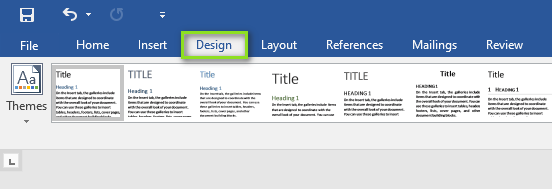
Vá para a guia Design na barra de menus.
-
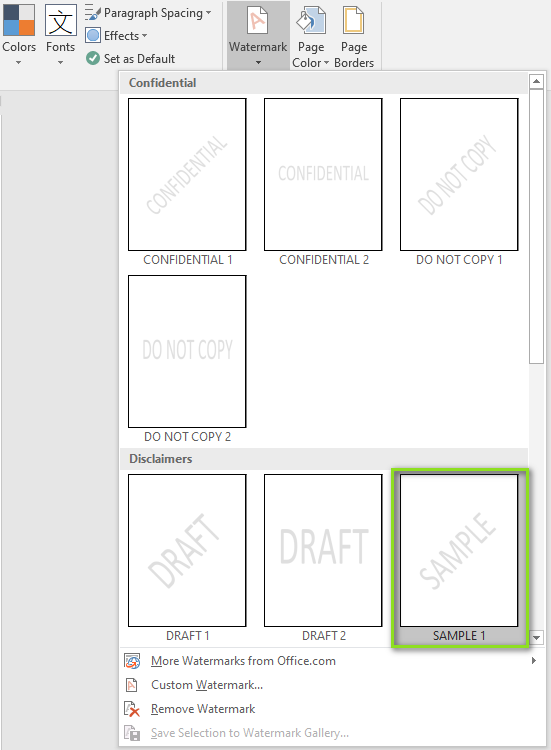
No lado direito, clique em Marca d'Água no grupo Plano de Fundo da Página.

-
Na caixa de diálogo aberta, selecione uma marca d'água predefinida de acordo com sua necessidade (por exemplo, "Confidencial", "Não Copiar", “Amostra”).
Resultado:
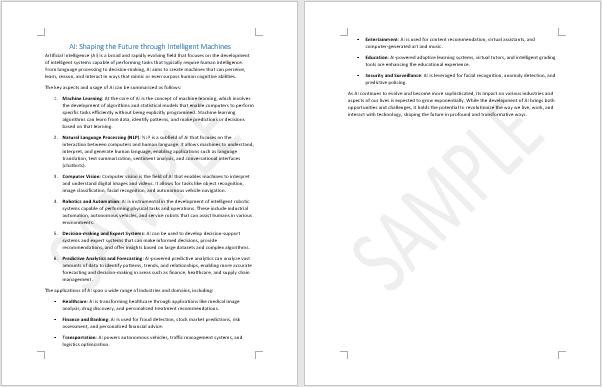
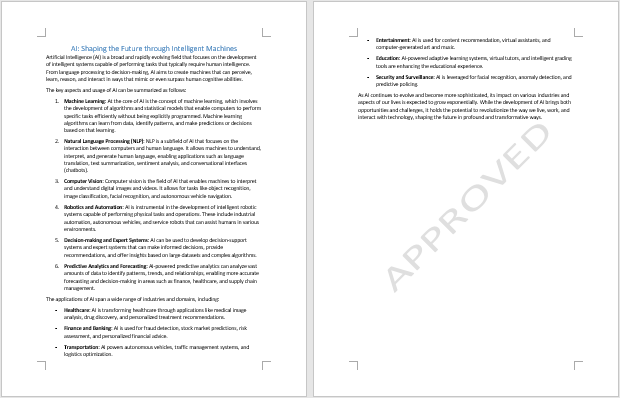
A marca d'água selecionada é aplicada automaticamente a todas as páginas do documento.
Criar uma Marca d'Água de Texto ou Imagem Personalizada no Word
Se você sentir que as opções predefinidas não atendem às suas necessidades, pode criar uma marca d'água personalizada usando texto ou uma imagem.
Passos para Adicionar uma Marca d'Água Personalizada ao Seu Documento
-
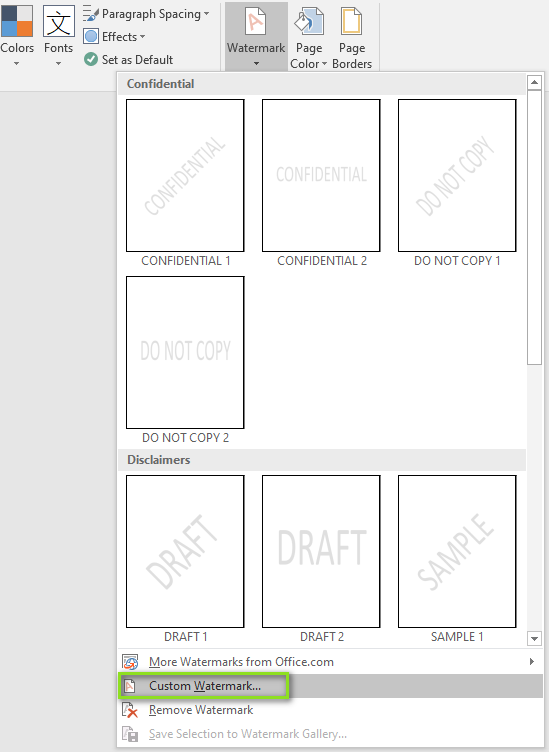
Na barra de menus, clique em Design > Marca d'Água > Marca d'Água Personalizada.
-
Na caixa de diálogo Marca d'Água Impressa aberta:
- Selecione Marca d'água de texto:
-
Digite seu texto (por exemplo, "Apenas para Uso Interno")
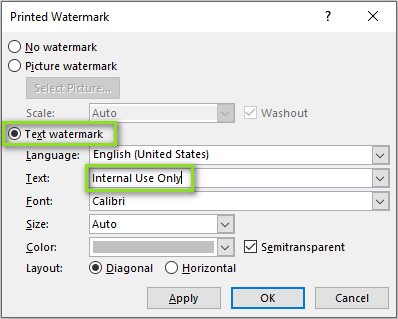
- Escolha fonte, tamanho, cor e layout (horizontal ou diagonal)
-
- Ou selecione Marca d'água de imagem:
- Clique em Selecionar Imagem… para procurar e inserir uma imagem (por exemplo, logo da empresa).

- Defina a Escala e habilite Desbotar para um efeito transparente
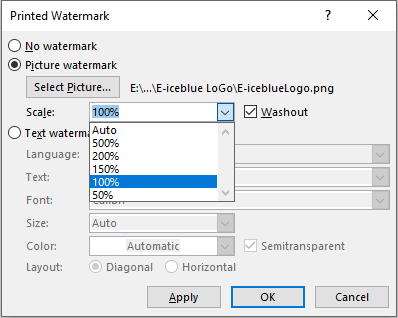
- Clique em Selecionar Imagem… para procurar e inserir uma imagem (por exemplo, logo da empresa).
- Selecione Marca d'água de texto:
-
Clique em Aplicar e, em seguida, em OK.
Resultado:
A marca d'água de imagem é adicionada automaticamente a todas as páginas do documento.
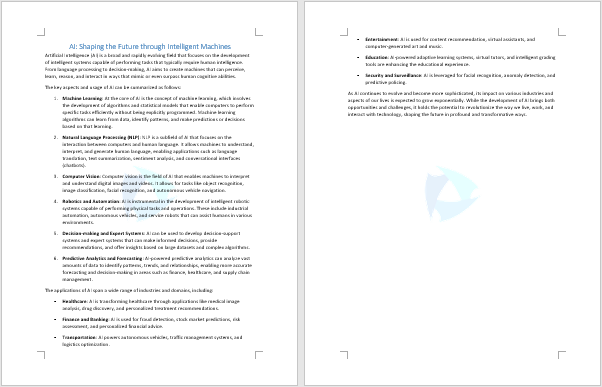
Dica: Usar uma marca d'água transparente melhora o documento sem interferir na sua legibilidade.
Aplicar uma Marca d'Água a Apenas Uma Página no Word
Por padrão, o Word aplica a marca d'água a todo o documento. Se você deseja aplicar a marca d'água apenas a uma página específica, siga os passos abaixo.
Passos para Adicionar uma Marca d'Água a Apenas Uma Página
-
Clique na página onde você deseja adicionar a marca d'água.
-
Na barra de menus, clique em Design > Marca d'Água.
-
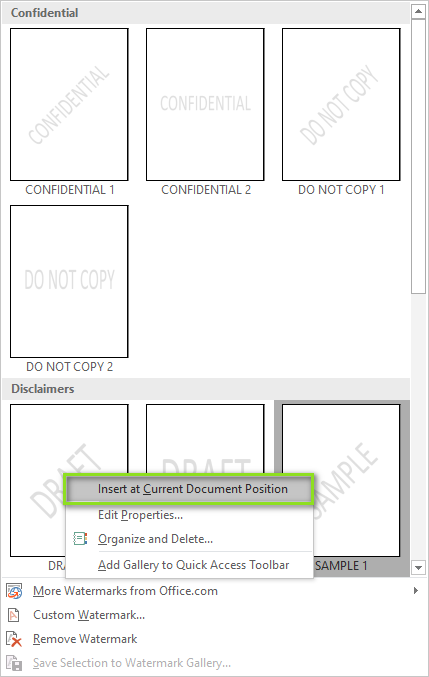
Na caixa de diálogo aberta, clique com o botão direito em uma das marcas d'água predefinidas e selecione Inserir na Posição Atual do Documento.
-
A marca d'água será inserida como uma caixa de texto na página selecionada. Se o conteúdo da marca d'água não for o que você deseja, clique na marca d'água para ativar a caixa de texto.

-
Clique no texto na caixa de texto e altere-o para o conteúdo da marca d'água desejado.

-
Clique em qualquer lugar fora da caixa de texto para aplicar a alteração.
Resultado:
Agora você tem uma marca d'água que aparece apenas na página selecionada, sem afetar o resto do documento.
Parte 2: Como Adicionar Marcas d'Água ao Word Programaticamente Usando C# e Spire.Doc
Ao automatizar a geração de documentos ou o processamento em lote de arquivos do Word, o Spire.Doc for .NET oferece uma maneira simples de adicionar marcas d'água programaticamente.
Começando com o Spire.Doc
Spire.Doc for .NET é uma biblioteca amigável ao desenvolvedor que simplifica o processo de geração e manipulação de documentos do Word. Ela permite que os desenvolvedores adicionem programaticamente marcas d'água de texto e imagem a documentos .doc ou .docx sem a necessidade de instalar o Microsoft Word.
Instale o Spire.Doc via NuGet
Você pode instalar facilmente a biblioteca necessária a partir do NuGet abrindo o Console do Gerenciador de Pacotes e executando o seguinte comando:
Install-Package Spire.Doc
Uma vez instalado, você estará pronto para adicionar marcas d'água aos seus documentos sem problemas.
Adicionar uma Marca d'Água de Texto ao Word em C#
Para adicionar uma marca d'água de texto a um documento do Word com C#, siga os passos abaixo:
Passo 1: Importar Namespaces Necessários
Certifique-se de incluir os namespaces necessários para trabalhar com documentos e formatação:
using Spire.Doc;
using Spire.Doc.Documents;
using System.Drawing;
Passo 2: Carregar o Documento do Word
Crie um objeto Document e carregue o arquivo do Word que você deseja marcar com água:
Document document = new Document();
document.LoadFromFile("input.docx");
Passo 3: Criar e Configurar a Marca d'Água de Texto
Crie uma instância de TextWatermark e personalize o conteúdo e a aparência da marca d'água:
TextWatermark watermark = new TextWatermark();
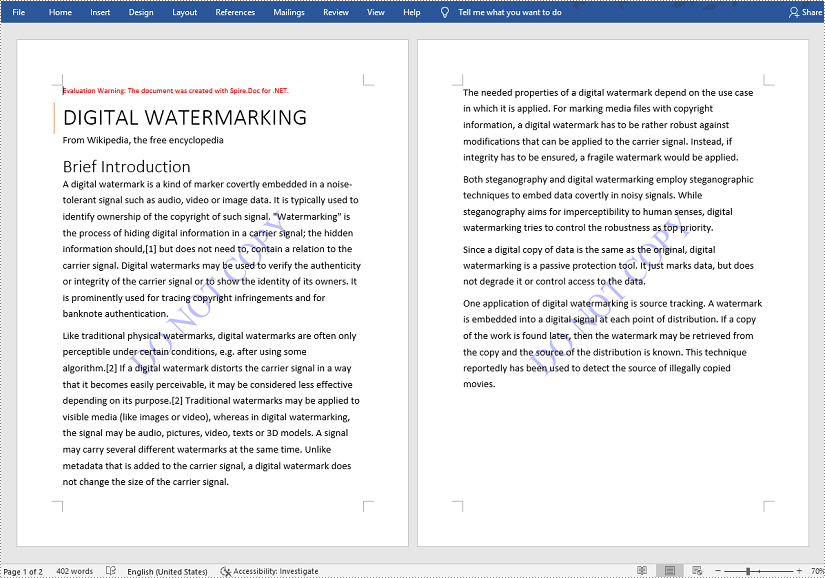
watermark.Text = "NÃO COPIAR"; // Texto da marca d'água
watermark.FontSize = 50; // Tamanho do texto
watermark.Color = Color.Blue; // Cor da marca d'água
watermark.Layout = WatermarkLayout.Diagonal; // Layout: Diagonal ou Horizontal
Passo 4: Aplicar a Marca d'Água e Salvar o Documento
Atribua a marca d'água ao documento e salve-o em um novo arquivo:
document.Watermark = watermark;
document.SaveToFile("output_with_text_watermark.docx", FileFormat.Docx);
Código Completo: Inserir Marca d'Água de Texto no Word em C#
using Spire.Doc;
using Spire.Doc.Documents;
using System.Drawing;

namespace TextWatermarkExample
{
    class Program
    {
        static void Main(string[] args)
        {
            // Passo 1: Carregar o documento do Word
            Document document = new Document();
            document.LoadFromFile("input.docx");

            // Passo 2: Criar e configurar a marca d'água de texto
            TextWatermark watermark = new TextWatermark();
            watermark.Text = "NÃO COPIAR";
            watermark.FontSize = 50;
            watermark.Color = Color.Blue;
            watermark.Layout = WatermarkLayout.Diagonal;

            // Passo 3: Aplicar a marca d'água e salvar o documento
            document.Watermark = watermark;
            document.SaveToFile("output_with_text_watermark.docx", FileFormat.Docx);
        }
    }
}
Adicionar uma Marca d'Água de Imagem ao Word em C#
Para inserir uma marca d'água de imagem usando C#, siga os passos abaixo:
Passo 1: Importar Namespaces Necessários
Adicione estes no topo do seu arquivo C# para habilitar o manuseio de documentos e imagens:
using Spire.Doc;
using System.Drawing;
Passo 2: Carregar o Documento do Word
Crie um objeto Document e carregue seu arquivo do Word de origem:
Document document = new Document();
document.LoadFromFile("input.docx");
Passo 3: Criar e Configurar a Marca d'Água de Imagem
Instancie um PictureWatermark, carregue a imagem, defina a escala e habilite o desbotamento:
PictureWatermark watermark = new PictureWatermark();
watermark.Picture = Image.FromFile("logo.png"); // Sua imagem de marca d'água
watermark.Scaling = 150; // Definir escala da imagem (porcentagem)
watermark.IsWashout = true; // Habilitar desbotamento
Passo 4: Aplicar a Marca d'Água e Salvar o Arquivo
Atribua a marca d'água ao documento e salve-o:
document.Watermark = watermark;
document.SaveToFile("output_with_image_watermark.docx", FileFormat.Docx);
Código Completo: Inserir Marca d'Água de Imagem no Word em C#
using Spire.Doc;
using System.Drawing;

namespace ImageWatermarkExample
{
    class Program
    {
        static void Main(string[] args)
        {
            // Passo 1: Carregar o documento do Word
            Document document = new Document();
            document.LoadFromFile("input.docx");

            // Passo 2: Criar e configurar a marca d'água de imagem
            PictureWatermark watermark = new PictureWatermark();
            watermark.Picture = Image.FromFile("logo.png");
            watermark.Scaling = 150;
            watermark.IsWashout = true;

            // Passo 3: Aplicar a marca d'água e salvar o documento
            document.Watermark = watermark;
            document.SaveToFile("output_with_image_watermark.docx", FileFormat.Docx);
        }
    }
}
Considerações Finais sobre Adicionar Marcas d'Água no Word
Adicionar marcas d'água a documentos do Word ajuda a proteger conteúdo sensível, indicar o status do documento e aprimorar a identidade da marca. Dependendo de suas necessidades, você pode escolher entre:
- Usar o Microsoft Word:
- Inserir marcas d'água de texto/imagem integradas ou personalizadas
- Aplicar marcas d'água a todas as páginas ou seções específicas manualmente
- Automatizar com C# e Spire.Doc for .NET:
- Adicionar programaticamente marcas d'água de texto ou imagem a arquivos do Word
- Ideal para processamento em lote ou geração automatizada de documentos
Perguntas Frequentes (FAQs)
Q1: Posso remover a marca d'água do documento mais tarde?
A1: Sim. No Word, vá para Design > Marca d'Água > Remover Marca d'Água. Em C# e Spire.Doc, defina document.Watermark = null;.
Q2: As marcas d'água serão impressas com o documento?
A2: Sim, as marcas d'água aparecem tanto na tela quanto nas impressões.
Q3: Quais formatos do Word são suportados pelo Spire.Doc?
A3: O Spire.Doc suporta uma vasta gama de formatos de documentos do Word, incluindo Doc, Docx, Docm, Dot, Dotx, Dotm e mais.
Veja Também
Come aggiungere filigrane in Word (guida manuale e automatizzata con C#)
Indice
- Cos'è una filigrana in Microsoft Word?
- Vantaggi dell'uso delle filigrane nei documenti di Word
- Parte 1: Come aggiungere filigrane in Word manualmente (Guida passo-passo)
- Parte 2: Come aggiungere filigrane a Word programmaticamente usando C# e Spire.Doc
- Considerazioni finali sull'aggiunta di filigrane in Word
- Domande Frequenti (FAQ)
Installa con Nuget
PM> Install-Package Spire.Doc
Link correlati
Se hai bisogno di etichettare i tuoi documenti di Word come "Riservato", "Bozza" o di applicare un marchio personalizzato, l'aggiunta di una filigrana è una delle soluzioni più efficaci. Aiuta a proteggere i contenuti sensibili, a indicare lo stato del documento e a rafforzare l'identità del marchio, il tutto mantenendo un aspetto pulito e professionale. Che tu stia lavorando a rapporti aziendali, memo interni o materiali di marketing, le filigrane possono scoraggiare la condivisione non autorizzata e comunicare chiaramente lo scopo del tuo documento.
In questa guida passo-passo, imparerai due modi pratici per aggiungere filigrane ai documenti di Word: manualmente utilizzando gli strumenti di filigrana integrati di Microsoft Word, e programmaticamente tramite l'automazione in C# con la libreria Spire.Doc for .NET. Indipendentemente dal tuo flusso di lavoro - manuale o automatizzato - scoprirai tecniche efficienti per inserire filigrane di testo o di immagine che migliorano e proteggono i tuoi file di Word.
Cosa imparerai
- Cos'è una filigrana in Microsoft Word?
- Vantaggi dell'uso delle filigrane nei documenti di Word
- Parte 1: Come aggiungere filigrane in Word manualmente (Guida passo-passo)
- Parte 2: Come aggiungere filigrane a Word programmaticamente usando C# e Spire.Doc
- Considerazioni finali sull'aggiunta di filigrane in Word
- Domande Frequenti (FAQ)
Cos'è una filigrana in Microsoft Word?
Una filigrana in Word è un disegno, un testo o un'immagine semitrasparente che appare dietro il contenuto principale di una pagina del documento. Non interferisce con il contenuto stesso, ma rimane visibile ai lettori.
I tipi comuni di filigrana includono:
- Filigrane di testo: "Riservato", "Bozza", "Esempio", ecc.
- Filigrane di immagine: Loghi aziendali o immagini di sfondo
- Filigrane personalizzate: Elementi di branding o identificatori unici
Vantaggi dell'uso delle filigrane nei documenti di Word
Le filigrane servono a diversi scopi importanti:
- Proteggere i contenuti sensibili contrassegnando chiaramente i documenti come riservati
- Indicare lo stato del documento, come bozza, in revisione o finale
- Marchiare i documenti con loghi o nomi aziendali
- Scoraggiare la distribuzione non autorizzata o l'uso improprio
Parte 1: Come aggiungere filigrane in Word manualmente (Guida passo-passo)
Microsoft Word semplifica l'aggiunta di filigrane, sia che si utilizzi un'opzione integrata sia che se ne crei una personalizzata. Puoi scegliere tra una serie di filigrane predefinite come “Riservato” o “Bozza”, oppure creare filigrane di testo e immagine personalizzate per allinearle allo scopo e al marchio del tuo documento.
Inserire una filigrana predefinita in Word
Microsoft Word include diversi modelli di filigrana pronti all'uso per i casi d'uso più comuni, come contrassegnare un documento come riservato o come bozza.
Passaggi per aggiungere una filigrana predefinita al tuo documento
-
Apri il tuo documento in Microsoft Word.
-
Vai alla scheda Progettazione sulla barra dei menu.
-
Sul lato destro, fai clic su Filigrana nel gruppo Sfondo pagina.
-
Nella finestra di dialogo aperta, seleziona una filigrana predefinita in base alle tue esigenze (ad es. "Riservato", "Non copiare", “Esempio”).
Risultato:
La filigrana selezionata viene applicata automaticamente a tutte le pagine del documento.
Creare una filigrana di testo o immagine personalizzata in Word
Se ritieni che le opzioni predefinite non soddisfino le tue esigenze, puoi creare una filigrana personalizzata utilizzando testo o un'immagine.
Passaggi per aggiungere una filigrana personalizzata al tuo documento
-
Sulla barra dei menu, fai clic su Progettazione > Filigrana > Filigrana personalizzata.
-
Nella finestra di dialogo Filigrana stampata aperta:
- Seleziona Filigrana testo:
-
Inserisci il tuo testo (ad es. "Solo per uso interno")
- Scegli carattere, dimensione, colore e layout (orizzontale o diagonale)
-
- Oppure seleziona Filigrana immagine:
- Fai clic su Seleziona immagine… per sfogliare e inserire un'immagine (ad es. il logo aziendale).
- Imposta Scala e abilita Sbiadisci per un effetto trasparente
- Fai clic su Seleziona immagine… per sfogliare e inserire un'immagine (ad es. il logo aziendale).
- Seleziona Filigrana testo:
-
Fai clic su Applica, quindi su OK.
Risultato:
La filigrana dell'immagine viene aggiunta automaticamente a tutte le pagine del documento.
Suggerimento: l'uso di una filigrana trasparente migliora il documento senza interferire con la sua leggibilità.
Applicare una filigrana a una sola pagina in Word
Per impostazione predefinita, Word applica la filigrana all'intero documento. Se desideri applicare la filigrana solo a una pagina specifica, segui i passaggi seguenti.
Passaggi per aggiungere una filigrana a una sola pagina
-
Fai clic sulla pagina in cui desideri aggiungere la filigrana.
-
Sulla barra dei menu, fai clic su Progettazione > Filigrana.
-
Nella finestra di dialogo aperta, fai clic con il pulsante destro del mouse su una delle filigrane predefinite e seleziona Inserisci nella posizione corrente del documento.
-
La filigrana verrà inserita come casella di testo nella pagina selezionata. Se il contenuto della filigrana non è quello desiderato, fai clic sulla filigrana per attivare la casella di testo.
-
Fai clic sul testo nella casella di testo e modificalo con il contenuto della filigrana desiderato.
-
Fai clic in un punto qualsiasi al di fuori della casella di testo per applicare la modifica.
Risultato:
Ora hai una filigrana che appare solo sulla pagina selezionata senza influire sul resto del documento.
Parte 2: Come aggiungere filigrane a Word programmaticamente usando C# e Spire.Doc
Quando si automatizza la generazione di documenti o l'elaborazione in batch di file di Word, Spire.Doc for .NET offre un modo semplice per aggiungere filigrane a livello di codice.
Introduzione a Spire.Doc
Spire.Doc for .NET è una libreria intuitiva per gli sviluppatori che semplifica il processo di generazione e manipolazione di documenti di Word. Consente agli sviluppatori di aggiungere programmaticamente filigrane di testo e di immagine a documenti .doc o .docx senza richiedere l'installazione di Microsoft Word.
Installa Spire.Doc tramite NuGet
Puoi installare facilmente la libreria richiesta da NuGet aprendo la Console di Gestione Pacchetti ed eseguendo il seguente comando:
Install-Package Spire.Doc
Una volta installato, sarai pronto per aggiungere filigrane ai tuoi documenti senza problemi.
Aggiungere una filigrana di testo a Word in C#
Per aggiungere una filigrana di testo a un documento di Word con C#, segui i passaggi seguenti:
Passaggio 1: Importa gli spazi dei nomi richiesti
Assicurati di includere gli spazi dei nomi necessari per lavorare con documenti e formattazione:
using Spire.Doc;
using Spire.Doc.Documents;
using System.Drawing;
Passaggio 2: Carica il documento di Word
Crea un oggetto Document e carica il file di Word a cui vuoi aggiungere la filigrana:
Document document = new Document();
document.LoadFromFile("input.docx");
Passaggio 3: Crea e configura la filigrana di testo
Crea un'istanza di TextWatermark e personalizza il contenuto e l'aspetto della filigrana:
TextWatermark watermark = new TextWatermark();
watermark.Text = "NON COPIARE"; // Testo della filigrana
watermark.FontSize = 50; // Dimensione del testo
watermark.Color = Color.Blue; // Colore della filigrana
watermark.Layout = WatermarkLayout.Diagonal; // Layout: Diagonale o Orizzontale
Passaggio 4: Applica la filigrana e salva il documento
Assegna la filigrana al documento e salvalo in un nuovo file:
document.Watermark = watermark;
document.SaveToFile("output_with_text_watermark.docx", FileFormat.Docx);
Codice completo: Inserire una filigrana di testo in Word in C#
using Spire.Doc;
using Spire.Doc.Documents;
using System.Drawing;

namespace TextWatermarkExample
{
    class Program
    {
        static void Main(string[] args)
        {
            // Passaggio 1: Carica il documento di Word
            Document document = new Document();
            document.LoadFromFile("input.docx");

            // Passaggio 2: Crea e configura la filigrana di testo
            TextWatermark watermark = new TextWatermark();
            watermark.Text = "NON COPIARE";
            watermark.FontSize = 50;
            watermark.Color = Color.Blue;
            watermark.Layout = WatermarkLayout.Diagonal;

            // Passaggio 3: Applica la filigrana e salva il documento
            document.Watermark = watermark;
            document.SaveToFile("output_with_text_watermark.docx", FileFormat.Docx);
        }
    }
}
Aggiungere una filigrana di immagine a Word in C#
Per inserire una filigrana di immagine usando C#, segui i passaggi seguenti:
Passaggio 1: Importa gli spazi dei nomi richiesti
Aggiungi questi all'inizio del tuo file C# per abilitare la gestione di documenti e immagini:
using Spire.Doc;
using System.Drawing;
Passaggio 2: Carica il documento di Word
Crea un oggetto Document e carica il tuo file di Word di origine:
Document document = new Document();
document.LoadFromFile("input.docx");
Passaggio 3: Crea e configura la filigrana di immagine
Crea un'istanza di PictureWatermark, carica l'immagine, imposta la scala e abilita lo sbiadimento:
PictureWatermark watermark = new PictureWatermark();
watermark.Picture = Image.FromFile("logo.png"); // La tua immagine per la filigrana
watermark.Scaling = 150; // Imposta la scala dell'immagine (percentuale)
watermark.IsWashout = true; // Abilita lo sbiadimento
Passaggio 4: Applica la filigrana e salva il file
Assegna la filigrana al documento e salvalo:
document.Watermark = watermark;
document.SaveToFile("output_with_image_watermark.docx", FileFormat.Docx);
Codice completo: Inserire una filigrana di immagine in Word in C#
using Spire.Doc;
using System.Drawing;

namespace ImageWatermarkExample
{
    class Program
    {
        static void Main(string[] args)
        {
            // Passaggio 1: Carica il documento di Word
            Document document = new Document();
            document.LoadFromFile("input.docx");

            // Passaggio 2: Crea e configura la filigrana di immagine
            PictureWatermark watermark = new PictureWatermark();
            watermark.Picture = Image.FromFile("logo.png");
            watermark.Scaling = 150;
            watermark.IsWashout = true;

            // Passaggio 3: Applica la filigrana e salva il documento
            document.Watermark = watermark;
            document.SaveToFile("output_with_image_watermark.docx", FileFormat.Docx);
        }
    }
}
Considerazioni finali sull'aggiunta di filigrane in Word
L'aggiunta di filigrane ai documenti di Word aiuta a proteggere i contenuti sensibili, a indicare lo stato del documento e a rafforzare l'identità del marchio. A seconda delle tue esigenze, puoi scegliere tra:
- Utilizzo di Microsoft Word:
- Inserire filigrane di testo/immagine integrate o personalizzate
- Applicare filigrane a tutte le pagine o a sezioni specifiche manualmente
- Automazione con C# e Spire.Doc for .NET:
- Aggiungere programmaticamente filigrane di testo o di immagine ai file di Word
- Ideale per l'elaborazione in batch o la generazione automatizzata di documenti
Domande Frequenti (FAQ)
D1: Posso rimuovere la filigrana dal documento in un secondo momento?
R1: Sì. In Word, vai su Progettazione > Filigrana > Rimuovi filigrana. In C# e Spire.Doc, imposta document.Watermark = null;.
D2: Le filigrane verranno stampate con il documento?
R2: Sì, le filigrane appaiono sia sullo schermo che nelle stampe.
D3: Quali formati di Word sono supportati da Spire.Doc?
R3: Spire.Doc supporta un'ampia gamma di formati di documenti di Word, tra cui Doc, Docx, Docm, Dot, Dotx, Dotm e altri.
Vedi anche
Word에서 워터마크 추가하기 (수동 및 C# 자동화 가이드)
목차
Nuget으로 설치
PM> Install-Package Spire.Doc
관련 링크
Word 문서를 "기밀", "초안"으로 표시하거나 사용자 지정 브랜딩을 적용해야 하는 경우 워터마크를 추가하는 것이 가장 효과적인 솔루션 중 하나입니다. 이는 민감한 콘텐츠를 보호하고, 문서 상태를 나타내며, 브랜드 아이덴티티를 강화하는 데 도움이 되며, 이 모든 것을 깔끔하고 전문적인 외관을 유지하면서 수행할 수 있습니다. 비즈니스 보고서, 내부 메모 또는 마케팅 자료 작업 시 워터마크는 무단 공유를 방지하고 문서의 목적을 명확하게 전달할 수 있습니다.
이 단계별 가이드에서는 Word 문서에 워터마크를 추가하는 두 가지 실용적인 방법, 즉 Microsoft Word의 내장 워터마크 도구를 사용하여 수동으로 추가하는 방법과 Spire.Doc for .NET 라이브러리를 사용하여 C# 자동화를 통해 프로그래밍 방식으로 추가하는 방법을 배웁니다. 수동이든 자동화된 워크플로우이든, Word 파일을 향상시키고 보호하는 텍스트 또는 이미지 워터마크를 삽입하는 효율적인 기술을 발견하게 될 것입니다.
학습 내용
- Microsoft Word의 워터마크란 무엇인가요?
- Word 문서에서 워터마크 사용의 이점
- 1부: Word에서 수동으로 워터마크를 추가하는 방법 (단계별 가이드)
- 2부: C# 및 Spire.Doc를 사용하여 프로그래밍 방식으로 Word에 워터마크를 추가하는 방법
- Word에 워터마크 추가에 대한 최종 생각
- 자주 묻는 질문 (FAQ)
Microsoft Word의 워터마크란 무엇인가요?
Word의 워터마크는 문서 페이지의 주 내용 뒤에 나타나는 반투명 디자인, 텍스트 또는 이미지입니다. 내용 자체를 방해하지 않으면서도 독자에게는 보입니다.
일반적인 워터마크 유형은 다음과 같습니다:
- 텍스트 워터마크: "기밀", "초안", "샘플" 등
- 이미지 워터마크: 회사 로고 또는 배경 이미지
- 사용자 지정 워터마크: 브랜딩 요소 또는 고유 식별자
Word 문서에서 워터마크 사용의 이점
워터마크는 여러 중요한 목적을 수행합니다:
- 민감한 콘텐츠를 기밀로 명확하게 표시하여 보호
- 초안, 검토 또는 최종과 같은 문서 상태 표시
- 로고나 회사 이름으로 문서 브랜딩
- 무단 배포 또는 오용 방지
1부: Word에서 수동으로 워터마크를 추가하는 방법 (단계별 가이드)
Microsoft Word는 내장된 옵션을 사용하든 직접 만들든 워터마크를 쉽게 추가할 수 있도록 합니다. "기밀" 또는 "초안"과 같은 미리 정의된 워터마크 세트에서 선택하거나, 문서의 목적과 브랜딩에 맞게 사용자 지정 텍스트 및 이미지 워터마크를 만들 수 있습니다.
Word에 미리 정의된 워터마크 삽입
Microsoft Word에는 문서를 기밀 또는 초안으로 표시하는 것과 같은 일반적인 사용 사례를 위한 여러 기성 워터마크 템플릿이 포함되어 있습니다.
문서에 미리 정의된 워터마크를 추가하는 단계
-
Microsoft Word에서 문서를 엽니다.
-
메뉴 모음에서 디자인 탭으로 이동합니다.
-
오른쪽의 페이지 배경 그룹에서 워터마크를 클릭합니다.
-
열린 대화 상자에서 요구 사항에 따라 미리 정의된 워터마크를 선택합니다(예: "기밀", "복사 금지", "샘플").
결과:
선택한 워터마크가 문서의 모든 페이지에 자동으로 적용됩니다.
Word에서 사용자 지정 텍스트 또는 이미지 워터마크 만들기
미리 정의된 옵션이 요구 사항을 충족하지 못한다고 생각되면 텍스트나 이미지를 사용하여 사용자 지정 워터마크를 만들 수 있습니다.
문서에 사용자 지정 워터마크를 추가하는 단계
-
메뉴 모음에서 디자인 > 워터마크 > 사용자 지정 워터마크를 클릭합니다.
-
열린 인쇄된 워터마크 대화 상자에서:
- 텍스트 워터마크 선택:
-
텍스트를 입력합니다(예: "내부 전용")
- 글꼴, 크기, 색상 및 레이아웃(가로 또는 대각선)을 선택합니다.
-
- 또는 그림 워터마크 선택:
- 그림 선택…을 클릭하여 이미지를 찾아 삽입합니다(예: 회사 로고).
- 투명 효과를 위해 배율을 설정하고 희미하게를 활성화합니다.
- 그림 선택…을 클릭하여 이미지를 찾아 삽입합니다(예: 회사 로고).
- 텍스트 워터마크 선택:
-
적용을 클릭한 다음 확인을 클릭합니다.
결과:
이미지 워터마크가 문서의 모든 페이지에 자동으로 추가됩니다.
팁: 투명한 워터마크를 사용하면 가독성을 방해하지 않으면서 문서를 향상시킬 수 있습니다.
Word에서 한 페이지에만 워터마크 적용하기
기본적으로 Word는 워터마크를 전체 문서에 적용합니다. 특정 페이지만 워터마크를 적용하려면 아래 단계를 따르십시오.
한 페이지에만 워터마크를 추가하는 단계
-
워터마크를 추가할 페이지를 클릭합니다.
-
메뉴 모음에서 디자인 > 워터마크를 클릭합니다.
-
열린 대화 상자에서 미리 정의된 워터마크 중 하나를 마우스 오른쪽 버튼으로 클릭하고 현재 문서 위치에 삽입을 선택합니다.
-
워터마크가 선택한 페이지에 텍스트 상자로 삽입됩니다. 워터마크 내용이 원하는 것이 아니면 워터마크를 클릭하여 텍스트 상자를 활성화합니다.
-
텍스트 상자의 텍스트를 클릭하고 원하는 워터마크 내용으로 변경합니다.
-
텍스트 상자 외부 아무 곳이나 클릭하여 변경 사항을 적용합니다.
결과:
이제 문서의 나머지 부분에 영향을 주지 않고 선택한 페이지에만 나타나는 워터마크가 생겼습니다.
2부: C# 및 Spire.Doc를 사용하여 프로그래밍 방식으로 Word에 워터마크를 추가하는 방법
문서 생성을 자동화하거나 Word 파일을 일괄 처리할 때 Spire.Doc for .NET은 프로그래밍 방식으로 워터마크를 추가하는 간단한 방법을 제공합니다.
Spire.Doc 시작하기
Spire.Doc for .NET은 Word 문서 생성 및 조작 프로세스를 간소화하는 개발자 친화적인 라이브러리입니다. 이를 통해 개발자는 Microsoft Word를 설치할 필요 없이 프로그래밍 방식으로 .doc 또는 .docx 문서에 텍스트 및 이미지 워터마크를 추가할 수 있습니다.
NuGet을 통해 Spire.Doc 설치
패키지 관리자 콘솔을 열고 다음 명령을 실행하여 NuGet에서 필요한 라이브러리를 쉽게 설치할 수 있습니다.
Install-Package Spire.Doc
설치가 완료되면 문서에 워터마크를 원활하게 추가할 수 있습니다.
C#에서 Word에 텍스트 워터마크 추가
C#을 사용하여 Word 문서에 텍스트 워터마크를 추가하려면 아래 단계를 따르십시오.
1단계: 필요한 네임스페이스 가져오기
문서 및 서식 작업을 위해 필요한 네임스페이스를 포함해야 합니다.
using Spire.Doc;
using Spire.Doc.Documents;
using System.Drawing;
2단계: Word 문서 로드
Document 객체를 만들고 워터마크를 추가할 Word 파일을 로드합니다.
Document document = new Document();
document.LoadFromFile("input.docx");
3단계: 텍스트 워터마크 생성 및 구성
TextWatermark 인스턴스를 만들고 워터마크 내용과 모양을 사용자 지정합니다.
TextWatermark watermark = new TextWatermark();
watermark.Text = "복사 금지"; // 워터마크 텍스트
watermark.FontSize = 50; // 텍스트 크기
watermark.Color = Color.Blue; // 워터마크 색상
watermark.Layout = WatermarkLayout.Diagonal; // 레이아웃: 대각선 또는 가로
4단계: 워터마크 적용 및 문서 저장
문서에 워터마크를 할당하고 새 파일로 저장합니다.
document.Watermark = watermark;
document.SaveToFile("output_with_text_watermark.docx", FileFormat.Docx);
전체 코드: C#에서 Word에 텍스트 워터마크 삽입
using Spire.Doc;
using Spire.Doc.Documents;
using System.Drawing;

namespace TextWatermarkExample
{
    class Program
    {
        static void Main(string[] args)
        {
            // 1단계: Word 문서 로드
            Document document = new Document();
            document.LoadFromFile("input.docx");

            // 2단계: 텍스트 워터마크 생성 및 구성
            TextWatermark watermark = new TextWatermark();
            watermark.Text = "복사 금지";
            watermark.FontSize = 50;
            watermark.Color = Color.Blue;
            watermark.Layout = WatermarkLayout.Diagonal;

            // 3단계: 워터마크 적용 및 문서 저장
            document.Watermark = watermark;
            document.SaveToFile("output_with_text_watermark.docx", FileFormat.Docx);
        }
    }
}
C#에서 Word에 이미지 워터마크 추가
C#을 사용하여 이미지 워터마크를 삽입하려면 아래 단계를 따르십시오.
1단계: 필요한 네임스페이스 가져오기
문서 및 이미지 처리를 활성화하려면 C# 파일 상단에 이를 추가하십시오.
using Spire.Doc;
using System.Drawing;
2단계: Word 문서 로드
Document 객체를 만들고 원본 Word 파일을 로드합니다.
Document document = new Document();
document.LoadFromFile("input.docx");
3단계: 이미지 워터마크 생성 및 구성
PictureWatermark를 인스턴스화하고 이미지를 로드하고 배율을 설정하고 희미하게 효과를 활성화합니다.
PictureWatermark watermark = new PictureWatermark();
watermark.Picture = Image.FromFile("logo.png"); // 워터마크 이미지
watermark.Scaling = 150; // 이미지 배율 설정(백분율)
watermark.IsWashout = true; // 희미하게 효과 활성화
4단계: 워터마크 적용 및 파일 저장
문서에 워터마크를 할당하고 저장합니다.
document.Watermark = watermark;
document.SaveToFile("output_with_image_watermark.docx", FileFormat.Docx);
전체 코드: C#에서 Word에 이미지 워터마크 삽입
using Spire.Doc;
using System.Drawing;

namespace ImageWatermarkExample
{
    class Program
    {
        static void Main(string[] args)
        {
            // 1단계: Word 문서 로드
            Document document = new Document();
            document.LoadFromFile("input.docx");

            // 2단계: 이미지 워터마크 생성 및 구성
            PictureWatermark watermark = new PictureWatermark();
            watermark.Picture = Image.FromFile("logo.png");
            watermark.Scaling = 150;
            watermark.IsWashout = true;

            // 3단계: 워터마크 적용 및 문서 저장
            document.Watermark = watermark;
            document.SaveToFile("output_with_image_watermark.docx", FileFormat.Docx);
        }
    }
}
Word에 워터마크 추가에 대한 최종 생각
Word 문서에 워터마크를 추가하면 민감한 콘텐츠를 보호하고 문서 상태를 나타내며 브랜드 아이덴티티를 향상시키는 데 도움이 됩니다. 필요에 따라 다음 중에서 선택할 수 있습니다.
- Microsoft Word 사용:
- 내장 또는 사용자 지정 텍스트/이미지 워터마크 삽입
- 모든 페이지 또는 특정 섹션에 수동으로 워터마크 적용
- C# 및 Spire.Doc for .NET으로 자동화:
- 프로그래밍 방식으로 Word 파일에 텍스트 또는 이미지 워터마크 추가
- 일괄 처리 또는 자동화된 문서 생성에 이상적
자주 묻는 질문 (FAQ)
Q1: 나중에 문서에서 워터마크를 제거할 수 있나요?
A1: 예. Word에서 디자인 > 워터마크 > 워터마크 제거로 이동합니다. C# 및 Spire.Doc에서는 document.Watermark = null;로 설정합니다.
Q2: 워터마크가 문서와 함께 인쇄되나요?
A2: 예, 워터마크는 화면과 인쇄물 모두에 나타납니다.
Q3: Spire.Doc는 어떤 Word 형식을 지원하나요?
A3: Spire.Doc는 Doc, Docx, Docm, Dot, Dotx, Dotm 등을 포함한 광범위한 Word 문서 형식을 지원합니다.
참고 항목
Comment ajouter des filigranes dans Word (guide manuel et automatisé avec C#)
Table des matières
- Qu'est-ce qu'un filigrane dans Microsoft Word ?
- Avantages de l'utilisation des filigranes dans les documents Word
- Partie 1 : Comment ajouter des filigranes dans Word manuellement (Guide étape par étape)
- Partie 2 : Comment ajouter des filigranes à Word par programmation en utilisant C# et Spire.Doc
- Réflexions finales sur l'ajout de filigranes dans Word
- Foire Aux Questions (FAQ)
Installer avec Nuget
PM> Install-Package Spire.Doc
Liens connexes
Si vous avez besoin d'étiqueter vos documents Word comme « Confidentiel », « Brouillon » ou d'appliquer une marque personnalisée, l'ajout d'un filigrane est l'une des solutions les plus efficaces. Il aide à protéger le contenu sensible, à indiquer l'état du document et à renforcer l'identité de la marque, tout en conservant une apparence propre et professionnelle. Que vous travailliez sur des rapports d'entreprise, des mémos internes ou des supports marketing, les filigranes peuvent décourager le partage non autorisé et communiquer clairement l'objectif de votre document.
Dans ce guide étape par étape, vous apprendrez deux manières pratiques d'ajouter des filigranes aux documents Word : manuellement à l'aide des outils de filigrane intégrés de Microsoft Word, et par programmation via l'automatisation en C# avec la bibliothèque Spire.Doc for .NET. Quel que soit votre flux de travail - manuel ou automatisé - vous découvrirez des techniques efficaces pour insérer des filigranes de texte ou d'image qui améliorent et sécurisent vos fichiers Word.
Ce que vous apprendrez
- Qu'est-ce qu'un filigrane dans Microsoft Word ?
- Avantages de l'utilisation des filigranes dans les documents Word
- Partie 1 : Comment ajouter des filigranes dans Word manuellement (Guide étape par étape)
- Partie 2 : Comment ajouter des filigranes à Word par programmation en utilisant C# et Spire.Doc
- Réflexions finales sur l'ajout de filigranes dans Word
- Foire Aux Questions (FAQ)
Qu'est-ce qu'un filigrane dans Microsoft Word ?
Un filigrane dans Word est un dessin, un texte ou une image semi-transparent qui apparaît derrière le contenu principal d'une page de document. Il n'interfère pas avec le contenu lui-même, mais reste visible pour les lecteurs.
Les types de filigranes courants incluent :
- Filigranes de texte : « Confidentiel », « Brouillon », « Échantillon », etc.
- Filigranes d'image : Logos d'entreprise ou images de fond
- Filigranes personnalisés : Éléments de marque ou identifiants uniques
Avantages de l'utilisation des filigranes dans les documents Word
Les filigranes servent plusieurs objectifs importants :
- Protéger le contenu sensible en marquant clairement les documents comme confidentiels
- Indiquer l'état du document, tel que brouillon, en révision ou final
- Marquer les documents avec des logos ou des noms d'entreprise
- Décourager la distribution non autorisée ou l'utilisation abusive
Partie 1 : Comment ajouter des filigranes dans Word manuellement (Guide étape par étape)
Microsoft Word facilite l'ajout de filigranes, que vous utilisiez une option intégrée ou que vous créiez la vôtre. Vous pouvez choisir parmi un ensemble de filigranes prédéfinis comme « Confidentiel » ou « Brouillon », ou créer des filigranes de texte et d'image personnalisés pour correspondre à l'objectif et à la marque de votre document.
Insérer un filigrane prédéfini dans Word
Microsoft Word comprend plusieurs modèles de filigranes prêts à l'emploi pour les cas d'utilisation courants, tels que le marquage d'un document comme confidentiel или comme brouillon.
Étapes pour ajouter un filigrane prédéfini à votre document
-
Ouvrez votre document dans Microsoft Word.
-
Allez à l'onglet Création dans la barre de menus.
-
Sur le côté droit, cliquez sur Filigrane dans le groupe Arrière-plan de page.
-
Dans la boîte de dialogue ouverte, sélectionnez un filigrane prédéfini selon vos besoins (par exemple, « Confidentiel », « Ne pas copier », « Échantillon »).
Résultat :
Le filigrane sélectionné est automatiquement appliqué à toutes les pages du document.
Créer un filigrane de texte ou d'image personnalisé dans Word
Si vous estimez que les options prédéfinies ne répondent pas à vos besoins, vous pouvez créer un filigrane personnalisé en utilisant du texte ou une image.
Étapes pour ajouter un filigrane personnalisé à votre document
-
Dans la barre de menus, cliquez sur Création > Filigrane > Filigrane personnalisé.
-
Dans la boîte de dialogue Filigrane imprimé ouverte :
- Sélectionnez Texte en filigrane :
-
Entrez votre texte (par ex., « Usage interne uniquement »)
- Choisissez la police, la taille, la couleur et la disposition (horizontale ou diagonale)
-
- Ou sélectionnez Image en filigrane :
- Cliquez sur Sélectionner une image… pour parcourir et insérer une image (par ex., le logo de l'entreprise).
- Définissez l'Échelle et activez Estomper pour un effet transparent
- Cliquez sur Sélectionner une image… pour parcourir et insérer une image (par ex., le logo de l'entreprise).
- Sélectionnez Texte en filigrane :
-
Cliquez sur Appliquer, puis sur OK.
Résultat :
Le filigrane d'image est automatiquement ajouté à toutes les pages du document.
Astuce : L'utilisation d'un filigrane transparent améliore le document sans nuire à sa lisibilité.
Appliquer un filigrane à une seule page dans Word
Par défaut, Word applique le filigrane à l'ensemble du document. Si vous souhaitez appliquer un filigrane à une seule page, suivez les étapes ci-dessous.
Étapes pour ajouter un filigrane à une seule page
-
Cliquez sur la page où vous souhaitez ajouter le filigrane.
-
Dans la barre de menus, cliquez sur Création > Filigrane.
-
Dans la boîte de dialogue ouverte, cliquez avec le bouton droit sur l'un des filigranes prédéfinis, et sélectionnez Insérer à la position actuelle du document.
-
Le filigrane sera inséré en tant que zone de texte sur la page sélectionnée. Si le contenu du filigrane n'est pas ce que vous souhaitez, cliquez sur le filigrane pour activer la zone de texte.
-
Cliquez sur le texte dans la zone de texte et modifiez-le pour obtenir le contenu de filigrane souhaité.
-
Cliquez n'importe où en dehors de la zone de texte pour appliquer la modification.
Résultat :
Vous avez maintenant un filigrane qui n'apparaît que sur la page sélectionnée sans affecter le reste du document.
Partie 2 : Comment ajouter des filigranes à Word par programmation en utilisant C# et Spire.Doc
Lors de l'automatisation de la génération de documents ou du traitement par lots de fichiers Word, Spire.Doc for .NET offre un moyen simple d'ajouter des filigranes par programmation.
Démarrer avec Spire.Doc
Spire.Doc for .NET est une bibliothèque conviviale pour les développeurs qui simplifie le processus de génération et de manipulation de documents Word. Elle permet aux développeurs d'ajouter par programmation des filigranes de texte et d'image à des documents .doc ou .docx sans nécessiter l'installation de Microsoft Word.
Installer Spire.Doc via NuGet
Vous pouvez facilement installer la bibliothèque requise depuis NuGet en ouvrant la console du gestionnaire de paquets et en exécutant la commande suivante :
Install-Package Spire.Doc
Une fois installé, vous serez prêt à ajouter des filigranes à vos documents en toute transparence.
Ajouter un filigrane de texte à Word en C#
Pour ajouter un filigrane de texte à un document Word avec C#, suivez les étapes ci-dessous :
Étape 1 : Importer les espaces de noms requis
Assurez-vous d'inclure les espaces de noms nécessaires pour travailler avec des documents et la mise en forme :
using Spire.Doc;
using Spire.Doc.Documents;
using System.Drawing;
Étape 2 : Charger le document Word
Créez un objet Document et chargez le fichier Word que vous souhaitez filigraner :
Document document = new Document();
document.LoadFromFile("input.docx");
Étape 3 : Créer et configurer le filigrane de texte
Créez une instance de TextWatermark et personnalisez le contenu et l'apparence du filigrane :
TextWatermark watermark = new TextWatermark();
watermark.Text = "NE PAS COPIER"; // Texte du filigrane
watermark.FontSize = 50; // Taille du texte
watermark.Color = Color.Blue; // Couleur du filigrane
watermark.Layout = WatermarkLayout.Diagonal; // Disposition : Diagonale ou Horizontale
Étape 4 : Appliquer le filigrane et enregistrer le document
Attribuez le filigrane au document et enregistrez-le dans un nouveau fichier :
document.Watermark = watermark;
document.SaveToFile("output_with_text_watermark.docx", FileFormat.Docx);
Code complet : Insérer un filigrane de texte dans Word en C#
using Spire.Doc;
using Spire.Doc.Documents;
using System.Drawing;

namespace TextWatermarkExample
{
    class Program
    {
        static void Main(string[] args)
        {
            // Étape 1 : Charger le document Word
            Document document = new Document();
            document.LoadFromFile("input.docx");

            // Étape 2 : Créer et configurer le filigrane de texte
            TextWatermark watermark = new TextWatermark();
            watermark.Text = "NE PAS COPIER";
            watermark.FontSize = 50;
            watermark.Color = Color.Blue;
            watermark.Layout = WatermarkLayout.Diagonal;

            // Étape 3 : Appliquer le filigrane et enregistrer le document
            document.Watermark = watermark;
            document.SaveToFile("output_with_text_watermark.docx", FileFormat.Docx);
        }
    }
}
Ajouter un filigrane d'image à Word en C#
Pour insérer un filigrane d'image en utilisant C#, suivez les étapes ci-dessous :
Étape 1 : Importer les espaces de noms requis
Ajoutez-les en haut de votre fichier C# pour permettre la gestion des documents et des images :
using Spire.Doc;
using System.Drawing;
Étape 2 : Charger le document Word
Créez un objet Document et chargez votre fichier Word source :
Document document = new Document();
document.LoadFromFile("input.docx");
Étape 3 : Créer et configurer le filigrane d'image
Instanciez un PictureWatermark, chargez l'image, définissez l'échelle et activez l'estompage :
PictureWatermark watermark = new PictureWatermark();
watermark.Picture = Image.FromFile("logo.png"); // Votre image de filigrane
watermark.Scaling = 150; // Définir l'échelle de l'image (en pourcentage)
watermark.IsWashout = true; // Activer l'estompage
Étape 4 : Appliquer le filigrane et enregistrer le fichier
Attribuez le filigrane au document et enregistrez-le :
document.Watermark = watermark;
document.SaveToFile("output_with_image_watermark.docx", FileFormat.Docx);
Code complet : Insérer un filigrane d'image dans Word en C#
using Spire.Doc;
using System.Drawing;

namespace ImageWatermarkExample
{
    class Program
    {
        static void Main(string[] args)
        {
            // Étape 1 : Charger le document Word
            Document document = new Document();
            document.LoadFromFile("input.docx");

            // Étape 2 : Créer et configurer le filigrane d'image
            PictureWatermark watermark = new PictureWatermark();
            watermark.Picture = Image.FromFile("logo.png");
            watermark.Scaling = 150;
            watermark.IsWashout = true;

            // Étape 3 : Appliquer le filigrane et enregistrer le document
            document.Watermark = watermark;
            document.SaveToFile("output_with_image_watermark.docx", FileFormat.Docx);
        }
    }
}
Réflexions finales sur l'ajout de filigranes dans Word
L'ajout de filigranes aux documents Word aide à protéger le contenu sensible, à indiquer l'état du document et à renforcer l'identité de la marque. En fonction de vos besoins, vous pouvez choisir entre :
- Utiliser Microsoft Word :
- Insérer des filigranes de texte/image intégrés ou personnalisés
- Appliquer des filigranes à toutes les pages ou à des sections spécifiques manuellement
- Automatiser avec C# et Spire.Doc for .NET :
- Ajouter par programmation des filigranes de texte ou d'image aux fichiers Word
- Idéal pour le traitement par lots ou la génération de documents automatisée
Foire Aux Questions (FAQ)
Q1 : Puis-je supprimer le filigrane du document plus tard ?
R1 : Oui. Dans Word, allez à Création > Filigrane > Supprimer le filigrane. En C# et Spire.Doc, définissez document.Watermark = null;.
Q2 : Les filigranes s'imprimeront-ils avec le document ?
R2 : Oui, les filigranes apparaissent à la fois à l'écran et sur les impressions.
Q3 : Quels formats Word sont pris en charge par Spire.Doc ?
R3 : Spire.Doc prend en charge une large gamme de formats de documents Word, y compris Doc, Docx, Docm, Dot, Dotx, Dotm, et plus encore.
Voir aussi
Cómo agregar marcas de agua en Word (guía manual y automatizada con C#)
Tabla de contenidos
- ¿Qué es una marca de agua en Microsoft Word?
- Beneficios de usar marcas de agua en documentos de Word
- Parte 1: Cómo agregar marcas de agua en Word manualmente (Guía paso a paso)
- Parte 2: Cómo agregar marcas de agua a Word mediante programación usando C# y Spire.Doc
- Consideraciones finales sobre cómo agregar marcas de agua en Word
- Preguntas frecuentes (FAQ)
Instalar con Nuget
PM> Install-Package Spire.Doc
Enlaces relacionados
Si necesita etiquetar sus documentos de Word como “Confidencial”, “Borrador” o aplicar una marca personalizada, agregar una marca de agua es una de las soluciones más efectivas. Ayuda a proteger el contenido sensible, indicar el estado del documento y reforzar la identidad de la marca, todo ello manteniendo una apariencia limpia y profesional. Ya sea que esté trabajando en informes de negocios, memorandos internos o materiales de marketing, las marcas de agua pueden disuadir el uso compartido no autorizado y comunicar claramente el propósito de su documento.
En esta guía paso a paso, aprenderá dos formas prácticas de agregar marcas de agua a documentos de Word: manualmente usando las herramientas de marca de agua integradas de Microsoft Word y mediante programación a través de la automatización en C# con la biblioteca Spire.Doc for .NET. No importa su flujo de trabajo, manual o automatizado, descubrirá técnicas eficientes para insertar marcas de agua de texto o de imagen que mejoran y protegen sus archivos de Word.
Lo que aprenderá
- ¿Qué es una marca de agua en Microsoft Word?
- Beneficios de usar marcas de agua en documentos de Word
- Parte 1: Cómo agregar marcas de agua en Word manualmente (Guía paso a paso)
- Parte 2: Cómo agregar marcas de agua a Word mediante programación usando C# y Spire.Doc
- Consideraciones finales sobre cómo agregar marcas de agua en Word
- Preguntas frecuentes (FAQ)
¿Qué es una marca de agua en Microsoft Word?
Una marca de agua en Word es un diseño, texto o imagen semitransparente que aparece detrás del contenido principal de una página del documento. No interfiere con el contenido en sí, pero permanece visible para los lectores.
Los tipos comunes de marcas de agua incluyen:
- Marcas de agua de texto: "Confidencial", "Borrador", "Muestra", etc.
- Marcas de agua de imagen: Logotipos de empresas o imágenes de fondo
- Marcas de agua personalizadas: Elementos de marca o identificadores únicos
Beneficios de usar marcas de agua en documentos de Word
Las marcas de agua cumplen varios propósitos importantes:
- Proteger contenido sensible marcando claramente los documentos como confidenciales
- Indicar el estado del documento, como borrador, en revisión o final
- Marcar documentos con logotipos o nombres de empresas
- Disuadir la distribución no autorizada o el uso indebido
Parte 1: Cómo agregar marcas de agua en Word manualmente (Guía paso a paso)
Microsoft Word facilita la adición de marcas de agua, ya sea que esté utilizando una opción integrada o creando la suya propia. Puede elegir entre un conjunto de marcas de agua predefinidas como “Confidencial” o “Borrador”, o crear marcas de agua de texto e imagen personalizadas para alinearlas con el propósito y la marca de su documento.
Insertar una marca de agua predefinida en Word
Microsoft Word incluye varias plantillas de marcas de agua listas para usar para casos de uso comunes, como marcar un documento como confidencial o como borrador.
Pasos para agregar una marca de agua predefinida a su documento
-
Abra su documento en Microsoft Word.
-
Vaya a la pestaña Diseño en la barra de menú.
-
En el lado derecho, haga clic en Marca de agua en el grupo Fondo de página.
-
En el cuadro de diálogo que se abre, seleccione una marca de agua predefinida según sus requisitos (por ejemplo, "Confidencial", "No copiar", “Muestra”).
Resultado:
La marca de agua seleccionada se aplica automáticamente a todas las páginas del documento.
Crear una marca de agua de texto o imagen personalizada en Word
Si cree que las opciones predefinidas no satisfacen sus necesidades, puede crear una marca de agua personalizada utilizando texto o una imagen.
Pasos para agregar una marca de agua personalizada a su documento
-
En la barra de menú, haga clic en Diseño > Marca de agua > Marcas de agua personalizadas.
-
En el cuadro de diálogo Marca de agua impresa que se abre:
- Seleccione Marca de agua de texto:
-
Ingrese su texto (por ejemplo, "Solo para uso interno")
- Elija fuente, tamaño, color y diseño (horizontal o diagonal)
-
- O seleccione Marca de agua de imagen:
- Haga clic en Seleccionar imagen… para buscar e insertar una imagen (por ejemplo, el logotipo de la empresa).
- Establezca la Escala y habilite Decolorar para un efecto transparente.
- Haga clic en Seleccionar imagen… para buscar e insertar una imagen (por ejemplo, el logotipo de la empresa).
- Seleccione Marca de agua de texto:
-
Haga clic en Aplicar y luego en Aceptar.
Resultado:
La marca de agua de imagen se agrega automáticamente a todas las páginas del documento.
Consejo: El uso de una marca de agua transparente mejora el documento sin interferir con su legibilidad.
Aplicar una marca de agua a una sola página en Word
De forma predeterminada, Word aplica la marca de agua a todo el documento. Si desea aplicar una marca de agua solo a una página en particular, siga los pasos a continuación.
Pasos para agregar una marca de agua a una sola página
-
Haga clic en la página donde desea agregar la marca de agua.
-
En la barra de menú, haga clic en Diseño > Marca de agua.
-
En el cuadro de diálogo que se abre, haga clic con el botón derecho en una de las marcas de agua predefinidas y seleccione Insertar en la posición actual del documento.
-
La marca de agua se insertará como un cuadro de texto en la página seleccionada. Si el contenido de la marca de agua no es el que desea, haga clic en la marca de agua para activar el cuadro de texto.
-
Haga clic en el texto del cuadro de texto y cámbielo al contenido de marca de agua deseado.
-
Haga clic en cualquier lugar fuera del cuadro de texto para aplicar el cambio.
Resultado:
Ahora tiene una marca de agua que aparece solo en la página seleccionada sin afectar el resto del documento.
Parte 2: Cómo agregar marcas de agua a Word mediante programación usando C# y Spire.Doc
Al automatizar la generación de documentos o el procesamiento por lotes de archivos de Word, Spire.Doc for .NET proporciona una forma sencilla de agregar marcas de agua mediante programación.
Primeros pasos con Spire.Doc
Spire.Doc for .NET es una biblioteca fácil de usar para desarrolladores que agiliza el proceso de generación y manipulación de documentos de Word. Permite a los desarrolladores agregar mediante programación marcas de agua de texto e imagen a documentos .doc o .docx sin necesidad de tener instalado Microsoft Word.
Instale Spire.Doc a través de NuGet
Puede instalar fácilmente la biblioteca requerida desde NuGet abriendo la Consola del Administrador de paquetes y ejecutando el siguiente comando:
Install-Package Spire.Doc
Una vez instalado, estará listo para agregar marcas de agua a sus documentos sin problemas.
Agregar una marca de agua de texto a Word en C#
Para agregar una marca de agua de texto a un documento de Word con C#, siga los pasos a continuación:
Paso 1: Importar los espacios de nombres necesarios
Asegúrese de incluir los espacios de nombres necesarios para trabajar con documentos y formato:
using Spire.Doc;
using Spire.Doc.Documents;
using System.Drawing;
Paso 2: Cargar el documento de Word
Cree un objeto Document y cargue el archivo de Word al que desea agregar una marca de agua:
Document document = new Document();
document.LoadFromFile("input.docx");
Paso 3: Crear y configurar la marca de agua de texto
Cree una instancia de TextWatermark y personalice el contenido y la apariencia de la marca de agua:
TextWatermark watermark = new TextWatermark();
watermark.Text = "NO COPIAR"; // Texto de la marca de agua
watermark.FontSize = 50; // Tamaño del texto
watermark.Color = Color.Blue; // Color de la marca de agua
watermark.Layout = WatermarkLayout.Diagonal; // Diseño: Diagonal u Horizontal
Paso 4: Aplicar la marca de agua y guardar el documento
Asigne la marca de agua al documento y guárdelo en un nuevo archivo:
document.Watermark = watermark;
document.SaveToFile("output_with_text_watermark.docx", FileFormat.Docx);
Código completo: Insertar marca de agua de texto en Word en C#
using Spire.Doc;
using Spire.Doc.Documents;
using System.Drawing;

namespace TextWatermarkExample
{
    class Program
    {
        static void Main(string[] args)
        {
            // Paso 1: Cargar el documento de Word
            Document document = new Document();
            document.LoadFromFile("input.docx");

            // Paso 2: Crear y configurar la marca de agua de texto
            TextWatermark watermark = new TextWatermark();
            watermark.Text = "NO COPIAR";
            watermark.FontSize = 50;
            watermark.Color = Color.Blue;
            watermark.Layout = WatermarkLayout.Diagonal;

            // Paso 3: Aplicar la marca de agua y guardar el documento
            document.Watermark = watermark;
            document.SaveToFile("output_with_text_watermark.docx", FileFormat.Docx);
        }
    }
}
Agregar una marca de agua de imagen a Word en C#
Para insertar una marca de agua de imagen usando C#, siga los pasos a continuación:
Paso 1: Importar los espacios de nombres necesarios
Agregue estos en la parte superior de su archivo C# para habilitar el manejo de documentos e imágenes:
using Spire.Doc;
using System.Drawing;
Paso 2: Cargar el documento de Word
Cree un objeto Document y cargue su archivo de Word de origen:
Document document = new Document();
document.LoadFromFile("input.docx");
Paso 3: Crear y configurar la marca de agua de imagen
Cree una instancia de PictureWatermark, cargue la imagen, establezca la escala y habilite la decoloración:
PictureWatermark watermark = new PictureWatermark();
watermark.Picture = Image.FromFile("logo.png"); // Su imagen de marca de agua
watermark.Scaling = 150; // Establecer escala de la imagen (porcentaje)
watermark.IsWashout = true; // Habilitar decoloración
Paso 4: Aplicar la marca de agua y guardar el archivo
Asigne la marca de agua al documento y guárdelo:
document.Watermark = watermark;
document.SaveToFile("output_with_image_watermark.docx", FileFormat.Docx);
Código completo: Insertar marca de agua de imagen en Word en C#
using Spire.Doc;
using System.Drawing;

namespace ImageWatermarkExample
{
    class Program
    {
        static void Main(string[] args)
        {
            // Paso 1: Cargar el documento de Word
            Document document = new Document();
            document.LoadFromFile("input.docx");

            // Paso 2: Crear y configurar la marca de agua de imagen
            PictureWatermark watermark = new PictureWatermark();
            watermark.Picture = Image.FromFile("logo.png");
            watermark.Scaling = 150;
            watermark.IsWashout = true;

            // Paso 3: Aplicar la marca de agua y guardar el documento
            document.Watermark = watermark;
            document.SaveToFile("output_with_image_watermark.docx", FileFormat.Docx);
        }
    }
}
Consideraciones finales sobre cómo agregar marcas de agua en Word
Agregar marcas de agua a los documentos de Word ayuda a proteger el contenido sensible, indicar el estado del documento y mejorar la identidad de la marca. Dependiendo de sus necesidades, puede elegir entre:
- Usar Microsoft Word:
- Insertar marcas de agua de texto/imagen integradas o personalizadas
- Aplicar marcas de agua a todas las páginas o a secciones específicas manualmente
- Automatizar con C# y Spire.Doc for .NET:
- Agregar mediante programación marcas de agua de texto o imagen a archivos de Word
- Ideal para el procesamiento por lotes o la generación automatizada de documentos
Preguntas frecuentes (FAQ)
P1: ¿Puedo eliminar la marca de agua del documento más tarde?
R1: Sí. En Word, vaya a Diseño > Marca de agua > Quitar marca de agua. En C# y Spire.Doc, establezca document.Watermark = null;.
P2: ¿Se imprimirán las marcas de agua con el documento?
R2: Sí, las marcas de agua aparecen tanto en pantalla como en las impresiones.
P3: ¿Qué formatos de Word son compatibles con Spire.Doc?
R3: Spire.Doc admite una amplia gama de formatos de documentos de Word, incluidos Doc, Docx, Docm, Dot, Dotx, Dotm y más.
Véase también
Wasserzeichen in Word hinzufügen (Anleitung für manuelles und C#-automatisiertes Einfügen)
Inhaltsverzeichnis
- Was ist ein Wasserzeichen in Microsoft Word?
- Vorteile der Verwendung von Wasserzeichen in Word-Dokumenten
- Teil 1: Wie man Wasserzeichen in Word manuell hinzufügt (Schritt-für-Schritt-Anleitung)
- Teil 2: Wie man Wasserzeichen programmgesteuert mit C# und Spire.Doc zu Word hinzufügt
- Abschließende Gedanken zum Hinzufügen von Wasserzeichen in Word
- Häufig gestellte Fragen (FAQs)
Installation mit Nuget
PM> Install-Package Spire.Doc
Verwandte Links
Wenn Sie Ihre Word-Dokumente als „Vertraulich“, „Entwurf“ kennzeichnen oder ein individuelles Branding anwenden müssen, ist das Hinzufügen eines Wasserzeichens eine der effektivsten Lösungen. Es hilft, sensible Inhalte zu schützen, den Dokumentenstatus anzuzeigen und die Markenidentität zu stärken – und das alles bei einem sauberen, professionellen Erscheinungsbild. Egal, ob Sie an Geschäftsberichten, internen Memos oder Marketingmaterialien arbeiten, Wasserzeichen können die unbefugte Weitergabe verhindern und den Zweck Ihres Dokuments klar kommunizieren.
In dieser Schritt-für-Schritt-Anleitung lernen Sie zwei praktische Möglichkeiten kennen, Wasserzeichen zu Word-Dokumenten hinzuzufügen: manuell mit den integrierten Wasserzeichen-Tools von Microsoft Word und programmgesteuert durch C#-Automatisierung mit der Spire.Doc for .NET-Bibliothek. Unabhängig von Ihrem Arbeitsablauf – manuell oder automatisiert – entdecken Sie effiziente Techniken zum Einfügen von Text- oder Bildwasserzeichen, die Ihre Word-Dateien verbessern und sichern.
Was Sie lernen werden
- Was ist ein Wasserzeichen in Microsoft Word?
- Vorteile der Verwendung von Wasserzeichen in Word-Dokumenten
- Teil 1: Wie man Wasserzeichen in Word manuell hinzufügt (Schritt-für-Schritt-Anleitung)
- Teil 2: Wie man Wasserzeichen programmgesteuert mit C# und Spire.Doc zu Word hinzufügt
- Abschließende Gedanken zum Hinzufügen von Wasserzeichen in Word
- Häufig gestellte Fragen (FAQs)
Was ist ein Wasserzeichen in Microsoft Word?
Ein Wasserzeichen in Word ist ein halbtransparentes Design, Text oder Bild, das hinter dem Hauptinhalt einer Dokumentenseite erscheint. Es stört den Inhalt selbst nicht, bleibt aber für die Leser sichtbar.
Gängige Wasserzeichentypen sind:
- Text-Wasserzeichen: „Vertraulich“, „Entwurf“, „Muster“ usw.
- Bild-Wasserzeichen: Firmenlogos oder Hintergrundbilder
- Benutzerdefinierte Wasserzeichen: Branding-Elemente oder eindeutige Kennungen
Vorteile der Verwendung von Wasserzeichen in Word-Dokumenten
Wasserzeichen dienen mehreren wichtigen Zwecken:
- Schutz sensibler Inhalte durch deutliche Kennzeichnung von Dokumenten als vertraulich
- Anzeige des Dokumentenstatus, wie Entwurf, Überprüfung oder Endgültig
- Branding von Dokumenten mit Logos oder Firmennamen
- Abschreckung vor unbefugter Verbreitung oder Missbrauch
Teil 1: Wie man Wasserzeichen in Word manuell hinzufügt (Schritt-für-Schritt-Anleitung)
Microsoft Word macht es einfach, Wasserzeichen hinzuzufügen, egal ob Sie eine integrierte Option verwenden oder Ihre eigene erstellen. Sie können aus einer Reihe vordefinierter Wasserzeichen wie „Vertraulich“ oder „Entwurf“ wählen oder benutzerdefinierte Text- und Bildwasserzeichen erstellen, die dem Zweck und dem Branding Ihres Dokuments entsprechen.
Ein vordefiniertes Wasserzeichen in Word einfügen
Microsoft Word enthält mehrere vorgefertigte Wasserzeichenvorlagen für gängige Anwendungsfälle, wie z. B. die Kennzeichnung eines Dokuments als vertraulich oder als Entwurf.
Schritte zum Hinzufügen eines vordefinierten Wasserzeichens zu Ihrem Dokument
-
Öffnen Sie Ihr Dokument in Microsoft Word.
-
Gehen Sie zur Registerkarte Entwurf in der Menüleiste.
-
Klicken Sie auf der rechten Seite auf Wasserzeichen in der Gruppe Seitenhintergrund.
-
Wählen Sie im geöffneten Dialogfeld ein vordefiniertes Wasserzeichen entsprechend Ihren Anforderungen aus (z. B. „Vertraulich“, „Nicht kopieren“, „Muster“).
Ergebnis:
Das ausgewählte Wasserzeichen wird automatisch auf allen Seiten des Dokuments angewendet.
Ein benutzerdefiniertes Text- oder Bildwasserzeichen in Word erstellen
Wenn Sie der Meinung sind, dass die vordefinierten Optionen Ihren Anforderungen nicht entsprechen, können Sie ein benutzerdefiniertes Wasserzeichen mit Text oder einem Bild erstellen.
Schritte zum Hinzufügen eines benutzerdefinierten Wasserzeichens zu Ihrem Dokument
-
Klicken Sie in der Menüleiste auf Entwurf > Wasserzeichen > Benutzerdefiniertes Wasserzeichen.
-
Im geöffneten Dialogfeld Gedrucktes Wasserzeichen:
- Wählen Sie Textwasserzeichen:
-
Geben Sie Ihren Text ein (z. B. „Nur für den internen Gebrauch“)
- Wählen Sie Schriftart, Größe, Farbe und Layout (horizontal oder diagonal)
-
- Oder wählen Sie Bildwasserzeichen:
- Klicken Sie auf Bild auswählen…, um ein Bild zu durchsuchen und einzufügen (z. B. Firmenlogo).
- Stellen Sie Skalierung ein und aktivieren Sie Auswaschen für einen transparenten Effekt
- Klicken Sie auf Bild auswählen…, um ein Bild zu durchsuchen und einzufügen (z. B. Firmenlogo).
- Wählen Sie Textwasserzeichen:
-
Klicken Sie auf Anwenden und dann auf OK.
Ergebnis:
Das Bildwasserzeichen wird automatisch allen Seiten des Dokuments hinzugefügt.
Tipp: Die Verwendung eines transparenten Wasserzeichens verbessert das Dokument, ohne die Lesbarkeit zu beeinträchtigen.
Ein Wasserzeichen nur auf einer Seite in Word anwenden
Standardmäßig wendet Word das Wasserzeichen auf das gesamte Dokument an. Wenn Sie ein Wasserzeichen nur auf einer bestimmten Seite anbringen möchten, befolgen Sie die nachstehenden Schritte.
Schritte zum Hinzufügen eines Wasserzeichens auf nur einer Seite
-
Klicken Sie auf die Seite, auf der Sie das Wasserzeichen hinzufügen möchten.
-
Klicken Sie in der Menüleiste auf Entwurf > Wasserzeichen.
-
Klicken Sie im geöffneten Dialogfeld mit der rechten Maustaste auf eines der vordefinierten Wasserzeichen und wählen Sie An aktueller Dokumentposition einfügen.
-
Das Wasserzeichen wird als Textfeld auf der ausgewählten Seite eingefügt. Wenn der Inhalt des Wasserzeichens nicht Ihren Wünschen entspricht, klicken Sie auf das Wasserzeichen, um das Textfeld zu aktivieren.
-
Klicken Sie auf den Text im Textfeld und ändern Sie ihn in den gewünschten Wasserzeicheninhalt.
-
Klicken Sie irgendwo außerhalb des Textfeldes, um die Änderung zu übernehmen.
Ergebnis:
Sie haben jetzt ein Wasserzeichen, das nur auf der ausgewählten Seite erscheint, ohne den Rest des Dokuments zu beeinträchtigen.
Teil 2: Wie man Wasserzeichen programmgesteuert mit C# und Spire.Doc zu Word hinzufügt
Bei der Automatisierung der Dokumentenerstellung oder der Stapelverarbeitung von Word-Dateien bietet Spire.Doc for .NET eine einfache Möglichkeit, Wasserzeichen programmgesteuert hinzuzufügen.
Erste Schritte mit Spire.Doc
Spire.Doc for .NET ist eine entwicklerfreundliche Bibliothek, die den Prozess der Erstellung und Bearbeitung von Word-Dokumenten optimiert. Sie ermöglicht Entwicklern, sowohl Text- als auch Bildwasserzeichen programmgesteuert zu .doc- oder .docx-Dokumenten hinzuzufügen, ohne dass Microsoft Word installiert sein muss.
Installieren Sie Spire.Doc über NuGet
Sie können die erforderliche Bibliothek einfach aus NuGet installieren, indem Sie die Paket-Manager-Konsole öffnen und den folgenden Befehl ausführen:
Install-Package Spire.Doc
Nach der Installation können Sie problemlos Wasserzeichen zu Ihren Dokumenten hinzufügen.
Ein Textwasserzeichen in Word in C# hinzufügen
Um ein Textwasserzeichen zu einem Word-Dokument mit C# hinzuzufügen, befolgen Sie die folgenden Schritte:
Schritt 1: Erforderliche Namespaces importieren
Stellen Sie sicher, dass Sie die notwendigen Namespaces für die Arbeit mit Dokumenten und Formatierungen einbinden:
using Spire.Doc;
using Spire.Doc.Documents;
using System.Drawing;
Schritt 2: Word-Dokument laden
Erstellen Sie ein Document-Objekt und laden Sie die Word-Datei, der Sie ein Wasserzeichen hinzufügen möchten:
Document document = new Document();
document.LoadFromFile("input.docx");
Schritt 3: Textwasserzeichen erstellen und konfigurieren
Erstellen Sie eine TextWatermark-Instanz und passen Sie den Inhalt und das Erscheinungsbild des Wasserzeichens an:
TextWatermark watermark = new TextWatermark();
watermark.Text = "NICHT KOPIEREN"; // Wasserzeichentext
watermark.FontSize = 50; // Textgröße
watermark.Color = Color.Blue; // Wasserzeichenfarbe
watermark.Layout = WatermarkLayout.Diagonal; // Layout: Diagonal oder Horizontal
Schritt 4: Wasserzeichen anwenden und Dokument speichern
Weisen Sie dem Dokument das Wasserzeichen zu und speichern Sie es in einer neuen Datei:
document.Watermark = watermark;
document.SaveToFile("output_with_text_watermark.docx", FileFormat.Docx);
Vollständiger Code: Textwasserzeichen in Word in C# einfügen
using Spire.Doc;
using Spire.Doc.Documents;
using System.Drawing;

namespace TextWatermarkExample
{
    class Program
    {
        static void Main(string[] args)
        {
            // Schritt 1: Laden Sie das Word-Dokument
            Document document = new Document();
            document.LoadFromFile("input.docx");

            // Schritt 2: Erstellen und konfigurieren Sie das Textwasserzeichen
            TextWatermark watermark = new TextWatermark();
            watermark.Text = "NICHT KOPIEREN";
            watermark.FontSize = 50;
            watermark.Color = Color.Blue;
            watermark.Layout = WatermarkLayout.Diagonal;

            // Schritt 3: Wenden Sie das Wasserzeichen an und speichern Sie das Dokument
            document.Watermark = watermark;
            document.SaveToFile("output_with_text_watermark.docx", FileFormat.Docx);
        }
    }
}
Ein Bildwasserzeichen in Word in C# hinzufügen
Um ein Bildwasserzeichen mit C# einzufügen, befolgen Sie die folgenden Schritte:
Schritt 1: Erforderliche Namespaces importieren
Fügen Sie diese am Anfang Ihrer C#-Datei hinzu, um die Handhabung von Dokumenten und Bildern zu ermöglichen:
using Spire.Doc;
using System.Drawing;
Schritt 2: Word-Dokument laden
Erstellen Sie ein Document-Objekt und laden Sie Ihre Word-Quelldatei:
Document document = new Document();
document.LoadFromFile("input.docx");
Schritt 3: Bildwasserzeichen erstellen und konfigurieren
Instanziieren Sie ein PictureWatermark, laden Sie das Bild, stellen Sie die Skalierung ein und aktivieren Sie das Auswaschen:
PictureWatermark watermark = new PictureWatermark();
watermark.Picture = Image.FromFile("logo.png"); // Ihr Wasserzeichenbild
watermark.Scaling = 150; // Bildskalierung einstellen (Prozentsatz)
watermark.IsWashout = true; // Auswaschen aktivieren
Schritt 4: Wasserzeichen anwenden und Datei speichern
Weisen Sie dem Dokument das Wasserzeichen zu und speichern Sie es:
document.Watermark = watermark;
document.SaveToFile("output_with_image_watermark.docx", FileFormat.Docx);
Vollständiger Code: Bildwasserzeichen in Word in C# einfügen
using Spire.Doc;
using System.Drawing;

namespace ImageWatermarkExample
{
    class Program
    {
        static void Main(string[] args)
        {
            // Schritt 1: Laden Sie das Word-Dokument
            Document document = new Document();
            document.LoadFromFile("input.docx");

            // Schritt 2: Erstellen und konfigurieren Sie das Bildwasserzeichen
            PictureWatermark watermark = new PictureWatermark();
            watermark.Picture = Image.FromFile("logo.png");
            watermark.Scaling = 150;
            watermark.IsWashout = true;

            // Schritt 3: Wenden Sie das Wasserzeichen an und speichern Sie das Dokument
            document.Watermark = watermark;
            document.SaveToFile("output_with_image_watermark.docx", FileFormat.Docx);
        }
    }
}
Abschließende Gedanken zum Hinzufügen von Wasserzeichen in Word
Das Hinzufügen von Wasserzeichen zu Word-Dokumenten hilft, sensible Inhalte zu schützen, den Dokumentenstatus anzuzeigen und die Markenidentität zu stärken. Je nach Ihren Bedürfnissen können Sie wählen zwischen:
- Verwendung von Microsoft Word:
- Einfügen von integrierten oder benutzerdefinierten Text-/Bildwasserzeichen
- Manuelles Anwenden von Wasserzeichen auf alle Seiten oder bestimmte Abschnitte
- Automatisierung mit C# und Spire.Doc for .NET:
- Programmgesteuertes Hinzufügen von Text- oder Bildwasserzeichen zu Word-Dateien
- Ideal für die Stapelverarbeitung oder automatisierte Dokumentenerstellung
Häufig gestellte Fragen (FAQs)
F1: Kann ich das Wasserzeichen später aus dem Dokument entfernen?
A1: Ja. In Word gehen Sie zu Entwurf > Wasserzeichen > Wasserzeichen entfernen. In C# und Spire.Doc setzen Sie document.Watermark = null;.
F2: Werden Wasserzeichen mit dem Dokument gedruckt?
A2: Ja, Wasserzeichen erscheinen sowohl auf dem Bildschirm als auch auf Ausdrucken.
F3: Welche Word-Formate werden von Spire.Doc unterstützt?
A3: Spire.Doc unterstützt eine breite Palette von Word-Dokumentformaten, einschließlich Doc, Docx, Docm, Dot, Dotx, Dotm und mehr.
Siehe auch
Как добавить водяные знаки в Word (руководство по ручному и автоматизированному добавлению на C#)
Оглавление
- Что такое водяной знак в Microsoft Word?
- Преимущества использования водяных знаков в документах Word
- Часть 1: Как добавить водяные знаки в Word вручную (Пошаговое руководство)
- Часть 2: Как программно добавить водяные знаки в Word с помощью C# и Spire.Doc
- Заключительные мысли о добавлении водяных знаков в Word
- Часто задаваемые вопросы (FAQ)
Установка через Nuget
PM> Install-Package Spire.Doc
Похожие ссылки
Если вам нужно пометить ваши документы Word как «Конфиденциально», «Черновик» или применить пользовательский брендинг, добавление водяного знака является одним из наиболее эффективных решений. Это помогает защитить конфиденциальное содержимое, указать статус документа и укрепить фирменный стиль — и все это при сохранении чистого, профессионального вида. Независимо от того, работаете ли вы над бизнес-отчетами, внутренними записками или маркетинговыми материалами, водяные знаки могут предотвратить несанкционированное распространение и четко донести цель вашего документа.
В этом пошаговом руководстве вы узнаете два практических способа добавления водяных знаков в документы Word: вручную с помощью встроенных инструментов для водяных знаков Microsoft Word и программно с помощью автоматизации на C# с библиотекой Spire.Doc for .NET. Независимо от вашего рабочего процесса — ручного или автоматизированного — вы откроете для себя эффективные методы вставки текстовых или графических водяных знаков, которые улучшают и защищают ваши файлы Word.
Что вы узнаете
- Что такое водяной знак в Microsoft Word?
- Преимущества использования водяных знаков в документах Word
- Часть 1: Как добавить водяные знаки в Word вручную (Пошаговое руководство)
- Часть 2: Как программно добавить водяные знаки в Word с помощью C# и Spire.Doc
- Заключительные мысли о добавлении водяных знаков в Word
- Часто задаваемые вопросы (FAQ)
Что такое водяной знак в Microsoft Word?
Водяной знак в Word — это полупрозрачный дизайн, текст или изображение, которое появляется за основным содержимым страницы документа. Он не мешает самому содержимому, но остается видимым для читателей.
Распространенные типы водяных знаков включают:
- Текстовые водяные знаки: «Конфиденциально», «Черновик», «Образец» и т. д.
- Графические водяные знаки: логотипы компаний или фоновые изображения
- Пользовательские водяные знаки: элементы брендинга или уникальные идентификаторы
Преимущества использования водяных знаков в документах Word
Водяные знаки служат нескольким важным целям:
- Защита конфиденциального содержимого путем четкой маркировки документов как конфиденциальных
- Указание статуса документа, такого как черновик, на рассмотрении или окончательный
- Брендирование документов с помощью логотипов или названий компаний
- Предотвращение несанкционированного распространения или неправомерного использования
Часть 1: Как добавить водяные знаки в Word вручную (Пошаговое руководство)
Microsoft Word позволяет легко добавлять водяные знаки, независимо от того, используете ли вы встроенный вариант или создаете свой собственный. Вы можете выбрать из набора предопределенных водяных знаков, таких как «Конфиденциально» или «Черновик», или создать пользовательские текстовые и графические водяные знаки в соответствии с целью и брендингом вашего документа.
Вставить предопределенный водяной знак в Word
Microsoft Word включает несколько готовых шаблонов водяных знаков для распространенных случаев использования, таких как пометка документа как конфиденциального или черновика.
Шаги по добавлению предопределенного водяного знака в ваш документ
-
Откройте ваш документ в Microsoft Word.
-
Перейдите на вкладку Дизайн в строке меню.
-
Справа нажмите Подложка в группе Фон страницы.
-
В открывшемся диалоговом окне выберите предопределенный водяной знак в соответствии с вашими требованиями (например, «Конфиденциально», «Не копировать», «Образец»).
Результат:
Выбранный водяной знак автоматически применяется ко всем страницам документа.
Создать собственный текстовый или графический водяной знак в Word
Если вы считаете, что предопределенные параметры не отвечают вашим потребностям, вы можете создать собственный водяной знак, используя текст или изображение.
Шаги по добавлению пользовательского водяного знака в ваш документ
-
В строке меню нажмите Дизайн > Подложка > Настраиваемая подложка.
-
В открывшемся диалоговом окне Печатная подложка:
- Выберите Текст подложки:
-
Введите свой текст (например, «Только для внутреннего использования»)
- Выберите шрифт, размер, цвет и расположение (горизонтальное или диагональное)
-
- Или выберите Рисунок подложки:
- Нажмите Выбрать рисунок…, чтобы найти и вставить изображение (например, логотип компании).
- Установите Масштаб и включите Обесцветить для эффекта прозрачности
- Нажмите Выбрать рисунок…, чтобы найти и вставить изображение (например, логотип компании).
- Выберите Текст подложки:
-
Нажмите Применить, затем ОК.
Результат:
Графический водяной знак автоматически добавляется на все страницы документа.
Совет: Использование прозрачного водяного знака улучшает документ, не мешая его читабельности.
Применить водяной знак только к одной странице в Word
По умолчанию Word применяет водяной знак ко всему документу. Если вы хотите нанести водяной знак только на определенную страницу, выполните следующие действия.
Шаги по добавлению водяного знака только на одну страницу
-
Щелкните на странице, на которую вы хотите добавить водяной знак.
-
В строке меню нажмите Дизайн > Подложка.
-
В открывшемся диалоговом окне щелкните правой кнопкой мыши по одному из предопределенных водяных знаков и выберите Вставить в текущее положение в документе.
-
Водяной знак будет вставлен как текстовое поле на выбранной странице. Если содержимое водяного знака не то, что вам нужно, щелкните по водяному знаку, чтобы активировать текстовое поле.
-
Щелкните по тексту в текстовом поле и измените его на желаемое содержимое водяного знака.
-
Щелкните в любом месте за пределами текстового поля, чтобы применить изменение.
Результат:
Теперь у вас есть водяной знак, который появляется только на выбранной странице, не затрагивая остальную часть документа.
Часть 2: Как программно добавить водяные знаки в Word с помощью C# и Spire.Doc
При автоматизации создания документов или пакетной обработке файлов Word Spire.Doc for .NET предоставляет простой способ программного добавления водяных знаков.
Начало работы со Spire.Doc
Spire.Doc for .NET — это удобная для разработчиков библиотека, которая упрощает процесс создания и обработки документов Word. Она позволяет разработчикам программно добавлять как текстовые, так и графические водяные знаки в документы .doc или .docx без необходимости установки Microsoft Word.
Установите Spire.Doc через NuGet
Вы можете легко установить необходимую библиотеку из NuGet, открыв консоль диспетчера пакетов и выполнив следующую команду:
Install-Package Spire.Doc
После установки вы будете готовы легко добавлять водяные знаки в свои документы.
Добавить текстовый водяной знак в Word на C#
Чтобы добавить текстовый водяной знак в документ Word с помощью C#, выполните следующие шаги:
Шаг 1: Импортируйте необходимые пространства имен
Убедитесь, что вы включили необходимые пространства имен для работы с документами и форматированием:
using Spire.Doc;
using Spire.Doc.Documents;
using System.Drawing;
Шаг 2: Загрузите документ Word
Создайте объект Document и загрузите файл Word, в который вы хотите добавить водяной знак:
Document document = new Document();
document.LoadFromFile("input.docx");
Шаг 3: Создайте и настройте текстовый водяной знак
Создайте экземпляр TextWatermark и настройте содержимое и внешний вид водяного знака:
TextWatermark watermark = new TextWatermark();
watermark.Text = "НЕ КОПИРОВАТЬ"; // Текст водяного знака
watermark.FontSize = 50; // Размер текста
watermark.Color = Color.Blue; // Цвет водяного знака
watermark.Layout = WatermarkLayout.Diagonal; // Расположение: диагональное или горизонтальное
Шаг 4: Примените водяной знак и сохраните документ
Присвойте водяной знак документу и сохраните его в новый файл:
document.Watermark = watermark;
document.SaveToFile("output_with_text_watermark.docx", FileFormat.Docx);
Полный код: Вставить текстовый водяной знак в Word на C#
using Spire.Doc;
using Spire.Doc.Documents;
using System.Drawing;

namespace TextWatermarkExample
{
    class Program
    {
        static void Main(string[] args)
        {
            // Шаг 1: Загрузите документ Word
            Document document = new Document();
            document.LoadFromFile("input.docx");

            // Шаг 2: Создайте и настройте текстовый водяной знак
            TextWatermark watermark = new TextWatermark();
            watermark.Text = "НЕ КОПИРОВАТЬ";
            watermark.FontSize = 50;
            watermark.Color = Color.Blue;
            watermark.Layout = WatermarkLayout.Diagonal;

            // Шаг 3: Примените водяной знак и сохраните документ
            document.Watermark = watermark;
            document.SaveToFile("output_with_text_watermark.docx", FileFormat.Docx);
        }
    }
}
Добавить графический водяной знак в Word на C#
Чтобы вставить графический водяной знак с помощью C#, выполните следующие шаги:
Шаг 1: Импортируйте необходимые пространства имен
Добавьте их в начало вашего файла C# для работы с документами и изображениями:
using Spire.Doc;
using System.Drawing;
Шаг 2: Загрузите документ Word
Создайте объект Document и загрузите исходный файл Word:
Document document = new Document();
document.LoadFromFile("input.docx");
Шаг 3: Создайте и настройте графический водяной знак
Создайте экземпляр PictureWatermark, загрузите изображение, установите масштаб и включите обесцвечивание:
PictureWatermark watermark = new PictureWatermark();
watermark.Picture = Image.FromFile("logo.png"); // Ваше изображение для водяного знака
watermark.Scaling = 150; // Установите масштабирование изображения (в процентах)
watermark.IsWashout = true; // Включить обесцвечивание
Шаг 4: Примените водяной знак и сохраните файл
Присвойте водяной знак документу и сохраните его:
document.Watermark = watermark;
document.SaveToFile("output_with_image_watermark.docx", FileFormat.Docx);
Полный код: Вставить графический водяной знак в Word на C#
using Spire.Doc;
using System.Drawing;

namespace ImageWatermarkExample
{
    class Program
    {
        static void Main(string[] args)
        {
            // Шаг 1: Загрузите документ Word
            Document document = new Document();
            document.LoadFromFile("input.docx");

            // Шаг 2: Создайте и настройте графический водяной знак
            PictureWatermark watermark = new PictureWatermark();
            watermark.Picture = Image.FromFile("logo.png");
            watermark.Scaling = 150;
            watermark.IsWashout = true;

            // Шаг 3: Примените водяной знак и сохраните документ
            document.Watermark = watermark;
            document.SaveToFile("output_with_image_watermark.docx", FileFormat.Docx);
        }
    }
}
Заключительные мысли о добавлении водяных знаков в Word
Добавление водяных знаков в документы Word помогает защитить конфиденциальное содержимое, указать статус документа и укрепить фирменный стиль. В зависимости от ваших потребностей вы можете выбрать:
- Использование Microsoft Word:
- Вставка встроенных или пользовательских текстовых/графических водяных знаков
- Применение водяных знаков ко всем страницам или определенным разделам вручную
- Автоматизация с помощью C# и Spire.Doc for .NET:
- Программное добавление текстовых или графических водяных знаков в файлы Word
- Идеально для пакетной обработки или автоматизированного создания документов
Часто задаваемые вопросы (FAQ)
В1: Как удалить водяной знак из документа позже?
О1: Да. В Word перейдите в Дизайн > Подложка > Удалить подложку. В C# и Spire.Doc установите document.Watermark = null;.
В2: Будут ли водяные знаки печататься вместе с документом?
О2: Да, водяные знаки отображаются как на экране, так и в распечатках.
В3: Какие форматы Word поддерживает Spire.Doc?
О3: Spire.Doc поддерживает широкий спектр форматов документов Word, включая Doc, Docx, Docm, Dot, Dotx, Dotm и другие.
Смотрите также
Perform PDF OCR with Python (Extract Text from Scanned PDF)
 In daily work, extracting text from PDF files is a common task. For standard digital documents—such as those exported from Word to PDF—this process is usually straightforward. However, things get tricky when dealing with scanned PDFs, which are essentially images of printed documents. In such cases, traditional text extraction methods fail, and OCR (Optical Character Recognition) becomes necessary to recognize and convert the text within images into editable content.
In this article, we’ll walk through how to perform PDF OCR using Python to automate this workflow and significantly reduce manual effort.
- Why OCR is Needed for PDF Text Extraction
- Best Python OCR Libraries for PDF Processing
- Convert PDF Pages to Images Using Python
- Scan and Extract Text from Images Using Spire.OCR
- Conclusion
Why OCR is Needed for PDF Text Extraction
When it comes to extracting text from PDF files, one important factor that determines your approach is the type of PDF. Generally, PDFs fall into two categories: scanned (image-based) PDFs and searchable PDFs. Each requires a different strategy for text extraction.
-
Scanned PDFs are typically created by digitizing physical documents such as books, invoices, contracts, or magazines. While the text appears readable to the human eye, it's actually embedded as an image—making it inaccessible to traditional text extraction tools. Older digital files or password-protected PDFs may also lack an actual text layer.
-
Searchable PDFs, on the other hand, contain a hidden text layer that allows computers to search, copy, or parse the content. These files are usually generated directly from applications like Microsoft Word or PDF editors and are much easier to process programmatically.
This distinction highlights the importance of OCR (Optical Character Recognition) when working with scanned PDFs. With tools like Python PDF OCR, we can convert these image-based PDFs into images, run OCR to recognize the text, and extract it for further use—all in an automated way.
Best Python OCR Libraries for PDF Processing
Before diving into the implementation, let’s take a quick look at the tools we’ll be using in this tutorial. To simplify the process, we’ll use Spire.PDF for Python and Spire.OCR for Python to perform PDF OCR in Python.
- Spire.PDF will handle the conversion from PDF to images.
- Spire.OCR, a powerful OCR tool for PDF files, will recognize the text in those images and extract it as editable content.
You can install Spire.PDF using the following pip command:
pip install spire.pdf
and install Spire.OCR with:
pip install spire.ocr
Alternatively, you can download and install them manually by visiting the official Spire.PDF and Spire.OCR pages.
Convert PDF Pages to Images Using Python
Before we dive into Python PDF OCR, it's crucial to understand a foundational step: OCR technology doesn't directly process PDF files. Especially with image-based PDFs (like those created from scanned documents), we first need to convert them into individual image files.
Converting PDFs to images using the Spire.PDF library is straightforward. You simply load your target PDF document and then iterate through each page. For every page, call the PdfDocument.SaveAsImage() method to save it as a separate image file. Once this step is complete, your images are ready for the subsequent OCR process.
Here's a code example showing how to convert PDF to PNG:
from spire.pdf import *

# Load the PDF file
pdf = PdfDocument()
pdf.LoadFromFile("/AI-Generated Art.pdf")

# Loop through pages and save as images
for i in range(pdf.Pages.Count):
    # Convert each page to image
    with pdf.SaveAsImage(i) as image:

        # Save in different formats as needed
        image.Save(f"/output/pdftoimage/ToImage_{i}.png")
        # image.Save(f"Output/ToImage_{i}.jpg")
        # image.Save(f"Output/ToImage_{i}.bmp")

# Close the PDF document
pdf.Close()
Conversion result preview: 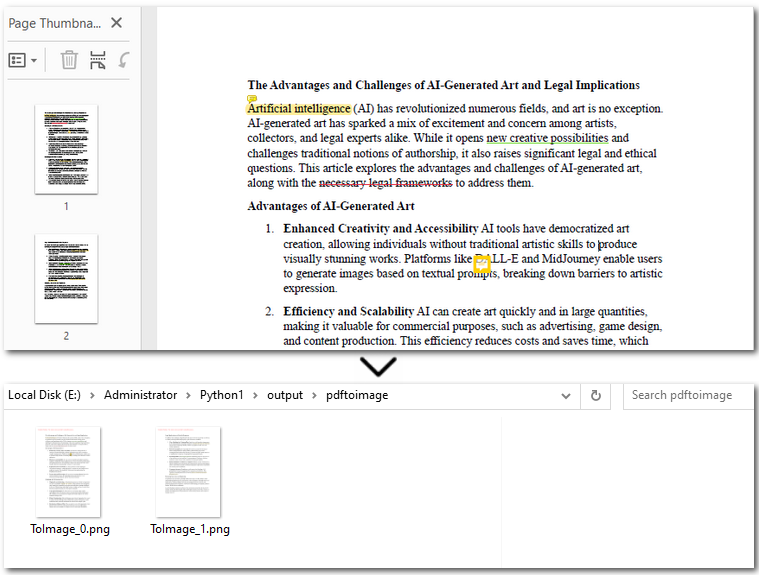
Scan and Extract Text from Images Using Spire.OCR
After converting the scanned PDF into images, we can now move on to OCR PDF with Python and to extract text from the PDF. With OcrScanner.Scan() from Spire.OCR, recognizing text in images becomes straightforward. It supports multiple languages such as English, Chinese, French, and German. Once the text is extracted, you can easily save it to a .txt file or generate a Word document.
The code example below shows how to OCR the first PDF page and export to text in Python:
from spire.ocr import *

# Create OCR scanner instance
scanner = OcrScanner()

# Configure OCR model path and language
configureOptions = ConfigureOptions()
configureOptions.ModelPath = r'E:/DownloadsNew/win-x64/'
configureOptions.Language = 'English'
scanner.ConfigureDependencies(configureOptions)

# Perform OCR on the image
scanner.Scan(r'/output/pdftoimage/ToImage_0.png')

# Save extracted text to file
text = scanner.Text.ToString()
with open('/output/scannedpdfoutput.txt', 'a', encoding='utf-8') as file:
    file.write(text + '\n')
Result preview: 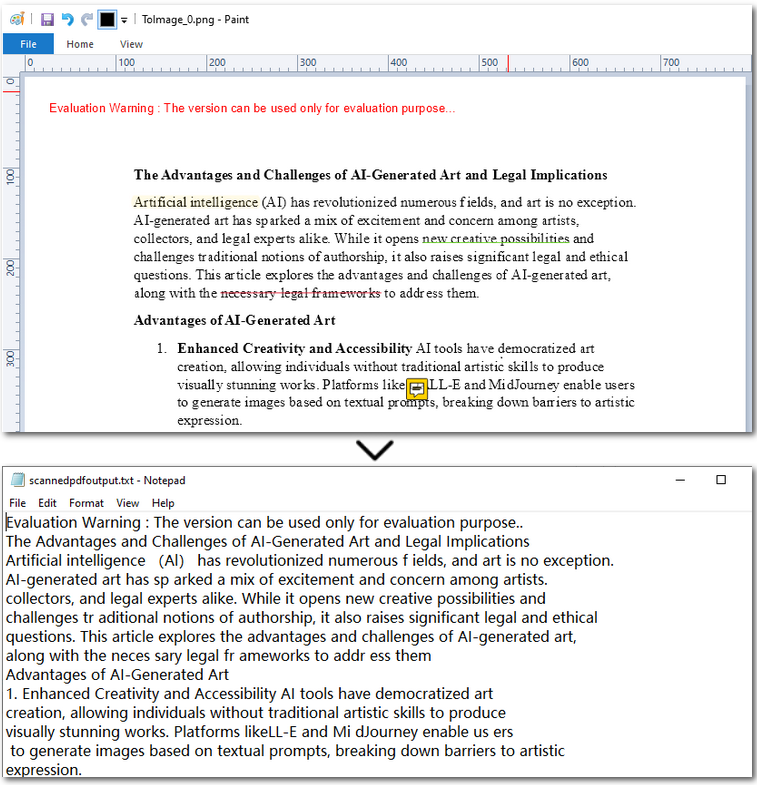
The Conclusion
In this article, we covered how to perform PDF OCR with Python—from converting PDFs to images, to recognizing text with OCR, and finally saving the extracted content as a plain text file. With this streamlined approach, extracting text from scanned PDFs becomes effortless. If you're looking to automate your PDF processing workflows, feel free to reach out and request a 30-day free trial. It’s time to simplify your document management.