Erstellen Sie PDF-Dateien mit Python
Inhaltsverzeichnis
- Python PDF Generator-Bibliothek
- Hintergrundwissen
- So erstellen Sie PDFs mit Python
- Python zum Erstellen von PDF-Dateien von Grund auf
- Python zum Generieren von PDF aus einer Textdatei
- Python zum Erstellen eines mehrspaltigen PDF
- Kostenlose Lizenz zum Erstellen von PDFs in Python
- Abschluss
- Siehe auch
Mit Pip installieren
pip install Spire.PDF
verwandte Links
PDF (Portable Document Format) ist ein beliebtes Dateiformat, das häufig zum Erstellen von Rechtsdokumenten, Verträgen, Berichten, Rechnungen, Handbüchern, E-Books und mehr verwendet wird. Es bietet ein vielseitiges und zuverlässiges Format zum einheitlichen Teilen, Speichern und Präsentieren elektronischer Dokumente, unabhängig von Software, Hardware oder Betriebssystemen.
Aufgrund dieser Vorteile gewinnt die automatisierte Generierung von PDF-Dokumenten in verschiedenen Bereichen zunehmend an Bedeutung. Um den PDF-Erstellungsprozess in Python zu automatisieren, können Sie Skripte schreiben, die PDFs basierend auf bestimmten Anforderungen oder Eingabedaten generieren. Dieser Artikel enthält detaillierte Beispiele, um die Verwendung zu veranschaulichen Python zum Erstellen von PDF-Dateien programmatisch.
- So erstellen Sie PDFs mit Python
- Python zum Erstellen von PDF-Dateien von Grund auf
- Python zum Generieren von PDF aus einer Textdatei
- Python zum Erstellen eines mehrspaltigen PDF
Python PDF Generator-Bibliothek
Um PDFs mit Python zu generieren, müssen wir die Spire.PDF for Python-Bibliothek verwenden. Es handelt sich um eine leistungsstarke Python-Bibliothek, die Funktionen zur PDF-Generierung und -Verarbeitung bietet. Damit können wir mit Python PDFs von Grund auf erstellen und verschiedene PDF-Elemente zu PDF-Seiten hinzufügen.
Um die Python-PDF-Generator-Bibliothek zu installieren, verwenden Sie einfach den folgenden pip-Befehl zur Installation von PyPI:
pip install Spire.PDF
Hintergrundwissen
Bevor wir beginnen, lernen wir einige Hintergrundinformationen zum Erstellen einer PDF-Datei mit der Bibliothek Spire.PDF for Python kennen.
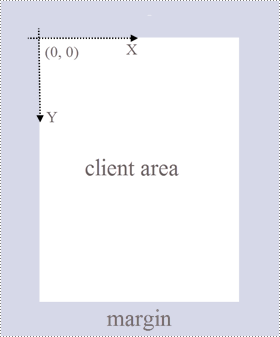
PDF-Seite: Eine Seite in Spire.PDF for Python wird durch die Klasse PdfPageBase dargestellt, die aus einem Clientbereich und Rändern rundherum besteht. Der Inhaltsbereich dient dem Benutzer zum Schreiben verschiedener Inhalte, und die Ränder sind normalerweise leere Kanten.
Koordinatensystem: Wie in der Abbildung unten dargestellt, befindet sich der Ursprung des Koordinatensystems auf der Seite in der oberen linken Ecke des Clientbereichs, wobei die x-Achse horizontal nach rechts und die y-Achse vertikal nach unten verläuft. Alle zum Clientbereich hinzugefügten Elemente basieren auf den angegebenen X- und Y-Koordinaten.
Klassen und Methoden: Die folgende Tabelle listet einige der Kernklassen und Methoden auf, die zum Erstellen von PDFs in Python verwendet werden.
| Mitglied | Beschreibung |
| PDFDocument-Klasse | Stellt ein PDF-Dokumentmodell dar. |
| PDFPageBase-Klasse | Stellt eine Seite in einem PDF-Dokument dar. |
| PdfSolidBrush-Klasse | Stellt einen Pinsel dar, der jedes Objekt mit einer Volltonfarbe füllt. |
| PdfTrueTypeFont-Klasse | Stellt eine True-Type-Schriftart dar. |
| PdfStringFormat-Klasse | Stellt Informationen zum Textformat dar, z. B. Ausrichtung, Zeichenabstand und Einzug. |
| PDFTextWidget-Klasse | Stellt den Textbereich dar, der sich über mehrere Seiten erstrecken kann. |
| PDFTextLayout-Klasse | Stellt die Textlayoutinformationen dar. |
| PdfDocument.Pages.Add()-Methode | Fügt eine Seite zu einem PDF-Dokument hinzu. |
| PdfPageBase.Canvas.DrawString()-Methode | Zeichnet eine Zeichenfolge an der angegebenen Stelle auf einer Seite mit angegebenen Schriftart- und Pinselobjekten. |
| PdfPageBase.Canvas.DrawImage()-Methode | Zeichnet ein Bild an einer angegebenen Stelle auf einer Seite. |
| PDFTextWidget.Draw()-Methode | Zeichnet das Text-Widget an der angegebenen Stelle auf einer Seite. |
| PdfDocument.SaveToFile()-Methode | Speichert das Dokument in einer PDF-Datei. |
So erstellen Sie PDFs mit Python
Im Folgenden sind die Hauptschritte zum Erstellen von PDF-Dateien in Python aufgeführt:
- Installieren Sie Spire.PDF for Python.
- Module importieren.
- Erstellen Sie ein PDF-Dokument über die PdfDocument-Klasse.
- Fügen Sie mit der Methode PdfDocument.Pages.Add() eine Seite zum PDF hinzu und geben Sie ein Objekt der Klasse PdfPageBase zurück.
- Erstellen Sie den gewünschten PDF-Pinsel und die gewünschte Schriftart.
- Zeichnen Sie eine Textzeichenfolge oder ein Text-Widget an einer angegebenen Koordinate auf der PDF-Seite mit der Methode PdfPageBase.Canvas.DrawString() oder PdfTextWidget.Draw().
- Speichern Sie das PDF-Dokument mit der Methode PdfDocument.SaveToFile().
Python zum Erstellen von PDF-Dateien von Grund auf
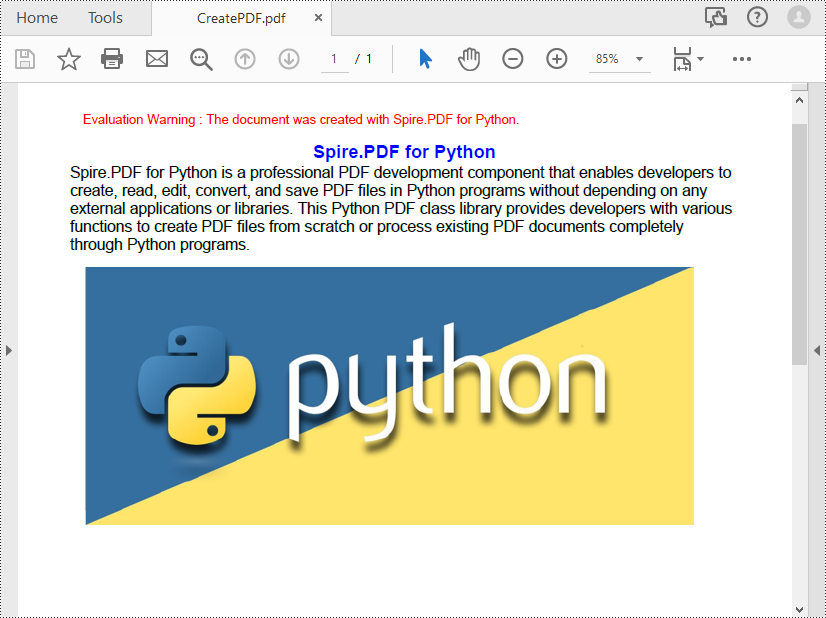
Das folgende Codebeispiel zeigt, wie Sie mit Python eine PDF-Datei erstellen und Text und Bilder einfügen. Mit Spire.PDF for Python können Sie auch andere PDF-Elemente einfügen, z Listen, Hyperlinks, Formulare und Stempel.
- Python
from spire.pdf.common import *
from spire.pdf import *

# Create a pdf document
pdf = PdfDocument()

# Add a page to the PDF
page = pdf.Pages.Add()

# Specify title text and paragraph content
titleText = "Spire.PDF for Python"
paraText = "Spire.PDF for Python is a professional PDF development component that enables developers to create, read, edit, convert, and save PDF files in Python programs without depending on any external applications or libraries. This Python PDF class library provides developers with various functions to create PDF files from scratch or process existing PDF documents completely through Python programs."

# Create solid brushes
titleBrush = PdfSolidBrush(PdfRGBColor(Color.get_Blue()))
paraBrush = PdfSolidBrush(PdfRGBColor(Color.get_Black()))

# Create fonts
titleFont = PdfFont(PdfFontFamily.Helvetica, 14.0, PdfFontStyle.Bold)
paraFont = PdfTrueTypeFont("Arial", 12.0, PdfFontStyle.Regular, True)

# Set the text alignment
textAlignment = PdfStringFormat(PdfTextAlignment.Center, PdfVerticalAlignment.Middle)

# Draw title on the page
page.Canvas.DrawString(titleText, titleFont, titleBrush, page.Canvas.ClientSize.Width / 2, 40.0, textAlignment)

# Create a PdfTextWidget object to hold the paragraph content
textWidget = PdfTextWidget(paraText, paraFont, paraBrush)

# Create a rectangle where the paragraph content will be placed
rect = RectangleF(PointF(0.0, 50.0), page.Canvas.ClientSize)

# Set the text layout
textLayout = PdfTextLayout()
textLayout.Layout = PdfLayoutType.Paginate

# Draw the widget on the page
textWidget.Draw(page, rect, textLayout)

# Load an image
image = PdfImage.FromFile("Python.png")

# Draw the image at a specified location on the page
page.Canvas.DrawImage(image, 12.0, 130.0)

#Save the PDF document
pdf.SaveToFile("CreatePDF.pdf")
pdf.Close()
Python zum Generieren von PDF aus einer Textdatei
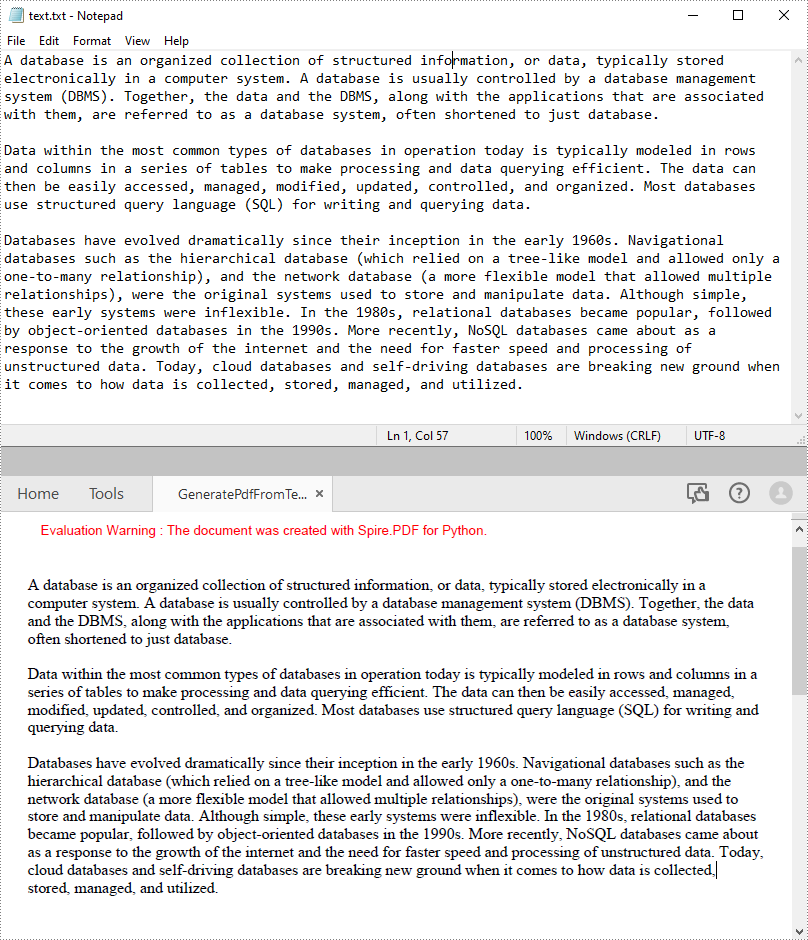
Das folgende Codebeispiel zeigt den Prozess des Lesens von Text aus einer TXT-Datei und dessen Zeichnen an einer bestimmten Stelle auf einer PDF-Seite.
- Python
from spire.pdf.common import *
from spire.pdf import *

def ReadFromTxt(fname: str) -> str:
    with open(fname, 'r') as f:
        text = f.read()
    return text

# Create a pdf document
pdf = PdfDocument()

# Add a page to the PDF
page = pdf.Pages.Add(PdfPageSize.A4(), PdfMargins(20.0, 20.0))

# Create a PdfFont and brush
font = PdfFont(PdfFontFamily.TimesRoman, 12.0)
brush = PdfBrushes.get_Black()

# Get content from a .txt file
text = ReadFromTxt("text.txt")

# Create a PdfTextWidget object to hold the text content
textWidget = PdfTextWidget(text, font, brush)

# Create a rectangle where the text content will be placed
rect = RectangleF(PointF(0.0, 50.0), page.Canvas.ClientSize)

# Set the text layout
textLayout = PdfTextLayout()
textLayout.Layout = PdfLayoutType.Paginate

# Draw the widget on the page
textWidget.Draw(page, rect, textLayout)

# Save the generated PDF file
pdf.SaveToFile("GeneratePdfFromText.pdf", FileFormat.PDF)
pdf.Close()
Python zum Erstellen eines mehrspaltigen PDF
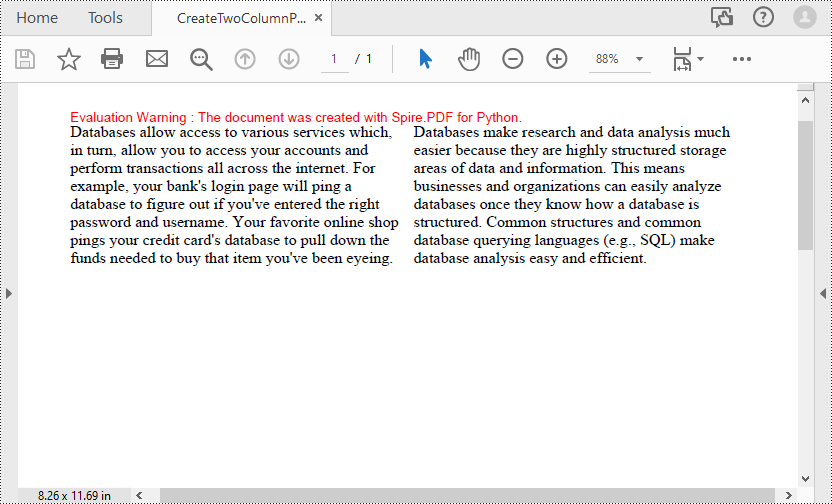
Mehrspaltige PDFs werden häufig in Zeitschriften oder Zeitungen verwendet. Das folgende Codebeispiel zeigt den Prozess der Erstellung einer zweispaltigen PDF-Datei durch Zeichnen von Text in zwei separaten rechteckigen Bereichen auf einer PDF-Seite.
- Python
from spire.pdf.common import *
from spire.pdf import *

# Creates a PDF document
pdf = PdfDocument()

# Add a page to the PDF
page = pdf.Pages.Add()

# Define paragraph text
s1 = "Databases allow access to various services which, in turn, allow you to access your accounts and perform transactions all across the internet. " + "For example, your bank's login page will ping a database to figure out if you've entered the right password and username. " + "Your favorite online shop pings your credit card's database to pull down the funds needed to buy that item you've been eyeing."
s2 = "Databases make research and data analysis much easier because they are highly structured storage areas of data and information. " + "This means businesses and organizations can easily analyze databases once they know how a database is structured. " + "Common structures and common database querying languages (e.g., SQL) make database analysis easy and efficient."

# Get width and height of page
pageWidth = page.GetClientSize().Width
pageHeight = page.GetClientSize().Height

# Create a PDF font and brush
font = PdfFont(PdfFontFamily.TimesRoman, 12.0)
brush = PdfBrushes.get_Black()

# Set the text alignment
format = PdfStringFormat(PdfTextAlignment.Left)

# Draws text at a specified location on the page
page.Canvas.DrawString(s1, font, brush, RectangleF(10.0, 20.0, pageWidth / 2 - 8, pageHeight), format)
page.Canvas.DrawString(s2, font, brush, RectangleF(pageWidth / 2 + 8, 20.0, pageWidth / 2 - 8, pageHeight), format)

# Save the PDF document
pdf.SaveToFile("CreateTwoColumnPDF.pdf")
pdf.Close()
Kostenlose Lizenz zum Erstellen von PDFs in Python
Du kannst Holen Sie sich eine kostenlose temporäre Lizenz von Spire.PDF for Python zum Generieren von PDF-Dokumenten ohne Wasserzeichen und Einschränkungen.
Abschluss
In diesem Blogbeitrag finden Sie eine Schritt-für-Schritt-Anleitung zum Erstellen von PDF-Dateien basierend auf dem in der Spire.PDF for Python-Bibliothek definierten Koordinatensystem. In den Codebeispielen erfahren Sie mehr über den Prozess und die Methoden zum Einfügen von Text und Bildern in PDFs und zum Konvertieren von TXT-Dateien in PDFs. Wenn Sie andere PDF-Verarbeitungs- und Konvertierungsfunktionen der Python PDF-Bibliothek erkunden möchten, können Sie sich diese ansehen Online-Dokumentation.
Bei Problemen während der Nutzung wenden Sie sich bitte per E-Mail oder Forum an unser technisches Support-Team. E-Mail oder Forum.
Crear archivos PDF con Python
Tabla de contenido
Instalar con Pip
pip install Spire.PDF
enlaces relacionados
PDF (Formato de documento portátil) es un formato de archivo popular ampliamente utilizado para generar documentos legales, contratos, informes, facturas, manuales, libros electrónicos y más. Proporciona un formato versátil y confiable para compartir, almacenar y presentar documentos electrónicos de manera consistente, independientemente de cualquier software, hardware o sistema operativo.
Dadas estas ventajas, la generación automatizada de documentos PDF está adquiriendo cada vez más importancia en diversos campos. Para automatizar el proceso de creación de PDF en Python, puede escribir scripts que generen archivos PDF en función de requisitos específicos o datos de entrada. Este artículo proporcionará ejemplos detallados para demostrar cómo utilizar Python para crear archivos PDF programáticamente.
- Cómo crear PDF usando Python
- Python para crear archivos PDF desde cero
- Python para generar PDF a partir de un archivo de texto
- Python para crear un PDF de varias columnas
Biblioteca generadora de PDF de Python
Para generar PDF usando Python, necesitaremos usar la biblioteca Spire.PDF for Python. Es una potente biblioteca de Python que proporciona capacidades de generación y procesamiento de PDF. Con él, podemos usar Python para crear archivos PDF desde cero y agregar varios elementos PDF a las páginas PDF.
Para instalar la biblioteca del generador de PDF de Python, simplemente use el siguiente comando pip para instalar desde PyPI:
pip install Spire.PDF
Conocimiento de fondo
Antes de comenzar, aprendamos algunos antecedentes sobre cómo crear un archivo PDF usando la biblioteca Spire.PDF for Python.
Página PDF: una página en Spire.PDF for Python está representada por la clase PdfPageBase, que consta de un área de cliente y márgenes alrededor. El área de contenido es para que los usuarios escriban diversos contenidos y los márgenes suelen ser bordes en blanco.
Sistema de coordenadas: como se muestra en la figura siguiente, el origen del sistema de coordenadas en la página se encuentra en la esquina superior izquierda del área del cliente, con el eje x extendiéndose horizontalmente hacia la derecha y el eje y extendiéndose verticalmente hacia abajo. Todos los elementos agregados al área del cliente se basan en las coordenadas X e Y especificadas.
Clases y métodos: la siguiente tabla enumera algunas de las clases y métodos principales utilizados para crear archivos PDF en Python.
| Miembro | Descripción |
| Clase de documento Pdf | Representa un modelo de documento PDF. |
| Clase PdfPageBase | Representa una página en un documento PDF. |
| Clase PdfSolidBrush | Representa un pincel que rellena cualquier objeto con un color sólido. |
| Clase PdfTrueTypeFont | Representa una fuente de tipo verdadero. |
| Clase PdfStringFormat | Representa información de formato de texto, como alineación, espaciado entre caracteres y sangría. |
| Clase PdfTextWidget | Representa el área de texto con capacidad de abarcar varias páginas. |
| Clase PdfTextLayout | Representa la información de diseño del texto. |
| Método PdfDocument.Pages.Add() | Agrega una página a un documento PDF. |
| Método PdfPageBase.Canvas.DrawString() | Dibuja una cadena en la ubicación especificada en una página con fuentes y objetos de pincel especificados. |
| Método PdfPageBase.Canvas.DrawImage() | Dibuja una imagen en una ubicación específica de una página. |
| Método PdfTextWidget.Draw() | Dibuja el widget de texto en la ubicación especificada en una página. |
| Método PdfDocument.SaveToFile() | Guarda el documento en un archivo PDF. |
Cómo crear PDF usando Python
Los siguientes son los pasos principales para crear archivos PDF en Python:
- Instale Spire.PDF for Python.
- Importar módulos.
- Cree un documento PDF a través de la clase PdfDocument.
- Agregue una página al PDF usando el método PdfDocument.Pages.Add() y devuelva un objeto de la clase PdfPageBase.
- Cree el pincel y la fuente PDF que desee.
- Dibuje una cadena de texto o un widget de texto en una coordenada especificada en la página PDF utilizando el método PdfPageBase.Canvas.DrawString() o PdfTextWidget.Draw().
- Guarde el documento PDF utilizando el método PdfDocument.SaveToFile().
Python para crear archivos PDF desde cero
El siguiente ejemplo de código demuestra cómo usar Python para crear un archivo PDF e insertar texto e imágenes. Con Spire.PDF for Python, también puedes insertar otros elementos PDF como listas, hipervínculos, formularios y sellos.
- Python
from spire.pdf.common import *
from spire.pdf import *

# Create a pdf document
pdf = PdfDocument()

# Add a page to the PDF
page = pdf.Pages.Add()

# Specify title text and paragraph content
titleText = "Spire.PDF for Python"
paraText = "Spire.PDF for Python is a professional PDF development component that enables developers to create, read, edit, convert, and save PDF files in Python programs without depending on any external applications or libraries. This Python PDF class library provides developers with various functions to create PDF files from scratch or process existing PDF documents completely through Python programs."

# Create solid brushes
titleBrush = PdfSolidBrush(PdfRGBColor(Color.get_Blue()))
paraBrush = PdfSolidBrush(PdfRGBColor(Color.get_Black()))

# Create fonts
titleFont = PdfFont(PdfFontFamily.Helvetica, 14.0, PdfFontStyle.Bold)
paraFont = PdfTrueTypeFont("Arial", 12.0, PdfFontStyle.Regular, True)

# Set the text alignment
textAlignment = PdfStringFormat(PdfTextAlignment.Center, PdfVerticalAlignment.Middle)

# Draw title on the page
page.Canvas.DrawString(titleText, titleFont, titleBrush, page.Canvas.ClientSize.Width / 2, 40.0, textAlignment)

# Create a PdfTextWidget object to hold the paragraph content
textWidget = PdfTextWidget(paraText, paraFont, paraBrush)

# Create a rectangle where the paragraph content will be placed
rect = RectangleF(PointF(0.0, 50.0), page.Canvas.ClientSize)

# Set the text layout
textLayout = PdfTextLayout()
textLayout.Layout = PdfLayoutType.Paginate

# Draw the widget on the page
textWidget.Draw(page, rect, textLayout)

# Load an image
image = PdfImage.FromFile("Python.png")

# Draw the image at a specified location on the page
page.Canvas.DrawImage(image, 12.0, 130.0)

#Save the PDF document
pdf.SaveToFile("CreatePDF.pdf")
pdf.Close()
Python para generar PDF a partir de un archivo de texto
El siguiente ejemplo de código muestra el proceso de leer texto de un archivo .txt y dibujarlo en una ubicación específica en una página PDF.
- Python
from spire.pdf.common import *
from spire.pdf import *

def ReadFromTxt(fname: str) -> str:
    with open(fname, 'r') as f:
        text = f.read()
    return text

# Create a pdf document
pdf = PdfDocument()

# Add a page to the PDF
page = pdf.Pages.Add(PdfPageSize.A4(), PdfMargins(20.0, 20.0))

# Create a PdfFont and brush
font = PdfFont(PdfFontFamily.TimesRoman, 12.0)
brush = PdfBrushes.get_Black()

# Get content from a .txt file
text = ReadFromTxt("text.txt")

# Create a PdfTextWidget object to hold the text content
textWidget = PdfTextWidget(text, font, brush)

# Create a rectangle where the text content will be placed
rect = RectangleF(PointF(0.0, 50.0), page.Canvas.ClientSize)

# Set the text layout
textLayout = PdfTextLayout()
textLayout.Layout = PdfLayoutType.Paginate

# Draw the widget on the page
textWidget.Draw(page, rect, textLayout)

# Save the generated PDF file
pdf.SaveToFile("GeneratePdfFromText.pdf", FileFormat.PDF)
pdf.Close()
Python para crear un PDF de varias columnas
Los PDF de varias columnas se utilizan habitualmente en revistas o periódicos. El siguiente ejemplo de código muestra el proceso de creación de un PDF de dos columnas dibujando texto en dos áreas rectangulares separadas en una página PDF.
- Python
from spire.pdf.common import *
from spire.pdf import *

# Creates a PDF document
pdf = PdfDocument()

# Add a page to the PDF
page = pdf.Pages.Add()

# Define paragraph text
s1 = "Databases allow access to various services which, in turn, allow you to access your accounts and perform transactions all across the internet. " + "For example, your bank's login page will ping a database to figure out if you've entered the right password and username. " + "Your favorite online shop pings your credit card's database to pull down the funds needed to buy that item you've been eyeing."
s2 = "Databases make research and data analysis much easier because they are highly structured storage areas of data and information. " + "This means businesses and organizations can easily analyze databases once they know how a database is structured. " + "Common structures and common database querying languages (e.g., SQL) make database analysis easy and efficient."

# Get width and height of page
pageWidth = page.GetClientSize().Width
pageHeight = page.GetClientSize().Height

# Create a PDF font and brush
font = PdfFont(PdfFontFamily.TimesRoman, 12.0)
brush = PdfBrushes.get_Black()

# Set the text alignment
format = PdfStringFormat(PdfTextAlignment.Left)

# Draws text at a specified location on the page
page.Canvas.DrawString(s1, font, brush, RectangleF(10.0, 20.0, pageWidth / 2 - 8, pageHeight), format)
page.Canvas.DrawString(s2, font, brush, RectangleF(pageWidth / 2 + 8, 20.0, pageWidth / 2 - 8, pageHeight), format)

# Save the PDF document
pdf.SaveToFile("CreateTwoColumnPDF.pdf")
pdf.Close()
Licencia gratuita para crear PDF en Python
Puede obtenga una licencia temporal gratuita de Spire.PDF for Python para generar documentos PDF sin marcas de agua ni limitaciones.
Conclusión
Esta publicación de blog proporciona una guía paso a paso sobre cómo crear archivos PDF basados en el sistema de coordenadas definido en la biblioteca Spire.PDF for Python. En los ejemplos de código, puede obtener información sobre el proceso y los métodos para insertar texto e imágenes en archivos PDF y convertir archivos TXT a PDF. Si desea explorar otras funciones de conversión y procesamiento de PDF de la biblioteca PDF de Python, puede consultar su documentación en línea.
Para cualquier problema durante el uso, comuníquese con nuestro equipo de soporte técnico por correo electrónico o foro.
Python으로 PDF 파일 만들기
목차
핍으로 설치
pip install Spire.PDF
관련된 링크들
PDF(Portable Document Format)는 법률 문서, 계약서, 보고서, 송장, 매뉴얼, 전자책 등을 생성하는 데 널리 사용되는 파일 형식입니다. 이는 모든 소프트웨어, 하드웨어 또는 운영 체제에 관계없이 일관된 방식으로 전자 문서를 공유, 저장 및 표시할 수 있는 다양하고 안정적인 형식을 제공합니다.
이러한 장점을 고려할 때 PDF 문서의 자동화된 생성은 다양한 분야에서 점점 더 중요해지고 있습니다. Python에서 PDF 생성 프로세스를 자동화하려면 특정 요구 사항이나 입력 데이터를 기반으로 PDF를 생성하는 스크립트를 작성할 수 있습니다. 이 문서에서는 사용 방법을 보여주는 자세한 예제를 제공합니다 PDF 파일을 생성하는 Python 프로그래밍 방식으로.
- Python을 사용하여 PDF를 만드는 방법
- Python을 사용하여 처음부터 PDF 파일 만들기
- 텍스트 파일에서 PDF를 생성하는 Python
- 다중 열 PDF를 만드는 Python
Python PDF 생성기 라이브러리
Python을 사용하여 PDF를 생성하려면 Spire.PDF for Python 라이브러리를 사용해야 합니다. PDF 생성 및 처리 기능을 제공하는 강력한 Python 라이브러리입니다. 이를 통해 Python을 사용하여 처음부터 PDF를 만들고 PDF 페이지에 다양한 PDF 요소를 추가할 수 있습니다.
Python PDF 생성기 라이브러리를 설치하려면 다음 pip 명령을 사용하여 PyPI에서 설치하면 됩니다.
pip install Spire.PDF
배경 지식
시작하기 전에 라이브러리 Spire.PDF for Python를 사용하여 PDF 파일을 만드는 방법에 대한 몇 가지 배경 지식을 살펴보겠습니다.
PDF 페이지: Spire.PDF for Python의 페이지는 클라이언트 영역과 주변 여백으로 구성된 PdfPageBase 클래스로 표시됩니다. 컨텐츠 영역은 사용자가 다양한 컨텐츠를 작성하기 위한 영역으로, 여백은 대개 빈 가장자리입니다.
좌표계: 아래 그림과 같이 페이지의 좌표계 원점은 클라이언트 영역의 왼쪽 상단에 위치하며, x축은 오른쪽으로 수평으로 확장되고 y축은 수직으로 아래로 확장됩니다. 클라이언트 영역에 추가된 모든 요소는 지정된 X 및 Y 좌표를 기반으로 합니다.
클래스 및 메서드: 다음 표에는 Python에서 PDF를 만드는 데 사용되는 일부 핵심 클래스 및 메서드가 나열되어 있습니다.
| 회원 | 설명 |
| PdfDocument 클래스 | PDF 문서 모델을 나타냅니다. |
| PdfPageBase 클래스 | PDF 문서의 페이지를 나타냅니다. |
| PdfSolidBrush 클래스 | 모든 개체를 단색으로 채우는 브러시를 나타냅니다. |
| PdfTrueTypeFont 클래스 | 트루타입 글꼴을 나타냅니다. |
| PdfStringFormat 클래스 | 정렬, 문자 간격, 들여쓰기 등의 텍스트 형식 정보를 나타냅니다. |
| PdfTextWidget 클래스 | 여러 페이지에 걸쳐 표시할 수 있는 텍스트 영역을 나타냅니다. |
| PdfTextLayout 클래스 | 텍스트 레이아웃 정보를 나타냅니다. |
| PdfDocument.Pages.Add() 메서드 | PDF 문서에 페이지를 추가합니다. |
| PdfPageBase.Canvas.DrawString() 메서드 | 지정된 글꼴 및 브러시 개체를 사용하여 페이지의 지정된 위치에 문자열을 그립니다. |
| PdfPageBase.Canvas.DrawImage() 메서드 | 페이지의 지정된 위치에 이미지를 그립니다. |
| PdfTextWidget.Draw() 메서드 | 페이지의 지정된 위치에 텍스트 위젯을 그립니다. |
| PdfDocument.SaveToFile() 메서드 | 문서를 PDF 파일로 저장합니다. |
Python을 사용하여 PDF를 만드는 방법
다음은 Python에서 PDF 파일을 생성하는 주요 단계입니다.
- Spire.PDF for Python 설치합니다..
- 모듈을 가져옵니다.
- PdfDocument 클래스를 통해 PDF 문서를 만듭니다.
- PdfDocument.Pages.Add() 메서드를 사용하여 PDF에 페이지를 추가하고 PdfPageBase 클래스의 개체를 반환합니다.
- 원하는 PDF 브러시와 글꼴을 만듭니다.
- PdfPageBase.Canvas.DrawString() 또는 PdfTextWidget.Draw() 메서드를 사용하여 PDF 페이지의 지정된 좌표에 텍스트 문자열이나 텍스트 위젯을 그립니다.
- PdfDocument.SaveToFile() 메서드를 사용하여 PDF 문서를 저장합니다.
Python을 사용하여 처음부터 PDF 파일 만들기
다음 코드 예제에서는 Python을 사용하여 PDF 파일을 만들고 텍스트와 이미지를 삽입하는 방법을 보여줍니다. Spire.PDF for Python를 사용하면 다음과 같은 다른 PDF 요소를 삽입할 수도 있습니다 목록, 하이퍼링크, 양식 및 스탬프.
- Python
from spire.pdf.common import *
from spire.pdf import *

# Create a pdf document
pdf = PdfDocument()

# Add a page to the PDF
page = pdf.Pages.Add()

# Specify title text and paragraph content
titleText = "Spire.PDF for Python"
paraText = "Spire.PDF for Python is a professional PDF development component that enables developers to create, read, edit, convert, and save PDF files in Python programs without depending on any external applications or libraries. This Python PDF class library provides developers with various functions to create PDF files from scratch or process existing PDF documents completely through Python programs."

# Create solid brushes
titleBrush = PdfSolidBrush(PdfRGBColor(Color.get_Blue()))
paraBrush = PdfSolidBrush(PdfRGBColor(Color.get_Black()))

# Create fonts
titleFont = PdfFont(PdfFontFamily.Helvetica, 14.0, PdfFontStyle.Bold)
paraFont = PdfTrueTypeFont("Arial", 12.0, PdfFontStyle.Regular, True)

# Set the text alignment
textAlignment = PdfStringFormat(PdfTextAlignment.Center, PdfVerticalAlignment.Middle)

# Draw title on the page
page.Canvas.DrawString(titleText, titleFont, titleBrush, page.Canvas.ClientSize.Width / 2, 40.0, textAlignment)

# Create a PdfTextWidget object to hold the paragraph content
textWidget = PdfTextWidget(paraText, paraFont, paraBrush)

# Create a rectangle where the paragraph content will be placed
rect = RectangleF(PointF(0.0, 50.0), page.Canvas.ClientSize)

# Set the text layout
textLayout = PdfTextLayout()
textLayout.Layout = PdfLayoutType.Paginate

# Draw the widget on the page
textWidget.Draw(page, rect, textLayout)

# Load an image
image = PdfImage.FromFile("Python.png")

# Draw the image at a specified location on the page
page.Canvas.DrawImage(image, 12.0, 130.0)

#Save the PDF document
pdf.SaveToFile("CreatePDF.pdf")
pdf.Close()
텍스트 파일에서 PDF를 생성하는 Python
다음 코드 예제에서는 .txt 파일에서 텍스트를 읽고 PDF 페이지의 지정된 위치에 그리는 프로세스를 보여줍니다.
- Python
from spire.pdf.common import *
from spire.pdf import *

def ReadFromTxt(fname: str) -> str:
    with open(fname, 'r') as f:
        text = f.read()
    return text

# Create a pdf document
pdf = PdfDocument()

# Add a page to the PDF
page = pdf.Pages.Add(PdfPageSize.A4(), PdfMargins(20.0, 20.0))

# Create a PdfFont and brush
font = PdfFont(PdfFontFamily.TimesRoman, 12.0)
brush = PdfBrushes.get_Black()

# Get content from a .txt file
text = ReadFromTxt("text.txt")

# Create a PdfTextWidget object to hold the text content
textWidget = PdfTextWidget(text, font, brush)

# Create a rectangle where the text content will be placed
rect = RectangleF(PointF(0.0, 50.0), page.Canvas.ClientSize)

# Set the text layout
textLayout = PdfTextLayout()
textLayout.Layout = PdfLayoutType.Paginate

# Draw the widget on the page
textWidget.Draw(page, rect, textLayout)

# Save the generated PDF file
pdf.SaveToFile("GeneratePdfFromText.pdf", FileFormat.PDF)
pdf.Close()
다중 열 PDF를 만드는 Python
다중 열 PDF는 일반적으로 잡지나 신문에서 사용됩니다. 다음 코드 예제에서는 PDF 페이지의 두 개의 별도 직사각형 영역에 텍스트를 그려서 두 열로 구성된 PDF를 만드는 과정을 보여줍니다.
- Python
from spire.pdf.common import *
from spire.pdf import *

# Creates a PDF document
pdf = PdfDocument()

# Add a page to the PDF
page = pdf.Pages.Add()

# Define paragraph text
s1 = "Databases allow access to various services which, in turn, allow you to access your accounts and perform transactions all across the internet. " + "For example, your bank's login page will ping a database to figure out if you've entered the right password and username. " + "Your favorite online shop pings your credit card's database to pull down the funds needed to buy that item you've been eyeing."
s2 = "Databases make research and data analysis much easier because they are highly structured storage areas of data and information. " + "This means businesses and organizations can easily analyze databases once they know how a database is structured. " + "Common structures and common database querying languages (e.g., SQL) make database analysis easy and efficient."

# Get width and height of page
pageWidth = page.GetClientSize().Width
pageHeight = page.GetClientSize().Height

# Create a PDF font and brush
font = PdfFont(PdfFontFamily.TimesRoman, 12.0)
brush = PdfBrushes.get_Black()

# Set the text alignment
format = PdfStringFormat(PdfTextAlignment.Left)

# Draws text at a specified location on the page
page.Canvas.DrawString(s1, font, brush, RectangleF(10.0, 20.0, pageWidth / 2 - 8, pageHeight), format)
page.Canvas.DrawString(s2, font, brush, RectangleF(pageWidth / 2 + 8, 20.0, pageWidth / 2 - 8, pageHeight), format)

# Save the PDF document
pdf.SaveToFile("CreateTwoColumnPDF.pdf")
pdf.Close()
Python에서 PDF를 생성하기 위한 무료 라이센스
당신은 할 수 있습니다 무료 임시 라이센스를 받으세요Spire.PDF for Python를 사용하면 워터마크나 제한 없이 PDF 문서를 생성할 수 있습니다.
결론
이 블로그 게시물은 라이브러리 Spire.PDF for Python에 정의된 좌표계를 기반으로 PDF 파일을 생성하는 방법에 대한 단계별 가이드를 제공했습니다. 코드 샘플에서는 텍스트, 이미지를 PDF에 삽입하고 TXT 파일을 PDF로 변환하는 프로세스와 방법에 대해 알아볼 수 있습니다. Python PDF 라이브러리의 다른 PDF 처리 및 변환 기능을 살펴보고 싶다면 다음을 확인하세요 온라인 문서.
사용 중 문제가 발생하면 다음을 통해 기술 지원팀에 문의하세요 이메일 이나 포럼.
Crea file PDF con Python
Sommario
Installa con Pip
pip install Spire.PDF
Link correlati
PDF (Portable Document Format) è un formato di file popolare ampiamente utilizzato per generare documenti legali, contratti, report, fatture, manuali, eBook e altro ancora. Fornisce un formato versatile e affidabile per condividere, archiviare e presentare documenti elettronici in modo coerente, indipendente da qualsiasi software, hardware o sistema operativo.
Considerati questi vantaggi, la generazione automatizzata di documenti PDF sta diventando sempre più importante in vari campi. Per automatizzare il processo di creazione di PDF in Python, puoi scrivere script che generano PDF in base a requisiti specifici o dati di input. Questo articolo fornirà esempi dettagliati per dimostrare come utilizzare Python per creare file PDF a livello di programmazione.
- Come creare PDF utilizzando Python
- Python per creare file PDF da zero
- Python per generare PDF da file di testo
- Python per creare un PDF a più colonne
Libreria di generatori PDF Python
Per generare PDF utilizzando Python, dovremo utilizzare la libreria Spire.PDF for Python. È una potente libreria Python che fornisce funzionalità di generazione ed elaborazione di PDF. Con esso, possiamo usare Python per creare PDF da zero e aggiungere vari elementi PDF alle pagine PDF.
Per installare la libreria del generatore PDF Python, è sufficiente utilizzare il seguente comando pip per eseguire l'installazione da PyPI:
pip install Spire.PDF
Conoscenze di base
Prima di iniziare, impariamo alcune nozioni di base sulla creazione di un file PDF utilizzando la libreria Spire.PDF for Python.
Pagina PDF: una pagina in Spire.PDF for Python è rappresentata dalla classe PdfPageBase, che consiste in un'area client e margini tutt'intorno. L'area del contenuto consente agli utenti di scrivere vari contenuti e i margini sono generalmente bordi vuoti.
Sistema di coordinate: come mostrato nella figura seguente, l'origine del sistema di coordinate sulla pagina si trova nell'angolo in alto a sinistra dell'area client, con l'asse x che si estende orizzontalmente verso destra e l'asse y che si estende verticalmente verso il basso. Tutti gli elementi aggiunti all'area client si basano sulle coordinate X e Y specificate.
Classi e metodi: la tabella seguente elenca alcune delle classi e dei metodi principali utilizzati per creare PDF in Python.
| Membro | Descrizione |
| Classe PdfDocument | Rappresenta un modello di documento PDF. |
| Classe PdfPageBase | Rappresenta una pagina in un documento PDF. |
| Classe PdfSolidBrush | Rappresenta un pennello che riempie qualsiasi oggetto con un colore a tinta unita. |
| Classe PdfTrueTypeFont | Rappresenta un carattere di tipo vero. |
| Classe PdfStringFormat | Rappresenta informazioni sul formato del testo, come allineamento, spaziatura dei caratteri e rientro. |
| Classe PdfTextWidget | Rappresenta l'area di testo con la possibilità di estendersi su più pagine. |
| Classe PdfTextLayout | Rappresenta le informazioni sul layout del testo. |
| Metodo PdfDocument.Pages.Add() | Aggiunge una pagina a un documento PDF. |
| Metodo PdfPageBase.Canvas.DrawString() | Disegna la stringa nella posizione specificata su una pagina con il carattere e gli oggetti pennello specificati. |
| Metodo PdfPageBase.Canvas.DrawImage() | Disegna un'immagine in una posizione specifica su una pagina. |
| Metodo PdfTextWidget.Draw() | Disegna il widget di testo nella posizione specificata su una pagina. |
| Metodo PdfDocument.SaveToFile() | Salva il documento in un file PDF. |
Come creare PDF utilizzando Python
Di seguito sono riportati i passaggi principali per la creazione di file PDF in Python:
- Installa Spire.PDF for Python.
- Importa moduli.
- Crea un documento PDF tramite la classe PdfDocument.
- Aggiungi una pagina al PDF utilizzando il metodo PdfDocument.Pages.Add() e restituisce un oggetto della classe PdfPageBase.
- Crea il pennello e il carattere PDF desiderati.
- Disegna una stringa di testo o un widget di testo a una coordinata specificata sulla pagina PDF utilizzando il metodo PdfPageBase.Canvas.DrawString() o PdfTextWidget.Draw().
- Salva il documento PDF utilizzando il metodo PdfDocument.SaveToFile().
Python per creare file PDF da zero
L'esempio di codice seguente illustra come utilizzare Python per creare un file PDF e inserire testo e immagini. Con Spire.PDF for Python puoi anche inserire altri elementi PDF come elenchi, collegamenti ipertestuali, moduli e timbri.
- Python
from spire.pdf.common import *
from spire.pdf import *

# Create a pdf document
pdf = PdfDocument()

# Add a page to the PDF
page = pdf.Pages.Add()

# Specify title text and paragraph content
titleText = "Spire.PDF for Python"
paraText = "Spire.PDF for Python is a professional PDF development component that enables developers to create, read, edit, convert, and save PDF files in Python programs without depending on any external applications or libraries. This Python PDF class library provides developers with various functions to create PDF files from scratch or process existing PDF documents completely through Python programs."

# Create solid brushes
titleBrush = PdfSolidBrush(PdfRGBColor(Color.get_Blue()))
paraBrush = PdfSolidBrush(PdfRGBColor(Color.get_Black()))

# Create fonts
titleFont = PdfFont(PdfFontFamily.Helvetica, 14.0, PdfFontStyle.Bold)
paraFont = PdfTrueTypeFont("Arial", 12.0, PdfFontStyle.Regular, True)

# Set the text alignment
textAlignment = PdfStringFormat(PdfTextAlignment.Center, PdfVerticalAlignment.Middle)

# Draw title on the page
page.Canvas.DrawString(titleText, titleFont, titleBrush, page.Canvas.ClientSize.Width / 2, 40.0, textAlignment)

# Create a PdfTextWidget object to hold the paragraph content
textWidget = PdfTextWidget(paraText, paraFont, paraBrush)

# Create a rectangle where the paragraph content will be placed
rect = RectangleF(PointF(0.0, 50.0), page.Canvas.ClientSize)

# Set the text layout
textLayout = PdfTextLayout()
textLayout.Layout = PdfLayoutType.Paginate

# Draw the widget on the page
textWidget.Draw(page, rect, textLayout)

# Load an image
image = PdfImage.FromFile("Python.png")

# Draw the image at a specified location on the page
page.Canvas.DrawImage(image, 12.0, 130.0)

#Save the PDF document
pdf.SaveToFile("CreatePDF.pdf")
pdf.Close()
Python per generare PDF da file di testo
L'esempio di codice seguente mostra il processo di lettura del testo da un file .txt e di disegno in una posizione specifica su una pagina PDF.
- Python
from spire.pdf.common import *
from spire.pdf import *

def ReadFromTxt(fname: str) -> str:
    with open(fname, 'r') as f:
        text = f.read()
    return text

# Create a pdf document
pdf = PdfDocument()

# Add a page to the PDF
page = pdf.Pages.Add(PdfPageSize.A4(), PdfMargins(20.0, 20.0))

# Create a PdfFont and brush
font = PdfFont(PdfFontFamily.TimesRoman, 12.0)
brush = PdfBrushes.get_Black()

# Get content from a .txt file
text = ReadFromTxt("text.txt")

# Create a PdfTextWidget object to hold the text content
textWidget = PdfTextWidget(text, font, brush)

# Create a rectangle where the text content will be placed
rect = RectangleF(PointF(0.0, 50.0), page.Canvas.ClientSize)

# Set the text layout
textLayout = PdfTextLayout()
textLayout.Layout = PdfLayoutType.Paginate

# Draw the widget on the page
textWidget.Draw(page, rect, textLayout)

# Save the generated PDF file
pdf.SaveToFile("GeneratePdfFromText.pdf", FileFormat.PDF)
pdf.Close()
Python per creare un PDF a più colonne
I PDF a più colonne sono comunemente usati nelle riviste o nei giornali. L'esempio di codice seguente mostra il processo di creazione di un PDF a due colonne disegnando il testo in due aree rettangolari separate su una pagina PDF.
- Python
from spire.pdf.common import *
from spire.pdf import *

# Creates a PDF document
pdf = PdfDocument()

# Add a page to the PDF
page = pdf.Pages.Add()

# Define paragraph text
s1 = "Databases allow access to various services which, in turn, allow you to access your accounts and perform transactions all across the internet. " + "For example, your bank's login page will ping a database to figure out if you've entered the right password and username. " + "Your favorite online shop pings your credit card's database to pull down the funds needed to buy that item you've been eyeing."
s2 = "Databases make research and data analysis much easier because they are highly structured storage areas of data and information. " + "This means businesses and organizations can easily analyze databases once they know how a database is structured. " + "Common structures and common database querying languages (e.g., SQL) make database analysis easy and efficient."

# Get width and height of page
pageWidth = page.GetClientSize().Width
pageHeight = page.GetClientSize().Height

# Create a PDF font and brush
font = PdfFont(PdfFontFamily.TimesRoman, 12.0)
brush = PdfBrushes.get_Black()

# Set the text alignment
format = PdfStringFormat(PdfTextAlignment.Left)

# Draws text at a specified location on the page
page.Canvas.DrawString(s1, font, brush, RectangleF(10.0, 20.0, pageWidth / 2 - 8, pageHeight), format)
page.Canvas.DrawString(s2, font, brush, RectangleF(pageWidth / 2 + 8, 20.0, pageWidth / 2 - 8, pageHeight), format)

# Save the PDF document
pdf.SaveToFile("CreateTwoColumnPDF.pdf")
pdf.Close()
Licenza gratuita per la creazione di PDF in Python
Puoi ottenere una licenza temporanea gratuita di Spire.PDF for Python per generare documenti PDF senza filigrane e limitazioni.
Conclusione
Questo post del blog ha fornito una guida passo passo su come creare file PDF in base al sistema di coordinate definito nella libreria Spire.PDF for Python. Negli esempi di codice puoi conoscere il processo e i metodi per inserire testo e immagini nei PDF e convertire i file TXT in PDF. Se desideri esplorare altre funzionalità di elaborazione e conversione PDF della libreria PDF Python, puoi consultare la sua documentazione online.
Per qualsiasi problema durante l'utilizzo, contatta il nostro team di supporto tecnico tramite e-mail o forum.
Créer des fichiers PDF avec Python
Table des matières
- Bibliothèque de générateur de PDF Python
- Connaissances de base
- Comment créer un PDF avec Python
- Python pour créer des fichiers PDF à partir de zéro
- Python pour générer un PDF à partir d'un fichier texte
- Python pour créer un PDF multi-colonnes
- Licence gratuite pour créer des PDF en Python
- Conclusion
- Voir également
Installer avec Pip
pip install Spire.PDF
Liens connexes
PDF (Portable Document Format) est un format de fichier populaire largement utilisé pour générer des documents juridiques, des contrats, des rapports, des factures, des manuels, des livres électroniques, etc. Il fournit un format polyvalent et fiable pour partager, stocker et présenter des documents électroniques de manière cohérente, indépendamment de tout logiciel, matériel ou système d'exploitation.
Compte tenu de ces avantages, la génération automatisée de documents PDF devient de plus en plus importante dans divers domaines. Pour automatiser le processus de création de PDF en Python, vous pouvez écrire des scripts qui génèrent des PDF en fonction d'exigences spécifiques ou de données d'entrée. Cet article donnera des exemples détaillés pour montrer comment utiliser Python pour créer des fichiers PDF par programmation.
- Comment créer un PDF avec Python
- Python pour créer des fichiers PDF à partir de zéro
- Python pour générer un PDF à partir d'un fichier texte
- Python pour créer un PDF multi-colonnes
Bibliothèque de générateur de PDF Python
Pour générer des PDF à l'aide de Python, nous devrons utiliser la bibliothèque Spire.PDF for Python. Il s'agit d'une puissante bibliothèque Python qui offre des capacités de génération et de traitement de PDF. Avec lui, nous pouvons utiliser Python pour créer des PDF à partir de zéro et ajouter divers éléments PDF aux pages PDF.
Pour installer la bibliothèque du générateur Python PDF, utilisez simplement la commande pip suivante pour l'installer à partir de PyPI:
pip install Spire.PDF
Connaissances de base
Avant de commencer, apprenons quelques informations sur la création d'un fichier PDF à l'aide de la bibliothèque Spire.PDF for Python library.
Page PDF: une page dans Spire.PDF for Python est représentée par la classe PdfPageBase, qui se compose d'une zone client et de marges tout autour. La zone de contenu permet aux utilisateurs d'écrire divers contenus, et les marges sont généralement des bords vierges.
Système de coordonnées: comme le montre la figure ci-dessous, l'origine du système de coordonnées sur la page est située dans le coin supérieur gauche de la zone client, l'axe des x s'étendant horizontalement vers la droite et l'axe des y s'étendant verticalement vers le bas. Tous les éléments ajoutés à la zone client sont basés sur les coordonnées X et Y spécifiées.
Classes et méthodes: le tableau suivant répertorie certaines des classes et méthodes de base utilisées pour créer des PDF en Python.
| Membre | Description |
| Classe PDFDocument | Représente un modèle de document PDF. |
| Classe PDFPageBase | Représente une page dans un document PDF. |
| Classe PDFSolidBrush | Représente un pinceau qui remplit n’importe quel objet avec une couleur unie. |
| Classe PDFTrueTypeFont | Représente une police True Type. |
| Classe PDFStringFormat | Représente les informations de format de texte, telles que l'alignement, l'espacement des caractères et le retrait. |
| Classe PDFTextWidget | Représente la zone de texte avec la possibilité de s'étendre sur plusieurs pages. |
| Classe PdfTextLayout | Représente les informations de mise en page du texte. |
| Méthode PdfDocument.Pages.Add() | Ajoute une page à un document PDF. |
| Méthode PdfPageBase.Canvas.DrawString() | Dessine une chaîne à l’emplacement spécifié sur une page avec les objets de police et de pinceau spécifiés. |
| Méthode PdfPageBase.Canvas.DrawImage() | Dessine une image à un emplacement spécifié sur une page. |
| Méthode PdfTextWidget.Draw() | Dessine le widget de texte à l'emplacement spécifié sur une page. |
| Méthode PdfDocument.SaveToFile() | Enregistre le document dans un fichier PDF. |
Comment créer un PDF avec Python
Voici les principales étapes de création de fichiers PDF en Python :
- Installez Spire.PDF for Python.
- Importer des modules.
- Créez un document PDF via la classe PdfDocument.
- Ajoutez une page au PDF à l'aide de la méthode PdfDocument.Pages.Add() et renvoyez un objet de la classe PdfPageBase.
- Créez le pinceau et la police PDF souhaités.
- Dessinez une chaîne de texte ou un widget de texte à une coordonnée spécifiée sur la page PDF à l'aide de la méthode PdfPageBase.Canvas.DrawString() ou PdfTextWidget.Draw().
- Enregistrez le document PDF à l'aide de la méthode PdfDocument.SaveToFile().
Python pour créer des fichiers PDF à partir de zéro
L'exemple de code suivant montre comment utiliser Python pour créer un fichier PDF et insérer du texte et des images. Avec Spire.PDF for Python, vous pouvez également insérer d'autres éléments PDF tels que listes, hyperliens, formulaires et tampons.
- Python
from spire.pdf.common import *
from spire.pdf import *

# Create a pdf document
pdf = PdfDocument()

# Add a page to the PDF
page = pdf.Pages.Add()

# Specify title text and paragraph content
titleText = "Spire.PDF for Python"
paraText = "Spire.PDF for Python is a professional PDF development component that enables developers to create, read, edit, convert, and save PDF files in Python programs without depending on any external applications or libraries. This Python PDF class library provides developers with various functions to create PDF files from scratch or process existing PDF documents completely through Python programs."

# Create solid brushes
titleBrush = PdfSolidBrush(PdfRGBColor(Color.get_Blue()))
paraBrush = PdfSolidBrush(PdfRGBColor(Color.get_Black()))

# Create fonts
titleFont = PdfFont(PdfFontFamily.Helvetica, 14.0, PdfFontStyle.Bold)
paraFont = PdfTrueTypeFont("Arial", 12.0, PdfFontStyle.Regular, True)

# Set the text alignment
textAlignment = PdfStringFormat(PdfTextAlignment.Center, PdfVerticalAlignment.Middle)

# Draw title on the page
page.Canvas.DrawString(titleText, titleFont, titleBrush, page.Canvas.ClientSize.Width / 2, 40.0, textAlignment)

# Create a PdfTextWidget object to hold the paragraph content
textWidget = PdfTextWidget(paraText, paraFont, paraBrush)

# Create a rectangle where the paragraph content will be placed
rect = RectangleF(PointF(0.0, 50.0), page.Canvas.ClientSize)

# Set the text layout
textLayout = PdfTextLayout()
textLayout.Layout = PdfLayoutType.Paginate

# Draw the widget on the page
textWidget.Draw(page, rect, textLayout)

# Load an image
image = PdfImage.FromFile("Python.png")

# Draw the image at a specified location on the page
page.Canvas.DrawImage(image, 12.0, 130.0)

#Save the PDF document
pdf.SaveToFile("CreatePDF.pdf")
pdf.Close()
Python pour générer un PDF à partir d'un fichier texte
L'exemple de code suivant montre le processus de lecture du texte d'un fichier .txt et de son dessin vers un emplacement spécifié sur une page PDF.
- Python
from spire.pdf.common import *
from spire.pdf import *

def ReadFromTxt(fname: str) -> str:
    with open(fname, 'r') as f:
        text = f.read()
    return text

# Create a pdf document
pdf = PdfDocument()

# Add a page to the PDF
page = pdf.Pages.Add(PdfPageSize.A4(), PdfMargins(20.0, 20.0))

# Create a PdfFont and brush
font = PdfFont(PdfFontFamily.TimesRoman, 12.0)
brush = PdfBrushes.get_Black()

# Get content from a .txt file
text = ReadFromTxt("text.txt")

# Create a PdfTextWidget object to hold the text content
textWidget = PdfTextWidget(text, font, brush)

# Create a rectangle where the text content will be placed
rect = RectangleF(PointF(0.0, 50.0), page.Canvas.ClientSize)

# Set the text layout
textLayout = PdfTextLayout()
textLayout.Layout = PdfLayoutType.Paginate

# Draw the widget on the page
textWidget.Draw(page, rect, textLayout)

# Save the generated PDF file
pdf.SaveToFile("GeneratePdfFromText.pdf", FileFormat.PDF)
pdf.Close()
Python pour créer un PDF multi-colonnes
Les PDF multicolonnes sont couramment utilisés dans les magazines ou les journaux. L'exemple de code suivant montre le processus de création d'un PDF à deux colonnes en dessinant du texte dans deux zones rectangulaires distinctes sur une page PDF.
- Python
from spire.pdf.common import *
from spire.pdf import *

# Creates a PDF document
pdf = PdfDocument()

# Add a page to the PDF
page = pdf.Pages.Add()

# Define paragraph text
s1 = "Databases allow access to various services which, in turn, allow you to access your accounts and perform transactions all across the internet. " + "For example, your bank's login page will ping a database to figure out if you've entered the right password and username. " + "Your favorite online shop pings your credit card's database to pull down the funds needed to buy that item you've been eyeing."
s2 = "Databases make research and data analysis much easier because they are highly structured storage areas of data and information. " + "This means businesses and organizations can easily analyze databases once they know how a database is structured. " + "Common structures and common database querying languages (e.g., SQL) make database analysis easy and efficient."

# Get width and height of page
pageWidth = page.GetClientSize().Width
pageHeight = page.GetClientSize().Height

# Create a PDF font and brush
font = PdfFont(PdfFontFamily.TimesRoman, 12.0)
brush = PdfBrushes.get_Black()

# Set the text alignment
format = PdfStringFormat(PdfTextAlignment.Left)

# Draws text at a specified location on the page
page.Canvas.DrawString(s1, font, brush, RectangleF(10.0, 20.0, pageWidth / 2 - 8, pageHeight), format)
page.Canvas.DrawString(s2, font, brush, RectangleF(pageWidth / 2 + 8, 20.0, pageWidth / 2 - 8, pageHeight), format)

# Save the PDF document
pdf.SaveToFile("CreateTwoColumnPDF.pdf")
pdf.Close()
Licence gratuite pour créer des PDF en Python
Tu peux obtenez une licence temporaire gratuite de Spire.PDF for Python pour générer des documents PDF sans filigranes ni limitations.
Conclusion
Cet article de blog fournit un guide étape par étape sur la façon de créer des fichiers PDF basés sur le système de coordonnées défini dans la bibliothèque Spire.PDF for Python. Dans les exemples de code, vous pouvez en apprendre davantage sur le processus et les méthodes d'insertion de texte, d'images dans des PDF et de conversion de fichiers TXT en PDF. Si vous souhaitez explorer d'autres fonctionnalités de traitement et de conversion PDF de la bibliothèque Python PDF, vous pouvez consulter son documentation en ligne.
Pour tout problème d'utilisation, contactez notre équipe d'assistance technique via e-mail ou forum.
Python mescla arquivos PDF com código simples
Índice
Instalar com Pip
pip install Spire.PDF
Links Relacionados
Mesclar PDF é a integração de vários arquivos PDF em um único arquivo PDF. Ele permite que os usuários combinem o conteúdo de vários arquivos PDF relacionados em um único arquivo PDF para melhor categorizar, gerenciar e compartilhar arquivos. Por exemplo, antes de compartilhar um documento, documentos semelhantes podem ser mesclados em um arquivo para simplificar o processo de compartilhamento. Esta postagem mostrará como use Python para mesclar arquivos PDF com código simples.
- Biblioteca Python para mesclar arquivos PDF
- Mesclar arquivos PDF em Python
- Mesclar arquivos PDF clonando páginas em Python
- Mesclar páginas selecionadas de arquivos PDF em Python
Biblioteca Python para mesclar arquivos PDF
Spire.PDF for Python é uma biblioteca Python poderosa para criar e manipular arquivos PDF. Com ele, você também pode usar Python para mesclar arquivos PDF sem esforço. Antes disso, precisamos instalar Spire.PDF for Python e plum-dispatch v1.7.4, que pode ser facilmente instalado no VS Code usando os seguintes comandos pip.
pip install Spire.PDF
Este artigo cobre mais detalhes da instalação: Como instalar Spire.PDF for Python no código VS
Mesclar arquivos PDF em Python
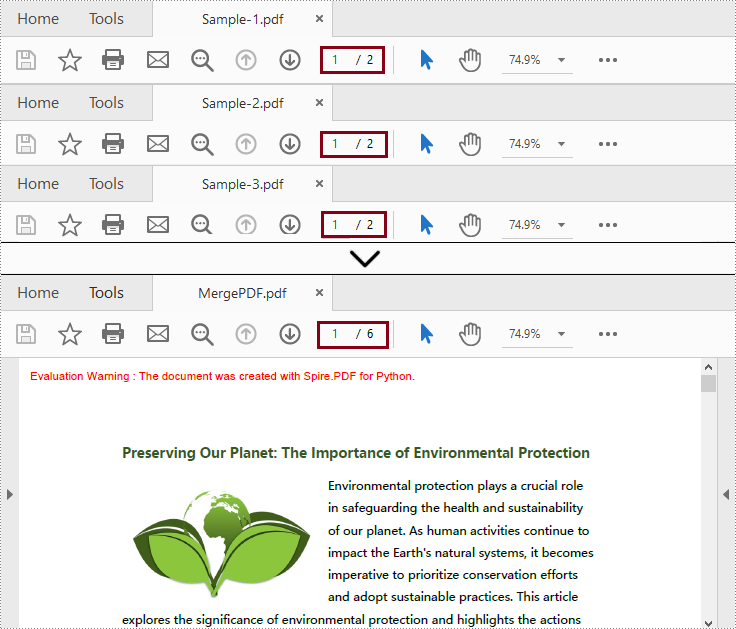
Este método suporta a fusão direta de vários arquivos PDF em um único arquivo.
Passos
- Importe os módulos de biblioteca necessários.
- Crie uma lista contendo os caminhos dos arquivos PDF a serem mesclados.
- Use o método Document.MergeFiles(inputFiles: List[str]) para mesclar esses PDFs em um único PDF.
- Chame o método PdfDocumentBase.Save(filename: str, FileFormat.PDF) para salvar o arquivo mesclado em formato PDF no caminho de saída especificado e liberar recursos.
Código de amostra
- Python
from spire.pdf.common import *
from spire.pdf import *

# Create a list of the PDF file paths
inputFile1 = "C:/Users/Administrator/Desktop/PDFs/Sample-1.pdf"
inputFile2 = "C:/Users/Administrator/Desktop/PDFs/Sample-2.pdf"
inputFile3 = "C:/Users/Administrator/Desktop/PDFs/Sample-3.pdf"
files = [inputFile1, inputFile2, inputFile3]

# Merge the PDF documents
pdf = PdfDocument.MergeFiles(files)

# Save the result document
pdf.Save("C:/Users/Administrator/Desktop/MergePDF.pdf", FileFormat.PDF)
pdf.Close()
Mesclar arquivos PDF clonando páginas em Python
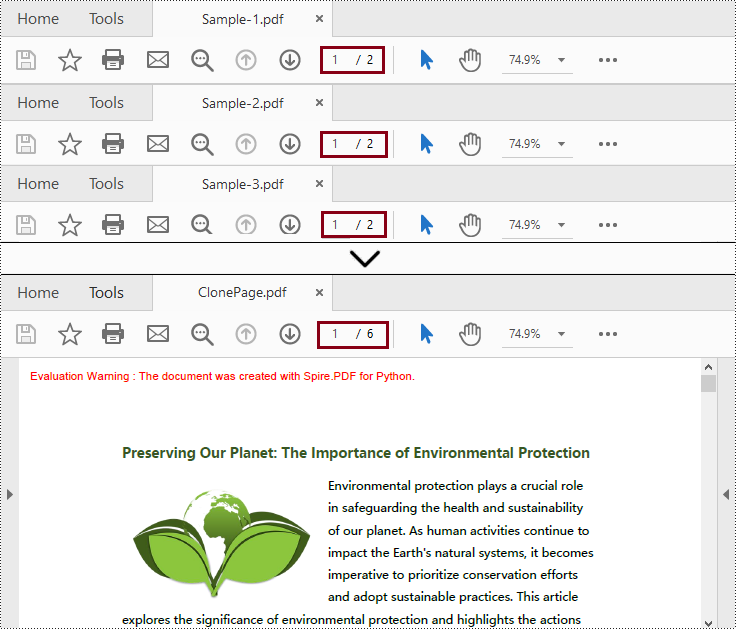
Ao contrário do método acima, este método mescla vários arquivos PDF copiando as páginas do documento e inserindo-as em um novo arquivo.
Passos
- Importe os módulos de biblioteca necessários.
- Crie uma lista contendo os caminhos dos arquivos PDF a serem mesclados.
- Percorra cada arquivo da lista e carregue-o como um objeto PdfDocument; em seguida, adicione-os a uma nova lista.
- Crie um novo objeto PdfDocument como arquivo de destino.
- Itere pelos objetos PdfDocument na lista e anexe suas páginas ao novo objeto PdfDocument.
- Por fim, chame o método PdfDocument.SaveToFile() para salvar o novo objeto PdfDocument no caminho de saída especificado.
Código de amostra
- Python
from spire.pdf.common import *
from spire.pdf import *

# Create a list of the PDF file paths
file1 = "C:/Users/Administrator/Desktop/PDFs/Sample-1.pdf"
file2 = "C:/Users/Administrator/Desktop/PDFs/Sample-2.pdf"
file3 = "C:/Users/Administrator/Desktop/PDFs/Sample-3.pdf"
files = [file1, file2, file3]

# Load each PDF file as an PdfDocument object and add them to a list
pdfs = []
for file in files:
    pdfs.append(PdfDocument(file))

# Create an object of PdfDocument class
newPdf = PdfDocument()

# Insert the pages of the loaded PDF documents into the new PDF document
for pdf in pdfs:
    newPdf.AppendPage(pdf)

# Save the new PDF document
newPdf.SaveToFile("C:/Users/Administrator/Desktop/ClonePage.pdf")
Mesclar páginas selecionadas de arquivos PDF em Python
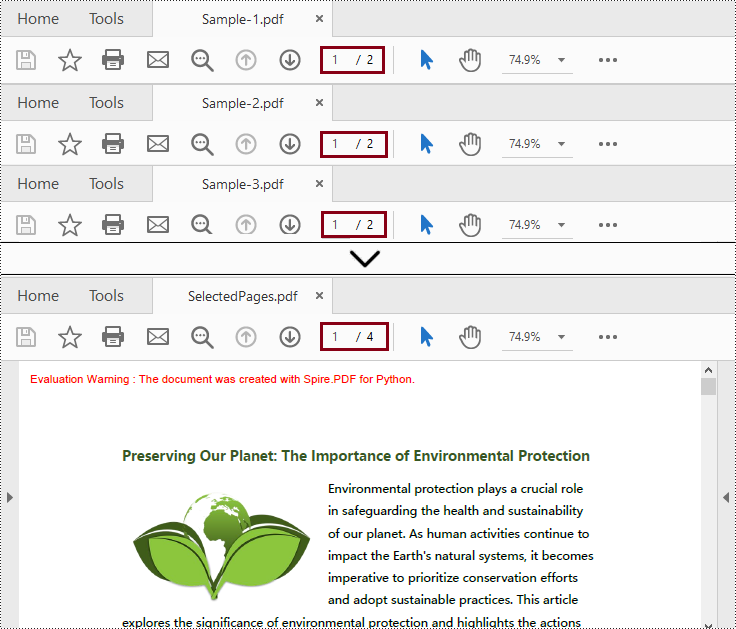
Este método é semelhante à mesclagem de PDFs clonando páginas, e você pode especificar as páginas desejadas ao mesclar.
Passos
- Importe os módulos de biblioteca necessários.
- Crie uma lista contendo os caminhos dos arquivos PDF a serem mesclados.
- Percorra cada arquivo da lista e carregue-o como um objeto PdfDocument; em seguida, adicione-os a uma nova lista.
- Crie um novo objeto PdfDocument como arquivo de destino.
- Insira as páginas selecionadas dos arquivos carregados no novo objeto PdfDocument usando o método PdfDocument.InsertPage(PdfDocument, pageIndex: int) ou o método PdfDocument.InsertPageRange(PdfDocument, startIndex: int, endIndex: int).
- Por fim, chame o método PdfDocument.SaveToFile() para salvar o novo objeto PdfDocument no caminho de saída especificado.
Código de amostra
- Python
from spire.pdf import *
from spire.pdf.common import *

# Create a list of the PDF file paths
file1 = "C:/Users/Administrator/Desktop/PDFs/Sample-1.pdf"
file2 = "C:/Users/Administrator/Desktop/PDFs/Sample-2.pdf"
file3 = "C:/Users/Administrator/Desktop/PDFs/Sample-3.pdf"
files = [file1, file2, file3]

# Load each PDF file as an PdfDocument object and add them to a list
pdfs = []
for file in files:
    pdfs.append(PdfDocument(file))

# Create an object of PdfDocument class
newPdf = PdfDocument()

# Insert the selected pages from the loaded PDF documents into the new document
newPdf.InsertPage(pdfs[0], 0)
newPdf.InsertPage(pdfs[1], 1)
newPdf.InsertPageRange(pdfs[2], 0, 1)

# Save the new PDF document
newPdf.SaveToFile("C:/Users/Administrator/Desktop/SelectedPages.pdf")
Obtenha uma licença gratuita para a biblioteca mesclar PDF em Python
Você pode obter um licença temporária gratuita de 30 dias do Spire.PDF for Python para mesclar arquivos PDF em Python sem limitações de avaliação.
Conclusão
Neste artigo, você aprendeu como mesclar arquivos PDF em Python. Spire.PDF for Python oferece duas maneiras diferentes de mesclar vários arquivos PDF, incluindo mesclar arquivos diretamente e copiar páginas. Além disso, você pode mesclar páginas selecionadas de vários arquivos PDF com base no segundo método. Em uma palavra, esta biblioteca simplifica o processo e permite que os desenvolvedores se concentrem na construção de aplicativos poderosos que envolvem tarefas de manipulação de PDF.
Python объединяет PDF-файлы с помощью простого кода
Оглавление
Установить с помощью Пипа
pip install Spire.PDF
Ссылки по теме
Объединение PDF — это объединение нескольких файлов PDF в один файл PDF. Он позволяет пользователям объединять содержимое нескольких связанных PDF-файлов в один PDF-файл, чтобы лучше классифицировать файлы, управлять ими и обмениваться ими. Например, прежде чем поделиться документом, похожие документы можно объединить в один файл, чтобы упростить процесс обмена. Этот пост покажет вам, как используйте Python для объединения PDF-файлов с помощью простого кода.
- Библиотека Python для объединения PDF-файлов
- Объединение PDF-файлов в Python
- Объединение PDF-файлов путем клонирования страниц в Python
- Объединить выбранные страницы PDF-файлов в Python
Библиотека Python для объединения PDF-файлов
Spire.PDF for Python — это мощная библиотека Python для создания PDF-файлов и управления ими. С его помощью вы также можете использовать Python для легкого объединения PDF-файлов. Перед этим нам нужно установить Spire.PDF for Python и Plum-Dispatch v1.7.4, которые можно легко установить в VS Code с помощью следующих команд pip.
pip install Spire.PDF
В этой статье описывается более подробная информация об установке: Как установить Spire.PDF for Python в VS Code.
Объединение PDF-файлов в Python
Этот метод поддерживает непосредственное объединение нескольких файлов PDF в один файл.
Шаги
- Импортируйте необходимые библиотечные модули.
- Создайте список, содержащий пути к PDF-файлам, которые необходимо объединить.
- Используйте метод Document.MergeFiles(inputFiles: List[str]), чтобы объединить эти PDF-файлы в один PDF-файл.
- Вызовите метод PdfDocumentBase.Save(filename: str, FileFormat.PDF), чтобы сохранить объединенный файл в формате PDF в указанном пути вывода и освободить ресурсы.
Образец кода
- Python
from spire.pdf.common import *
from spire.pdf import *

# Create a list of the PDF file paths
inputFile1 = "C:/Users/Administrator/Desktop/PDFs/Sample-1.pdf"
inputFile2 = "C:/Users/Administrator/Desktop/PDFs/Sample-2.pdf"
inputFile3 = "C:/Users/Administrator/Desktop/PDFs/Sample-3.pdf"
files = [inputFile1, inputFile2, inputFile3]

# Merge the PDF documents
pdf = PdfDocument.MergeFiles(files)

# Save the result document
pdf.Save("C:/Users/Administrator/Desktop/MergePDF.pdf", FileFormat.PDF)
pdf.Close()
Объединение PDF-файлов путем клонирования страниц в Python
В отличие от описанного выше метода, этот метод объединяет несколько файлов PDF путем копирования страниц документа и вставки их в новый файл.
Шаги
- Импортируйте необходимые библиотечные модули.
- Создайте список, содержащий пути к PDF-файлам, которые необходимо объединить.
- Прокрутите каждый файл в списке и загрузите его как объект PdfDocument; затем добавьте их в новый список.
- Создайте новый объект PdfDocument в качестве целевого файла.
- Перебирайте объекты PdfDocument в списке и добавляйте их страницы к новому объекту PdfDocument.
- Наконец, вызовите метод PdfDocument.SaveToFile(), чтобы сохранить новый объект PdfDocument в указанном пути вывода.
Образец кода
- Python
from spire.pdf.common import *
from spire.pdf import *

# Create a list of the PDF file paths
file1 = "C:/Users/Administrator/Desktop/PDFs/Sample-1.pdf"
file2 = "C:/Users/Administrator/Desktop/PDFs/Sample-2.pdf"
file3 = "C:/Users/Administrator/Desktop/PDFs/Sample-3.pdf"
files = [file1, file2, file3]

# Load each PDF file as an PdfDocument object and add them to a list
pdfs = []
for file in files:
    pdfs.append(PdfDocument(file))

# Create an object of PdfDocument class
newPdf = PdfDocument()

# Insert the pages of the loaded PDF documents into the new PDF document
for pdf in pdfs:
    newPdf.AppendPage(pdf)

# Save the new PDF document
newPdf.SaveToFile("C:/Users/Administrator/Desktop/ClonePage.pdf")
Объединить выбранные страницы PDF-файлов в Python
Этот метод аналогичен объединению PDF-файлов путем клонирования страниц, и при объединении вы можете указать нужные страницы.
Шаги
- Импортируйте необходимые библиотечные модули.
- Создайте список, содержащий пути к PDF-файлам, которые необходимо объединить.
- Прокрутите каждый файл в списке и загрузите его как объект PdfDocument; затем добавьте их в новый список.
- Создайте новый объект PdfDocument в качестве целевого файла.
- Вставьте выбранные страницы из загруженных файлов в новый объект PdfDocument с помощью метода PdfDocument.InsertPage(PdfDocument, pageIndex: int) или метода PdfDocument.InsertPageRange(PdfDocument, startIndex: int, endIndex: int).
- Наконец, вызовите метод PdfDocument.SaveToFile(), чтобы сохранить новый объект PdfDocument в указанном пути вывода.
Образец кода
- Python
from spire.pdf import *
from spire.pdf.common import *

# Create a list of the PDF file paths
file1 = "C:/Users/Administrator/Desktop/PDFs/Sample-1.pdf"
file2 = "C:/Users/Administrator/Desktop/PDFs/Sample-2.pdf"
file3 = "C:/Users/Administrator/Desktop/PDFs/Sample-3.pdf"
files = [file1, file2, file3]

# Load each PDF file as an PdfDocument object and add them to a list
pdfs = []
for file in files:
    pdfs.append(PdfDocument(file))

# Create an object of PdfDocument class
newPdf = PdfDocument()

# Insert the selected pages from the loaded PDF documents into the new document
newPdf.InsertPage(pdfs[0], 0)
newPdf.InsertPage(pdfs[1], 1)
newPdf.InsertPageRange(pdfs[2], 0, 1)

# Save the new PDF document
newPdf.SaveToFile("C:/Users/Administrator/Desktop/SelectedPages.pdf")
Получите бесплатную лицензию на библиотеку для объединения PDF-файлов в Python
Вы можете получить бесплатная 30-дневная временная лицензия Spire.PDF for Python для объединения PDF-файлов в Python без ограничений оценки.
Заключение
В этой статье вы узнали, как объединять PDF-файлы в Python. Spire.PDF for Python предоставляет два разных способа объединения нескольких файлов PDF, включая непосредственное объединение файлов и копирование страниц. Кроме того, вы можете объединить выбранные страницы нескольких файлов PDF, используя второй метод. Одним словом, эта библиотека упрощает процесс и позволяет разработчикам сосредоточиться на создании мощных приложений, выполняющих задачи по манипулированию PDF-файлами.
Python führt PDF-Dateien mit einfachem Code zusammen
Inhaltsverzeichnis
Mit Pip installieren
pip install Spire.PDF
verwandte Links
Beim Zusammenführen von PDF handelt es sich um die Integration mehrerer PDF-Dateien in eine einzige PDF-Datei. Es ermöglicht Benutzern, die Inhalte mehrerer zusammengehöriger PDF-Dateien in einer einzigen PDF-Datei zu kombinieren, um Dateien besser zu kategorisieren, zu verwalten und zu teilen. Beispielsweise können vor der Freigabe eines Dokuments ähnliche Dokumente in einer Datei zusammengeführt werden, um den Freigabevorgang zu vereinfachen. Dieser Beitrag zeigt Ihnen, wie es geht Verwenden Sie Python, um PDF-Dateien mit einfachem Code zusammenzuführen.
- Python-Bibliothek zum Zusammenführen von PDF-Dateien
- PDF-Dateien in Python zusammenführen
- Führen Sie PDF-Dateien durch Klonen von Seiten in Python zusammen
- Ausgewählte Seiten von PDF-Dateien in Python zusammenführen
Python-Bibliothek zum Zusammenführen von PDF-Dateien
Spire.PDF for Python ist eine leistungsstarke Python-Bibliothek zum Erstellen und Bearbeiten von PDF-Dateien. Damit können Sie mit Python auch PDF-Dateien mühelos zusammenführen. Vorher müssen wir installieren Spire.PDF for Python und plum-dispatch v1.7.4, das mit den folgenden Pip-Befehlen einfach in VS Code installiert werden kann.
pip install Spire.PDF
Dieser Artikel behandelt weitere Details der Installation: So installieren Sie Spire.PDF for Python in VS Code
PDF-Dateien in Python zusammenführen
Diese Methode unterstützt das direkte Zusammenführen mehrerer PDF-Dateien zu einer einzigen Datei.
Schritte
- Importieren Sie die erforderlichen Bibliotheksmodule.
- Erstellen Sie eine Liste mit den Pfaden der zusammenzuführenden PDF-Dateien.
- Verwenden Sie die Methode Document.MergeFiles(inputFiles: List[str]), um diese PDFs zu einer einzigen PDF zusammenzuführen.
- Rufen Sie die Methode PdfDocumentBase.Save(filename: str, FileFormat.PDF) auf, um die zusammengeführte Datei im PDF-Format im angegebenen Ausgabepfad zu speichern und Ressourcen freizugeben.
Beispielcode
- Python
from spire.pdf.common import *
from spire.pdf import *

# Create a list of the PDF file paths
inputFile1 = "C:/Users/Administrator/Desktop/PDFs/Sample-1.pdf"
inputFile2 = "C:/Users/Administrator/Desktop/PDFs/Sample-2.pdf"
inputFile3 = "C:/Users/Administrator/Desktop/PDFs/Sample-3.pdf"
files = [inputFile1, inputFile2, inputFile3]

# Merge the PDF documents
pdf = PdfDocument.MergeFiles(files)

# Save the result document
pdf.Save("C:/Users/Administrator/Desktop/MergePDF.pdf", FileFormat.PDF)
pdf.Close()
Führen Sie PDF-Dateien durch Klonen von Seiten in Python zusammen
Im Gegensatz zur oben genannten Methode führt diese Methode mehrere PDF-Dateien zusammen, indem Dokumentseiten kopiert und in eine neue Datei eingefügt werden.
Schritte
- Importieren Sie die erforderlichen Bibliotheksmodule.
- Erstellen Sie eine Liste mit den Pfaden der zusammenzuführenden PDF-Dateien.
- Durchlaufen Sie jede Datei in der Liste und laden Sie sie als PdfDocument-Objekt. Fügen Sie sie dann einer neuen Liste hinzu.
- Erstellen Sie ein neues PdfDocument-Objekt als Zieldatei.
- Durchlaufen Sie die PdfDocument-Objekte in der Liste und hängen Sie ihre Seiten an das neue PdfDocument-Objekt an.
- Rufen Sie abschließend die Methode PdfDocument.SaveToFile() auf, um das neue PdfDocument-Objekt im angegebenen Ausgabepfad zu speichern.
Sample Code
- Python
from spire.pdf.common import *
from spire.pdf import *

# Create a list of the PDF file paths
file1 = "C:/Users/Administrator/Desktop/PDFs/Sample-1.pdf"
file2 = "C:/Users/Administrator/Desktop/PDFs/Sample-2.pdf"
file3 = "C:/Users/Administrator/Desktop/PDFs/Sample-3.pdf"
files = [file1, file2, file3]

# Load each PDF file as an PdfDocument object and add them to a list
pdfs = []
for file in files:
    pdfs.append(PdfDocument(file))

# Create an object of PdfDocument class
newPdf = PdfDocument()

# Insert the pages of the loaded PDF documents into the new PDF document
for pdf in pdfs:
    newPdf.AppendPage(pdf)

# Save the new PDF document
newPdf.SaveToFile("C:/Users/Administrator/Desktop/ClonePage.pdf")
Ausgewählte Seiten von PDF-Dateien in Python zusammenführen
Diese Methode ähnelt dem Zusammenführen von PDFs durch Klonen von Seiten, und Sie können beim Zusammenführen die gewünschten Seiten angeben.
Schritte
- Importieren Sie die erforderlichen Bibliotheksmodule.
- Erstellen Sie eine Liste mit den Pfaden der zusammenzuführenden PDF-Dateien.
- Durchlaufen Sie jede Datei in der Liste und laden Sie sie als PdfDocument-Objekt. Fügen Sie sie dann einer neuen Liste hinzu.
- Erstellen Sie ein neues PdfDocument-Objekt als Zieldatei.
- Fügen Sie die ausgewählten Seiten aus den geladenen Dateien mit der Methode PdfDocument.InsertPage(PdfDocument, pageIndex: int) oder der Methode PdfDocument.InsertPageRange(PdfDocument, startIndex: int, endIndex: int) in das neue PdfDocument-Objekt ein.
- Rufen Sie abschließend die Methode PdfDocument.SaveToFile() auf, um das neue PdfDocument-Objekt im angegebenen Ausgabepfad zu speichern.
Beispielcode
- Python
from spire.pdf import *
from spire.pdf.common import *

# Create a list of the PDF file paths
file1 = "C:/Users/Administrator/Desktop/PDFs/Sample-1.pdf"
file2 = "C:/Users/Administrator/Desktop/PDFs/Sample-2.pdf"
file3 = "C:/Users/Administrator/Desktop/PDFs/Sample-3.pdf"
files = [file1, file2, file3]

# Load each PDF file as an PdfDocument object and add them to a list
pdfs = []
for file in files:
    pdfs.append(PdfDocument(file))

# Create an object of PdfDocument class
newPdf = PdfDocument()

# Insert the selected pages from the loaded PDF documents into the new document
newPdf.InsertPage(pdfs[0], 0)
newPdf.InsertPage(pdfs[1], 1)
newPdf.InsertPageRange(pdfs[2], 0, 1)

# Save the new PDF document
newPdf.SaveToFile("C:/Users/Administrator/Desktop/SelectedPages.pdf")
Holen Sie sich eine kostenlose Lizenz für die Bibliothek zum Zusammenführen von PDF-Dateien in Python
Sie können eine bekommen kostenlose 30-tägige temporäre Lizenz von Spire.PDF for Python zum Zusammenführen von PDF-Dateien in Python ohne Auswertungseinschränkungen.
Abschluss
In diesem Artikel haben Sie erfahren, wie Sie PDF-Dateien in Python zusammenführen. Spire.PDF for Python bietet zwei verschiedene Möglichkeiten zum Zusammenführen mehrerer PDF-Dateien, einschließlich des direkten Zusammenführens von Dateien und des Kopierens von Seiten. Mit der zweiten Methode können Sie auch ausgewählte Seiten mehrerer PDF-Dateien zusammenführen. Kurz gesagt, diese Bibliothek vereinfacht den Prozess und ermöglicht es Entwicklern, sich auf die Erstellung leistungsstarker Anwendungen zu konzentrieren, die PDF-Manipulationsaufgaben beinhalten.
Python fusiona archivos PDF con código simple
Tabla de contenido
Instalar con Pip
pip install Spire.PDF
enlaces relacionados
Fusionar PDF es la integración de varios archivos PDF en un solo archivo PDF. Permite a los usuarios combinar el contenido de varios archivos PDF relacionados en un solo archivo PDF para categorizar, administrar y compartir mejor los archivos. Por ejemplo, antes de compartir un documento, se pueden combinar documentos similares en un solo archivo para simplificar el proceso de compartir. Esta publicación le mostrará cómo use Python para fusionar archivos PDF con código simple.
- Biblioteca Python para fusionar archivos PDF
- Fusionar archivos PDF en Python
- Fusionar archivos PDF clonando páginas en Python
- Fusionar páginas seleccionadas de archivos PDF en Python
Biblioteca Python para fusionar archivos PDF
Spire.PDF for Python es una poderosa biblioteca de Python para crear y manipular archivos PDF. Con él, también puedes usar Python para fusionar archivos PDF sin esfuerzo. Antes de eso, necesitamos instalar Spire.PDF for Python y plum-dispatch v1.7.4, que se puede instalar fácilmente en VS Code usando los siguientes comandos pip.
pip install Spire.PDF
Este artículo cubre más detalles de la instalación: Cómo instalar Spire.PDF for Python en VS Code
Fusionar archivos PDF en Python
Este método admite la combinación directa de varios archivos PDF en un solo archivo.
Pasos
- Importe los módulos de biblioteca necesarios.
- Cree una lista que contenga las rutas de los archivos PDF que se fusionarán.
- Utilice el método Document.MergeFiles(inputFiles: List[str]) para fusionar estos archivos PDF en un solo PDF.
- Llame al método PdfDocumentBase.Save(filename: str, FileFormat.PDF) para guardar el archivo combinado en formato PDF en la ruta de salida especificada y liberar recursos.
Código de muestra
- Python
from spire.pdf.common import *
from spire.pdf import *

# Create a list of the PDF file paths
inputFile1 = "C:/Users/Administrator/Desktop/PDFs/Sample-1.pdf"
inputFile2 = "C:/Users/Administrator/Desktop/PDFs/Sample-2.pdf"
inputFile3 = "C:/Users/Administrator/Desktop/PDFs/Sample-3.pdf"
files = [inputFile1, inputFile2, inputFile3]

# Merge the PDF documents
pdf = PdfDocument.MergeFiles(files)

# Save the result document
pdf.Save("C:/Users/Administrator/Desktop/MergePDF.pdf", FileFormat.PDF)
pdf.Close()
Fusionar archivos PDF clonando páginas en Python
A diferencia del método anterior, este método combina varios archivos PDF copiando páginas del documento e insertándolas en un archivo nuevo.
Pasos
- Importe los módulos de biblioteca necesarios.
- Cree una lista que contenga las rutas de los archivos PDF que se fusionarán.
- Recorra cada archivo de la lista y cárguelo como un objeto PdfDocument; luego agréguelos a una nueva lista.
- Cree un nuevo objeto PdfDocument como archivo de destino.
- Itere a través de los objetos PdfDocument en la lista y agregue sus páginas al nuevo objeto PdfDocument.
- Finalmente, llame al método PdfDocument.SaveToFile() para guardar el nuevo objeto PdfDocument en la ruta de salida especificada.
Código de muestra
- Python
from spire.pdf.common import *
from spire.pdf import *

# Create a list of the PDF file paths
file1 = "C:/Users/Administrator/Desktop/PDFs/Sample-1.pdf"
file2 = "C:/Users/Administrator/Desktop/PDFs/Sample-2.pdf"
file3 = "C:/Users/Administrator/Desktop/PDFs/Sample-3.pdf"
files = [file1, file2, file3]

# Load each PDF file as an PdfDocument object and add them to a list
pdfs = []
for file in files:
    pdfs.append(PdfDocument(file))

# Create an object of PdfDocument class
newPdf = PdfDocument()

# Insert the pages of the loaded PDF documents into the new PDF document
for pdf in pdfs:
    newPdf.AppendPage(pdf)

# Save the new PDF document
newPdf.SaveToFile("C:/Users/Administrator/Desktop/ClonePage.pdf")
Fusionar páginas seleccionadas de archivos PDF en Python
Este método es similar a fusionar archivos PDF mediante la clonación de páginas y puede especificar las páginas deseadas al fusionar.
Pasos
- Importe los módulos de biblioteca necesarios.
- Cree una lista que contenga las rutas de los archivos PDF que se fusionarán.
- Recorra cada archivo de la lista y cárguelo como un objeto PdfDocument; luego agréguelos a una nueva lista.
- Cree un nuevo objeto PdfDocument como archivo de destino.
- Inserte las páginas seleccionadas de los archivos cargados en el nuevo objeto PdfDocument utilizando el método PdfDocument.InsertPage(PdfDocument, pageIndex: int) o el método PdfDocument.InsertPageRange(PdfDocument, startIndex: int, endIndex: int).
- Finalmente, llame al método PdfDocument.SaveToFile() para guardar el nuevo objeto PdfDocument en la ruta de salida especificada.
Código de muestra
- Python
from spire.pdf import *
from spire.pdf.common import *

# Create a list of the PDF file paths
file1 = "C:/Users/Administrator/Desktop/PDFs/Sample-1.pdf"
file2 = "C:/Users/Administrator/Desktop/PDFs/Sample-2.pdf"
file3 = "C:/Users/Administrator/Desktop/PDFs/Sample-3.pdf"
files = [file1, file2, file3]

# Load each PDF file as an PdfDocument object and add them to a list
pdfs = []
for file in files:
    pdfs.append(PdfDocument(file))

# Create an object of PdfDocument class
newPdf = PdfDocument()

# Insert the selected pages from the loaded PDF documents into the new document
newPdf.InsertPage(pdfs[0], 0)
newPdf.InsertPage(pdfs[1], 1)
newPdf.InsertPageRange(pdfs[2], 0, 1)

# Save the new PDF document
newPdf.SaveToFile("C:/Users/Administrator/Desktop/SelectedPages.pdf")
Obtenga una licencia gratuita para que la biblioteca combine PDF en Python
Puedes conseguir un licencia temporal gratuita de 30 días de Spire.PDF for Python para fusionar archivos PDF en Python sin limitaciones de evaluación.
Conclusión
En este artículo, has aprendido cómo fusionar archivos PDF en Python. Spire.PDF for Python proporciona dos formas diferentes de fusionar varios archivos PDF, incluida la fusión de archivos directamente y la copia de páginas. Además, puede fusionar páginas seleccionadas de varios archivos PDF según el segundo método. En una palabra, esta biblioteca simplifica el proceso y permite a los desarrolladores centrarse en crear aplicaciones potentes que impliquen tareas de manipulación de PDF.
Python은 간단한 코드로 PDF 파일을 병합합니다.
핍으로 설치
pip install Spire.PDF
관련된 링크들
PDF 병합은 여러 PDF 파일을 단일 PDF 파일로 통합하는 것입니다. 이를 통해 사용자는 여러 관련 PDF 파일의 내용을 단일 PDF 파일로 결합하여 파일을 더 효과적으로 분류, 관리 및 공유할 수 있습니다. 예를 들어, 문서를 공유하기 전에 유사한 문서를 하나의 파일로 병합하여 공유 프로세스를 단순화할 수 있습니다. 이 게시물에서는 방법을 보여줍니다 Python을 사용하여 PDF 파일을 간단한 코드로 병합.
- PDF 파일 병합을 위한 Python 라이브러리
- Python에서 PDF 파일 병합
- Python에서 페이지를 복제하여 PDF 파일 병합
- Python에서 선택한 PDF 파일 페이지 병합
PDF 파일 병합을 위한 Python 라이브러리
Spire.PDF for Python는 PDF 파일을 생성하고 조작하기 위한 강력한 Python 라이브러리입니다. 이를 통해 Python을 사용하여 PDF 파일을 쉽게 병합할 수도 있습니다. 그 전에 설치를 해야 합니다 Spire.PDF for Python 및 Plum-dispatch v1.7.4는 다음 pip 명령을 사용하여 VS Code에 쉽게 설치할 수 있습니다.
pip install Spire.PDF
이 문서에서는 설치에 대한 자세한 내용을 다룹니다. VS Code에서 Spire.PDF for Python를 설치하는 방법
Python에서 PDF 파일 병합
이 방법은 여러 PDF 파일을 단일 파일로 직접 병합하는 것을 지원합니다.
단계
- 필요한 라이브러리 모듈을 가져옵니다.
- 병합할 PDF 파일의 경로가 포함된 목록을 만듭니다.
- Document.MergeFiles(inputFiles: List[str]) 메서드를 사용하여 이러한 PDF를 단일 PDF로 병합합니다.
- PdfDocumentBase.Save(filename: str, FileFormat.PDF) 메서드를 호출하여 병합된 파일을 PDF 형식으로 지정된 출력 경로 및 릴리스 리소스에 저장합니다.
샘플 코드
- Python
from spire.pdf.common import *
from spire.pdf import *

# Create a list of the PDF file paths
inputFile1 = "C:/Users/Administrator/Desktop/PDFs/Sample-1.pdf"
inputFile2 = "C:/Users/Administrator/Desktop/PDFs/Sample-2.pdf"
inputFile3 = "C:/Users/Administrator/Desktop/PDFs/Sample-3.pdf"
files = [inputFile1, inputFile2, inputFile3]

# Merge the PDF documents
pdf = PdfDocument.MergeFiles(files)

# Save the result document
pdf.Save("C:/Users/Administrator/Desktop/MergePDF.pdf", FileFormat.PDF)
pdf.Close()
Python에서 페이지를 복제하여 PDF 파일 병합
위의 방법과 달리 이 방법은 문서 페이지를 복사하여 새 파일에 삽입하여 여러 PDF 파일을 병합합니다.
단계
- 필요한 라이브러리 모듈을 가져옵니다.
- 병합할 PDF 파일의 경로가 포함된 목록을 만듭니다.
- 목록의 각 파일을 반복하여 PdfDocument 개체로 로드합니다. 그런 다음 새 목록에 추가하십시오.
- 새 PdfDocument 개체를 대상 파일로 만듭니다.
- 목록의 PdfDocument 개체를 반복하고 해당 페이지를 새 PdfDocument 개체에 추가합니다.
- 마지막으로 PdfDocument.SaveToFile() 메서드를 호출하여 새 PdfDocument 개체를 지정된 출력 경로에 저장합니다.
샘플 코드
- Python
from spire.pdf.common import *
from spire.pdf import *

# Create a list of the PDF file paths
file1 = "C:/Users/Administrator/Desktop/PDFs/Sample-1.pdf"
file2 = "C:/Users/Administrator/Desktop/PDFs/Sample-2.pdf"
file3 = "C:/Users/Administrator/Desktop/PDFs/Sample-3.pdf"
files = [file1, file2, file3]

# Load each PDF file as an PdfDocument object and add them to a list
pdfs = []
for file in files:
    pdfs.append(PdfDocument(file))

# Create an object of PdfDocument class
newPdf = PdfDocument()

# Insert the pages of the loaded PDF documents into the new PDF document
for pdf in pdfs:
    newPdf.AppendPage(pdf)

# Save the new PDF document
newPdf.SaveToFile("C:/Users/Administrator/Desktop/ClonePage.pdf")
Python에서 선택한 PDF 파일 페이지 병합
이 방법은 페이지를 복제하여 PDF를 병합하는 것과 유사하며 병합 시 원하는 페이지를 지정할 수 있습니다.
단계
- 필요한 라이브러리 모듈을 가져옵니다.
- 병합할 PDF 파일의 경로가 포함된 목록을 만듭니다.
- 목록의 각 파일을 반복하여 PdfDocument 개체로 로드합니다. 그런 다음 새 목록에 추가하십시오.
- 새 PdfDocument 개체를 대상 파일로 만듭니다.
- PdfDocument.InsertPage(PdfDocument, pageIndex: int) 메서드 또는 PdfDocument.InsertPageRange(PdfDocument, startIndex: int, endIndex: int) 메서드를 사용하여 로드된 파일에서 선택한 페이지를 새 PdfDocument 개체에 삽입합니다.
- 마지막으로 PdfDocument.SaveToFile() 메서드를 호출하여 새 PdfDocument 개체를 지정된 출력 경로에 저장합니다.
샘플 코드
- Python
from spire.pdf import *
from spire.pdf.common import *

# Create a list of the PDF file paths
file1 = "C:/Users/Administrator/Desktop/PDFs/Sample-1.pdf"
file2 = "C:/Users/Administrator/Desktop/PDFs/Sample-2.pdf"
file3 = "C:/Users/Administrator/Desktop/PDFs/Sample-3.pdf"
files = [file1, file2, file3]

# Load each PDF file as an PdfDocument object and add them to a list
pdfs = []
for file in files:
    pdfs.append(PdfDocument(file))

# Create an object of PdfDocument class
newPdf = PdfDocument()

# Insert the selected pages from the loaded PDF documents into the new document
newPdf.InsertPage(pdfs[0], 0)
newPdf.InsertPage(pdfs[1], 1)
newPdf.InsertPageRange(pdfs[2], 0, 1)

# Save the new PDF document
newPdf.SaveToFile("C:/Users/Administrator/Desktop/SelectedPages.pdf")
Python에서 PDF를 병합하려면 라이브러리에 대한 무료 라이센스를 받으세요
당신은 얻을 수 있습니다 무료 30일 임시 라이센스 Spire.PDF for Python를 사용하면 평가 제한 없이 Python에서 PDF 파일을 병합할 수 있습니다.
결론
이 기사에서는 Python에서 PDF 파일을 병합하는 방법을 배웠습니다. Spire.PDF for Python는 파일을 직접 병합하고 페이지를 복사하는 것을 포함하여 여러 PDF 파일을 병합하는 두 가지 방법을 제공합니다. 또한 두 번째 방법을 기반으로 여러 PDF 파일 중 선택한 페이지를 병합할 수 있습니다. 한마디로 이 라이브러리는 프로세스를 단순화하고 개발자가 PDF 조작 작업과 관련된 강력한 응용 프로그램을 구축하는 데 집중할 수 있도록 합니다.