QR codes are everywhere these days-from product packaging to event tickets, they make sharing information faster and smarter. Converting text to QR code is a quick way to share website links, contact details, or special promotions without the hassle of typing or copying.
In this guide, we'll show you 3 free and easy ways to convert text to QR code, ranging from local software and online tools to automated scripts for batch generation. By the end, you'll be able to turn any text into a QR code ready to scan, share, and use.
Contents Overview
- Static vs. Dynamic QR Codes: What's the Differences
- Can You Convert Text to QR Code
- Method 1: Generate QR Code from Text in Microsoft Word
- Method 2: Use an Online Text to QR Code Generator
- Method 3: Batch Convert Text to QR Code with Python Automation
- Tips and Common Text to QR Code Issues
- Why You Should Convert Text to QR Code
- Conclusion and Recommendations
Static vs. Dynamic QR Codes: What's the Differences
Before you convert text to QR code, it's important to understand the differences between static and Dynamic QR Codes, so you can choose the right type for your needs.
| Feature | Static QR Code | Dynamic QR Code |
|---|---|---|
| Editability | Permanent (cannot be changed) | Editable (change URL without reprinting) |
| Scan Tracking | None | Track the number of scans, location, and time. |
| Cost | Usually free | Free or paid |
| Best For | Documents, business cards, permanent info | Marketing campaigns, event tickets |
Recommendations:
- Use static QR codes for personal or internal use where the content doesn't change.
- Use dynamic QR codes for marketing, events, or scenarios where you want to update content or track performance.
Can You Convert Text to QR Code?
Yes. Almost any text-URLs, instructions, Wi-Fi passwords, or vCard contacts-can be converted into a scannable QR code. You have a variety of options, such as the native Microsoft Word APP, online text to QR code generators, and automated scripts like Python.
When choosing a method, consider:
- Do you need a static or dynamic QR code?
- How many QR codes will you generate?
- Your technical skills and tools available.
Here is a quick overview of the 3 Text to QR methods we'll cover:
| Method | Best For | Limitations |
|---|---|---|
| Microsoft Word | A few static QR codes in reports or flyers. | Requires Office; limited customization; no batch support. |
| Online Text to QR Code Generators | Quick generation of static or dynamic QR codes without software installation. | Requires internet; privacy concerns; advanced features may require a subscription. |
| Python Automation | Bulk QR code creation or automated workflows. | Requires coding skills and setup. |
Now, let's go through the detailed steps of each method.
Method 1: Generate QR Code from Text Using Microsoft Word
If you are already working in Word, converting text to QR Code directly inside the application is the most seamless solution. It allows you to embed the code without leaving your document. You have 2 options to achieve this.
Option A: Using a Built-in Field Code
This feature is available in Word 2013 and later versions. It uses a simple line of DISPLAYBARCODE Field code to generate a QR code from text or a URL.
Step-by-Step Instructions:
-
Position Cursor: Click where you want the QR code to appear in your document.
-
Insert Field: Press Ctrl + F9 (Windows) or Cmd + F9 (Mac) to insert a pair of gray curly brackets { }.
-
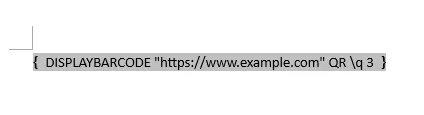
Enter Command: Inside the brackets, type the following code:
DISPLAYBARCODE "Your Text Here" QR \q 3- Replace "Your Text Here" with your text or URL.
- "\q 3" sets the error correction level to "High" (Quartile), ensuring the code scans even if slightly damaged.
-
Generate QR Code: Right-click on the code and select Toggle Field Codes. The code will appear instantly.
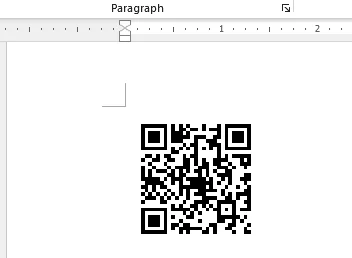
Pro Tip: To edit text later, right-click on the code and select Toggle Field Codes again to switch back to field code view. Remember, QR codes generated this way are static and cannot be styled (they are always black and white).
Option B: Using an Office Add-in
For users who prefer a visual interface with customization options (like changing colors), using a dedicated free Office add-in like QR4Office is a more user-friendly alternative.
Steps:
-
Open the Add-in Store: Go to the Insert tab and click Store in the Add-ins group.

Note: In some versions, like Word for Office 365, the Add-ins option may be located under the Home tab.
-
Search and Install: Type QR4Office into the search bar. Click the Add button to install it.

-
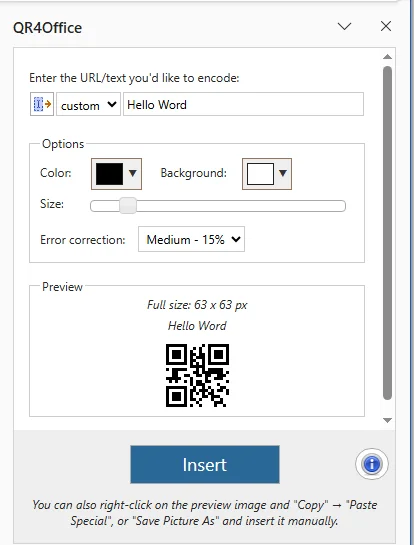
Generate QR Code: Once installed, the QR4Office panel will appear on the right side of your document.
- Enter Content: Enter your text or URL in the panel's input box.
- Customize: Use the sliders and color pickers to adjust the appearance if desired.
- Insert: Click the Insert button to add the styled QR code to your document.
You may also like: How to Insert Checkbox in Word (4 Easy Methods)
Method 2: Use an Online Text to QR Code Generator
If you don't have Word or prefer a web-based option, using an online text to QR code generator is the most flexible approach. These tools are ideal for users who need to generate high-quality QR codes on any device instantly.
Why Use an Online QR Generator?
- Zero Setup: Perfect for beginners who need a free text to QR code solution without installing apps.
- Cross-Platform: Works seamlessly on Windows, Mac, iOS, and Android devices.
- High Customization: Most tools allow you to add logos, change colors, choose multiple output formats like SVG or PNG, and even dynamic QR codes that can be updated later.
Recommended Online Free Text to QR Code Tool
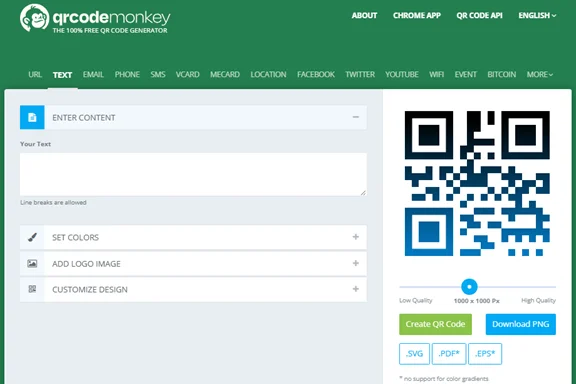
- QRCode Monkey: A versatile tool for creating high-resolution static QR codes for text, URLs, and contact info.
- ME-QR: Supports multiple QR code types with a simple, user-friendly interface.
- QRCodeKIT: Offers dynamic QR codes with a free plan that allows 2 codes that never expire.
Steps to Convert Text to QR Code Online:
-
Open your preferred online text to QR code generator website (e.g., QRCode Monkey).
-
Navigate to the TEXT tab, paste or type your text into the input box.
-
Customize the QR code appearance (e.g., color, logo, and style).
-
Click Create QR Code to generate the QR code from text.
-
Preview the QR code and adjust settings if needed.
-
Download the QR code in the desired format: PNG, SVG, EPS, or PDF.
Tips and Security Notes:
- Privacy and Security: Avoid entering sensitive personal or financial data into public online generators. For confidential information, use an offline or self-hosted solution.
- Use Vector Formats for Print: SVG or EPS remain sharp at any size and won't pixelate.
- Check Limits: Always check free plan restrictions for dynamic codes (such as scan limits or total codes allowed) before finalizing your design.
Method 3: Batch Convert Text to QR Code with Python Automation
For teams and enterprises handling large volumes of text, manually creating QR codes can be slow and error-prone. By using Python and libraries like Free Spire.Barcode for Python, you can automate QR code generation, customize design, and generate multiple codes quickly. This approach is valuable for product labels, marketing campaigns, or any high-volume scenario.
About Free Spire.Barcode for Python
Free Spire.Barcode for Python is a free, popular library for creating and scanning various barcodes, including QR codes. It supports customization of QR code size, color, logo, error correction level, and more.
Step-by-Step Guide:
-
Install the library: First, ensure you have the library installed via pip:
pip install spire.barcode.free -
Write a Python Script: Here is an example of how to batch generate multiple QR codes from a list of data:
from spire.barcode import *

# List of strings you want to convert to QR codes
data_list = ["https://google.com", "User_ID_12345", "Internal_Document_Ref"]

# Helper to write bytes to file
def write_bytes(filename, data):
    with open(filename, "wb") as f:
        f.write(data)

def generate_qr_codes(data_items):
    # Initialize settings object
    settings = BarcodeSettings()
    # Set the symbology type to QR Code
    settings.Type = BarCodeType.QRCode
    # Optional: Set Error Correction Level (L, M, Q, or H)
    settings.QRCodeECL = QRCodeECL.M
    # Optional: Set the width/size of the module
    settings.X = 2.0
    settings.ShowText = False

    for index, item in enumerate(data_items):
        # Assign the text for the current QR code
        settings.Data2D = item
        settings.Data = item

        # Initialize the generator with settings
        generator = BarCodeGenerator(settings)
        # Create the image
        image_bytes = generator.GenerateImage()

        # Save the image with a unique filename
        filename = f"qrcode_{index}.png"
        write_bytes(filename, image_bytes)
        print(f"Generated: {filename} for data: {item}")

if __name__ == "__main__":
    generate_qr_codes(data_list)
Advanced QR Code Customization:
For more polished or branded QR codes, you can apply these optional settings:
-
Remove Borders: Create a clean look without margins by setting
settings.HasBorder = False -
Change Colors: Customize the QR code colors to match your brand or design.
settings.ForeColor = Color.Black # QR code color settings.BackColor = Color.White # Background color -
Add a Logo: Embed a logo in the center of the QR code for branding.
settings.SetQRCodeLogoImage("path_to_logo.png")
Tips and Common Text to QR Code Issues
Creating reliable text QR codes isn't just about generating the code-it's about making sure it scans correctly in all scenarios. Follow these practical tips to ensure a smooth process, and see solutions for common issues that users encounter.
Tips for Successful Text QR Codes
- Choose the Right Error Correction: Use Medium by default. If you plan to add a logo or print the QR code outdoors, select High (Level H) to make it more durable.
- Maintain Proper Size and Resolution: For print, keep the QR code at least 2x2 cm (0.8x0.8 inches). For digital use, export at 300 DPI or higher.
- Ensure High Contrast: Dark foreground on a light background works best. Black-on-white is universally reliable.
- Keep a Quiet Zone: Leave a blank margin of at least 4 modules around the QR code so scanners can read it accurately.
- Test Before Printing: Always test the QR code with multiple scanners before printing or sharing to ensure it works.
Common Text QR Code Issues & Solutions
| Issue | Likely Cause | Solution |
|---|---|---|
| Blurry QR Codes | Low-resolution image format | Regenerate as PNG or SVG. Avoid JPG due to compression artifacts. |
| QR Code not working after adding a logo | Logo too large or blocking patterns | Keep the logo under 30% of the QR code area. Set Error Correction to High (H). |
| QR code not working or not readable on some devices | Compatibility differences between scanner apps or cameras | Test with multiple devices and use standard encoding with simple text. |
| QR code text not showing correctly | Encoding issues or unsupported characters | Avoid special symbols and ensure the text is encoded in UTF-8 format. |
| QR code not scanning after printing | Print distortion or quality issues affecting the pattern | Use high-quality printing settings and test the printed version in real conditions. |
Why You Should Convert Text to QR Code
Turning text into QR code offers significant advantages for efficiency and connectivity:
- Instant Sharing: Share complex information immediately with a single scan.
- Streamlined Access: Simplify how users access URLs, digital contacts (vCards), or Wi-Fi credentials.
- Error-Free Data: Eliminate manual typing mistakes associated with long or complicated strings of text.
- Interactive Print: Bridge the gap between offline and online by making printed materials scannable and interactive.
- Accelerated Engagement: Speed up information exchange at marketing events or on product packaging.
Conclusion and Recommendations
That's all you need to know about converting text to QR code. The next step is to pick the method that best fits your needs:
- For occasional document-based QR codes: Use Microsoft Word.
- For quick generation or dynamic codes: Use free online QR code generators.
- For bulk QR code creation or automated tasks: Use Python automation.
Choose the method that fits your workflow and start generating scannable QR codes from text instantly!
FAQs
Q1: Can any text be converted into a QR code?
A1: Yes. URLs, instructions, contact info, Wi-Fi passwords, or even plain text can be encoded into a QR code.
Q2: What is the difference between static and dynamic QR codes?
A2: Static QR codes cannot be edited once created, while dynamic QR codes allow content updates and scan tracking.
Q3: Are QR codes safe to use online?
A3: Generally yes, but avoid sharing sensitive information on public online generators. For private data, use offline or secure software.
Q4: Can I customize the color or design of my QR code?
A4: Yes. Online generators and libraries like Spire.Barcode for Python allow customization of colors, size, logos, and error correction levels.
Q5: What size should I use for printing a QR code?
A5: For print, use at least 2 x 2 cm (0.8 x 0.8 inches) for small codes and higher resolution or vector formats for large prints to ensure scannability.