
A watermark in Microsoft Word is an essential tool for corporate documents, marking drafts as confidential or protecting intellectual property. However, when it's time to finalize a report, repurpose a template, or share a polished version with clients, that watermark can become an obstacle.
Fortunately, removing a watermark from Word doesn't have to be complicated. With the right methods and tools, cleaning up your document is a cakewalk. In this guide, we'll walk you through 3 easy ways to remove watermark in Word - without altering your original document formatting!
- Part 1: Can You Remove a Watermark from Word
- Part 2: How to Delete Watermark from Word
- Part 3: Why Remove Watermarks from Word Documents
- Part 4: Tips and Common Issues When Removing Watermark in Word
- Conclusion and Recommendations
Part 1: Can You Remove a Watermark from Word?
The answer is YES! You have a variety of options, ranging from built-in Microsoft Word features, online tools like Google Docs, to automation scripts using C#. The choice of the preferred method depends on your specific requirements, such as the number of files (single vs. batch), your access to software (desktop vs. web), and your technical comfort level.
3 Practical Ways to Remove Watermark in Word
- Via Microsoft Word: The native and most reliable way to remove watermarks directly within the application without external tools.
- Via Online Tools: Online tools like Google Docs offer a convenient, software-free workaround for clearing watermarks in Word documents.
- Via C# Automation: C# provides a more efficient solution for batch watermark removal from large volumes of Word documents.
Here's a brief overview of these methods:
| Method | Best For | Limitations |
|---|---|---|
| Microsoft Word |
|
|
| Google Docs |
|
|
| C# Automation |
|
|
Part 2: How to Delete Watermark from Word
Now, let us go through the detailed steps of each method.
Method 1: Using Microsoft Word (The Native Approach)
Microsoft Word offers a built-in watermark removal feature, which lets you delete watermark from a Word document in just a few clicks. It's available in most versions, including Word for Microsoft 365, Word 2021, 2019, 2016, 2013, 2010, and 2007.
Step-by-Step Instructions:
-
Open the Document: Launch Microsoft Word and open the file containing the watermark.
-
Navigate to the Design Tab:
-
In Word 2013 and later, click on the Design tab in the top ribbon.

-
Note: In older versions like Word 2010 and 2007, go to the Page Layout tab instead.
-
-
Click Watermark: Hit the Watermark button on the far right of the ribbon in the Page Background group.

-
Select Remove Watermark: From the dropdown menu, choose Remove Watermark at the bottom.

Note for Mac Users
The process to remove watermarks from Word documents on Mac is very similar to the Windows version, although the menu layout may be slightly different:
- Go to the Design tab and click the Watermark button.
- In the Insert Watermark dialog box, select No Watermark.
Troubleshooting Stubborn Watermarks
If the watermark is still there after using the built-in remove method, it might be manually inserted in the Header/Footer as an image or text box. In this case, you need to delete it from the header or footer area manually:
-
Double-click the very top of the page to open the Header & Footer view.
-
Move your cursor over the watermark image or text until it changes to a four-arrow pointer.
-
Click on the watermark to select it, then press the Delete key on your keyboard.

-
Exit the Header & Footer editing mode by clicking Close Header and Footer on the ribbon or double-clicking the main body text.
The watermark should now be gone from every page that shared the same header. This manual method works identically on both Windows and Mac.
Tip: If your document has multiple sections, check each section's header. For any header that is not "Linked to Previous", repeat these steps to remove the watermark.
You may also like: How to Remove Blank Lines in Word Quickly
Method 2: Using Online Tools (Web-based Solution)
If you don't have Word installed or prefer a web-based solution, online tools like Google Docs serve as a good alternative for removing watermarks in Word documents. It works entirely in your browser and does not require any software installation.
How to Remove Watermark in Word Online:
-
Sign in to Google and go to Google Docs.
-
Click Blank document to start a new document.
-
Click File (top left) > Open > Upload, then browse and select your .docx or .doc file to open it in Google Docs.
-
Once the file is open, doublie-click on the watermark to select it and hit the Delete key.

-
Go to File > Download > Microsoft Word (.docx) to save the clean document to your device.
Security Consideration:
While Google has robust security, avoid uploading highly confidential or legally privileged documents to third-party cloud services. Use the desktop Microsoft Word method or local C# scripts for sensitive data.
Method 3: Using C# Automation (Batch Processing)
For developers or businesses handling thousands of Word documents, manual removal is inefficient. You can remove watermarks in Word automatically using C# and the Spire.Doc for .NET library. This method allows you to process batches of files without needing Microsoft Word installed on the server.
What is Spire.Doc for .NET and why choose it?
Spire.Doc for .NET is a comprehensive, standalone library designed for creating, reading, editing, and converting Word documents programmatically. Unlike traditional automation methods that rely on Microsoft Office, Spire.Doc operates independently.
Key Benefits:
- High Performance: Optimized engine for rapid batch processing of hundreds or thousands of files.
- Server-Safe: No dependency on MS Office, making it ideal for headless server environments (e.g., Azure, AWS, Linux containers).
- Broad Format Support: Seamlessly handles .doc, .docx, .docm, and .dotx formats.
Prerequisites
Before running the code, ensure you have the following:
-
Development Environment: Visual Studio with the .NET SDK installed.
-
Library Installation: Install the Spire.Doc package via NuGet Package Manager using the following command or download it from the official website:
PM> Install-Package Spire.Doc
C# Code Example to Batch Remove Watermarks from Word Documents
using System;
using System.IO;
using Spire.Doc;

namespace RemoveWordWatermarkBatch
{
    class Program
    {
        static void Main(string[] args)
        {
            // Input folder containing Word files to process
            string inputFolder = @"C:\Documents\Input";
            // Output folder for the processed files
            string outputFolder = @"C:\Documents\Output";

            // Ensure the output folder exists
            if (!Directory.Exists(outputFolder))
            {
                Directory.CreateDirectory(outputFolder);
            }

            // Get all .docx files in the folder
            string[] files = Directory.GetFiles(inputFolder, "*.docx");

            foreach (string filePath in files)
            {
                try
                {
                    // Create a Document instance
                    Document doc = new Document();
                    doc.LoadFromFile(filePath);

                    // Remove the watermark
                    doc.Watermark = null;

                    // Build the output file path
                    string fileName = Path.GetFileName(filePath);
                    string outputPath = Path.Combine(outputFolder, fileName);

                    // Save the cleaned document
                    doc.SaveToFile(outputPath, FileFormat.Docx2013);

                    Console.WriteLine($"Successfully processed: {fileName}");
                }
                catch (Exception ex)
                {
                    Console.WriteLine($"Failed to process: {filePath}");
                    Console.WriteLine($"Error: {ex.Message}");
                }
            }

            Console.WriteLine("Batch processing completed!");
            Console.ReadLine();
        }
    }
}
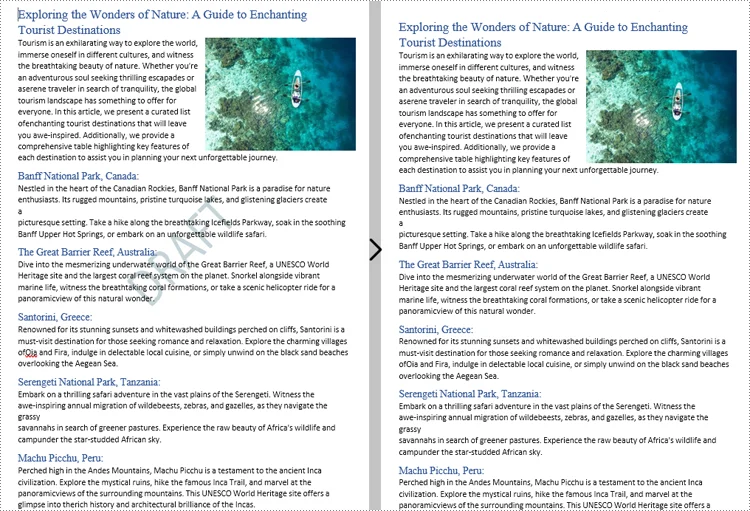
This script loops through all Word documents in the input folder, removes the watermark from each file, and then saves the updated file to the output folder.
Result:
Part 3: Why Remove Watermarks from Word Documents?
While watermarks protect data and brand identity, removing them is often necessary for:
- Finalizing Drafts: Clearing "DRAFT" or "REVIEW" markers to present a polished, professional final document.
- Customizing Templates: Removing sample logos or placeholder text to adapt templates for specific clients or projects.
- Improving Accessibility: Eliminating low-contrast backgrounds that hinder readability for visually impaired users or interfere with screen readers.
- Optimizing Printing: Preventing background noise and reducing unnecessary ink/toner consumption for cleaner, cost-effective prints.
⚠️Legal Warning: Never remove watermarks from copyrighted, confidential, or proprietary documents without explicit permission. Doing so may violate copyright laws, NDAs, and security policies. Ensure you have the legal right to modify the file before proceeding.
Part 4: Tips and Common Issues When Removing Watermark in Word
Removing watermarks in Word is usually straightforward, but certain scenarios can cause problems. Follow these tips to ensure a smooth process, and see solutions for common issues that users encounter.
Tips
- Always Backup First – Save a copy before removing watermarks, especially when using scripts or batch processing.
- Check the Entire Document – Scroll through all pages after removal to confirm the watermark is gone everywhere.
- Inspect for Residual Objects – Some watermarks are inserted as shapes, images, or text boxes; check and remove any floating objects.
- Verify Headers and Sections – Ensure all headers and sections are accounted for before removal to avoid missing watermarks.
Common Issues and Solutions
- Remove Watermark Button Doesn’t Work – The watermark was manually added as an image, shape, or text box in the header/footer. Open the header, select the watermark, and press Delete. Check all sections if multiple headers exist.
- Watermark Reappears After Deleting – The document is protected or the watermark is embedded in a style/template. Go to Review > Restrict Editing > Stop Protection (password may be required).
- Faint Background Color Remains – This is a page fill rather than a watermark. Go to Design > Page Color > No Color.
- Watermark Still Appears on Specific Pages – Different First Page or Odd/Even Page settings are enabled. Edit each header type individually and delete the watermark object.
Conclusion and Recommendations
You now have a complete toolkit for removing watermarks in Word documents. The key is selecting the method that aligns with your specific needs:
- For most users: Stick with the native Microsoft Word watermark removal feature. It is the fastest, safest, and most reliable option for individual files.
- For non-Office users: Google Docs is an excellent free alternative without software installation.
- For enterprises & developers handling a large number of files: C# automation is the most efficient and scalable solution.
Choose wisely and enjoy clean, professional documents!
Frequently Asked Questions
Q: Why won't the watermark disappear when I click "Remove Watermark"?
A: The watermark was likely inserted manually as an image or text box in the Header/Footer. Double-click the top of the page to open the Header & Footer view, select the Watermark directly, and press Delete.
Q: Can I remove watermarks from multiple Word files at once?
A: Manual removal is too slow for batches. For 100+ files, use C# automation with libraries like Spire.Doc to loop through folders and strip watermarks instantly without opening Word.
Q: Will removing a watermark mess up my formatting?
A: Using the native Word Remove Watermark tool preserves your layout perfectly. Third-party converters (like Google Docs) may slightly shift margins or fonts, so always proofread.
Q: Is it legal to remove a watermark in Word?
A: Yes, if you own the document or have permission. However, removing "Confidential," "Draft," or copyright marks from files you do not own may violate NDAs or copyright laws.