In today's digital age, eBooks have become one of the most popular ways to share information, stories, and professional content. While Word documents are perfect for drafting and editing text, they are not ideal for digital reading on eReaders and mobile devices. To make your content accessible, readable, and visually appealing, converting Word files into EPUB format is a necessary step for authors, publishers, and content creators.
In this guide, we'll cover three practical ways to convert Word to EPUB, along with tips to optimize your eBook for maximum readability and compatibility.
What You'll Learn
- What is EPUB
- Why Convert Word to EPUB
- How to Convert Word to EPUB
- Best Practices for Word to EPUB Conversion
- Conclusion
- Frequently Asked Questions about Word to EPUB
What is EPUB
EPUB, short for Electronic Publication, is an open-standard digital book format widely used in eBook publishing. Unlike Word files, EPUB is designed specifically for professional-quality eBooks, offering a flexible structure that allows content to be organized and presented consistently across devices.
As the industry standard for digital publishing, EPUB is widely adopted by authors, publishers, and educational institutions to create digital books that are easy to distribute, maintain, and manage. Its structured format ensures that eBooks meet professional publishing requirements while remaining versatile for a range of devices and platforms.
Why Convert Word to EPUB
Although Word files are commonly used for creating content, they are not structured for professional eBook distribution across multiple devices. Converting Word to EPUB provides multiple benefits:
- Improved Readability Across Devices: EPUB adjusts text flow, making your content readable on small screens like smartphones.
- Professional Presentation: Headings, lists, tables, images, and hyperlinks are preserved and formatted for eReaders.
- Wider Compatibility: EPUB works on Kindle, Nook, Kobo, Apple Books, and other popular eReaders.
- Smaller File Size: EPUB files are lightweight and easier to distribute online.
- Accessibility: Supports features such as text-to-speech and font resizing for readers with visual impairments.
In short, converting Word to EPUB turns a basic document into a reader-friendly, professional-quality eBook that is ready for publishing or distribution.
How to Convert Word to EPUB
There are several methods you can use to convert Word to EPUB, ranging from quick online converters to desktop software and automated Python solutions. Below, we'll explore each method in detail.
Method 1: Convert Word to EPUB Using Online Tools
Online conversion tools are the fastest and easiest way to turn Word documents into EPUB. They are perfect for one-off conversions, small files, or users who prefer not to install software.
Websites like Zamzar, Convertio, and Online-Convert offer free services to convert Word to EPUB. Here, we will use Convertio for demonstration.
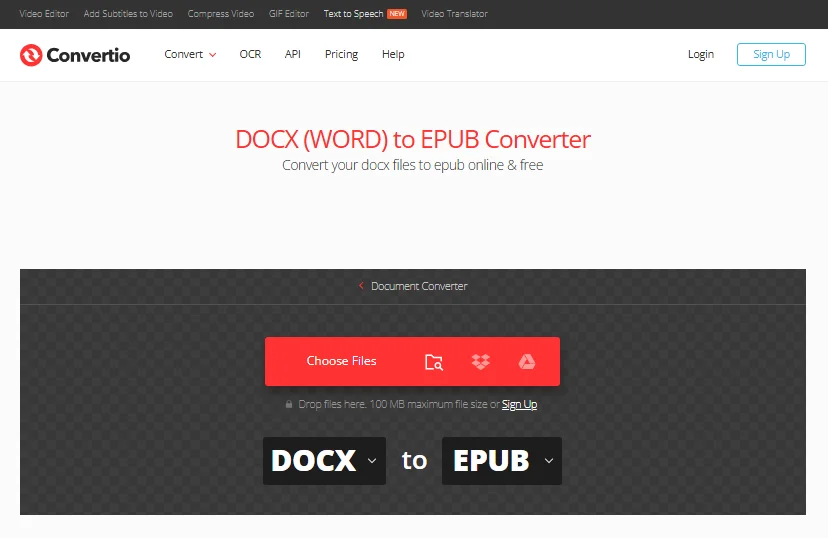
Steps to Convert Word to EPUB Online:
- Go to Convertio: Open the Convertio Online Word to EPUB Converter.
- Upload Your Word Document: Click on the "Choose Files" button and select the Word file (DOCX or DOC) you want to convert.
- Select EPUB as Output Format: Choose EPUB from the list of available output formats.
- Convert and Download: Click on "Convert" and wait for the tool to process your file. Once the conversion is complete, you can download the EPUB file.
Pros:
- Free and easy to use.
- No software installation required.
- Accessible from any device (laptops, mobiles & more) with an internet connection.
Cons:
- Limited control over formatting and metadata.
- Most free conversion tools often have file size restrictions.
- Not ideal for sensitive content due to privacy concerns.
You may also like: Convert Word to ODT: 4 Easy & Reliable Methods
Method 2: Convert Word to EPUB Using Free Desktop Software (Calibre)
For greater control over formatting and offline conversion, desktop software is the ideal choice. Calibre, a free and open-source eBook management tool, is one of the most popular options for converting Word documents to EPUB. It offers a wide range of customization options, making it a versatile solution for users who need to adjust formatting, metadata, and more during the conversion process.
Steps to Convert Word to EPUB with Calibre:
-
Download and Install Calibre: Visit Calibre's website to download and install the software.
-
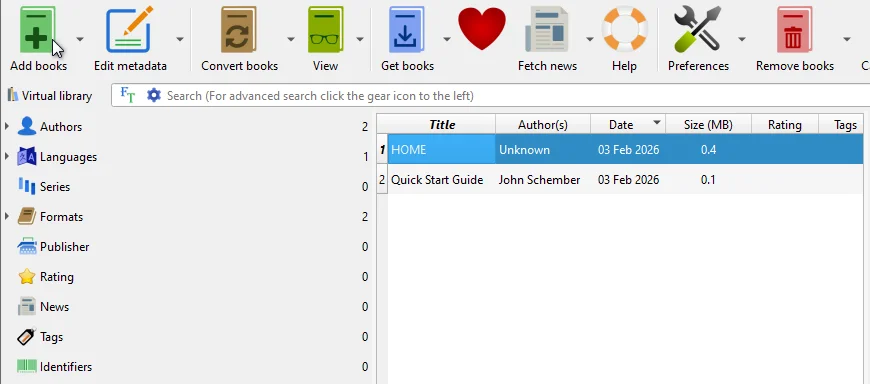
Add Your Word Document: Launch Calibre and click on "Add books" to import your Word file.
-
Convert the File: Once your file is added, select it, then click on "Convert books" and choose EPUB as the output format.
-
Adjust Conversion Settings (Optional): Calibre allows you to tweak settings like fonts, margins, and metadata. If you're looking for more control over the appearance of your eBook, this is a great place to customize.
-
Save the EPUB File: Click "OK" to start the conversion. Once it's finished, the converted EPUB file will be saved in the same directory as your original Word file.
Pros:
- Free and open-source.
- Works offline, no internet connection required.
- Provides full control over eBook appearance and metadata.
Cons:
- Slight learning curve for beginners.
- The user interface may seem overwhelming at first.
Method 3: Batch Convert Word to EPUB Automatically with Python
If you need to frequently convert multiple Word documents to EPUB, Python automation is an efficient solution. With Python libraries, you can easily automate batch conversions without the need for manual intervention.
Spire.Doc for Python is a popular library for this task. It allows users to create, manipulate, and convert Word documents into various formats, including EPUB. It offers robust features such as:
- Formatting retention: Ensures your document's structure remains intact.
- Metadata editing: Customize author, title, and other properties.
- Batch processing: Convert multiple files at once, saving time and effort.
This makes Spire.Doc an ideal choice for automating Word to EPUB conversion, especially for businesses or content publishers handling large volumes of documents.
Steps to Batch Convert Word to EPUB with Python:
-
Install Spire.Doc for Python:
To get started, first install the Spire.Doc for Python library using pip. Run the following command:
pip install spire.doc -
Write the Python Script:
Once the library is installed, create a Python script to automate the conversion process. Here's the basic script to convert all Word DOC or DOCX files in a folder to EPUB:
from spire.doc import * import os # Define the input and output directories input_dir = 'path_to_input_files' output_dir = 'path_to_output_files' # Get a list of all Word files in the input directory word_files = [f for f in os.listdir(input_dir) if f.endswith('.docx') or f.endswith('.doc')] # Process each Word file for word_file in word_files: input_file = os.path.join(input_dir, word_file) output_file = os.path.join(output_dir, os.path.splitext(word_file)[0] + '.epub') # Create a Document object doc = Document() # Load the Word document doc.LoadFromFile(input_file) # Save the Word document as EPUB doc.SaveToFile(output_file, FileFormat.EPub) # Close the Document object doc.Close() print("Batch conversion completed successfully!") -
Run the Python Script:
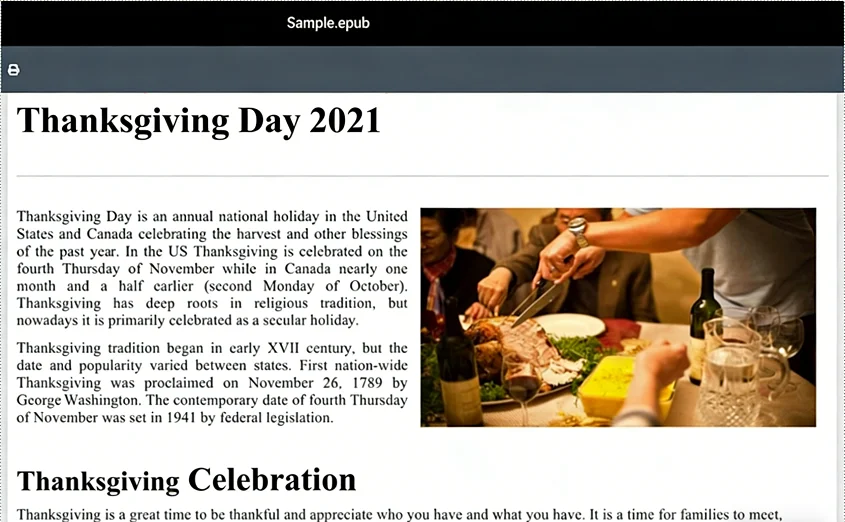
After saving the script, run it from your terminal or IDE. The script will automatically process all Word files in the input folder and save them as EPUB files in the output folder.
Notes:
- You need to modify the input_dir and output_dir variables in this example to point to the appropriate folders on your system.
- You can customize the appearance of the EPUB file during conversion, such as adding a cover image for it. Refer to the official guide: Python: Convert Word to EPUB
Pros:
- Ideal for handling large volumes of documents.
- Fully automated once the script is set up, saving time and effort.
- Can be easily integrated into existing workflows or automated publishing systems.
Cons:
- Requires some programming knowledge to set up the script.
- Not as user-friendly as online converters or desktop software for non-technical users.
- Initial setup might take time to configure and test the automation process.
Best Practices for Word to EPUB Conversion
To create high-quality EPUB eBooks from Word documents, follow these essential best practices:
- Use Word Styles Consistently: Apply heading styles, lists, and paragraphs to preserve formatting in the EPUB file.
- Optimize Images: Resize and compress images to reduce file size without sacrificing quality.
- Include Metadata: Add key information such as author, title, language, and cover image to improve presentation and discoverability.
- Validate EPUB Files: Use EPUBCheck to ensure your file meets EPUB standards and works across devices.
- Preview on Multiple Devices: Check readability and layout on various eReaders, tablets, and smartphones.
- Keep Formatting Simple: Avoid complex Word layouts that may not convert well to EPUB.
By following these best practices, you'll ensure your Word to EPUB conversion results in a polished, professional eBook ready for any device.
Conclusion
Converting Word to EPUB is a crucial step in creating professional, reader-friendly, and widely compatible eBooks. Depending on your needs and technical expertise, you can choose the method that best suits your workflow.
- Online Converters: Ideal for quick, single-file conversions with minimal effort. These tools are perfect for personal projects or occasional use.
- Desktop Software (e.g., Calibre): Best suited for users who need precise control over formatting and metadata. Calibre is a powerful tool that allows you to customize your eBook's appearance and structure.
- Python Automation: The best option for large-scale, repeatable workflows. Python is perfect for content publishers or teams who need to automate bulk conversions efficiently.
The right method depends on your specific requirements, technical skills, and the volume of documents you need to process. By choosing the appropriate conversion tool and following best practices, you can ensure your eBooks are polished, professional, and ready for distribution.
Looking for more high-quality Word tutorials? Check out our free Word resources.
Frequently Asked Questions about Word to EPUB
Q1: What is the easiest way to convert Word documents to EPUB?
A1: The easiest way to convert Word to EPUB is by using an online converter, such as Convertio or Zamzar. However, avoid using them for sensitive or large documents.
Q2: Can I convert Word to EPUB for free?
A2: Yes, you can convert Word to EPUB for free using online converters or free desktop software like Calibre. While online tools are convenient for quick conversions, Calibre offers more control over formatting and metadata for offline use.
Q3: How do I preserve formatting when converting Word to EPUB?
A3: To preserve formatting, use tools like Calibre, which maintain document structure, headings, tables, and images during conversion.
Q4: Is EPUB the best format for eBooks?
A4: Yes, EPUB is the best format for eBooks due to its reflowable content, wide compatibility with eReaders, and support for multimedia and interactive features.
Q5: How do I batch convert multiple Word files to EPUB?
A5: You can batch convert multiple Word files to EPUB using Python and the Spire.Doc for Python library. This method allows you to efficiently process large volumes of documents, saving time and ensuring consistent conversion results.