Markdown has become a popular choice for creating online documentation, blog posts, and README files due to its simplicity and readability. However, when it comes to displaying content on websites or within HTML-based applications, converting Markdown to HTML is essential.
In this guide, we'll show you three simple and effective methods to convert Markdown to HTML: using desktop applications, leveraging free online tools, and automating the process with Python for batch conversions. Let's get started!
What You Will Learn
- What is Markdown
- Why Convert Markdown to HTML
- How to Convert Markdown to HTML
- Best Practices and Troubleshooting for Converting Markdown to HTML
What is Markdown?
Markdown is a lightweight markup language that allows you to write structured text using simple syntax. It's easy to read and write, and doesn't require complicated HTML tags. Markdown documents are often used in platforms like GitHub, Stack Overflow, and blogs. While it's perfect for creating content, the web can't directly interpret Markdown.
Common uses of Markdown:
- Blog posts
- Documentation
- Readme files for GitHub repositories
- Books and eBooks
Why Convert Markdown to HTML?
Transforming Markdown into HTML is essential for web compatibility and content management. Here's why:
- Web Compatibility: HTML is universally supported by all web browsers, ensuring your content is accessible, while Markdown is not natively rendered by browsers.
- Better Formatting and Styling: HTML provides robust options for styling and layout, making it ideal for creating rich, visually appealing content.
- Cross-Device Support: HTML adapts seamlessly across platforms-desktops, tablets, and mobile devices-ensuring your content looks great everywhere.
- Integration with Web Tools: Most content management systems (CMS), blogs, and web applications require HTML for content formatting, as it integrates better than Markdown in these environments.
- SEO Optimization: With HTML, you can use key SEO elements like headings, meta tags, and links, which improve content discoverability and search engine rankings.
How to Convert Markdown to HTML?
There are several ways to convert Markdown to HTML. The most common methods include using desktop apps, online tools, or automating the process with Python. Let's explore these options in detail.
Convert Markdown to HTML Using Desktop Apps
Desktop applications offer user-friendly interfaces for converting Markdown to HTML. These tools typically provide live preview features, so you can see how your content will look once converted. Below are two popular apps for this task.
A. Typora
Typora is a powerful Markdown editor that makes it easy to export Markdown files to HTML with just a few clicks.
Steps to Convert Markdown to HTML Using Typora:
-
Download and Install Typora
-
Visit the Typora website to download the App. It's available for Windows, macOS, and Linux.
-
Once downloaded, follow the installation instructions to set up Typora on your computer.
-
-
Open Your Markdown File in Typora
-
Launch Typora and click File > Open to browse and select the Markdown file you want to convert.
-
Alternatively, you can drag and drop the Markdown file directly into Typora's interface.
-
-
Export the File to HTML
-
Once your Markdown file is open, click on File in the top menu and select Export.
-
From the dropdown menu, choose HTML. This option will convert your Markdown content into HTML format.
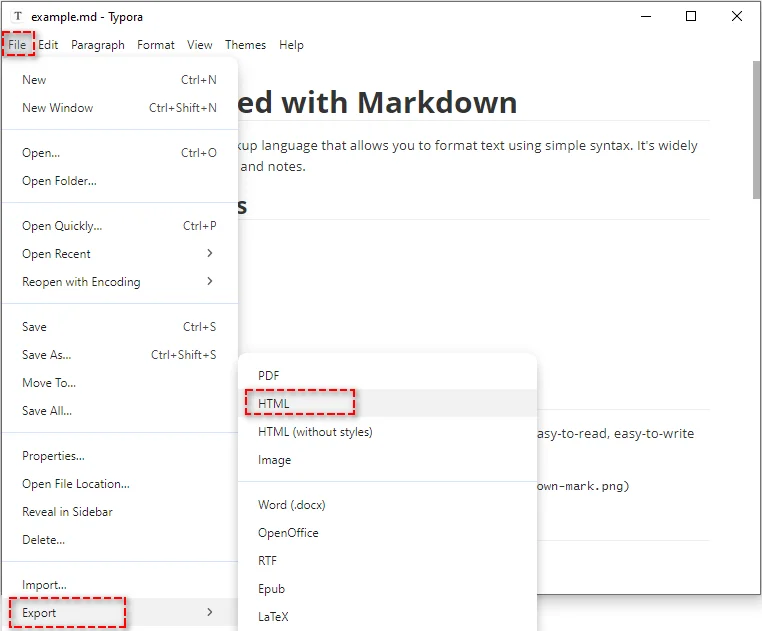
Tip: Before exporting, you can use Typora's live preview feature to check how your Markdown will look once converted to HTML. Simply scroll through the document to ensure it appears as expected.
-
-
Choose Your Destination Folder and Save the File
-
After selecting HTML export, a file dialog will appear. Give your file a name (e.g., example.html) and choose the folder where you want to save it.
-
Click Save, and your Markdown file will be converted to HTML and stored in the selected location.
-
Pros:
- Clean, distraction-free writing interface.
- Live preview of Markdown and HTML.
- Supports various export formats beyond Markdown to HTML.
- Cross-platform (Windows, macOS, and Linux).
Cons:
- Requires installation on your system.
- Best for single file conversions, not ideal for bulk processing.
- Not entirely free (though there is a trial period).
B. Visual Studio Code
Visual Studio Code (VSCode) is a powerful and versatile code editor that supports Markdown editing with built-in live preview features. By installing a dedicated extension from the marketplace, you can easily convert Markdown files to HTML directly within VSCode.
Steps to Convert Markdown to HTML Using VSCode:
-
Install Visual Studio Code (VSCode)
-
Visit the Visual Studio Code download page.
-
Download and install the version suitable for your operating system (Windows, macOS, or Linux).
-
-
Install the Markdown All in One Extension
-
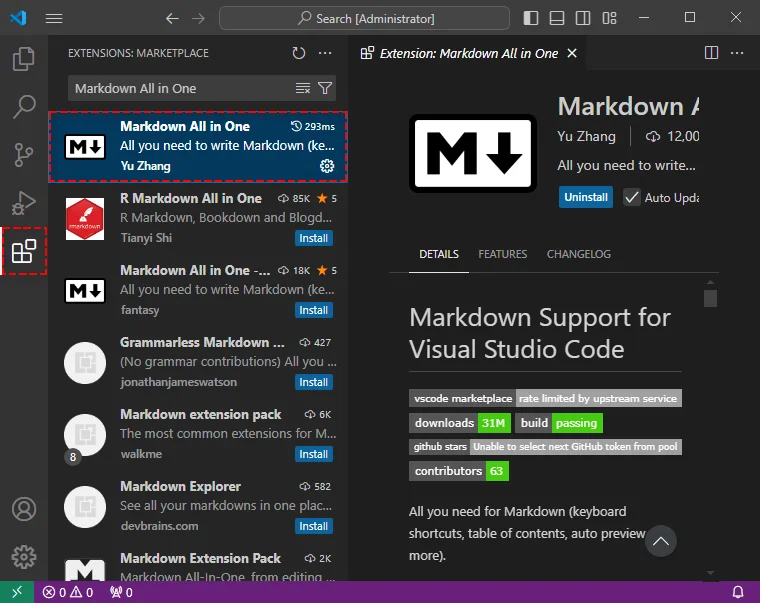
Launch Visual Studio Code and open the Extensions Marketplace by clicking the Extensions icon in the sidebar of the window (or press Ctrl + Shift + X on Windows/Linux, Cmd + Shift + X on macOS).
-
In the search bar, type Markdown All in One and press Enter.
-
Find the extension in the list and click Install to add it to your editor.
-
This extension adds several helpful features for Markdown editing, including live preview, automatic table of contents generation, and enhanced syntax highlighting.
-
-
Open Your Markdown File and Use the Live Preview Feature
-
Open the Markdown file you wish to convert by clicking File > Open File… and selecting your .md file.
-
Once the file is open, you can view the live preview of your Markdown content by pressing Ctrl + Shift + V (Windows/Linux) or Cmd + Shift + V (macOS).
-
This will display the rendered version of your Markdown, showing you how the content will look once converted to HTML.
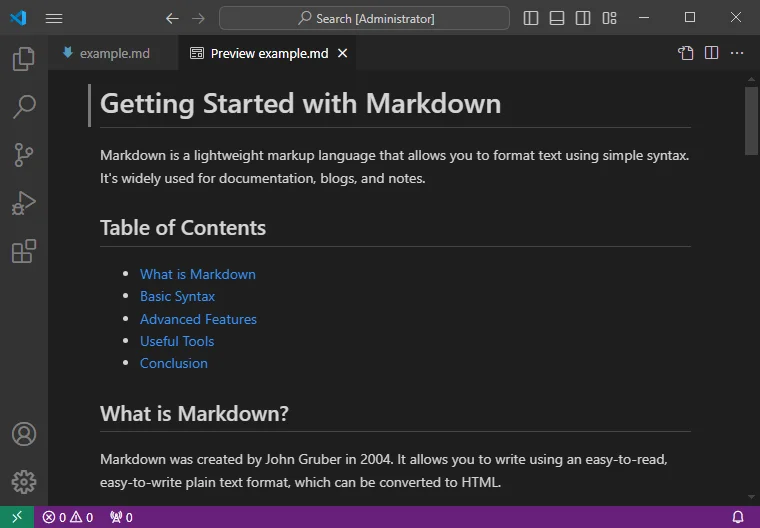
Tip: The live preview updates in real-time as you edit the Markdown file, making it easier to see how changes affect the final output.
-
-
Export the File to HTML
-
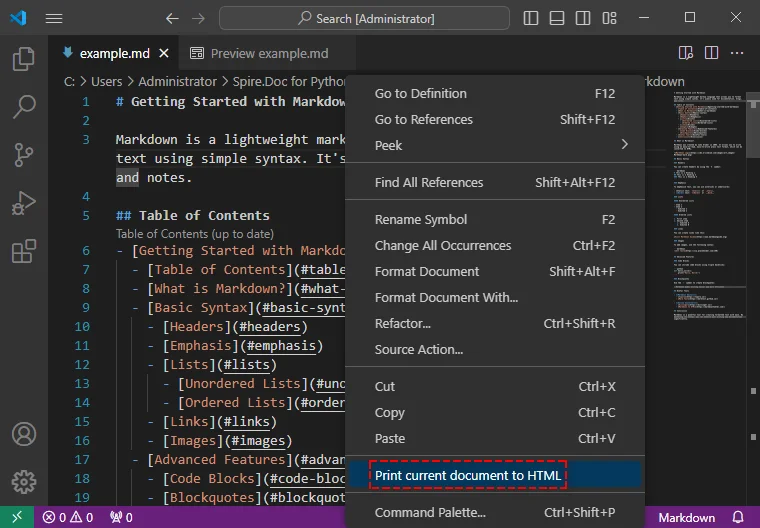
Right-click inside the editor window (not the preview pane) and select Print current document to HTML from the context menu. The Markdown file will be exported as an HTML file with the same name and saved in the same directory as the original .md file.
-
Pros:
- Fully customizable with extensions.
- Free and open-source.
- Supports other programming languages as well.
Cons:
- The interface may be overwhelming for complete beginners.
- Requires extensions for full Markdown functionality.
2. Convert Markdown to HTML Using Free Online Tools
If you don't want to install any software, websites like Dillinger.io and markdowntohtml.com provide free and easy-to-use online tools for quickly converting your Markdown files to HTML.
Steps to Convert Markdown to HTML Online (Use Dillinger as an Example):
-
Visit Dillinger.io
Go to Dillinger.io in your web browser.
-
Paste Your Markdown Content
Copy your Markdown content and paste it into the editor on the left side of the screen.
-
View the HTML Preview
On the right panel, preview the converted HTML version of your Markdown content.
-
Download the HTML File
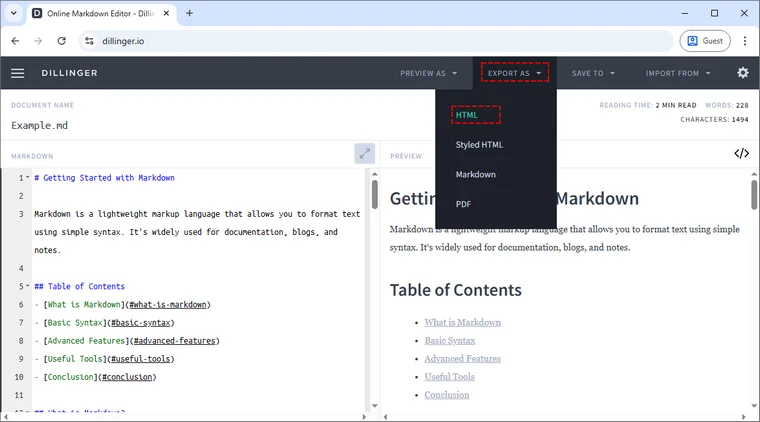
Click Export As in the top menu, then select HTML to download the HTML file.
Pros:
- No installation required (works directly in your browser).
- Offers integrations with cloud storage services (Dropbox, Google Drive).
- Simple and intuitive interface.
Cons:
- Requires an internet connection.
- Better suited for one-time or occasional use (not ideal for frequent conversions).
- Privacy risks (content uploaded to the site).
3. Batch Convert Markdown to HTML Using Python Automation
If you have a large number of Markdown files that need to be converted into HTML, automating the process with Python can save you valuable time and effort. By leveraging libraries like Spire.Doc for Python, you can easily save multiple Markdown files as HTML without losing formatting. In addition to Markdown to HTML, Spire.Doc also supports converting Markdown to PDF and Markdown to Word formats.
Steps to Batch Convert Markdown Files to HTML Using Python:
-
Install the Spire.Doc for Python Library
Open your terminal and run the following command to install Spire.Doc from PyPI:
pip install spire-doc -
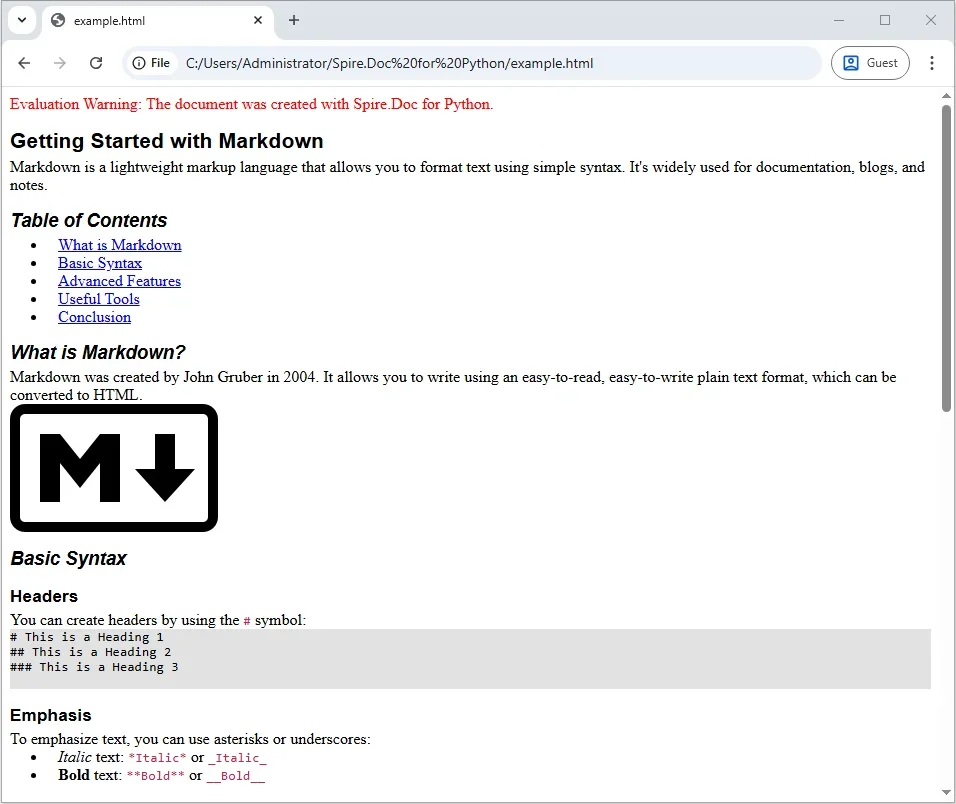
Write a Python Script to batch convert Markdown Files to HTML
Once the library is installed, you can use Python to automate the conversion process. Below is an example Python script that will help you batch convert your MD files to HTML:
from spire.doc import *
import os

# Specify the input Directory containing the Markdown files and the output directory for saving the converted HTML files
input_directory = "path_to_your_markdown_files"  # Replace with your Markdown files folder
output_directory = "path_to_output_html_files"  # Replace with where you want HTML files to be saved

# Ensure the output directory exists
if not os.path.exists(output_directory):
    os.makedirs(output_directory)

# Loop through all files in the input directory
for filename in os.listdir(input_directory):
    if filename.endswith(".md"):  # Check if it's a Markdown file
        md_file_path = os.path.join(input_directory, filename)

        # Initialize the Document object
        doc = Document()

        # Load the Markdown content
        doc.LoadFromFile(md_file_path, FileFormat.Markdown)

        # Save as HTML in the output directory
        output_file_path = os.path.join(output_directory, filename.replace(".md", ".html"))
        doc.SaveToFile(output_file_path, FileFormat.Html)

        # Close the document after saving
        doc.Close()
Pros:
- Can batch convert many Markdown files at once.
- Fully customizable to suit your needs.
- Great for developers or advanced users who prefer automation.
Cons:
- Requires Python programming knowledge.
- Need to install the required library.
- Lacks a user-friendly graphical interface.
Best Practices and Troubleshooting for Converting Markdown to HTML
When converting Markdown to HTML, following best practices and addressing common issues are essential for a smooth and efficient process. Below, we highlight key practices and solutions to common challenges during conversion.
Best Practices
-
Use a Reliable Tool
Choose a reputable converter or editor that handles Markdown syntax correctly and generates clean, valid HTML.
-
Preview the Output
Always preview the HTML before finalizing the conversion. This allows you to identify any formatting discrepancies between the original Markdown and the converted HTML.
-
Check Cross-Browser Compatibility
After conversion, test the HTML in multiple browsers (e.g., Chrome, Firefox, Safari) to ensure that it displays correctly across different platforms.
-
Clean the HTML Code
Review the outputted HTML for unnecessary or redundant code. A clean and well-structured HTML file improves performance, ease of maintenance, and SEO.
-
Use Semantic HTML
Ensure the HTML output includes appropriate semantic tags (e.g.,
<header>,<section>,<article>) to improve accessibility and SEO.
Troubleshooting Common Issues
-
Images Not Converting Properly
Ensure that image paths are relative and hosted online. Local image paths may not render correctly when shared or uploaded. Use online image links or relative paths to resolve this issue.
-
Code Blocks Losing Formatting
To maintain code block formatting and syntax highlighting, use triple backticks along with the appropriate language specification. This ensures that code appears correctly in the converted HTML.
-
Tables Not Rendering Correctly
Double-check the Markdown table syntax to ensure it is properly structured. Make sure rows and columns are aligned using pipes (|) and dashes (-). Incorrect syntax can cause tables to render incorrectly in the HTML output.
Conclusion
Converting Markdown to HTML is a straightforward process that can be done through various methods, depending on your needs. For most casual users who need one-time conversions, desktop apps like Typora and VSCode, or online Markdown to HTML converters like Dillinger, are ideal. However, if you need to batch process a large number of Markdown files, Python automation can save you considerable time and effort.
Select the method that best fits your workflow and start converting your Markdown files into HTML documents that are ready for web publication.
FAQs: Markdown to HTML Conversion
Q1: What is Markdown?
A1: Markdown is a lightweight markup language used for writing structured text using simple syntax. It's commonly used for documentation, blog posts, and readme files, and can be easily converted to HTML for web display.
Q2: Are there free tools for converting Markdown to HTML?
A2: Yes, online tools like Dillinger.io and Markdown to HTML allow you to quickly convert Markdown to HTML without needing to install any software.
Q3: Can I convert multiple Markdown files to HTML at once using Python?
A3: Yes, you can batch convert multiple Markdown files to HTML using Python. By using libraries like Spire.Doc for Python, you can automate the conversion process, saving time when handling a large number of files.
Q4: Can I edit the HTML after converting from Markdown?
A4: Yes, once converted, you can edit the HTML file using any text editor or IDE, like Visual Studio Code, to further customize the content or style.