Rich Text Format (RTF) is a versatile file type for cross-platform sharing, but when it comes to professional presentation and document security, the PDF format is the industry standard. Whether you are a casual user looking for a quick fix or a developer needing a long-term solution, knowing how to convert RTF to PDF efficiently can save you significant time and effort. In this guide, we will explore three distinct methods, ranging from online tools and desktop software to automated Python scripts, to make your documents remain polished and safe.
- Online RTF to PDF Converters
- Microsoft Word Save RTF as PDF
- Automated Conversion with Free Spire.Doc for Python
- Compare the Three Methods
1. The Quickest Choice: Online RTF to PDF Converters
If you only have a single document and don't want to install new software, an online RTF-to-PDF converter is the top choice. These platforms are designed for speed and accessibility, allowing you to transfer RTF to PDF directly from your web browser. While they require an internet connection, they are incredibly user-friendly for non-technical tasks.
Option A: Convertio (A Multi-Format Hub)
Convertio is a robust all-in-one conversion site. It is ideal for users who handle various file types and want a clean, ad-free interface.
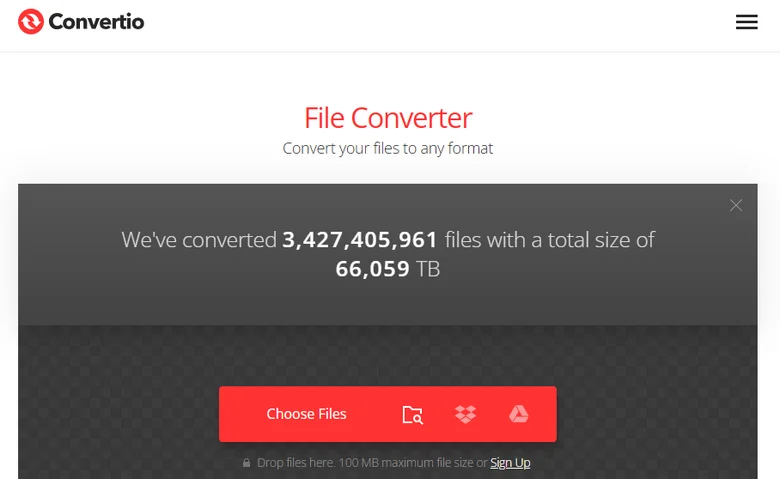
- Step 1: Visit the Convertio website and click "Choose Files" to upload your RTF document.
- Step 2: Choose PDF as the output format.
- Step 3: Click "Convert" to convert the RTF file to PDF, and then download the final PDF.
Option B: CLOUDXDOCS (Document-Centric AI Platform)
CLOUDXDOCS is a specialized hub focusing on professional document formats like Word, PDF, and RTF. Unlike general converters, it features built-in AI tools that allow you to refine or edit your content immediately after converting from RTF to PDF.
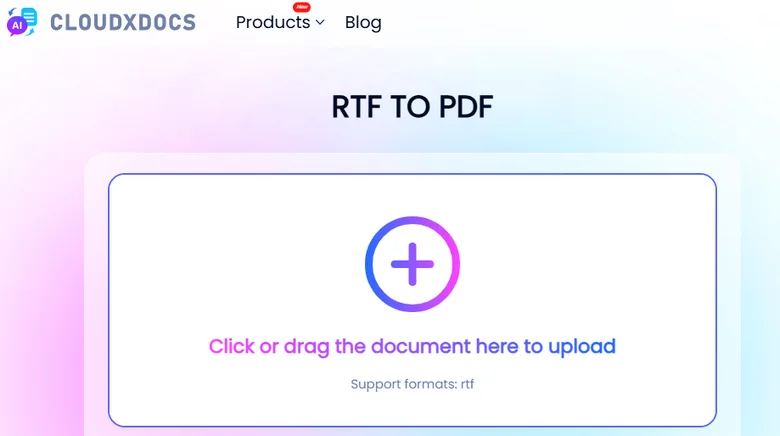
- Step 1: Navigate to the "Converter" menu on the homepage and select "RTF > PDF."
- Step 2: Upload your RTF document; the platform will automatically begin the conversion process.
- Step 3: Once finished, click "View" to preview the results or "Download" to save the PDF to your local device.
2. The Native Method: Microsoft Word "Save As" PDF
For users who already have office productivity suites installed, utilizing desktop software is the most secure and reliable way to handle documents. This method doesn't require an internet connection and provides high-quality results for maintaining complex formatting. Learning how to save RTF as PDF natively helps to preserve your fonts and margins to look the same.
Microsoft Word remains the most popular tool for this task because it handles RTF encoding natively, minimizing the risk of garbled text that sometimes occurs with low-quality converters.
How to convert an RTF file to PDF using MS Word:
- Step 1: Right-click your RTF file and select Open with > Word.
- Step 2: Once the document is open, go to the File menu in the top-left corner.
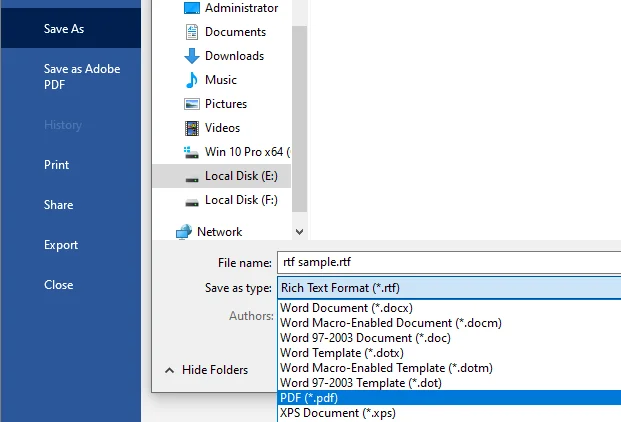
- Step 3: Go to Save As and choose PDF from the file type dropdown menu.
- Step 4: Choose your destination folder and click Save.
While MS Word is great for quick PDF exports, you might also want to transfer your files to a standard Word format permanently. If you're looking for a dedicated way to convert RTF to Word, the process is equally straightforward.
3. The Developer's Solution: Free Spire.Doc for Python
When you need to process hundreds of files or integrate document conversion into a software project, manual methods are no longer practical. Free Spire.Doc for Python offers a professional library to save RTF as PDF programmatically. Unlike the previous methods, this approach allows for total automation without needing Microsoft Word installed on your system.

This library is particularly powerful because it gives developers granular control over the RTF-to-PDF conversion process, making it the preferred choice for high-volume business environments.
How to convert RTF to PDF via Python:
-
Step 1: Open your terminal and run:
pip install Spire.Doc.Freeto install the library. - Step 2: Create a Document object and load an RTF file.
- Step 3: Save the RTF file as a PDF by calling the Document.SaveToFile() method.
Here's the code example:
from spire.doc import *
from spire.doc.common import *

inputFile = "sample.rtf"
outputFile = "RtfToPDF.pdf"

# Create a Document object
doc = Document()

# Load an RTF file from disk
doc.LoadFromFile(inputFile)

# Save the RTF file as a PDF file
doc.SaveToFile(outputFile, FileFormat.PDF)
doc.Close()
Comparison: Which Method Should You Use
To help you decide which approach fits your workflow, here is a quick comparison of the three methods discussed:
| Feature | Online Converters (CLOUDXDOCS/Convertio) | Microsoft Word | Free Spire.Doc for Python |
|---|---|---|---|
| Best For | Casual users & one-off tasks | Formal, manual editing | Developers & Automation |
| Setup Required | None (Browser-based) | Software installation | Python environment & library |
| Privacy Level | Files processed on cloud servers | High (Local processing) | High (Local/Server processing) |
| Batch Processing | Limited/Manual | No (One by one) | Yes (Fully automated) |
| Internet Required | Yes | No | No |
| Cost | Free (often with daily limits) | Requires Office license | Free |
Conclusion
Choosing the right approach depends entirely on your specific needs. Online RTF to PDF converters are perfect for one-off tasks, while Microsoft Word is the go-to for offline, high-fidelity editing. However, for those looking for an automated way to save RTF as PDF within a workflow, Free Spire.Doc for Python provides a sophisticated and efficient solution. By understanding how to convert RTF to PDF through these different methods, you can ensure that your documents are always professional, portable, and perfectly formatted for your target audience.