When working with open-source office suites like LibreOffice or OpenOffice, you may often need to convert Word documents to the ODT (OpenDocument Text) format. Although Word (DOC/DOCX) files are widely used, they don't always provide the best cross-platform compatibility — especially in Linux environments, government systems, or organizations that rely on open standards.
This guide walks you through four easy and reliable methods to convert Word to ODT, including desktop tools, online converters, and automated batch solutions. Whether you need a quick one-time conversion or a scalable workflow for multiple files, you'll find the most efficient approach here.
- What is ODT
- Why Convert Word to ODT
- Method 1: Convert Word to ODT Using Microsoft Word
- Method 2: Convert Word to ODT with LibreOffice Writer
- Method 3: Convert Word to ODT Using Online Tools
- Method 4: Batch Convert Word to ODT with Python
- Practical Tips to Avoid Formatting and Compatibility Issues for Word to ODT
What Is ODT?
ODT (OpenDocument Text) is the default word processing file format of LibreOffice and Apache OpenOffice. It is part of the OpenDocument Format (ODF) standard, maintained by OASIS and recognized as an ISO standard.
Advantages of ODT over DOCX:
- Open, vendor-neutral specification
- Native support in Linux and open-source environments
- Better long-term archival compatibility
Why Convert Word to ODT?
Converting Word documents to ODT offers several practical benefits:
- Open-source workflow: Required for LibreOffice or OpenOffice users
- Cross-platform compatibility: Works well on Linux and macOS
- Vendor independence: Avoid relying solely on Microsoft Word
- Archiving and compliance: Preferred in certain government or institutional workflows
Important Note:
Microsoft states that when saving Word documents as ODT, most core features are supported, but some like Track Changes, document protection, themes, watermarks, and VBA macros may not transfer fully. Always review your converted documents.
Method 1: Convert Word to ODT Using Microsoft Word
For users who occasionally need to convert Word documents to ODT, Microsoft Word provides a simple and reliable solution. This method is ideal for single or small batches of files.
Steps to Save a Word Document as ODT in Microsoft Word:
-
Open your Word document (.doc or .docx) in Microsoft Word.
-
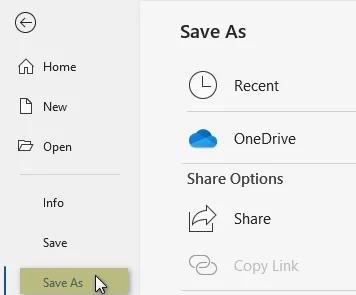
Click File > Save As.
-
Choose the destination folder for your ODT file.
-
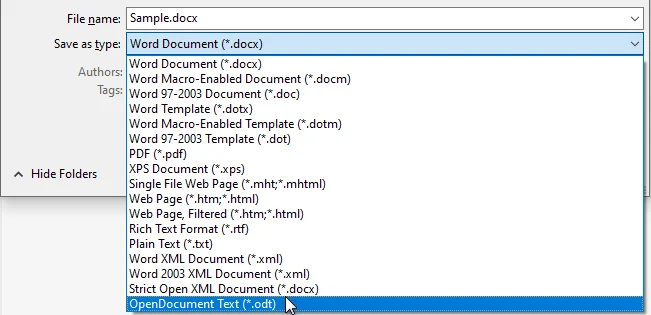
In the Save as type dropdown, select ODF Text Document (*.odt).
-
Click Save and confirm any compatibility prompts.
Pros:
- Simple and fast for occasional conversions
- Maintains most formatting and layout
- No additional software needed
Cons:
- Not ideal for large numbers of files
- Manual process can be time-consuming
You might also like: Convert ODT to Word: 4 Simple Ways (Desktop, Online & Python)
Method 2: Convert Word to ODT with LibreOffice Writer
LibreOffice Writer is an open-source solution for converting Word documents to ODT. It offers excellent compatibility and flexibility, making it ideal for both single conversions and small batches, especially for users preferring free software.
Steps to Convert DOCX to ODT with LibreOffice Writer:
-
Open LibreOffice Writer.
-
Go to File > Open and select your Word document.
-
Review the document to ensure layout and formatting appear correctly.
-
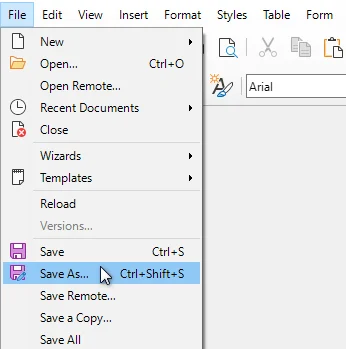
Click File > Save As.
-
Choose ODF Text Document (.odt) as the file type.
-
Click Save to complete the conversion.
Pros:
- Free and open-source
- Reliable formatting and style preservation
- Compatible with both DOC and DOCX
Cons:
- Slight learning curve for new users unfamiliar with LibreOffice interface
Method 3: Convert Word to ODT Using Online Tools
Online converters provide the fastest way to convert Word documents to ODT without installing any software. This method is ideal for quick, one-off conversions and for users who need access from multiple devices.
Popular free online converters like Zamzar and CloudConvert let you convert DOC or DOCX to ODT online directly in your browser in just a few simple steps.
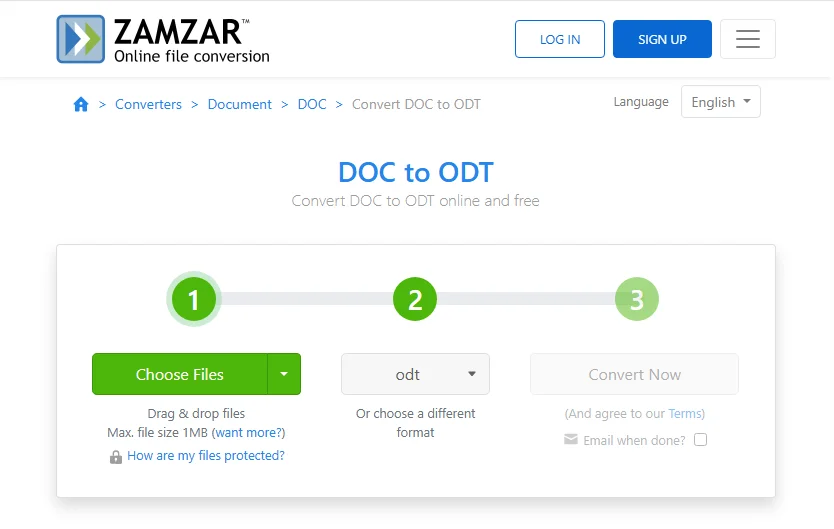
Steps to Convert Word to ODT Online (Using Zamzar as an Example):
- Open the Zamzar online Word to ODT converter.
- Click Choose Files to upload the Word document you want to convert.
- Click Convert Now and wait for the conversion process to complete.
- Download the converted ODT file.
Pros:
- No software installation required
- Works across devices and platforms
- Quick and convenient for single documents
Cons:
- File size and number of documents may be limited
- Internet connection required
- Privacy concerns for sensitive documents
Method 4: Batch Convert Word to ODT with Python
For developers and enterprises, automating Word to ODT conversion with Python is a scalable, consistent, and highly efficient solution for processing hundreds or thousands of Word files. This is particularly useful when standardizing archives, migrating systems, or integrating document conversion into automated workflows.
This example uses the Spire.Doc for Python library. It supports converting Word files to ODT and other formats such as PDF and HTML, making it ideal for batch processing and integration into automated workflows.
Steps to Batch Convert Word Files to ODT with Python:
-
Install the Required Library from PyPI:
pip install spire.doc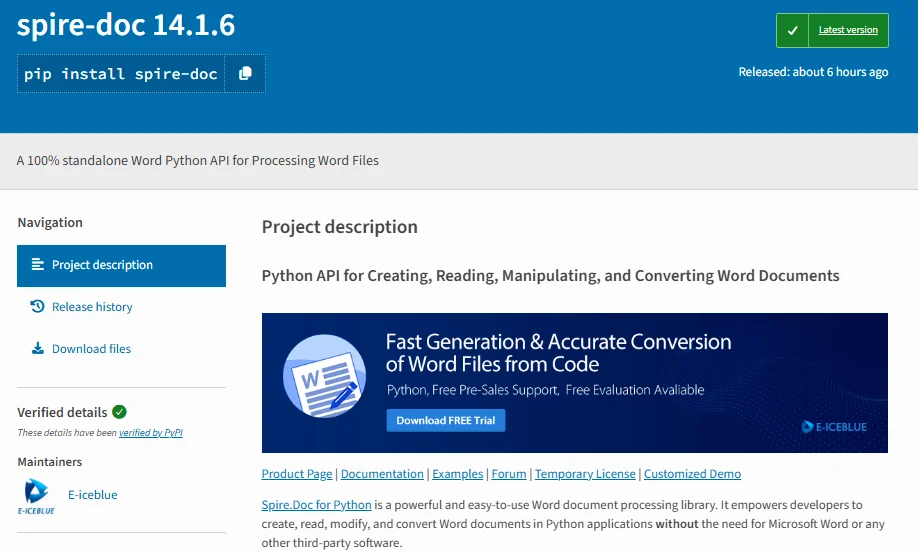
-
Prepare the Python Script.
from spire.doc import * import os # Input folder containing Word files input_folder = "C:/WordFiles" # Output folder for ODT files output_folder = "C:/ODTFiles" # Ensure the output folder exists os.makedirs(output_folder, exist_ok=True) # Loop through all Word files in the input folder for filename in os.listdir(input_folder): if filename.endswith(".docx") or filename.endswith(".doc"): # Load the Word document doc = Document(os.path.join(input_folder, filename)) # Set the output ODT file path output_path = os.path.join(output_folder, filename.rsplit(".", 1)[0] + ".odt") # Save as ODT doc.saveToFile(output_path, FileFormat.Odt) print(f"Converted {filename} to {output_path}") -
Run the Script.
The script will process all Word files in the input folder and save the converted ODT files in the output folder.
Pros:
- Scalable: Can process large numbers of files automatically
- Flexible: Supports multiple output formats including ODT, PDF, and HTML
- Integrable: Can be incorporated into Python automation pipelines
- Consistent: Provides repeatable, reliable conversion results
Cons:
- Requires basic Python knowledge to set up and run
- Needs to install a third-party library
Practical Tips to Avoid Formatting and Compatibility Issues for Word to ODT
To ensure smooth Word to ODT conversion and maintain document integrity, follow these key tips:
- Avoid unsupported elements: Features like macros, Track Changes, watermarks, and certain header/footer elements may not transfer fully to ODT.
- Simplify formatting: Use standard fonts and avoid overly complex tables or nested objects to reduce compatibility issues.
- Test a sample file first: Convert one document to identify layout or formatting problems before batch conversion.
- Backup and review: Always keep the original Word file and check the converted ODT to ensure tables, images, and styles appear correctly.
Final Thoughts: Choose the Best Method to Convert Word to ODT
With multiple ways to convert Word to ODT, it's important to pick the method that matches your workflow, file volume, and platform. Here's a quick comparison of the four main Word to ODT conversion methods:
| Method | Pros | Cons |
|---|---|---|
| Microsoft Word | Simple, no extra tools | Manual, not batch-friendly |
| LibreOffice | Free, good compatibility | Manual, small batches |
| Online Tools | Fast, cross-device | Internet required, privacy concerns |
| Python | Scalable, flexible | Requires Python knowledge |
Choosing the right method:
- Single files: Microsoft Word is easiest and fastest.
- Open-source workflows: LibreOffice ensures maximum compatibility.
- Quick one-off tasks: Online converters provide convenience.
- Enterprise or developer pipelines: Python batch conversion is efficient, scalable, and reliable.
Frequently Asked Questions
Q1: Will converting Word to ODT lose formatting?
A1: Most standard formatting like fonts, headings, and tables is preserved. Advanced features like macros or Track Changes may not fully transfer. Always check the converted ODT in LibreOffice or Microsoft Word.
Q2: Can I batch convert multiple Word files to ODT?
A2: Yes. You can batch convert Word to ODT using LibreOffice scripting or Python libraries like Spire.Doc for fast, automated conversion.
Q3: Is ODT better than DOCX?
A3: ODT is open-standard, cross-platform, and ideal for long-term archival. DOCX is proprietary but widely supported. ODT is preferred for open-source workflows and vendor independence.
Q4: Are online Word to ODT converters safe?
A4: For confidential documents, avoid public online converters. Use offline tools like Microsoft Word, LibreOffice, or Python scripts for secure Word to ODT conversion.
Q5: Which method is fastest for single Word files?
A5: Microsoft Word or online converters are the quickest for individual Word to ODT conversions, maintaining layout with minimal effort.
Q6: Can ODT files open on Mac or Google Docs?
A6: Yes. ODT files work on macOS via LibreOffice/OpenOffice and can be opened in Google Docs, though some complex formatting may vary.