Converting ODT files to Word documents is often necessary for anyone working across different platforms. ODT (OpenDocument Text) files are native to open-source suites like LibreOffice and OpenOffice, but Microsoft Word's DOCX and DOC formats remain the industry standard for editing, reviewing, and collaborating on documents professionally.
This guide explains four practical ways to convert ODT to Word, including desktop software, online tools, and automated Python scripts. Whether you're a student, professional, or developer, you will find the most suitable method for your workflow.
- Why Convert ODT to Word
- Convert ODT to Word Using LibreOffice
- Convert ODT to Word Using Microsoft Word
- Convert ODT to Word Online
- Automate ODT to Word Conversion Using Python
- ODT to DOCX vs. ODT to DOC: How to Choose?
Related Reads:
Convert RTF to Word: 3 Easy Methods (Online, Word, Python)
Convert Markdown to Word Fast: 4 Proven Expert Methods
Convert TXT to Word: 4 Easy & Free Methods
Why Convert ODT to Word?
Converting ODT to Word offers several practical benefits:
- Better Compatibility: DOCX is the default format in business, education, and enterprise environments.
- Easier Collaboration: Track Changes, comments, and formatting consistency are handled more reliably in Word documents than in ODT files.
- Professional Submission: Government agencies, publishers, and employers often request DOC or DOCX files instead of ODT.
- Workflow integration: Word documents work seamlessly with Microsoft 365, SharePoint, and OneDrive.
Convert ODT to Word Using LibreOffice
LibreOffice is one of the most reliable tools for ODT to Word conversion because it natively supports both formats. This free, offline solution preserves formatting well and works across Windows, macOS, and Linux.
Steps to Convert ODT to Word with LibreOffice:
-
Open your ODT document in LibreOffice Writer.
-
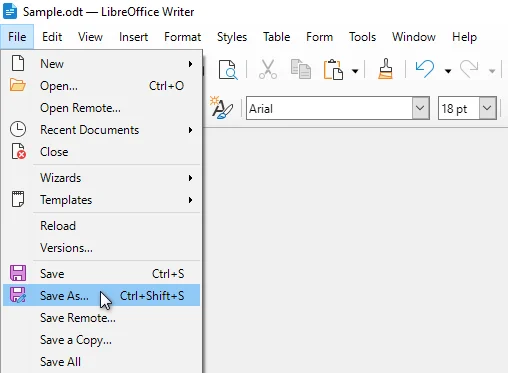
Click File > Save As from the top menu.
-
In the Save as type dropdown, select one of the following Word formats:
- Word 2010-365 (.docx)
- Microsoft Word 97-2003 (.doc)
-
Choose a destination folder and click Save to complete the conversion.
LibreOffice will convert the document while preserving most formatting, styles, tables, and images.
Best for:
- Free desktop conversion
- Maintaining document structure and formatting
- Individual or occasional conversions
Convert ODT to Word Using Microsoft Word
Microsoft Word (2010 and later) can open ODT files directly and save them as DOCX or DOC format, making it a convenient option for users who already work in Word for editing and reviewing.
Steps to Save ODT as Word in Microsoft Word:
-
Launch Microsoft Word on your computer.
-
Click File > Open, browse to your ODT file, and open it.
-
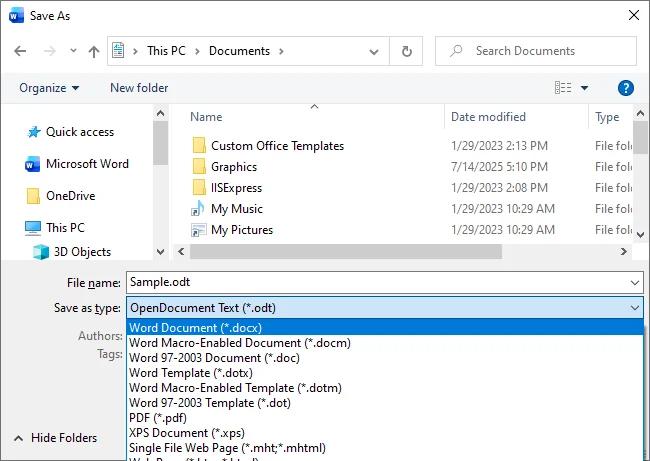
Click File > Save As.
-
Choose Word Document(*.docx) or Word 97-2003 document (*.doc).
-
Save the file to your preferred location.
Microsoft Word handles standard ODT formatting well; however, some advanced ODT styles, complex layouts, or custom formatting may be simplified or lost during the conversion. For details, refer to the official Microsoft support documentation.
Best for:
- Microsoft Word users
- Editing and converting at the same time
- Small to medium document volumes
Convert ODT to Word Online
Online ODT to Word converters offer a fast, installation-free way to convert ODT to Word online. These tools run entirely in your browser and are suitable for quick, one-off tasks, especially when you don't have access to desktop software like LibreOffice or Word.
Popular Online Converters include:
- Convertio
- Zamzar
- FreeConvert
Steps to Convert ODT to Word Online (Using Convertio as an Example):
-
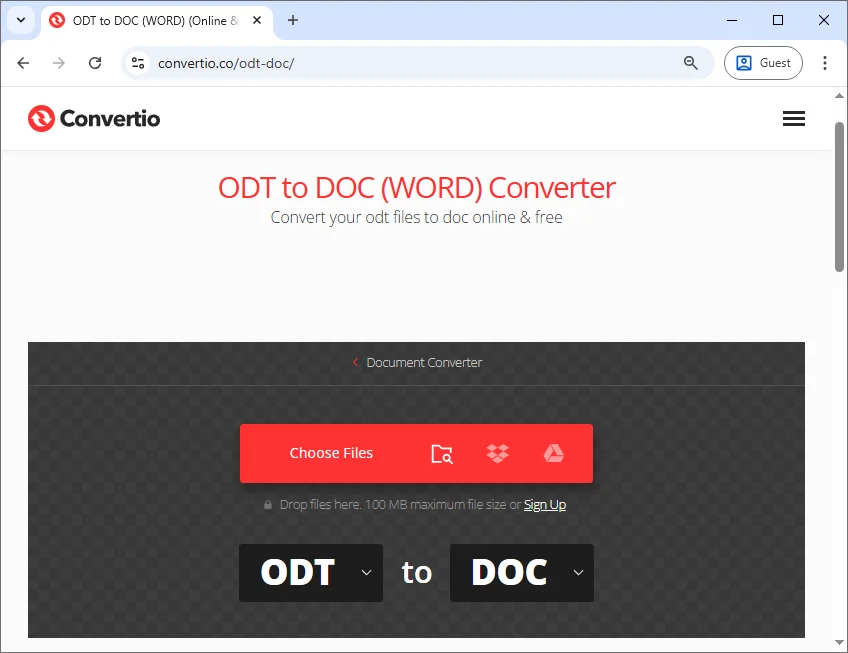
Open the Convertio ODT to Word converter.
-
Click Choose Files to upload your ODT file or drag and drop the file to the upload area.
-
Select DOCX or DOC as the output format.
-
Click Convert and download the Word file.
While convenient, online tools require uploading documents to third-party servers and may have file size limits. For confidential, sensitive, or large files, offline methods are recommended for better security and reliability.
Best for:
- Quick, one-off conversions
- Users without desktop software
- Non-sensitive documents
Automate ODT to Word Conversion Using Python
For users who need to convert multiple ODT files or integrate document conversion into automated workflows, Python offers a flexible and scalable solution. With Python, you can automate ODT to Word conversion in batches, making it ideal for backend services, scripts, and CI pipelines without manual interaction.
Example: Convert ODT to Word Using Python
Below is a simple example using Spire.Doc, a Python Word document-processing library that supports both ODT and Word formats:
from spire.doc import *

# Load the ODT document
document = Document()
document.LoadFromFile("input.odt")

# Save as Word document
document.SaveToFile("output.docx", FileFormat.Docx)

# Close the document to release resources
document.Close()
Steps to Use This Script:
-
Install the required Python library from PyPI using the following command:
pip install spire.doc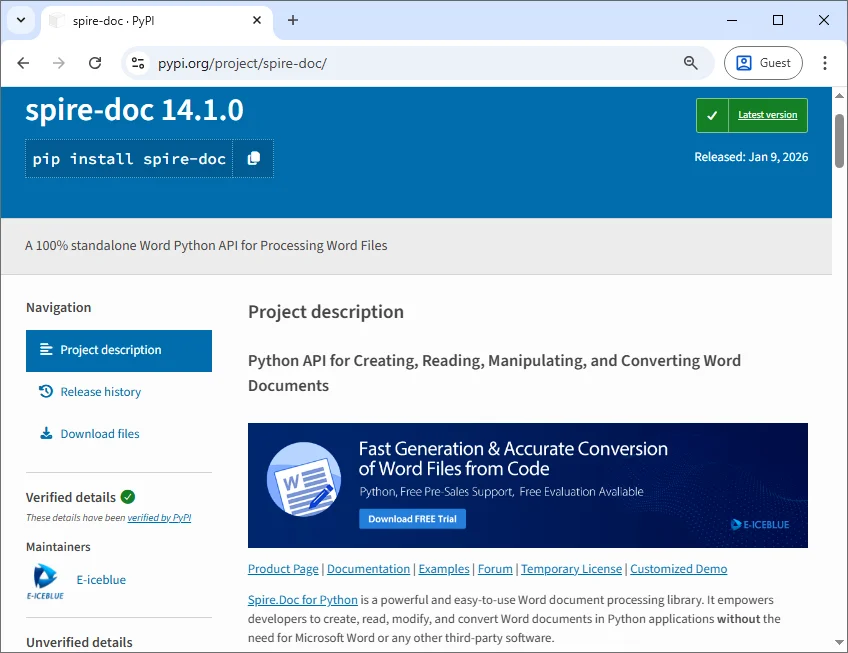
-
Replace the input and output file paths
-
Run the script to convert ODT to Word automatically
Tip: This approach works on Python 3.7 or higher and supports Windows, Linux, and macOS environments. You can easily extend this example with a loop to process multiple ODT files in a directory.
Best for:
- Developers and technical users
- Batch or scheduled conversions
- Enterprise and automated workflows
Reference: Spire.Doc for Python Official Documentation
ODT to DOCX vs. ODT to DOC: How to Choose?
When converting ODT files to Word, your choice of format affects compatibility and workflow efficiency:
- ODT to DOCX - Best for most users. Works with modern Word versions, preserves formatting, supports collaborative editing, and handles advanced features.
- ODT to DOC - Suitable only for older Word versions or legacy systems. Limited in formatting and feature support.
Tip: For most workflows, convert ODT files to DOCX format for a future-proof, fully editable document. Only use DOC if recipients are using older versions of Microsoft Word.
Conclusion
Converting ODT files to Word can be done in several ways, and the best approach depends on your workflow and file volume:
- For small, occasional conversions, desktop tools like LibreOffice or Microsoft Word are simple and reliable.
- For fast, one-time tasks without installing software, online converters offer a quick solution.
- For large-scale, automated, or batch conversions, Python scripting provides maximum efficiency and control.
By selecting the appropriate method and format, you can ensure your documents remain fully editable and compatible across Word-based platforms.
Looking for more high-quality Word tutorials? Check out our free Word resources.
FAQs: Convert ODT to Word
Q1: What is the best way to convert ODT to Word?
A1: LibreOffice is the most reliable free option, while Microsoft Word is convenient if you already use it for editing.
Q2: Will formatting be preserved when converting ODT to Word?
A2: Most formatting, images, and tables are preserved. Complex layouts or custom styles may require review.
Q3: Can I convert ODT to Word without installing software?
A3: Yes. Online converters allow browser-based conversion, but avoid them for sensitive or large files.
Q4: How do I convert multiple ODT files at once?
A4: Python automation is best for bulk conversions, enabling fully automated, repeatable workflows.
Q5: Is ODT better than Word?
A5: ODT is open and standardized, but Word formats offer better collaboration, editing, and compatibility. Choose based on your workflow and audience.