
When sharing documents across platforms, Word files can encounter compatibility issues-especially between different operating systems or office applications. Converting Word documents to RTF (Rich Text Format) preserves essential text formatting while ensuring broad cross-platform support, making it ideal for seamless sharing. This guide provides a complete overview of how to convert Word to RTF, explaining what RTF is, why it matters, and four practical methods to perform the conversion efficiently.
- What is RTF
- Why Convert Word to RTF
- How to Convert Word to RTF
- How to Avoid Formatting Issues During Word to RTF Conversion
Tip: If you need to reverse the process, our tutorial on converting RTF to Word shows simple ways to convert back.
What is RTF?
RTF (Rich Text Format) is a document format developed by Microsoft in the 1980s to enable the exchange of formatted text between different platforms and applications.
Unlike plain text, RTF supports basic formatting such as fonts, font sizes, bold and italic styles, text colors, and paragraph alignment. At the same time, it avoids many of the advanced and complex features found in modern Word formats, making it more stable and widely compatible across environments.
Why Convert Word to RTF?
Compared with DOC or DOCX formats, RTF offers several practical advantages:
-
Better compatibility
RTF files can be opened by almost all word processing applications, including older or lightweight editors.
-
Smaller file size
Without complex elements, RTF files are often more compact than DOCX documents.
-
Simpler structure
Ideal for systems that require basic formatting but do not support advanced Word features.
-
Email-friendly format
Many email systems and document platforms handle RTF files more reliably than DOCX.
How to Convert Word to RTF?
There are multiple ways to convert Word documents to RTF, ranging from manual desktop tools to online services and automated batch processing. Below are four commonly used methods, each suitable for different scenarios.
Convert Word to RTF Using Microsoft Word
Using Microsoft Word itself is the most straightforward and reliable way to convert Word documents to RTF. Almost all versions of Word-including 2010, 2013, 2016, 2019, 2021, and Microsoft 365-support exporting documents to RTF format.
Steps:
-
Open the DOC or DOCX file in Microsoft Word.
-
Click File > Save As.
-
Choose a destination folder.
-
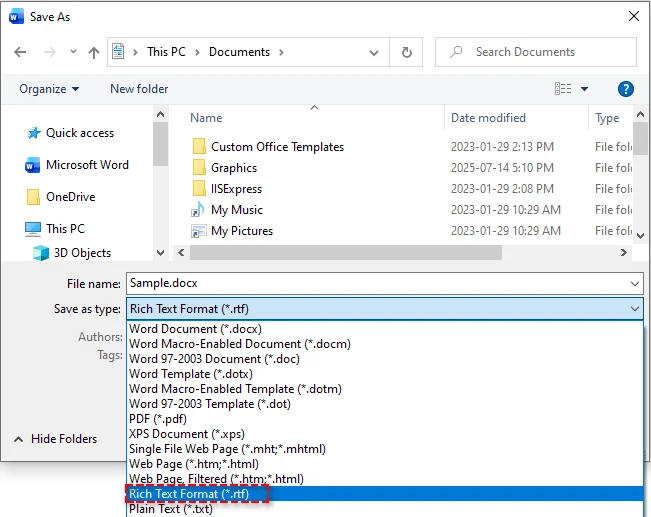
In the Save as type dropdown, select Rich Text Format (*.rtf).
-
Click Save.
Pros:
- High formatting accuracy
- No additional software required
- Simple and reliable
Cons:
- Not suitable for batch processing
Best for:
- One-time conversions
- Documents requiring high formatting fidelity
Convert Word to RTF Using LibreOffice
LibreOffice is a free, open-source office suite that supports saving Word documents as RTF on Windows, macOS, and Linux. It is an excellent alternative when Microsoft Word is not available.
Steps:
-
Download and install LibreOffice from the official website.
-
Open the Word file in LibreOffice Writer.
-
Go to File > Save As.
-
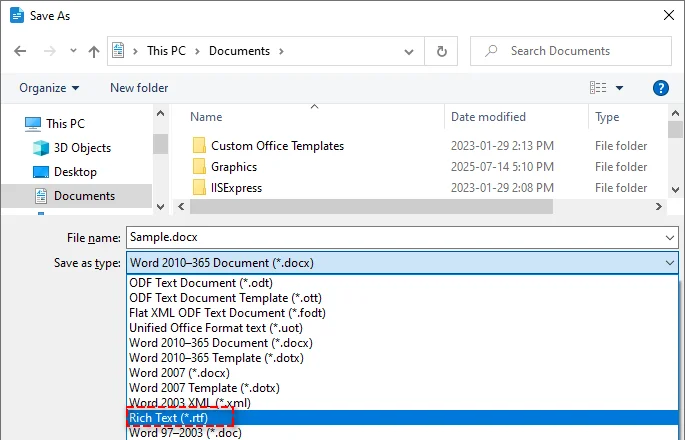
Select Rich Text (*.rtf) as the output format.
-
Click Save.
Pros:
- Free and open-source
- Cross-platform support
- No dependency on Microsoft Word
Cons:
- Minor differences may appear in complex layouts
- Interface may feel unfamiliar to Word users
Best for:
- Users without Microsoft Word
- Open-source or Linux-based environments
Convert Word to RTF Using Free Online Tools
If you prefer not to install desktop software or need to convert Word documents to RTF on mobile services, online tools are a convenient solution.
Popular online converters include:
- Convertio - Supports batch conversion and cloud storage (Google Drive or Dropbox) imports
- CloudConvert - Offers multiple formats and API access
- Zamzar - Allows converted files to be delivered via email
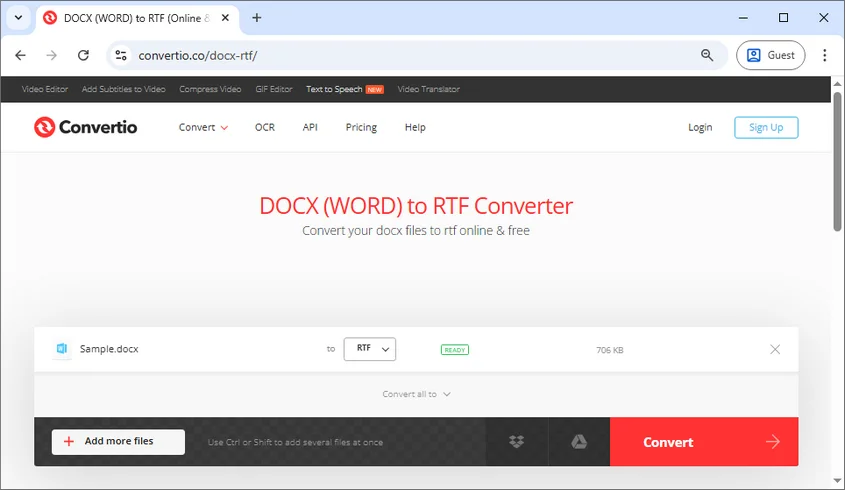
Steps (Using Convertio as an Example):
- Open the Convertio online Word to RTF converter.
- Click Choose Files to upload your Word file, or drag it into the upload area.
- Select RTF as the target format.
- Click Convert to start the conversion process.
- Download the converted RTF file.
Pros:
- No software installation required
- Accessible from any device with a browser
- Easy to use
Cons:
- File size or usage limits may apply
- Privacy concerns when uploading sensitive documents
- Less control over advanced formatting
Best for:
- Quick, one-time conversions
- Small files without sensitive content
Batch Convert Word Files to RTF Using C#
For large-scale or recurring document conversions, manual methods become inefficient. Using C# and the Spire.Doc for .NET library, you can automatically batch convert hundreds of Word DOC/DOCX files to RTF or other file formats like PDF and HTML effortlessly.

Steps to Batch Convert Word to RTF:
-
Prepare Word Files
Place all DOC or DOCX files you want to convert into a single folder.
-
Create a New C# Project
Open Visual Studio and create a Console App.
-
Install Spire.Doc for .NET
Install the library via NuGet in your C# project using the following command:
Install-Package Spire.Doc -
Add the code to batch convert DOC/DOCX files to RTF
The following code demonstrates how to loop through each Word document in the folder and save it in RTF format:
using Spire.Doc; using System; using System.IO; namespace BatchWordToRtf { class Program { static void Main() { // Input folder path: where your Word files are stored string inputFolder = @"C:\WordFiles\"; // Output folder path: where converted RTF files will be saved string outputFolder = @"C:\RtfFiles\"; // Loop through all files in the input folder foreach (string file in Directory.EnumerateFiles(inputFolder)) { // Get the file extension and convert to lowercase string extension = Path.GetExtension(file).ToLower(); // Only process .doc and .docx files if (extension == ".doc" || extension == ".docx") { // Create a Document object and load the Word file Document doc = new Document(); doc.LoadFromFile(file); // Get the file name without extension string fileName = Path.GetFileNameWithoutExtension(file); // Save the file as RTF to the output folder doc.SaveToFile(Path.Combine(outputFolder, fileName + ".rtf"), FileFormat.Rtf); } } Console.WriteLine("Batch conversion completed!"); } } } -
Run the Program
Execute the program to perform the batch conversion. After running, RTF files will be automatically generated in the output folder specified in the code.
Pros:
- High efficiency for bulk conversions
- No Microsoft Word installation required
- Easily integrated into automated workflows or server environments
Cons:
- Requires programming knowledge
- Depends on third-party .NET libraries
Best for:
- Enterprises and developers
- Automated document processing systems
Related Article: C#/VB.NET: Convert RTF to Word Doc/Docx and Vice Versa
How to Avoid Formatting Issues During Word to RTF Conversion
To minimize formatting problems during Word to RTF conversion, consider the following best practices:
-
Avoid advanced Word features
Macros, SmartArt, embedded objects, and complex tables may not convert correctly. Converting them to images can help preserve their appearance.
-
Use standard fonts
Choose widely supported fonts such as Arial, Times New Roman, or Calibri to ensure consistent text display across different platforms.
-
Check cross-platform compatibility
Open the converted RTF file in different editors (e.g., Word and LibreOffice) to verify layout consistency.
-
Test before batch processing
Always validate a few sample files before running large-scale or automated conversions.
Conclusion
Converting Word to RTF is an effective way to improve compatibility, portability, and reliability across platforms. Depending on your needs, you can choose manual conversion with Microsoft Word or LibreOffice, quick conversion with online tools, or automated batch processing using C#.
Looking for more high-quality Word tutorials? Check out our free Word resources.
FAQs: Word to RTF
Q1: What is the easiest way to convert Word to RTF?
A1: Using Microsoft Word's "Save As" feature is the simplest method.
Q2: Will converting Word to RTF affect formatting?
A2: Basic formatting is preserved, but advanced features such as macros or SmartArt may not be fully supported.
Q3: Can I convert Word to RTF for free?
A3: Yes. LibreOffice and many online converters offer free conversion options.
Q4: How can I batch convert multiple Word files to RTF?
A4: You can use C# with libraries such as Spire.Doc to automate batch conversions.
Q5: Is RTF compatible across platforms and applications?
A5: Yes. RTF is widely supported on Windows, macOS, Linux, and most word processors.
Q6: Can I convert Word to RTF online without installing software?
A6: Yes. Online tools like Convertio allow browser-based conversion, though file size and privacy limitations may apply.