Converting Word DOC to TXT (plain text) is a common task for professionals, students, and developers alike. TXT files are lightweight, universally compatible, and free of formatting, making them ideal for data extraction, cross-platform sharing, and integration with software applications.
Whether you need to strip formatting from a Word document, extract text for analysis, or ensure compatibility with old systems, this comprehensive guide will walk you through the best methods to convert Word file to TXT—including free tools, online converters, copy-paste shortcuts, and even coding solutions.
Content Overview:
- Word vs. TXT: Key Differences
- Method 1: Using Microsoft Word "Save As" Method
- Method 2: Using Notepad Copy-Paste Method
- Method 3: Free Online Word to TXT Converters
- Method 4: Using Windows PowerShell for Bulk Conversion
- Method 5: Using Python with Free Spire.Doc
- Common Issues When Converting to TXT
- Frequently Asked Questions (FAQ)
Word vs. TXT: Key Differences
To master the Doc to TXT or Docx to TXT conversion process, you must first understand the fundamental differences between the source and target formats. Here’s a quick breakdown:
| Word Document (.doc / .docx) | Plain Text File (.txt) |
|---|---|
| Supports fonts, colors, bold/italics, spacing | No formatting of any kind—only raw text |
| Includes images, tables, charts, macros | No media or interactive elements |
| Larger file size (due to embedded data) | Ultra-lightweight file size |
| Proprietary format (Microsoft) | Universal, open format (readable by any device/software) |
| Risk of compatibility issues with old systems | Compatible with nearly all OS/software (Windows, Mac, Linux, mobile) |
Why Convert? Converting Word to TXT removes the "formatting overhead" of Word files, leaving behind pure data that can be processed by any computer system.
Method 1: Using Microsoft Word "Save As" Method
Microsoft Word’s built-in “Save As” feature is the simplest way to convert a single Word document to TXT. This method works for both DOC and DOCX files and is ideal for users who already have Word installed.
- Open your Word document in Microsoft Word.
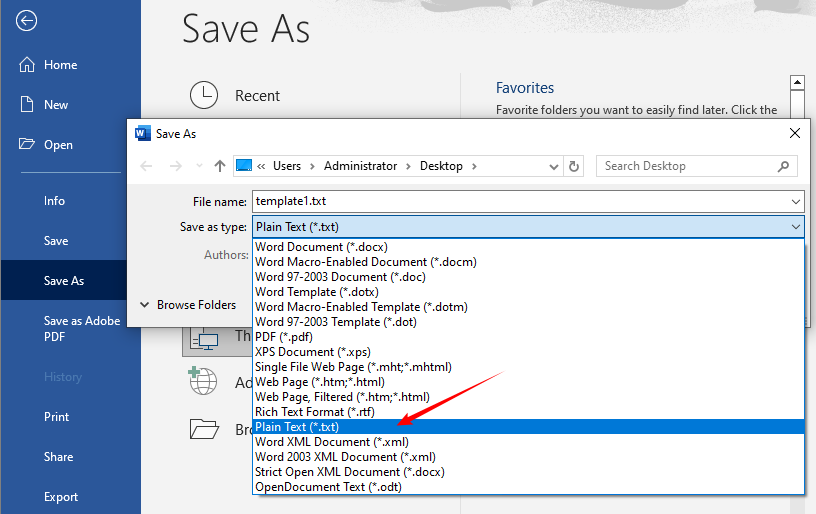
- Click the File tab (top-left) → select Save As.
- Choose a save location for your TXT file (e.g., Desktop).
- In the Save as type dropdown, select Plain Text (*.txt).
- Click Save—a File Conversion dialog box will pop up.
- Optional: Select UTF-8 encoding here to support non-English characters, emojis, and special symbols. Leave other settings on default.
- Navigate to your save location and open the TXT file with a text editor (Notepad, VS Code) to verify.
If you need to preserve basic structure, convert Word to RTF (rich text) instead of TXT format.
Method 2: Using Notepad Copy-Paste Method
If you don’t want to save an entirely new file, or only need to work with a portion of the document, the simple copy-paste method works perfectly. This method requires no extra tools beyond standard text/word processing software.
- Open your Word document and select the text you need (Ctrl + A for the entire document).
- Copy the text: Ctrl + C.
- Open Notepad (search for it in the Windows Start Menu).
- Paste the text: Ctrl + V.
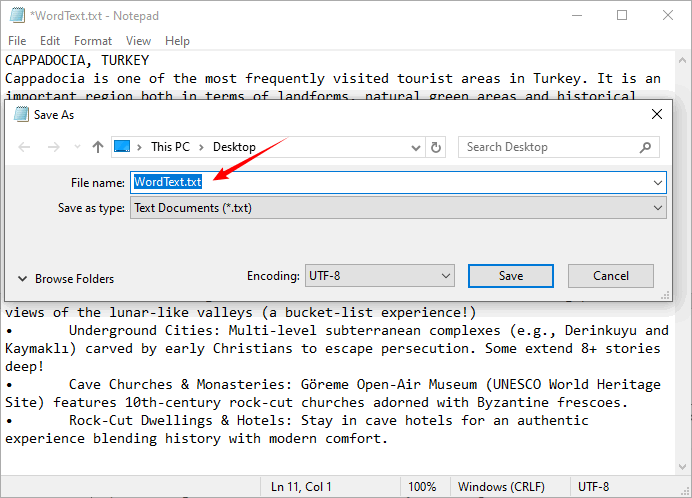
- Go to File → Save → name the file and ensure the extension is .txt → click Save.
Pro Tip: This method is great for quick text extraction, but avoid it for large documents (it may cause minor line break issues).
Method 3: Free Online Word to TXT Converters
Online tools are a fast way to convert DOC to TXT online without installing any software. They’re quick, free, and work on any device with an internet connection. Stick to reputable sites such as CLOUDXDOCS and Zamzar for security.
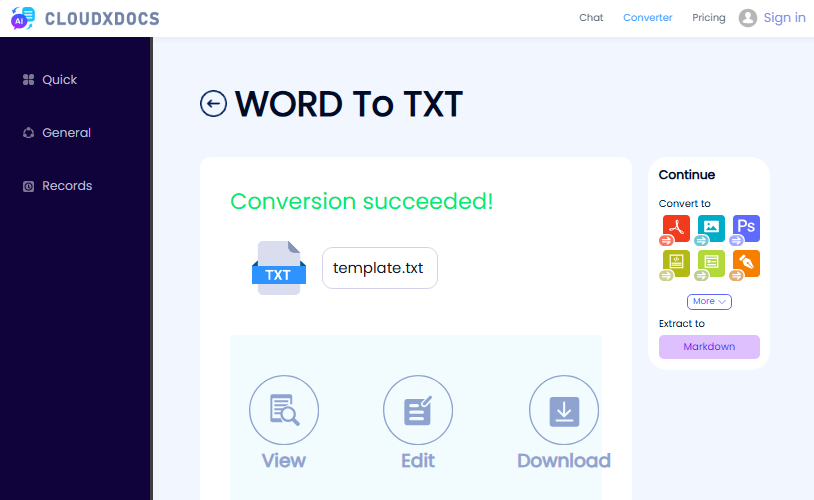
- Go to the converter’s Doc to TXT converter page (e.g., CLOUDXDOCS Word to TXT converter).
- Upload your Word document (supports DOC, DOCX, DOT, DOCM).
- Wait for the conversion to finish.
- Click Download to save the TXT file to your device.
Security Warning: Avoid uploading personal, financial, or confidential legal documents to free online tools. For those files, stick to the desktop methods.
While converting Word to TXT strips away formatting for compatibility and data extraction, you may eventually need to bring that plain text back into a formatted document—here's how to convert TXT to Word when you're ready to rebuild structure.
Method 4: Using Windows PowerShell for Bulk Conversion
If you have dozens or hundreds of Word files to convert, manual conversion is tedious. Windows PowerShell is a free built-in tool that lets you batch convert Word to TXT in seconds—no coding experience required. This method uses Word’s built-in automation to process all files in a folder.
- Create a new folder on your Desktop and name it WordToTXT—move all your Word DOC/DOCX files into this folder.
- Search for Windows PowerShell in the Start Menu → open it as Administrator.
- Paste the following command and press Enter (replace YourUsername with your actual Windows username):
cd "C:\Users\YourUsername\Desktop\WordToTXT"
- Paste the following script and press Enter to start bulk conversion:
$word = New-Object -ComObject Word.Application
$word.Visible = $false
$files = Get-ChildItem -Filter *.doc*
foreach ($file in $files) {
    $doc = $word.Documents.Open($file.FullName)
    $txtPath = [System.IO.Path]::ChangeExtension($file.FullName, '.txt')
    $doc.SaveAs($txtPath, 7) # 7 = wdFormatUnicodeText
    $doc.Close()
}
$word.Quit()
[System.Runtime.Interopservices.Marshal]::ReleaseComObject($word) | Out-Null
- Once the script finishes, check your WordToTXT folder—all your Word files will now have a matching TXT file.
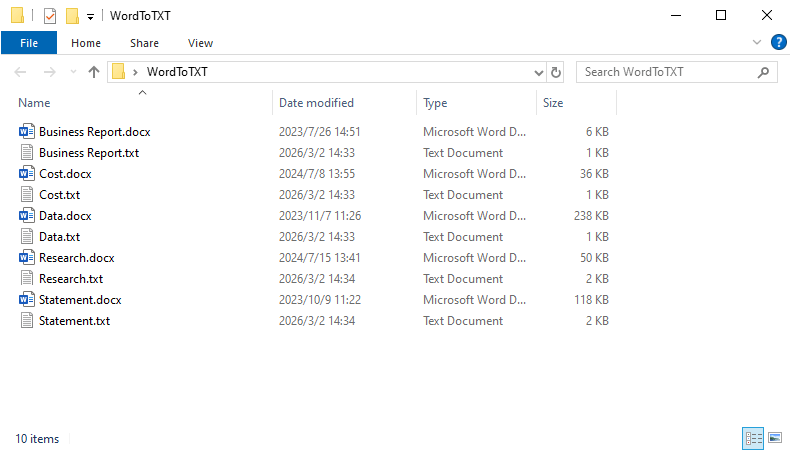
Note: Ensure that Microsoft Word is installed on your system; otherwise, the script will not run. Also, remember to close all Word windows before running the script to avoid errors. The script will automatically close the Word COM object to free up resources.
Method 5: Using Python with Free Spire.Doc
If you’re a developer or need to automate Word-to-TXT conversions, Python with the Free Spire.Doc library is a powerful and user-friendly solution. This library supports both DOC and DOCX formats and simplifies the conversion process with minimal code.
Why Use Python for Conversion?
- Automation: Schedule conversions for daily reports.
- Batch Processing: Convert thousands of files in minutes.
- Integration: Feed the extracted text directly into a search engine index or a machine learning model.
Python Code for Word to TXT Conversion
Use the following Python code to convert Doc or Docx files to TXT:
from spire.doc import *
from spire.doc.common import *

# Create a Document object to load the Word file
document = Document()

# Load a Word file (DOC or DOCX) from your local disk
document.LoadFromFile("Input.docx")

# Save the Word file as a TXT file
document.SaveToFile("result.txt", FileFormat.Txt)

# Close the document to release resources
document.Close()
The conversion result:
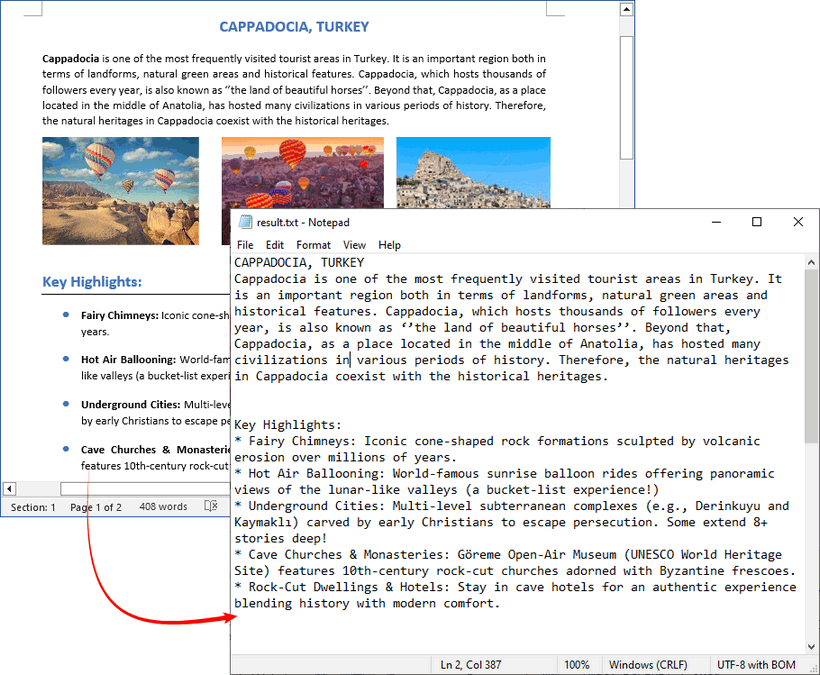
TXT files cannot store images, so extract the images from your Word document before conversion if you need to preserve them.
Common Issues When Converting to TXT
Even a simple DOC to TXT conversion can hit snags. Here is how to fix them.
-
Loss of Formatting: TXT files do not support any formatting. Bullet points may turn into asterisks/dashes, tables will appear as jumbled lines of text, and bold/italics will disappear.
- Fix: No fix needed. It’s a feature of TXT, not a bug.
-
Character Encoding Problems: Sometimes, special characters (like curly quotes, em dashes, or symbols) may turn into gibberish (e.g., —). This is an encoding issue.
- Fix: When saving in Word (Method 1), the "File Conversion" dialog allows you to choose an encoding. Try "UTF-8," as it supports the widest range of characters.
-
Line Breaks: Long paragraphs in Word may not wrap correctly in Notepad—this is a text editor display issue, not a conversion error.
- Fix: Enable Word Wrap in your text editor (Notepad: Format → Word Wrap).
Frequently Asked Questions (FAQ)
Q1: Can I convert a password-protected Word document to TXT?
A: Most tools (including Word and Python libraries) require you to unlock the document first. You must remove the password protection in Microsoft Word before attempting conversion.
Q2: Does converting to TXT reduce file size?
A: Significantly. A 10 MB Word document with images might become a 50 KB text file, as all binary data (images) is discarded.
Q3: What is the difference between saving as TXT and saving as RTF?
A: RTF (Rich Text Format) preserves basic formatting like bold and italics, while TXT does not. If you need formatting, save as RTF. If you need pure data, save as TXT.
Q4: How does the conversion handle hyperlinks?
A: In most cases, the visible text of the hyperlink is preserved, but the underlying URL is lost. If you need to preserve the actual URLs, you must use a specialized tool or a Python script that specifically extracts hyperlink addresses.
Conclusion
Converting Word DOC to TXT is a straightforward process that greatly enhances compatibility and simplicity. For everyday users handling individual files, Word's "Save As" function or online converters are reliable options, while copy-pasting works well for quickly extracting small portions of text. For bulk conversions, Windows PowerShell offers an efficient solution, and developers can seamlessly integrate Word to TXT conversion into their workflows using Python and Free Spire.Doc.
Choose the method that best fits your technical comfort level, scale, and security requirements (keep sensitive files offline). With these options, proprietary Word formats no longer lock in your data, ensuring your text remains universally accessible and compatible with any device or system, now and in the future.