Merging Word documents is a common yet surprisingly complex task. Whether you're combining reports, compiling book chapters, or consolidating multiple project files into a final deliverable, the way you merge documents directly impacts formatting, layout consistency, and long-term maintainability.
Although it may look like a simple copy-and-paste operation, Word merging involves style definitions, section structures, and document-level formatting systems — and different methods can produce dramatically different results.
In this guide, we’ll explore five practical ways to merge Word documents—from built-in Word features to VBA and Python—so you can choose the approach that best fits your needs.
Quick Navigation:
- Method 1. Merge Word Documents Using “Text from File” (Built-in Feature)
- Method 2. Merge Word Documents Using Copy & Paste (Keep Source Formatting)
- Method 3. Merge Word Documents Online (MergeEasy)
- Method 4. Merge Word Documents Using VBA
- Method 5. Merge Word Documents Using Python (Spire.Doc)
Why Formatting Breaks When Merging Word Documents
Before exploring the five methods, it’s helpful to understand one key concept: Word does not simply combine text—it combines formatting systems.
When two documents are merged, Word must decide how to handle page setup, styles, numbering, headers, and other layout rules. In most cases, the main document controls the final result - this is why formatting may change after merging.
To simplify things, formatting in Word can be divided into two levels:
| Formatting Type | Controls | Examples | What Happens During Merge |
|---|---|---|---|
| Section-Level Formatting | Layout within a section | Page size, margins, orientation, columns, headers/footers, page numbering | Word does not automatically insert a section break. Inserted content becomes part of the current section. To preserve original layout settings, you must insert a Section Break before merging. |
| Document-Level Formatting | Overall style system | Heading styles, Normal style, theme fonts, theme colors, numbering definitions | If styles share the same name (e.g., “Heading 1”), the main document’s definition overrides the inserted document’s style. |
What This Means in Practice
- Most merging methods prioritize consistency over preserving original appearance.
- The main document’s style definitions typically override conflicting styles.
- Only manual Copy & Paste → Keep Source Formatting attempts to preserve the original visual layout.
With this in mind, let’s examine five different ways to merge Word documents—and when each method makes sense.
Method 1. Merge Word Documents Using “Text from File” (Built-in Feature)
If you want a fast, native way to merge documents directly inside Microsoft Word, Insert → Text from File is the most straightforward option.
How It Works
- Open your main document, place your cursor where you want the content to appear.
- Go to Insert → Object → Text from File.
- Select one or multiple Word files.
- Click Insert.
Word inserts the selected document at the current cursor position. To start on a new page, insert a Page Break or Section Break before merging.
What to Expect
This method works best when all documents are based on the same template. If styles differ, the main document’s definitions will override conflicting styles. For example, if both files contain a style named Heading 1 but with different fonts or spacing, the main document’s version will take precedence.
When to Use It
Use this method when:
- You are compiling reports under a unified corporate template.
- All files share similar formatting rules.
- You need a quick, built-in solution without automation.
It’s simple and reliable—but not ideal when preserving original formatting across different designs.
Method 2. Merge Word Documents Using Copy & Paste (Keep Source Formatting)
If formatting preservation is your highest priority, manual copy and paste remains the most precise method.
How It Works
- Open both the main document and the source document.
- In the source document, press Ctrl + A to select all content, then press Ctrl + C to copy it.
- Switch to the main document and place the cursor where the merged content should begin, typically at the end of the document.
- Go to Layout → Breaks → Section Breaks → Next Page to insert a section break. (This step is essential if you want to preserve the source document’s margins, orientation, or font style.)
- On the new page, right-click and choose Paste Options → Keep Source Formatting.
This ensures both section-level formatting (layout structure) and document-level formatting (fonts, styles, numbering) are preserved as much as possible.
Why This Method Is Different
When you choose Keep Source Formatting, Word creates additional internal style definitions if necessary. Instead of replacing styles, it keeps the source appearance intact—even if that means duplicating style names behind the scenes.
Trade-Off
While formatting is preserved, the document’s internal style structure can become complex. For small projects, this isn’t an issue. For large technical documentation, it can make long-term maintenance harder.
When to Use It
- Legal contracts
- Academic papers from different authors
- Design-sensitive documents
- Small-scale merging tasks
If visual fidelity matters more than structural consistency, this is the safest choice.
Method 3. Merge Word Documents Online (MergeEasy)
If you prefer not to use Word directly, online merging tools provide a convenient alternative. Tools like MergeEasy allow you to upload multiple Word files, reorder them, and download a combined document—all in your browser.
How It Works
- Open your browser and navigate to the online Word document merging tool.
- Upload the Word files you want to combine.
- Arrange the documents in the desired order.
- (Optional) Enable the “Add page breaks between documents” option if you want each file to start on a new page.
- Click Merge Word Document and download the combined document.
What to Expect
Online tools aim to preserve layout reasonably well, but:
- Style conflicts are handled automatically.
- You have limited control over formatting logic.
- Confidential documents may raise privacy concerns.
When to Use It
- Quick merging tasks
- Users without Microsoft Word installed
- Non-sensitive files
- Occasional document combination
Online tools prioritize convenience over deep formatting control.
Method 4. Merge Word Documents Using VBA
For users working heavily inside Microsoft Word, VBA provides automation without external software.
Instead of manually inserting files one by one, you can write a macro to merge documents automatically. The macro inserts each selected document at the end of the main file and separates them using a Section Break (Next Page).
How It Works
- Open the main Word document.
- Press Alt + F11 to open the VBA editor.
- Click Insert → Module, then paste the provided VBA macro into the code window.
- Press F5 (or click Run) to execute the macro.
- Select the Word documents to merge, then click Open.
VBA Code:
Sub MergeWordDocuments()

    Dim mainDoc As Document
    Dim fileDialog As FileDialog
    Dim selectedFile As Variant
    Dim insertRange As Range

    Set mainDoc = ActiveDocument

    ' Open file picker
    Set fileDialog = Application.FileDialog(msoFileDialogFilePicker)

    With fileDialog
        .Title = "Select Word Documents to Merge"
        .Filters.Clear
        .Filters.Add "Word Files", "*.doc; *.docx"
        .AllowMultiSelect = True

        If .Show = -1 Then

            For Each selectedFile In .SelectedItems

                ' Move to end of main document
                Set insertRange = mainDoc.Range
                insertRange.Collapse Direction:=wdCollapseEnd

                ' Insert Section Break (Next Page)
                insertRange.InsertBreak Type:=wdSectionBreakNextPage
                insertRange.Collapse Direction:=wdCollapseEnd

                ' Insert document content
                insertRange.InsertFile FileName:=selectedFile

            Next selectedFile

        End If

    End With

    MsgBox "Documents merged successfully!"

End Sub
What Happens Internally
VBA leverages Word’s internal document object model (DOM), it behaves identically to the Insert → Text from File engine, meaning main document styles dominate. The advantage lies in automation—not in formatting logic.
When to Use It
- Monthly or weekly report consolidation
- Internal corporate workflows
- Template-driven documentation
- Users comfortable with Word macros
VBA is ideal when you need repeatable merging inside the Office ecosystem.
Method 5. Merge Word Documents Using Python (Spire.Doc)
For developers or backend systems, Python provides scalable document merging without relying on Microsoft Word. Using Spire.Doc for Python, you can programmatically insert documents into a main file.
How It Works
- Open your preferred Python IDE or editor.
- Install the library from PyPI: pip install spire.doc
- Create a new Python file (e.g., merge_word_documents.py).
- Paste one of the following code snippets into the file.
- Run the script.
This approach requires basic knowledge of Python. Before executing the script, adjust the input and output file paths according to your local environment.
Example 1. Merge Two Word Documents
from spire.doc import *
from spire.doc.common import *

doc = Document()
doc.LoadFromFile("Main.docx")
doc.InsertTextFromFile("Source.docx", FileFormat.Docx)
doc.SaveToFile("MergedOutput.docx")
doc.Close()
Example 2. Merge Multiple Documents in a Folder
import os
from spire.doc import *
from spire.doc.common import *

folder_path = "Docs/"
files = [f for f in os.listdir(folder_path) if f.endswith(".docx")]

doc = Document()
doc.LoadFromFile(os.path.join(folder_path, files[0]))

for file in files[1:]:
    doc.InsertTextFromFile(os.path.join(folder_path, file), FileFormat.Docx)

doc.SaveToFile("MergedOutput.docx")
doc.Close()
Formatting Behavior
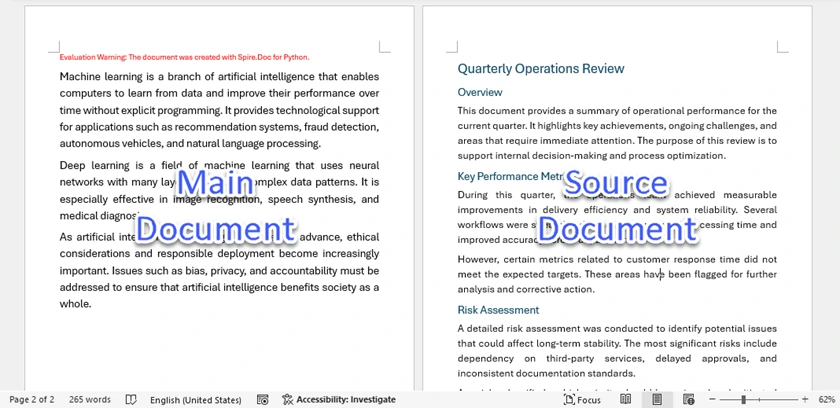
When InsertTextFromFile is executed, the inserted document is appended as a new section in the target file. In practice, this means each merge typically introduces a Next Page section break, starts the inserted content on a new page, and applies the style definitions of the main (destination) document. As a result, formatting conflicts are resolved in favor of the primary document.
This approach helps maintain structural consistency, but it may alter the original appearance of the merged content if the two documents use different style definitions.
Below is a screenshot of the merged document created by Spire.Doc:
When to Use It
- Document generation systems
- SaaS applications
- Backend processing pipelines
- Large-scale batch merging
Strengths of the Python Approach
- Fully automated
- Scalable for batch processing
- No Microsoft Word dependency
- Suitable for server-side systems
After programmatically merging Word documents in Python, you can enhance the output by adding page numbers, adjusting page settings, or exporting the file to PDF format. By combining these features, you can create a fully automated Word document processing workflow.
Comparison Table: Which Method Should You Choose?
| Method | Automation | Match Destination Formatting | Preserve Source Formatting | Best For |
|---|---|---|---|---|
| Text from File | Manual | Yes | No | Quick merge under main document formatting |
| Copy & Paste (Keep Source Formatting) | Manual | No | Yes | Preserve original styles and layout |
| Online Tool (MergeEasy) | Semi-automated | Yes | No | Fast merging without Word, under main doc formatting |
| VBA Macro | Automated (within Word) | Yes | No | Automating repetitive merges in Word environment |
| Python (Spire.Doc) | Fully Automated | Yes | No | Batch processing with unified formatting |
Formatting Behavior Summary
Match Destination Formatting
All merging methods except Copy & Paste → Keep Source Formatting automatically apply the main document’s style definitions to inserted content. This includes Text from File, Online Tools, VBA macros, and Python solutions. In these methods, the destination document’s formatting takes precedence when style conflicts occur.
Preserve Source Formatting
Only Copy & Paste using “Keep Source Formatting” fully retains the original document’s styles, fonts, and layout. Other merging methods do not completely preserve source formatting, as conflicting styles are overridden by the main document.
Conclusion
Merging Word documents is not just about combining content — it’s about controlling formatting logic. If your goal is visual precision, manual “Keep Source Formatting” remains the safest choice. If you need structural consistency, Word’s built-in tools are sufficient. And if automation and scalability matter most, VBA or Python-based solutions provide long-term efficiency.
By understanding how Word handles section-level and document-level formatting, you can eliminate unexpected layout shifts and confidently choose the right merging strategy for your workflow.
FAQs
Q1. Why does formatting change after merging Word documents?
Because Word prioritizes the main document’s style definitions. If two documents share style names (such as “Heading 1”), the main document’s version overrides the inserted one.
Q2. How can I preserve margins and page orientation when merging?
You must insert a Section Break (Next Page) before adding the new document. Without a section break, the inserted content becomes part of the current section and inherits its layout settings.
Q3. Does “Keep Source Formatting” always preserve everything?
It preserves visual appearance in most cases. However, Word may create duplicate internal style definitions, which can make the document structure more complex.
Q4. Can I merge Word documents without Microsoft Word installed?
Yes. You can use online tools or programmatic solutions like Python libraries (e.g., Spire.Doc) to merge documents without relying on Word.
Q5. Which method is best for large-scale automated merging?
Python-based solutions are the most scalable. They allow batch processing, backend integration, and automation without manual interaction.