TXT files are widely used for their simplicity and compatibility across all devices, but they lack formatting options like fonts, tables, or images that make documents professional. Whether you need to prepare a report, draft an essay, or create a business document, converting TXT to Word is a common task that can save you time and enhance your work quality.
In this article, we’ll share the most effective, user-friendly TXT to Word conversion methods, including offline tools, online converters, and automated programming workflows. By the end, you’ll be able to choose the best approach for your needs and complete the conversion in minutes.
- Method 1: Using Microsoft Word (Offline)
- Method 2: Using Online TXT to Word Converter
- Method 3: Using Google Docs (Free & Cloud-Based)
- Method 4: C# Programming (Batch/Automated Conversion)
- Tips for Successful TXT to Word Conversion
- Troubleshooting Common Issues
- Frequently Asked Questions
Method 1: Using Microsoft Word (Offline)
Microsoft Word is the most popular word processor, and it has a built-in feature to open and convert TXT files directly. This method is ideal if you already have Word installed on your computer, as it ensures 100% formatting accuracy (for plain text) and doesn’t require any third-party tools.
Step-by-step guide to convert text file to Word:
- Open Microsoft Word, and then click on “File” > “Open”.
- In the file explorer window, navigate to the folder where your TXT file is stored.
- In the “File type” dropdown, select “Plain Text (*.txt)” to filter TXT files.
- Select your TXT file and click “Open”, then choose the appropriate encoding.
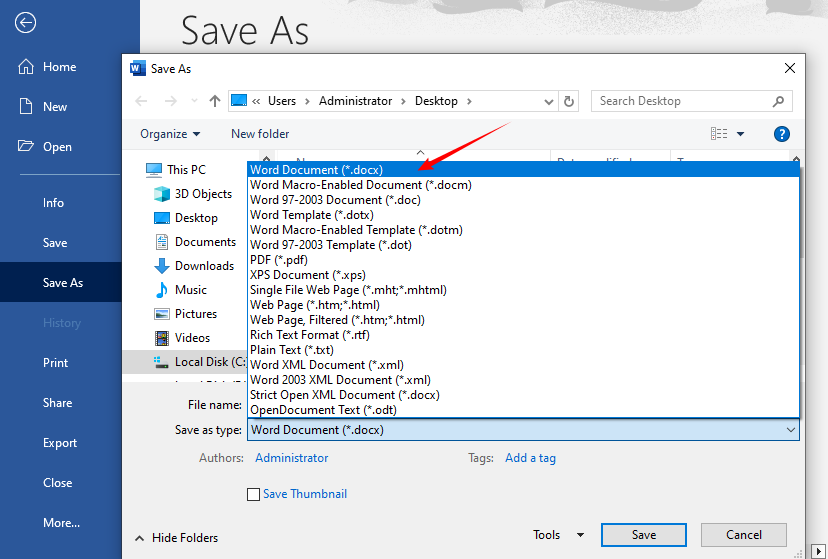
- Once the TXT content is displayed in Word, click “File” again and select “Save As”.
- Choose a save location, select “Word Document (*.docx)” or “Word 97-2003 Document (*.doc)” as the file format, and click “Save”.
Tip: If your TXT file has special characters (e.g., accents, symbols), ensure the “Encoding” option in the Text Import Wizard is set to “UTF-8” to preserve them during conversion.
Method 2: Using Online TXT to Word Converter
If you don’t have Microsoft Word installed, online converters are a great alternative. They work on any device with an internet connection (Windows, Mac, phone, tablet) and require no downloads.
Recommended Converters:
- CLOUDXDOCS: Convert TXT to Word files without any ads, watermarks
- FreeConvert: User-friendly online converter with a clean interface
- Convertio: Supports batch conversion and converts TXT to doc/ docx
Steps to convert TXT to Word online:
- Visit your chosen converter website
- Upload your TXT file (drag-and-drop or browse)
- Select "DOC" or "DOCX" as output format
- Click "Convert" or "Start" button
- Download the converted Word document
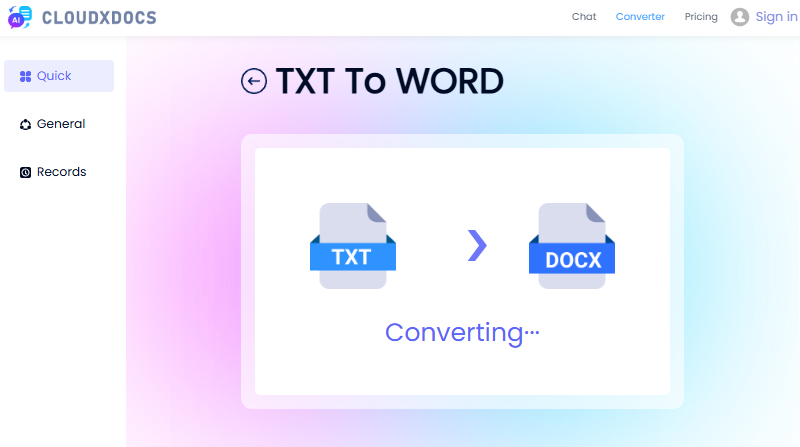
Example of using CLOUDXDOCS:
Security Note: For sensitive documents, consider offline methods as online tools temporarily store files on their servers.
You may also like: Convert Text to PDF Easily: 4 Quick and Professional Methods
Method 3: Using Google Docs (Free & Cloud-Based)
Google Docs is a free cloud-based word processor that lets you open, edit, and convert text files to Word files without installing software. It’s perfect for users who prefer cloud storage and collaboration.
Step-by-step guide to convert TXT to Word for free:
- Open your browser and go to Google Docs. Click on the “Blank” document to create a new file.
- Click “File” > “Open” from the top menu. In the “Open a file” window, click the “Upload” tab.
- Drag and drop your TXT file into the upload area, or click “Browse” to choose it manually.
- Once the TXT file is uploaded, it will open in Google Docs.
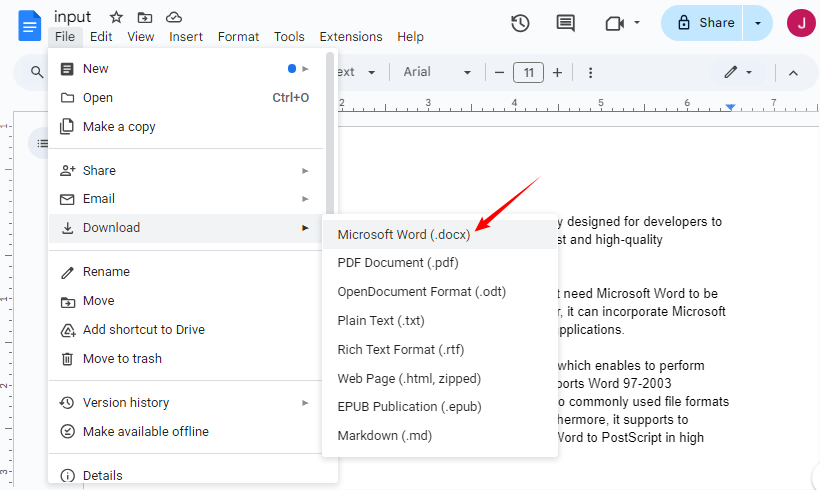
- Click “File” > “Download” > “Microsoft Word (.docx)” from the dropdown menu.
- The converted Word file will automatically download to your device.
✔ Best for: Collaborative editing or users who work across multiple devices.
Method 4: C# Programming (Batch/Automated Conversion)
For developers or teams needing to convert hundreds of TXT files (or integrate conversion into a .NET app), the C# approach with Free Spire.Doc for .NET is efficient and scalable.
What is Free Spire.Doc for .NET?
Free Spire.Doc is a free .NET library that lets you create, edit, and convert Word documents (DOC/DOCX) in C#/VB.NET without installing Microsoft Office. It supports cross-platform development and is ideal for automated workflows (e.g., converting user-uploaded TXT files in a web app).
Steps to convert TXT to Word in C#
- Install via NuGet:
Install-Package FreeSpire.Doc
- Full C# Code:
using Spire.Doc;

namespace ConvertTextToWord
{
    internal class Program
    {
        static void Main(string[] args)
        {
            // Create a Document object
            Document doc = new Document();
            // Load a text file
            doc.LoadText("Sample.txt");

            // Save the text file in Word format
            doc.SaveToFile("TextToWord.docx", FileFormat.Docx2016);
            doc.Close();
        }
    }
}
This code loads a TXT file and saves it as DOCX format via the SaveToFile() method. In addition, Free Spire.Doc also supports converting Word files back to TXT files via C#.
Tips for Successful TXT to Word Conversion
To avoid common issues (e.g., missing text, formatting errors), follow these tips:
- Backup your original TXT file before conversion: In case of errors, you can revert to the original version.
- Check for line breaks: TXT files often have manual line breaks. After conversion, use Word’s “Replace” feature (Ctrl+H) to remove extra line breaks if needed.
- Avoid large TXT files with online converters: Most free online tools have file size limits (50MB-100MB). For large files, use Microsoft Word or Google Docs.
- Verify special characters: If your TXT file contains non-English characters or symbols, check the converted Word file to ensure they’re preserved.
Troubleshooting Common Issues
| Problem | Solution |
|---|---|
| Lost formatting | TXT files contain no formatting; reapply styles in Word after conversion. |
| Special characters display incorrectly | Ensure UTF-8 encoding is selected during import. |
| File won’t convert | Verify the file is not corrupted or password-protected. |
| Converted file is too large | Save as DOCX, delete unused blank lines, or compress images (if added post-conversion). |
Conclusion
Converting TXT to Word format is simple with the right approach. For most users, directly opening the TXT file in Microsoft Word provides the best results. For those without Word access, free online tools or Google Docs offer reliable alternatives. If you are a developer needing scalability, the C# method with Free Spire.Doc lets you automate batch conversions and customize formatting
Whether you’re polishing a single document or building an automated workflow, these methods cover every use case for TXT-to-Word conversion. Remember that while conversion is straightforward, formatting will need to be applied afterward since plain text files contain only raw content.
Frequently Asked Questions
Q: Is the TXT to Word conversion free?
A: Yes, multiple free methods exist, including online tools, Google Docs, and using the free .NET library.
Q: Does converting TXT to Word preserve formatting?
A: TXT files contain no formatting data, so you'll need to apply formatting in Word after conversion.
Q: How can I convert multiple TXT files to Word at once?
A: You can:
- Use an online batch converter like Convertio.
- Write a C# script using Free Spire.Doc to loop through all TXT files in a folder with
Directory.GetFiles(@"C:\Documents\", "*.txt")and repeat the conversion logic for each file.
Q: What’s the difference between DOC and DOCX formats?
A: DOC is the older binary format used in Word 97–2003. DOCX is the newer, XML-based format (used since Word 2007) with better file compression, security, and recovery features. DOCX is recommended unless you need compatibility with very old software.