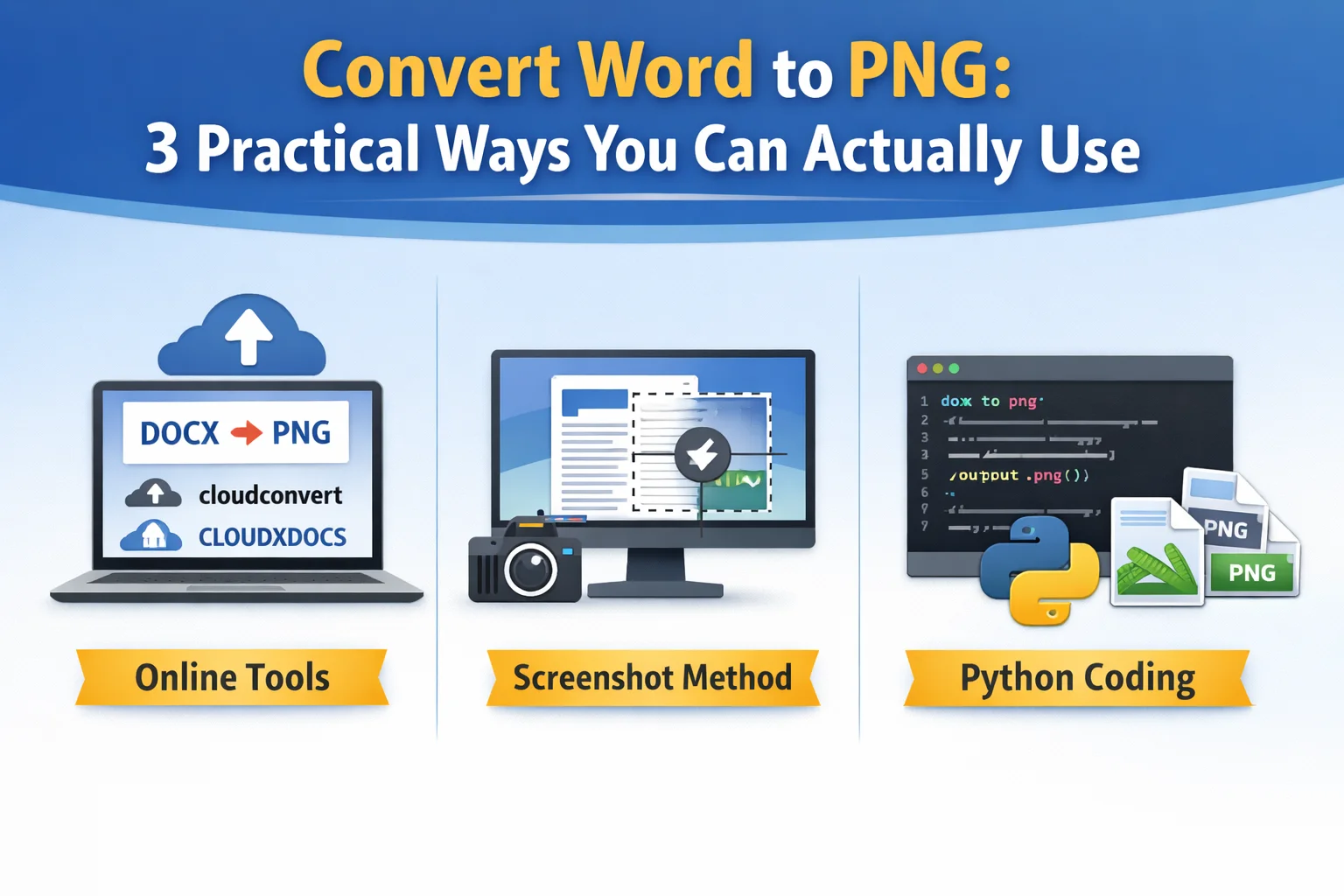
Have you ever shared a Word document with co-workers or posted it online, only to discover that the layout looks completely different? Fonts shift, spacing breaks, and pages no longer appear the way you want. This is exactly when converting a Word document to a PNG file becomes useful. By turning each page into an image, you can preserve the original visual appearance across different systems and devices.
In today’s guide, we’ll walk through three practical and easy ways to convert Word to PNG, helping you choose the method that best fits your situation—whether you need a quick one-time solution or a more reliable approach.
- Convert Word to PNG Using Online Converters
- Convert Word Doc to PNG with Screenshots
- Converting Word to PNG with Python
- Choosing the Right Way to Convert Word to PNG
- FAQs
1. Convert Word to PNG Using Online Converters
Online converters are the most common solution people try first. They work directly in the browser and require no technical knowledge. After uploading a Word document, the service processes it on a remote server and exports each page as a PNG image.
Before using an online Word to PNG converter, it’s worth checking the file format. If your document is still in the older .doc format, it is recommended to convert doc to docx first, as most online tools handle .docx files more reliably and produce more consistent results.
Rather than recommending specific Word document to PNG converters, this chapter simply highlights two popular options to show how they work.
cloudconvert
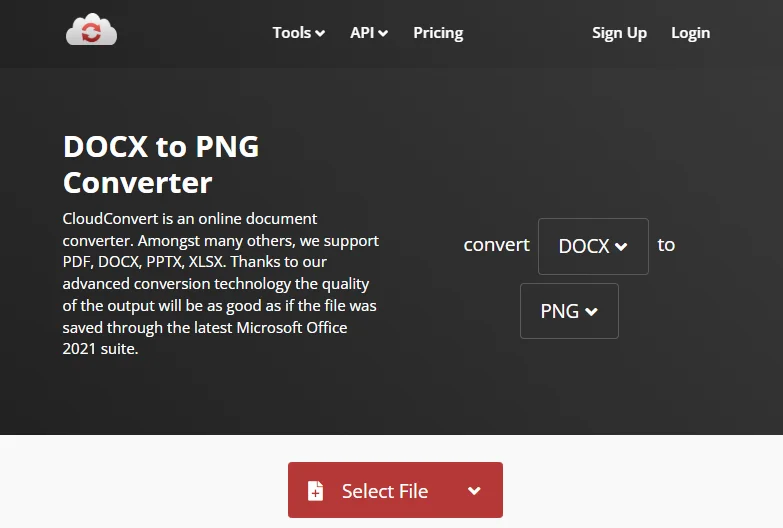
cloudconvert is an all-in-one file conversion platform that supports a wide range of formats. In addition to quickly converting Word documents into image files such as PNG, it can also handle Excel files, videos, audio files, and more. Using it to convert Word to PNG is straightforward:
- Go to cloudconvert and choose to convert Word to PNG, or simply search for cloudconvert’s Word to PNG converter.
- Upload your file and click Convert.
- Once the conversion is complete, download the PNG file to your local device.
CLOUDXDOCS

CLOUDXDOCS is another website that supports converting multiple file formats. It mainly handles documents such as Word files, Excel spreadsheets, PDFs, and PowerPoint presentations. Unlike cloudconvert, it also allows you to edit files online and integrates AI features to intelligently process different types of documents.
Converting Word to PNG with CLOUDXDOCS is equally simple:
- Navigate to CLOUDXDOCS and choose Converter → WORD > IMAGE.
- Upload your file, and the conversion will start automatically.
- Click Download to save the converted PNG file to your local device.
These two Word to PNG converters are quick and convenient, especially for small or occasional tasks. However, they often come with limitations such as file size restrictions, limited image resolution, and concerns about uploading sensitive documents. Online tools are best suited for simple, one-time conversions instead of ongoing or professional use.
Tip: You can reduce a Word document's size by remove hyperlinks, comments, attachments, and other unnessary elements.
2. Convert Word Doc to PNG with Screenshots
Although Microsoft Word does not provide a built-in feature to convert Word files directly into images, you can still save a Word document as a PNG by using the screenshot function on your computer or other devices. For example, on Windows you can use the Print Screen key, while on macOS you can use Command (⌘) + Shift + 4 to capture a selected area of the screen. 
This approach is essentially a manual workaround rather than a true conversion, but it can be useful when you only need an image of one or two pages. The general steps are as follows:
- Open the Word document and navigate to the page you want to save as a PNG.
- Adjust the zoom level so the entire page fits clearly on the screen.
- Use the system screenshot shortcut to capture the page.
- Save the captured image in PNG format to your local device.
Keep in mind that the image quality depends on your screen resolution and zoom settings, and each page must be captured separately.
3. Converting Word to PNG with Python
For users who need consistent output quality or want to convert multiple files at once, using Python to convert Word documents to PNG is the most reliable solution. Unlike online tools or screenshots, this approach does not depend on screen resolution or manual operations. Instead, it works directly with the document’s internal structure and renders each page as an image programmatically.
A common way to achieve this in Python is by using Free Spire.Doc. It is a lightweight document processing library that allows you to load Word files, loop through pages and export them as images without relying on Microsoft Word or any other third-party applications. ![Convert a Word Document to PNG Files Using Free Spire.Doc]/images/art_images/convert-word-png-4.webp)
Here's the code example you can refer to:
from spire.doc import *
from spire.doc.common import *

# Create a Document object
document = Document()

# Load a Word file
document.LoadFromFile("Desktop/input.docx")

# Loop through the pages in the document
for i in range(document.GetPageCount()):

    # Convert the current page to bitmap image
    imageStream = document.SaveImageToStreams(i, ImageType.Bitmap)

    # Save the bitmap to a PNG file
    with open('Output/ToImage-{0}.png'.format(i),'wb') as imageFile:
        imageFile.write(imageStream.ToArray())

document.Close()
This approach is commonly used in automated systems, backend services, and enterprise workflows. Although it requires some technical setup, it works well for batch converting and greatly improves efficiency.
4. Choosing the Right Way to Convert Word to PNG
To help you quickly identify the method that best fits your needs, this section compares the three most common Word-to-PNG solutions discussed earlier.
| Method | Ease of Use | Image Quality | Batch Support | Automation | Best For |
|---|---|---|---|---|---|
| Online tools | Very easy, no setup required | Medium, usually fixed resolution | Limited or not supported | Not supported | One-time conversions and casual users |
| Screenshots | Easy but fully manual | Low to medium, depends on screen resolution | Not supported | Not supported | Capturing a single page for quick reference |
| Free Spire.Doc (Python) | Requires basic coding knowledge | High, controllable resolution | Fully supported | Fully supported | Batch processing, automation, and enterprise workflows |
Final Thoughts
Converting Word to PNG becomes much easier once you understand the three approaches covered in this guide. Online tools are convenient for quick, one-off conversions, screenshots work only for simple and temporary needs, and using Free Spire.Doc with Python offers the most control for batch processing and automation. By choosing the option that aligns with your file size, quality requirements, and workflow, you can turn Word documents into PNG images more efficiently.
FAQs about Converting Word Document to PNG File
Q1: How can I convert a Word file to PNG online for free?
You can convert a Word file to PNG online using free tools such as cloudconvert or CLOUDXDOCS. These platforms allow you to upload a Word document, choose PNG as the output format, and download the converted images, usually with basic limitations on file size or page count.
Q2: How do I convert Word to PNG or JPG?
When using cloudconvert, simply select PNG or JPG as the output format.
With Free Spire.Doc, you only need to change the file extension when saving the rendered image:
    with open('Output/ToImage-{0}.jpg'.format(i),'wb') as imageFile:
        imageFile.write(imageStream.ToArray())
Q3: Which Word to PNG method works best for multiple pages or batch files?
For multi-page documents or batch conversion, using Python with Free Spire.Doc is the most reliable option. It supports prcocessing multiple documents in one go directly in code.