Extracting images from Word DOC/DOCX is one of the most common daily tasks for students, marketers, designers, and office workers. Whether you want to reuse pictures in a presentation, edit them in Photoshop, share visuals on social media, or organize a media library, knowing how to extract images from Word document efficiently saves you hours of repetitive work.
In this step-by-step guide, we’ll show you 5 reliable, free, and easy ways to extract pictures from Word. We cover single-image extraction, batch processing, online tools, and professional software.
- Why Extract Images from Word?
- Method 1: Right-Click Save As Picture
- Method 2: Save as Web Page
- Method 3: The ZIP File Trick
- Method 4: Free Online Word Image Extractors
- Method 5: Free Programming Solutions
- Quick Comparison of All Methods
- FAQs About Extracting Images from Word
Why Extract Images from Word?
Understanding the use cases helps you choose the right extraction method:
- Repurposing Content: Transform internal document visuals into blog graphics, social media posts, or presentation slides
- Backup: Preserve original image quality separately from evolving document versions
- Editing: Edit photos in specialized software without the compression artifacts from repeated Word saves
- File Size Reduction: Reduce document size by removing large embedded graphics for email or cloud storage
Method 1: Right-Click Save As Picture
Best for: Users already in Microsoft Word who need to quickly extract 1–3 images.
"Save As Picture" is the most intuitive method to extract pictures from Word when you only need one or two images. It requires no technical knowledge and works in seconds.
Step-by-Step Instructions:
- Open your Word document in Microsoft Word.
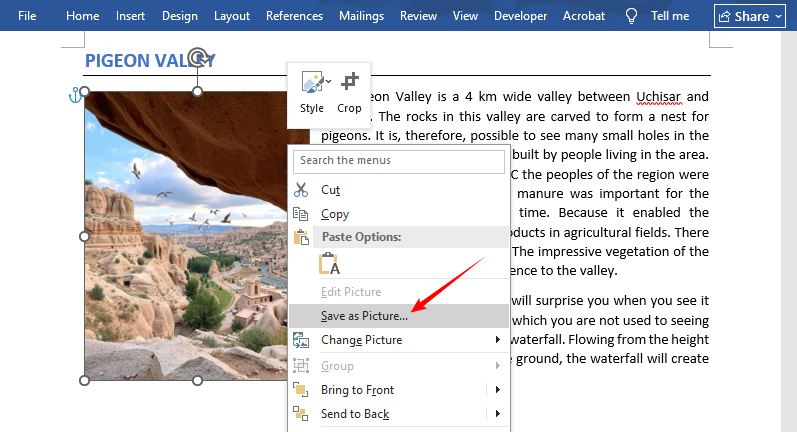
- Right-click the image you want to save.
- From the context menu, select Save as Picture.
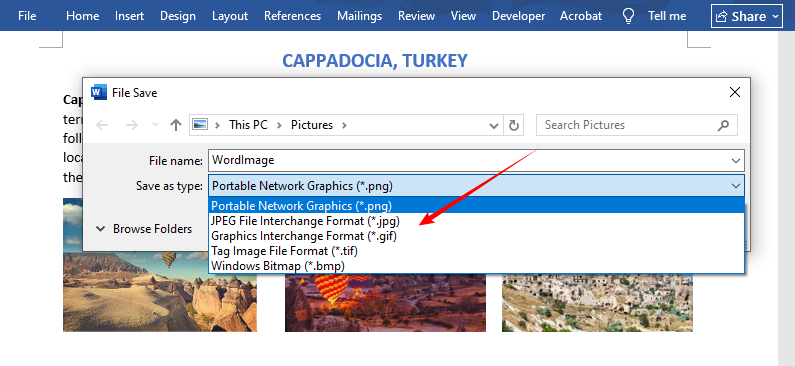
- In the dialog box:
- Choose a destination folder
- Rename the file (optional but recommended)
- Select your preferred format (PNG for transparency, JPG for photos, GIF for simple graphics)
- Click Save.
✔ Pros: Free, built-in, 1-click operation, Microsoft Word’s native feature
✘ Cons: Extremely slow for batch extraction (only one image at a time)
While Word documents are common, you may also need to extract images from PDFs. Check out our complete guide to extract PDF images – including free tools and advanced methods.
Method 2: Save as Web Page
Best for: Users who prefer Word’s native features for batch image saving.
Microsoft Word includes a powerful hidden feature: saving as a web page automatically exports every embedded image into a dedicated folder. This is one of the oldest and most reliable methods to extract images from Word doc or docx files.
Complete Walkthrough:
- Open the Word document.
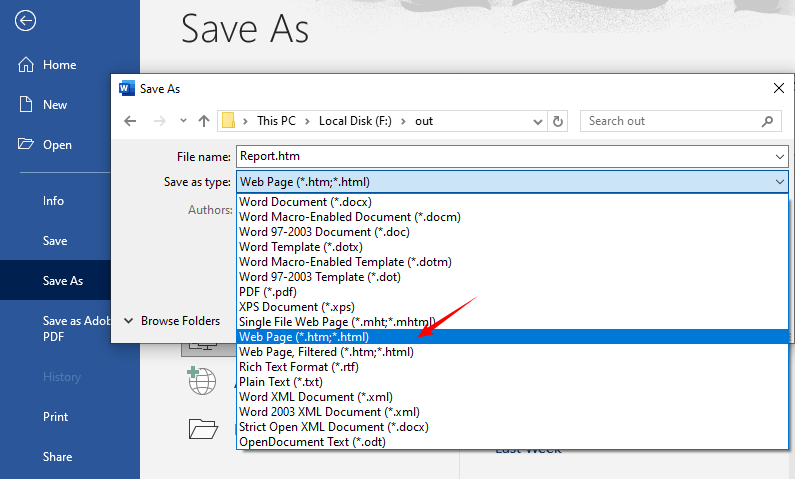
- Click File → Save As and choose a save location on your device.
- In the "Save as type" dropdown, select *Web Page (.htm; *.html)**.
- Note: Do NOT select "Single File Web Page" – this packages everything into one file
- Click Save—Word will generate two items in your chosen folder:
- The HTML webpage file.
- A folder named [YourDocumentName]_files (e.g., Report_files).
- Open that folder to access all extracted images (in their original formats like PNG/JPG).
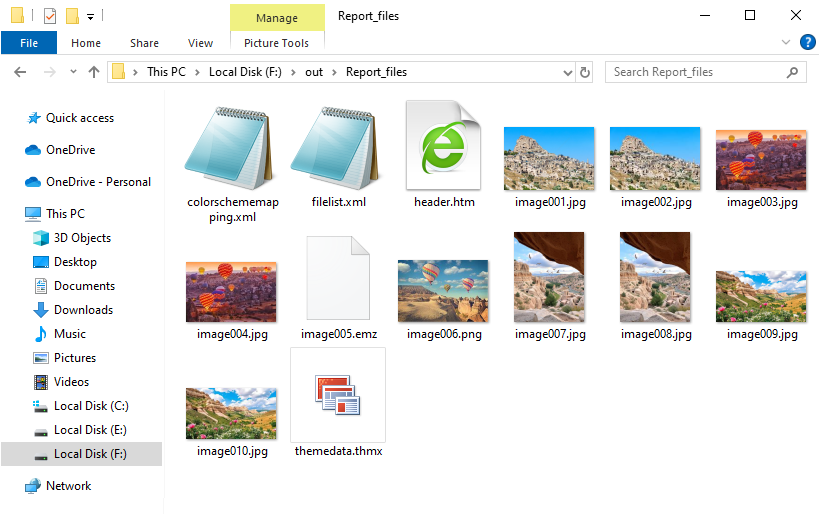
✔ Pros: Native Word tool, batch extracts all images instantly, retains good quality
✘ Cons: Creates extra HTML files, generates duplicate images if visuals are reused in the document
Method 3: The ZIP File Trick
Best For: Users who need to bulk extract all high-resolution images from DOCX files—no software required.
Here's a little-known fact: modern Word documents (.docx) are actually compressed ZIP archives. This means you can extract images from docx files without ever opening Microsoft Word.
Why This Works:
Since Microsoft Office 2007, Word has used the Open XML format. A .docx file is essentially a container with XML files and a dedicated /word/media/ folder containing all embedded images.
Detailed Steps:
- Locate your DOCX file and make a copy (to protect the original).
- Right-click the file and select Rename.
- Change the file extension from .docx to .zip (e.g., report.docx → report.zip).
- Press Enter to confirm the extension change.
- Click Yes if a warning pops up.
- Double-click to open like any folder (Windows Explorer or Mac Finder).
- Navigate to the folder path: word → media.
- Copy all images to your desired folder.
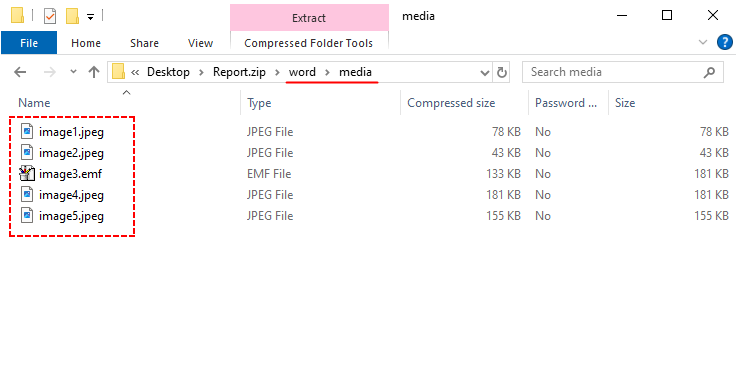
✔ Pros: 100% free, batch extraction, preserves original high resolution
✘ Cons: Only works for DOCX files.
Quick Tip: For bulk extracting images from legacy .doc files, use Method 2 (Save as Web Page), or convert DOC to DOCX first before applying this method.
Method 4: Free Online Word Image Extractors
Best for: Users who don’t want to install software or need a quick cross-platform solution (works on Windows, Mac, mobile).
Dedicated online tools like ExtractAssets or Groupdocs handle both DOC and DOCX files, extracting all images and delivering them as a downloadable ZIP file—no technical steps required.
Steps to extract images from Word online:
- Navigate to the tool's website (e.g., ExtractAssets Word Image Extractor)
- Upload your Word document.
- Click Extract Images.
- Download the images as a ZIP file.
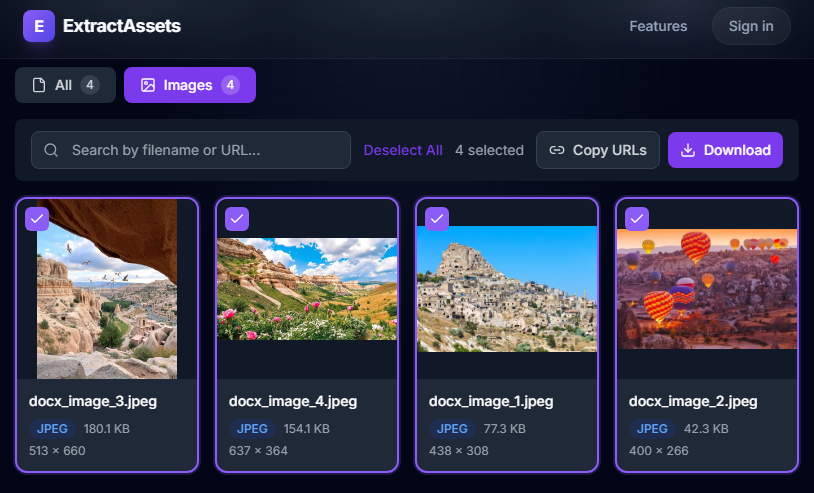
✔ Pros: No installation, cross-platform, works for DOC and DOCX files
✘ Cons: Needs internet; file size limits for free users
Warning: Be cautious when uploading sensitive or confidential documents to online tools. For private files, stick to the offline methods.
Method 5: Free Programming Solutions
Best for: Frequent users who need to batch extract images or integrate into automated workflows.
For businesses and developers, Free Spire.Doc for .NET is a powerful library that lets you programmatically extract images from Word in C# with full control over output format.
C# Code to Extract Word Images:
using Spire.Doc;
using Spire.Doc.Documents;
using Spire.Doc.Fields;

namespace ExtractImage
{
    class Program
    {
        static void Main(string[] args)
        {
            // Load a Word document
            Document document = new Document("input.docx");
            int index = 0;

            // Traverses each section in the document
            foreach (Section section in document.Sections)
            {
                // Traverses each paragraph in the current section
                foreach (Paragraph paragraph in section.Paragraphs)
                {
                    // Traverses each document object in the current paragraph
                    foreach (DocumentObject docObject in paragraph.ChildObjects)
                    {
                        // Checks if the current document object is an image
                        if (docObject.DocumentObjectType == DocumentObjectType.Picture)
                        {
                            DocPicture picture = docObject as DocPicture;
                            // Saves the extracted image as a PNG file
                            picture.Image.Save(string.Format("image_{0}.png", index), System.Drawing.Imaging.ImageFormat.Png);
                            index++;
                        }
                    }
                }
            }
        }
    }
}
The code loads a Word document and traverses it in a hierarchical manner: Document → Section → Paragraph → DocumentObject, filtering only image-type objects and then saving them as separate PNG files.
Key Technical Capabilities:
- Format Support: DOC, DOCX, DOT, DOTX, DOCM, RTF, and more
- Output Formats: Save extracted images as PNG, JPG, BMP, EMF, GIF, TIFF
- Batch Processing: Process thousands of documents with a single script
- Selective Extraction: Extract images from specific sections, paragraphs
✔ Pros: Full batch automation, wide file format support, enterprise-grade reliability
✘ Cons: Basic coding knowledge required; free version has certain limitations
Images aren't the only valuable content in your Word documents. Discover how to extract text, tables, and formatting for repurposing in other projects
Quick Comparison of All Methods
Use this table to instantly pick the right method for your use case:
| Method | Scenario | Batch Extract | Software Needed | Works for DOCX/DOC |
|---|---|---|---|---|
| Right-Click Save | Single images | ✘ | Microsoft Word only | Both |
| Save as Web Page | Word Built-in batch extraction | ✔ | Microsoft Word only | Both |
| ZIP Trick | Bulk DOCX, original quality | ✔ | None (OS only) | DOCX only |
| Online Tools | No-install cross-platform use | ✔ | Web browser only | Both |
| Free Spire.Doc | Developer batch automation | ✔ | .NET environment + Free Spire.Doc library | Both |
FAQs About Extracting Images from Word
Q1: Can I extract images from a password-protected Word document?
A: You must unlock the document first, then use any method above.
Q2: How do I get high-resolution images from Word?
A: Use the ZIP trick for .docx. For .doc files, the Save as Web Page method typically preserves better quality than right-click saving.
Q3: What image formats can I extract from Word?
A: Word supports embedded images in various formats, including:
- JPEG/JPG (photos)
- PNG (graphics with transparency)
- GIF (animations, simple graphics)
- BMP (bitmap images)
- TIFF (high-resolution images)
- EMF/WMF (vector graphics)
- SVG (scalable vector graphics – newer Word versions)
Q4: Can I extract images from multiple Word documents at once?
A: Yes, use professional tools like Spire.Doc to process entire folders with a script. Some online tools also offer batch processing of multiple Word documents.
Final Words
You now have 5 free and effective ways to extract images from Word document, each suited to different needs and technical skill levels. For quick single images, use right-click save. For batch extraction, the ZIP trick is the best free choice. Online tools work on the go, while professional software like Spire.Doc delivers high-quality, automated results for heavy use.
No more wasting time taking screenshots or re-creating images. Instead, use these methods to get clean, high-quality images from Word in seconds.