
Converting DOC to DOCX is an essential task for anyone looking to modernize their files or improve compatibility across platforms. The DOC format, used in Word 97-2003, has been replaced by DOCX in newer versions of Word. DOCX offers several advantages, including better file compression, stronger security, and compatibility with the latest Word features.
Whether you're upgrading an old document or making your files more accessible, understanding how to transform DOC to DOCX is crucial. In this guide, we'll show you five easy methods to convert DOC to DOCX, including manual methods with Microsoft Word, online tools, Google Docs, and automation using Python and PowerShell scripts.
Methods Navigation
- Convert DOC to DOCX Using Microsoft Word
- Convert DOC to DOCX with Free Online Tools
- Convert DOC to DOCX Using Google Docs
- Automate DOC to DOCX Conversion with Python
- Batch Convert DOC to DOCX Using PowerShell
1. Convert DOC to DOCX Using Microsoft Word
The most common and reliable method to convert DOC to DOCX is by using Microsoft Word itself. This method is perfect for single file conversions and ensures the file format is properly updated.
Steps to Convert DOC to DOCX with Microsoft Word:
-
Open the DOC File in Word
-
Open Microsoft Word.
-
Go to File > Open and select the DOC file you want to convert to DOCX.

-
-
Save the DOC File as DOCX
-
After the file opens, go to File > Save As.

-
-
Choose a location to save the new file.
-
In the Save as Type dropdown, select Word Document (*.docx).

-
Click Save to complete the conversion process.
-
Your file is now converted to DOCX format and is ready to be shared, edited, or archived.
Pros:
- Simple, easy-to-use method without needing additional tools.
- Ideal for converting a small number of DOC files to DOCX.
- Preserves all formatting and features of the original file.
Cons:
- This method is not suitable for batch conversion.
- Requires Microsoft Word to be installed on your computer.
2. Convert DOC to DOCX with Free Online Tools
If you don't have Microsoft Word or prefer a quicker solution, online tools like Zamzar and Convertio offer free DOC to DOCX conversions without any software installation.

Steps to Convert DOC to DOCX Online for Free (Using Zamzar as an Example):
-
Open Zamzar Conversion Tool
- Go to Zamzar in your browser.
-
Upload Your DOC File
- Click the Choose Files button and select the DOC file you want to convert. Or drag & drop the file to the designated area.
-
Select DOCX as the Output Format
- From the format options, choose docx as the output format.
-
Convert the DOC File
- Click Convert Now to start the process. Zamzar will convert the file quickly.
-
Download the Converted DOCX File
- After the conversion finishes, click the Download button to save the DOCX file to your device.
Pros:
- No software installation required-completely web-based.
- Quick and easy to use.
- Accessible on any device with internet access.
Cons:
- File size restrictions or limited free conversions.
- Requires an internet connection to function.
- Not ideal for bulk conversions.
3. Convert DOC to DOCX Using Google Docs
If you're seeking an alternative to online tools like Zamzar or Convertio, Google Docs provides a free, cloud-based solution that requires no software installation. It's particularly convenient for Google account holders or teams working collaboratively.
Steps to Convert DOC to DOCX with Google Docs:
-
Upload Your DOC File to Google Drive
-
Log in to your Google Drive account.
-
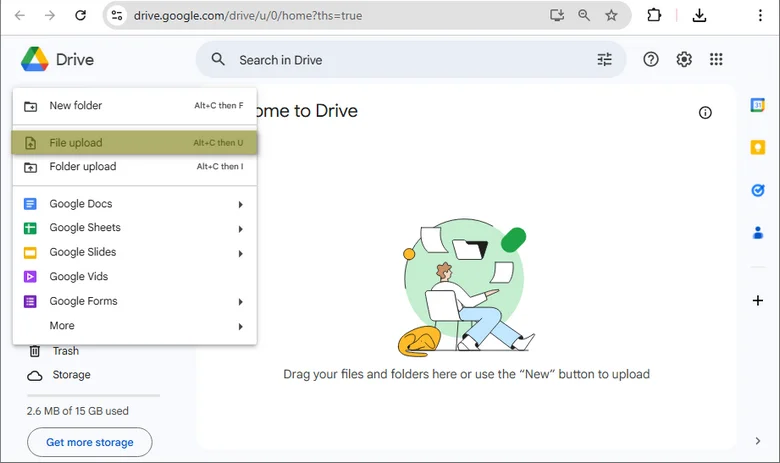
Click New > File upload to upload your DOC file into Google Drive, or simply drag and drop the file into the window.
-
-
Open the DOC File in Google Docs
-
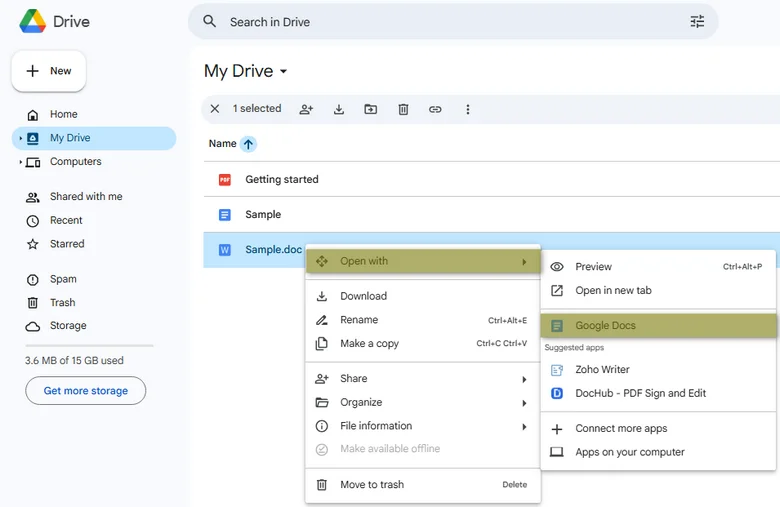
Right-click the uploaded DOC file in Google Drive and select Open with > Google Docs. This opens the file in Google Docs, where you can make edits if needed.
-
-
Save as Google Docs Format
-
Once the file is open in Google Docs, click File > Save as Google Docs to convert it into Google Docs format.

-
-
Download as DOCX
-
After the file is saved in Google Docs format, go to File > Download and select Microsoft Word (.docx).

-
Your DOC file will now be downloaded as a DOCX file, which can be opened or shared across different devices and platforms.
-
Pros:
- Free and web-based solution.
- Works on any operating system.
- Easy to collaborate with others if needed.
Cons:
- Requires a Google account and an internet connection.
4. Automate DOC to DOCX Conversion with Python
If you're a developer looking to automate DOC to DOCX conversions, Python libraries like Spire.Doc for Python can save you significant time and effort, especially for batch processing. Spire.Doc doesn't require Microsoft Word and supports multiple conversions, including DOC to DOCX, PDF, HTML, and more.

Steps to Automate DOC to DOCX Conversion with Python:
-
Install Spire.Doc for Python
-
Install Spire.Doc from PyPI using the following command:
pip install spire-doc
-
-
Add the Python Script to automate DOC to DOCX Conversion
-
Once the library is installed, add the following Python code to save your DOC file as a DOCX file:
from spire.doc import *

def convert_doc_to_docx(doc_file, docx_file):
    # Open the .doc file
    document = Document()
    document.LoadFromFile(doc_file)

    # Save the .doc file to a .docx file
    document.SaveToFile(docx_file, FileFormat.Docx2016)
    document.Close()

# Example usage
convert_doc_to_docx('path_to_your_doc_file.doc', 'path_to_save_the_docx_file')
-
Pros:
- Suitable for automating the conversion of multiple files.
- Flexible and customizable script options.
- Can be integrated into larger projects or workflows.
Cons:
- Requires programming knowledge and Python setup.
5. Batch Convert DOC to DOCX Using PowerShell
For Windows users who need to convert DOC to DOCX in bulk, PowerShell offers a scriptable solution that can automate this process.
Steps:
-
Open PowerShell
- Press Win + X and choose Windows PowerShell (Admin).
-
Run the PowerShell Script to batch convert multiple DOC files in a specific folder into DOCX format:
-
Copy and paste the following script into the PowerShell window and press enter:
$word = New-Object -ComObject Word.Application
$word.Visible = $false  # Keep Word application hidden
$word.DisplayAlerts = 0  # Disable Word alerts to prevent interruptions

# Get all .doc files in the folder
$files = Get-ChildItem "C:\path_to_your_folder" -Filter *.doc

foreach ($file in $files) {
    try {
        # Open the document
        $doc = $word.Documents.Open($file.FullName)

        # Set the output path for the .docx file
        $outputPath = [System.IO.Path]::Combine($file.DirectoryName, ($file.BaseName + ".docx"))

        # Save as .docx format (16 = wdFormatXMLDocument)
        $doc.SaveAs([ref]$outputPath, 16)

        # Close the document
        $doc.Close()

        Write-Host "Successfully converted: $($file.Name)"
    } catch {
        Write-Host "Error converting $($file.Name): $_"
    }
}

# Quit Word application
$word.Quit()
-
Pros:
- Automates bulk DOC to DOCX conversion.
- Utilizes the existing Microsoft Word installation.
- Can be used for various other Word document manipulations.
Cons:
- Available only on Windows.
- Requires knowledge of PowerShell scripting.
Conclusion: Choose the Best Method for Your Needs
There are several ways to convert DOC to DOCX, each catering to different needs and preferences:
- Microsoft Word: Ideal for quick, one-time conversions.
- Online tools: Perfect for users without Microsoft Word or those needing a fast, cloud-based solution.
- Google Docs: A free, online alternative for cloud-based document conversions.
- Python scripts and PowerShell: Best for batch or automated DOC to DOCX conversions.
Choose the best method for your needs and start converting your DOC files to DOCX today!
Frequently Asked Questions (FAQs)
Q1. Why should I convert DOC to DOCX?
A1: Converting DOC to DOCX improves file compression, enhances security, and ensures compatibility with the latest Microsoft Word features. DOCX is also more efficient for storage and sharing due to its smaller file size.
Q2. Can I convert DOC to DOCX without Microsoft Word?
A2: Yes, you can use free online tools like Zamzar or Convertio, or cloud-based solutions like Google Docs. Additionally, you can automate the conversion using Python scripts with Spire.Doc for Python.
Q3. What's the best method for batch converting DOC to DOCX?
A3: For batch conversions, PowerShell (on Windows) or Python scripts using Spire.Doc for Python are ideal. These methods allow you to automate the conversion of multiple DOC files into DOCX in one go.
Q4. Are there any free online tools for converting DOC to DOCX?
A4: Yes, tools like Zamzar and Convertio offer free DOC to DOCX conversions. These online tools are easy to use and don't require software installation, making them a convenient option for occasional conversions.