Blank lines are one of the most common formatting issues in Microsoft Word documents. They often appear after copying content from websites, converting PDFs to Word, importing Markdown/HTML files, or generating documents programmatically. While they may look harmless, excessive blank lines can break document layout, affect pagination, and cause problems in automation workflows.
This guide explains what “blank lines” really mean in Word and walks through five practical methods to remove them — from quick manual fixes using Find & Replace to automated cleanup with VBA and Spire.Doc for Python.
Quick Navigation
- Method 1. Remove Blank Paragraphs Using Find and Replace
- Method 2. Remove Paragraphs Containing Spaces Only
- Method 3. Remove Manual Line Breaks (Shift + Enter Blank Lines)
- Method 4. Remove All Blank Lines Using a VBA Macro
- Method 5. Remove Blank Lines Programmatically Using Spire.Doc for Python
What Do “Blank Lines” Really Mean in Microsoft Word?
In Microsoft Word, “blank lines” isn’t a strict technical term — it’s more of a visual/layout description. Depending on context, it can refer to a few different things:
| Type | Symbol in Word | Created By | Structural Meaning | Common Causes |
|---|---|---|---|---|
| Blank Paragraph | ¶ | Press Enter | Empty paragraph with no text | Manual editing, formatting habits |
| Paragraph Containing Spaces Only | ¶ + ··· | Space + Enter | Paragraph with invisible whitespace | Pasted content, alignment attempts |
| Manual Line Break | ↓ / ↵ | Shift + Enter | New line within the same paragraph | PDF conversion, web copy, HTML import |
To see these symbols, enable Show/Hide ¶ from the Home tab or press Ctrl + Shift + 8.
Method 1. Remove Blank Paragraphs Using Find and Replace
Blank paragraphs are the most common source of visible empty lines in Word documents. They usually occur when users press Enter multiple times to add spacing. Before moving on to more advanced cleanup methods, it’s best to eliminate these structural empty paragraphs using Word’s built-in Find and Replace tool. This quick manual approach is ideal for documents that require only basic formatting cleanup.
Steps to Remove Blank Paragraphs
- Open your Word document.
- Press Ctrl + H to open the Find and Replace dialog.
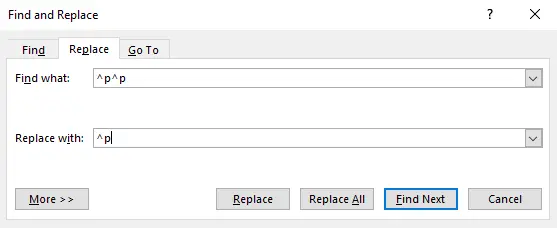
- In the Find what box, enter ^p^p (this searches for double paragraph marks).
- In the Replace with box, enter ^p (this replaces double paragraph marks with a single one).
- Click Replace All to remove the extra blank paragraphs.
- Repeat until Word says 0 replacements.
What Happens Next
After removing true blank paragraphs, some empty lines may still remain because they contain hidden spaces or manual line breaks. The next method focuses on removing paragraphs that appear empty but actually contain whitespace characters.
Method 2. Remove Paragraphs Containing Spaces Only
Some paragraphs look blank but contain invisible spaces, tabs, or non-printing characters. These paragraphs are often introduced when content is pasted from web pages or PDFs. Since Method 1 only removes completely empty paragraphs, this step targets whitespace-only paragraphs using wildcard searches.
Steps to Remove Whitespace-Only Paragraphs
- Open your Word document.
- Press Ctrl + H to open the Find and Replace dialog.
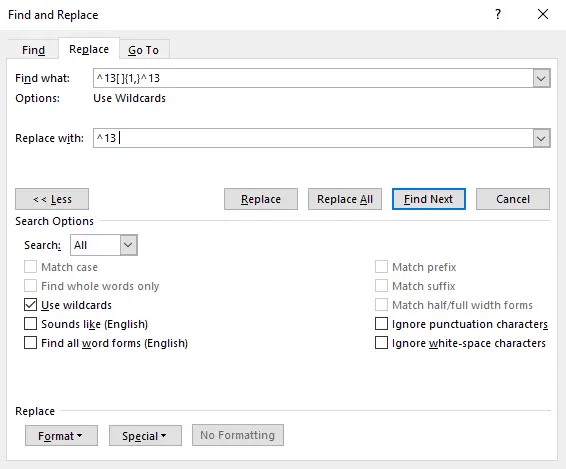
- Click on More >> and check the box for Use wildcards.
- In the Find what box, enter the pattern ^13[ ]{1,}^13 (this searches for a paragraph followed by one or more spaces and another paragraph).
- In the Replace with box, enter ^13 (this replaces the found pattern with a single paragraph).
- Click Replace All — you may need to click multiple times until the replacement count shows 0.
Learn wildcard search techniques: Word Wildcards for Advanced Search
What Happens Next
At this stage, most empty paragraphs are gone. However, some blank lines may still appear due to manual line breaks inserted with Shift + Enter, which behave differently from real paragraphs. The next method addresses those structural line breaks.
Method 3. Remove Manual Line Breaks (Shift + Enter Blank Lines)
Manual line breaks create new visual lines without starting a new paragraph. They are commonly introduced when copying text from emails, HTML pages, or PDF conversions. Even after cleaning paragraphs and whitespace, these breaks may still create gaps that look like blank lines.
Steps to Remove Manual Line Breaks
- Open your Word document.
- Press Ctrl + H to open the Find and Replace dialog.
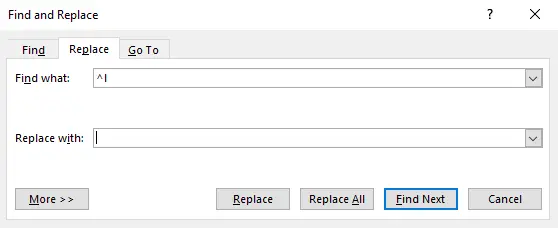
- In the Find what box, enter ^l (this searches for line breaks).
- Leave the Replace with box empty.
- Click Replace All until Word reports zero replacements.
What Happens Next
After completing the first three manual methods, your document structure should be significantly cleaner. If you need to repeat this cleanup frequently or process many documents, automation becomes more efficient. The next method introduces a VBA macro that performs a full cleanup automatically.
Method 4. Remove All Blank Lines Using a VBA Macro
When you need to clean multiple documents or want a one-click solution inside Word, a VBA macro can automate the entire process. This method removes empty paragraphs, whitespace-only paragraphs, and manual line breaks in a single execution.
Steps to Create and Run the Macro
- Open your Word document.
- Press Alt + F11 to open the VBA Editor.
- Click Insert → Module.
- Paste the following VBA code into the module window.
- Press F5 to run the macro or close the editor and run it from View → Macros.
VBA Code:
Sub RemoveAllEmptyLines_Simple()
    ' Delete empty paragraphs
    Dim para As Paragraph
    For Each para In ActiveDocument.Paragraphs
        If Len(Trim(para.Range.Text)) <= 1 Then
            para.Range.Delete
        End If
    Next para

    ' Delete empty manual line breaks (find and replace method)
    With ActiveDocument.Range.Find
        .ClearFormatting
        .Text = "[ ]@^l"
        .Replacement.Text = ""
        .MatchWildcards = True
        .Wrap = wdFindContinue
        .Execute Replace:=wdReplaceAll
    End With

    ' Delete remaining isolated manual line breaks
    With ActiveDocument.Range.Find
        .ClearFormatting
        .Text = "^l"
        .Replacement.Text = ""
        .MatchWildcards = False
        .Wrap = wdFindContinue
        .Execute Replace:=wdReplaceAll
    End With
End Sub
Microsoft VBA reference: Getting Started with VBA in Word
Transition to Next Method
While VBA macros are powerful within Word itself, they still require manual execution and access to the Word application. For developers or automation pipelines, a programmatic solution offers greater flexibility — which leads us to the final method using Spire.Doc for Python.
Method 5. Remove Blank Lines Programmatically Using Spire.Doc for Python
For large-scale automation or server-side processing, Spire.Doc for Python allows you to analyze and clean document structure directly through code. This method is ideal for developers who need to process multiple files automatically without opening Word.
Step 1. Install the Library
pip install spire.doc
Step 2. Create a Python Script
- Open your preferred Python IDE or editor.
- Create a new Python file (e.g., remove_blank_lines.py).
- Paste the following code into the file.
Step 3. Run the Script
Code Example:
from spire.doc import *
from spire.doc.common import *

# Load Word document
doc = Document()
doc.LoadFromFile("Input.docx")

# Get first section
section = doc.Sections[0]

# -----------------------------
# Step 1. Remove manual line breaks
# -----------------------------
for p_index in range(section.Paragraphs.Count):
    paragraph = section.Paragraphs[p_index]

    # Traverse child objects backward
    for i in range(paragraph.ChildObjects.Count - 1, -1, -1):
        obj = paragraph.ChildObjects[i]

        if obj.DocumentObjectType == DocumentObjectType.Break:
            try:
                if hasattr(obj, 'BreakType') and obj.BreakType == BreakType.LineBreak:
                    paragraph.ChildObjects.RemoveAt(i)
            except:
                # If BreakType cannot be accessed, assume line break
                paragraph.ChildObjects.RemoveAt(i)

# -----------------------------
# Step 2. Remove blank paragraphs
# -----------------------------
for i in range(section.Paragraphs.Count - 1, -1, -1):
    paragraph = section.Paragraphs[i]

    has_non_text_content = False

    # Check for non-text content (images, tables, fields, etc.)
    for j in range(paragraph.ChildObjects.Count):
        obj = paragraph.ChildObjects[j]
        if obj.DocumentObjectType != DocumentObjectType.TextRange:
            has_non_text_content = True
            break

    # Remove paragraphs that are empty or whitespace-only
    if not has_non_text_content and (paragraph.Text == "" or paragraph.Text.isspace()):
        section.Paragraphs.RemoveAt(i)

# Save document
doc.SaveToFile("RemoveBlankLines.docx", FileFormat.Docx2019)
doc.Dispose()
Output:
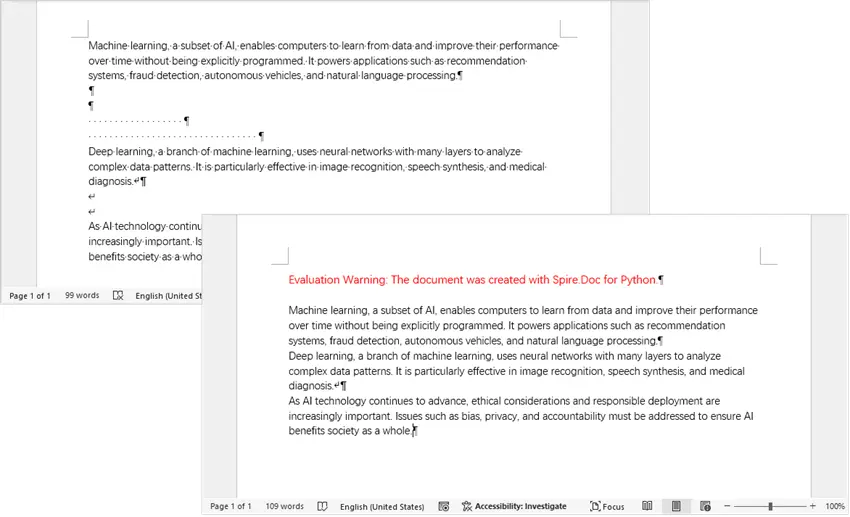
With automation in place, you can now handle blank lines at scale and integrate document cleanup directly into your processing pipelines. Beyond removing empty paragraphs and manual line breaks, Spire.Doc for Python provides a comprehensive set of document manipulation capabilities.
You can create Word documents from scratch, modify existing files, adjust formatting, insert tables or images, and even export documents to other formats such as PDF or HTML. This makes it ideal for building end-to-end document automation workflows while ensuring your content is clean, consistent, and ready for further processing.
Comparison of the Five Methods
| Method | Skill Level | Automation | Best For | Batch Processing |
|---|---|---|---|---|
| Find & Replace (Blank Paragraphs) | Beginner | No | Quick manual cleanup | No |
| Find & Replace (Spaces Only) | Beginner | No | Imported or pasted content | No |
| Find & Replace (Line Breaks) | Beginner | No | PDF/web content normalization | No |
| VBA Macro | Intermediate | Yes | Repeated tasks | Yes |
| Spire.Doc for Python | Advanced | Full | Large-scale automation | Yes |
Best Practices to Avoid Blank Lines in Future Documents
- Use paragraph spacing instead of multiple Enter presses.
- Avoid inserting multiple spaces for visual alignment.
- Normalize imported content immediately after pasting.
- Convert manual line breaks into real paragraphs early.
- Validate document structure before automation workflows.
Conclusion
To remove blank lines in Word, first identify whether they come from empty paragraphs, whitespace-only paragraphs, or manual line breaks. Choosing the right method helps you clean documents efficiently without affecting layout or structure. This guide covered five practical approaches — from quick Find & Replace techniques to automated solutions using VBA and Spire.Doc for Python.
For quick edits, Word’s built-in tools work well. For repeated tasks or batch processing, automation with VBA or Spire.Doc for Python helps streamline cleanup and integrate document formatting into larger workflows.
FAQs
Q1. Why do blank lines appear after converting PDFs to Word?
PDF converters often insert manual line breaks instead of real paragraphs, which look like blank lines.
Q2. What’s the difference between Enter and Shift + Enter?
Enter creates a new paragraph (¶), while Shift + Enter inserts a manual line break (↓/↵) within the same paragraph.
Q3. How can I see hidden blank line structures?
Enable formatting marks using Ctrl + Shift + 8.
Q4. Will removing blank lines affect document layout?
It may change spacing or pagination, so review formatting after cleanup.
Q5. Which method is best for large batches of files?
Automation methods like VBA macros or Spire.Doc for Python are ideal for batch processing.