Need to convert PDF to Excel for free? You’re in the right place. PDFs keep your formatting intact but lock your data away from editing. Whether you’re working with invoices, reports, or data tables, there’s no need to manually retype or pay for expensive software.
This guide walks you through the best free tools and methods to quickly and accurately transform PDF to Excel. From simple one-click online converters to automated Python scripts, we’ll match you with the right solution for your document type and workflow.
Content Overview:
- Understanding Your PDF Type: The Critical First Step
- Top Free Methods to Convert Native PDF To Excel
- Top Free OCR Tools to Convert Scanned PDF to Excel
- Frequently Asked Questions (FAQ)
Understanding Your PDF Type: The Critical First Step
Not all PDFs are created equal, and understanding your document's composition is essential for choosing the right conversion method.
| PDF Type | How to Identify | Best Conversion Method |
|---|---|---|
| Native/Text-Based PDF | Text is selectable and highlightable. | Standard converters work perfectly. |
| Scanned/Image-Based PDF | Text cannot be selected; file is an image. | Requires OCR (Optical Character Recognition) technology. |
Top Free Methods to Convert Native PDF To Excel
Native PDFs are the easiest to convert, with minimal formatting loss. Choose from 3 methods based on your needs: speed, privacy, or automation.
Free PDF to Excel Online Converter
Online converters are the fastest way to convert PDF to Excel for free—perfect if you only need to convert a few files or don’t want to install software. Here are some of the best PDF to Excel converters:
- CLOUDXDOC: Clean interface to convert PDF to XLSX without watermarks or ads
- Smallpdf: A robust free option with good formatting accuracy.
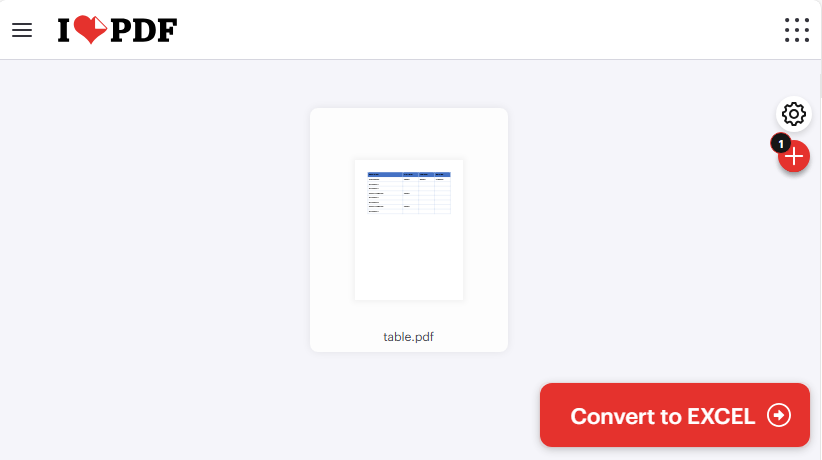
- IlovePDF: Supports batch conversion and offers detailed settings for better results.
How to export PDF to Excel online:
- Navigate to the website of your chosen tool.
- Upload your PDF via drag-and-drop or file selection.
- Click “Convert to Excel” (or similar option).
- Wait for the processing to complete.
- Download your new .xls or .xlsx file.
An example of using IlovePDF to convert PDF table to Excel:
Security Note: Avoid uploading sensitive financial, legal, or personal documents. For confidential data, use offline methods instead
2. Free Desktop Software to Convert PDF to Excel
If you convert PDFs to Excel often or work with sensitive data, desktop software is better. PDF24 Creator is a 100% free offline tool that offers robust PDF to Excel conversion with batch support.
How to use PDF24 to change PDF to Excel:
- Download PDF24 Creator and install it (compatible with Windows 10/11).
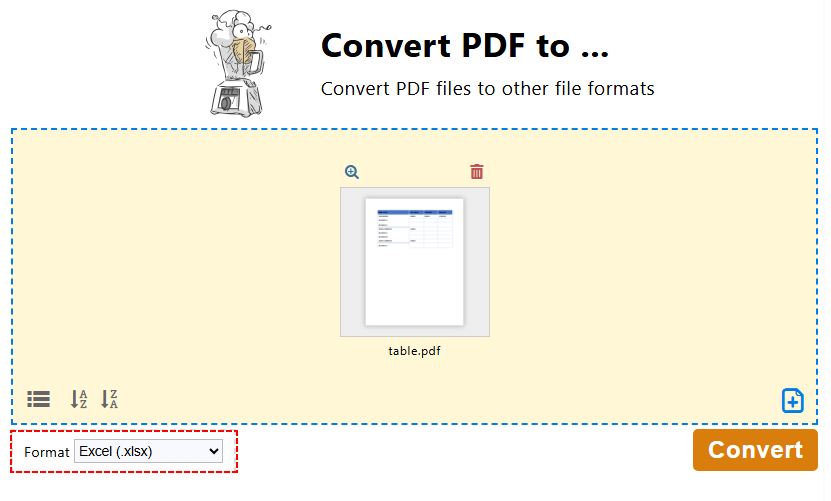
- Open PDF24 Toolbox and select the “Convert PDF to …” option.
- Click “Choose files” to select one or multiple PDF files.
- Select “Excel (.xlsx)” as the output format.
- Click “Convert” to start the process. PDF24 preserves table structures and text formatting.
- Once done, click “Save” to download the Excel file.
Pro Tip: If you only need to convert a specific page or section of a PDF to Excel, you can extract PDF pages or crop the PDF before conversion.
3. Free PDF to Excel Python Converter Library
For tech-savvy users or anyone who needs to automate PDF to Excel conversions (e.g., bulk processing), using Python with Free Spire.PDF is a powerful free solution. Free Spire.PDF for Python is a lightweight library that supports creating, processing, and converting PDFs in Python without external dependencies.
Preconditions:
- Install Python 3.6 or higher
- Install Free Spire.PDF for Python via pip:
pip install Spire.Pdf.Free
Step-by-Step Code to Convert PDF to Excel in Python:
from spire.pdf import *

# 1. Create a PdfDocument object
pdf = PdfDocument()

# 2. Load your PDF file
pdf.LoadFromFile("table.pdf")

# 3. Define layout options
# Parameters: convertToMultipleSheet, rotatedText, splitCell, wrapText, overlapText
layout_options = XlsxLineLayoutOptions(True, True, False, True, False)

# 4. Apply layout options
pdf.ConvertOptions.SetPdfToXlsxOptions(layout_options)

# 5. Convert the PDF to Excel
pdf.SaveToFile("output.xlsx", FileFormat.XLSX)

# Close the document
pdf.Close()
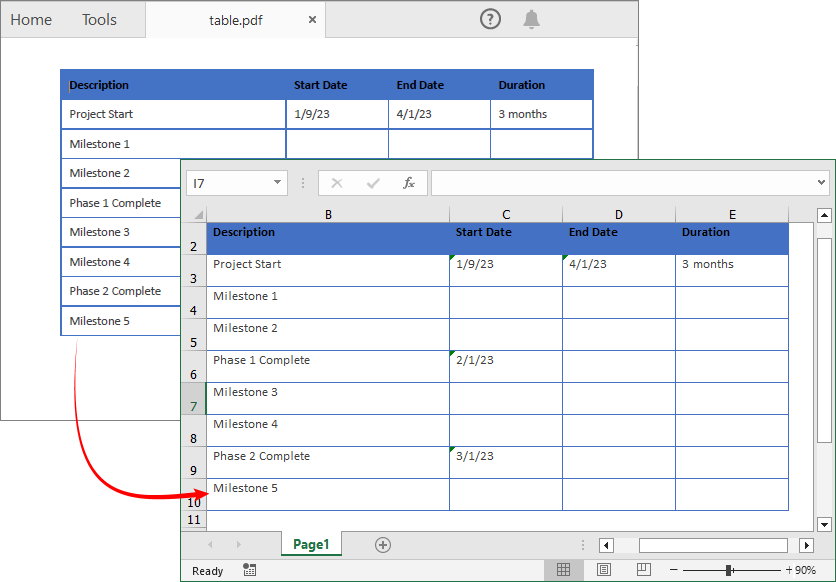
This code uses SaveToFile() to convert the loaded PDF file to an Excel file. During conversion, the XlsxLineLayoutOptions class defines granular rules for how PDF content maps to Excel cells/sheets. The five boolean parameters control:
- convertToMultipleSheet: Determines whether each PDF page is converted into a separate worksheet.
- rotatedText: Controls whether rotated text in PDF retains its original rotation angle in Excel.
- splitCell: Specifies whether multi-line text in a single PDF table cell is split into multiple Excel cells.
- wrapText: Enables or disables automatic text wrapping within Excel cells.
- overlapText: Decides whether overlapping text in PDF is displayed in Excel.
PDF to XLSX Conversion Result:
Free Spire.PDF for Python also allows export PDF table to CSV format. Details refer to: How to Convert PDF to CSV in Python (Fast & Accurate Table Extraction)
Top Free OCR Tools to Convert Scanned PDF to Excel
Most free converters struggle with scanned PDFs, but there are two tools that let you convert them to editable Excel for free—no paid OCR required.
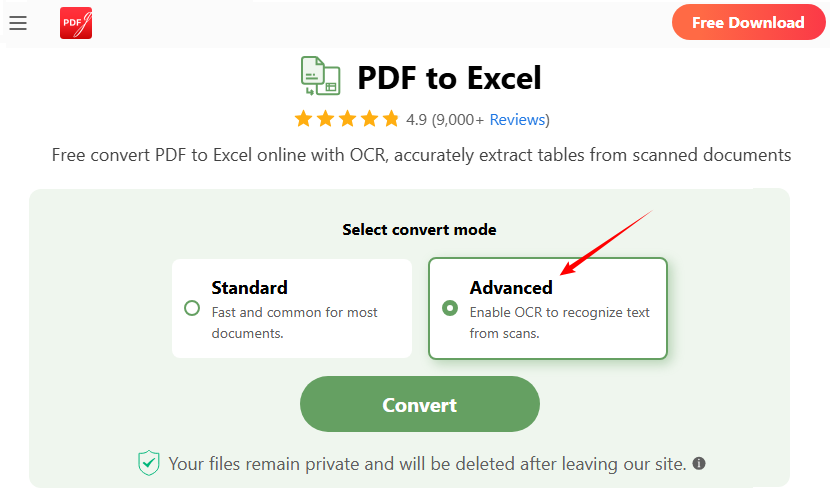
Option 1: PDFgear (Supports Large/Multi-Page Scanned PDF)
PDFgear is a free online tool with powerful OCR capabilities—ideal for large scanned PDFs and multi-page documents. It preserves layouts and requires no sign-up.
- Go to the PDFgear Free PDF to Excel Converter (no sign-up required).
- Click “Select PDF File” or drag and drop your PDF into the upload box.
- For scanned PDF, choose the “Advanced” convert mode to enable OCR technology.
- Click “Convert” and wait 1–2 minutes. PDFgear preserves original layouts, fonts, and formatting.
- Click “Download” to save your editable Excel file (.xlsx) to your device.
Option 2: Online OCR (For Small Scanned PDFs)
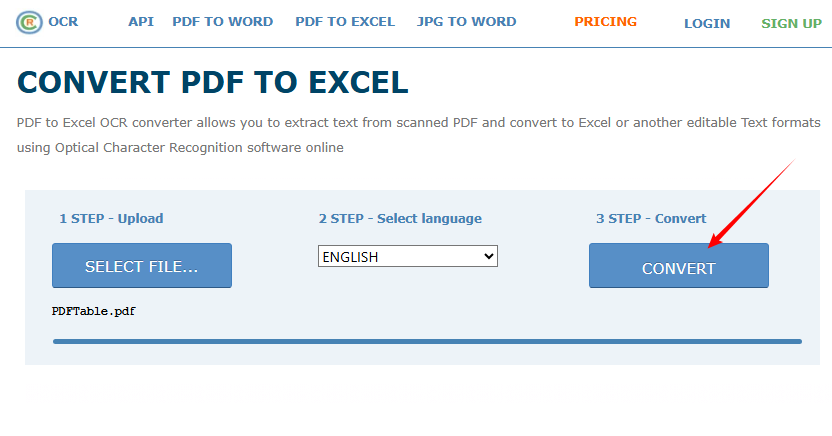
Online OCR is free for files up to 15MB and supports 40+ languages. It’s simple but less powerful for large documents.
- Go to Online OCR’s PDF to Excel Converter.
- Click “SELECT FILE” to upload your scanned PDF file.
- Choose the recognition language (e.g., English).
- Click “Convert” and wait for the OCR to extract text from the image.
- Download your editable Excel file.
Frequently Asked Questions (FAQ)
Q1: Can I convert multiple PDFs to Excel at once for free?
Yes. PDF24 (desktop) and IlovePDF (online) support batch conversion for free. For automated batch processing, use the Python method with Free Spire.XLS (add a loop to process multiple files).
Q2: Will the Excel file retain the original table format?
- Native PDFs: 90-99% of formatting is preserved (tables, fonts, alignment).
- Scanned PDFs: 70-90% accuracy (depends on scan quality)—use PDFgear or Online OCR for best results.
Q3: My converted Excel file has text in a single cell. How can I split it?
This often occurs with simple converters. Use Excel's built-in "Text to Columns" feature (under the Data tab) to split content based on delimiters. For future conversions, choose a tool with better layout analysis, like PDF24 or the Python library with the splitCell parameter enabled.
Q4: Can I use these free tools on Mac, iPhone, or Android?
Yes. Most online tools (CLOUDXDOC, IlovePDF, PDFgear) work on Mac, iOS, and Android—no installation needed.
Final Thoughts
This article has introduced a range of tools and methods to export PDF to Excel for free. From user-friendly online converters and reliable desktop applications to programmable Python libraries and dedicated OCR solutions, you can confidently transform any PDF—whether native or scanned—into editable, organized spreadsheets.
By understanding your PDF type and selecting the right method, you can unlock your data for editing, analysis, and reporting without any cost.