Looking for a reliable way to convert PDF to PostScript (PS) for high-quality printing? While PDF is the standard for sharing, PostScript offers a printer-ready, vector-based format essential for professional print devices and archival workflows.
This guide explains 4 reliable methods to convert PDF to PS without losing formatting, ranging from professional desktop software, command-line tools, and free online converters to a fully automated C# solution for developers.
What You Will Learn
- What is PostScript
- Understanding the Basics: PostScript Formats & Language Levels
- Method 1: Convert PDF to PostScript Using Adobe Acrobat Pro
- Method 2: Export PDF to PostScript via Ghostscript Command Line
- Method 3: Convert PDF Files to PostScript Online for Free
- Method 4: Automate PDF to PostScript Conversion in C# with Spire.PDF
- Common PDF to PostScript Issues
What is PostScript
PostScript (PS) is a page description language used for high-quality printing. Unlike PDF, which focuses on document portability, PostScript is optimized for vector-based printing workflows, ensuring that fonts, graphics, and layout are accurately rendered on professional printers.
Why Convert PDF to PostScript
- High-fidelity printing: Maintains vector paths, fonts, and precise layouts.
- RIP workflows: Required by many commercial printing systems.
- Archival standards: Some organizations use PS for long-term document preservation.
Understanding the Basics: PostScript Formats & Language Levels
Understanding PostScript formats and language levels is key to maintaining vector precision and ensuring device compatibility during PDF to PostScript conversion.
PostScript Formats: PS vs. EPS
- Standard PostScript (.PS): The go-to choice for full-document printing. It contains layout instructions, fonts, and images meant for direct output to PostScript-compatible printers.
- Encapsulated PostScript (.EPS): Ideal for individual graphics and illustrations. EPS includes a Bounding Box, allowing images to be scaled in layout software like Adobe InDesign without losing resolution.
PostScript Language Levels
- Level 1 (Obsolete): Introduced in 1984, Level 1 supports basic text and vector shapes. Avoid it unless using 40-year-old hardware.
- Level 2 (Legacy): Released in 1991, Level 2 introduced CMYK color support, better data compression, and improved font handling. Use only as a fallback for older commercial printers.
- Level 3 (Recommended): The modern industry standard introduced in 1997. It supports complex transparency, smooth gradients, advanced font technologies, and efficient file compression.
Pro Tip: Always default to Level 3 during conversion to prevent color shifts or flattened transparencies unless you have a specific requirement for older printers.
Method 1: Convert PDF to PostScript Using Adobe Acrobat Pro
For professionals and print specialists who require the highest accuracy, Adobe Acrobat Pro is the gold standard for PDF to PostScript conversion. As the creator of PDF and PostScript, Adobe ensures your files are translated with exceptional fidelity, preserving fonts, vector paths, and layout precision.
Step-by-Step Guide
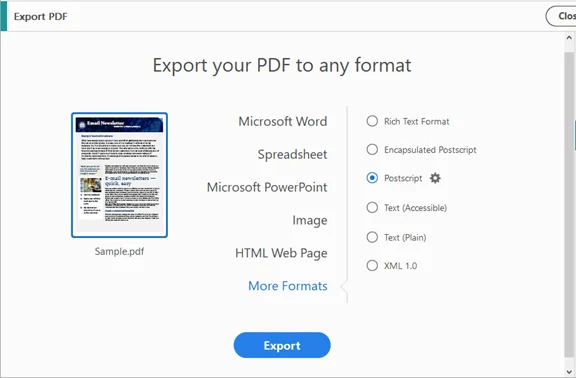
- Open your PDF in Adobe Acrobat Pro.
- Navigate to Tools → Export PDF → More Formats → PostScript (.PS/.EPS).
- Adjust settings:
- Language Level: Level 3 recommended
- Font Inclusion: Embed fonts to avoid substitution
- Output Encoding: Binary for smaller files; ASCII for legacy systems
- Click Export, select a destination folder, and save.
✅ Pros: High fidelity, reliable for complex PDFs with images and fonts.
❌ Cons: Requires a paid license.
Method 2: Export PDF to PostScript via Ghostscript Command Line
For power users seeking fast, flexible, and free PDF-to-PostScript conversion, Ghostscript offers a robust command-line solution that preserves searchable text and vector graphics.
Step-by-Step Instructions
- Download and install Ghostscript on your machine.
- Open command line interface:
- Windows: Open Command Prompt
- macOS/Linux: Open Terminal
- Run Conversion Command:
-dNOPAUSE: Disables page-by-page prompts.gswin64c -dNOPAUSE -dBATCH -sDEVICE=ps2write -sOutputFile=output.ps input.pdf
-dBATCH: Terminates the program after processing.
-sDEVICE=ps2write: Specifies PostScript Level 2/3 output. - Verify output:
Check that output.ps is created and opens correctly in your PostScript viewer or printer.
✅ Pros: Free, scriptable, supports batch conversions.
❌ Cons: Requires installation on each machine. Command-line interface can be tricky for beginners.
Method 3: Convert PDF Files to PostScript Online for Free
If you prefer a quick conversion without installing heavy software, free online PDF to PostScript converters are the most convenient alternative. These browser-based platforms allow you to process files from any device (Windows, Mac, or Mobile), though they may have specific file size limits compared to desktop tools.
Step-by-Step Instructions
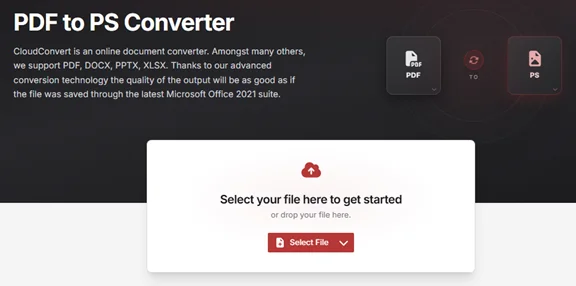
- Navigate to a trusted conversion platform like CloudConvert or Zamzar.
- Click Select File to upload your PDF.
- Select PS or PostScript as the target output format.
- Click Convert and wait for cloud processing.
- Download the final .ps file to your local drive.
Notes:
- Avoid uploading confidential, corporate, or medical PDFs to any online service. For sensitive files, use offline methods (Method 1, 2, or 4).
- Consider splitting large PDFs (> 50 MB) into smaller parts before uploading.
✅ Pros: Quick, accessible from any device, no installation.
❌ Cons: File size limits, potential privacy concerns.
Method 4: Automate PDF to PostScript Conversion in C# with Spire.PDF
For developers or businesses aiming to integrate PDF-to-PostScript conversion directly into their applications, a programmatic solution using C# with a library like Spire.PDF for .NET offers the most scalable and efficient approach. This method enables seamless, behind-the-scenes processing without the need for external software installations.
Key Advantages
- No External Dependencies: You don't need to install Ghostscript or Adobe Acrobat on the target server.
- High Scalability: Easily process thousands of documents within a loop or a background service.
- Fine-Grained Control: You can programmatically select specific pages to convert before generating the PS file.
Convert a PDF to PostScript in C#
using Spire.Pdf;

namespace PDFToPostScript
{
    class Program
    {
        static void Main(string[] args)
        {
            // Initialize a PdfDocument object
            PdfDocument doc = new PdfDocument();

            // Load your PDF file
            doc.LoadFromFile("Sample.pdf");

            // Save the document as a PostScript (PS) file
            doc.SaveToFile("PdfToPostScript.ps", FileFormat.PostScript);
        }
    }
}
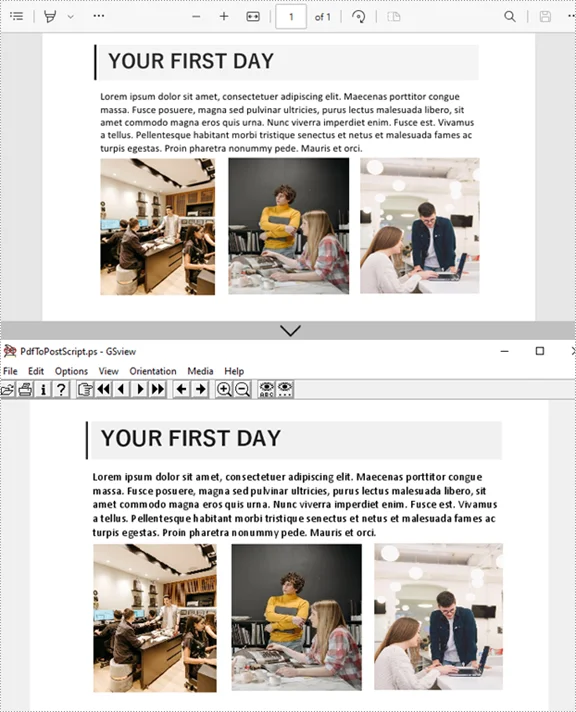
Here is the converted .ps file with the original images and formatting preserved:
(Optional) Export a Specific Page from PDF to PostScript
// Load the original PDF
PdfDocument pdf = new PdfDocument();
pdf.LoadFromFile("Sample.pdf");

// Create a new PDF document for selected pages
PdfDocument selectedPdf = new PdfDocument();

// Add pages 2 and 3 (indexes start at 0)
// The InsertPage method takes the source document, the start page index, and the end page index
selectedPdf.InsertPage(pdf, 1, 2); // Page 2

// Convert the selected pages to PostScript
selectedPdf.SaveToFile("selectedPages.ps", FileFormat.PostScript);
✅ Pros: Fully automated, works behind the scenes, scalable for applications.
❌ Cons: Requires programming skills, may require a license for production use.
Pro Tip: More Than Just PDF to PostScript
Spire.PDF serves as a comprehensive document solution for developers. If your workflow requires more than just .ps files, you can use the same library to handle other critical document tasks. For example, convert PDF to Word or export PDF to Excel to make your data editable.
Common PDF to PostScript Conversion Issues
Converting PDF files to PostScript can sometimes lead to unexpected problems. Understanding these common issues and how to fix them ensures smooth, high-quality printing. Below are typical challenges and practical solutions:
1. Transparency Flattening ("Stitching" Artifacts)
PostScript does not support live transparency. Effects like shadows or glows can produce thin white lines in your output. To prevent this, use Acrobat's Flattener Preview (Tools → Print Production → Flattener Preview) before exporting to PS.
2. Font Substitution
If fonts aren't embedded in the PDF, PostScript defaults to generic fonts such as Courier or Helvetica, potentially altering your layout. To avoid this, embed fonts in the PDF or convert them to outlines to preserve the original design.
3. Large File Size
PostScript files can become significantly larger than the source PDF because they store uncompressed instructions. Reduce file size by using binary encoding instead of ASCII and consider splitting very large PDFs into smaller segments.
4. Color Shifts
During PDF-to-PS conversion, CMYK colors may shift, affecting print accuracy. Always verify your color settings and perform a test print to ensure accurate color reproduction.
Conclusion
Converting PDF to PostScript is an efficient way to prepare documents for professional printing. Among the four reliable methods covered:
- Adobe Acrobat Pro - Best for desktop users who need precise control and high-quality output.
- Ghostscript CLI - Suitable for command-line enthusiasts or automated batch processing.
- Online Converters - Convenient for small files or occasional conversions without installing software.
- C# Automation Script - Ideal for developers or teams who require scalable, repeatable PDF-to-PS workflows.
Each method has its strengths. Choose the one that fits your workflow, and get started today to see which approach works best for you.
FAQs About PDF to PostScript Conversion
Q1: Can transparency be preserved during conversion?
A1: No. PDF to PostScript conversion flattens transparency, including shadows, glows, and overlays.
Q2: Can I convert PostScript back to PDF?
A2: Yes. You can use Adobe Acrobat Distiller or Ghostscript (pdfwrite device) to reconstruct a structured PDF from a PS file.
Q3: Are there free tools to convert PDF to PostScript?
A3: Yes, there are free online converters and command-line tools like Ghostscript. However, free tools may have limitations such as file size restrictions or reduced output quality.
Q4: How to convert multiple PDF files to PostScript at once?
A4: You can use C# automation with Spire.PDF to convert hundreds of PDFs efficiently.
Q5: Which PostScript language level should I use?
A5: PS Level 2 or 3 is recommended for most printers; Level 1 is legacy and may lack modern features.