PDF files are widely used because they preserve layout and formatting across devices. However, when you need to publish content online, improve SEO visibility, or integrate documents into a website, you’ll need to convert PDF to HTML.
HTML is the native format of the web. Turning a PDF into a HTML web page makes the content searchable, editable, and responsive across devices.
In this guide, we will walk you through 5 easy and practical ways to convert PDF files to HTML without altering the original formatting.
- Why Convert PDF to HTML
- How to Convert PDF to HTML
- Which PDF to HTML Method Should You Choose
- Best Practices and Troubleshooting for PDF to HTML Conversion
Why Convert PDF to HTML?
Before choosing a method, it helps to understand why PDF to HTML conversion is useful:
- Better SEO – Search engines index HTML content more effectively than PDF files.
- Web Integration – HTML can be embedded directly into websites or CMS platforms.
- Improved Accessibility – HTML supports screen readers and responsive layouts.
- Content Reuse – HTML makes editing and repurposing content easier.
- Mobile Compatibility – HTML adapts better to different screen sizes.
If your goal is publishing content online or improving discoverability, converting PDF to web page is often the better option.
How to Convert PDF to HTML
There are various options to convert PDF to HTML, ranging from simple online tools, desktop software (like Adobe Acrobat, Word), and browser extensions to advanced techniques using Python automation. Now, let’s explore each conversion method in detail.
Method 1: Convert PDF to HTML Using Online Tools
Online PDF to HTML converters are the fastest and easiest way to convert PDF to HTML for free without installing any software. They work directly in your web browser, so you can access them from any device—Windows, Mac, or even mobile.
These tools are perfect for one-time or occasional conversions, allowing you to turn PDFs into web pages in just a few clicks.
How to Convert PDF to HTML Online:
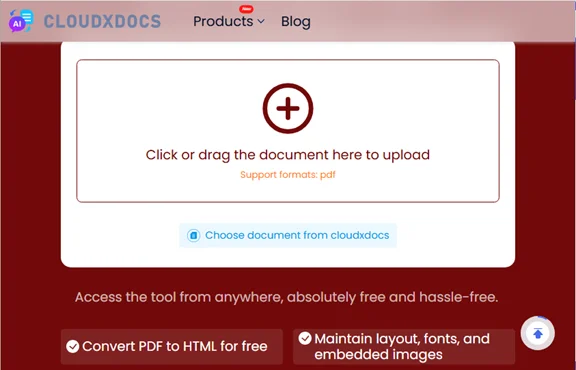
- Open an online PDF to HTML converter, such as Cloudxdocs or Zamzar.
- Upload your PDF file.
- The tool will automatically process and convert your PDF.
- Download the HTML file once the conversion is complete.
Pros:
- Free and easy to use.
- No software installation required.
- Fast conversion process.
Cons:
- Limited customization options.
- May have file size limits.
- Privacy concerns when uploading sensitive documents.
Tip: Always check the privacy policy of online tools before uploading your document. For confidential files, consider using offline tools like Adobe Acrobat or Python automation described below.
Method 2: Export PDF to HTML Using Adobe Acrobat Pro
For PDFs with complex layouts, images, or detailed formatting, Adobe Acrobat Pro is a professional solution for converting PDF to HTML. It delivers high-quality, accurate conversions with minimal formatting loss, making it ideal for business reports, eBooks, or any document where precision matters.
Adobe Acrobat Pro also supports OCR (Optical Character Recognition), so you can convert scanned PDFs into editable HTML pages without losing text or structure. This makes it a reliable choice for both text-based and image-heavy PDFs.
How to Convert PDF to HTML with Adobe Acrobat Pro:
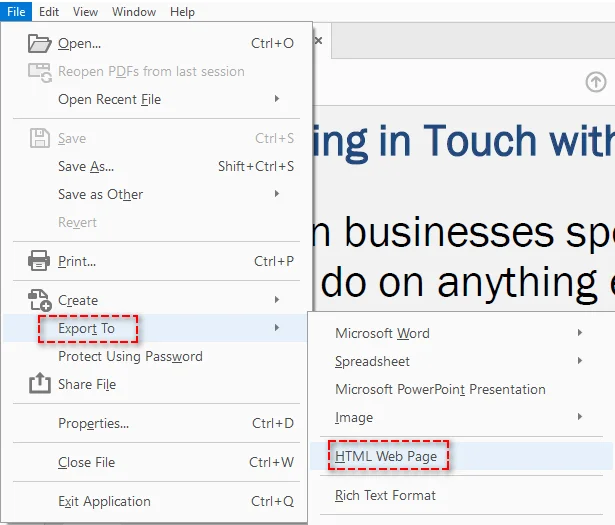
- Launch Adobe Acrobat Pro and open your PDF file.
- Go to File > Export To > HTML Web Page.
- Customize export settings (e.g., include images or exclude headers/footers).
- Save the file as HTML.
Pros:
- High-quality conversion for PDFs with complex layouts, images, and tables.
- Converts scanned PDFs using OCR for accurate text recognition.
- Offers precise control over output formatting.
Cons:
- Paid tool requiring a subscription.
- Not designed for large-scale batch conversions.
Method 3: Convert PDF to HTML Using Microsoft Word
Microsoft Word offers a free and simple way to convert PDF to HTML, especially for text-based PDFs. It’s ideal for users who are already working in Word and need a quick conversion without extra software.
While Word can handle basic formatting and images, it may struggle with multi-column layouts, tables, or highly styled PDFs, so it’s not recommended for intricate designs.
How to Convert PDF to HTML with Microsoft Word:
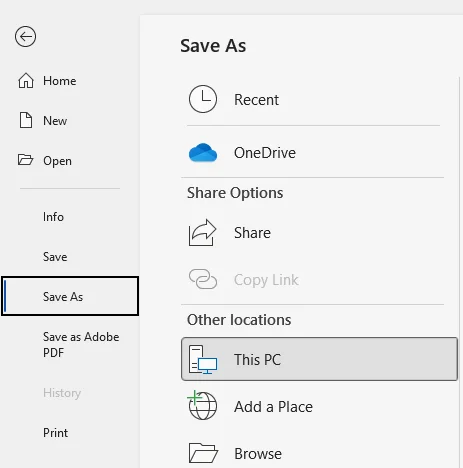
- Open the PDF file in Microsoft Word (Word will automatically convert the PDF into an editable format).
- Make any necessary adjustments to the content to ensure it looks correct.
- Go to File > Save As and select Web Page(.htm;.html) as the file format.
- Choose a destination folder and save the HTML file.
Pros:
- Free and widely accessible.
- Good for basic PDF documents with minimal formatting.
Cons:
- Formatting may be lost, especially with complex layouts or images.
- Not suitable for PDFs with intricate designs.
Method 4: Quick PDF to HTML Conversion with Browser Extensions
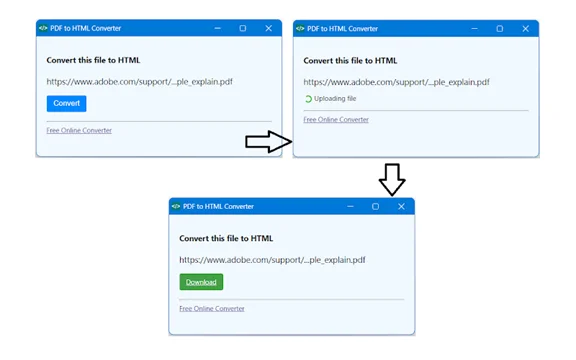
A browser extension is a quick and convenient way to convert PDFs to HTML directly in your browser. It works with local PDFs or those linked on web pages—no extra software required. This method is ideal for users who need fast, on-the-go conversions without relying on online tools.
How to Use a Browser Extension to Convert PDF to HTML:
- Search and install a PDF to HTML extension from your browser extension store, such as the PDF to HTML Converter in the Chrome Web Store.
- Click the extension in your browser toolbar, then either upload a local PDF or let the extension automatically detect PDF links on the webpage you visit.
- Follow the prompts to convert your PDF, wait for the process to finish, and then download the HTML file.
Pros:
- Convenient and fast.
- Easy to use with minimal setup.
Cons:
- Limited control over output quality.
- May not support large or complex files.
- Dependent on the browser you're using (e.g., Chrome, Edge, Firefox).
Tip: Not all extensions support automatic PDF link detection, and conversion quality can vary. Always check user reviews and developer information before installing any extension.
Method 5: Batch Convert PDF to HTML Using Python Automation
For developers or enterprise users who need to convert large volumes of PDFs into HTML, Python provides an efficient, automated solution. Using libraries like Spire.PDF for Python, you can batch convert PDF to HTML and other formats such as Word and Excel —saving time and boosting productivity when handling multiple files.
How to Batch Convert PDF to HTML with Python:
- Install Spire.PDF for Python via pip:
- Create a Python script to batch convert PDFs from a specified folder to HTML:
- Run the script to convert all PDFs in the specified folder. The HTML files will be saved in the same directory.
pip install Spire.PDF
import os
from spire.pdf import *

# Define the folder containing PDF files
pdf_folder = '/path/to/pdf_folder'

# Loop through each PDF file in the folder
for filename in os.listdir(pdf_folder):
    if filename.endswith('.pdf'):
        file_path = os.path.join(pdf_folder, filename)
        output_path = os.path.join(pdf_folder, f'{filename[:-4]}.html')

        # Initialize the PdfDocument object
        doc = PdfDocument()

        # Load the PDF file
        doc.LoadFromFile(file_path)

        # Convert and save the PDF as HTML
        doc.SaveToFile(output_path, FileFormat.HTML)

        # Close the document
        doc.Close()
Pros:
- Convert hundreds or thousands of PDFs with a single script.
- No internet or cloud upload required; ideal for confidential or internal documents.
- Runs on Windows, Linux, macOS, and server environments (including Docker and headless Linux servers).
- Easily embed into Python workflows
Cons:
- Requires basic Python programming knowledge.
- Initial setup takes slightly longer than manual tools.
Tip: You can adjust the script to adjust conversion settings, such as handling images or splitting pages. For more details, refer to the official guide: Convert PDF to HTML Using Python.
Which PDF to HTML Method Should You Choose
There isn’t a single best way to convert PDF to HTML. The right method depends on how often you convert files, how complex your documents are, and whether you need batch processing.
Here’s a quick recap to help you decide:
| Scenario | Recommended Approach |
|---|---|
| Convert one file quickly | Online PDF to HTML tool |
| Preserve layout accuracy and images | Adobe Acrobat Pro |
| Convert a simple, text-based document | Microsoft Word |
| Convert directly inside your browser | Browser extension |
| Convert multiple PDFs at scale | Python automation |
Choose the method that fits your workflow and make your PDFs searchable, responsive, and ready to publish online.
Best Practices and Troubleshooting for PDF to HTML Conversion
When converting PDF to HTML, following best practices and addressing common issues are essential for a smooth and efficient process. Below, we highlight key practices and solutions to common challenges during conversion.
Best Practices
-
Choose the Right Tool:
Select a reliable conversion tool for accurate results. While free tools work well for simple PDFs, professional tools like Adobe Acrobat offer better control over formatting and complex documents.
-
Keep the Layout Simple:
PDFs with complex layouts may not convert well into HTML. For cleaner results, try to simplify the layout in the original document.
-
Optimize Images for Web:
Resize or compress images before conversion to reduce file size and improve page load times. High-resolution images can slow down web performance.
-
Test Across Different Browsers:
After converting, check how your HTML renders in multiple browsers (e.g., Chrome, Firefox). This ensures consistent presentation and functionality across platforms.
Troubleshooting Common Problems
-
Broken Layout After Conversion:
Complex multi-column PDFs may not convert cleanly. Try exporting with structured HTML options if available.
-
Images Become Misaligned:
Some converters extract images separately. Check export settings to embed images correctly.
-
Scanned PDFs Don’t Convert Properly:
If your PDF is image-based, use a tool that supports OCR before converting to HTML.
-
Messy Inline CSS:
Some tools generate heavy inline styles. You may need to clean up the HTML for production use.
Conclusion
By now, you’ve learned about the five different methods for converting PDFs to HTML, each suited for different needs and scenarios. Whether you’re looking for a quick online solution, a high-quality conversion tool, or a more automated batch process, there’s a method that will work for you.
Looking for more high-quality PDF tutorials? Check out our free PDF resources.
FAQs
Q1: What’s the easiest way to convert a PDF to HTML?
A1: Online conversion tools are the quickest and easiest method for converting PDF to HTML Web Page without any software installation.
Q2: Can I convert scanned PDFs to HTML?
A2: Yes, Adobe Acrobat Pro can convert scanned PDFs to HTML using OCR (Optical Character Recognition) technology, preserving text and layout accurately.
Q3: How can I batch convert multiple PDFs to HTML?
A3: Python automation with libraries like Spire.PDF allows you to perform batch PDF to HTML conversions efficiently, saving time when handling large numbers of files.
Q4: Which method is best for complex PDFs with images and formatting?
A4: Desktop software like Adobe Acrobat provides the most accurate results for PDFs with complex layouts, images, or tables, ensuring minimal formatting loss during conversion.