PDFs are widely used for reports, manuals, and documentation. Editing text in a PDF is not as straightforward as in Word, and manually replacing each occurrence of a word can be tedious. This guide will show you three practical ways to replace text in a single PDF efficiently, so you can fix typos, update terms, or correct errors across the entire document without editing each instance manually.
Quick Navigation:
- Method 1: Using Adobe Acrobat Pro
- Method 2: Using an Online Tool (PDF4me)
- Method 3: Using a .NET API (Programmatic Approach)
Why Replace Text in PDF?
Replacing text in a PDF is often necessary because PDFs are designed to preserve content and layout, making manual edits difficult. Common scenarios include:
- Correcting typos or errors – Even professionally prepared PDFs can contain mistakes that need to be fixed.
- Updating outdated information – Names, dates, company details, or product references may need to be revised without recreating the entire document.
- Standardizing terminology – For consistency across reports or manuals, specific terms may need to be updated throughout the document.
- Legal or compliance updates – Certain documents may require text changes to meet regulatory or contractual requirements.
- Improving readability – Replacing awkward phrasing, abbreviations, or technical terms can make documents clearer for readers.
By replacing text efficiently, you save time, maintain professional formatting, and avoid the hassle of recreating PDFs from scratch.
Method 1: Using Adobe Acrobat Pro
Adobe Acrobat Pro is one of the most robust and professional PDF editing tools available. It allows you to replace text throughout a document while preserving the original formatting, layout, and fonts. This is especially useful when you are dealing with complex PDFs that include tables, images, headers, or footers.
The software ensures that the replacement does not distort text alignment or page structure, which is a common issue with simpler tools. Adobe Acrobat Pro is ideal for office users or professionals who need a reliable desktop solution for precise text editing.
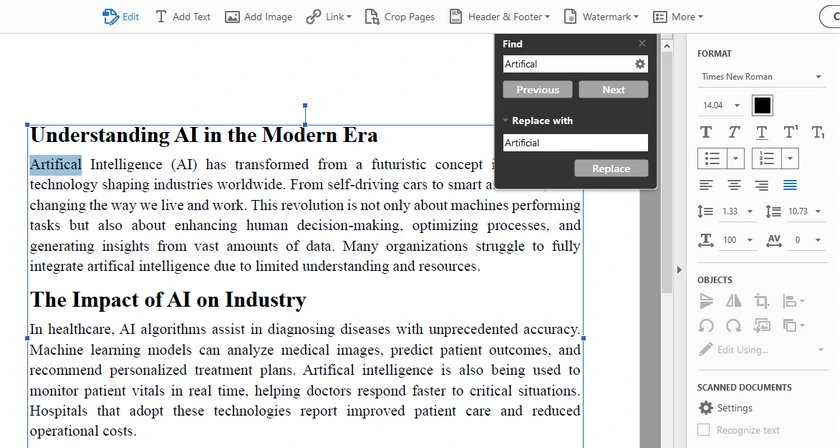
Step-by-Step Instruction
-
Open your PDF in Adobe Acrobat Pro.
-
Go to Edit → Find / Replace → Replace Text .
-
Enter the text you want to replace in the Find field.
-
Enter the new text in the Replace with field.
-
Configure the Case Sensitive option based on your needs.
- Enable it if you only want to replace text with the exact capitalization.
- Disable it if you want Acrobat to replace all capitalization variations automatically.
-
Click Replace until every occurrence in the document is replaced.
Note: Pay close attention to capitalization when replacing text. For example, "Artifical" and "artifical" may be treated differently depending on whether Case Sensitive matching is enabled. Incorrect settings may cause some occurrences to be skipped or unintentionally replaced.
Pros
- Preserves formatting, fonts, and layout.
- Simple and reliable for single documents.
Cons
- Paid software.
- Less suitable for fully automated workflows.
Method 2: Using an Online Tool (PDF4me)
Online tools such as PDF4me are convenient for users who need a quick solution without installing any software. They allow you to replace all occurrences of a word or phrase across a single PDF directly in your browser. This method is particularly useful when you are working on a computer where you cannot install software, or when you need a fast fix for small to medium-sized documents.
While online tools are generally easy to use, they may have limitations on file size or number of replacements per session, and you should be cautious about uploading sensitive documents.
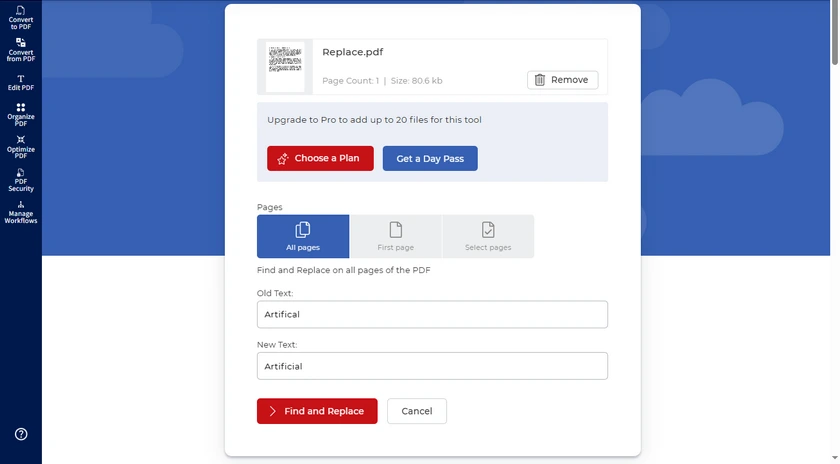
Step-by-Step Instruction
- Open PDF4me's Find and Replace Tool in your browser.
- Upload the PDF you want to edit.
- Enter the text to find and the replacement text.
- Click Find and Replace and download the updated PDF.
Pros
- No installation needed; works in any browser.
- Quick and user-friendly for occasional edits.
Cons
- May have file size or session limits.
- Less suitable for confidential documents.
Method 3: Using a .NET API (Programmatic Approach)
For developers or power users, Spire.PDF for .NET provides a programmatic solution for replacing text across an entire PDF. Unlike manual or online methods, this approach allows precise control over every replacement and ensures that all pages, fonts, and layouts are preserved. It is particularly beneficial if you need to replace multiple terms at once or integrate text replacement into an automated workflow.
Step-by-Step Instruction
- Open your development environment (Visual Studio, etc.).
- Install and reference Spire.PDF for .NET in your project.
- Use the following C# code to replace all occurrences of a word:
PM> Install-Package Spire.PDF
using Spire.Pdf;
using Spire.Pdf.Texts;

namespace ReplaceInEntireDocument
{
    class Program
    {
        static void Main(string[] args)
        {
            // Load a PDF file
            PdfDocument doc = new PdfDocument();
            doc.LoadFromFile("Input.pdf");

            // Create a PdfTextReplaceOptions object
            PdfTextReplaceOptions textReplaceOptions = new PdfTextReplaceOptions();

            // Specify the options for text replacement
            textReplaceOptions.ReplaceType = PdfTextReplaceOptions.ReplaceActionType.WholeWord | PdfTextReplaceOptions.ReplaceActionType.AutofitWidth;

            for (int i = 0; i < doc.Pages.Count; i++) {

                // Get a specific page
                PdfPageBase page = doc.Pages[i];

                // Create a PdfTextReplacer object based on the page
                PdfTextReplacer textReplacer = new PdfTextReplacer(page);

                // Set the replace options
                textReplacer.Options = textReplaceOptions;

                // Replace all occurrence of target text with new text
                textReplacer.ReplaceAllText("artifical", "artificial");
                textReplacer.ReplaceAllText("Artifical", "Artificial");
            }

            // Save the document to a different PDF file
            doc.SaveToFile("Replaced.pdf");

            // Dispose resources
            doc.Dispose();
        }
    }
}
Output:

Note: In Spire.PDF, text replacement is case-sensitive by default. This means "artifical" and "Artifical" are considered different strings.
That is why the example includes two replacement statements:
textReplacer.ReplaceAllText("artifical", "artificial");
textReplacer.ReplaceAllText("Artifical", "Artificial");
If your document contains multiple capitalization styles, make sure to replace each variation separately.
Advanced Features for Power Users
Spire.PDF offers several advanced find-and-replace capabilities that go beyond simple “replace all”:
- Replace text on a specific page – You can target just one page instead of all pages.
- Replace the first occurrence – Useful when only the first instance of a word needs updating.
- Find and replace using Regex – Allows complex pattern matching and replacement (e.g., dates, email addresses, or variable formats).
You can implement these features by adjusting the PdfTextReplacer or ReplaceAllText methods in your code. For example, you can loop through only the page you want, or use Regex in the search string to match patterns instead of exact words. For more use cases, refer to Replace Text in a PDF Document Using C#.
Pros
- Fully automated; flexible text replacement options.
- Preserves font, layout, and formatting.
- Can be integrated into desktop or server workflows for repeated tasks.
Cons
- Requires programming knowledge.
- Commercial license may be needed for full features.
In addition to replacing text, you can also replace images, fonts, and other document elements programmatically using Spire.PDF for .NET. This makes it a more comprehensive solution for PDF modification beyond simple text updates.
Conclusion
Replacing text in a PDF doesn’t have to be difficult. For most users, replacing all occurrences in a single PDF is sufficient and practical. Depending on your needs:
- Adobe Acrobat Pro – Best for professional, desktop editing with perfect formatting.
- PDF4me – Quick and easy online solution for occasional use.
- Spire.PDF for .NET – Ideal for developers needing automated, precise replacements.
By choosing the method that fits your workflow, you can fix typos, update terms, or correct errors efficiently without manually editing each instance.
FAQs
Q1: Can I replace text in a scanned PDF?
No. Scanned PDFs are essentially images. To replace text, you first need to perform OCR (Optical Character Recognition) to convert the images into editable text.
Q2: Will the formatting break after replacing text?
It depends on the method. Adobe Acrobat Pro and Spire.PDF preserve fonts, layout, and alignment. Online tools may slightly affect formatting, especially in complex PDFs.
Q3: Can I replace multiple different words at the same time?
Yes. In Spire.PDF, you can add multiple ReplaceAllText commands for different terms. In Adobe Acrobat, you need to repeat the Find & Replace for each term.
Q4: Do I need a paid license to replace text?
Adobe Acrobat Pro is paid, and Spire.PDF’s full features may require a commercial license. PDF4me offers free trials or limited replacements, but large edits may require a subscription.
Q5: Can I undo replacements if something goes wrong?
Always save a backup of your original PDF before replacing text. Adobe Acrobat Pro has an Undo feature, but online tools and programmatic methods require a backup to restore the original content.