Converting a PDF to black and white (grayscale) is a quick way to reduce file size, improve print efficiency, and create a clean and consistent style for documents. Whether you’re preparing files for professional printing, archiving scanned documents, or optimizing content for the web, there are several tools—both built-in and third-party—that can convert your PDF into monochrome in just a few clicks.
This article introduces five efficient methods using desktop software, built-in system tools, online converters, and even a Python programming approach.
Method Overview:
- Method 1. Using Adobe Acrobat Pro
- Method 2. Using Microsoft Print to PDF (Windows)
- Method 3. Using Preview on macOS
- Method 4. Using PDF Candy (Online Tool)
- Method 5. Using Spire.PDF for Python
Method 1. Using Adobe Acrobat Pro
Adobe Acrobat Pro is a professional-grade PDF editor widely used for document creation, editing, and print preparation. Its built-in color management ensures accurate and consistent grayscale conversion across all pages. This makes it a reliable choice for users who need high-quality, print-ready black-and-white PDFs.
Steps
-
Open the PDF in Adobe Acrobat Pro.
-
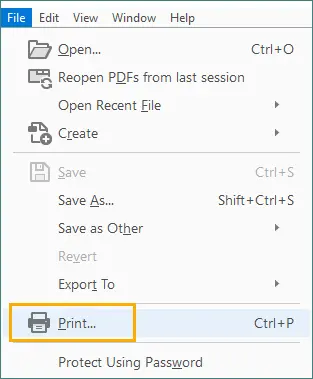
Go to File > Print.
-
Select Adobe PDF as the printer.

-
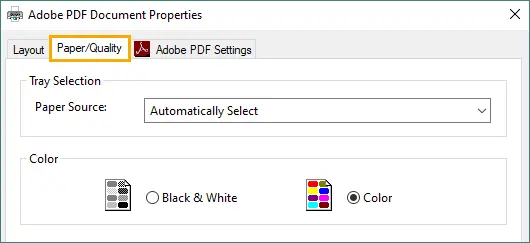
Click Properties and navigate to the Paper/Quality tab.
-
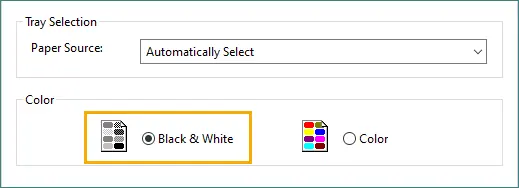
Select Black & White in the Color section, then click OK to apply.
-
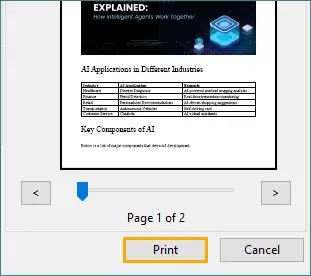
Click Print and save the newly generated grayscale PDF.
Why Choose This Method
- High-quality conversion
- Consistent grayscale output
Method 2. Using Microsoft Print to PDF (Windows)
Microsoft Print to PDF is a built-in Windows feature that lets you convert documents into PDF format from any printable application. With its simple print dialog and grayscale option, it provides an easy way to generate black-and-white PDFs without installing extra software. It’s ideal for quick conversions and everyday document tasks.
Steps
-
Open your PDF using Microsoft Edge, Google Chrome, or any viewer.
-
Press Ctrl + P to open the Print dialog.
-
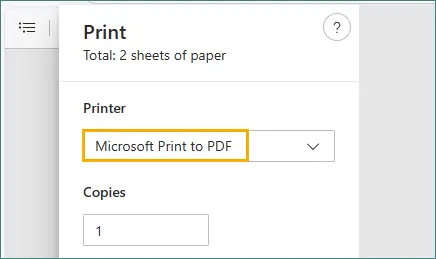
Choose Microsoft Print to PDF as the printer.
-
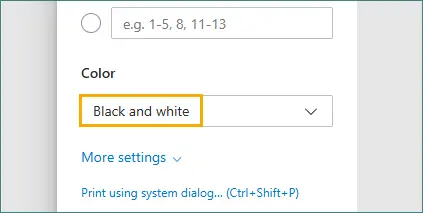
Look for Color and select Black and White option.
-
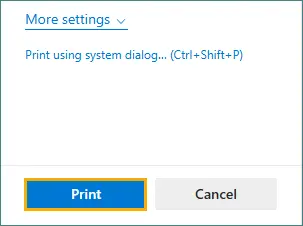
Click Print, then save the generated grayscale PDF.
Why Choose This Method
- No extra software needed
- Fast and simple
- Works for nearly all PDFs
Method 3. Using Preview on macOS
Preview is the default PDF and image viewer on macOS that includes powerful built-in export and color filtering features. Its Quartz Filters allow you to instantly convert any PDF to black and white with smooth shading and clear text. This makes it one of the fastest and most convenient options for Mac users.
Steps
-
Open the PDF in Preview.
-
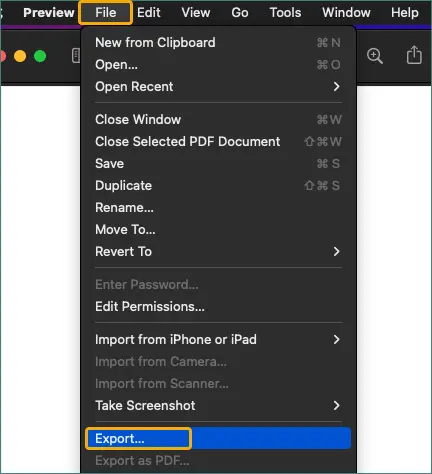
Click File > Export.
-
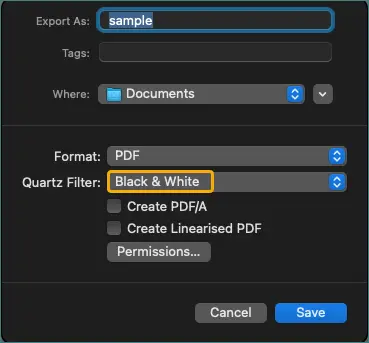
Under Quartz Filter, choose Black & White or Gray Tone.
-
Save the exported PDF to apply the filter.
Why Choose This Method
- Built into every Mac
- Easy and fast
- Produces clean monochrome output
Method 4. Using PDF Candy (Online Tool)
PDF Candy is a popular web-based PDF processing toolkit that offers a dedicated grayscale conversion feature accessible from any browser. The tool requires no installation and automatically handles the entire conversion process, making it perfect for quick, one-off tasks. Thanks to its clean interface and fast performance, it’s a great option for casual users on any device.
Steps
-
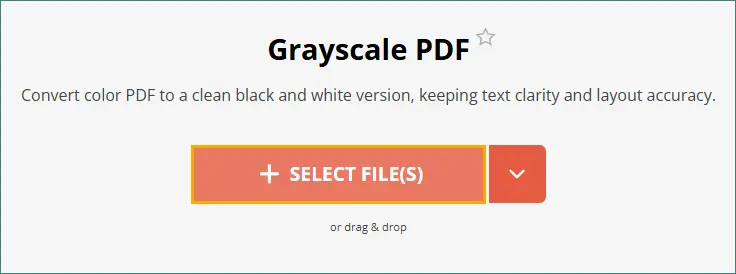
Visit the PDF Candy's Grayscale PDF Converter.
-
Upload your PDF file by dragging and dropping it into the designated area or selecting it from your device.
-
Click on the GRAYSCALE 1 File(s) button.

-
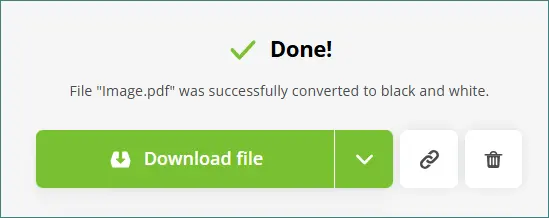
Download the newly converted black and white PDF.
Why Choose This Method
- Convenient and accessible anywhere
- No installation required
- Works on all platforms (Windows, macOS, mobile)
Note: Avoid uploading sensitive or confidential files to online tools.
Method 5. Using Spire.PDF for Python
Spire.PDF for Python is a professional PDF library that enables developers to programmatically process and convert PDF documents. Its grayscale conversion API ensures consistent output across all pages, making it suitable for automated or large-scale document workflows. This method is ideal for applications that require repeatable, accurate, and fully scripted PDF processing.
Steps
-
Install Spire.PDF for Python.
pip install spire.pdf -
Import the library and specify the input and output PDF file paths.
-
Use the PdfGrayConverter class to load the original PDF.
-
Call the ToGrayPdf method to generate the black-and-white PDF.
Code Example
from spire.pdf.common import *
from spire.pdf import *

# Specify the input and output PDF file paths
inputFile = "input.pdf"
outputFile = "output.pdf"

# Load the input document using the PdfGrayConverter class
converter = PdfGrayConverter(inputFile)

# Convert it to a black and white PDF
converter.ToGrayPdf(outputFile)
Read Further: Convert PDF to Grayscale or Linearized in Python
Why Choose This Method
- Ideal for automated or bulk conversion
- Highly customizable
- Produces consistent grayscale output across all pages
In addition to converting PDFs to black and white, Spire.PDF also supports advanced features such as converting PDF to PDF/A, exporting PDF to Word, extracting text and images, merging or splitting PDFs, and more.
Comparison: Which Method Should You Choose?
| Method | Best For | Ease of Use | Installation | Automation | Notes |
|---|---|---|---|---|---|
| Adobe Acrobat Pro | Professional printing, high quality | ★★★★★ | Required (Paid) | No | Most accurate grayscale results |
| Microsoft Print to PDF | Quick Windows conversions | ★★★★★ | Built-in | No | Quality depends on printer options |
| macOS Preview | Mac users | ★★★★★ | Built-in | No | Clean grayscale filters |
| PDF Candy (Online) | Occasional users | ★★★★★ | None | No | Avoid for confidential files |
| Spire.PDF + Python | Developers, batch automation | ★★★☆☆ | Python + Library | Yes | Fully automated, customizable |
Summary
Converting PDFs to black and white can be done easily using built-in tools, online services, or professional software.
- Choose Adobe Acrobat Pro for the highest quality.
- Use Microsoft Print to PDF or Preview for quick platform-built solutions.
- Select PDF Candy for instant online conversions.
- Pick Spire.PDF for Python if you need a programmable, scalable workflow.
No matter your environment, there’s a method that fits your needs.
FAQs
Q1. Will converting a PDF to black and white reduce file size?
Yes. Grayscale files are usually smaller because color data is removed.
Q2. Does grayscale reduce image quality?
Not the page clarity, but it removes color information. Text remains sharp.
Q3. Is it safe to use online tools?
For non-sensitive files, yes. Avoid uploading confidential documents.
Q4. Can I batch convert multiple PDFs?
Yes. PDF Candy and Spire.PDF for Python support batch processing.