Converting PDFs to TIFF images is a common requirement for printing, archival, and OCR workflows. While many tools can export TIFFs from PDFs, getting a multi-page TIFF at 300 DPI—the standard for print and high-quality scans—is not always straightforward.
In this guide, we’ll walk you through four practical methods, ranging from no-code solutions to an automated Python workflow. Each method is designed to address different needs, helping you choose the most efficient approach based on your workflow and technical level.
Overview of methods covered:
- Method 1 — Convert PDF to TIFF with Adobe Acrobat Pro
- Method 2 — Convert PDF to TIFF Online with CloudConvert
- Method 3 — Convert PDF to Multi-Page TIFF with Preview (Mac)
- Method 4 — Convert PDF to Multi-Page TIFF with Python (Spire.PDF)
Why 300 DPI and Multi-Page TIFF Matter
300 DPI ensures your images are sharp enough for:
- Printing at high quality
- OCR (Optical Character Recognition) accuracy
- Archival or legal documentation
Multi-page TIFF files are convenient for:
- Storing multi-page documents in a single file
- Compatibility with scanners, fax systems, and medical or legal imaging software
- Choosing the right method depends on whether you prioritize ease of use, image quality, or automation.
Method 1 — Convert PDF to TIFF with Adobe Acrobat Pro
Adobe Acrobat Pro is a widely used commercial tool that can export PDF pages as TIFF images quickly. You can set the resolution to 300 DPI, ensuring high-quality output suitable for print or OCR tasks.
However, Acrobat exports each page as a separate TIFF file, so multi-page TIFFs are not supported directly. This method is ideal if you already have Acrobat and want a fast, high-quality export, but you may need an additional step to merge the pages.
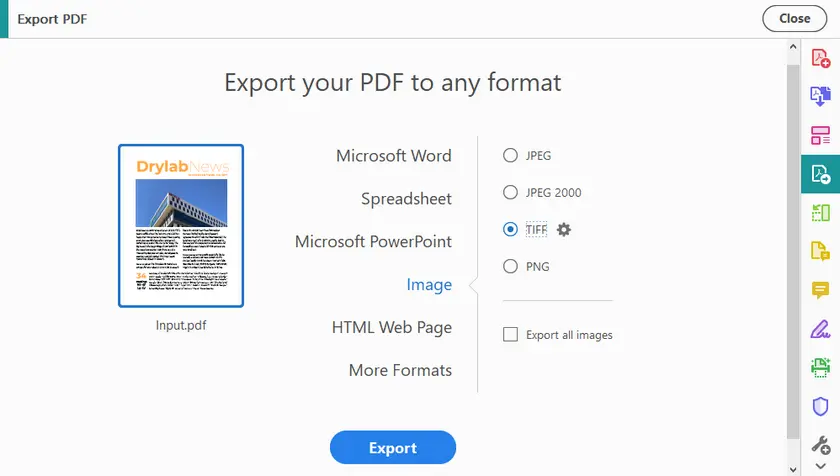
Steps to Export PDF to TIFF Using Adobe
- Launch Adobe Acrobat Pro and open your PDF file.
- Go to Tools and select Export PDF.
- Choose Image and then select TIFF as the output file format.
- Click the Gear icon next to TIFF, and set the Resolution to 300 pixels/inch.
- Click Export, choose the file location, and save your TIFF images.
Note:
- Acrobat exports one TIFF per page.
- If you need a multi-page TIFF, you’ll have to merge the individual TIFF files afterward (see solution in Method 2).
Method 2 — Convert PDF to TIFF Online with CloudConvert
CloudConvert is a versatile online converter that allows you to set the DPI to 300 for high-quality output. It is accessible from any browser, requires no installation, and works on all major platforms.
The tool exports each page as a separate TIFF image, so if you need a single multi-page TIFF, you will need to merge the files afterward. Despite this, CloudConvert is an excellent solution for users who want easy, high-resolution conversion without touching code.
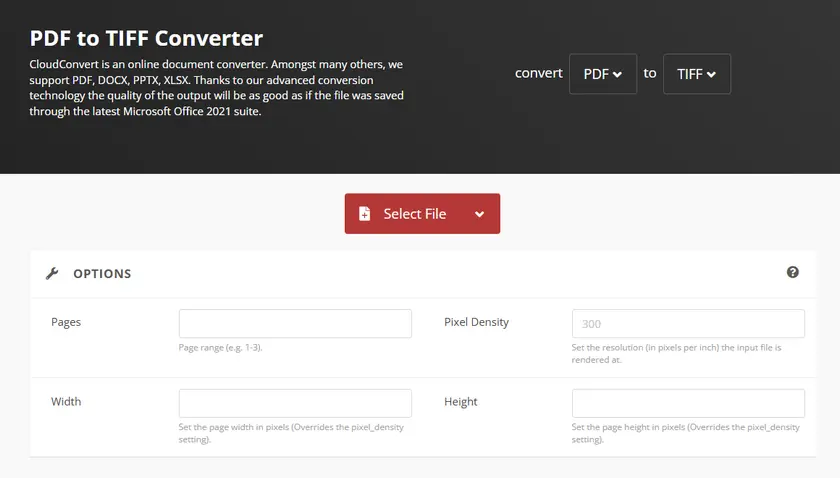
Steps to Convert PDF to TIFF Online
- Go to the CloudConvert PDF to TIFF converter in your web browser.
- Click Select File to upload your PDF from your device.
- Set Pixels Density to 300 in the Options section.
- Click the Convert button, then download your TIFF file once the conversion is complete.
Note:
- Each page is exported as a separate TIFF image.
Combine into Multi-Page TIFF (Optional)
If you want a single multi-page TIFF:
- Windows: Use IrfanView
- Open IrfanView, then choose File → Thumbnails.
- In the Thumbnails window, navigate to the folder with your TIFF images.
- Select the images you want to merge (Shift/Ctrl + click).
- Right-click any selected image → choose "Start Multipage-TIF dialog with selected files".
- In the dialog, set output folder and filename → click Create TIF Image.
- Online: Use any free online TIFF merger to combine pages
This step ensures you get both 300 DPI quality and multi-page TIFF without coding.
Method 3 — Convert PDF to Multi-Page TIFF with Preview (Mac)
Mac users can take advantage of the built-in Preview app, which supports exporting PDFs to multi-page TIFF directly. You can set the resolution to 300 pixels/inch to ensure print-quality output.
This method is simple, reliable, and requires no additional tools or installations. Preview is especially convenient for users who want a one-step solution for both DPI and multi-page output.
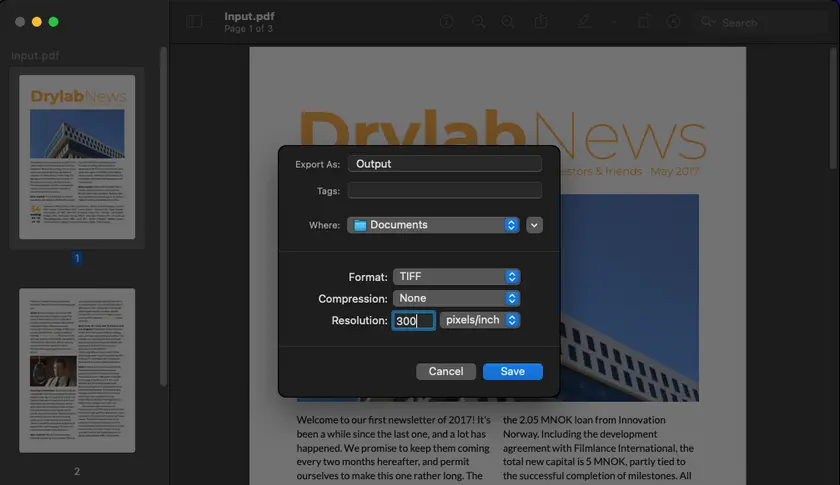
Steps to Convert PDF to TIFF Using Preview
- Open your PDF file with Preview.
- Click File in the top menu and select Export.
- Choose TIFF from the Format dropdown menu.
- Specify the output file name and select your desired file location.
- Set the Resolution to 300 pixels/inch.
- Click Save to finish the process.
This is a one-step solution for Mac users, combining ease-of-use with full control over DPI and multi-page output.
Method 4 — Convert PDF to Multi-Page TIFF with Python (Spire.PDF)
Python with Spire.PDF provides an automated way to convert PDFs to multi-page TIFFs at any DPI, making it ideal for batch processing or repetitive tasks. The workflow uses PIL (Python Imaging Library) to generate a single multi-page TIFF from all PDF pages in one go.
This method gives full control over resolution, output format, and automation, which is perfect for developers or users working with large volumes of files. Below is a ready-to-use code snippet demonstrating the process:
Install Required Libraries
Before running the code, install the necessary Python packages:
pip install spire.pdf pillow
- Spire.PDF for Python: Handles loading, reading, and converting PDF files. It provides methods to render each page as an image at the specified DPI.
- Pillow (PIL): A Python imaging library used to process and save images, including combining multiple pages into a single multi-page TIFF.
Python Code to Convert PDF to TIFF
from spire.pdf.common import *
from spire.pdf import *

from PIL import Image
from io import BytesIO

# Create a PdfDocument object
doc = PdfDocument()

# Load a PDF document
doc.LoadFromFile("Input.pdf")

# Create an empty list to store PIL Images
images = []

# Iterate through all pages in the document
for i in range(doc.Pages.Count):

    # Convert a specific page to an image stream
    with doc.SaveAsImage(i, 300, 300) as imageData:

        # Open the image stream as a PIL image
        img = Image.open(BytesIO(imageData.ToArray()))

        # Append the PIL image to list
        images.append(img)

# Save the PIL Images as a multi-page TIFF file
images[0].save("Output/ToTIFF.tiff", save_all=True, append_images=images[1:])

# Dispose resources
doc.Dispose()
How it works:
- Load the PDF into a PdfDocument object using Spire.PDF.
- Iterate through each page in the PDF and convert it into an image stream at 300 DPI.
- Open the image stream with PIL, creating a PIL Image object for each page.
- Store all images in a list and use PIL to save them as a single multi-page TIFF.
This approach gives you full control over DPI, produces a multi-page TIFF directly, and is ideal for automation and batch workflows.
Output:
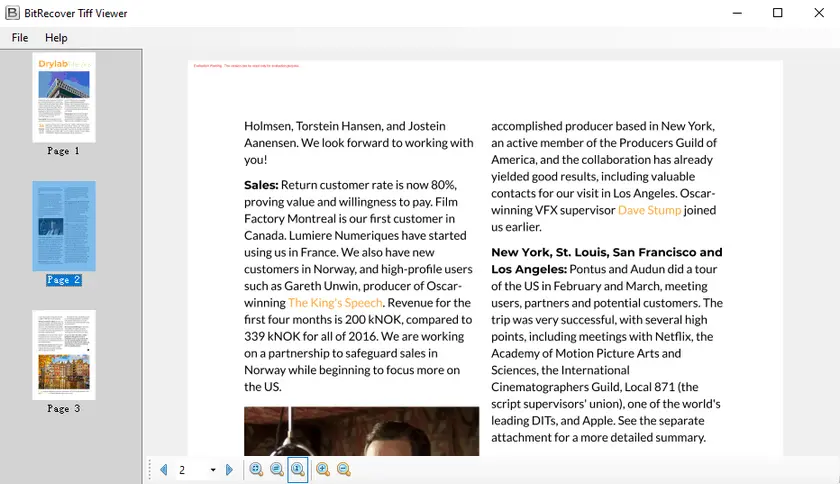
You May Also Like: Convert PDF to TIFF and TIFF to PDF Using Python
PDF to TIFF Conversion Methods Comparison
| Method | Platform | Multi-Page TIFF | 300 DPI | Ease of Use | Automation / Batch Support | Cost | Ease of Merging |
|---|---|---|---|---|---|---|---|
| Adobe Acrobat Pro | Windows / Mac | ✘ (one per page) | ✔ | ★★★★☆ | ✘ | Paid | Medium (requires extra step) |
| CloudConvert | Web / Any | ✘ (one per page) | ✔ | ★★★★★ | ✘ | Free / Paid plan | Easy (via IrfanView or online tool) |
| Preview (Mac) | Mac | ✔ | ✔ | ★★★★★ | ✘ | Free (built-in) | Built-in (one-step) |
| Python + Spire.PDF | Windows / Mac / Linux | ✔ | ✔ | ★★★☆☆ | ✔ | Paid (Spire.PDF library) | Built-in (one-step) |
Conclusion
Converting PDFs to multi-page TIFFs at 300 DPI can be straightforward when you pick the right method for your workflow. Preview on Mac provides a simple, one-step solution, while Adobe Acrobat Pro and online converters such as CloudConvert offer high-quality, 300 DPI exports but produce one file per page, requiring an additional merging step.
For users needing automation or batch processing, Python with Spire.PDF offers full control over resolution and multi-page output, making it ideal for larger workflows. By understanding the strengths and limitations of each method, you can reliably produce high-quality TIFFs that meet both professional and archival standards.
FAQs
Q1: How can I merge single-page TIFFs into one multi-page TIFF?
Use IrfanView (Windows) or any online TIFF merger tool.
Q2: Is 300 pixels/inch the same as 300 DPI?
Yes. In PDF-to-image conversion, 300 PPI effectively equals 300 DPI, ensuring high-quality output for printing and OCR.
Q3: Can Python generate multi-page TIFFs directly?
Yes. Using Spire.PDF with Python, you can generate multi-page TIFFs at 300 DPI in a single step, perfect for batch processing.
Q4. Why are my converted TIFF files too large?
TIFF files at 300 DPI are large because they store high-resolution image data with minimal compression. To reduce file size, you can use compression options like LZW or ZIP (if supported), or lower the DPI if high resolution is not required.