PDF files are widely used for sharing documents because they preserve layout and formatting across devices. However, some PDFs include security permissions that prevent users from copying text. When you try to select or copy content from these files, you may see that copying is disabled.
This type of file is often called a secured, protected, or restricted PDF. Unlike password-protected PDFs that block opening the file, these documents can still be viewed normally—but certain actions such as copying text are restricted.
Fortunately, there are several free and practical workarounds that allow you to extract or copy text from protected PDFs. In this guide, we’ll explore five easy methods, including online tools, built-in system features, and a Python automation approach.
Quick Navigation
- Method 1 — Copy Text from a Secured PDF Using Google Docs
- Method 2 — Convert a Restricted PDF to TXT Online
- Method 3 — Screenshot + OCR to Extract Text
- Method 4 — Print a Copy-Protected PDF to a New PDF
- Method 5 — Extract Text from a Secured PDF Using Python
Why Can't You Copy Text from Some PDFs?
Many PDF creators apply permission restrictions to control how the document can be used. These permissions are set in the PDF’s security settings and may disable actions such as:
- Copying text
- Editing the document
- Printing the file
- Adding annotations
This is often referred to as copy protection or content restriction. While the document remains readable, the PDF viewer prevents text selection or copying.
These restrictions are typically used to protect intellectual property or prevent unauthorized reuse of content. However, when you legitimately need to reuse text—for example, for research, documentation, or accessibility purposes—you may need alternative ways to extract the content.
Below are five methods that can help.
Method 1 — Copy Text from a Secured PDF Using Google Docs
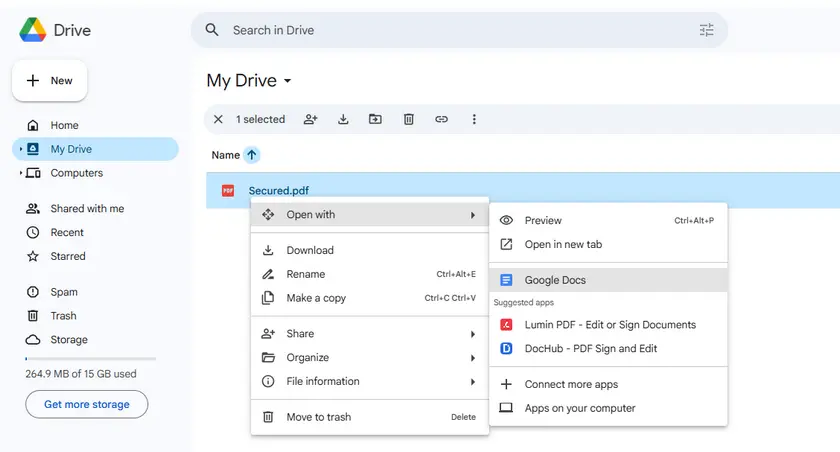
One of the simplest ways to copy text from a protected PDF is to open it with Google Docs. When a PDF is uploaded to Google Drive and opened in Google Docs, the service automatically converts the file into an editable document.
During this conversion process, the content of the PDF is reinterpreted as text and paragraphs, which often bypasses basic copy restrictions. After the conversion is complete, you can easily select and copy the text just like in a normal document.
Steps
- Open Google Drive.
- Upload the protected PDF.
- Right-click the file and select Open with → Google Docs.
- Google Docs will convert the PDF into an editable document.
- Copy the extracted text from the document.
Pros
- Free and easy to use.
- No software installation required.
- Works well with text-based documents.
Limitations
- Scanned/image-based PDFs won’t convert to text (no OCR).
- Formatting can get messy with complex layouts.
- Requires a Google account and internet connection.
Method 2 — Convert a Restricted PDF to TXT Online
Another quick solution is to convert the restricted PDF into a plain text file using an online converter. Once the document is converted to TXT format, the text becomes fully editable and can be copied without restrictions.
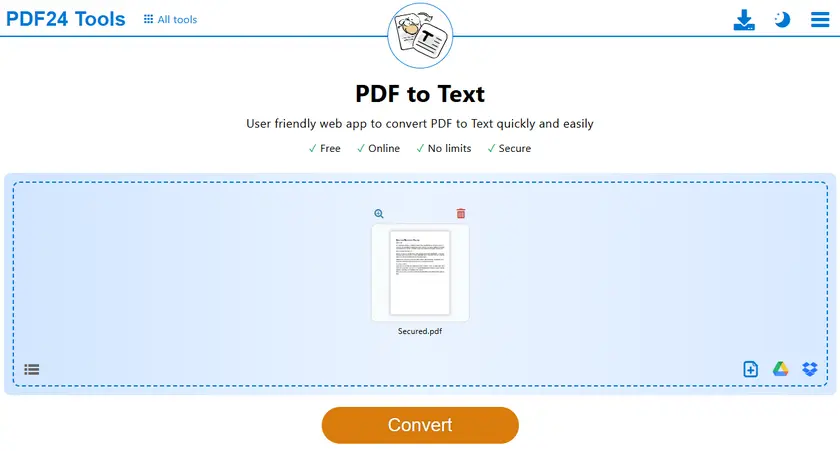
A convenient free tool for this purpose is PDF24 Tools, which provides a browser-based PDF to TXT converter. This method works well when you need to extract text quickly without installing additional software.
Steps
- Open the PDF-to-TXT tool.
- Upload your protected PDF file.
- Start the conversion process.
- Download the generated TXT file.
- Open the TXT file and copy the text freely.
Pros
- Quick and simple workflow.
- No installation required.
Limitations
- Privacy risk — sensitive documents are uploaded to third-party servers.
- Often limited to a few free conversions per day.
- No OCR support in most free tools (image-based PDFs won’t work).
Method 3 — Screenshot + OCR to Extract Text
If the PDF has strong copy restrictions or contains scanned pages, OCR (Optical Character Recognition) can still retrieve the visible text. OCR technology analyzes the image of the document and converts detected characters into editable text.
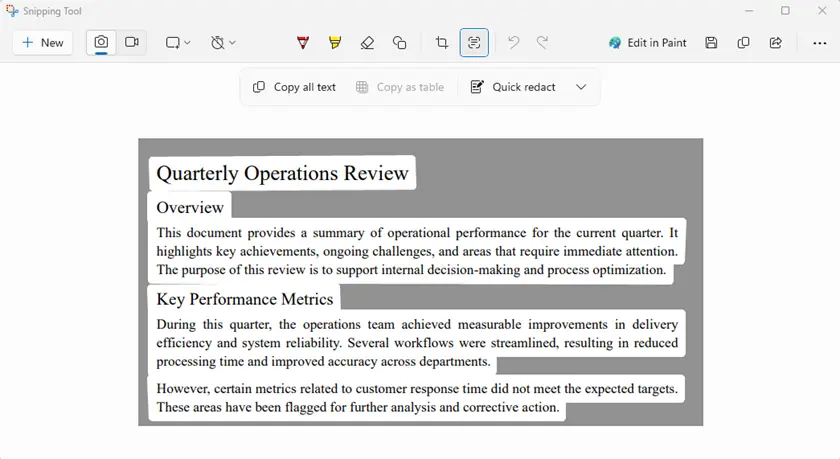
Windows 11 includes a built-in OCR feature in Snipping Tool, allowing you to capture part of the screen and instantly extract the text from the image.
Steps
- Open the protected PDF on your screen.
- Launch Snipping Tool.
- Capture the area containing the text.
- Use Text Actions → Copy all text.
- Paste the extracted text into a document.
Pros
- Bypasses almost all copy protection since it captures the screen.
- Works with scanned/image-based PDFs.
Limitations
- Time-consuming if there are many pages.
- OCR errors — accuracy depends on image quality and font.
- Manual process unless automated with scripts.
Method 4 — Print a Copy-Protected PDF to a New PDF
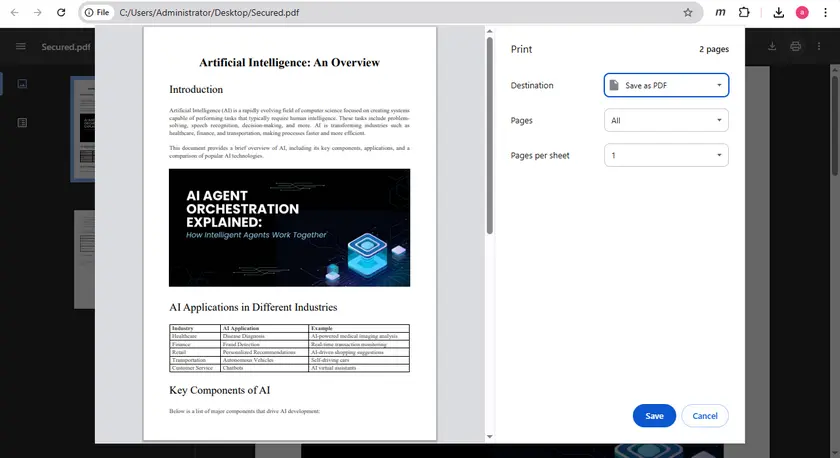
Some protected PDFs block copying but still allow printing. In such cases, you can print the document to a new PDF file, which may remove the copy restriction.
This can be done easily using the built-in print feature in Google Chrome. After saving the printed version of the file, the new PDF may allow normal text selection and copying.
Steps
- Open the PDF in Google Chrome.
- Press Ctrl + P to open the print dialog.
- Set the destination to Save as PDF.
- Save the newly generated PDF.
- Open the new file and try copying the text.
Pros
- Simple workaround.
- No additional tools required.
Limitations
- If printing is disabled in the PDF permissions, this won’t work.
- Some formatting differences may appear.
Method 5 — Extract Text from a Secured PDF Using Python
For developers or users who need to process multiple documents, extracting text programmatically can be the most efficient solution. Instead of manually copying content, a script can automatically read the PDF structure and retrieve text from each page.
Using Free Spire.PDF for Python, you can easily extract text from PDF documents with just a few lines of code. This approach is particularly useful for automation, batch processing, or building document processing workflows.
If you are working with small documents (within 10 pages per document) or testing extraction workflows, the free version works well. For larger files, you can either split the document first or use the full version.
Install the library
pip install spire.pdf.free
Example: Extract Text from Each Page
from spire.pdf import *

# Create a PdfDocument object
doc = PdfDocument()

# Load a PDF document
doc.LoadFromFile("Secured.pdf")

# Iterate through the pages in the document
for i in range(doc.Pages.Count):

    # Get a specific page
    page = doc.Pages[i]

    # Create a PdfTextExtractor object
    textExtractor = PdfTextExtractor(page)

    # Create a PdfTextExtractOptions object
    extractOptions = PdfTextExtractOptions()

    # Set IsExtractAllText to True
    extractOptions.IsExtractAllText = True

    # Extract text from the page keeping white spaces
    text = textExtractor.ExtractText(extractOptions)

    # Write text to a txt file
    with open('output/TextOfPage-{}.txt'.format(i + 1), 'w', encoding='utf-8') as file:
        lines = text.split("\n")
        for line in lines:
            if line != '':
                file.write(line)
doc.Close()
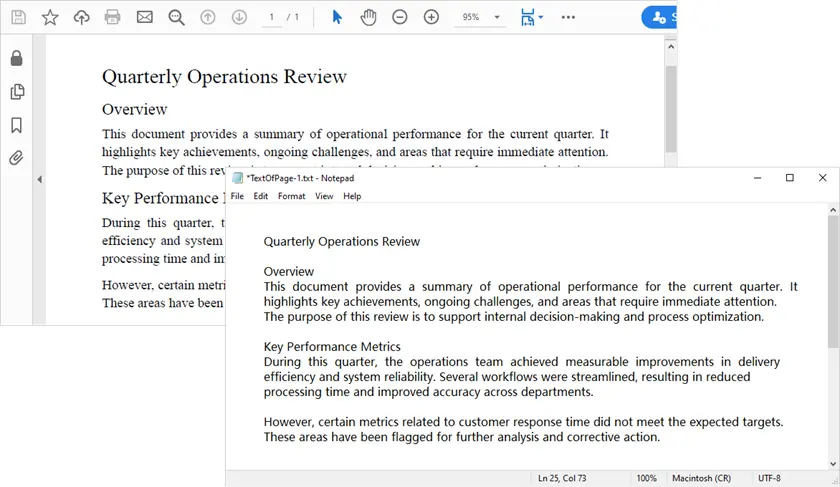
What This Script Does
- Loads the PDF document.
- Iterates through each page.
- Extracts text while preserving whitespace.
- Saves the extracted text to TXT files.
Pros
- Full control over the extraction process.
- Can be automated for batch processing.
- Works well with text-based PDFs.
Limitations
- Requires programming knowledge.
- Cannot handle image-based PDFs unless an additional OCR library is used.
You May Also Like: Perform PDF OCR with Python (Extract Text from Scanned PDF)
Comparison Table: Which Method Should You Choose?
| Method | Skill Level | Ease of Use | Best For | Works with Scanned PDFs | Works Under Strong Restrictions | Batch Processing |
|---|---|---|---|---|---|---|
| Google Docs | Beginner | Very Easy | Quick extraction in browser | No | Yes | No |
| Online Converter | Beginner | Very Easy | Fast TXT conversion | No | Yes | No |
| Screenshot + OCR | Beginner | Easy | Scanned or image-based PDFs | Yes | Yes | No |
| Print to PDF | Beginner | Easy | Removing simple restrictions | No | Conditional (Printing must be allowed) | No |
| Python (Spire.PDF) | Developer | Moderate | Automation & batch workflows | Relies on extra OCR libraries | Yes | Yes |
Conclusion
Copy restrictions in PDFs can be frustrating, especially when you only need to reuse a portion of text. Fortunately, several free methods can help extract content from protected PDFs.
For quick tasks, tools like Google Docs or online converters may be the easiest solution. If the document contains scanned content or strict restrictions, OCR-based methods can still recover the text. For large-scale workflows or automation scenarios, using Python libraries such as Free Spire.PDF for Python provides a powerful and flexible approach.
By choosing the method that best fits your needs, you can efficiently retrieve text from restricted PDFs while maintaining an efficient workflow.
FAQs (Frequently Asked Questions)
Q1: What is a secured or restricted PDF?
A protected or restricted PDF is a document that can be opened and viewed normally but has security settings that prevent copying, printing, or editing its content. These permissions are set by the document owner.
Q2: Can I copy text from all secured PDFs?
Not always. Some PDFs have strong encryption or DRM that prevents copying entirely. In such cases, OCR tools or professional libraries may be required.
Q3: Which method is best for scanned PDFs?
For scanned PDFs, screenshot + OCR extraction or Python automation with OCR libraries is usually the most reliable way to retrieve text.
Q4: Can I automate text extraction for multiple PDFs?
Yes. Using Python libraries like Spire.PDF, you can extract text from multiple PDF files automatically, making it ideal for batch processing or workflow automation.
Q5: Do I need to pay for any of these methods?
All methods listed in the article are free to use. However, some tools (like Spire.PDF) have free versions with limitations, such as a page count restriction. For larger files, you may need the full version.