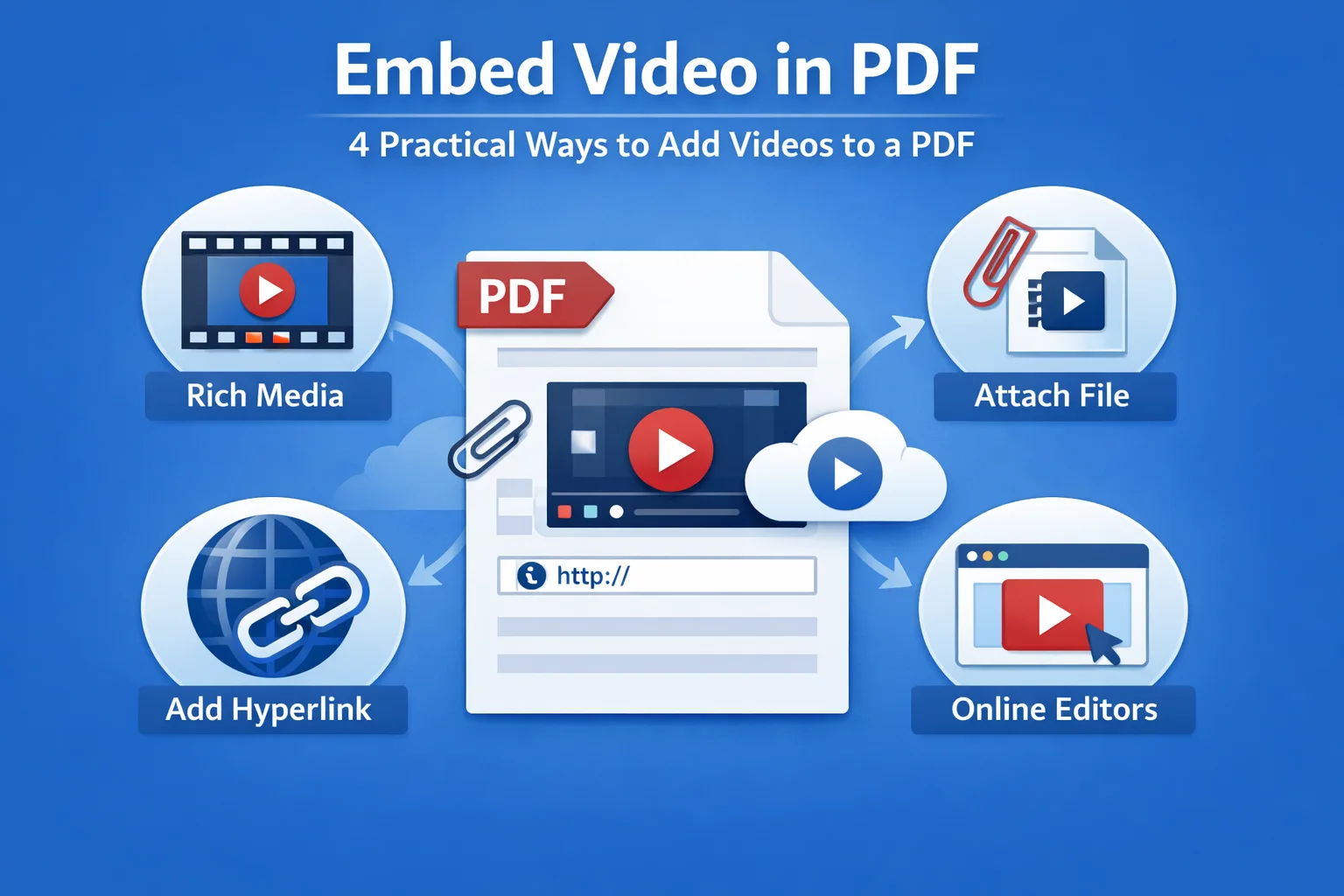
Can you embed a video in a PDF? The answer is yes, you can. Even though PDF documents are not designed for multimedia, there are several ways to add videos to a PDF. In this guide, we'll walk you through 4 practical approaches to embed video in PDF documents, explain how they work and the tools involved. Let's find the best method for you today!
- Understanding How Video Works in a PDF Document
- Approach 1 – Embed Video as Rich Media
- Approach 2 – Attach Video Files to a PDF
- Approach 3 – Add Video via Hyperlinks
- Approach 4 – Online Editors
- Comparison Table of 4 Methods
- FAQs
Understanding How Video Works in a PDF Document
Before looking at specific approaches, it helps to understand a key limitation: PDF is not a video-oriented format. When you embed a video in a PDF file, it's either storing the video inside the file, adding it as an attachment, or linking to a video stored locally or hosted on platforms like YouTube.
These differences matter because they directly affect whether a video can play offline, how large the PDF file becomes, and how consistently the document works across different PDF readers. With these considerations in mind, let’s take a closer look at the main approaches to embedding video in a PDF.
Approach 1 – Embed Video as Rich Media (True Embedded Video)
This is the closest approach to video embedding in a PDF. The Rich Media feature uses special PDF annotations that allow a video to be stored inside the document and played directly on the page.
From a technical perspective, it relies on PDF Rich Media Annotations, where the video file is embedded as part of the PDF structure. When it works as expected, the video will appear inline and can even be played offline.
However, this approach comes with an important caveat. Rich media support depends heavily on the PDF reader being used. In practice, you may encounter a situation where a video embedded with Adobe Acrobat plays perfectly in Adobe Acrobat or Adobe Reader but fails to play or does not appear at all when the same PDF is opened in other PDF viewers. For this reason, rich media is best suited for scenarios where the viewing environment is known in advance and Adobe-compatible readers are guaranteed.
Typical steps (Adobe Acrobat Pro):
- Open the PDF file in Adobe Acrobat Pro.
- Go to the Tools panel and locate Rich Media.
- Click Add Video, then drag to define the area on the page where the video should appear.
- Choose a local video file or enter a video URL, and click OK to confirm.
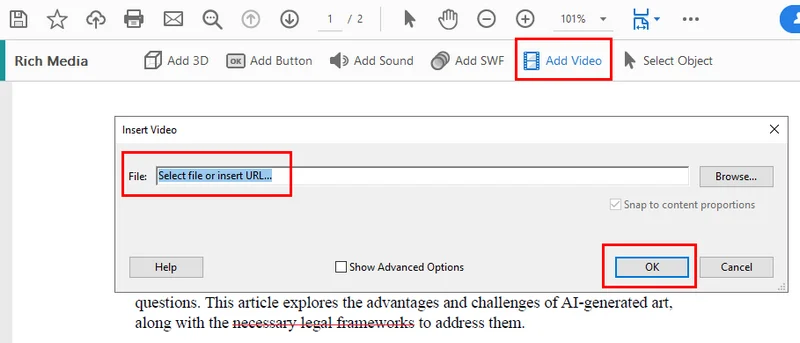
Tools that support this approach:
- Adobe Acrobat Pro
Pros and cons:
- Video is stored inside the PDF and can play offline.
- Limited compatibility and reliance on specific PDF readers.
Approach 2 – Attach Video Files to a PDF
Another way to embed a video in a PDF document is by adding it as an attachment. In this approach, the video file is stored inside the PDF package but is not displayed directly on the page.
The video appears as an attached file that users can open manually. While this feels less interactive, it offers much broader compatibility across different PDF readers and avoids many of the limitations associated with rich media playback.
Using Adobe Acrobat
Adobe Acrobat allows you to attach video files to a PDF as embedded files. The attached video can be accessed through the attachments panel or a file icon placed on the page.
Typical steps:
- Open the PDF file in Adobe Acrobat. Go to the Tools panel or the right-hand sidebar and select Comment.
- In the top toolbar, click Attach File (Add a new attachment).
- Click on the page to choose where the attachment icon should appear, then select the video file.
- Customize the attachment settings if needed, and click OK to finish adding the video file.
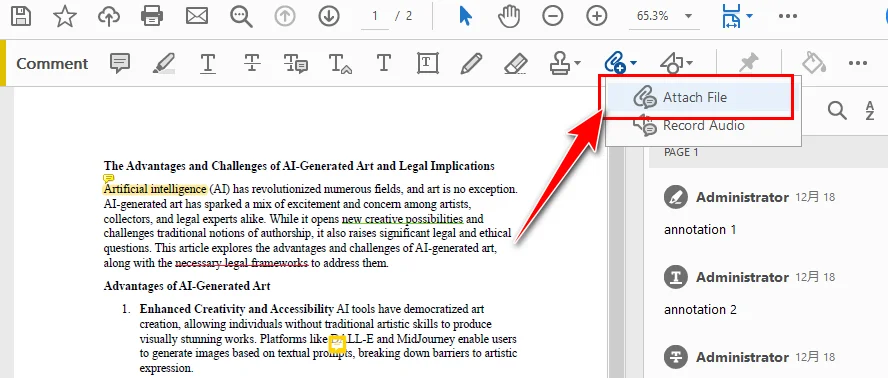
This method is commonly used when all related materials must be delivered together in a single, self-contained document.
Using Free Spire.PDF
With Free Spire.PDF, you can embed videos on a PDF as attachments in a programming way. This PDF library helps developers to add attachments to PDF documents automatically. The following example uses Python, but the overall workflow is similar in Java and C#.
Typical steps:
- Install Free Spire.PDF in your Python environment. And import the required modules.
- Load the existing PDF document and prepare the video file to be attached.
- Add the video file to the PDF as an embedded attachment.
- Save the updated PDF document.

Here's the complete code you can follow:
from spire.pdf import *
from spire.pdf.common import *

# Create a PdfDocument object
doc = PdfDocument()

# Load a sample PDF file
doc.LoadFromFile("\\Input.pdf")

# Create PdfAttachment objects based on external files
attachment = PdfAttachment("\\sample.mp4")

# Add the attachments to PDF
doc.Attachments.Add(attachment)

# Save to file
doc.SaveToFile("\\Attachment.pdf")
This approach works well in automated or programmatic workflows, especially when generating PDFs in bulk or integrating video files as supporting materials.
Use cases:
- Legal documents that require all supporting files to be bundled together.
- Technical deliveries or project handovers.
- Scenarios where file completeness is more important than inline playback.
Overall, attaching video files to a PDF strikes a balance between reliability and simplicity. It may not provide the smoothest viewing experience, but it remains a dependable option for professional environments.
Approach 3 – Add Video via Hyperlinks (Most Compatible)
Embedding a video in a PDF using hyperlinks is the most common and direct way. Technically speaking, the video is not embedded in the PDF. Instead, the document contains a clickable link that points to the video file.
In practice, this is what most people mean when they ask how to embed a video in a PDF. It works in almost every PDF reader while keeping the PDF file sizes small and avoiding many security issues.
The video content can be hosted on:
- YouTube or other online video platforms.
- A local video file on the user’s device.
- Cloud storage services.
Using Adobe Acrobat
Adobe Acrobat allows you to add hyperlinks to text, images, or specific areas of a page. When a reader clicks the link, the video opens in the default browser or media player.
Typical steps:
- Open the PDF document in Adobe Acrobat.
- Right-click on the text, image, or area where you want to place the video link, and select Create Link.
- Set the Link Action to Open a file (for a local video file) or Open a web page (for an online video).
- Click Next, then choose the video file or enter the video URL.

This method is simple and reliable, making it a common choice for instructional documents and online-ready PDFs.
Using Free Spire.PDF
Free Spire.PDF allows you to add hyperlinks to PDF as well. While the implementation is done through code, you don't have to worry about manual errors.
Typical steps:
- Load the existing PDF document.
- Locate the target text using a text search method and define it as the link area.
- Set the hyperlink target to a video URL or a local video file.
- Save the updated PDF document.
Here's the code example you can follow:
from spire.pdf.common import *
from spire.pdf import *

# Create a PdfDocument instance
pdf = PdfDocument()

# Load a PDF file
pdf.LoadFromFile("input.pdf")

# Get the first page
page = pdf.Pages.get_Item(0)

# Find all occurrences of the specified text on the page
collection = page.FindText("Christmas Songs", TextFindParameter.IgnoreCase)

# Loop through all occurrences of the specified text
for find in collection.Finds:
    # Create a hyperlink annotation
    uri = PdfUriAnnotation(find.Bounds)
    # Set the URL of the hyperlink
    uri.Uri = "https://youtu.be/ombP9z_ir8c?si=Wq2U-HWeSyJQda-0"
    # Set the border of the hyperlink annotation
    uri.Border = PdfAnnotationBorder(1.0)
    # Set the color of the border
    uri.Color = PdfRGBColor(Color.get_Blue())
    # Add the hyperlink annotation to the page
    page.AnnotationsWidget.Add(uri)

#Save the result file
pdf.SaveToFile("SearchTextAndAddHyperlink.pdf")
pdf.Close()
This method is especially useful in automated workflows where PDFs are generated or modified in batches.
Why this is the most common method:
- Simple and easy to implement.
- Best compatibility across devices and PDF readers.
- Minimal impact on PDF file size.
- Lower security and stability risks.
For most business, educational, and documentation scenarios, adding videos via hyperlinks is the safest and most practical solution.
Approach 4 – Online Editors: Convenience over Control
We discuss online PDF editors in a separate section, not because they introduce a new embedding method, but because they provide a distinct usage scenario. They allow you to upload a PDF, insert video link online without installing third-party applications.
Typical steps (online PDF editors, e.g. Smallpdf):
- Upload the PDF file to the online editor.
- Insert a thumbnail image to represent the video.
- Add a clickable link to the video URL (on the image or as nearby text).
- Download and test the updated PDF.
Advantages and risks:
- No installation required.
- Potential privacy and compliance concerns.
- Limited file size and feature control.
Online tools are suitable for lightweight, non-sensitive tasks but are usually not ideal for enterprise or long-term workflows.
Comparison: Which Approach Should You Choose?
| Approach | Offline Playback | File Size | Compatibility | Best Tools |
|---|---|---|---|---|
| Rich Media | Yes | Large | Low | Adobe Acrobat Pro |
| Attachment | Yes | Large | Medium | Adobe Acrobat, Spire.PDF |
| Hyperlink | No | Small | High | Adobe Acrobat, Spire.PDF |
| Online Editors | No | Small | High | Web-based PDF tools |
Each method serves a different purpose. If offline playback is required, rich media may be an option. If reliability and readability matter most, hyperlinks are usually the better choice.
Conclusion
Embedding videos in PDFs is less about finding a single perfect method and more about understanding the trade-offs of each approach. Once you align the technique with your audience and distribution scenario, choosing the right solution becomes much easier.
FAQ: Embedding Videos in PDF Documents
Q1: Can you embed a video in a PDF document and play it offline?
Yes, but only when the video is added as rich media or as an attached file. Hyperlinks can point to local video files, but offline playback usually fails on other devices because the linked file is not available.
Q2: Why doesn’t my embedded video play in some PDF readers?
Many PDF readers restrict or completely block rich media features for security reasons. As a result, embedded videos may only work reliably in Adobe Acrobat and a few compatible viewers.
Q3: Can PDFs support videos or animated content like GIFs?
Yes. PDFs can support videos through rich media, file attachments, or hyperlinks, and GIFs can be inserted as images. However, support varies depending on the PDF reader and platform.