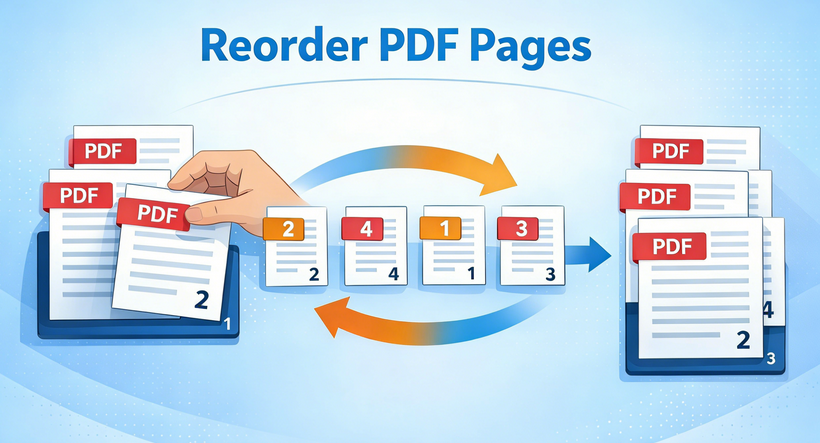
Have you ever downloaded a PDF only to find the pages are completely out of order? Perhaps you scanned documents without realizing the sequence was wrong, or you need to extract specific pages from multiple PDFs into a new document. Rearranging PDF pages is a common but often frustrating task that professionals, students, and everyday users encounter regularly.
In this comprehensive guide, we'll explore multiple methods to reorder PDF pages—from simple online tools to powerful Python automation. Whether you need a quick fix or want to implement programmatic solutions, you'll find the right approach here.
- Why You Might Need to Rearrange PDF Pages
- Reorder PDF Pages Free Online Tools
- Desktop PDF Page Order Editor Tools
- Python Automation Method for Bulk PDF Reordering
- Best Practices for Reordering PDF Pages
- FAQs About Organizing PDF Pages
Why You Might Need to Rearrange PDF Pages
PDFs have become the universal standard for sharing documents while preserving formatting, but they lack the flexibility of editable formats. The ability to reorder pages of PDF files is essential for:
- Reports and presentations needing logical flow adjustments
- Scanned documents where pages were accidentally shuffled
- Academic papers requiring reorganization of chapters or appendices
- Business documents needing executive summaries moved to the front
- Creating custom PDFs by combining pages from multiple sources
Reorder PDF Pages Free Online Tools
Online tools are perfect if you don’t want to download software and only need to change order of pages in PDF occasionally. Most are free, user-friendly, and work on any device with a browser—no technical skills required.
Top Pick: iLovePDF (Organize PDF)
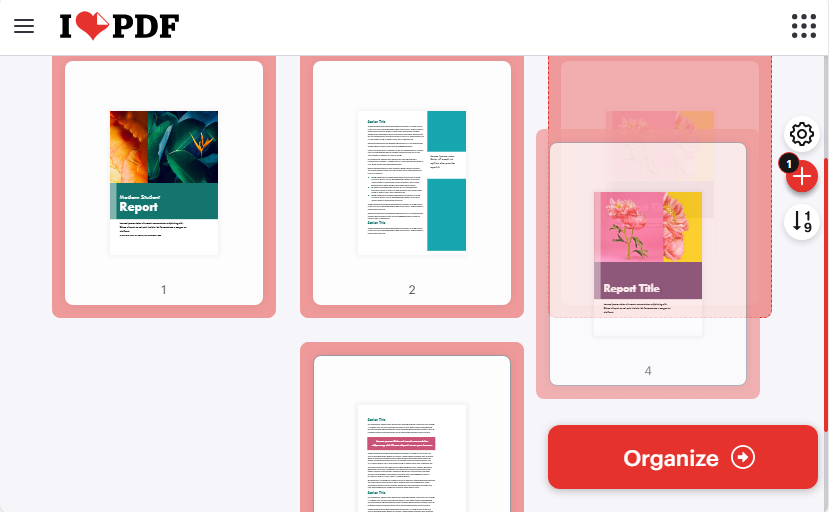
ILovePDF is one of the most popular free online PDF tools, with a dedicated “Organize PDF” feature designed specifically for reordering, deleting, or rotating pages. It supports batch processing (a rare free feature) and cloud storage integration.
Steps to reorder PDF pages online with iLovePDF:
- Visit the iLovePDF Organize PDF tool.
- Upload your PDF(s) from your device, Google Drive, Dropbox, or URL.
- Use the drag-and-drop interface to rearrange pages. (You can also rotate pages or delete unwanted ones if needed.)
- After reordering, click "Organize" and download the reordered PDF file.
Alternative Online Tools:
- PDF Candy: User-friendly interface; lets you save output to cloud storage directly.
- Sejda: A privacy-focused alternative; great pick for sensitive documents or large PDFs.
Related Article: How to Extract Pages from a PDF for Free — No Adobe Needed
Desktop PDF Page Order Editor Tools
For frequent PDF editing, sensitive documents (e.g., legal contracts, medical records), or offline use, desktop tools are superior - all processing happens locally on your device to ensure maximum data security.
Top Pick: PDF24 Creator (Free, Offline & Portable)
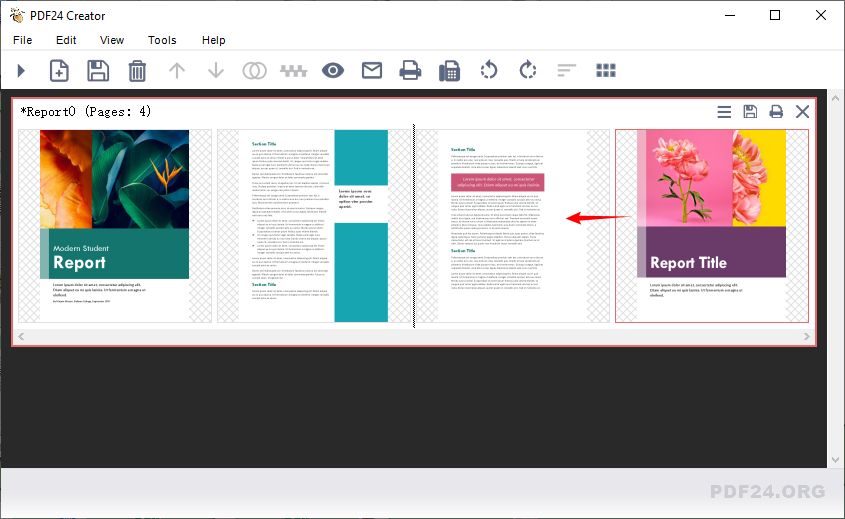
PDF24 Creator is a 100% free, ad-free desktop tool that excels at reordering PDF pages and offers a full suite of PDF editing features (merging, splitting, rotating, etc.). It works offline and is compatible with Windows (7/8/10/11).
Steps to rearrange PDF pages with PDF24 Creator:
- Download PDF24 Creator and launch it.
- Open the PDF24 Toolbox and click “Organize PDFs”.
- Import your PDF file by clicking "File > Open" or dragging and dropping it into the interface.
- To reorder pages, simply click and drag any page to your desired position.
- Once you’re satisfied with the new order, click "Save" to export your organized PDF file.
Other Desktop Options:
- Preview (Mac): Built-in, no install needed. Use thumbnail view to drag pages.
- Adobe Acrobat Pro (Paid): A premium subscription-based tool for power users and businesses needing advanced PDF workflow automation.
Pro Tip: After reordering, you can add page numbers to make the PDF document more navigable for readers.
Python Automation Method for Bulk PDF Reordering
If you need to automate batch PDF reordering (e.g., reorder 100+ PDFs at once) or integrate page reordering into a Python workflow, Free Spire.PDF for Python is a powerful, free library. It’s ideal for developers, data analysts, or anyone working with large volumes of PDFs.
Python Code to Reorder PDF Pages
This code loads a PDF, changes the order of PDF pages, and saves to a new file.
from spire.pdf.common import *
from spire.pdf import *

# Create a PdfDocument instance
pdf = PdfDocument()

# Load a PDF file
pdf.LoadFromFile("Report.pdf")

# Reorder pages in the PDF file
pdf.Pages.ReArrange([3, 2, 0, 1])

# Save the result file
pdf.SaveToFile("RearrangePDFPageOrder.pdf", FileFormat.PDF)
pdf.Close()
Customization Tips:
- File Paths: Replace input and output files with absolute paths (e.g., "C:/Documents/Report.pdf") or valid relative paths (e.g., "./data/Report.pdf") to avoid file-not-found errors.
- Page Order: Modify the [3, 2, 0, 1] list (0-based indices) to adjust page sequence. Ensure the list length matches the PDF’s total.
- Batch Processing: Wrap the function in a loop to reorder all PDFs in a folder (use os.listdir() to iterate over files).
Result:
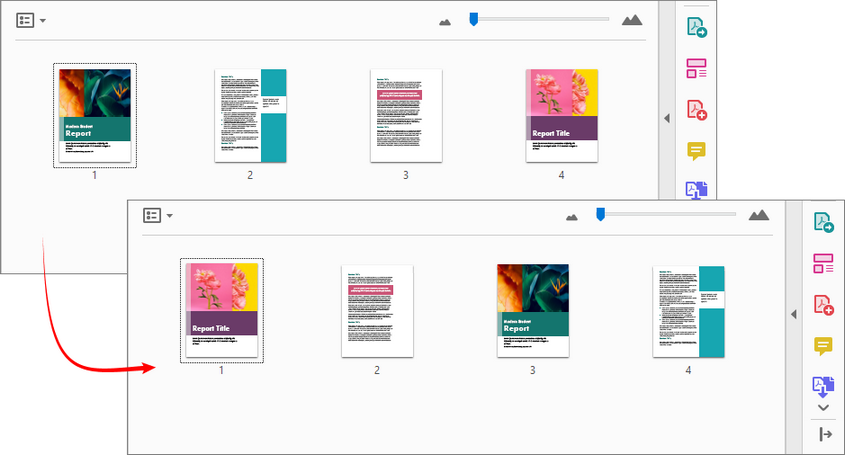
With Free Spire.PDF for Python, you can also merge pages from multiple PDFs and arrange them in a custom order
Best Practices for Reordering PDF Pages
To avoid mistakes and ensure a smooth workflow, follow these tips:
Before you start:
- Make a backup copy of your original document
- Check if the PDF is secured/encrypted (may need password removal first)
- Ensure page numbers or references that might need updating
During the process:
- Use the multi-page view to understand the overall structure
- Consider logical groupings when moving multiple pages
- Verify that cross-references within the document still make sense
After reordering:
- Scroll through the entire document to check the flow
- Update bookmarks or links if your software supports it
- Consider optimizing file size if you've added or manipulated pages
Conclusion
Reordering PDF pages is straightforward with the right tool. For most users, online platforms like iLovePDF deliver a fast, no-download solution. If you handle confidential files or work offline, desktop software such as PDF24 Creator keeps your data secure and in your control. For automation or batch processing, Python with Free Spire.PDF provides a flexible, scriptable approach.
Choose the method that aligns with your workflow, and turn messy, out-of-order PDFs into organized, easy-to-use files in minutes.
FAQs About Organizing PDF Pages
Q: Are these PDF reorder tools really free?
A: Yes, all tools listed offer free tiers. Some have file size or page limits.
Q: Do these methods work on scanned/image-based PDFs?
A: Yes, you can reorder scanned PDFs, but they will remain as images. If you need to edit text within a scanned PDF, you will first need to perform OCR (Optical Character Recognition).
Q: Is there a way to reverse the entire page order (last page to first)?
A: Yes, in tools like iLovePDF and PDF24 Creator, they offer a reverse page order button. With Python, you can generate a reversed index list (e.g., [9, 8, 7, ..., 0] for a 10-page document).
Q: Can I schedule automated PDF reordering tasks?
A: With Python scripts, yes—you can use task schedulers (like cron on Linux or Task Scheduler on Windows) to run reordering scripts automatically at set times.