Sometimes, a PDF needs more than text alone. Adding hyperlinks makes it easier for readers to access related pages, resources, or extra details—without overwhelming the content. In this guide, you’ll learn three free ways to add a link to a PDF, all simple and practical for everyday use.
- Add a Link to a PDF Using Google Docs
- Add a Link to PDF Using Free Tools
- Add Hyperlinks to PDF Using Code
- Insert Hyperlink to PDF with Adobe Acrobat (Paid Option)
- Comparison Table of the 4 Methods
- The Conclusion
How to Add a Link to a PDF Using Google Docs
We often use Google Docs for working with Word documents, but it can also edit PDF files. As an online tool, Google Docs lets you add a link to a PDF document quickly without installing any software — everything is done right in your browser. Since it’s a Google product, you also get solid security and reliability, making it a convenient option for simple PDF editing tasks.
Steps to add hyperlinks to a PDF with Google Docs:
Step 1. Open your PDF to Google Drive
- Upload your PDF in Google Drive and choose open with > Google Docs.
Step 2. Add a hyperlink to the PDF
- Scroll to the part of the document where you want to insert a link.
- Select the text you want to make clickable.
- Click Insert > link in the toolbar, or press Ctrl + K.
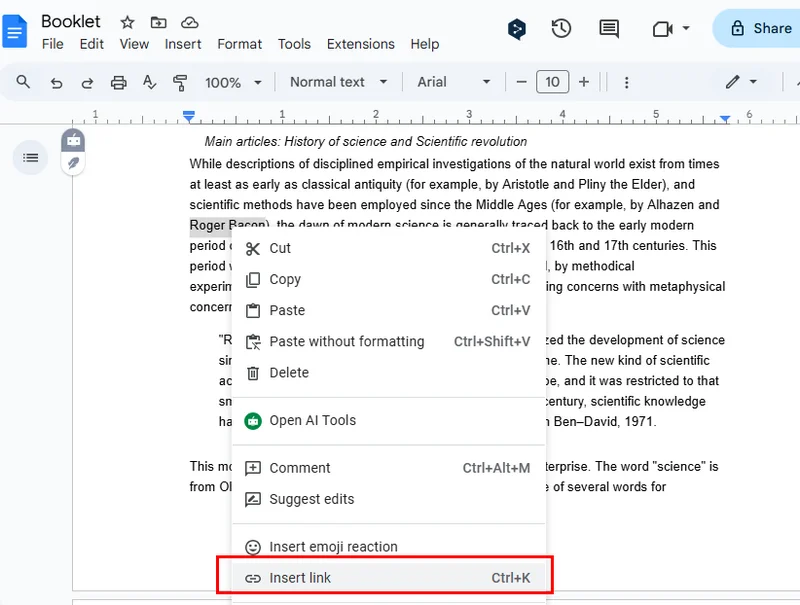
- Paste your URL (or choose a Google Doc or heading within the file).
- Click Apply to add the link.
Step 3. Export the edited file back to PDF
- Go to File > Download.
- Select PDF Document (.pdf).
- Save the updated PDF with the active hyperlink to your computer.
How to Add a Link to PDF Using Free Third-party Tools
Besides online tools, free third-party desktop applications are also a popular choice for editing PDF files. These programs often have an interface similar to Adobe Acrobat, so they’re usually easy to navigate. There are many available options you can find through a quick browser search. In this section, we’ll use PDFgear as an example to show you how to insert a hyperlink in PDFs.

Steps to add a link to a PDF with PDFgear:
- Install and open PDFgear and load your PDF.
- Go to Edit > Link > Create/Edit Link.
- Choose a link style (visible or invisible) and customize if needed.
- Set the link destination: Page, URL, or Local File, then click OK.
- (Optional) To add a clickable text link, go to Edit > Edit Text, paste your URL, and exit text mode.
- Save the PDF with active hyperlinks.
How to Add a Link to PDFs Using Python Code
The previous two methods are better suited for small or individual PDF files. If you need to process multiple PDFs at once, using Python or other popular programming languages is a more efficient choice. With Python, you can automatically add hyperlinks to PDFs, including text links, file links, email links, and more, all in one go.
To make adding hyperlinks even easier, this chapter uses Free Spire.PDF for Python. This is the free version of Spire.PDF for Python, ideal for small projects and testing. Its API is straightforward, so even beginners can get started quickly. With it, you can easily handle both simple and complex PDF tasks.
Steps to add a hyperlink to a PDF using Free Spire.PDF:
- Install Spire.PDF and import modules.
- Create a PdfDocument instance, and add pages to the document.
- Add text to the page and convert it into a hyperlink — whether it's a URL, email address, or file link. You can apply different hyperlink types using objects like PdfTextWebLink or PdfFileLinkAnnotation.
- Customize the link style (font, color, underline, rectangle, etc.) if needed.
- Save the final document as a PDF.
Here's the complete code example of adding multiple hyperlinks while create a PDF document:
from spire.pdf.common import *
from spire.pdf import *

# Create a PdfDocument instance
pdf = PdfDocument()

# Add a page
page = pdf.Pages.Add()

# Initialize x, y coordinates
y = 30.0
x = 10.0

# Create true type fonts
font = PdfTrueTypeFont("Arial", 14.0,PdfFontStyle.Regular,True)
font1 = PdfTrueTypeFont("Arial", 14.0, PdfFontStyle.Underline,True)

# Add a simply link
label = "Simple Text Link: "
format = PdfStringFormat()
format.MeasureTrailingSpaces = True
page.Canvas.DrawString(label, font, PdfBrushes.get_Orange(), 0.0, y, format)
x = font.MeasureString(label, format).Width
url = "http://www.e-iceblue.com"
page.Canvas.DrawString(url, font1, PdfBrushes.get_Blue(), x, y)
y = y + 28

# Add a hypertext link
label = "Hypertext Link: "
page.Canvas.DrawString(label, font, PdfBrushes.get_Orange(), 0.0, y, format)
x = font.MeasureString(label, format).Width
webLink = PdfTextWebLink()
webLink.Text = "Home Page"
webLink.Url = url
webLink.Font = font1
webLink.Brush = PdfBrushes.get_Blue()
webLink.DrawTextWebLink(page.Canvas, PointF(x, y))
y = y + 28

# Add an Email link
label = "Email Link:  "
page.Canvas.DrawString(label, font, PdfBrushes.get_Orange(), 0.0, y, format)
x = font.MeasureString(label, format).Width
link = PdfTextWebLink()
link.Text = "Contact Us"
link.Url = "mailto:support@e-iceblue.com"
link.Font = font1
link.Brush = PdfBrushes.get_Blue()
link.DrawTextWebLink(page.Canvas, PointF(x, y))
y = y + 28

# Add a file link
label = "Document Link: "
page.Canvas.DrawString(label, font, PdfBrushes.get_Orange(), 0.0, y, format)
x = font.MeasureString(label, format).Width
text = "Open File"
location = PointF(x, y)
size = font1.MeasureString(text)
linkBounds = RectangleF(location, size)
fileLink = PdfFileLinkAnnotation(linkBounds,"/Desktop/Report.xlsx")
fileLink.Border = PdfAnnotationBorder(0.0)
page.AnnotationsWidget.Add(fileLink)
page.Canvas.DrawString(text, font1, PdfBrushes.get_Blue(), x, y)

#Save the result pdf file
pdf.SaveToFile("E:/Administrator/Python1/output/AddLinkstoPDF.pdf")
pdf.Close()
Here's the output file that created by the above code: 
How to Insert Hyperlink to PDF with Adobe Acrobat (Paid Option)
While the free methods—Google Docs, PDFgear, and Free Spire.PDF for Python—allow you to add links to PDFs without any cost, some users may need more advanced editing features or a stable, enterprise-level solution. Adobe Acrobat is a common choice in such cases. Keep in mind that its hyperlink feature is only available in the paid version. In this section, we’ll briefly show how to add a hyperlink to a PDF document using Adobe Acrobat, providing a complete view of the available PDF editing options alongside the free methods.
Steps to insert a hyperlink in PDF file with Adobe Acrobat:
- Open your PDF in Adobe Acrobat.
- Select the text or area where you want to add a hyperlink.
- Right-click the selected content and choose Create Link.

- In the pop-up window, set the Link Appearance and Link Action, choose to open a web page, go to a page view, or open a file.
- Click OK, then save the PDF to apply the hyperlink.
The Comparison Table of the 4 Methods
Each of these four methods for adding hyperlinks to PDFs has its own advantages and best-use scenarios. In this section, we’ve prepared a comparison table to help you quickly identify the solution that best fits your needs, making it easier to choose at a glance.
| Method | Free/Paid | Installation Required | Difficulty | Best Use Case | Advantages | Disadvantages |
|---|---|---|---|---|---|---|
| Google Docs | Free | No | Easy | Single PDF, light editing | Works online, no installation needed; secure and stable | Limited features; not suitable for batch processing |
| PDFgear | Free | Requires installation | Easy | Single PDF, small projects | Intuitive interface; supports rectangle or text hyperlinks | Best for a few files; advanced features are limited |
| Free Spire.PDF for Python | Free | Requires Python environment | Medium | Batch processing, developers, automation | Supports multiple link types; can handle multiple files at once | Requires programming knowledge; free version best for small projects |
| Adobe Acrobat | Paid | Requires installation | Easy | Enterprise, professional users | Full-featured; familiar interface; stable | Requires paid subscription; relatively expensive |
The Conclusion
The four methods we introduced for adding hyperlinks to PDFs have their own advantages and best-use scenarios. For everyday editing and single-file tasks, Google Docs or PDFgear is usually sufficient. If you need to handle multiple files or require more flexible automation, Free Spire.PDF for Python offers a free and easy-to-use option.
Also Read