
In today's digital landscape, scalable vector graphics (SVG) have become the gold standard for web graphics, digital illustrations, and responsive design. Unlike PDFs, which can contain both vector and raster elements, SVG files are pure vector format—meaning they scale infinitely without losing quality. Knowing how to convert PDF to SVG unlocks new possibilities for web integration, animation, and precise editing in design software.
Whether you're a web developer needing scalable logos, a designer repurposing print materials for digital platforms, or a content creator looking to enhance your website's visuals, this guide will walk you through the most effective methods to convert PDF to SVG, covering free tools, professional software, and automation scripts, along with pro tips to ensure flawless results.
Contents:
- Understanding the Basics: PDF vs. SVG
- Method 1: Using Online Free PDF to SVG Converters
- Method 2: Using Free Desktop Software Inkscape
- Method 3: Using Python to Automate PDF to SVG Conversion
- Best Practices for PDF to SVG Conversion
- Common PDF to SVG Questions
Understanding the Basics: PDF vs. SVG
Before diving into conversion methods, let’s clarify the core differences between these two formats to help you make informed decisions:
- PDF (Portable Document Format) can contain text, images, vector graphics, and complex layouts. It is primarily designed for consistent printing and document sharing.
- SVG (Scalable Vector Graphics) is an XML-based vector image format for logos, icons, diagrams, and illustrations. It is natively supported by all modern browsers and is SEO-friendly (text is indexable).
When to Change PDF to SVG:
- Extracting logos or icons from PDF documents
- Converting diagrams for web presentation
- Preparing illustrations for animation
- Creating responsive graphics that scale across devices
Method 1: Using Online Free PDF to SVG Converters
If you need a quick conversion for non-sensitive files, online tools are your best bet. They’re free, require no software setup, and work on any OS (Windows, Mac, Linux, or mobile). Here are the two most reliable options:
Option A: CLOUDXDOCS (Free, No Registration)
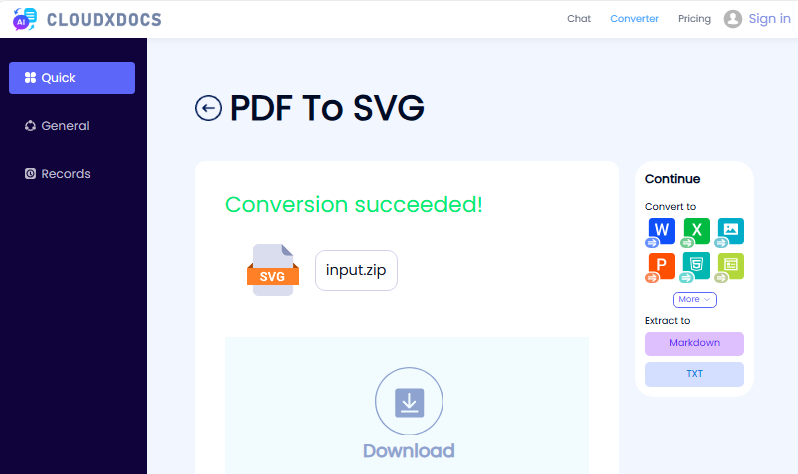
CLOUDXDOCS is a trusted, ad-free converter that supports converting PDF to SVG online. It’s ideal for small to medium files and requires zero sign-up.
- Go to CLOUDXDOCS PDF to SVG converter.
- Upload your PDF file or drag-and-drop the file into the upload area.
- Wait for the conversion process to complete.
- Download the converted SVG file.
Option B: Convertio (Batch Conversion)
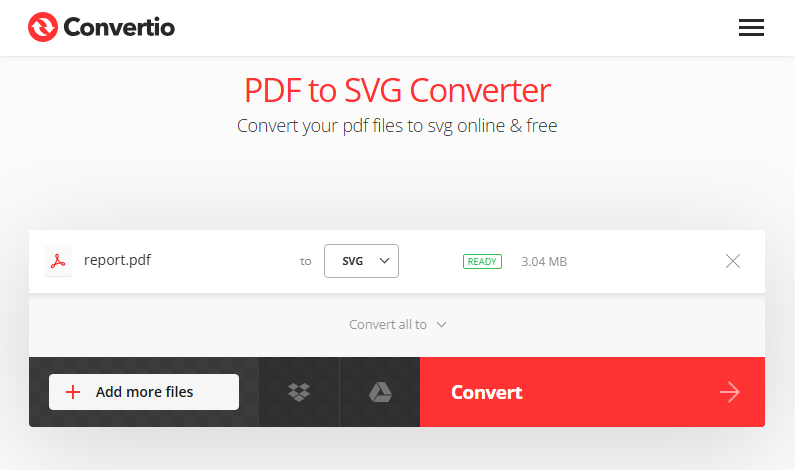
Convertio online converter is great for batch processing and works on mobile devices. It preserves vector elements effectively.
- Visit Convertio PDF to SVG Converter.
- Click “Choose Files” to upload your PDF files.
- Click “Convert” – no extra settings needed for basic use.
- Download individual SVGs or a zip folder of all files.
Pro Tip: To optimize the final SVG file size, you can crop PDF pages before conversion to remove irrelevant content and focus on the core elements you need.
Method 2: Using Free Desktop Software Inkscape
For more control (and offline use), Inkscape is the best free tool. It’s open-source, supports advanced vector editing, and ensures high-quality conversions, perfect for designers or power users.
- Download and install Inkscape from inkscape.org.
- Open Inkscape, then go to “File > Import” and select your PDF file.
- In the import dialog, choose your preferred options to handle PDF pages and images, then click “OK”.
- Optional: Edit the file (e.g., ungroup elements, remove unwanted parts, or adjust paths).
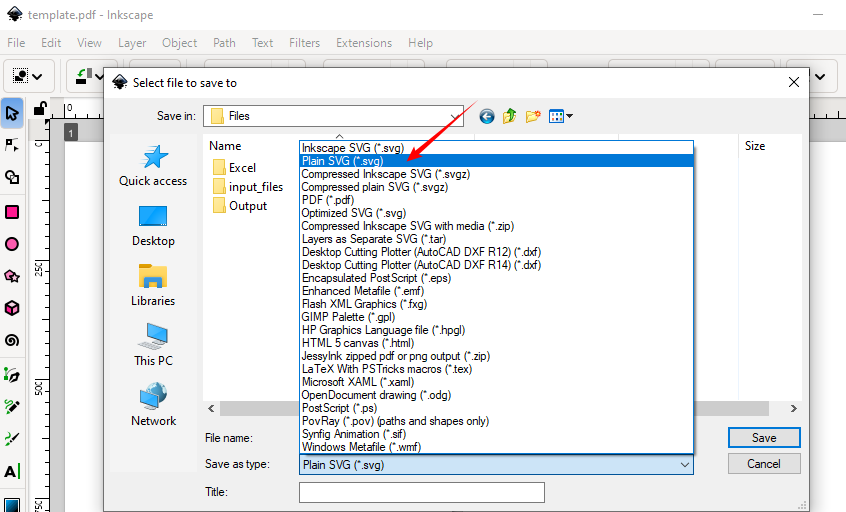
- Save as SVG: Go to “File > Save As”, select “Plain SVG (*.svg)” or "Inkscape SVG (*.svg)” from the dropdown, and click “Save”.
Advantage: Inkscape often preserves vector paths more accurately than some online tools.
You may also like: Convert Images to PDF on Windows, Mac, and Linux
Method 3: Using Python to Automate PDF to SVG Conversion
Developers can integrate PDF to SVG conversion into apps, scripts, or pipelines using Spire.PDF for Python —a powerful library that supports multi-page PDFs, batch processing, and custom settings.
Step-by-Step Guide:
1. Install the Python PDF processing library:
pip install Spire.PDF
2. Use this code to convert a PDF to SVG (supports multi-page PDFs):
from spire.pdf import *

# Create an object of the PdfDocument class
doc = PdfDocument()
# Load a PDF file
doc.LoadFromFile("Sample.pdf")

# Save each page of the file to a separate SVG file
doc.SaveToFile("PdfToSVG/converted.svg", FileFormat.SVG)

# Close the PdfDocument object
doc.Close()
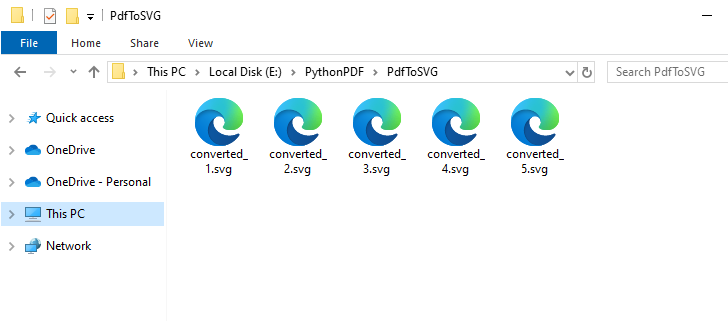
The SaveToFile() method converts each page of a PDF file to a separate SVG file. Here’s the result of converting a 5-page PDF file:
In addition to vector graphics, Spire.PDF for Python also supports converting PDF to common bitmap images such as PNG, JPG, and BMP.
Best Practices for PDF to SVG Conversion
Before Conversion:
- Verify PDF type: Vector-based PDFs yield the best results
- Extract specific pages if needed
- Check resolution: Minimum 300 DPI for embedded images
- Simplify complex documents when possible
After Conversion:
- Compress SVG size with SVGOMG
- Validate SVG structure using W3C Validator
- Test across browsers (Chrome, Firefox, Safari)
- Add accessibility tags (title, desc, ARIA labels)
Conclusion
Converting PDF to SVG unlocks powerful capabilities for web and digital design. For quick conversions, use online tools like CLOUDXDOCS. For professional work, Inkscape provides free, powerful editing. Developers can automate with Python for scalable workflows.
By following this comprehensive guide, you'll achieve perfect SVG conversions every time, ready for any web or design application.
Common PDF to SVG Questions
Q: Is it possible to convert a PDF to SVG for free?
A: Yes. Use online tools like CLOUDXDOCS, or desktop software like Inkscape (free and open-source). For Python solution, try the Free Spire.PDF for Python library (with limitations).
Q: Does the conversion preserve layers?
A: This depends on the converter. Inkscape preserves layers if “Import as Pages” is selected, while many online tools flatten the document.
Q: Is there a loss of quality?
A: Pure vector elements should convert without quality loss. However, raster images embedded in PDFs will remain raster in the SVG unless manually traced.
Q: Can I batch convert multiple PDFs to SVG?
A: Yes. Use the online batch converter or Python scripts to automate bulk conversion.