TIFF (Tagged Image File Format) is widely used for scanned documents, engineering drawings, medical images, and long-term archiving because of its high image quality and support for multi-page files. However, TIFF files are not always easy to share, preview, or manage. Many devices and applications don’t display TIFF files properly, and large multi-page TIFFs can be inconvenient to distribute or print.
PDF, by contrast, is a universally supported format that preserves layout, works consistently across platforms, and is ideal for sharing, printing, and archiving. Converting TIFF files to PDF helps improve compatibility and simplifies document workflows.
In this article, we’ll explore four practical methods to convert a TIFF file to PDF, ranging from simple manual tools to a professional, automated solution, so you can choose the approach that best fits your needs.
Method Overview:
- Method 1: Convert TIFF to PDF Using Adobe Acrobat
- Method 2: Convert TIFF to PDF Using Print to PDF
- Method 3: Convert TIFF to PDF Using Online Tools
- Method 4: Convert TIFF to PDF Programmatically Using Spire.PDF
Method 1: Convert TIFF to PDF Using Adobe Acrobat
Best for: Users who already have Adobe Acrobat Pro and need high-quality, reliable output.
Adobe Acrobat Pro offers a straightforward way to convert image files, including TIFF, into PDF documents. It supports both single-page and multi-page TIFF files and preserves image quality well.
Step-by-Step Instructions
-
Open Adobe Acrobat Pro.
-
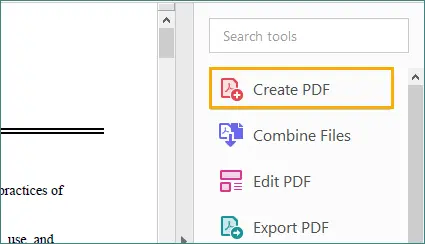
On the right-hand panel, click on the "Create PDF" option.
-
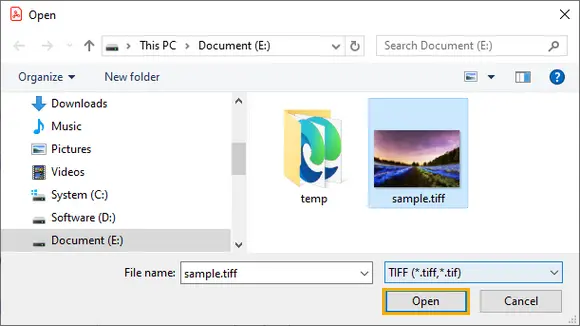
Select the TIFF file you want to convert and click "Open".
-
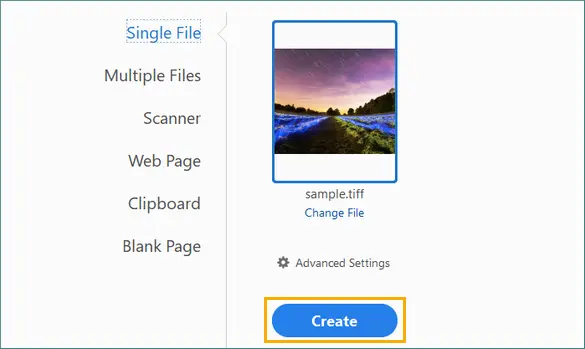
Click “Create” to convert the TIFF into a PDF document.
-
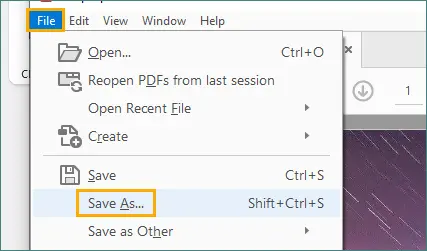
After the conversion is complete, go to “File” in the top menu and select “Save As” to save the generated PDF to your preferred location.
Advantages
- High output quality
- Reliable support for multi-page TIFF files
- No technical knowledge required
Limitations
- Requires a paid subscription
- Manual process only
- Not suitable for large-scale or repeated conversions
Adobe Acrobat is ideal for professionals who already rely on Adobe tools, but it may be excessive for users who only need occasional conversions.
Method 2: Convert TIFF to PDF Using Print to PDF
Best for: Windows users who need a quick, free solution.
Most modern Windows systems include Microsoft Print to PDF, which allows you to convert a TIFF file to PDF using the standard printing workflow.
Step-by-Step Instructions
-
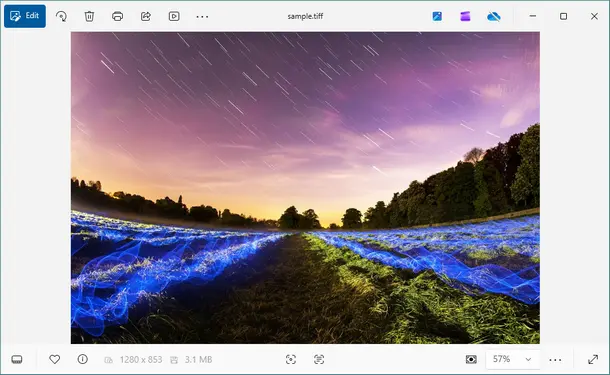
Open the TIFF file in Windows Photos or another image viewer.
-
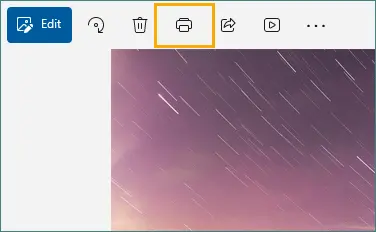
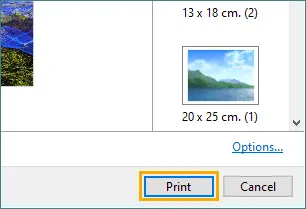
Press Ctrl + P or choose Print from the menu.
-
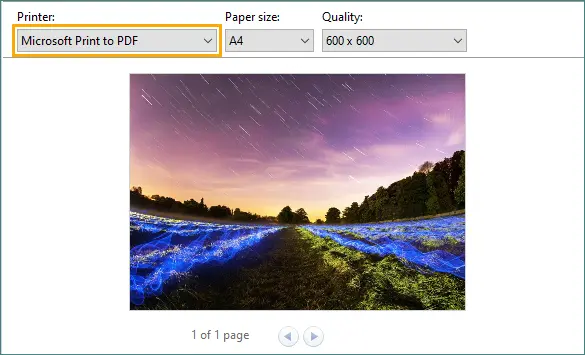
Select Microsoft Print to PDF as the printer.
-
Adjust basic print settings if needed.
-
Click Print and save the resulting PDF file.
Advantages
- Built into Windows
- Free and easy to use
- No additional software required
Limitations
- Limited control over page size and resolution
- Output quality depends on print settings
- Not designed for batch processing
- Multi-page TIFF support may be inconsistent
This method works well for simple, one-off tasks but lacks precision and flexibility.
Method 3: Convert TIFF to PDF Using Online Tools
Best for: Occasional users who don’t want to install software and are working with non-sensitive files.
Online TIFF-to-PDF converters allow you to upload files through a web browser and download the converted PDF.
Step-by-Step Instructions
-
Open a web browser and visit an online TIFF-to-PDF conversion website (for example, tiff2pdf).

-
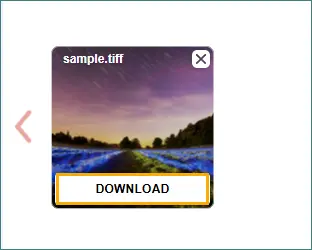
Upload the TIFF file. In most cases, the conversion starts automatically; some websites may require you to confirm the action.
-
Download the converted PDF file once the process is complete.
Advantages
- No installation required
- Works on any operating system
- Simple and fast for small files
Limitations
- File size and usage restrictions
- Requires an internet connection
- Potential privacy and security risks
- Limited control over output formatting
Note: Online tools are not recommended for confidential or regulated documents, such as legal contracts, financial records, or medical files.
Method 4: Convert TIFF to PDF Programmatically Using Spire.PDF
Best for: Automation, batch processing, and professional document workflows.
When TIFF-to-PDF conversion needs to be accurate, repeatable, and scalable, a programmatic approach is the most reliable solution. Spire.PDF for Python is a professional PDF library that allows precise control over how TIFF images are rendered into PDF documents.
This method is especially useful for:
- Multi-page scanned TIFF files
- Archival systems
- Server-side or scheduled conversion tasks
Example: Convert a Multi-Page TIFF to PDF with Spire.PDF for Python
from spire.pdf.common import *
from spire.pdf import *
from PIL import Image

# Create a PdfDocument object
doc = PdfDocument()

# Remove page margins
doc.PageSettings.SetMargins(0.0)

# Load the TIFF image
tiff_image = Image.open("TIFF.tiff")

# Loop through all pages in the TIFF
for i in range(tiff_image.n_frames):
    tiff_image.seek(i)
    frame = tiff_image.copy()
    frame.save(f"temp_{i}.png")

    image = PdfImage.FromFile(f"temp_{i}.png")
    width = image.PhysicalDimension.Width
    height = image.PhysicalDimension.Height

    page = doc.Pages.Add(SizeF(width, height))
    page.Canvas.DrawImage(image, 0.0, 0.0, width, height)

# Save the PDF
doc.SaveToFile("TiffToPdf.pdf", FileFormat.PDF)
doc.Dispose()
Step-by-Step Explaination
- Load the TIFF file into the application.
- Detect whether the TIFF contains multiple pages.
- Process each TIFF page individually.
- Create a new PDF page that matches the exact dimensions of the image.
- Draw the TIFF image onto the PDF page without margins or scaling.
- Repeat the process for all TIFF pages.
- Save the final PDF document.
Read further: Convert PDF to TIFF and TIFF to PDF Using Python
Advantages
- Accurate support for multi-page TIFF files
- Exact page size matching and layout control
- Suitable for automation and batch processing
- Professional-grade PDF output
Limitations
- Requires a Python environment
- Typically managed by IT teams or technical staff
Even for non-developers, this approach is valuable as a long-term, scalable solution that ensures consistent results.
In addition to TIFF-to-PDF conversion, Spire.PDF supports a wide range of PDF-related operations, such as creating PDFs from other image formats, adding text and watermarks, and merging orsplitting documents. These capabilities make it easy to extend the same workflow to other document-processing scenarios using the same library.
How to Choose the Right Method
| Key Factor | Adobe Acrobat | Print to PDF | Online Tools | Spire.PDF for Python |
|---|---|---|---|---|
| Ease of use | ★★★ | ★★★ | ★★★ | ★★☆ |
| Multi-page TIFF support | ★★★ | ★★★ | ★★★ | ★★★ |
| Output quality & layout control | ★★★ | ★★☆ | ★★☆ | ★★★ |
| Automation & batch processing | ☆☆☆ | ☆☆☆ | ☆☆☆ | ★★★ |
| Data privacy & security | ★★★ | ★★★ | ★☆☆ | ★★★ |
Final Thoughts
There are many ways to convert TIFF files to PDF, and the best method depends on how often you perform the task and how much control you need. Manual tools like Adobe Acrobat and Print to PDF are convenient for occasional use, while online tools offer quick results without installation.
For organizations and users who need accuracy, multi-page support, and automation, Spire.PDF for Python provides a reliable and professional solution that scales with your workflow.
FAQs
Q1. Can I combine multiple TIFF files into a single PDF?
Yes. Many tools allow you to merge multiple TIFF files into one PDF. Adobe Acrobat supports combining files manually, while Spire.PDF for Python can automate the process by adding pages from multiple TIFF files into a single PDF document.
Q2. Is Print to PDF suitable for large TIFF files?
Not ideal. It works best for small or simple files and offers limited control over output quality and layout.
Q3. Are online TIFF-to-PDF converters safe?
They can be convenient, but they are not recommended for sensitive or confidential documents, since files are uploaded to third-party servers.
Q4. Is Spire.PDF for Python only for developers?
While it requires basic scripting, it’s often used as part of automated systems managed by IT teams rather than end users.