When preparing a contract template, being able to duplicate a page in a PDF can save a lot of time and effort. However, this task is often harder than it sounds, and many people aren't sure how to copy a page in a PDF effectively. In this guide, we’ll walk you through three practical methods—using Adobe Acrobat, a free programming library, and simple online tools—so you can choose the approach that best fits your workflow.
- Duplicate a Page Using Adobe Acrobat
- Duplicate Pages Using Free Spire.PDF
- Duplicate a Page in a PDF Online
- Which Method Should You Choose
- FAQs
1. Duplicate a Page Using Adobe Acrobat DC (Paid Version)
If you use Adobe’s tools regularly, this is the most direct solution. It’s especially suitable for people who handle PDFs frequently and have no experience with coding. If you simply need a straightforward way to copy pages in a PDF during everyday office work — Acrobat DC provides the most familiar and user-friendly experience.
How to duplicate a page in Adobe Acrobat DC
- Open your PDF in Adobe Acrobat DC.
- Go to Tool and find the Organize Pages tool.
- Select the page you want to duplicate.
- Hold down the Ctrl key, then drag the selected page to the position where you want the copy to appear.
- Release the mouse, and Acrobat will create a duplicate of that page automatically.
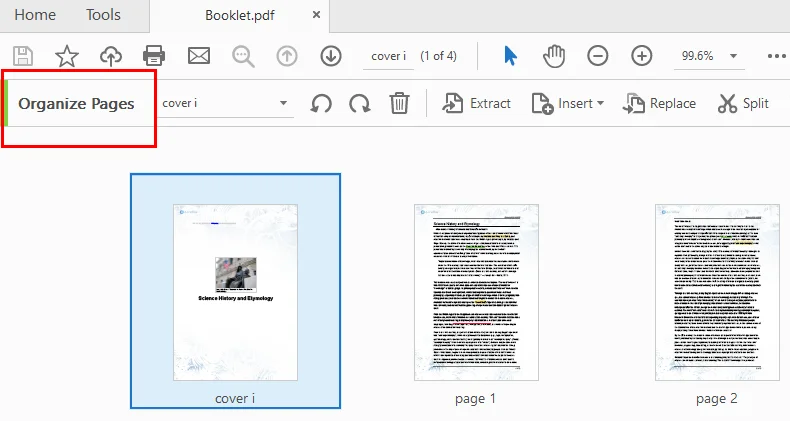
This simple drag-and-copy action is often the quickest way to duplicate a page without using menus.
Notes:
- Only the paid version supports PDF page duplication.
- Acrobat is reliable but can feel heavy for occasional tasks.
- Large PDFs may take a moment to process.
2. Duplicate Pages Using Free Spire.PDF
When you need to duplicate many pages or integrate the task into an automated workflow, Free Spire.PDF becomes a much better choice. This free library lets developers copy pages in PDF files programmatically, removing the need for manual editing. It also gives you full control over where the duplicated pages are inserted, making large-scale or repeated operations more efficient.
Instructions to duplicate a page in PDF with Free Spire.PDF
- Install Free Spire.PDF and import relevant modules.
- Create a PdfDocument instance and load a PDF document.
- Select the page you want to duplicate.
- Create a template based on the page using the PdfPageBase.CreateTemplate().
- Insert a new page with PdfDocument.Pages.Insert and draw the template on the page with PdfPageBase.Canvas.DrawTemplate.
- Save the modified PDF.
The Python code below shows how to duplicate the first page of a PDF and insert it as the second page in the original file.
from spire.pdf.common import *
from spire.pdf import *

# Create a PdfDocument object
pdf = PdfDocument()

# Load a PDF file from disk
pdf.LoadFromFile("/input/sample.pdf")

# Get the first page
page = pdf.Pages[0]

# Get the size of the page
size = page.Size

# Create a template based on the page
template = page.CreateTemplate()

# Add a new page of the same size at the end
#page = pdf.Pages.Add(size, PdfMargins(0.0))
# Insert a new page at the specified location
page = pdf.Pages.Insert(1, size, PdfMargins(0.0))

# Draw the template on the newly added page
page.Canvas.DrawTemplate(template, PointF(0.0, 0.0))

# Save the PDF file
pdf.SaveToFile("/output/CopyPDFPages.pdf");
pdf.Close()
Here's the preview of the output PDF file: 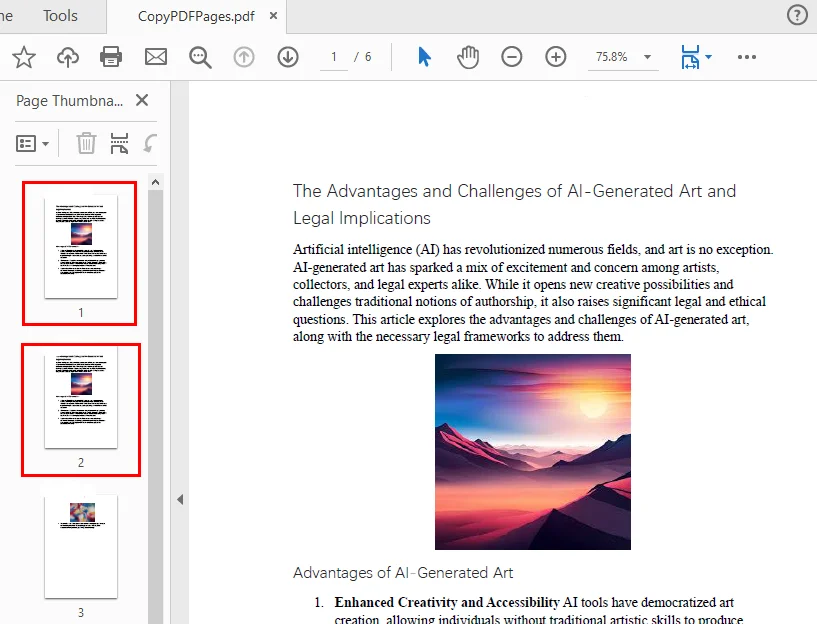
This style of workflow is perfect for generating repeated form pages, producing large batches of documents, or supporting server-side automation.
3. Duplicate Pages in PDF Online (Free Tools)
Online tools work best when you only need to duplicate a page occasionally and prefer not to install additional software. They’re especially convenient when you’re working on a mobile device or shared computer, or simply want the fastest way to make a quick change. As long as your document doesn’t contain sensitive or confidential information, using a browser-based PDF tool is the simplest and most accessible option.
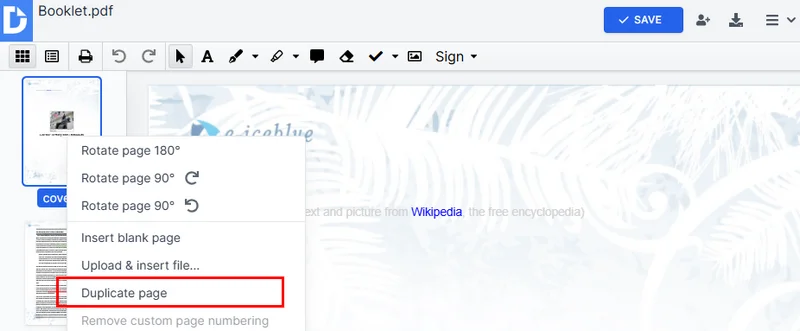
During research, we found that some online tools complete this task by extracting a page and then inserting it through a separate “add page” tool, such as PDFgear. Others provide an online PDF editor where you can simply duplicate a page directly, like DocHub. In this section, we’ll focus on the workflow of the latter approach.
How to copy pages from a PDF document using online tools
- Go to DocHub and open the Duplicate Pages in a PDF tool.
- Upload your PDF and wait for it to be processed.
- In the left-side page thumbnails, find the page you want to copy.
- Right-click the page and select Duplicate page from the menu.
- Click Save on the right, then download the updated PDF to your computer.
Pros
- Fast and free
- No installation required
- Works on any device
Cons
- Not ideal for confidential documents
- File size limits vary
- Not suitable for bulk tasks or automation
4. Which Method Should You Choose?
This section provides a comparison table of the three methods, showing their advantages, suitable users, and costs, helping you quickly identify the approach that best fits your current needs.
| Method | Best For | Cost | Strengths | Limitations |
|---|---|---|---|---|
| Adobe Acrobat DC | Regular office users | Paid | Reliable, easy to use | Reader doesn’t support duplication |
| Free Spire.PDF | Developers / automation | Free | Batch operations, flexible | Requires coding knowledge |
| Online tools | Occasional tasks | Free | Quick, no installation | Privacy concerns, file limits |
If you work with PDFs daily, Acrobat DC is the most polished option. If you need automation or batch copying PDF pages, Free Spire.PDF is the better way. For small one-time edits, online tools offer the quickest solution.
Conclusion
Duplicating a page in a PDF doesn’t have to be complicated. Whether you're copying a form, repeating a worksheet, or preparing consistent document templates, the right tool can save time and reduce effort. Acrobat DC offers the smoothest interface, Free Spire.PDF excels at automation, and online tools are perfect for quick, simple edits. Choose the method that matches your workflow, and you’ll be able to copy PDF pages with ease whenever you need to.
FAQs about Duplicating Pages in PDF
1. How do I duplicate a page in a PDF?
You can duplicate a page in a PDF using Adobe Acrobat, free online tools, or a programming library like Free Spire.PDF. Online tools let you copy pages quickly without installing software, while Acrobat provides a more professional interface. For automation or batch tasks, Free Spire.PDF is ideal.
2. Can I copy only one page from a PDF document?
Yes, most PDF editors allow you to select and duplicate a single page. In Adobe Acrobat, use the Organize Pages tool. In online editors like DocHub, you can select a page thumbnail and duplicate it. Programming libraries also allow precise control over copying individual pages.
3. How do I duplicate a PDF page multiple times?
Duplicating a page multiple times can be done manually or programmatically. In Acrobat, you can repeat the drag-and-copy process. With Free Spire.PDF, you can clone a page multiple times in a loop and insert it wherever needed.
4. Can I copy a PDF page into Word or another format?
Yes, you can extract a PDF page and save it as a Word document or another format. Many online tools support converting specific pages to Word. For more control, PDF libraries let you extract pages and export them programmatically.
Also Read: