
Page numbers play an essential role in making documents easier to read, reference, and navigate. Whether you're preparing business reports, academic papers, user manuals, or eBooks, numbering your PDF pages ensures clarity and professionalism. Yet many users don’t know how to add page numbers directly to a PDF, especially when the file is scanned, protected, or created from mixed sources.
The good news? Adding page numbers to a PDF is easier than you think. In this guide, you’ll learn four practical methods—from Adobe Acrobat to online tools, Microsoft Word, and Python automation. Each method has its advantages depending on your tools, skill level, and the complexity of your document.
Method overview:
- Method 1. Use Adobe Acrobat (Quick & Professional)
- Method 2. Use Online Tools (No Installation Needed)
- Method 3. Use Microsoft Word (Convert → Add → Export)
- Method 4. Add Page Numbers Using Python (Automation Friendly)
Method 1. Use Adobe Acrobat (Quick & Professional)
Adobe Acrobat is the most reliable, accurate, and professional-grade tool for editing PDFs. If you need clean, consistent page numbers on every page—without formatting issues—Acrobat is hard to beat.
Steps to Add Page Numbers in Adobe Acrobat
-
Open your PDF in Adobe Acrobat Pro.
-
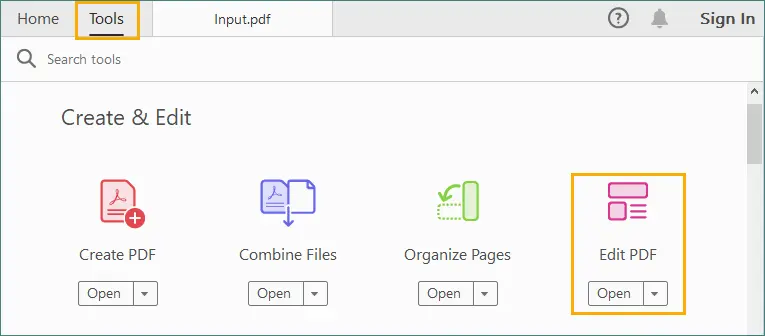
Go to Tools → Edit PDF.
-
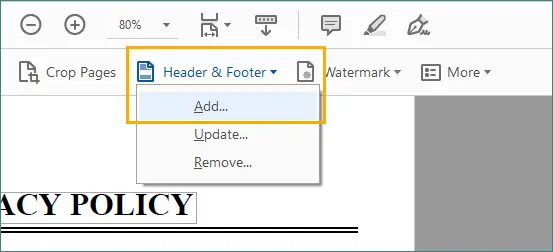
Select Header & Footer → Add.
-
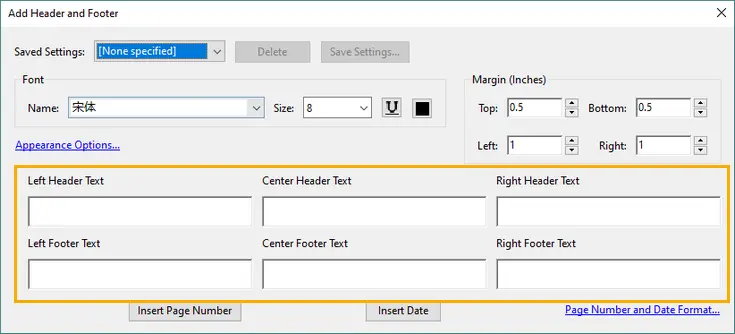
Choose where the page numbers should appear:
- Top or bottom
- Left, center, or right
-
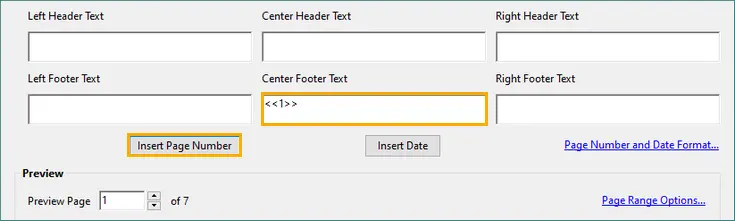
Click Insert Page Number.
-
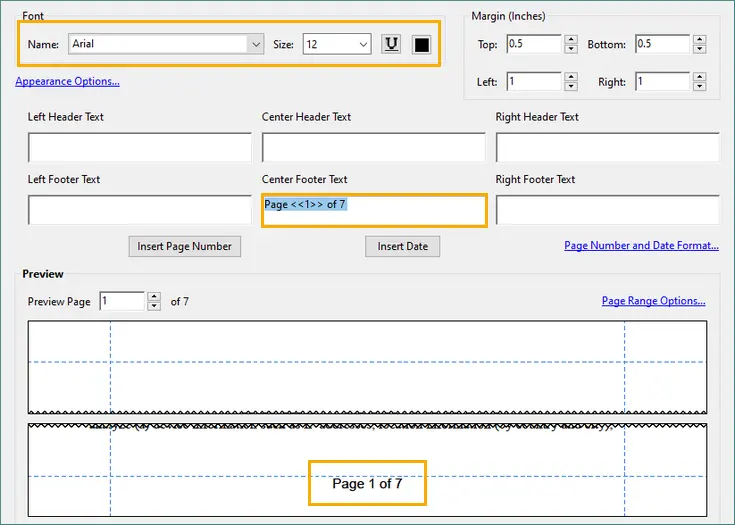
Customize additional settings:
- Font, size, and color
- Margins
- Page range (e.g., skip cover page)
- Numbering style (e.g., “1”, “Page 1”, “i, ii, iii”)
-
Click OK and save your PDF.
Pros
- Very stable and accurate.
- Allows page ranges and number formatting.
- Works for complex layouts and scanned PDFs.
Cons
- Requires Adobe Acrobat Pro (paid version).
When to Use This Method
- For professional documents.
- When formatting accuracy matters.
- When dealing with complex or scanned PDFs.
- When you need features like “Page X of Y”.
Method 2. Use Online Tools (No Installation Needed)
If you don’t want to install software, online PDF editors offer a quick and convenient way to add page numbers. Popular platforms include:
- iLovePDF
- Sejda
- Smallpdf
- PDF24 Tools
These tools work entirely in the browser, making them ideal for small edits or occasional tasks.
Typical Steps (Using iLovePDF as an Example)
-
Go to iLovePDF’s add page numbers tool.

-
Upload your PDF file to the website.
-
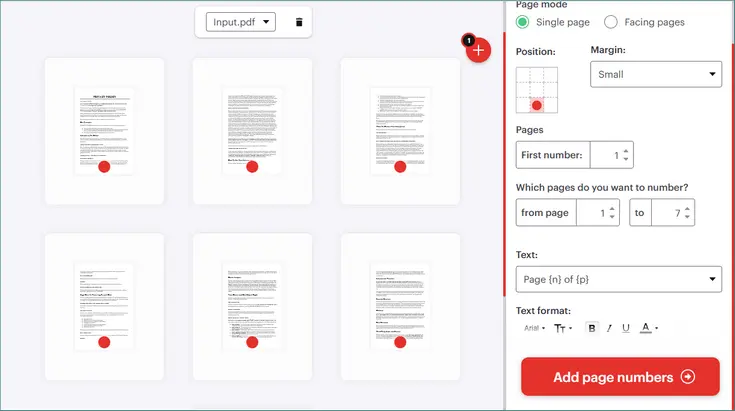
Choose your page-numbering options:
- Position (top/bottom, left/center/right)
- Format (font, size, appearance)
- Pages (e.g., all pages, exclude cover, starting number, etc.)
- Text (Page {n}, Page {n} of {p}, etc.)
-
Click “Add page numbers”.
-
Download the updated PDF with the newly added page numbers.
Pros
- Fast and user-friendly.
- No installation required.
- Free options available.
Cons
- Not ideal for confidential documents.
- Some online tools limit file size and offer only basic customization options.
When to Use This Method
- You need a free and quick solution.
- The document isn’t confidential.
- You’re working on simple layouts.
Method 3. Use Microsoft Word (Convert → Add → Export)
Microsoft Word cannot edit PDFs directly—but it can convert PDFs to editable Word documents, allowing you to insert page numbers and save the file back as a PDF. This method works best for PDF files that contain primarily text and simple formatting.
How to Do It
- Open Microsoft Word.
- Go to File → Open and select your PDF.
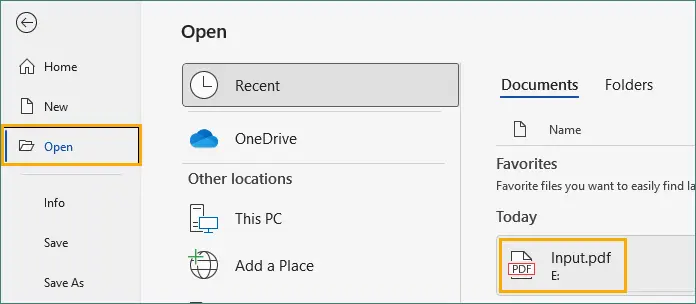
- Click OK in the prompt window to allow Word to convert the PDF into an editable document.

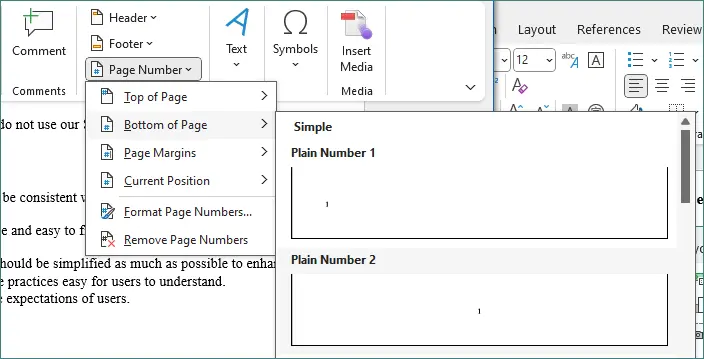
- Go to Insert → Page Number.
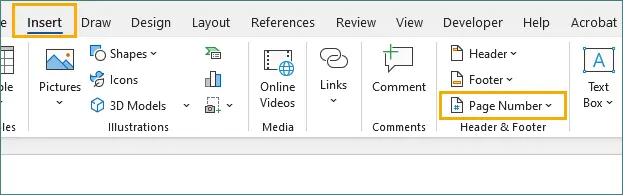
- Choose your desired position and format.
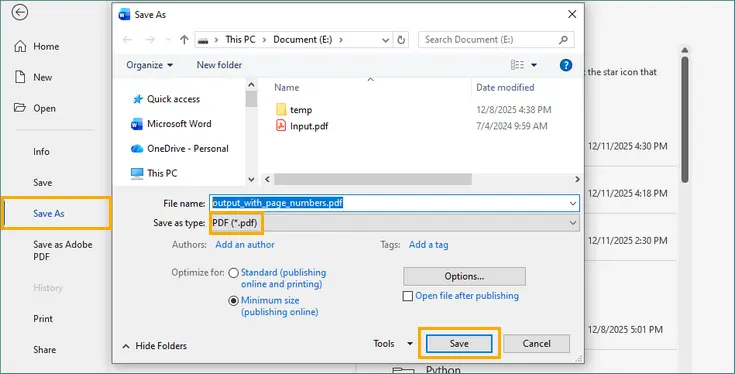
- When finished, go to File → Save As → PDF.
Pros
- Great for simple documents.
- Fully customizable headers and footers.
- No paid software required.
Cons
- Formatting may change after conversion.
- Not suitable for image-based or scanned PDFs.
When to Use This Method
- Your PDF is text-based.
- Formatting is not extremely complex.
- You need a free, easy solution.
Method 4. Add Page Numbers Using Python (Automation-Friendly)
For developers or users needing to process PDFs in bulk, Python is an excellent option. With a dedicated library such as Spire.PDF for Python, you can add page numbers programmatically with complete control over style, position, and page ranges.
General Steps
- Install Spire.PDF via Pypi.
pip install spire.pdf - Load the PDF file into your script.
- Create the font, brush, and formatting elements used for page numbers.
- Loop through all pages in the document.
- Calculate placement coordinates based on page size and margins.
- Draw the page number text (e.g., “Page X of Y”) onto each page.
- Save the modified PDF to a new file.
Example Code
from spire.pdf.common import *
from spire.pdf import *

# Create a PdfDocument object
doc = PdfDocument()

# Load a PDF file
doc.LoadFromFile("Input.pdf")

# Create font, brush and pen
font = PdfTrueTypeFont("Times New Roman", 12.0, PdfFontStyle.Regular, True)
brush = PdfBrushes.get_Black()
pen = PdfPen(brush, 1.0)

# Specify the blank margins around the page
leftMargin = 54.0
rightMargin = 54.0
bottomMargin = 72.0

# Create a PdfPageNumberField object and a PdfPageCountField object
pageNumberField = PdfPageNumberField()
pageCountField = PdfPageCountField()

# Create a PdfCompositeField object to combine page count field and page number field in a single field
compositeField = PdfCompositeField(font, brush, "Page {0} of {1}", [pageNumberField, pageCountField])

# Iterate through the pages in the document
for i in range(doc.Pages.Count):

    # Get a specific page
    page = doc.Pages[i]

    # Get the page size
    pageSize = doc.Pages[i].Size

    # Measure the size the "Page X of Y"
    pageNumberSize = font.MeasureString("Page {} of {}".format(i + 1, doc.Pages.Count))

    # Set the location of the composite field
    compositeField.Location = PointF((pageSize.Width - pageNumberSize.Width)/2,
                                     pageSize.Height - bottomMargin + 18.0)

    # Draw the composite field on the page
    compositeField.Draw(page.Canvas, 0.0, 0.0)

# Save to a different PDF file
doc.SaveToFile("PageNumbers.pdf")
doc.Dispose()
This script inserts “Page X of Y” at the bottom center of each page. If you want to explore more layouts—such as left-aligned or right-aligned page numbers—refer to the full guide: Add Page Numbers to a PDF Document in Python.
Pros
- Full control over number placement.
- Great for batch processing.
- Works even for scanned PDFs.
Cons
- Requires basic coding knowledge.
When to Use This Method
- You need to process many PDFs.
- You want full customization.
- You're automating PDF generation.
Beyond page numbering, Spire.PDF lets you apply headers and footers, add watermarks for branding, and stamp text throughout the entire document. For a deeper dive into these and other features, check out the full Spire.PDF documentation.
Tips for Best Results
- Choose the right position for minimal interference
- Use a clear and informative numbering style
- Match the document’s typography
- Leave adequate margin space
- Avoid adding numbers to certain pages
If your PDF has headers, footers, or dense content near the margins, place page numbers in a corner or away from key elements. Bottom-right and bottom-left positions typically offer the least disruption while still remaining visible.
Formats like “Page X of Y” provide readers with clear navigation, especially in long documents. If you only need simple numbering, stick with plain digits for a cleaner look.
Consistency improves professionalism. Try to match the page-number font with the document’s existing typeface, size, and color. This ensures the page numbers blend naturally with the rest of the PDF layout.
If your PDF is text-heavy or uses footers, ensure there’s enough bottom margin so the page numbers don’t overlap content. Adjust spacing as needed based on preview results.
Some documents—such as cover pages, table of contents, or section dividers—look cleaner without page numbers. Exclude these pages if your tool allows custom page ranges.
Compare the Different Methods
| Method | Difficulty | Cost | Best For | Limitations |
|---|---|---|---|---|
| Adobe Acrobat | Easy | Paid | Professional, accurate results | Requires subscription |
| Online Tools | Very easy | Free | Quick tasks, no installation | Privacy concerns, file size limits |
| Microsoft Word | Easy | Free with Word | Text-based PDFs | Layout distortion possible |
| Python (Spire.PDF) | Medium | Free/Paid | Automation, bulk processing | Requires coding |
Final Thoughts
Choosing the right way to add page numbers depends on the tools you have and how you plan to use your PDF.
- Adobe Acrobat is ideal when you need precision and professional formatting.
- Online tools work well for quick, occasional edits without installing software.
- Microsoft Word is suitable for straightforward, text-heavy documents.
- Python is the best option when you want automation or need to process many files at once.
With the method that fits your workflow—and by applying the tips for best results—you can ensure your PDFs have clean, clear, and consistent page numbers every time.
FAQs
Q1. Can I add “Page X of Y” to a PDF?
Yes. Adobe Acrobat and many online tools support this format. Word also supports it before exporting to PDF.
Q2. Can I skip numbering the first page?
Yes. Acrobat, Word, and Python all support this. Some online tools allow custom page ranges too.
Q3. Can I add page numbers to a scanned PDF?
Yes. You can overlay numbers using Acrobat, iLovePDF, or Python. Running OCR first improves accuracy.
Q4. Will adding page numbers change my PDF’s formatting?
Not if you use Acrobat or Python. Word may change formatting after conversion, but you can minimize this by embedding fonts and cleaning headers/footers.