When you want to prevent your PDFs from being edited, flattening the document is often the simplest and most effective solution. However, many users are unfamiliar with what a flattened PDF actually means or how to create one.
In this article, we’ll explain what it means to flatten a PDF and show you how to flatten a PDF document using several practical approaches. These include using Adobe Acrobat, Google Chrome, online tools, and programming libraries, helping you secure your PDFs easily on both Windows and Mac.
- What Does It Mean to Flatten a PDF
- How to Flatten a PDF in Adobe Acrobat
- How to Flatten a PDF Without Acrobat
- Flatten a PDF Programmatically Using Free Spire.PDF
- How to Flatten a PDF Document on Mac
- FAQs About Flattening a PDF
What Does It Mean to Flatten a PDF (and Why You Might Need It)
Before diving into specific tools, it’s worth clarifying what “flattening” actually means in the context of PDF files and why it matters in everyday workflows.
Flattening a PDF means converting interactive elements—such as text, annotations, or images—into static page content. The document keeps the same visual appearance, but users can no longer type into new paragraphs, toggle checkboxes, or modify annotations. In other words, flattening turns a working or draft PDF into a final, non-editable version.
This is especially useful when you need to submit the final report, share contracts, issue invoices, or archive documents. Flattening helps prevent unintended edits and ensures the PDF displays consistently across devices and viewers. It’s also important to note that flattening is different from protecting PDFs with a password, as password protection mainly controls who can open or edit the file, but it does not permanently remove the ability to modify the PDF content.
How to Flatten a PDF in Adobe Acrobat
Adobe Acrobat is often the first tool people think of when dealing with advanced PDF tasks. Because it fully supports the PDF standard, it offers reliable ways to flatten documents that contain forms, comments, or other interactive elements.
Adobe Acrobat allows you to flatten a PDF file by recreating the document through the printing feature. The approach produces a static PDF file that looks the same as the original but cannot be edited.
- Open the PDF file in Adobe Acrobat.
- Use the Print Production tool to flatten form fields and annotations, or go to File → Print and select “Adobe PDF” as the printer to recreate the document as a flattened PDF.
- Save the resulting file as a new flattened PDF.
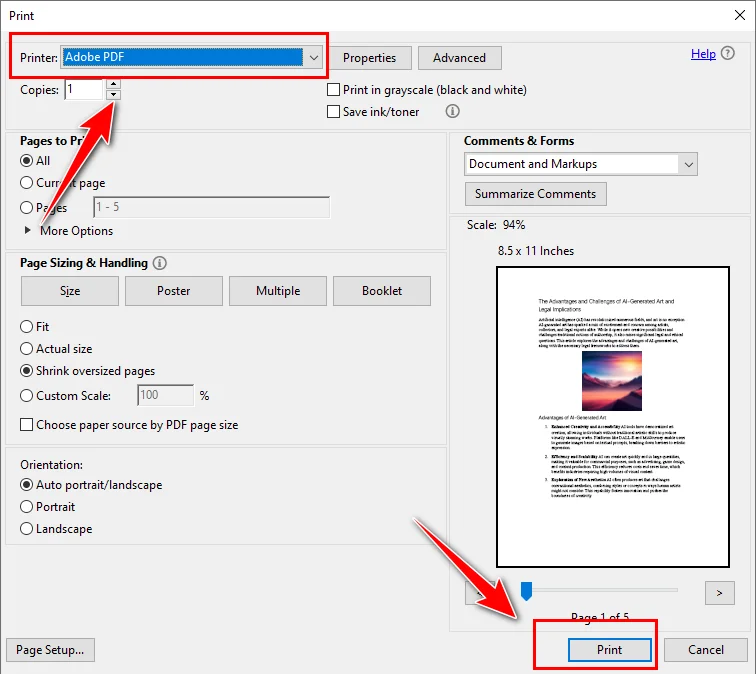
Adobe Acrobat is a strong choice if you frequently work with PDFs and prefer a desktop-based, visual interface. However, it requires a paid license and is not designed for automated or large-scale processing.
How to Flatten a PDF Without Acrobat
Not everyone has access to Adobe Acrobat, and many users look for ways to flatten a PDF without installing paid software. In those cases, alternative methods can still get the job done, although they may involve some compromises.
How to Flatten a PDF Using Google Chrome
Google Chrome provides a simple and reliable way to flatten a PDF document without installing additional software. By opening a PDF in Chrome and printing it to a new PDF file, it will be changed into a static document.
Here are the detailed steps to flatten a PDF with Chrome:
- Open the PDF file in Google Chrome.
- Press Ctrl + P (or Cmd + P on Mac) to open the print dialog.
- Select Save as PDF as the destination printer.
- Click Save to generate a flattened PDF file.
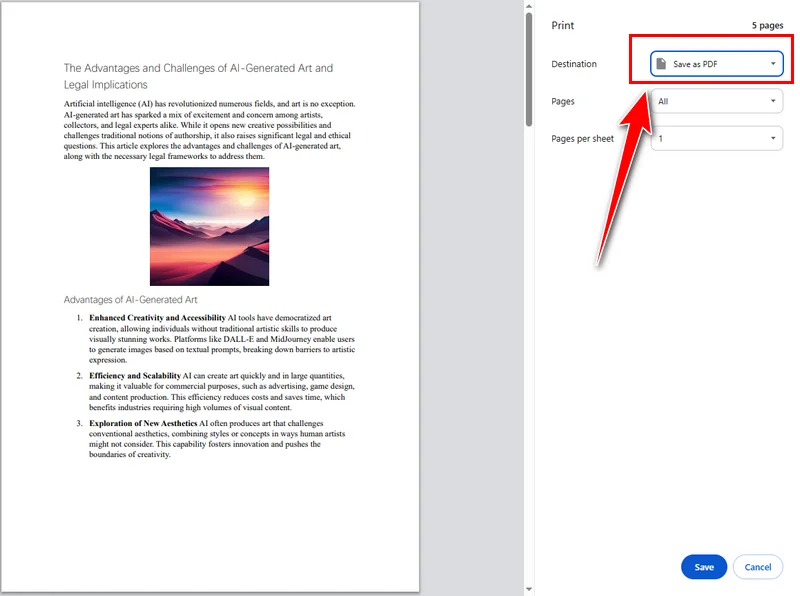
This method is free and works on both Windows and Mac. However, it offers limited control over PDF processing, and Google Chrome relies on a browser-based environment, which makes it less suitable for offline or controlled workflows.
How to Flatten a PDF with Online Tools for Free
Online PDF tools are popular because they run directly in the browser and require no installation. Services like Smallpdf and Sejda PDF allow users to flatten a PDF file quickly, making them a common choice for occasional, short-term tasks.
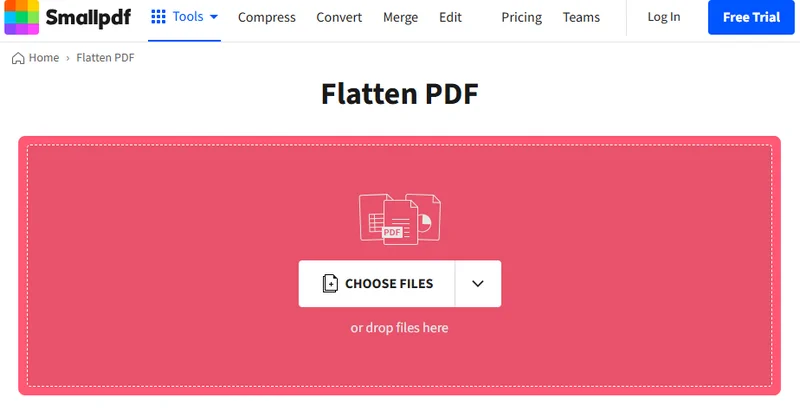
These tools generally follow a simple, browser-based workflow. Using Smallpdf as an example, the process typically works as follows:
- Navigate to the online tool’s website.
- Upload the PDF file you want to flatten, after which the tool processes it automatically.
- Download the flattened PDF file and save it to your local device.
These tools are useful if you need to flatten a PDF for free and the document does not contain sensitive information. That said, they often come with limitations such as file size and usage restrictions. For professional or confidential documents, these factors should be taken into consideration.
How to Flatten a PDF Programmatically Using Free Spire.PDF
For developers working with automated systems, PDF flattening is often part of a larger workflow rather than a one-time task. In such cases, Free Spire.PDF for Python allows you to flatten a PDF document by flattening its interactive form fields through code, ensuring the final output is non-editable while preserving the original appearance.
The general idea is straightforward: load the PDF, enable form flattening, and save the result. Once form fields are flattened, all user-entered data is rendered directly onto the page, and the document becomes a static PDF.
from spire.pdf.common import *
from spire.pdf import *

# Specify the input and output PDF file paths
input_file = "Form.pdf"
output_file = "FlattenAll.pdf"

# Create an object of the PdfDocument class
doc = PdfDocument()
# Load a PDF file
doc.LoadFromFile(input_file)

# Flatten all forms in the PDF file
doc.Form.IsFlatten = True

# Save the result file
doc.SaveToFile(output_file)
doc.Close()
This approach is particularly useful when flattening needs to be integrated into automated systems, when processing files in batches, or when handling large PDF documents.
How to Flatten a PDF Document on Mac
On macOS, in addition to Chrome and online tools, you can also flatten a PDF using Preview. As a built-in application, Preview allows you to flatten PDFs directly on Mac without installing any third-party software, making it a convenient and straightforward option for quick, safe, and offline tasks.
Here's how it works:
- Open the PDF file in Preview.
- Choose Print and save the output as a new PDF file.

This method works well for small projects. However, if you need more advanced PDF operations beyond flattening, such as making a PDF read only, editing form fields, or handling documents programmatically, Adobe Acrobat or Free Spire.PDF would be a better choice.
FAQs About Flattening a PDF
Q1: How do I flatten a PDF file?
You can flatten a PDF file using Adobe Acrobat, Google Chrome, online PDF tools, or programmatically with libraries such as Free Spire.PDF.
Q2: What is the shortcut for flattening a PDF?
In general, in Adobe Acrobat, you can often use Ctrl + P to flatten a PDF by printing it, while other tools may rely on different shortcut combinations.
Q3: Is compressing a PDF the same as flattening it?
No. Compressing a PDF reduces its file size, while flattening removes interactive elements and makes the document non-editable.
Conclusion
There is no single best method for every situation. Adobe Acrobat is well suited for manual, desktop-based workflows. Google Chrome and online tools work for quick, occasional tasks. For automated document processing, Free Spire.PDF offers the most flexibility and control.
By understanding how each method works, you can flatten a PDF document efficiently based on your own needs.