
PowerPoint presentations often contain charts, diagrams, product designs, technical illustrations, and other visual content that may need to be reused outside Microsoft PowerPoint. Converting slides to TIFF is particularly useful for professional printing, document archiving, publishing, faxing, and workflows that require lossless raster images.
However, simply exporting slides from PowerPoint may not produce the resolution you expect. On Windows, PowerPoint normally exports slides as bitmap images at 96 DPI by default. This is generally sufficient for screen viewing, but the resulting images may appear blurry when enlarged or printed. For print-ready output, 300 DPI is usually a more practical target.
This article introduces four ways to convert PowerPoint presentations to high-resolution TIFF files. The methods range from PowerPoint’s built-in export feature to VBA automation, an online converter, and a Python-based solution for generating high-resolution multi-page TIFF files.
Method 1: Modify the Windows Registry and Export from PowerPoint
PowerPoint can save slides directly as TIFF images through its standard Save As or Export feature. The main limitation is that PowerPoint uses a default export resolution of 96 DPI on Windows.
To generate higher-resolution images, you can add a registry value that changes PowerPoint’s bitmap export resolution. For example, setting the value to 300 produces a 4000 × 2250-pixel image from a standard 16:9 widescreen slide.
Editing the Windows Registry incorrectly can affect system or application behavior. Consider backing up the relevant registry key before making changes.
Step 1: Change the PowerPoint Export Resolution
- Close PowerPoint and other Microsoft Office applications.
- Press Windows + R to open the Run dialog.
- Enter
regeditand click OK . - Navigate to the following location for PowerPoint 2016, 2019, 2021, 2024, or Microsoft 365:
HKEY_CURRENT_USER\Software\Microsoft\Office\16.0\PowerPoint\Options
- Right-click an empty area in the right pane.
- Select New → DWORD (32-bit) Value .
- Name the new value:
ExportBitmapResolution
- Double-click the value and select Decimal .
- Enter
300in the Value data field. - Click OK and close Registry Editor.
You can use other values, such as 150 or 200, when you need a balance between image quality and file size. Microsoft’s export calculations show that a 16:9 slide produces approximately 2000 × 1125 pixels at 150 DPI, 2667 × 1500 pixels at 200 DPI, and 4000 × 2250 pixels at 300 DPI.
Step 2: Export the Slides as TIFF
- Open the presentation in PowerPoint.
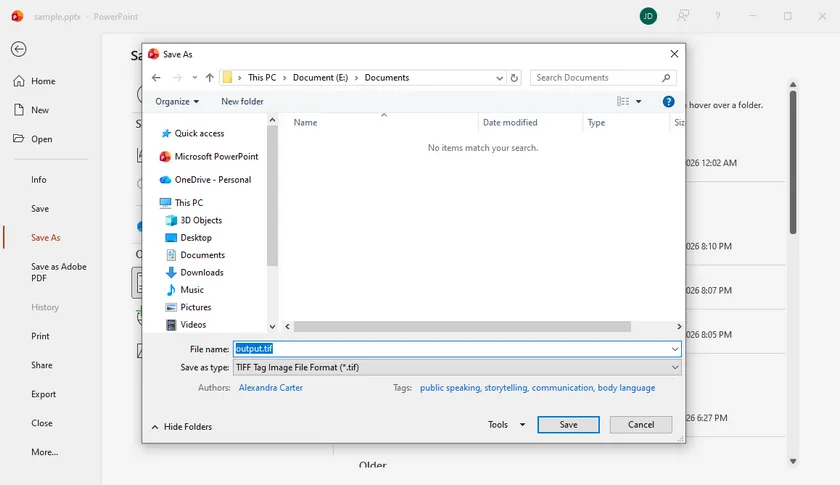
- Go to File → Save As or File → Export → Change File Type .
- Choose TIFF Tag Image File Format (*.tif) .
- Select an output folder and click Save .
- When prompted, choose All Slides or Just This One .
When all slides are exported, PowerPoint creates a folder containing a separate TIFF file for each slide.
This method is convenient when you only occasionally need high-resolution TIFF images and already have Microsoft PowerPoint installed. Its main disadvantage is that it modifies a user-level Office setting and does not offer a convenient way to process many presentations automatically.
Method 2: Export PowerPoint Slides to TIFF with a VBA Macro
A VBA macro is more efficient when a presentation contains many slides or when you frequently repeat the same export task. Unlike the standard export dialog, the PowerPoint Slide.Export method allows you to specify the output width and height directly in pixels. Microsoft documents both ScaleWidth and ScaleHeight as optional pixel dimensions for the exported slide.
The following macro exports every slide as a 4000 × 2250-pixel TIFF image, which matches the 16:9 dimensions commonly associated with a 300-DPI widescreen slide.
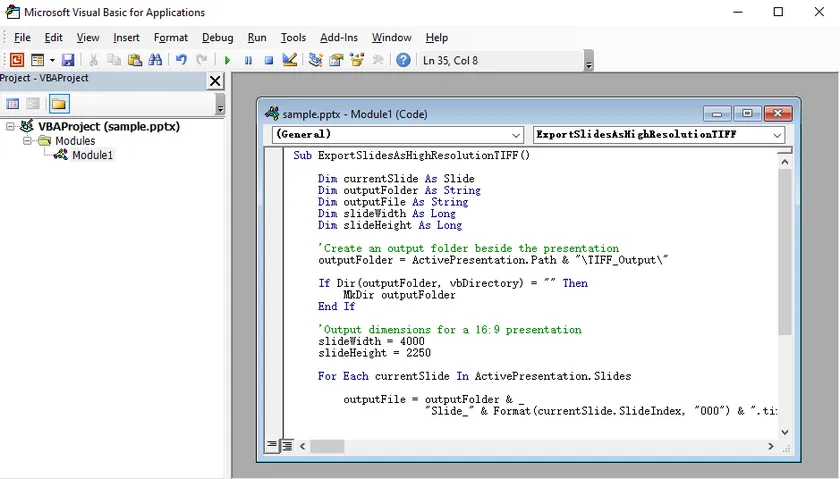
Add and Run the VBA Macro
- Open your PowerPoint presentation.
- Press Alt + F11 to open the Visual Basic Editor.
- Select Insert → Module .
- Paste the following code into the module:
Sub ExportSlidesAsHighResolutionTIFF()

    Dim currentSlide As Slide
    Dim outputFolder As String
    Dim outputFile As String
    Dim slideWidth As Long
    Dim slideHeight As Long

    'Create an output folder beside the presentation
    outputFolder = ActivePresentation.Path & "\TIFF_Output\"

    If Dir(outputFolder, vbDirectory) = "" Then
        MkDir outputFolder
    End If

    'Output dimensions for a 16:9 presentation
    slideWidth = 4000
    slideHeight = 2250

    For Each currentSlide In ActivePresentation.Slides

        outputFile = outputFolder & _
                     "Slide_" & Format(currentSlide.SlideIndex, "000") & ".tif"

        currentSlide.Export _
            outputFile, _
            "TIFF", _
            slideWidth, _
            slideHeight

    Next currentSlide

    MsgBox "All slides have been exported to:" & vbCrLf & outputFolder

End Sub
- Press F5 or click Run .
- Open the
TIFF_Outputfolder created beside the presentation.
The macro uses numbered filenames such as Slide_001.tif, Slide_002.tif, and Slide_003.tif. Zero-padded numbering helps maintain the correct slide order when the images are sorted by filename.
For a 4:3 presentation, replace the dimensions with values that match that aspect ratio, such as:
slideWidth = 3000
slideHeight = 2250
The advantage of VBA is that it automates the entire presentation without requiring another application. It also gives you direct control over pixel dimensions. However, macros must be enabled, and the code runs through the installed PowerPoint application, making it less suitable for unattended server environments.
Method 3: Convert PowerPoint to TIFF with Convertio
An online converter is useful when you cannot install software, do not have access to PowerPoint, or only need to convert a small number of files.
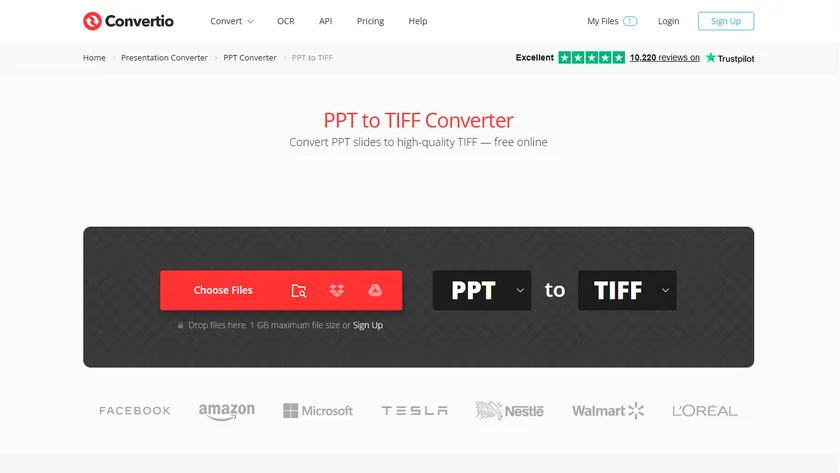
Convertio provides dedicated PPT-to-TIFF and PPTX-to-TIFF conversion pages. It accepts files from a local computer and may also support imports from cloud storage or a URL. The service converts the presentation in the cloud and provides the resulting TIFF file for download.
Steps to Convert PowerPoint Online
- Open the Convertio PowerPoint-to-TIFF converter.
- Upload a
.pptor.pptxpresentation. - Click Convert .
- Wait for the conversion to finish.
- Download the converted TIFF file.
This is the easiest option for a quick, one-time conversion because there are no registry changes, macros, or development tools involved. It also works on operating systems other than Windows.
The main limitation is control. Online converters may not provide precise DPI, pixel-size, compression, or color-profile settings. Free plans may also impose restrictions on file size, conversion frequency, or batch processing.
More importantly, uploading a presentation sends its contents to a third-party server. Avoid this method for presentations containing confidential business information, customer data, financial records, unpublished research, or other sensitive material.
Method 4: Convert PowerPoint to a High-Resolution TIFF Using Python
For automated conversion or integration into document-processing applications, you can use Spire.Presentation for Python together with Pillow. Spire.Presentation can render each slide at a specified pixel size without requiring Microsoft PowerPoint to be installed.
Unlike directly saving the presentation as TIFF, which may produce images at only 1280 × 720 pixels, the SaveAsImageByWH() method lets you specify the output width and height. The rendered slide images can then be combined into a single multi-page TIFF using Pillow.
Install the Required Libraries
Install Spire.Presentation for Python and Pillow using pip:
pip install Spire.Presentation Pillow
Python Code: Convert PowerPoint to a Multi-Page TIFF
from spire.presentation import *
from PIL import Image
from io import BytesIO

# Create a Presentation object
presentation = Presentation()

# Load a PowerPoint presentation
presentation.LoadFromFile("Input.pptx")

# Store the converted slide images
images = []

# Convert each slide to a high-resolution image
for i in range(presentation.Slides.Count):
    slide = presentation.Slides[i]

    # Render the slide at 4000 × 2250 pixels
    stream = slide.SaveAsImageByWH(4000, 2250)

    # Convert the image stream to a PIL image
    image = Image.open(BytesIO(stream.ToArray())).convert("RGB")
    images.append(image)

    stream.Dispose()

# Save all slide images as a multi-page TIFF
images[0].save(
    "Output/PowerPointToTIFF.tiff",
    format="TIFF",
    save_all=True,
    append_images=images[1:],
    compression="tiff_lzw",
    dpi=(300, 300)
)

# Dispose resources
presentation.Dispose()
How It Works
The code first loads the PowerPoint presentation and loops through its slides. Each slide is rendered as a 4000 × 2250-pixel image, which is suitable for a standard 16:9 presentation intended for high-quality printing.
The image stream returned by SaveAsImageByWH() is then opened with Pillow and added to a list. Finally, Pillow saves the first image as a TIFF file and appends the remaining images as additional pages.
The following arguments are important:
-
save_all=Trueenables multi-page image output. -
append_images=images[1:]adds the remaining slides to the TIFF file. -
compression="tiff_lzw"applies lossless LZW compression to reduce the output file size. -
dpi=(300, 300)records 300-DPI resolution information in the TIFF metadata.
The actual visual detail is primarily determined by the 4000 × 2250 rendering dimensions. The DPI setting mainly tells compatible applications how densely those pixels should be printed.
For a lower-resolution output with a smaller file size, you can change the slide dimensions to:
stream = slide.SaveAsImageByWH(2667, 1500)
This method is suitable for batch processing, server-side conversion, and workflows in which multiple presentations must be converted automatically. It also creates a multi-page TIFF directly, so there is no need to merge the individual slide images afterward.
What's More
Beyond TIFF conversion, Spire.Presentation for Python can also be used to convert PowerPoint slides to other image formats, such as PNG, JPG, and SVG, depending on the output requirements. For broader document-sharing workflows, presentations can also be converted to formats such as PDF and HTML. These options make it easier to reuse slide content for websites, reports, archives, previews, and cross-platform distribution.
Bonus Tips: Combine Single-Page TIFFs into a Multi-Page TIFF
Methods 1 and 2 export each slide as a separate TIFF file. If you prefer one multi-page TIFF containing all slides, IrfanView is a practical Windows tool that supports creating and editing multi-page TIFF files. Method 3 and 4, however, create a multi-page TIFF directly and do not require this additional merging step.
Combine TIFF Files with IrfanView
- Open IrfanView and go to File → Thumbnails , or press T .
- In the Thumbnails window, navigate to the folder containing the exported TIFF files.
- Select all the TIFF files you want to merge. Use Ctrl or Shift while clicking to select multiple files.
- Right-click one of the selected files.
- Choose Start Multipage-TIF dialog with selected files .
- Review the file order in the multipage TIFF dialog.
- Set the output folder and filename.
- Click Create TIF Image .
After processing, IrfanView creates a single TIFF file in which each slide appears as a separate page.
Check the order carefully before creating the file. Naming the source images with padded numbers—such as Slide_001, Slide_002, and Slide_010—prevents incorrect alphabetical sorting.
Free online TIFF merger tools are another option, but the same privacy concerns apply when uploading sensitive images.
Comparison Table: Choose the Right Method
| Method | Best suited for | Resolution control | Batch support | Requires PowerPoint | Main limitation |
|---|---|---|---|---|---|
| Registry + PowerPoint | Occasional manual export | DPI-based | One presentation at a time | Yes | Requires registry modification |
| VBA macro | Repeated slide export | Exact pixel dimensions | Yes | Yes | Macros must be enabled |
| Convertio | Quick conversion without installation | Limited | Limited by service plan | No | Privacy and upload restrictions |
| Spire.Presentation for Python | Automated application workflows | Programmable | Yes | No | Requires coding and licensing consideration |
Conclusion
The best way to convert PowerPoint to high-resolution TIFF depends on how often you perform the conversion and how much control you require.
For a one-time export on Windows, changing PowerPoint’s registry setting and using the native TIFF export feature is straightforward. A VBA macro is more efficient when you need to export every slide repeatedly at fixed pixel dimensions. Convertio is convenient for occasional browser-based conversions, provided the presentation is not confidential.
For automated document workflows, Spire.Presentation for Python provides greater control over the output dimensions without requiring Microsoft PowerPoint. Combined with Pillow, it can also place all rendered slides into a single multi-page TIFF file.
When separate slide images are not convenient, the exported TIFF files can also be combined into a single multi-page TIFF with IrfanView.
FAQs
Can PowerPoint export slides directly as TIFF files?
Yes. In PowerPoint, select File → Save As and choose TIFF as the output format. PowerPoint can export the current slide or every slide in the presentation.
Why do TIFF files exported from PowerPoint look blurry?
PowerPoint’s default bitmap export resolution on Windows is normally 96 DPI. This may be sufficient for screens but inadequate for enlargement or professional printing. Changing the ExportBitmapResolution registry value or specifying larger pixel dimensions through VBA produces sharper output.
Is 300 DPI always necessary?
Not always. Around 96 to 150 DPI may be sufficient for screen-based documents and internal previews. A resolution of 300 DPI is more appropriate for high-quality printing, publishing, and detailed diagrams. Higher resolution also produces larger TIFF files.
Does increasing the DPI improve low-quality images inside the presentation?
No. A higher export resolution preserves slide elements more clearly, but it cannot restore details that are missing from a low-resolution source image. For the best result, use high-quality original images and disable unnecessary image compression in PowerPoint.
Can multiple PowerPoint slides be stored in one TIFF file?
Yes. TIFF supports multiple pages. PowerPoint and VBA normally export each slide as a separate image, which can be combined using IrfanView. In Python, you can render the slides with Spire.Presentation and use Pillow to save them directly as a single multi-page TIFF.