CSV (Comma-Separated Values) files are widely used in spreadsheets, databases, and data analytics, but they often fail to display properly in basic text editors or simple software. Converting CSV to TXT solves this compatibility issue, making data easier to read and share on any device.
Whether you’re a non-technical user needing a quick conversion, a developer automating workflows, or a professional handling sensitive data, this guide details reliable CSV to Text conversion methods tailored to different skill levels and requirements.
- 1. Using Text Editors: Quick Manual Conversion
- 2. Online CSV to TXT Converter: One-Click Conversion
- 3. Programming: Batch Conversion for Developers
- 4. Office Software: Excel/Google Sheets for Daily Users
- Formatting Considerations When Converting CSV to Text
- FAQs About CSV to TXT Conversion
1. Using Text Editors: Quick Manual Conversion
The simplest method involves opening your CSV file in any text editor like Notepad, TextEdit, or VS Code and saving it with a .txt extension. This maintains the comma-separated structure but stores it as plain text.
Steps:
- Open CSV file in your preferred text editor.
- Review the content for proper formatting.
- Go to File → Save As.
- Change the file extension from .csv to .txt.
- Save to your desired location.
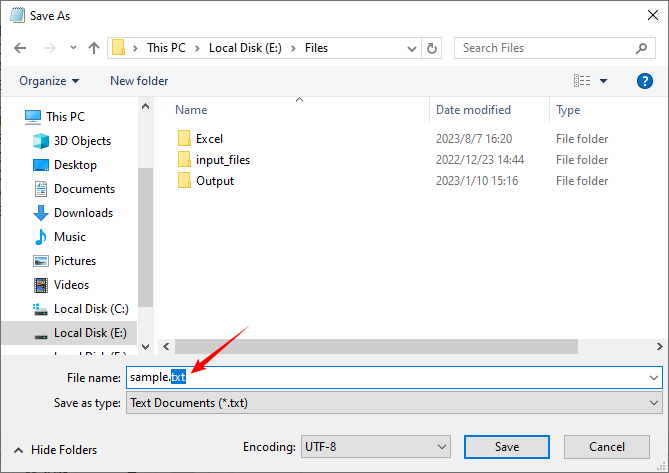
Note: This method does not alter the data; it merely changes the file extension. Some systems may still treat the file as CSV-based on its content.
You may also be interested in: 4 Proven Ways to Convert CSV to Excel (Free & Automated)
2. Online CSV to TXT Converter: One-Click Conversion
For users who prefer a graphical interface without downloading software, online tools offer a convenient one-click solution. They are especially useful for quick conversions on any device (computer, tablet, phone).
Example Tool: Convertio
Step-by-Step:
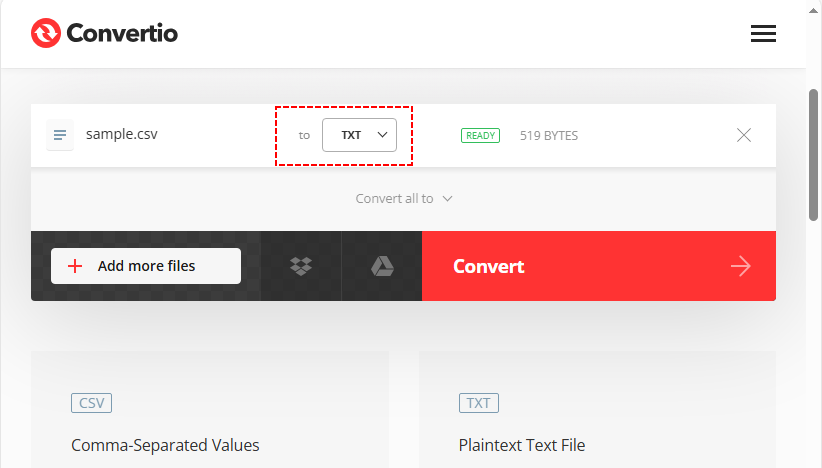
- Visit Convertio’s CSV to TXT Converter page. The clear interface ensures you won’t get lost.
- Click “Choose Files” to upload your CSV file. It supports local files and cloud storage (Google Drive, Dropbox).
- Confirm the output format is “TXT” (usually selected by default).
- Hit “Convert” and wait 1–3 seconds. Click “Download” to save the TXT file.
✔ Advantages: Fast, free for small files, cross-platform and mobile-friendly.
Security Note: Avoid uploading sensitive or confidential data to public online tools. Use offline methods for financial, personal, or proprietary information.
3. Programming: Batch Conversion for Developers
If you need to convert hundreds of CSV files or integrate conversion into workflows, programming is the most efficient solution. With the Free Spire.XLS library, you can convert CSV to TXT in Python with minimal code, while retaining full control over delimiters, encoding, and structure.
Step-by-Step Code for Bulk Conversion:
The code below converts entire folders of CSV files into text files automatically:
from spire.xls import *
from spire.xls.common import *
import os

def batch_csv_to_txt(input_dir: str, output_dir: str, delimiter: str = "\t"):
    # Create output directory if it doesn't exist
    if not os.path.exists(output_dir):
        os.makedirs(output_dir)

    # Get all files in input directory
    for filename in os.listdir(input_dir):
        # Only process CSV files (case-insensitive: .csv or .CSV)
        if filename.lower().endswith(".csv"):
            # Construct full input file path
            input_csv_path = os.path.join(input_dir, filename)
            # Generate output TXT filename (replace .csv with .txt)
            txt_filename = os.path.splitext(filename)[0] + ".txt"
            output_txt_path = os.path.join(output_dir, txt_filename)

            try:
                # Create workbook instance for each CSV (critical to avoid resource leaks)
                workbook = Workbook()

                # Load CSV file (matches your original load logic: delimiter ",", start at row 1, column 1)
                workbook.LoadFromFile(input_csv_path, ",", 1, 1)

                # Get the first worksheet (CSV is loaded as a single worksheet)
                sheet = workbook.Worksheets[0]

                # Save as tab-delimited TXT (use specified delimiter)
                sheet.SaveToFile(output_txt_path, delimiter, Encoding.get_UTF8())

                print(f"Success: {filename} → {txt_filename}")

            except Exception as e:
                print(f"Failed to process {filename}: {str(e)}")

            finally:
                # Dispose workbook to release memory (mandatory for batch processing)
                workbook.Dispose()

# --------------------------
# Usage Example
# --------------------------
if __name__ == "__main__":
    # Configure your input/output directories here
    INPUT_DIRECTORY = "./input_csvs"
    OUTPUT_DIRECTORY = "./output_txts"

    # Run batch conversion (delimiter = "\t" for tab, or use "," for comma-separated TXT)
    batch_csv_to_txt(INPUT_DIRECTORY, OUTPUT_DIRECTORY, delimiter="\t")
Key Features:
- Customizable delimiter (tab, comma, pipe, etc.)
- UTF-8 encoding ensured
- Error handling for robust batch processing
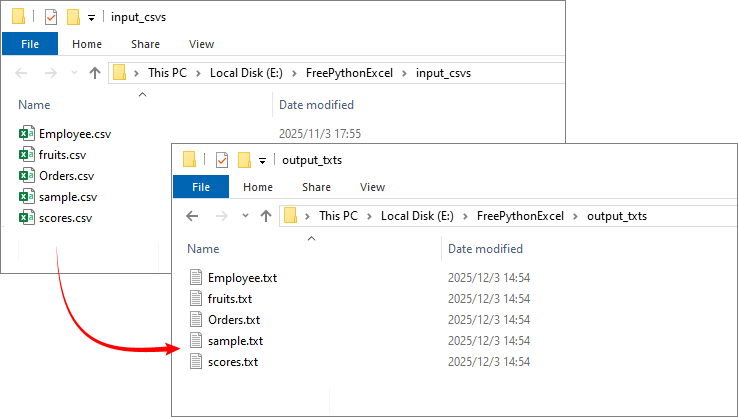
Result of batch converting CSV files to text files:
Pro Tip: The free Python library is also capable of converting the TXT file back to CSV file.
4. Office Software: Excel/Google Sheets for Daily Users
For users already familiar with spreadsheet software, this method integrates conversion into an existing workflow without new tools.
Take Excel as an Example:
- Open your CSV file with Excel. The data will be automatically arranged in columns.
- Click “File → Save As”. In the “Save as type” dropdown, select “Text (Tab delimited) (*.txt)”.
- Choose a save location, name the file, and click “Save” to change CSV to TXT.
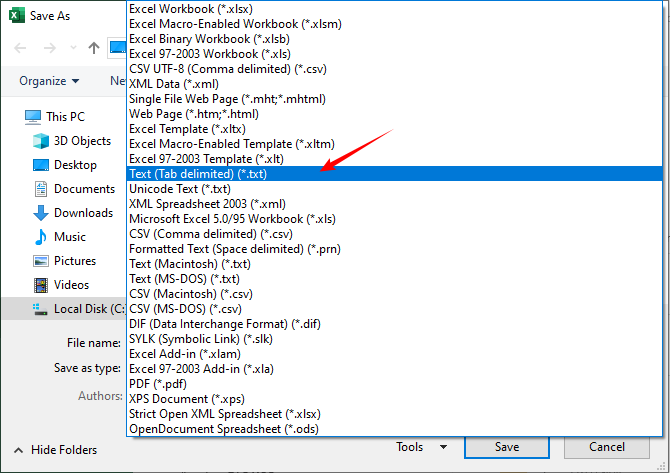
Google Sheets Operation: Open the CSV file, go to “File → Download → Plain Text (.txt)”.
Notes: Excel may add extra formatting—preview the TXT file to ensure data integrity.
Formatting Considerations When Converting CSV to Text
Delimiter Selection
When converting CSV to text, you might change delimiters for better readability:
- Tab-separated values: Ideal for alignment in text editors
- Pipe-separated values (|): Useful when data contains commas
- Custom delimiters: Can be specified based on your needs
Preserving Data Structure
Maintain data integrity by:
- Handling special characters and line breaks within fields
- Maintaining consistent encoding (UTF-8 recommended for multilingual text)
- Test conversions with a sample file before batch processing.
Conclusion
Converting CSV to TXT is a versatile skill that bridges the gap between structured data and universal accessibility. From manual text-editor methods to automated Python scripts, the right approach depends on your volume, technical comfort, and need for customization.
By understanding the various approaches outlined in this guide, you can select the most efficient method for your situation, ensuring your data remains intact while becoming more accessible across different platforms and applications.
FAQs About CSV to TXT Conversion
Q: Will converting CSV to TXT change my data?
A: The data itself remains unchanged, but the formatting may differ. For example:
- Commas may be replaced with tabs or another delimiter.
- All values become plain text.
- Special characters and line breaks within fields should be preserved if the conversion is done correctly.
Q: Can I convert multiple CSV files to TXT at once?
A: Yes. Using a programming script (like the Python example provided) or batch conversion tools allows you to process entire folders of CSV files automatically. Spreadsheet software and most online converters typically handle only one file at a time.
Q: Why does my TXT file still look like a CSV after conversion?
A: If you only changed the file extension (e.g., from .csv to .txt) without altering the content, the data will still be comma-separated. To visually separate columns, use a converter that changes the delimiter to tabs or spaces.
Q: What should I do if my CSV has multiple sheets?
A: CSV files do not support multiple sheets. If your source is an Excel file with multiple sheets, save each sheet as a separate CSV first, then convert each to TXT. The Free Spire.XLS for Python library can handle multi-sheet Excel files directly if needed.