In the world of data handling, JSON and CSV are two of the most widely used formats. JSON is ideal for storing and transmitting structured data, while CSV excels at simplicity, making it perfect for spreadsheets, data analysis tools like Excel or Google Sheets, and quick data sharing. Converting JSON to CSV is a common task for marketers, data analysts, developers, and anyone working with structured data.
In this comprehensive guide, we’ll walk you through the most reliable JSON to CSV conversion methods, from beginner-friendly online tools to code-based solutions for advanced users. Whether you’re dealing with small JSON files or large datasets, you’ll find a suitable approach here.
Contents:
- What Are JSON and CSV? A Quick Overview
- Method 1: Using JSON to CSV Online Converters (Quick & Easy)
- Method 2: Convert JSON to CSV in Python (Flexible & Scalable)
- Method 3: Transform JSON to CSV Using MS Excel (GUI-Friendly)
- Comparison of JSON-to-CSV Methods
- Best Practices for JSON to CSV Conversion
- Frequently Asked Questions
What Are JSON and CSV? A Quick Overview
Before diving into conversion, let’s briefly recap what JSON and CSV are, so you understand why conversion is often necessary:
- JSON (JavaScript Object Notation): A lightweight, human-readable format that uses key-value pairs to store data. It’s widely used in APIs, web applications, and NoSQL databases because it handles nested data well.
- CSV (Comma-Separated Values): A plain-text, table-like format where values are separated by commas. It’s simple, compatible with almost all spreadsheet tools, and easy to import into data analysis software.
The JSON to CSV conversion process essentially "flattens" JSON's hierarchical structure into rows and columns, thereby leveraging CSV’s compatibility with spreadsheet tools and data analysis platforms.
Method 1: Using JSON to CSV Online Converters (Quick & Easy)
Online converters provide the fastest path to conversion, perfect for one-time tasks, small datasets, or users without programming experience. These web-based tools handle the transformation entirely in your browser.
Step 1: Find a Reliable Online Converter
Search for "free JSON to CSV converter" and choose a reputable, ad-light tool like JSON-CSV.com or OnlineJSONTools.com. For sensitive data, consider privacy-focused options that process files locally in your browser without uploading to servers.
Step 2: Prepare Your JSON Data
Ensure your JSON is properly formatted and valid. Most converters will fail silently or produce unexpected results with malformed JSON. A simple array of objects converts most seamlessly:
[
  {"employee_id": 101, "name": "John Chen", "department": "Engineering", "salary": 85000},
  {"employee_id": 102, "name": "Maria Garcia", "department": "Marketing", "salary": 72000},
  {"employee_id": 103, "name": "David Kim", "department": "Sales", "salary": 68000}
]
Pro tip: Use a JSON validator like JSONLint if you're unsure about your file's structure.
Step 3: Upload, Paste, or Link Your JSON Data
Quality converters offer multiple input methods:
- File Upload: Click “Import” or similar button to select your .json file
- Direct Input: Paste raw JSON into a text box
- URL Fetch: Enter a public URL containing JSON data (useful for API endpoints)
For this example, try pasting the employee data above into the converter's input field.
Step 4: Configure Conversion Settings (Advanced Options)
Many converters offer customization:
- Delimiter: Choose comma (standard), semicolon, tab, or pipe
- Text Qualifier: Specify how text fields are enclosed, typically double quotes
- Encoding: UTF-8 is standard and handles international characters
- Header Row: Include or exclude column headers
- Nested Handling: Choose to flatten nested objects
Step 5: Convert and Download
Click the convert button, and you should see a preview within seconds. Click "Download CSV" to save the file to your computer. Open it in Excel or any spreadsheet software to verify the conversion.
An example of converting JSON to CSV using JSON-CSV.com:

Limitations to Note: Online tools typically have file size limits (often 1-10MB), may not handle deeply nested JSON optimally, and raise security concerns with sensitive data.
Method 2: Convert JSON to CSV in Python (Flexible & Scalable)
For recurring conversions, large datasets, complex JSON structures, or automated workflows, using Python is the most efficient option. Among its rich ecosystem of data libraries, Free Spire.XLS for Python is a powerful library that simplifies JSON to CSV (or CSV to JSON) conversion.
Step 1: Install Free Python Library
Ensure you have Python installed, and then open your terminal or command prompt and run the following pip to install the Free Spire.XLS library:
pip install Spire.Xls.Free
Step 2: Write the Python Script to convert a JSON file to CSV
This script works for flat JSON files (no nested data).
import json
from spire.xls import *

# Load JSON data
with open('employee.json') as f:
    data = json.load(f)

# Create workbook and worksheet
workbook = Workbook()
sheet = workbook.Worksheets[0]
# Extract headers from JSON keys
headers = list(data[0].keys())

# Write headers to the first row
for col, header in enumerate(headers, start=1):
    sheet.Range[1, col].Value = header

# Populate values from each JSON object to the subsequent rows
for row_index, item in enumerate(data, start=2):
    for col_index, key in enumerate(headers, start=1):
        value = item.get(key, "")
        sheet.Range[row_index, col_index].Value = str(value) if value is not None else ""

# Save the worksheet as a CSV file
sheet.SaveToFile("output.csv", ",", Encoding.get_UTF8())
workbook.Dispose()
Core Methods in This Code:
-
json.load(): Parse JSON content into a Python list/dictionary. -
Workbook(): Spire.XLS’ core object to create an Excel workbook. -
data[].keys(): Extract column headers from the keys of the JSON list. -
Worksheet.Range[].Value: Write text/values to a specific cell (1-based row/column indexing for Spire.XLS). -
get(key, ""): Safely retrieves the value for each key (returns empty string if the key is missing, avoiding KeyError). -
SaveToFile(filename, delimiter, encoding): Export the worksheet to a CSV file with specified parameters and encoding.
The conversion result:
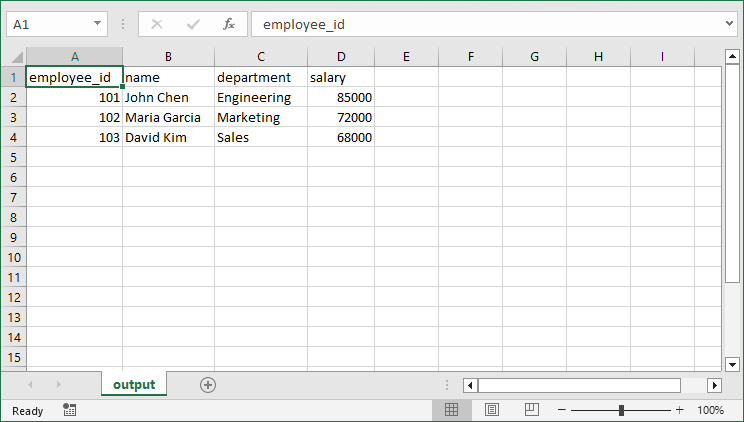
Real-world JSON often contains nested structures. To handle nested JSON with dictionaries and arrays, refer to the detailed guide: JSON to CSV in Python – Complete Guide for Flat & Nested JSON
Method 3: Transform JSON to CSV Using MS Excel (GUI-Friendly)
For those who prefer graphical interfaces or need to manually review data during conversion, MS Excel offers a built-in capability to import JSON and save as CSV format. Here’s how:
- Open Excel and create a new workbook.
- Go to the “Data” tab > “Get Data” > “From File” > “From JSON”.
- Select your JSON file and click “Import”, and then Excel will open a “Power Query Editor” window.
- Click “To Table” in the ribbon to convert the JSON structure.
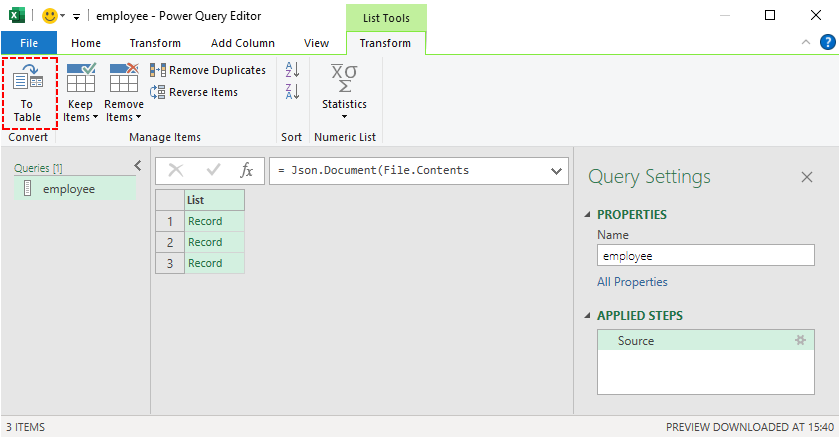
- Expand columns by clicking the double-arrow icon next to column headers.
- Transform data as needed using Power Query's intuitive interface.
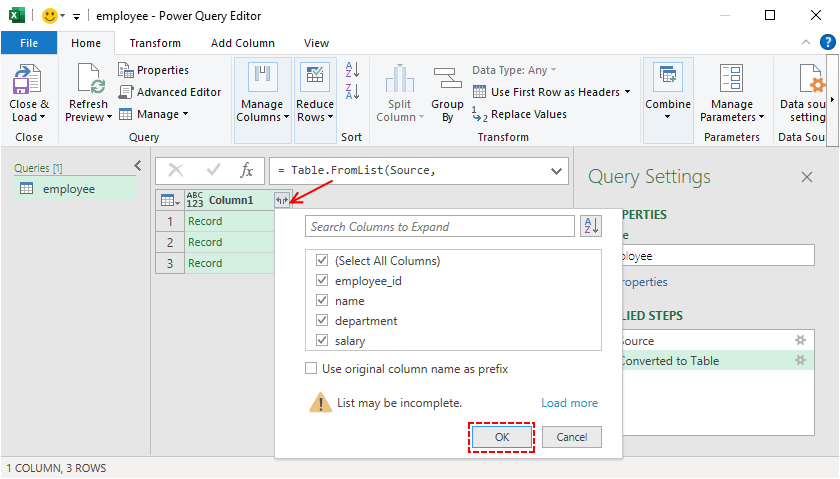
- Once the data is formatted correctly, click “Close & Load” to import the data into your Excel worksheet.
- To convert JSON to CSV in Excel: Go to “File” > “Save As”, select “CSV (Comma delimited) (*.csv)” as the file format, and click “Save”.
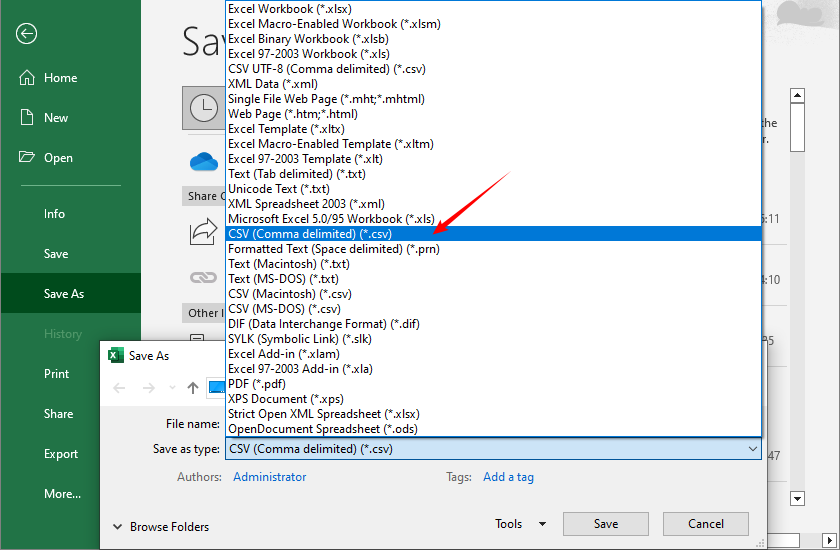
Pro Tip: Excel's Power Query creates a reproducible "query" that can be refreshed if your JSON source updates, perfect for recurring reports.
You may also like: Convert CSV to TXT: 4 Easy Methods for All Users
Comparison of JSON-to-CSV Methods
Choose the method that fits your dataset size, technical skill, and security needs:
| Method | Best For | Difficulty | Customization | Security Level |
|---|---|---|---|---|
| Online Tools | Quick, one-time conversions | Beginner | Low | Low (data uploaded to third-party servers) |
| Python | Large datasets, automation | Intermediate | High | High (local execution, no data leaving your machine) |
| MS Excel | Manual review/editing | Beginner | Medium | Medium (local execution, but Excel files may be shared inadvertently) |
Best Practices for JSON to CSV Conversion
- Validate JSON First: Use JSONLint or similar validators.
- Preserve Data Types: Note that CSV may convert numbers to strings.
- Handle Null Values: Decide how to represent null/empty values.
- Maintain Character Encoding: Use UTF-8 to preserve special characters.
- Test with Sample Data: Always test with a small subset first.
- Document the Process: Keep notes on transformations applied.
Conclusion
Converting JSON to CSV is a fundamental skill in data processing. Whether you’re a beginner needing a quick online tool, a developer automating workflows with Python, or an analyst using Excel for manual review, this guide has you covered.
With these tools and best practices, you’ll turn hierarchical JSON data into usable CSV files in minutes, unlocking seamless integration with spreadsheets, data analysis tools, and reports.
Frequently Asked Questions
Q1: Is it possible to convert JSON to CSV for free?
Yes. There are many free tools, including online converters, and Python with the Free Spire.XLS library (with certain page limitations).
Q2: Can I convert nested JSON to CSV?
Yes, but you need to flatten the nested JSON data first. Use tools like Excel’s Power Query, online tools with flattening features, or Python’s built-in json module.
Q3: How do I convert JSON to CSV on a Mac?
Mac users can use the same methods as Windows users: online tools, Excel for Mac, or Python (which works on Mac, Windows, and Linux).
Q4: Can I automate JSON to CSV conversion?
Yes. Use Python scripts to automate conversion for multiple files or scheduled tasks.
See Also
- 4 Proven Ways to Convert CSV to Excel (Free & Automated)
- Convert Excel to XML: Free Tools + Python Automation
- Convert XLS/XLSX to HTML Easily — Keep Excel Formatting Intact
- Convert JSON to/from Excel in Python – Full Guide with Examples
- Convert Excel to JSON and JSON to Excel in C# .NET – Step-by-Step Guide