Counting rows in Excel is a fundamental task in data analysis, reporting, and spreadsheet management. Whether managing sales records, customer databases, or imported datasets, knowing the exact number of rows helps validate data, monitor workbook growth, and automate workflows.
For small spreadsheets, counting rows manually is straightforward. However, processing multiple workbooks, handling password-protected files, or analyzing data without opening Excel requires different approaches. This guide explores both manual and programmatic methods for counting rows, along with advanced scenarios such as ignoring headers, counting only non-empty rows, and handling corrupted or secured files.
On this page:
- Part 1. Count Rows in an Open Excel Workbook
- Part 2. Count Rows Without Opening Excel Files
- Part 3. Advanced Row Counting Scenarios
- Best Method for Different Use Cases
- Conclusion
- FAQs
1. Part 1. Count Rows in an Open Excel Workbook
When you have a file open and ready, Excel gives you several fast ways to count rows. Each approach has its own strengths depending on the situation.
1.1 Using the Excel Status Bar
The Excel status bar provides the quickest way to count rows in a selected range. Simply select the data or a column, and the status bar at the bottom displays statistics such as Count, Average, and Sum. The Count value represents non-empty cells in the selection.
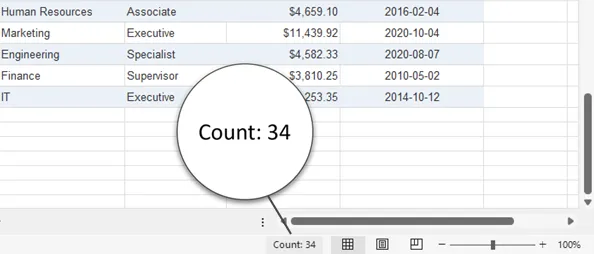
This method is ideal for fast checks when reviewing data manually. For instance, verifying the number of records in a customer list can be done instantly without formulas. However, it only counts selected cells, so datasets with blank rows or multiple regions may yield inaccurate results. Manual inspection remains necessary to ensure completeness.
1.2 Using the COUNTA Formula
The COUNTA function counts all non-empty cells in a range, including text, formulas, and logical values. For example, =COUNTA(A:A) counts all populated cells in column A. Specifying a narrower range like A2:A1000 provides more control.
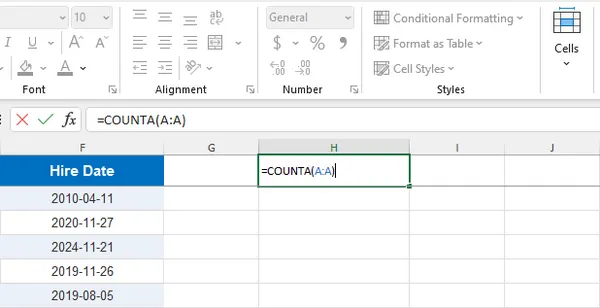
COUNTA is reliable for dynamic datasets because it updates automatically when data changes. It is particularly useful for dashboards, reports, and data validation tasks. Users should note that formulas returning empty strings are still counted, and hidden rows remain included. Choosing a column that always contains data, such as an ID column, improves accuracy.
1.3 Using Ctrl + Arrow Keys to Find the Last Row
Keyboard shortcuts provide a fast method to locate the last used row in a dataset. Selecting a cell and pressing Ctrl + Down Arrow jumps to the last non-empty row in that column. This approach is efficient for large continuous datasets, such as sales logs or transaction records.
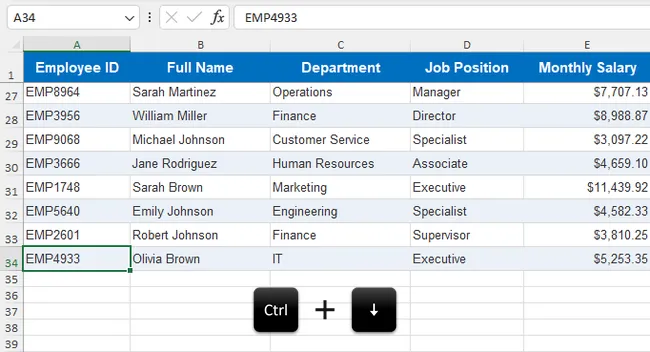
Combining shortcuts like Ctrl + Up Arrow or Ctrl + Right Arrow aids navigation in wide or tall worksheets. However, the method becomes less reliable if blank rows exist within the data, as Excel stops at the first empty row encountered. It is best used for quick estimates rather than precise counts in datasets with irregular spacing.
1.4 Counting Rows in an Excel Table
Excel Tables provide structured management of data, automatically maintaining row counts as the dataset changes. Creating a table (Ctrl + T) allows the use of structured references, such as =ROWS(Table1), to dynamically retrieve row numbers.
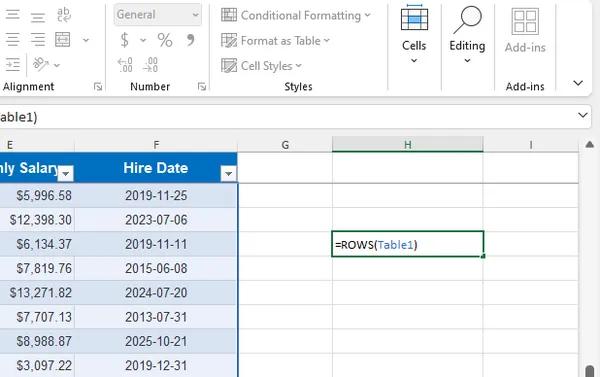
Tables are ideal for growing datasets, integrating seamlessly with PivotTables, charts, and Power Query. They enhance readability and formula reliability. The main limitation is that existing ranges must first be converted to tables, and users unfamiliar with structured references may require a short learning curve.
1.5 Pros and Limitations of Manual Methods
Manual counting methods are straightforward, require no coding, and provide immediate visual feedback. They are effective for small to medium-sized datasets and occasional checks.
However, they are less efficient for large-scale processing, batch operations, or automation, and may be prone to human error. Advanced methods are better suited when speed, scalability, or precision is required.
2. Part 2. Count Rows Without Opening Excel Files
For situations where you need speed, automation, or the ability to process many files at once, there are techniques that work directly on the file without launching Excel at all.
2.1 Reading Excel's Internal ZIP Structure
Modern .xlsx files are ZIP archives containing XML documents. Renaming a file to .zip allows inspection of its contents, with worksheet data typically stored in xl/worksheets/sheet1.xml. Parsing these XML files can provide row counts without launching Excel.
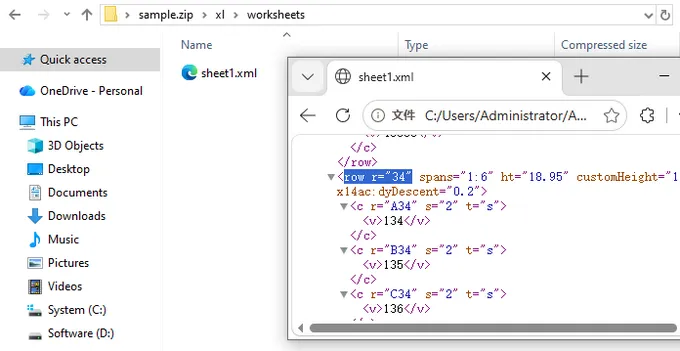
This method is lightweight and efficient but requires understanding of Excel’s internal structure. Complexities such as merged cells, shared strings, and hidden rows can make manual parsing challenging, making this approach more suitable for advanced users or automated scripts.
2.2 Using PowerShell Scripts
PowerShell can automate row counting in Windows environments. It either interacts with Excel through COM automation or processes workbook files directly. A typical workflow involves opening the workbook, selecting a worksheet, reading the used range, and returning the row count.
$excel = New-Object -ComObject Excel.Application
$excel.Visible = $false
$workbook = $excel.Workbooks.Open("C:\Path\To\Sample.xlsx")
$sheet = $workbook.Sheets.Item(1)
$rowCount = $sheet.UsedRange.Rows.Count
Write-Host "Row count: $rowCount"
$workbook.Close($false)
$excel.Quit()
PowerShell is convenient for IT administrators or automated workflows on servers. It supports batch processing and scheduled tasks, although COM-based automation may consume significant resources and compatibility may vary across Excel versions.
2.3 Using Spire.XLS for Python
Spire.XLS for Python is a robust library that reads and writes Excel files entirely in Python, with no dependency on Microsoft Excel itself. It can load workbooks without opening Excel and access worksheet information efficiently.
To get started, install the library:
pip install spire.xls
Then use the following code to count rows in a specific worksheet:
from spire.xls import Workbook

# Load an Excel file
workbook = Workbook()
workbook.LoadFromFile("Sample.xlsx")

# Get row count of a specific sheet
sheet = workbook.Worksheets[0]
row_count =len(sheet.AllocatedRange.Rows)
print(f"Total rows in the worksheet: {row_count}")
Python scripts are ideal for batch processing, automation, and integration with databases or APIs. They can handle multiple worksheets, password-protected files, blank rows, and headers. This approach is efficient, scalable, and reliable.
2.4 Pros and Limitations of Advanced Methods
Advanced methods are suitable for automation, large datasets, and enterprise workflows. They offer consistent, reproducible results and reduce manual effort.
However, they require programming skills, additional libraries, and maintenance. Non-technical users may find manual methods more approachable, while automation benefits teams managing extensive Excel data regularly.
3. Part 3. Advanced Row Counting Scenarios
Real-world spreadsheets are rarely simple. Here's how to handle the edge cases that come up most often.
3.1 Count Rows Across Multiple Worksheets
When a workbook has multiple sheets, you often need the total row count across all of them. The following script iterates over every worksheet and accumulates the totals:
from spire.xls import Workbook

workbook = Workbook()
workbook.LoadFromFile("Sample.xlsx")

total_rows =0
for sheet in workbook.Worksheets:
    rows = sheet.AllocatedRange.Rows
    total_rows +=len(rows)

print(f"Total rows across all worksheets: {total_rows}")
This is especially useful when data is split across monthly or regional sheets and you need a grand total for reporting purposes.
3.2 Count Non-Empty Rows Only
Raw row counts include any blank rows that fall within the used range. If your data has gaps — perhaps due to deletions or formatting — you'll want to filter those out:
from spire.xls import Workbook

workbook = Workbook()
workbook.LoadFromFile("Sample.xlsx")

sheet = workbook.Worksheets[0]
rows = sheet.AllocatedRange.Rows
total_rows = len(rows)

blank_rows = sum(1for row in rows if row.IsBlank)
non_empty_rows = total_rows - blank_rows
print(f"Non-empty rows: {non_empty_rows}")
The IsBlank property returns True for any row where every cell is empty. Subtracting the blank count from the total gives you a precise count of rows that actually contain data.
3.3 Ignore Headers While Counting
When you need a count that represents data records only, headers must be excluded. This script skips a configurable number of header rows before counting:
from spire.xls import Workbook

workbook = Workbook()
workbook.LoadFromFile("Sample.xlsx")

sheet = workbook.Worksheets[0]
rows = sheet.AllocatedRange.Rows
HEADER_ROWS = 1
blank_rows = 0

for i, row in enumerate(rows):
    # Skip header rows
    if i < HEADER_ROWS:
        continue
    if row.IsBlank:
        blank_rows += 1
data_rows = (
    len(rows)
    - HEADER_ROWS
    - blank_rows
)

print(f"Data rows (excluding headers): {data_rows}")
Adjust HEADER_ROWS to match your file — for example, set it to 2 if your sheet has a title row above the column headers.
3.4 Count Rows in Password-Protected Files
Password protection doesn't have to be a roadblock. Spire.XLS supports loading encrypted workbooks by passing the password as a second argument to LoadFromFile:
from spire.xls import Workbook

workbook = Workbook()
# Load encrypted workbook with password
workbook.LoadFromFile("Protected.xlsx", "123456")

sheet = workbook.Worksheets[0]
rows = sheet.AllocatedRange.Rows
print(f"Rows in protected worksheet: {len(rows)}")
This works seamlessly as long as you have the correct password. It's particularly useful in enterprise settings where sensitive files are routinely protected but still need to be processed programmatically.
3.5 Handle Corrupted Files
Batch processing scripts will inevitably encounter a file that is damaged or malformed. Wrapping the load operation in a try-except block prevents one bad file from crashing the entire run:
try:
    workbook.LoadFromFile(file)
except Exception as e:
    print(f"Failed to load {file}: {e}")
    continue
In practice, you'll want to log the failure and move on to the next file rather than silently ignoring the error. A more complete implementation might append the filename to a list of failed files for later review, giving you a clean audit trail without stopping the batch.
4. Best Method for Different Use Cases
| Use Case | Recommended Method |
|---|---|
| Quick inspection | Status Bar |
| Dynamic dataset | COUNTA |
| Fast navigation | Ctrl + Arrow Keys |
| Structured data | Excel Table |
| Batch processing | Python + Spire.XLS |
| Automation with Excel installed | PowerShell |
| Cross-platform; no Excel needed | Python + Spire.XLS |
Choosing the right method depends on file volume, automation needs, and technical expertise.
5. Conclusion
Counting rows in Excel ranges from simple manual methods to fully automated programming approaches. Manual methods are sufficient for small, interactive tasks, while Python or PowerShell scripts excel in batch processing and enterprise scenarios. Advanced techniques handle headers, blank rows, protected workbooks, and corrupted files, ensuring accurate results across complex workflows. Selecting the right method improves efficiency, reliability, and scalability in data management.
6. FAQs
Can Excel count rows automatically?
Yes. Functions like COUNTA and Excel Tables automatically update row counts when data changes.
What is Excel’s maximum row limit?
Modern Excel versions support up to 1,048,576 rows per worksheet.
Can I count rows without Microsoft Excel installed?
Yes. Libraries such as Spire.XLS can process Excel files independently.
Why does my row count look incorrect?
Blank rows, hidden rows, formulas, or merged cells may affect results.
Which method is best for automation?
Python-based solutions are generally the most flexible and scalable.