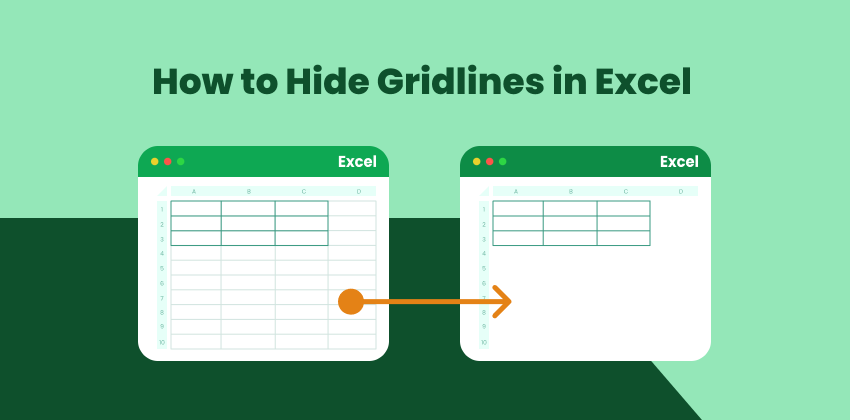
Microsoft Excel's gridlines—those faint lines separating cells—are fundamental to spreadsheet navigation, but sometimes they detract from a clean, professional presentation. Whether you're preparing a financial report, creating a dashboard, or designing a printable form, knowing how to control gridline visibility is essential.
In this article, we’ll explore four practical and reliable ways to hide gridlines in Excel, covering on-screen viewing, printing, PDF export, and automated processing using C#. Each method serves a different purpose, allowing you to choose the approach that best fits your workflow.
Method Overview:
- Method 1: Hide Gridlines in Excel View
- Method 2: Hide Gridlines When Printing an Excel Sheet
- Method 3: Hide Gridlines Before Exporting Excel to PDF
- Method 4: Hide Gridlines Programmatically Using C#
Method 1: Hide Gridlines in Excel View
The simplest way to hide gridlines is directly from Excel’s ribbon interface. This method affects only what you see on screen. It does not change how the worksheet prints or how it appears when exported to PDF.
Step-by-step Instructions
- Open your Excel worksheet.
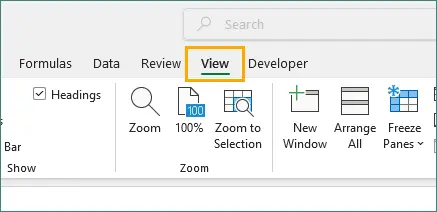
- Go to the View tab on the ribbon.
- In the Show group, uncheck Gridlines.
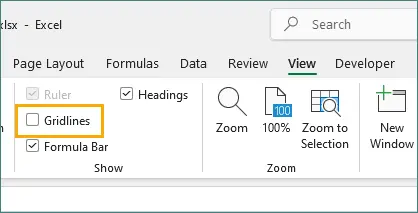
Once unchecked, gridlines immediately disappear from the worksheet view.
Important Note
Gridline visibility is configured per worksheet, not per workbook. If your file contains multiple sheets, you’ll need to repeat this action for each worksheet where gridlines should be hidden.
When to Use This Method
- Cleaning up the workspace for better focus.
- Preparing screenshots or screen recordings.
- Reviewing dashboards or summary sheets.
- Temporarily improving readability without affecting printed or exported output.
Method 2: Hide Gridlines When Printing an Excel Sheet
Excel treats printing gridlines separately from on-screen display. By default, gridlines don’t print, but if they appear in your printed output, you can disable them explicitly.
Standard Approach
- Open your Excel file.
- Switch to the Page Layout tab.
- In the Sheet Options group, locate Gridlines.
- Uncheck the Print option.
- Preview the result using File → Print .
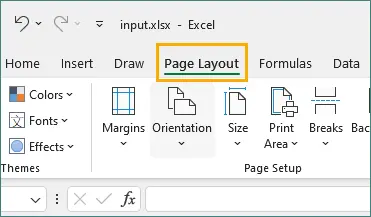
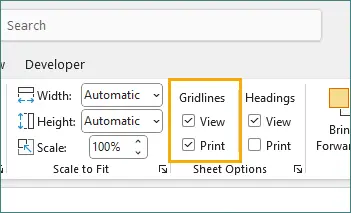
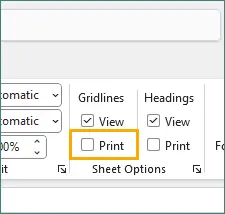
This ensures gridlines won’t appear on paper or in print-based outputs.
Why This Matters
Printed Excel documents—such as invoices, reports, or forms—often require a polished, uncluttered look. Removing gridlines keeps the reader’s attention on the data itself, especially when borders, shading, or conditional formatting are already applied.
Pro Tip: Use Custom Views for Frequent Printing
If you frequently need to print without gridlines, consider creating a custom view:
- Go to View → Workbook Views → Custom Views .
- Click Add and name your view (for example, Print View).
- Configure all print settings, including hiding gridlines.
- Save the view and switch to it whenever needed.
Method 3: Hide Gridlines Before Exporting Excel to PDF
When exporting Excel to PDF, the output generally follows your print settings, which makes explicit configuration important.
Standard PDF Export Workflow
- Hide gridlines for printing (see Method 2).
- Go to File → Export → Create PDF/XPS Document .
- Specify the output file path and name, then click Publish .
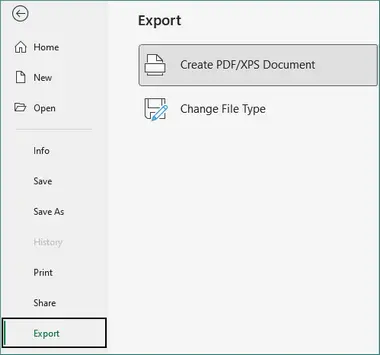
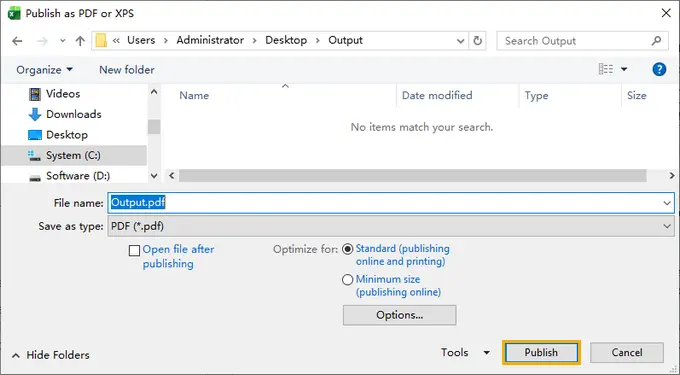
When This Method is Essential
- Sharing Excel data as PDF files.
- Creating read-only or client-facing documents.
- Archiving finalized reports.
- Maintaining consistent formatting across platforms.
Key takeaway: Excel’s PDF export relies on print settings. If gridlines are enabled for printing, they will appear in the PDF—even if they’re hidden in the worksheet view.
Method 4: Hide Gridlines Programmatically Using C#
When dealing with multiple Excel files or automated workflows, manually adjusting gridline settings isn’t efficient. In such cases, C# .NET automation provides a scalable and reliable solution. Using Spire.XLS for .NET, you can disable gridlines programmatically before saving or exporting files.
Example: Hide Gridlines for Worksheet Viewing
using Spire.Xls;

namespace HideGridlines
{
    class Program
    {
        static void Main(string[] args)
        {
            // Load an Excel file
            Workbook workbook = new Workbook();
            workbook.LoadFromFile(@"E:\Files\Test.xlsx");

            // Get the first worksheet
            Worksheet worksheet = workbook.Worksheets[0];

            // Hide gridlines in the specified worksheet
            worksheet.GridLinesVisible = false;

            // Save the document
            workbook.SaveToFile("HideGridlines.xlsx", ExcelVersion.Version2016);
        }
    }
}
Example: Hide Gridlines for Printing and PDF Export
using Spire.Xls;

namespace DisableGridlines
{
    class Program
    {
        static void Main(string[] args)
        {
            // Load an Excel file
            Workbook workbook = new Workbook();
            workbook.LoadFromFile("Input.xlsx");

            // Get the first worksheet
            Worksheet worksheet = workbook.Worksheets[0];

            // Get the PageSetup object
            PageSetup pageSetup = worksheet.PageSetup;

            // Disable gridlines for printing or saving to PDF
            pageSetup.IsPrintGridlines = false;

            // Print the workbook
            workbook.PrintDocument.Print();

            // Save as PDF
            // worksheet.SaveToPdf("ToPDF.pdf");
        }
    }
}
When to Use This Method
- Batch processing Excel files.
- Automating Excel-to-PDF conversions.
- Enforcing consistent formatting standards.
- Integrating Excel operations into backend systems.
In addition to hiding gridlines, programmatic Excel processing allows developers to manage a range of formatting tasks through code, including adding or removing cell borders, applying conditional formatting rules, and standardizing worksheet layouts. These capabilities help create clean, consistent Excel workflows that scale reliably across multiple files and use cases.
Conclusion
Mastering gridline control in Excel enhances both the visual quality and professional presentation of your spreadsheets. While gridlines are helpful during data entry and analysis, hiding them at the right time can dramatically improve how your work is perceived.
- Use View settings for quick, on-screen cleanup.
- Rely on print options for physical documents and PDFs.
- Choose .NET automation for scalable, repeatable workflows.
By applying the appropriate method for each scenario, you can ensure your Excel workbooks look exactly as intended—whether viewed on screen, printed on paper, or distributed as PDF files. Gridline control is a small detail, but one that makes a meaningful difference in professional Excel usage.
FAQs
Q1. Why are gridlines still visible after I hide them?
Gridlines may still appear if you only disabled them in View mode. To remove gridlines from printed or exported files, you must also disable them in print settings under the Page Layout tab.
Q2. Can I hide gridlines in one worksheet but keep them in others?
Yes. Gridline visibility is controlled per worksheet, not per workbook. You can hide gridlines on selected sheets while leaving others unchanged.
Q3. Will hiding gridlines remove cell borders?
No. Gridlines and cell borders are different. Hiding gridlines does not affect any manually applied borders, which will remain visible.
Q4. Do gridlines reappear when exporting Excel to PDF?
They can. Excel’s PDF export is based on print settings. If gridlines are enabled for printing, they will appear in the PDF even if they’re hidden in the worksheet view.
Q5. Can I hide gridlines in Excel using code?
Yes. Gridlines can be controlled programmatically. For C# workflows, libraries such as Spire.XLS for .NET allow you to disable gridlines before saving or exporting files.