
If you've ever needed to upload spreadsheet data to a web application, build a REST API, or migrate data into a NoSQL database, you've probably encountered a common problem: Excel doesn't provide a built-in way to save data as JSON.
Fortunately, there are several ways to export Excel to JSON, ranging from quick online converters to programmatic solutions in Python. The best method depends on your file size, security requirements, and whether you need to preserve workbook structures such as multiple worksheets or formula results.
In this guide, we'll compare the most practical approaches and help you choose the right solution for your scenario.
Quick Navigation
- Why Export Excel to JSON?
- What Does Excel Data Look Like in JSON?
- Method 1: Export Excel to JSON Online
- Method 2: Export Excel to JSON in Python with Pandas
- Method 3: Export Excel to JSON in Python with Spire.XLS
- Common Challenges When Converting Excel to JSON
- Which Method Should You Choose?
- FAQ
Why Export Excel to JSON?
Excel is the most widely used tool for storing structured data, but modern applications communicate in JSON. Converting between these formats is essential whenever spreadsheet data needs to move into a web context.
Common use cases include:
- Sending spreadsheet data to web applications
- Importing data into REST APIs
- Working with JavaScript frameworks like React, Vue, or Angular
- Migrating data into NoSQL databases like MongoDB
- Exchanging data between systems in integration pipelines
Excel has no native "Save as JSON" option, so you need an external tool or library to bridge this gap.
What Does Excel Data Look Like in JSON?
Excel rows are typically converted into JSON objects, while column headers become object keys.
Excel Data:
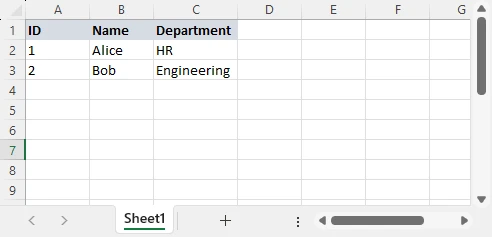
JSON Output:
[
  {"ID": 1, "Name": "Alice", "Department": "HR"},
  {"ID": 2, "Name": "Bob", "Department": "Engineering"}
]
Each row becomes a JSON object, each column header becomes a key, and the entire worksheet becomes an array. Both XLS and XLSX files follow the same mapping pattern.
Method 1: Export Excel to JSON Online
Online Excel-to-JSON converters provide the fastest solution for one-time conversions without requiring software installation or programming knowledge.
Steps to Convert Excel to JSON Online
-
Upload the Excel file: Select your .xlsx or .xls file from local storage. Most platforms support drag-and-drop.
-
Configure options: Specify whether to include headers, select specific worksheets, or customize output formatting.
-
Convert and download: The server processes your file and generates JSON output. Retrieve the converted file or copy the result.
Recommended Online Excel to JSON Converters
Different tools excel at different scenarios:
| Tool | Best For | File Size Limit | Special Features |
|---|---|---|---|
| TableConvert | Table-based JSON structures | 10MB | Custom JSON formatting, nested objects |
| Data Formatter Pro | Quick conversion in the browser | 5MB | Browser-side conversion, no upload required |
| JSON Editor Online | Visual editing after conversion | 5MB | Built-in JSON validator and formatter |
Advantages and Limitations
Advantages:
- No installation required — access from any browser
- Fast for small files under 5MB
- Beginner-friendly with graphical interfaces
Limitations:
- File size limits: Most free converters restrict uploads to 5-10MB
- Privacy concerns: Uploading business data to external servers introduces compliance risks
- Formula handling: Online converters export formula results as static values
- Multiple worksheets: Many tools export only the active worksheet or lose sheet structure
Online converters work well for quick, non-sensitive conversions. For anything involving large files, confidential data, or complex workbooks, you need a programmatic solution.
Method 2: Export Excel to JSON in Python with Pandas
Pandas is Python's most popular data analysis library, offering straightforward Excel-to-JSON conversion through its DataFrame API. This method suits data scientists and analysts who already use Pandas for data manipulation.
Install Pandas and Dependencies
pip install pandas openpyxl
For legacy .xls files, also install xlrd:
pip install xlrd
Read Excel and Export JSON
import pandas as pd

# Load Excel file into DataFrame
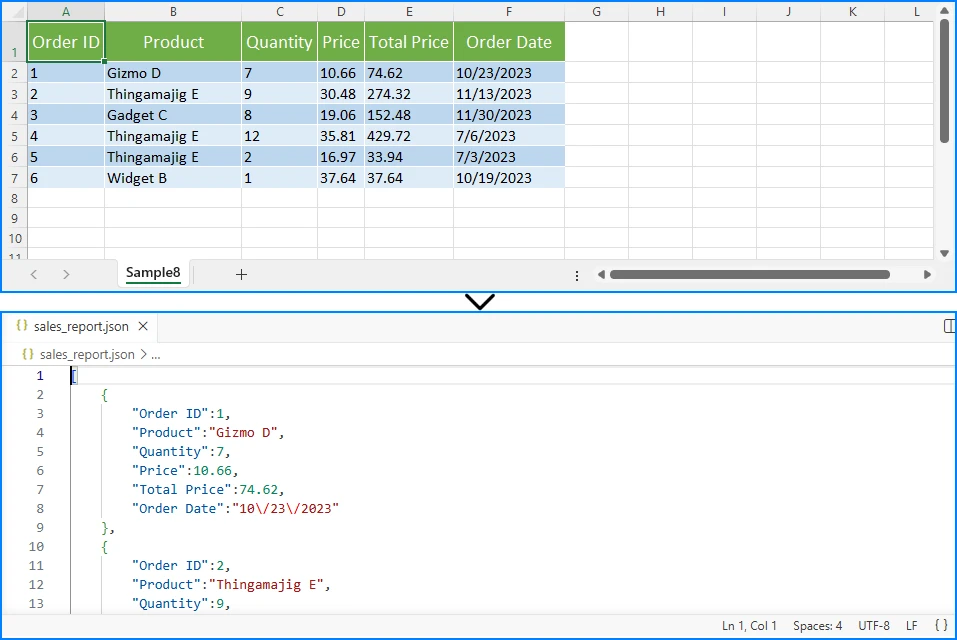
df = pd.read_excel("sales_report.xlsx")

# Export DataFrame to JSON
df.to_json(
    "sales_report.json",
    orient="records",
    indent=4
)

print("Excel data exported to JSON successfully")
Below is an example of the Excel worksheet and JSON output:
Key Parameters:
-
orient="records": Structures output as an array of objects (most common format) -
indent=4: Pretty-prints JSON with 4-space indentation
Understanding JSON Output Options
Pandas provides multiple output orientations through the orient parameter:
orient="records" (Recommended for APIs):
[
  {"ID": 1, "Name": "Alice", "Department": "HR"},
  {"ID": 2, "Name": "Bob", "Department": "Engineering"}
]
orient="index":
{
  "0": {"ID": 1, "Name": "Alice", "Department": "HR"},
  "1": {"ID": 2, "Name": "Bob", "Department": "Engineering"}
}
orient="split":
{
  "columns": ["ID", "Name", "Department"],
  "index": [0, 1],
  "data": [[1, "Alice", "HR"], [2, "Bob", "Engineering"]]
}
The records orientation is the most widely compatible format for REST APIs and JavaScript applications.
Handling Specific Worksheets
import pandas as pd

# Read specific worksheet by name
df = pd.read_excel("workbook.xlsx", sheet_name="Q4_Sales")

# Read specific worksheet by index (0-based)
df = pd.read_excel("workbook.xlsx", sheet_name=0)

df.to_json("q4_sales.json", orient="records", indent=4)
Pandas excels for data analysis where you need to filter, aggregate, or transform data before export. However, it loads entire files into memory and cannot preserve formula logic, making it less suitable for large files or enterprise scenarios.
Excel-to-JSON conversion is often only one step in a data workflow. If you need to import JSON data back into spreadsheets, see our tutorial on converting JSON to Excel for a complete two-way data exchange solution.
Method 3: Export Excel to JSON in Python with Spire.XLS
Spire.XLS for Python provides a professional Excel processing library designed for scenarios where Pandas falls short. It handles complex workbook structures, preserves formula calculations, and processes large files efficiently without loading entire datasets into memory.
Install Spire.XLS for Python
pip install Spire.XLS
Export Excel Data to JSON
from spire.xls import Workbook
import json

# Create workbook instance
workbook = Workbook()
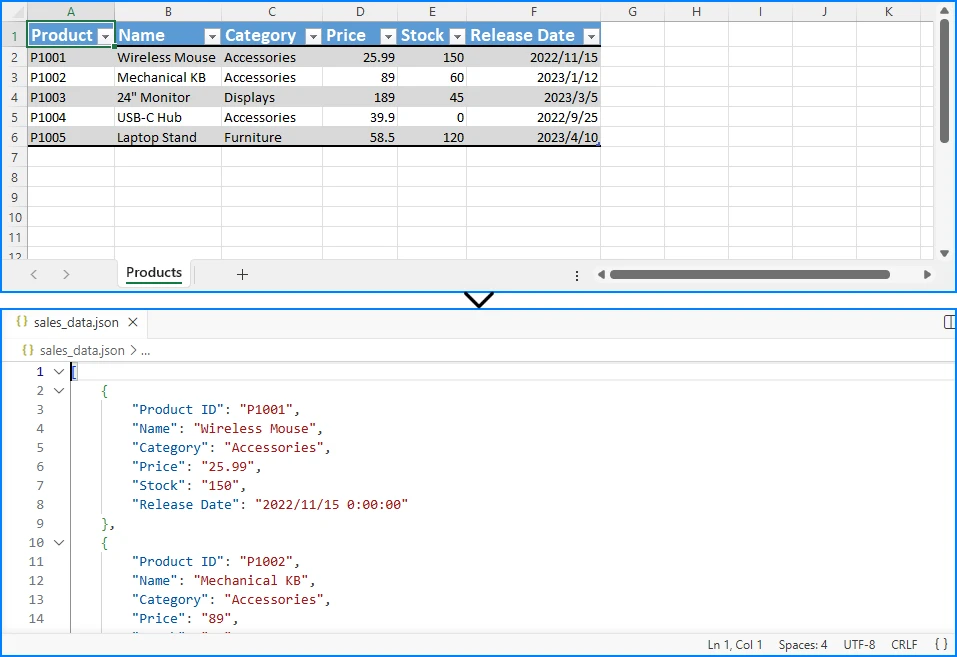
workbook.LoadFromFile("sales_data.xlsx")

# Get the first worksheet
sheet = workbook.Worksheets[0]

# Extract data into structured format
data = []
headers = []

# Read headers from first row
for col in range(sheet.AllocatedRange.Columns.Count):
    cell = sheet.AllocatedRange.Rows[0].Cells[col]
    headers.append(cell.Value)

# Read data rows
for row_idx in range(1, sheet.AllocatedRange.Rows.Count):
    row_data = {}
    row = sheet.AllocatedRange.Rows[row_idx]

    for col_idx in range(len(headers)):
        cell = row.Cells[col_idx]
        row_data[headers[col_idx]] = cell.Value

    data.append(row_data)

# Export to JSON file
with open("sales_data.json", "w", encoding="utf-8") as f:
    json.dump(data, f, indent=4, ensure_ascii=False)

print(f"Exported {len(data)} records to JSON")
workbook.Dispose()
The conversion result is shown below:
Key Points
-
Load Workbook: Use
Workbook.LoadFromFile()to load the Excel file into memory. This method supports both XLS and XLSX formats. -
Access Worksheet: Retrieve a specific worksheet using
workbook.Worksheets[index], where index 0 refers to the first sheet. -
Extract Headers: Iterate through the first row of the allocated range (
sheet.AllocatedRange.Rows[0]) to collect column headers, which will serve as JSON object keys. -
Read Data Rows: Loop through remaining rows (starting from index 1) and extract cell values. For each row, create a dictionary mapping headers to cell values.
-
Export to JSON: Use Python's built-in
json.dump()function to write the data structure to a JSON file with proper formatting (indent=4) and Unicode support (ensure_ascii=False).
JSON is not the only format used for data exchange. If you need a simpler, tabular format for reporting or system integration, see our guide on converting Excel to CSV in Python.
Export Multiple Worksheets to JSON
One of Spire.XLS's key advantages is handling multi-sheet workbooks while preserving structure:
from spire.xls import Workbook
import json

workbook = Workbook()
workbook.LoadFromFile("quarterly_reports.xlsx")

workbook_data = {}

for sheet_index in range(workbook.Worksheets.Count):
    sheet = workbook.Worksheets[sheet_index]
    sheet_name = sheet.Name

    sheet_data = []
    headers = []

    last_row = sheet.LastRow
    last_col = sheet.LastColumn

    if last_row > 0 and last_col > 0:
        # Read headers
        for col in range(1, last_col + 1):
            cell_value = sheet.Range[1, col].Value
            headers.append(cell_value if cell_value else f"Column{col}")

        # Read data rows
        for row in range(2, last_row + 1):
            row_data = {}
            has_data = False

            for col in range(1, last_col + 1):
                cell = sheet.Range[row, col]
                value = cell.Value

                # Handle formula cells - export calculated results
                if cell.HasFormula:
                    value = cell.FormulaValue

                row_data[headers[col - 1]] = value
                if value is not None and str(value).strip():
                    has_data = True

            if has_data:
                sheet_data.append(row_data)

    workbook_data[sheet_name] = sheet_data
    print(f"Processed: {sheet_name} ({len(sheet_data)} rows)")

with open("quarterly_reports.json", "w", encoding="utf-8") as f:
    json.dump(workbook_data, f, indent=4, ensure_ascii=False)

print(f"Exported {workbook.Worksheets.Count} worksheets to JSON")
workbook.Dispose()
Output Structure:
{
  "Q1_Sales": [
    {"Product": "Widget A", "Revenue": 15000, "Units": 500},
    {"Product": "Widget B", "Revenue": 22000, "Units": 730}
  ],
  "Q2_Sales": [
    {"Product": "Widget A", "Revenue": 18000, "Units": 600},
    {"Product": "Widget B", "Revenue": 25000, "Units": 830}
  ]
}
Benefits of Using Spire.XLS
- Preserve workbook structure: Maintain worksheet organization in the JSON output
- Handle formulas correctly: Export calculated values from formula cells
- Memory-efficient processing: Handle large workbooks without loading entire files into memory
- No Excel dependency: Process files without requiring Microsoft Excel installation
- Cross-platform: Run on Windows, Linux, and macOS
Pandas vs Spire.XLS Comparison
| Feature | Pandas | Spire.XLS |
|---|---|---|
| Open Source | ✓ | ✗ |
| Data Analysis | ✓ | ✓ |
| Formula Results | Limited | ✓ |
| Multiple Worksheets | Basic | ✓ |
| Enterprise Automation | Limited | ✓ |
| Memory Efficiency | Moderate | ✓ |
| Large File Support | Limited | ✓ |
For systems that require hierarchical or schema-based data exchange, you can also learn how to convert Excel to XML in Python.
Common Challenges When Converting Excel to JSON
Multiple Worksheets
Workbooks often contain multiple related worksheets. Exporting all sheets as a single flat array loses organizational structure. Use a library like Spire.XLS to preserve worksheet names as top-level keys in your JSON output.
Formula Cells
Excel formulas calculate values dynamically. When exporting to JSON, you typically want the calculated result, not the formula string. Spire.XLS provides the FormulaValue property to export computed values, while Pandas reads displayed values by default.
Date Formatting
Excel stores dates as numeric serial dates. Without explicit handling, dates may export as meaningless numbers like 45662 instead of "2026-05-01". Convert date columns to ISO 8601 strings for JSON compatibility.
Empty Cells and Null Values
Empty cells can be represented as null, omitted entirely, or exported as empty strings. Use null for missing values and empty strings for explicitly empty cells to preserve data intent.
Which Method Should You Choose?
| Scenario | Recommended Method | Rationale |
|---|---|---|
| Quick one-time conversion | Online converter | No setup, fastest for occasional use |
| Data analysis workflows | Pandas | Integrates with analysis pipelines |
| Complex workbooks with multiple sheets | Spire.XLS | Preserves structure, handles formulas |
| Large files (>100MB) | Spire.XLS | Memory-efficient processing |
| Sensitive/confidential data | Spire.XLS (local) | No external server transmission |
FAQ
Can Excel save directly as JSON?
No. Excel's Save As dialog supports XLSX, XLS, CSV, PDF, and XML, but not JSON. You need an online converter, a Python library, or a custom script to export Excel data to JSON.
How do I export Excel data to a JSON file?
Choose your tool, load the Excel file, extract the worksheet data, transform rows to JSON objects with column headers as keys, and write the output to a .json file.
With Pandas:
import pandas as pd
df = pd.read_excel("data.xlsx")
df.to_json("data.json", orient="records", indent=4)
What is the best Python library for converting Excel to JSON?
- Pandas: Best for data analysis workflows with powerful transformations, but loads entire files into memory and cannot preserve formulas.
- Spire.XLS: Best for enterprise scenarios with large files, multiple worksheets, and formula handling.
How can I export multiple worksheets to JSON?
Use Spire.XLS to iterate through worksheets and organize them in a dictionary with sheet names as keys:
from spire.xls import Workbook
import json

workbook = Workbook()
workbook.LoadFromFile("multi_sheet.xlsx")

result = {}
for sheet in workbook.Worksheets:
    sheet_data = []  # Extract sheet data
    # ... extraction logic ...
    result[sheet.Name] = sheet_data

with open("output.json", "w") as f:
    json.dump(result, f, indent=4)
Can formulas be preserved during Excel-to-JSON conversion?
Formulas themselves cannot be preserved in JSON since JSON is a static data format. However, you can export the calculated results of formulas. Use Spire.XLS's FormulaValue property to get computed values instead of formula strings.
How do I handle large Excel files when exporting to JSON?
Avoid Pandas for large files — it loads everything into memory. Use Spire.XLS for memory-efficient cell-by-cell access. For very large datasets, consider line-delimited JSON (JSONL) format, where each line is a separate JSON object, enabling streaming processing.
Conclusion
Exporting Excel to JSON bridges the gap between spreadsheet data and modern applications. For quick conversions, online tools get the job done without any setup. When you need data analysis capabilities, Pandas provides powerful transformations. For enterprise scenarios with large files, multiple worksheets, or formula handling, Spire.XLS delivers the control and precision you need. Choose based on your file size, complexity, and workflow requirements.
Further Reading: