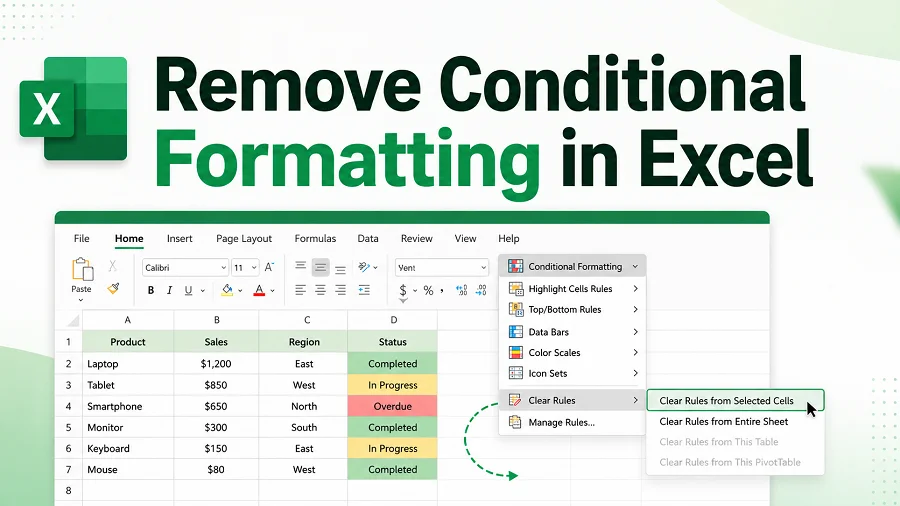
Conditional formatting in Excel helps you highlight duplicates, overdue dates, top values, and data trends. However, when a workbook contains too many overlapping or outdated rules, it may become harder to read, slower to edit, or visually cluttered.
Fortunately, clearing conditional formatting does not have to be complicated. In this guide, we will walk you through 5 simple ways to remove conditional formatting in Excel — without altering your underlying worksheet data or structure.
- Quick Summary: How to Remove Conditional Formatting in Excel
- Method 1: Excel Clear Rules Menu (The Native Way)
- Method 2: Excel Clear Formats Tool (The Blanket Reset)
- Method 3: Online Excel Editors (Cloud-Based Cleanup)
- Method 4: VBA Macro (Multi-Sheet Automation)
- Method 5: Python Automation with Spire.XLS (Batch Processing)
- Why Can’t I Remove Conditional Formatting in Excel?
- Clear Rules vs. Clear Formats: What’s the Difference?
- Frequently Asked Questions
Quick Summary: How to Remove Conditional Formatting in Excel
The best method depends on your workflow requirements, your technical setup, and how much formatting you need to clear.
| Method | Best For | Preserves Manual Styles? |
|---|---|---|
| Excel Clear Rules Menu | Quick cleanup of a range, sheet, or table | Yes |
| Excel Clear Formats Tool | Removing all visual styling — including fonts, borders, fills, and conditional formatting — in one go | No |
| Online Excel Editors (Microsoft 365) | Browser-based cleanup without installing Excel | Yes |
| VBA Macro | Automating cleanup across many sheets inside Excel | Yes |
| Python Automation with Spire.XLS | Batch processing many files without opening Excel | Yes |
Method 1: Excel Clear Rules Menu (The Native Way)
The most direct way to remove conditional formatting in Excel is by using the native Clear Rules menu. This method gives you surgical control, allowing you to delete formatting rules from a specific selection or wipe it from the entire worksheet at once.
Step-by-Step Instructions
-
Select your target cells. Highlight a specific area to clean, or click anywhere if you intend to clear the entire worksheet.
-
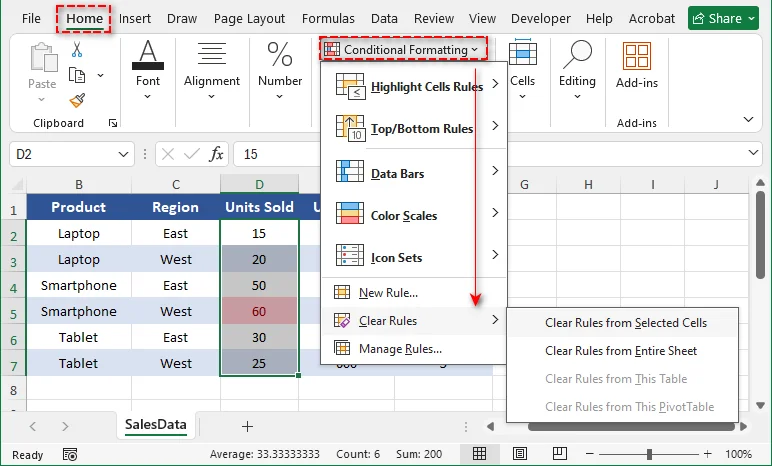
Navigate to the Home tab on the Excel Ribbon.
-
In the Styles group, click on Conditional Formatting.
-
Hover over Clear Rules to reveal the secondary menu.
-
Choose one of the following options based on your target:
- Clear Rules from Selected Cells: Only affects the area you highlighted.
- Clear Rules from Entire Sheet: Purges all conditional formatting from the active worksheet.
- Clear Rules from This Table: Strips formatting rules from the active table boundary (selectable only if your cursor is inside an Excel Table).
- Clear Rules from This PivotTable: Clears formatting rules applied to the PivotTable (selectable only if your cursor is inside a PivotTable).
After that, Excel will remove all the conditional formatting rules from the selected area.
Tip: Remove a Specific Conditional Formatting Rule from Excel
If you only want to delete one specific rule instead of all rules, go to Home > Conditional Formatting > Manage Rules. Select the rule you no longer need, click Delete Rule, then click Apply and OK.
Method 2: Excel Clear Formats Tool (The Blanket Reset)
If you want to remove conditional formatting together with all other visual cell styles, the Clear Formats tool can reset the selected range in one step.
Step-by-Step Instructions
-
Highlight the range of cells, columns, or rows you want to reset.
-
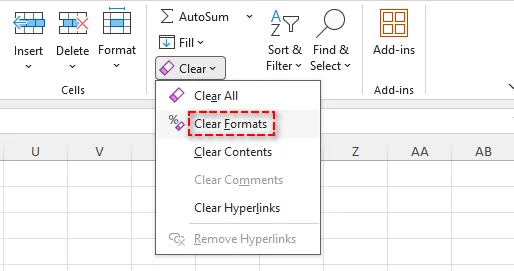
Stay on the Home tab and look to the far right side of the Ribbon (the Editing group).
-
Click the Clear button (represented by a pink/purple eraser icon).
-
Select Clear Formats from the dropdown menu.
Warning
This removes all custom visuals. Manual bold fonts, borders, fills, currency symbols ($), and custom date formats will instantly revert to Excel's default "General" format. Use this only when you want a completely blank slate.
Method 3: Online Excel Editors (Cloud-Based Cleanup)
If you are collaborating on the go or don't have the desktop version of Excel installed, you can easily clean up rules using Excel for the Web (Microsoft 365).
Step-by-Step Instructions
-
Open Excel for the Web (Microsoft 365) and upload your Excel file.
-
Select the cells containing the formatting you wish to remove.
-
Go to the Home tab on the top ribbon.
-
Click on Conditional Formatting > Clear Rules.
-
Select either From Selected Cells or From Entire Sheet.
The web version instantly syncs your changes, making this an ideal method for cross-platform teams utilizing real-time collaboration.
Method 4: VBA Macro (Multi-Sheet Automation)
Cleaning conditional formatting in Excel sheet-by-sheet in a massive workbook with dozens of tabs is incredibly tedious. You can leverage a simple VBA (Visual Basic for Applications) macro to automate this across your entire file in seconds.
Step-by-Step Instructions
-
Open your Excel workbook.
-
Press Alt + F11 to open the VBA Editor.
-
Click Insert > Module from the top menu.
-
Copy and paste the following VBA code into the code window:
Sub RemoveAllConditionalFormatting()
    Dim ws As Worksheet
    Dim response As VbMsgBoxResult

    response = MsgBox("Are you sure you want to remove conditional formatting from ALL sheets?", vbYesNo + vbQuestion, "Confirm Clear")

    If response = vbYes Then
        For Each ws In ThisWorkbook.Worksheets
            ws.Cells.FormatConditions.Delete
        Next ws

        MsgBox "Successfully removed all conditional formatting rules!", vbInformation, "Done"
    End If
End Sub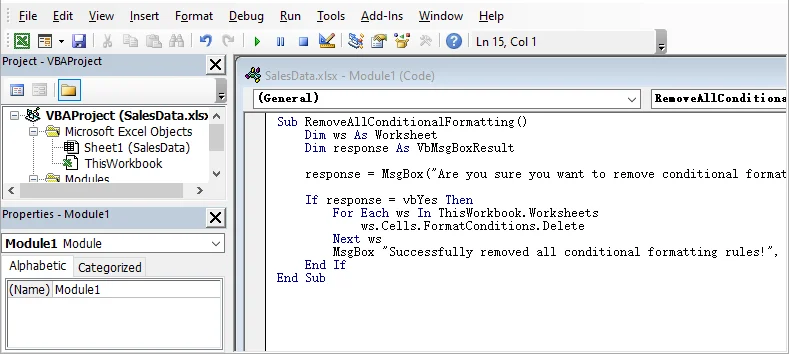
-
Press F5 or click the Run button to execute the macro.
-
Save your workbook as an Excel Macro-Enabled Workbook (.xlsm) if you want to keep the tool for future use.
Note Before Running the VBA Macro
- Save a backup copy first. VBA changes cannot be undone with Ctrl + Z.
- If the macro does not run, check File > Options > Trust Center > Trust Center Settings > Macro Settings. Only enable macros for files and code you trust.
Method 5: Python Automation with Spire.XLS (Batch Processing)
For data engineers, developers, or sysadmins managing hundreds of Excel files on a server, opening individual GUI interfaces isn't viable. Using Python alongside the library Spire.XLS for Python, you can programmatically strip conditional formatting rules from Excel files completely headless and at scale.
Prerequisites
First, ensure you have Python 3.7 or above installed, then install Spire.XLS for Python via pip:
pip install Spire.Xls
For a step-by-step setup guide, check how to install Spire.XLS for Python.
Batch Remove Conditional Formatting from Excel with Python and Spire.XLS
The following script loops through a folder of Excel files, clears all conditional formatting rules using ClearConditionalFormats(), and saves the cleaned copies to an output directory.
from pathlib import Path
from spire.xls import Workbook, ExcelVersion

source_dir = Path("raw_excel_files")
output_dir = Path("cleaned_excel_files")
output_dir.mkdir(exist_ok=True)

for file_path in source_dir.iterdir():
    # Process standard Excel file types
    if file_path.suffix.lower() not in [".xls", ".xlsx"]:
        continue

    # Skip temporary Excel lock files
    if file_path.name.startswith("~$"):
        continue

    try:
        workbook = Workbook()
        workbook.LoadFromFile(str(file_path))

        # Loop through all worksheets in the current workbook
        for worksheet in workbook.Worksheets:
            # Clear conditional formatting from the populated cell boundaries
            worksheet.AllocatedRange.ClearConditionalFormats()

        # Save the sanitized file to the output directory
        output_path = output_dir / f"{file_path.stem}_cleaned.xlsx"
        workbook.SaveToFile(str(output_path), ExcelVersion.Version2016)
        workbook.Dispose()

        print(f"Processed: {file_path.name}")

    except Exception as e:
        print(f"Failed to process {file_path.name}: {e}")

print("Batch processing completed.")
Optional: Remove Formatting from a Specific Sheet or Range Only
If you do not want to clean the entire workbook, you can target a specific worksheet index or an exact cell range.
To clear all rules from the first worksheet only:
worksheet = workbook.Worksheets[0]
worksheet.AllocatedRange.ClearConditionalFormats()
To target a designated cell range (e.g., A1 to F20) on a specific sheet:
worksheet = workbook.Worksheets[0]
worksheet.Range["A1:F20"].ClearConditionalFormats()
If you need to write new rules back into your sheets, see our guide on applying conditional formatting in Excel with Python.
License Notice
Spire.XLS for Python may require a license for production use to remove watermarks. You can request a free trial license for testing, or use the Free Spire.XLS version for small use cases.
Why Can’t I Remove Conditional Formatting in Excel?
If you tried the steps above and the annoying highlights or color scales still won't go away, you are likely dealing with one of these common technical roadblocks:
1. The Worksheet is Protected
If a workbook creator locked the structure to prevent accidental edits, formatting options will be greyed out.
- The Fix: Go to the Review tab and check if the Unprotect Sheet button is visible. If prompted, you will need the original password to unlock it.
2. Shared Workbooks / Legacy Co-authoring
Older Excel file formats (.xls) using legacy "Shared Workbook" settings heavily restrict structural changes, including editing formatting rules.
- The Fix: Go to the Review tab, click Share Workbook, and uncheck "Use the old shared workbooks feature". Better yet, resave the file as a modern .xlsx to unlock full functionality.
3. They are Manual Fills, Not Conditional Rules
It is incredibly common to mistake manual cell fills (someone using the "Paint Bucket" tool to color code cells) for active conditional rules. Clear Rules won't fix manual work.
- The Fix: Highlight the cells, click the Fill Color icon (Paint Bucket) on the Home tab, and select No Fill.
4. The Rule Is Applied to a Different Range
Sometimes the selected cells are not the actual range controlled by the rule.
- The Fix: Go to Home > Conditional Formatting > Manage Rules, change the dropdown to This Worksheet, and check the Applies to range.
Clear Rules vs. Clear Formats: What’s the Difference?
A common mistake is reaching for the general Clear tool, which can strip out formatting you actually want to keep.
- Conditional Formatting > Clear Rules — Removes only the automated rules. Your manually applied fonts, borders, number formats, and alignment stay exactly as they are.
- Home > Clear > Clear Formats — Completely resets all cell styling, including background fills, custom fonts, borders, and critical layouts like currency or date formatting. Use with caution.
Rule of thumb: If you want to clean up automation without touching your design, always use Clear Rules, not Clear Formats.
Frequently Asked Questions
Q1: Can I remove conditional formatting in Excel but keep the cell colors?
A1: Not directly. The colors usually disappear when the rules are removed. To keep them, apply the colors as regular cell formatting first.
Q2: Can I remove only one conditional formatting rule from Excel?
A2: Yes. Go to Home > Conditional Formatting > Manage Rules, select the rule, and click Delete Rule.
Q3: Will removing conditional formatting delete my data or formulas?
A3: No. It only removes rule-based formatting, such as colors, icons, or data bars. Your values and formulas remain unchanged.
Q4: How do I remove conditional formatting from an entire Excel workbook?
A4: Excel’s built-in Clear Rules option works on one worksheet at a time. To remove conditional formatting from all sheets in a workbook, use VBA or Python automation.
Summary
Removing conditional formatting in Excel is straightforward with the right method. For quick manual cleanup, Excel’s Clear Rules Menu is the safest option. For repetitive work, VBA is useful inside Excel, while Python with Spire.XLS provides a practical way to remove conditional formatting from multiple Excel files programmatically without opening Microsoft Excel.