Unwanted page breaks in Excel can disrupt your worksheet layout and make printing your data frustrating. They often appear after changing print settings, adjusting margins, or switching views. Whether the page breaks are manually inserted or automatically added by Excel, knowing how to remove them helps you keep a clean and professional worksheet.
This article shows you how to remove page breaks in Excel, including both manual and automatic page breaks. It also covers how to hide page breaks and provides batch removal solutions for multiple worksheets or workbooks.
- Understanding Page Breaks in Excel (Manual vs. Automatic)
- How to Remove Manual Page Breaks in Excel
- How to Remove Automatic Page Breaks in Excel
- Hide Page Breaks in Normal View
- Batch Remove Page Breaks in Excel with Python
Understanding Page Breaks in Excel (Manual vs. Automatic)
Before removing page breaks, it's important to know the two main types Excel uses:
- Manual Page Breaks: Inserted by users to control where a page ends when printing.
- Automatic Page Breaks: Added by Excel based on margins, paper size, scaling settings, and print area.
You can use Page Break Preview to identify page break types. Manual breaks appear as solid blue lines, while automatic breaks appear as dashed blue lines.
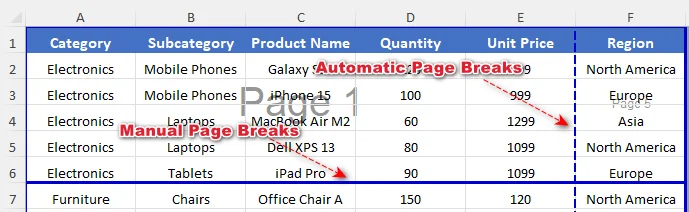
The removal method depends on which type of page break you're dealing with.
How to Remove Manual Page Breaks in Excel
You can remove individual manual page breaks or clear all manual page breaks within a worksheet as required. For bulk operations, Excel VBA scripts allow you to remove page breaks across multiple worksheets efficiently.
Remove a Manual Page Break
You can remove a specific manual page break in an Excel sheet by selecting the correct cell near the break. Here is how to do it:
-
Go to the View tab on the ribbon and click Page Break Preview under the Workbook Views group.
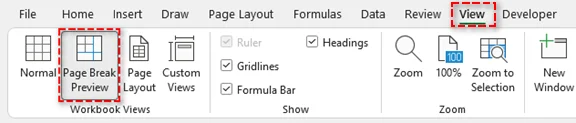
You can also click the Page Break Preview icon on the status bar (bottom right).
-
Identify the manual page break (solid blue line) you want to remove.
-
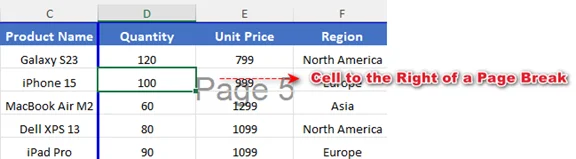
Select a cell near the page break:
-
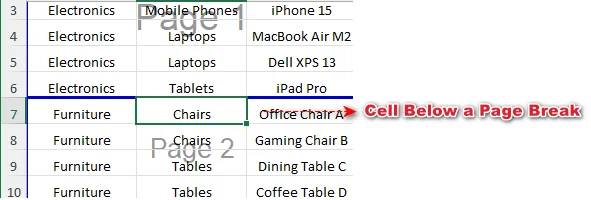
For a horizontal page break, select any cell below the break.
-
For a vertical page break, select any cell to the right of the break.
-
-
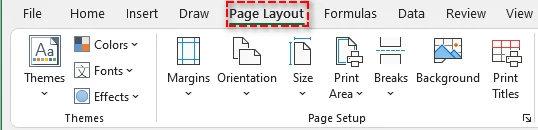
Go to the Page Layout tab on the ribbon.
-
Click Breaks, then choose Remove Page Break.
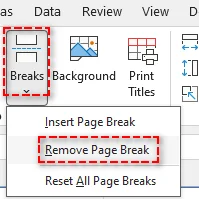
This only removes the selected manual page break, and the rest of the sheet will remain unchanged.
Tip: You can also right-click the cell and select Remove Page Break to delete the break. Or, directly drag the break line outside of the page break preview area if the drag-and-drop feature is enabled in your Excel.
Remove All Manual Page Breaks from a Sheet
If your sheet has multiple manual page breaks, removing them all at once can save time. Follow these steps below:
-
Select any cell in the sheet.
-
Go to the Page Layout tab on the ribbon.
-
Click Breaks > Reset All Page Breaks.
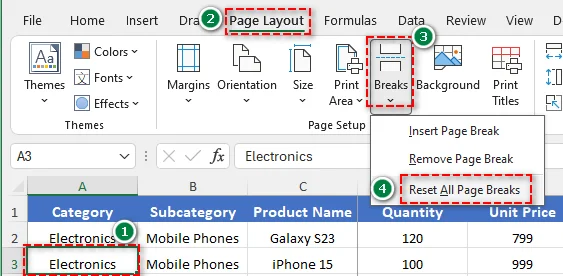
This removes all manually inserted page breaks from the active worksheet.
Delete Manual Page Breaks from Multiple Sheets with VBA
If you need to remove manual page breaks from multiple sheets simultaneously, using VBA (Visual Basic for Applications) is the most efficient solution. Here is how you can do it:
-
Press Alt + F11 (Windows) or Option + F11 (Mac) to open the VBA editor.
-
In the editor, go to Insert > Module.
-
Copy and paste the following code:
Sub ResetPageBreaksAllSheets() Dim ws As Worksheet For Each ws In ActiveWorkbook.Worksheets ws.ResetAllPageBreaks Next ws End Sub -
Press F5 to execute the macro.
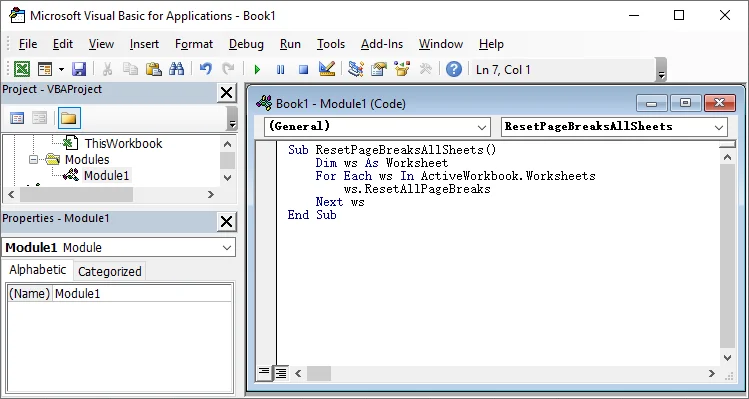
All manual page breaks on every worksheet in the active workbook will be removed at once.
How to Remove Automatic Page Breaks in Excel
Automatic page breaks in Excel cannot be removed completely. However, you can control them by adjusting layout settings such as scaling, margins, page orientation, and print area. Optimizing these settings allows more content to fit on each page and reduces unwanted breaks.
To reduce automatic page breaks:
-
Change Scaling
Go to Page Layout > Scale to Fit, set Width and Height to Automatic, or increase the scaling percentage.
Fitting more content per page reduces automatic page breaks. -
Adjust Margins
Go to Page Layout > Margins and select Narrow or Custom Margins.
Smaller margins expand the printable area and help reduce page breaks. -
Change Page Orientation
Go to Page Layout > Orientation and switch from Portrait to Landscape.
Wider pages fit more columns, reducing vertical page breaks. -
Clear Print Area
Go to Page Layout > Print Area and clear the print area if it restricts the content range.
Clearing the print area ensures Excel calculates automatic page breaks accurately and avoids unnecessary breaks.
Hide Page Breaks in Normal View
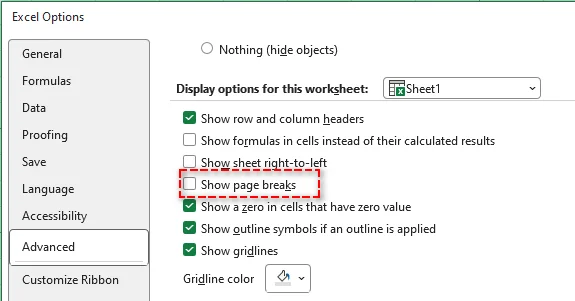
Sometimes, users want to hide page break lines in Excel without changing print behavior. This is useful if the break lines appear after entering Print Preview. Follow these steps:
-
Click File > Options.
-
Go to Advanced.
-
Scroll to Display options for this worksheet.
-
Uncheck Show page breaks.
-
Click OK.
Note: This action does not remove page breaks. It only hides the page break lines on the screen and does not affect the print layout. If the Show page breaks box cannot be unchecked, make sure the worksheet is in Normal view rather than Page Break Preview mode.
Batch Remove Page Breaks in Excel with Python
Manually removing page breaks from multiple Excel workbooks can be time-consuming. Using Python and libraries like Spire.XLS for Python, you can batch remove all page breaks across multiple files, saving time and ensuring consistent formatting.
Steps for Batch Removal with Python:
-
Install Spire.XLS from PyPI using pip:
pip install spire.xls -
Write a Python script to batch remove page breaks from multiple Excel files
from spire.xls import * import os input_folder = "input_excels" output_folder = "output_excels" for file_name in os.listdir(input_folder): if file_name.endswith(".xlsx"): # Load workbook workbook = Workbook() workbook.LoadFromFile(os.path.join(input_folder, file_name)) # Clear page breaks in all worksheets for sheet in workbook.Worksheets: sheet.HPageBreaks.Clear() sheet.VPageBreaks.Clear() sheet.ViewMode = ViewMode.Preview # Save updated workbook workbook.SaveToFile(os.path.join(output_folder, file_name), ExcelVersion.Version2013) workbook.Dispose() -
Run the code
Execute the script to automatically remove page breaks in the targeted Excel sheet.
Tip: You can also adjust sheet scaling, margins, and page orientation in your code to reduce automatic page breaks.
Related Article: Python: Insert or Remove Page Breaks in Excel
Conclusion
In this guide, we've covered how to remove page breaks in Excel, including both manual and automatic page breaks. By following these steps, you can effectively clean up your worksheets and keep them organized and print-ready.
Looking for more high-quality Excel tutorials? Check out our free Excel resources.
Frequently Asked Questions: Remove Page Breaks in Excel
Q1: What's the difference between manual and automatic page breaks?
A1: Manual page breaks are inserted by users to control exactly where pages break during printing, while automatic page breaks are added by Excel based on print settings and layout.
Q2: Can I remove page breaks without affecting printing?
A2: Yes. You can hide page break lines in Normal worksheet view. This only affects their on-screen display; the breaks remain in the file and may still influence printing.
Q3: Why can't I remove some page breaks in Excel?
A3: Automatic page breaks cannot be deleted directly. They are controlled by Excel to maintain the print layout, but you can influence them by adjusting margins, scaling, paper size, or the print area.
Q4: How to remove page breaks in multiple worksheets at once?
A4: The most efficient way to remove page breaks in multiple worksheets in Excel is to use VBA or Python. This allows you to clear all manual page breaks across large workbooks or multiple files quickly and consistently.