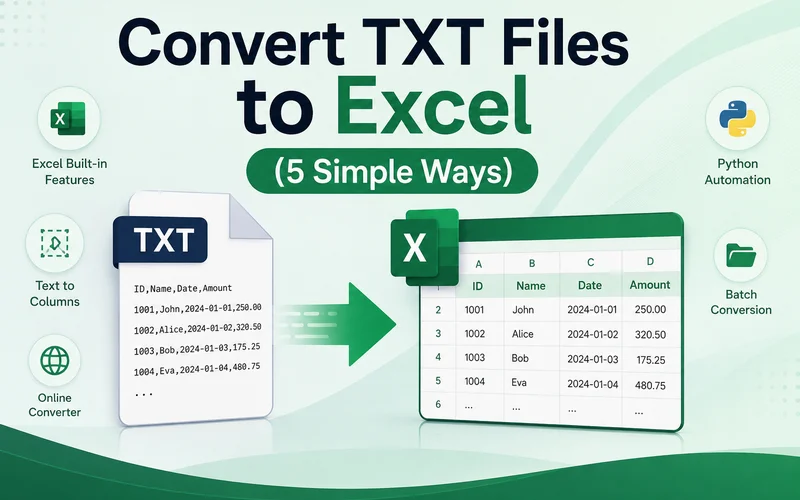
Many systems export reports, logs, and transaction records as TXT files. While text files are easy to store and share, analyzing large amounts of data in a plain text format can be frustrating. Sorting, filtering, and creating formulas become difficult, which is why many users need to convert TXT files to Excel for easier data management.
This guide covers five practical ways to convert text files to Excel, including Microsoft Excel's built-in import tools, Python automation solutions and online converters.
- Convert TXT to Excel by Importing Data with Data Tab
- Open TXT File in Excel Directly and Save It
- Convert Selected Text Snippets with Text to Columns
- Batch Convert TXT to Excel with Python Script
- Convert Text Files to Excel Fast with Online Converter
- The Comparison Table of the 5 Methods
- Troubleshooting
- FAQs
Convert TXT to Excel by Importing Data with Data Tab
Let's start with Excel's built-in features. To make data migration across different formats much smoother, Excel offers native tools to import data from various external sources. This approach allows you to import structured data from a TXT file while preserving its original layout. It is a highly reliable way to convert a text file to Excel.
Here are the detailed steps:
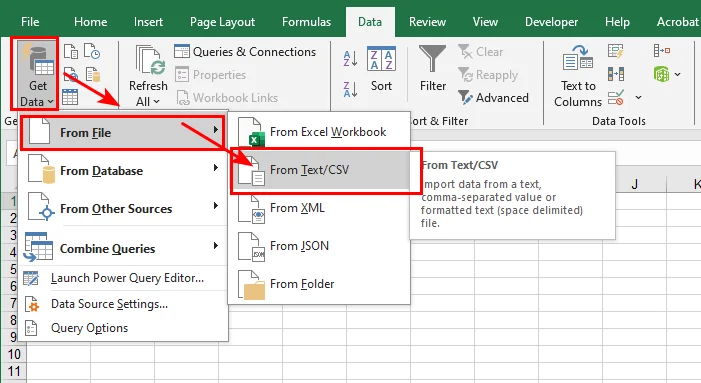
- Step 1: Open Microsoft Excel and navigate to the top menu bar, click the Data tab, select Get Data > From File, and then click From Text/CSV.
- Step 2: Click the Delimiter dropdown menu to verify if your data splits correctly using a comma, tab, space, or semicolon.
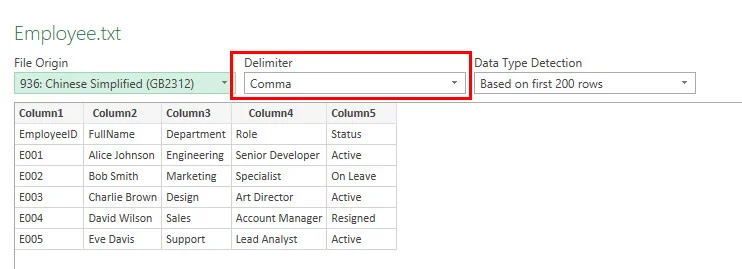
- Step 3: Review the columns in the preview grid, click the Load button at the bottom right, and save the document.
Notice: If your text contains non-English characters or symbols that look scrambled in the preview window, click the File Origin dropdown menu and change the encoding to UTF-8 or GBK to fix the display before loading.
- Pros: High accuracy, prevents messy codes, and handles huge files flawlessly.
- Cons: Takes a few more clicks than other methods.
Open TXT File in Excel Directly and Save It
If your dataset is straightforward and uses clear delimiters, you can pull the raw document straight into the application. Open the text file directly in Excel and let the built-in import wizard automatically split the data into columns. This is the quickest method for opening and converting a well-formatted text file.
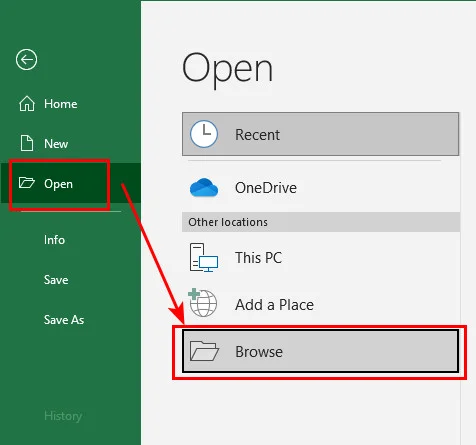
- Step 1: Launch Excel, click File > Open > Browse, and change the file type dropdown filter from "All Excel Files" to All Files (.).
- Step 2: Double-click your TXT file to trigger Excel's built-in data parsing window.
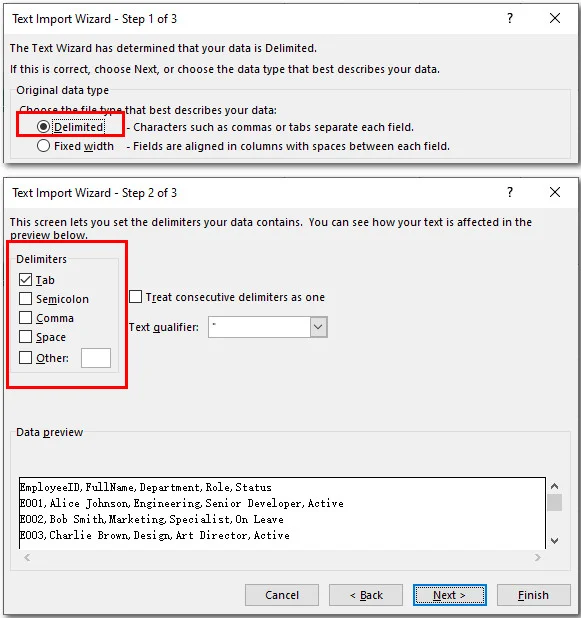
- Step 3: Select Delimited, click next, check the correct separator (like tab or space), and hit Finish.
-
Step 4: Go to File > Save As, choose the target folder, and save it in Excel Workbook (*.xlsx) format.
-
Pros: Fast, requires no preparation.
-
Cons: Risky if the text contains special formatting or complex data types.
Convert Selected Text Snippets with Text to Columns
Sometimes, you don't need to transform an entire report. You might just need a small snippet of data from an email or a system log. In these scenarios, a simple copy-paste lets you insert the exact data you want directly into a single column. Then, you can use the Text to Columns feature to quickly parse that text into separate cells, allowing you to convert a part of the txt file to Excel without dealing with full-scale documents.
- Step 1: Copy the data you need in a text file, and paste it into a cell of a blank Excel sheet.
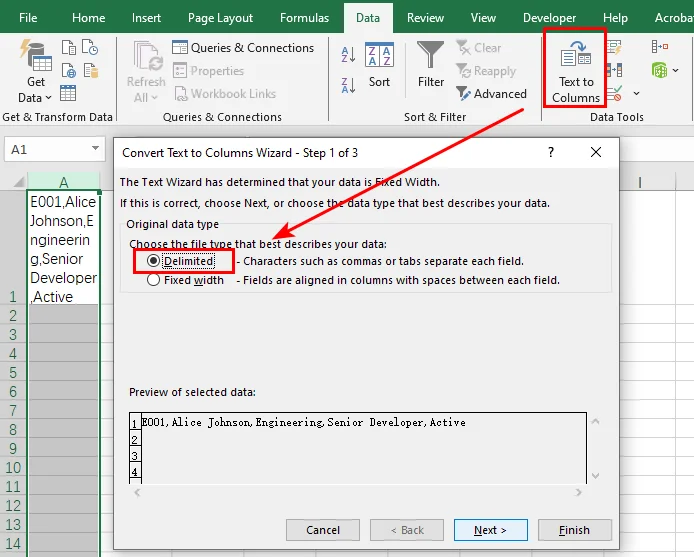
- Step 2: Highlight the whole column, go to the Data tab, and click Text to Columns.
-
Step 3: Choose Delimited on the first screen and hit Next.
-
Step 4: Check the box next to your delimiter (such as a comma or space), click Finish to distribute the text into separate cells, and save the document.
-
Pros: Perfect for quick edits and partial data snippets.
-
Cons: Inefficient for processing large files or multiple documents.
Batch Convert TXT to Excel with Python Script
If you deal with dozens of reports daily, manually processing each file can become time-consuming. Learning how to convert TXT files to Excel using Python lets you build a hands-free automation pipeline. For this task, we will use Free Spire.XLS for Python, a standalone library that allows developers to create, manage, and convert Excel spreadsheets programmatically without requiring Microsoft Excel to be installed. By using its advanced workbook features, you can easily parse text files with custom delimiters and convert them in batches.
Below is the workflow batch converting text documents to Excel spreadsheets using the library:
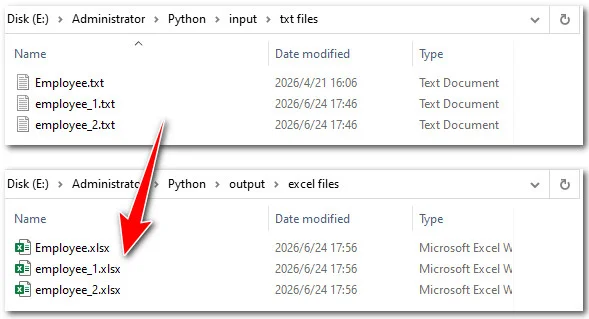
- Step 1: Define the file paths and set the target delimiter (such as a comma or tab) to handle different text structures.
-
Step 2: Loop through the folder to locate all
.txtfiles and dynamically generate the corresponding.xlsxoutput names. -
Step 3: Initialize the
Workbookobject and use theLoadFromFilemethod to parse the text data into rows and columns. -
Step 4: Call
AutoFitColumns()on the allocated range to make columns fit data length automatically, then save the documents.
Here is how to use Free Spire.XLS to read and convert multiple text files with mixed delimiters into Excel spreadsheets:
import os
from spire.xls import *

# Define input and output directory paths
input_folder = "/input/txt files/"
output_folder = "/output/excel files/"

# Loop through and process all text files in the input folder
for filename in os.listdir(input_folder):
    if filename.endswith(".txt"):
        txt_path = os.path.join(input_folder, filename)
        excel_name = filename.replace(".txt", ".xlsx")
        excel_path = os.path.join(output_folder, excel_name)

        # Read the first line
        with open(txt_path, 'r', encoding='utf-8') as f:
            first_line = f.readline()

        # Dynamically match delimiter: priority given to comma, then space, else default to tab
        current_delimiter = "," if "," in first_line else (" " if " " in first_line else "\t")

        # Initialize workbook and load the text file
        workbook = Workbook()
        workbook.LoadFromFile(txt_path, current_delimiter, 1, 1)

        # Automatically fit columns to make them match the data length
        sheet = workbook.Worksheets[0]
        sheet.AllocatedRange.AutoFitColumns()

        # Save the result as an Excel file
        workbook.SaveToFile(excel_path, ExcelVersion.Version2016)
        workbook.Dispose()
        print(f"Successfully converted ({'Comma' if current_delimiter==',' else 'Space'}): {filename} -> {excel_name}")
- Pros: 100% automated, processes hundreds of files instantly, handle different files using different delimiters.
- Cons: Requires a Python environment setup on your device.
Convert Text Files to Excel Fast with Online Converter
If you are working on a computer or mobile device without Microsoft Excel installed, online tools provide a quick fix. A web-based TXT-to-Excel converter can save time and effort when you need a fast turnaround.
Here is how to convert from text files to Excel using online converters, using Convertio as an example:
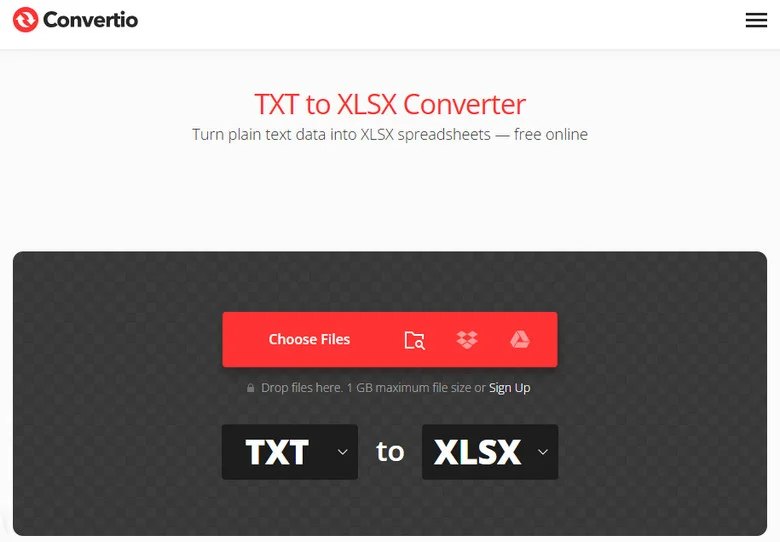
- Step 1: Find the TXT-to-XLSX tool of Convertio.
- Step 2: Click to upload the target TXT file from your device.
- Step 3: Click the Convert button, wait a few seconds, and then you can download the resulting Excel file.
- Pros: No software installation required, works on both desktop and mobile devices, and converts files quickly.
- Cons: Limited control over formatting, file size restrictions may apply, and uploading sensitive data to third-party servers can create privacy risks.
The Comparison Table of the 5 Methods
To help you find the best approach, here is a quick comparison table of the 5 methods above based on data size, file complexity, and speed:
| Method | Best For | Data Size Limit | Speed |
|---|---|---|---|
| Data Tab Import | Complex layouts & foreign text | Very High | Medium |
| Direct Open | Clean, basic text files | Medium | Fast |
| Text to Columns | Copying text snippets | Low | Fast |
| Python Code | Batch converting folders | Unlimited | Instant (Automated) |
| Online Converter | Emergency use without Excel | Low | Fast |
Troubleshooting
When learning how to convert a TXT file to Excel, you might encounter minor formatting glitches. Here is how to fix them fast:
Garbled or Scrambled Text
If special symbols or accented characters turn into strange shapes, your file encoding is mismatched. Re-import the file using Method 1 and try switching the File Origin dropdown to Windows-1252 (Western European) or UTF-8 until the text displays correctly in the preview window.
Numbers Turning into Scientific Notation
If long ID numbers appear as 4.5E+11, Excel is automatically formatting them as numeric values. Before importing, set the column type to Text instead of General. If you've already loaded the data, you can still convert those numbers back to text format to preserve the full value.
Conclusion
Converting a TXT file to Excel is easier than most people expect. If you only need to work with a single file, Excel's built-in import tools are usually the quickest option. For larger datasets, they also provide better control over delimiters and encoding. If your accounting software, ERP system, or reporting platform exports daily TXT reports, Python automation can save significant time by processing files in batches. Choose the method that best fits your workflow, and you'll be able to turn raw text data into organized Excel workbooks in just a few minutes.
FAQs about Converting TXT to Excel
Can Excel open TXT files directly?
Yes. Excel can open TXT files directly through File > Open or by using the Data > From Text/CSV import feature. The import method is generally recommended because it provides more control over delimiters, encoding, and column formatting.
Why does my TXT file look garbled in Excel?
This usually happens when the file encoding does not match Excel's import settings. Try re-importing the file and selecting a different encoding, such as UTF-8 or Windows-1252, until the text displays correctly.
How can I convert multiple TXT files to Excel at once?
For batch conversion, automation tools such as Free Spire.XLS for Python are often the most efficient option. A script can process an entire folder of TXT files and save each one as an Excel workbook automatically.
Can I convert TXT to Excel without Microsoft Excel?
Yes. You can use online TXT-to-Excel converters or programmatic solutions such as Python libraries. However, be cautious when uploading files that contain sensitive or confidential information.