When working with reports exported from different systems, it's common to end up with dozens of CSV files. For example, each department, store, or month may generate its own CSV report. While this makes data collection straightforward, managing a large number of separate files quickly becomes inconvenient.
A practical solution is to combine all CSV files into one Excel workbook , while keeping each CSV as a separate worksheet . This preserves the original file structure, makes navigation easier, and allows you to share a single workbook instead of multiple individual files.
In this article, we'll introduce three practical methods—from a simple manual approach to Excel automation with VBA and a fully programmatic Python solution.
Methods covered:
- Method 1. Copy and Paste CSV Files into Separate Worksheets
- Method 2. Use a VBA Macro to Import Multiple CSV Files
- Method 3. Merge Multiple CSV Files in Python Using Spire.XLS
Method 1. Copy and Paste CSV Files into Separate Worksheets
If you only have a few CSV files to merge, the simplest solution is to copy their contents into different worksheets manually.
One important detail is that you should open each CSV file with Microsoft Excel instead of a text editor such as Notepad . When a CSV is opened in Excel, its rows and columns are parsed correctly based on the delimiter. If you copy the text directly from Notepad, Excel may paste everything into a single column rather than separating the values automatically.
Steps
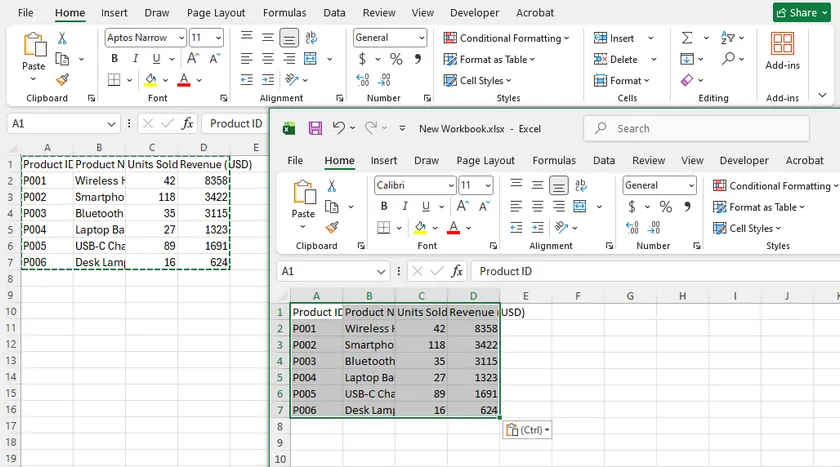
- Open Microsoft Excel and create a new workbook.
- Open the first CSV file using Excel .
- Select all data ( Ctrl + A ) and copy it ( Ctrl + C ).
- Return to the new workbook and paste the data into the first worksheet.
- Rename the worksheet if necessary.
- Repeat the process for each remaining CSV file, creating a new worksheet each time.
- Save the workbook as an .xlsx file.
Pros
- No programming required.
- Works in every Excel installation.
- Preserves one CSV per worksheet.
- Ideal for occasional tasks involving only a few files.
Cons
- Time-consuming when processing many files.
- Entirely manual.
- Easy to make mistakes when handling dozens of CSV files.
Method 2. Use a VBA Macro to Import Multiple CSV Files
If you frequently perform this task inside Excel, a VBA macro can automate the entire process. The macro scans a folder, opens every CSV file, copies its worksheet into the current workbook, and names the worksheet after the CSV file.
Step 1. Create a Blank Workbook
Open Excel and create a new workbook. This workbook will become the destination workbook that stores all imported worksheets.
Step 2. Open the VBA Editor
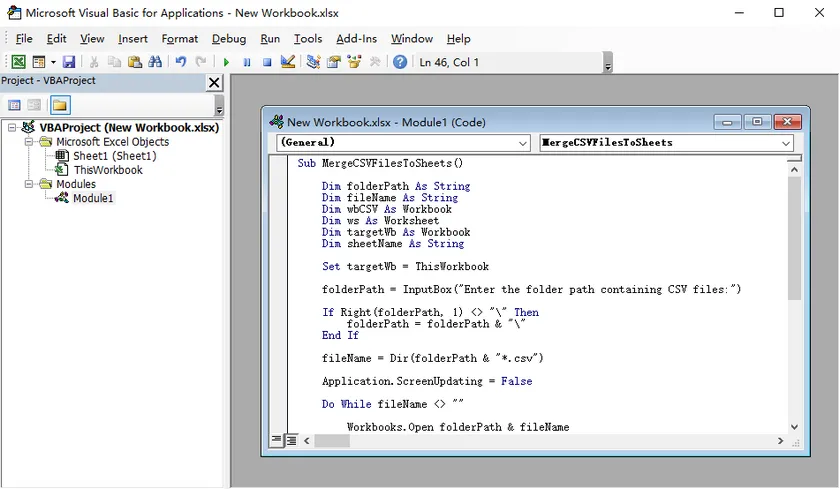
Press Alt + F11 to open the Visual Basic Editor.
Choose Insert > Module , then paste the following code into the new module.
Sub MergeCSVFilesToSheets()

    Dim folderPath As String
    Dim fileName As String
    Dim wbCSV As Workbook
    Dim ws As Worksheet
    Dim targetWb As Workbook
    Dim sheetName As String

    Set targetWb = ThisWorkbook

    folderPath = InputBox("Enter the folder path containing CSV files:")

    If Right(folderPath, 1) <> "\" Then
        folderPath = folderPath & "\"
    End If

    fileName = Dir(folderPath & "*.csv")

    Application.ScreenUpdating = False

    Do While fileName <> ""

        Workbooks.Open folderPath & fileName
        Set wbCSV = ActiveWorkbook

        sheetName = Left(fileName, InStrRev(fileName, ".") - 1)

        wbCSV.Worksheets(1).Copy After:=targetWb.Sheets(targetWb.Sheets.Count)
        Set ws = targetWb.Sheets(targetWb.Sheets.Count)

        On Error Resume Next
        ws.Name = Left(sheetName, 31)
        On Error GoTo 0

        wbCSV.Close SaveChanges:=False

        fileName = Dir
    Loop

    Application.ScreenUpdating = True

    MsgBox "CSV files have been merged successfully."

End Sub
Step 3. Run the Macro
Press F5 , enter the folder containing your CSV files, and the macro will automatically import every CSV into its own worksheet.
Pros
- Much faster than manual copying.
- Runs entirely inside Microsoft Excel.
- Automatically creates one worksheet for each CSV file.
- Suitable for users who regularly work with Excel.
Cons
- Requires macro-enabled workbooks.
- Users must enable VBA macros.
- Less suitable for unattended or server-side automation.
Method 3. Merge Multiple CSV Files in Python Using Spire.XLS
For recurring workflows, scheduled jobs, or business applications, programmatic automation is often the most efficient solution.
Many developers immediately think of Pandas for CSV processing. Pandas is an excellent library for reading, analyzing, and transforming tabular data. However, its primary focus is data analysis rather than document generation.
If your workflow continues beyond simply importing CSV files—for example, formatting worksheets, applying styles, inserting charts, protecting workbooks, or exporting the final workbook to PDF—a spreadsheet library such as Free Spire.XLS for Python provides a more complete solution.
First, install the library:
pip install Spire.XLS
Then use the following code to merge every CSV file in a folder into a single Excel workbook, with each CSV becoming a separate worksheet.
import os
from spire.xls import Workbook, WorksheetCopyType, FileFormat

input_folder = "input"
output_folder = "output"

# Create the destination workbook
merged_workbook = Workbook()
merged_workbook.Worksheets.Clear()

# Process every CSV file
for csv_file in os.listdir(input_folder):
    if csv_file.endswith(".csv"):

        input_path = os.path.join(input_folder, csv_file)

        workbook = Workbook()
        workbook.LoadFromFile(input_path, ",", 1, 1)

        sheet = workbook.Worksheets[0]
        merged_workbook.Worksheets.AddCopy(
            sheet,
            WorksheetCopyType.CopyAll
        )

merged_workbook.SaveToFile(
    os.path.join(output_folder, "Merged.xlsx"),
    FileFormat.Version2013
)
Output:
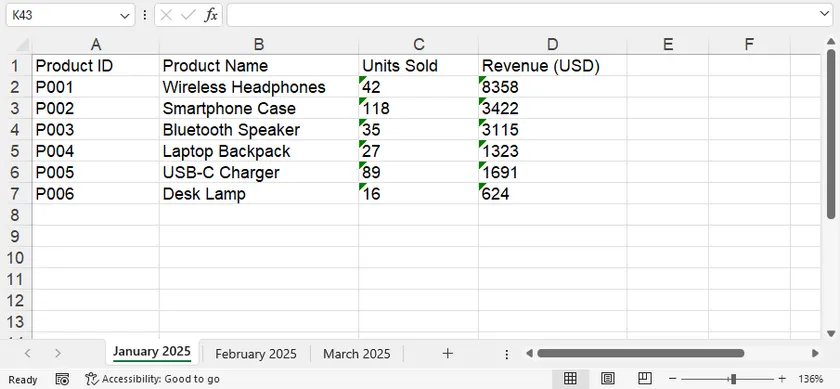
Compared with manual methods or VBA, this approach is much easier to integrate into automated workflows. After generating the workbook, you can continue processing it with Spire.XLS—for example:
- Apply fonts, colors, borders, and number formats.
- Freeze panes or adjust column widths automatically.
- Create charts and pivot tables.
- Protect worksheets or the workbook.
- Export the completed workbook to PDF or other formats.
These capabilities make it suitable not only for CSV merging, but also for end-to-end report generation pipelines.
Comparison of the Three Methods
| Method | Programming Required | Batch Processing | Best For |
|---|---|---|---|
| Copy and Paste | No | Limited | One-time tasks with only a few CSV files |
| VBA Macro | Basic VBA | Yes | Excel users who regularly import CSV files |
| Python + Free Spire.XLS | Python | Excellent | Automated workflows, business applications, and batch processing |
Conclusion
The best method depends on how often you need to perform the task.
If you only need to combine a few CSV files occasionally, manually copying and pasting the data into separate worksheets is the quickest solution.
If you work primarily in Excel and perform this task regularly, a VBA macro can automate the process with minimal effort.
For developers building repeatable workflows or integrating CSV processing into applications, Python with Spire.XLS offers the greatest flexibility. Beyond merging CSV files, it enables advanced spreadsheet manipulation and document generation, making it suitable for a wide range of automation scenarios.
FAQs
Can I merge hundreds of CSV files into one Excel workbook?
Yes. VBA can handle many files, but for very large batches or automated workflows, a Python solution is generally more reliable and scalable.
Will each CSV file become its own worksheet?
Yes. All three methods described in this article preserve each CSV as a separate worksheet instead of combining all data into a single sheet.
Can the worksheet names be based on the CSV filenames?
Yes. Both the VBA macro and the Python example automatically use the CSV filename (without the extension) as the worksheet name.
What if my CSV files use UTF-8 or other encodings?
Most CSV files can be imported without issues. If your files use a different encoding or delimiter, adjust the import settings accordingly before processing.
Can I continue editing the workbook after merging the CSV files?
Absolutely. After the workbook is created, you can format worksheets, insert charts, add formulas, protect the workbook, or export it to PDF just like any other Excel file.