특정 상황에서 단일 PDF를 여러 개의 작은 PDF로 분할하는 것이 유용합니다. 예를 들어 큰 계약서, 보고서, 서적, 학술 논문 또는 기타 문서를 작은 조각으로 나누어 쉽게 검토하거나 재사용할 수 있습니다. 이 기사에서는 다음을 수행하는 방법을 배웁니다 PDF를 단일 페이지 PDF로 분할 그리고 어떻게 C# 및 VB.NET에서 페이지 범위별로 PDF 분할 사용하여 Spire.PDF for .NET.
설치하다 Spire.PDF for .NET
먼저 Spire.PDF for .NET 패키지에 포함된 DLL 파일을 .NET 프로젝트의 참조로 추가해야 합니다. DLL 파일은 다음에서 다운로드할 수 있습니다. 이 링크 또는 NuGet을 통해 설치됩니다.
PM> Install-Package Spire.PDF
C#, VB.NET에서 PDF를 한 페이지 PDF로 분할
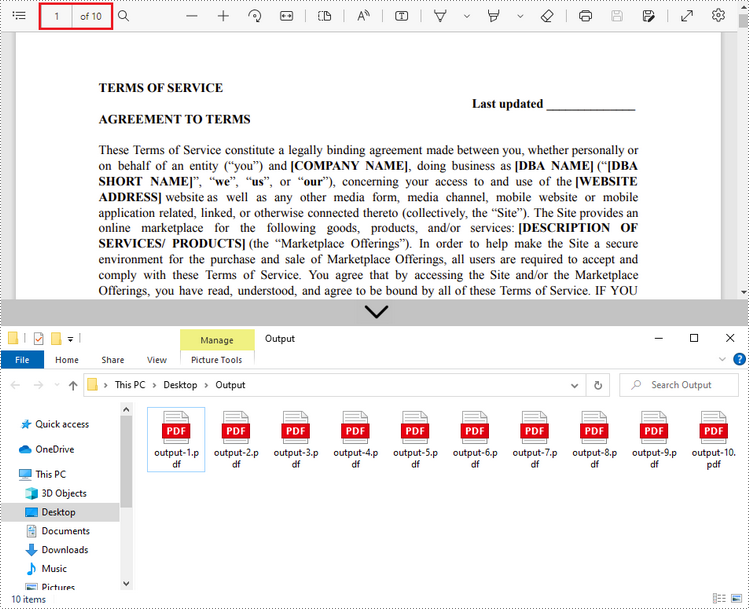
Spire.PDF는 여러 페이지 PDF 문서를 여러 단일 페이지 파일로 분할하는 Split() 메서드를 제공합니다. 다음은 세부 단계입니다.
- PdfDcoument 개체를 만듭니다.
- PdfDocument.LoadFromFile() 메서드를 사용하여 PDF 문서를 로드합니다.
- PdfDocument.Split(string destFilePattern, int startNumber) 메서드를 사용하여 문서를 한 페이지 PDF로 분할합니다.
- C#
- VB.NET
using System;
    using Spire.Pdf;

    namespace SplitPDFIntoIndividualPages
    {
        class Program
        {
            static void Main(string[] args)
            {
                //Specify the input file path
                String inputFile = "C:\\Users\\Administrator\\Desktop\\Terms of Service.pdf";

                //Specify the output directory
                String outputDirectory = "C:\\Users\\Administrator\\Desktop\\Output\\";

                //Create a PdfDocument object
                PdfDocument doc = new PdfDocument();

                //Load a PDF file
                doc.LoadFromFile(inputFile);

                //Split the PDF to one-page PDFs
                doc.Split(outputDirectory + "output-{0}.pdf", 1);
            }
        }
    }
C#, VB.NET의 페이지 범위별로 PDF 분할
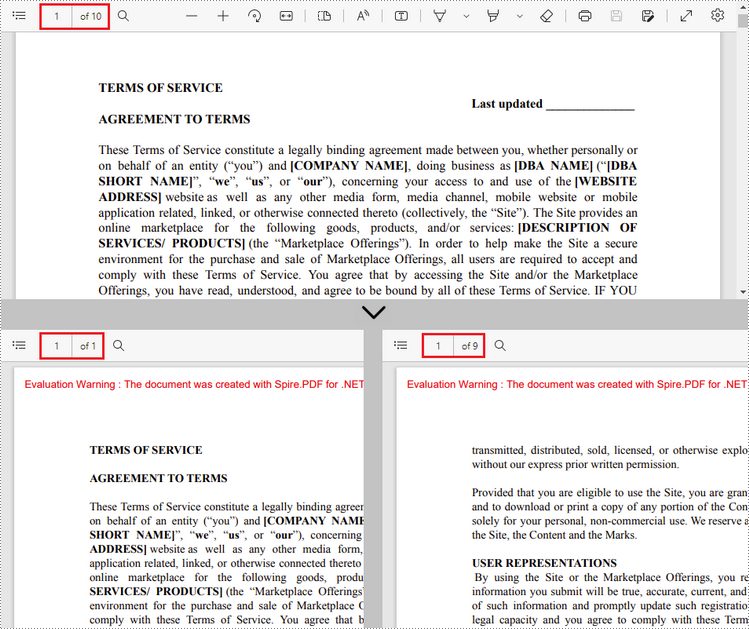
PDF 문서를 페이지 범위별로 분할하는 간단한 방법은 없습니다. 이를 위해 두 개 이상의 새 PDF 문서를 만들고 소스 문서의 페이지 또는 페이지 범위를 문서로 가져옵니다. 자세한 단계는 다음과 같습니다.
- PdfDocument 개체를 초기화하는 동안 원본 PDF 파일을 로드합니다.
- 두 개의 추가 PdfDocument 개체를 만듭니다.
- PdfDocument.InsertPage() 메서드를 사용하여 소스 파일의 첫 번째 페이지를 첫 번째 문서로 가져옵니다.
- PdfDocument.InsertPageRange() 메서드를 사용하여 소스 파일의 나머지 페이지를 두 번째 문서로 가져옵니다.
- PdfDocument.SaveToFile() 메서드를 사용하여 두 문서를 별도의 PDF 파일로 저장합니다.
- C#
- VB.NET
using Spire.Pdf;
    using System;

    namespace SplitPdfByPageRanges
    {
        class Program
        {
            static void Main(string[] args)
            {
                //Specify the input file path
                String inputFile = "C:\\Users\\Administrator\\Desktop\\Terms of Service.pdf";

                //Specify the output directory
                String outputDirectory = "C:\\Users\\Administrator\\Desktop\\Output\\";

                //Load the source PDF file while initialing the PdfDocument object
                PdfDocument sourceDoc = new PdfDocument(inputFile);

                //Create two additional PdfDocument objects
                PdfDocument newDoc_1 = new PdfDocument();
                PdfDocument newDoc_2 = new PdfDocument();

                //Insert the first page of source file to the first document
                newDoc_1.InsertPage(sourceDoc, 0);

                //Insert the rest pages of source file to the second document
                newDoc_2.InsertPageRange(sourceDoc, 1, sourceDoc.Pages.Count - 1);

                //Save the two documents as PDF files
                newDoc_1.SaveToFile(outputDirectory + "output-1.pdf");
                newDoc_2.SaveToFile(outputDirectory + "output-2.pdf");
            }
        }
    }
임시 면허 신청
생성된 문서에서 평가 메시지를 제거하거나 기능 제한을 제거하려면 다음을 수행하십시오. 30일 평가판 라이선스 요청 자신을 위해.