Generate PDF Bookmarks and TOC in C# with Spire.Agent.Office
A PDF that runs to dozens or hundreds of pages — a product manual, a technical handbook, a project report, a conference proceedings — loses most of its usability when it has no bookmarks and no table of contents. To get from "Chapter 3" to "5.2 Interface Description", a reader has to scroll page by page or guess the page number from memory. Reviewers and archivists cannot jump to a chapter either.
Bookmarks and a table of contents exist to solve exactly this problem of navigation: bookmarks are the hierarchical structure in the PDF reader's side panel, where one click jumps to the matching chapter; a table of contents page is a single page of text placed before the body, listing chapter titles and page numbers so readers can grasp the structure at a glance or look things up in print. Yet these two things are usually the first to be lost: bookmarks generated when converting Word to PDF can drop out, scanned or reassembled documents have none at all, and adding them by hand means cross-checking titles against page numbers until a long document inevitably goes out of sync.
The PDF AI capability of Spire.Agent.Office lets you describe the bookmark hierarchy and the table of contents requirements in natural language. The AI agent understands the request and completes two kinds of work automatically: generating hierarchical bookmarks for a PDF, and generating a front-of-document contents page whose page numbers match the body and whose entries jump when clicked.
Comparison with Traditional SDK API
| Traditional Spire.Office for .NET API | Spire.Agent.Office | |
|---|---|---|
| Driving style | Write code that walks every page, matches headings by font size or numbering patterns, builds the bookmark tree and assigns each entry a page, controlling every step | Describe the bookmark hierarchy and TOC requirements in natural language; the AI understands them and orchestrates the execution path |
| Code size | Bookmark and TOC generation usually needs 150-300 lines of C# (page iteration, heading detection, hierarchy decisions, bookmark tree construction, page number calculation, TOC page layout and formatting, etc.) | About 10 lines of calling code + 1 natural-language instruction |
| Heading detection | You must define what text counts as a heading, and any change to font size or numbering format means changing the rules | The AI judges heading levels from numbering, font size and layout context; the rules are stated in one sentence in the instruction |
| Page number mapping | TOC page numbers are counted by hand and must be recounted whenever the body changes | The AI reads the actual page numbers from the body and fills them into the TOC |
| Requirement change | Change the bookmark hierarchy / TOC style → change code → compile → redeploy | Modify the instruction and it takes effect immediately |
This article shows how to use the Spire.Agent.Office PDF AI capability to generate bookmarks and a table of contents for PDF documents. Two cases demonstrate the two typical uses — "generating hierarchical bookmarks" and "generating a table of contents page":
- Case 1: Generate hierarchical bookmarks for a PDF
- Case 2: Generate a table of contents page for a PDF
For product installation and SpireToken configuration, please refer to Integrating Spire.Agent.Office in a .NET Project. The examples below assume that Spire.Agent.Office has been installed and SpireToken has been configured.
Case 1: Generate hierarchical bookmarks for a PDF
Documents such as product manuals and technical handbooks usually follow a fixed structure: the body is divided into large parts labelled "Chapter 1", "Chapter 2", and each chapter is broken down further into sections such as "1.1" and "1.2". The layout makes the hierarchy obvious at a glance through numbering and font size, but the PDF reader's navigation panel stays empty — jumping to one specific section means paging through the document yourself.
For that panel to be genuinely useful, the bookmarks must mirror the heading hierarchy exactly: top-level headings become top-level bookmarks, second-level headings become child bookmarks nested under their chapter, and clicking a bookmark jumps straight to the page where the heading appears. Adding them by hand means finding each heading page by page, creating an entry in the bookmark panel, then pointing that entry at the right destination — hundreds of headings in, mistakes are close to inevitable.
The example below uses the Spire.Agent.Office agent to read the chapter structure from the PDF body through a natural-language instruction and generate multi-level bookmarks by heading hierarchy:
using Spire.Agent.Office.AI;
using Spire.Agent.Office.Extensions;
using Spire.Pdf;

// PDF-related configuration
string inputPath = @"E:\manual.pdf";  // path to the PDF that needs bookmarks
string savePath = @"E:\output\manual-with-bookmarks.pdf";  // path of the result file
string key = "**************************";  // SpireToken key
string instruction =
    "Read the body of this PDF product manual and generate hierarchical bookmarks for it:" +
    "1. Detect the chapter headings in the body; headings starting with 'Chapter X' become top-level bookmarks, and headings starting with 'X.Y' become child bookmarks under the matching chapter;" +
    "2. List the bookmarks in the order they appear in the body, keep the hierarchy consistent with the heading structure, and keep each bookmark title identical to the heading text;" +
    "3. Each bookmark jumps to the page where its heading appears, so one click locates that chapter;" +
    "4. Ignore figure captions and headers/footers and do not create bookmarks for them;" +
    "5. Keep the original layout, fonts and page setup of the body unchanged;" +
    "Save the final result as a PDF file";

// Call the PDF document processing function
AIResult result = ExecuteDemoPDF(instruction, inputPath, savePath, key);


// Execute PDF AI processing
static AIResult ExecuteDemoPDF(string instruction, string inputPath, string savePath, string key)
{
    // Create the AIOptions configuration object
    AIOptions options = new AIOptions();
    options.SpireToken = key;  // set the SpireToken key

    // Process the PDF document using a PdfDocument object
    using (PdfDocument pdf = new PdfDocument())
    {
        // Load the PDF document from file
        if (!string.IsNullOrEmpty(inputPath) && File.Exists(inputPath))
        {
            pdf.LoadFromFile(inputPath);
        }
        // Create the AI document processor
        AIDocumentProcessor processor = pdf.AI(options);

        // Execute the AI instruction
        return processor.ExecuteInstruction(pdf, instruction, savePath);
    }
}
The PDF after hierarchical bookmarks were generated
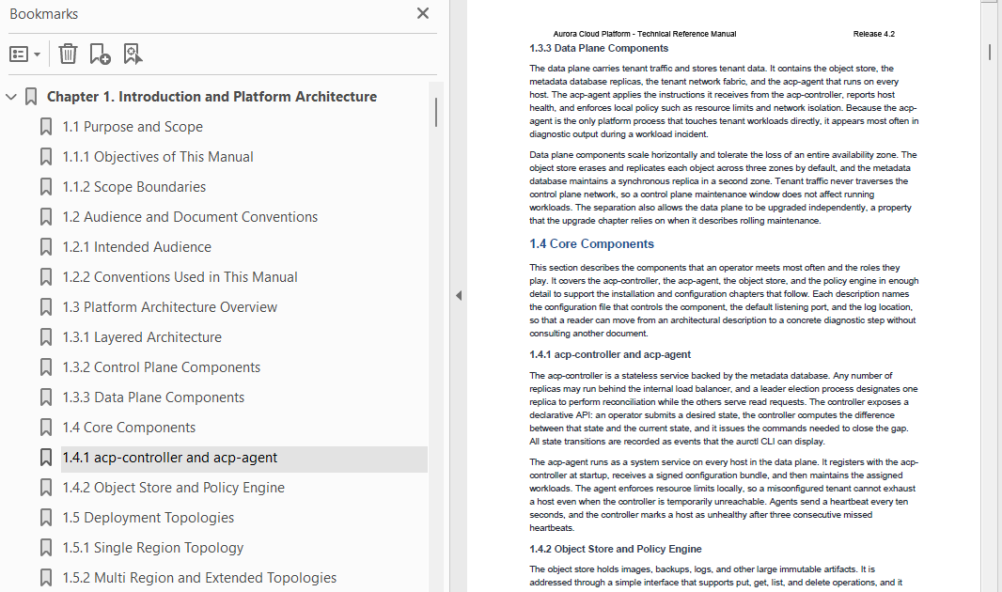
The generated bookmarks reproduce the chapter structure of the body completely: top-level chapters sit at the top of the panel, each section is nested beneath its chapter, and clicking any bookmark jumps to the page where that heading appears. The body layout, fonts and page setup stay exactly as they were — the navigation structure is simply added on top.
Case 2: Generate a table of contents page for a PDF
When a technical proposal, project report or collection of papers is delivered to reviewers or readers, it usually needs a table of contents on the very first page: chapter titles listed line by line, each with the page number where the chapter begins, so readers can see the whole structure before deciding where to start. A contents page is also part of the required style of a formal document, and documents of this kind normally carry a cover page, with the contents sitting after the cover and before the body.
Two things make a contents page awkward to build. The first is the page numbers: they must match the body exactly, and any added or removed chapter, or any change in pagination, means every number has to be recounted. The second is the jumping: a line reading "Section 5.2, page 27" still leaves the reader to find page 27 by hand; only when the entry itself is clickable does the contents page become genuinely useful.
The example below uses the Spire.Agent.Office agent to extract each chapter title with its page number through a natural-language instruction and insert a laid-out, clickable contents page after the cover page:
using Spire.Agent.Office.AI;
using Spire.Agent.Office.Extensions;
using Spire.Pdf;

// PDF-related configuration
string inputPath = @"E:\report.pdf";  // path to the PDF that needs a contents page
string savePath = @"E:\output\report-with-toc.pdf";  // path of the result file
string key = "**************************";  // SpireToken key
string instruction =
    "Read the body of this PDF and generate a table of contents page after the cover page:" +
    "1. Extract the title and page number of every chapter in the body, including both top-level and second-level headings;" +
    "2. Insert a 'Contents' page after the cover page and before the body, listing chapter titles with their page numbers line by line, titles left-aligned and page numbers right-aligned with dot leaders in between;" +
    "3. Make every entry in the contents a clickable link that jumps straight to the page where that chapter begins;" +
    "4. The page numbers shown in the contents must match the actual body pages after the contents page has been inserted; no number may be off by a page;" +
    "5. Centre the word 'Contents' as the title of the page, using the same font size as the top-level headings in the body;" +
    "6. Keep the original layout, fonts and page setup of the body unchanged;" +
    "Save the final result as a PDF file";

// Call the PDF document processing function
AIResult result = ExecuteDemoPDF(instruction, inputPath, savePath, key);


// Execute PDF AI processing
static AIResult ExecuteDemoPDF(string instruction, string inputPath, string savePath, string key)
{
    // Create the AIOptions configuration object
    AIOptions options = new AIOptions();
    options.SpireToken = key;  // set the SpireToken key

    // Process the PDF document using a PdfDocument object
    using (PdfDocument pdf = new PdfDocument())
    {
        // Load the PDF document from file
        if (!string.IsNullOrEmpty(inputPath) && File.Exists(inputPath))
        {
            pdf.LoadFromFile(inputPath);
        }
        // Create the AI document processor
        AIDocumentProcessor processor = pdf.AI(options);

        // Execute the AI instruction
        return processor.ExecuteInstruction(pdf, instruction, savePath);
    }
}
The PDF with a contents page generated after the cover
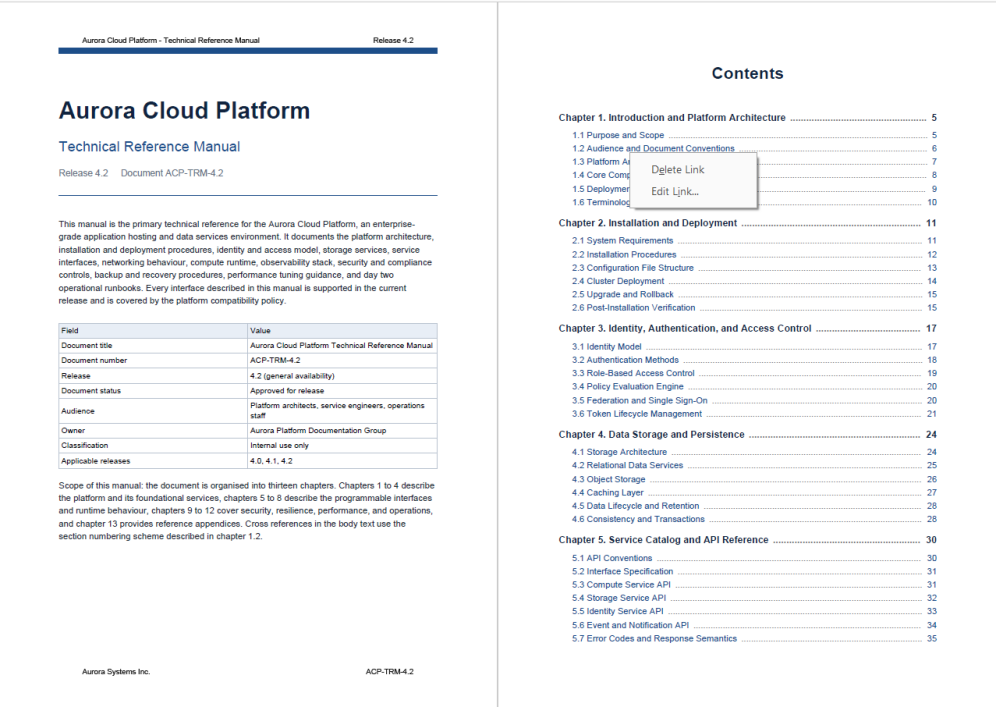
The contents page lists chapters by level, with dot leaders running from each title to its page number, matching the format of a published book. Every entry carries a jump link, so one click lands on the matching chapter — the page works as a reading aid and as a navigation tool at the same time. The body content and its original layout are untouched; the contents page is inserted as a page of its own after the cover.
FAQ
The generated bookmarks have no hierarchy and all headings sit on one level
Cause: The hierarchy in the body is conveyed by numbering format ("Chapter 1" versus "1.1") and font size. If the instruction does not state the rule, the AI may treat every heading it detects as a top-level bookmark.
Solution: State the hierarchy rule in the instruction, for example "headings starting with 'Chapter X' become top-level bookmarks and headings starting with 'X.Y' become child bookmarks under the matching chapter". When the numbering is unusual (such as "Part I" or "Appendix A"), include that rule in the instruction as well.
The page numbers in the contents do not match the actual body pages
Cause: Inserting the contents page in front of the body shifts every following page by one. If the page numbers are collected before the contents page is inserted, every number in the contents comes out one page too low.
Solution: State which numbering basis to use, for example "the page numbers in the contents must match the actual body pages after the contents page has been inserted". If the body already has its own numbering scheme (for instance a cover page and preface that are not numbered), describe that rule in the instruction so the AI counts by the same convention.
Getting a SpireToken Key
- Contact sales@e-iceblue.com or visit https://www.e-iceblue.com/TemLicense.html to obtain a trial/commercial API key
Configure it in your code:
AIOptions options = new AIOptions();
options.SpireToken = key;
Automated Case File Archiving and Management with Spire.Agent.Office
In courts, law firms and compliance departments, electronic case file archiving is a high-frequency but tedious task. The materials of a single case are often scattered across dozens of PDFs — complaints, evidence lists, hearing transcripts, judgments — of varying counts and page lengths. Archiving means first organizing these loose materials into one complete volume that meets records-management standards, and then filling in an archive register that lists the name, creation date and page count of every material in the volume, for storage and later retrieval.
The traditional approach means switching between several tools: open each file to identify the material type, drag them into the conventional case-file order by hand, type out a cover page and a table of contents, then use image tools to add page numbers, watermarks and passwords separately. When the register is due, every material has to be opened all over again to copy out its name and page count by hand. With dozens of materials, this is slow and prone to mistakes or omissions.
The PDF AI capability of Spire.Agent.Office lets you describe the archiving requirements in natural language. The AI agent understands the request and handles two kinds of work automatically: turning loose materials into a well-formed volume, and extracting the volume's information into an archive register.
Comparison with Traditional SDK API
| Traditional Spire.Office for .NET API | Spire.Agent.Office | |
|---|---|---|
| Driving style | Write loops to iterate files plus code that orders, merges, stamps and encrypts, controlling every step | Describe the archiving requirements in natural language; the AI understands it and orchestrates the execution path |
| Code size | Case file consolidation usually needs 300-500 lines of C# (file enumeration, ordering, page merging, cover and contents generation, page-number drawing, watermark generation, encryption parameters, register reading, etc.) | About 10 lines of calling code + 1 natural-language instruction |
| Requirement change | Change the ordering/watermark style/register fields → change code → compile → redeploy | Modify the instruction and it takes effect immediately |
This article shows how to use the Spire.Agent.Office PDF AI capability to archive case files. Two cases demonstrate the two typical uses — "organizing the volume" and "registering the volume":
- Case 1: Merge case files into one volume
- Case 2: Extract material information and generate an archive register
For product installation and SpireToken configuration, please refer to Integrating Spire.Agent.Office in a .NET Project. The examples below assume that Spire.Agent.Office has been installed and SpireToken has been configured.
Case 1: Merge case files into one volume
The types of material in a case are fairly fixed, but their counts and page lengths are not: complaints, evidence lists, hearing transcripts, judgments and so on — each type may have several documents, of differing lengths. Archiving requires not only stitching them into one volume in the conventional case-file order, but also adding a cover page and a table of contents, giving the volume continuous page numbers and a unified case-number identifier, and encrypting it when it is handed over or stored to prevent leaks. Doing this by hand means switching between multiple tools, and the more materials there are, the more likely the order gets mixed up, the page numbers fail to run on, or the encryption is missed.
The example below uses the Spire.Agent.Office agent to read all the PDF materials among the attachments, merge them into one volume in the conventional case-file order, generate a cover page and a table of contents automatically, remove the original page numbers and add continuous footers, then stamp the case-number watermark and set an open password:
using Spire.Agent.Office.AI;
using Spire.Agent.Office.Extensions;
using Spire.Pdf;

// Folder containing the PDF materials to consolidate: every PDF in this folder is treated as an attachment
string attachmentDir = @"E:\case_files";  // folder that holds the PDF materials of one case
string[] attachmentPaths = Directory.GetFiles(attachmentDir, "*.pdf");

// PDF-related configuration
string inputPath = "";  // empty input: all materials to archive are among the attachments
string savePath = null;  // result path
string OutDir = @"E:\output";  // output directory (the merged and encrypted case file is saved here)
string key = "**************************";  // SpireToken key
string instruction =
    "Read all the PDF case materials among the attachments and complete the consolidation:" +
    "1. Merge all materials into a single case file PDF in the conventional order of case file documents, and generate a cover page and a table of contents page based on the content;" +
    "2. Remove the original page numbers and add continuous footers to the merged file, centered in the footer as 'Page X of Y', with a font size smaller than the body text so that no existing content is covered;" +
    "3. Add the case-number watermark 'CASE-2026-0001' to every page, rotated 45 degrees, red, without affecting readability;" +
    "4. Set the open password '2026@Case0001' for the case file PDF; this password only restricts opening the document and does not affect printing or copying;" +
    "5. Add a table of contents page and keep the layout, fonts and page settings of each original material;" +
    "Save the final result as a PDF file";

// Call the PDF document processing function
AIResult result = ExecuteDemoPDF(instruction, inputPath, savePath, key, OutDir, attachmentPaths);

// Execute PDF AI processing
static AIResult ExecuteDemoPDF(string instruction, string inputPath, string savePath, string key, string output, string[] attachmentPaths)
{
    // Create the AIOptions configuration object
    AIOptions options = new AIOptions();
    options.WorkDir = output;  // set the working directory to the output directory
    options.SpireToken = key;  // set the SpireToken key

    // Process the PDF document using a PdfDocument object
    using (PdfDocument pdf = new PdfDocument())
    {
        // The input file is empty so nothing is loaded; all files to process come from the attachments
        if (!string.IsNullOrEmpty(inputPath) && File.Exists(inputPath))
        {
            pdf.LoadFromFile(inputPath);
        }
        // Create the AI document processor
        AIDocumentProcessor processor = pdf.AI(options);

        // Execute the AI instruction
        return processor.ExecuteInstruction(pdf, instruction, savePath, attachmentPaths);
    }
}
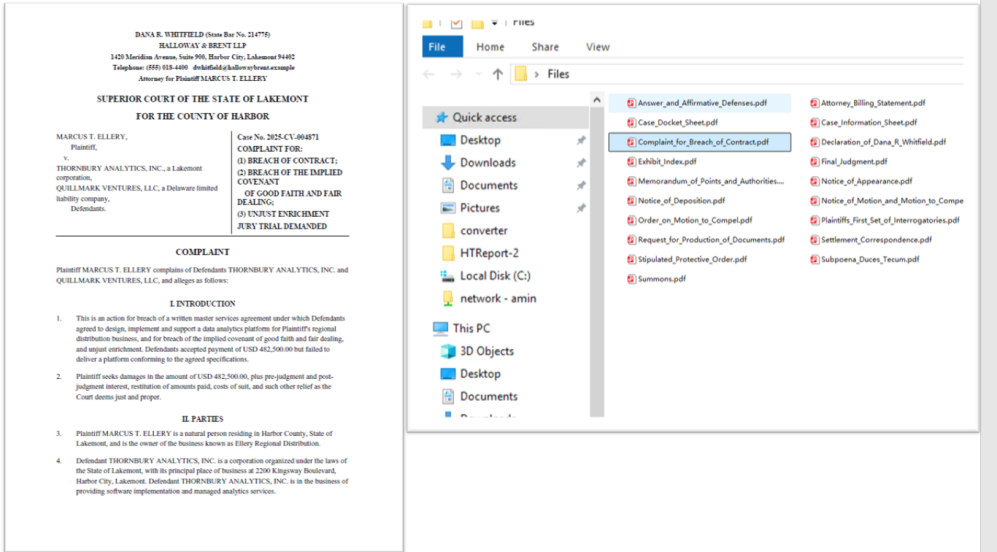
The PDF case materials to be consolidated
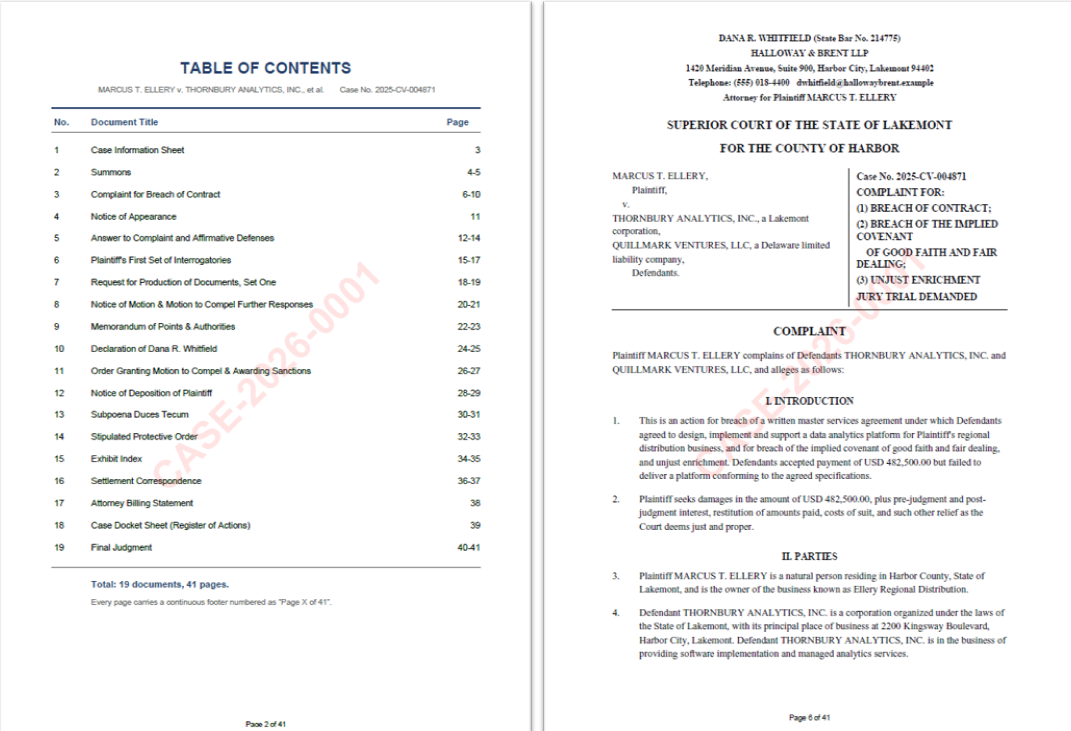
 The encrypted case file merged in order, with page numbers and watermark
Case 2: Extract material information and generate an archive register
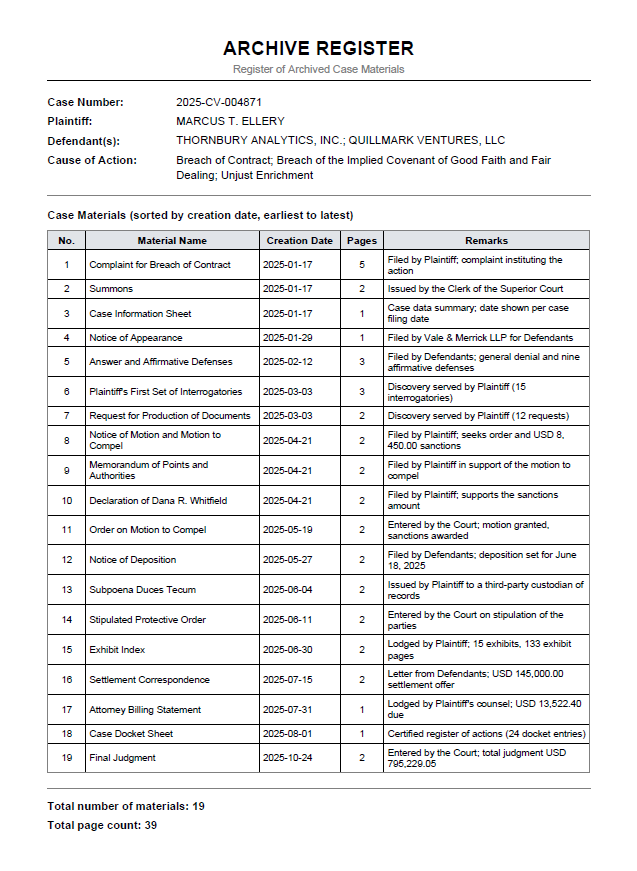
Once the volume is organized, an archive register has to be filed together with it. The register lists the name, creation date and page count of every material in the volume, headed by the case number, the parties and the cause of action. All of this information is already inside the materials themselves, but the traditional approach can only copy it out by hand, opening each material one by one — with many materials, a wrong page count or date is almost unavoidable.
Unlike Case 1, this case does not modify any page. It only reads information: the input is the same set of PDF attachments, but the output is a newly generated register PDF.
The example below uses the Spire.Agent.Office agent to read all the PDF materials among the attachments, extract the case information and the per-material information, sort them by creation date and compile an archive register:
using Spire.Agent.Office.AI;
using Spire.Agent.Office.Extensions;
using Spire.Pdf;

// Folder containing the PDF materials to register: every PDF in this folder is treated as an attachment
string attachmentDir = @"E:\case_files";  // folder that holds the PDF materials of one case
string[] attachmentPaths = Directory.GetFiles(attachmentDir, "*.pdf");

// PDF-related configuration
string inputPath = "";  // empty input: all materials to register are among the attachments
string savePath = null;  // result path
string OutDir = @"E:\output-register";  // output directory (the archive register is saved here)
string key = "**************************";  // SpireToken key
string instruction =
    "Read all the PDF case materials among the attachments, extract the information and compile an 'Archive Register':" +
    "1. Extract the basic case information from the materials: case number, plaintiff, defendant and cause of action;" +
    "2. Extract the material name, creation date and page count from each material;" +
    "3. Sort the materials from the earliest creation date to the latest;" +
    "4. Generate a PDF-format 'Archive Register' in the output directory, with columns: Serial Number, Material Name, Creation Date, Pages, Remarks;" +
    "5. List the case number, plaintiff, defendant and cause of action above the table, and summarize the number of materials and the total page count below it;" ;

// Call the PDF document processing function
AIResult result = ExecuteDemoPDF(instruction, inputPath, savePath, key, OutDir, attachmentPaths);

// Execute PDF AI processing
static AIResult ExecuteDemoPDF(string instruction, string inputPath, string savePath, string key, string output, string[] attachmentPaths)
{
    // Create the AIOptions configuration object
    AIOptions options = new AIOptions();
    options.WorkDir = output;  // set the working directory to the output directory
    options.SpireToken = key;  // set the SpireToken key

    // Process the PDF document using a PdfDocument object
    using (PdfDocument pdf = new PdfDocument())
    {
        // The input file is empty so nothing is loaded; all files to process come from the attachments
        if (!string.IsNullOrEmpty(inputPath) && File.Exists(inputPath))
        {
            pdf.LoadFromFile(inputPath);
        }
        // Create the AI document processor
        AIDocumentProcessor processor = pdf.AI(options);

        // Execute the AI instruction
        return processor.ExecuteInstruction(pdf, instruction, savePath, attachmentPaths);
    }
}
Generated archive register PDF
FAQ
Will the page numbers and watermark cover the body text?
Cause: Page numbers and watermarks are drawing layers overlaid on the page; a poorly chosen position or opacity can indeed cover the content.
Solution: Describe the position and style explicitly in the instruction (for example, "page numbers centered in the footer", "watermark rotated 45 degrees, red") and the AI will draw them as described. When adding page numbers and watermarks, Spire.Agent.Office does not change the original layout, fonts or page settings of the body text.
How is the merge order of the materials determined?
Cause: Case 1 arranges the materials in the conventional order of case file documents (complaint, evidence list, transcript, judgment and so on), while Case 2 sorts them by creation date. If a material type is unusual, or a creation date cannot be recognized, the result may not be as expected.
Solution: For Case 1, state the volume order directly in the instruction (for example, "arrange in the order of complaint, evidence list, hearing transcript, judgment"). For Case 2, make sure the materials carry a creation date, and add a fallback rule for those that genuinely lack one (for example, "materials without a date go last, with the remarks column marked 'date pending'").
Getting a SpireToken Key
- Contact sales@e-iceblue.com or visit https://www.e-iceblue.com/TemLicense.html to obtain a trial/commercial API key
Configure it in your code:
AIOptions options = new AIOptions();
options.SpireToken = key;
Batch PDF Encryption, Distribution and Decryption with Spire.Agent.Office
In HR, finance and legal workflows, PDF is the format most often used for sensitive content such as payslips, labor contracts, statements and reconciliations — and "distributing a batch of PDFs to different people" happens every month. Sending plain-text PDFs directly is risky: once a file is forwarded, anyone who receives it can open and read it. The traditional approach is to manually set an open password on each file with a dedicated tool before distribution; doing this for dozens or even hundreds of files is slow and easy to get wrong (some files simply get missed). On the receiving side, users often need a separate tool just to remove the password before they can read the file, which makes the whole loop inefficient.
The PDF AI capability of Spire.Agent.Office lets you describe what you need in natural language. The AI agent understands the request and completes the whole flow — "batch encryption → distribution list → decrypt on demand" — automatically.
Comparison with Traditional SDK API
| Traditional Spire.Office for .NET API | Spire.Agent.Office | |
|---|---|---|
| Driving style | Write loops to iterate files plus password-setting and permission code that controls every step | Describe the goal in natural language; the AI understands it and orchestrates the execution path |
| Code size | Batch encryption/decryption usually needs 200-400 lines of C# (file enumeration, encryption parameters, exception handling, etc.) | About 10 lines of calling code + 1 natural-language instruction |
| Password strategy | Hard-code passwords file by file, or design and maintain a password-generation rule in code | State the rule in one sentence of the instruction (e.g., generated from the employee ID); the AI applies it automatically |
| Distribution list | Need to write extra logic to produce the manifest/table | The same instruction can also output an encryption distribution password list |
| Format handling | Need to handle low-level details such as encryption algorithm and permission flags by hand | The AI recognizes and preserves the layout, fonts and page settings of the original documents |
| Requirement change | Change a rule/path → change code → compile → redeploy | Modify the instruction and it takes effect immediately |
This article shows how to use the Spire.Agent.Office PDF AI capability to set open passwords on a batch of PDFs and produce an encryption distribution list, then remove password protection on demand. Two cases demonstrate the two typical uses — encryption for distribution and decryption for archiving:
- Case 1: Batch-encrypt PDFs and generate a distribution list
- Case 2: Batch-decrypt password-protected PDFs
For product installation and SpireToken configuration, please refer to Integrating Spire.Agent.Office in a .NET Project. The examples below assume that Spire.Agent.Office has been installed and SpireToken has been configured.
Batch PDF Encryption, Distribution and Decryption
The core idea is: take one or more PDF documents to process as input, and let the AI agent set an open password on each one and save the encrypted copy — or remove the protection when the password is known — while keeping the original layout unchanged. The whole process of "file reading → password rule application → encryption/decryption → result output" is completed automatically by the AI, with no need to write per-file processing code. Case 1 below demonstrates batch encryption and distribution to recipients; Case 2 demonstrates how an administrator decrypts and archives the documents after they are collected back.
Case 1: Batch-encrypt PDFs and generate a distribution list
The most common batch-encryption scenario is adding an open password to many sensitive PDFs (such as employee payslips) before they are sent out. There are many files and each has a different recipient; if every file shares one password the protection is meaningless, but if passwords all differ they are hard to remember and communicate.
The example below uses the Spire.Agent.Office agent to treat every PDF in the attachments folder (i.e., all PDF files under the specified folder) as documents to be encrypted, assigns each one an independent open password based on the rule "employee date of birth + 4 random digits + @2026", saves the encrypted documents as PDFs, and at the same time produces an encryption distribution list that maps the original file name, the encrypted file name and the open password row by row:
using Spire.Agent.Office.AI;
using Spire.Agent.Office.Extensions;
using Spire.Pdf;

// Folder containing the PDFs to encrypt: every PDF in this folder is treated as an attachment (one per recipient)
string attachmentDir = @"E:\pdfs";  // folder that holds the PDFs to be encrypted
string[] attachmentPaths = Directory.GetFiles(attachmentDir, "*.pdf");

// PDF-related configuration
string inputPath = null;
string savePath = null;  // result path (null here: the output folder below will be used)
string OutDir = @"E:\output";  // output directory (encrypted PDFs and the distribution list are saved here)
string key = "**************************";  // SpireToken key
string instruction =
    "Read all the PDF files in the attachments and encrypt each one with an open password:" +
    "1. Generate the password for each file as 'employee date of birth + 4 random digits @2026' (for example, salary-1001.pdf corresponds to password 199805083371@2026). This open password only restricts opening the document and does not affect other functions such as printing, copying or editing;" +
    "2. Save every encrypted PDF to the output directory, appending '-encrypted' to the original file name, and keep the layout, fonts and page settings of the original document;" +
    "3. Generate an Excel-format encryption distribution list in the output directory, listing the original file name, encrypted file name and open password in each row.";

// Call the PDF document processing function
AIResult result = ExecuteDemoPDF(instruction, inputPath, savePath, key, OutDir, attachmentPaths);

// Execute PDF AI processing
static AIResult ExecuteDemoPDF(string instruction, string inputPath, string savePath, string key, string output, string[] attachmentPaths)
{
    // Create the AIOptions configuration object
    AIOptions options = new AIOptions();
    options.WorkDir = output;  // set the working directory to the output directory
    options.SpireToken = key;  // set the SpireToken key

    // Process the PDF document using a PdfDocument object
    using (PdfDocument pdf = new PdfDocument())
    {
        // Load the PDF document from file
        if (!string.IsNullOrEmpty(inputPath) && File.Exists(inputPath))
        {
            pdf.LoadFromFile(inputPath);
        }
        // Create the AI document processor
        AIDocumentProcessor processor = pdf.AI(options);

        // Execute the AI instruction
        return processor.ExecuteInstruction(pdf, instruction, savePath, attachmentPaths);
    }
}
The original PDF documents to be encrypted  Batch-encrypted PDFs and the encryption distribution list
Every PDF gets an independent open password while the layout of the original document is preserved, and the encryption distribution list maps each file to its recipient's password so the sender can deliver it securely together with the files. When a new recipient is added later, you only need to put the new file into the attachments folder and rerun the instruction to complete the next round of encryption and distribution.
Case 2: Batch-decrypt password-protected PDFs
After recipients have finished reviewing, the administrator usually collects the files back for archiving and needs to remove the previously set open passwords in batch so the documents can be searched and merged. In this case the input file is empty; the encrypted PDFs and an Excel table that records the "file name / file password" mapping are provided together as attachments. The key to decryption is that the AI reads the open password of each file from the Excel table and opens the document with it.
The example below uses the Spire.Agent.Office agent with an empty input file. Through a natural-language instruction it reads the password-table Excel and the encrypted PDFs among the attachments, opens each document with the corresponding password from the table, removes the password protection, and saves the password-free documents one by one as PDFs:
using Spire.Agent.Office.AI;
using Spire.Agent.Office.Extensions;
using Spire.Pdf;

// The attachments are all the files under this folder (a password-table Excel plus the encrypted PDFs to decrypt)
string attachmentDir = @"E:\pdfs";  // folder that holds the password-table Excel and the encrypted PDFs
string[] attachmentPaths = Directory.GetFiles(attachmentDir);

// PDF-related configuration
string inputPath = "";  // empty input: all files to decrypt are among the attachments
string savePath = null;  // result path
string OutDir = @"E:\output-decrypted";  // output directory (decrypted documents are saved here)
string key = "**************************";  // SpireToken key
string instruction =
    "Read the 'file name / file password' mapping from the password-table Excel among the attachments and decrypt the matching encrypted PDFs in batch:" +
    "1. Read each row of the Excel to get its file name and the corresponding open password;" +
    "2. Locate the PDF document with the same file name among the attachments, open it with that row's password and remove the password protection;" +
    "3. Save each decrypted password-free PDF to the output directory, removing the '-encrypted' suffix from the file name, and keep the layout, fonts and page settings of the original document;" +
    "Save the final result as a PDF file";

// Call the PDF document processing function
AIResult result = ExecuteDemoPDF(instruction, inputPath, savePath, key, OutDir, attachmentPaths);

// Execute PDF AI processing
static AIResult ExecuteDemoPDF(string instruction, string inputPath, string savePath, string key, string output, string[] attachmentPaths)
{
    // Create the AIOptions configuration object
    AIOptions options = new AIOptions();
    options.WorkDir = output;  // set the working directory to the output directory
    options.SpireToken = key;  // set the SpireToken key

    // Process the PDF document using a PdfDocument object
    using (PdfDocument pdf = new PdfDocument())
    {
        // The input file is empty so nothing is loaded; all files to process come from the attachments (the password-table Excel + the encrypted PDFs)
        if (!string.IsNullOrEmpty(inputPath) && File.Exists(inputPath))
        {
            pdf.LoadFromFile(inputPath);
        }
        // Create the AI document processor
        AIDocumentProcessor processor = pdf.AI(options);

        // Execute the AI instruction
        return processor.ExecuteInstruction(pdf, instruction, savePath, attachmentPaths);
    }
}
The password-table Excel and the encrypted PDF documents to decrypt  The decrypted password-free PDF documents
The "file name → file password" mapping in the password-table Excel is read and applied one row at a time, and the collected encrypted files are restored to password-free plain-text PDFs in batch, ready for archiving, searching or further merging.
FAQ
After setting an "open password", will printing / copying / editing be affected (besides needing the password to open)?
Cause: An open password and document permissions are two different things. The examples in this article only set an open password on the document and do not apply restrictions such as "no printing" or "no copying".
Solution: After encryption, apart from needing the password to open the document, the original functions such as printing, copying and editing remain unaffected. If you need to restrict printing or copying for security reasons, add a permission description to the instruction (for example, "view only; printing and copying are not allowed") and the AI will configure the corresponding permissions accordingly.
Does encrypting a PDF with an open password change its layout?
Cause: Encryption only affects opening and permission validation of the document; it does not reflow the page content.
Solution: Spire.Agent.Office preserves the layout, fonts and page settings of the original documents during encryption. If you are concerned about a particular style change, add "keep the layout, fonts and page settings of the original document" to the instruction.
Getting a SpireToken Key
- Contact sales@e-iceblue.com or visit https://www.e-iceblue.com/TemLicense.html to obtain a trial/commercial API key
Configure it in your code:
AIOptions options = new AIOptions();
options.SpireToken = key;
Automatically Extract Invoice Information with Spire.Agent.Office
In finance and tax scenarios, invoice data entry is one of the most common and time-consuming tasks. The invoice number, date, amount, tax amount and buyer on every invoice must be manually checked and entered into Excel or a financial system one by one. During mid-month reconciliation, month-end tax filing or reimbursement peak periods, the backlog of invoices often numbers in the hundreds, and manual entry speed becomes the bottleneck. The traditional approach is to open each invoice PDF page by page, find the corresponding fields, copy and paste — which is not only inefficient but also highly prone to omissions, misalignments and mistyped amounts. Any single error directly affects the accuracy of reconciliation and tax filing. Invoice layouts also vary widely, with fields in all sorts of positions, further increasing the risk of errors in manual processing. Automating the repetitive work of "reading each invoice and copying its fields" is therefore one of the pain points financial teams most urgently want to solve.
Traditional SDK API vs. Spire.Agent.Office
For "extracting fields from a PDF invoice and exporting to Excel", the traditional SDK and Spire.Agent.Office take two completely different paths. With the traditional approach, you must first figure out the field positions and page structure of every invoice, then write locating and extraction code for each field — change the layout and you must change the code. With the agent approach, you only need to describe in natural language "what to extract and what to export as"; the AI understands and orchestrates the rest:
| Traditional Spire.Office for .NET API | Spire.Agent.Office | |
|---|---|---|
| Driving approach | Write loops + conditionals + exception-handling code, controlling every step of document processing | Describe the goal in natural language; the AI understands and orchestrates the execution path |
| Code volume | Page-by-page parsing usually needs 300-600 lines of C# (page traversal, field locating, data export, etc.) | ~10 lines of calling code + 1 natural language instruction |
| Field recognition | Hard-code the page position and format of each field; layout changes require code changes | AI automatically understands the invoice layout and locates fields such as invoice number, date, amount |
| Page handling | Manually traverse every page and extract each one | AI automatically extracts page by page and aggregates |
| Data export | Manually write Excel writing logic and column layout | AI automatically generates a structured Excel with aligned fields |
| Requirement changes | Change extracted fields → change code → compile → redeploy | Modify the instruction; takes effect immediately |
From the comparison, when invoice layouts, extracted fields or export structures change frequently, the agent only needs a change of one sentence, while the traditional approach requires changing code and redeploying.
This article explains how to use the Spire.Agent.Office PDF AI capability to automatically extract the invoice number, date, amount, tax amount and buyer name from each page of a PDF invoice and export them to Excel, digitalizing your financial documents in one step.
For product installation and SpireToken configuration, please refer to Integrating Spire.Agent.Office in a .NET Project. The examples below assume Spire.Agent.Office is installed and SpireToken is configured.
Automatic Invoice Information Extraction
The core idea of automatic invoice information extraction is: pass multiple invoice PDFs to the AI agent as attachments; the agent reads each invoice, understands the layout page by page, recognizes fields such as invoice number, issue date, amount, tax ID, tax amount, buyer name and title, and aggregates them into a structured Excel. The whole process is roughly divided into three steps — first the agent reads each invoice PDF and locates the invoice fields on every page; second, it aligns the fields recognized on each page by semantics; finally, it aggregates the results into Excel and beautifies them as requested (auto-fitting column widths, adding borders, keeping numeric values with two decimal places and right-aligned). The whole "page-by-page parsing → field recognition → aggregation & beautification" process is completed automatically by the AI from a natural language instruction, without writing a separate parsing routine for each invoice or worrying about layout differences between suppliers.
For invoice PDFs with dozens or hundreds of pages, the traditional approach requires a set of locating rules for each layout, whereas with the agent approach you always maintain just one natural language instruction no matter how the invoice source or layout changes. Requirements such as the amount basis (tax-inclusive vs. tax-exclusive), column order, or whether to flag anomalies can also be written directly into the instruction and take effect immediately.
The following example uses the Spire.Agent.Office agent to automatically extract invoice information from each page of PDFs and export it to Excel through a natural language instruction:
using Spire.Agent.Office.AI;
using Spire.Agent.Office.Extensions;
using Spire.Pdf;

// PDF processing configuration
string key = "**************************";  // Apply for a SpireToken Key on the official website

string inputDir = @"E:\invoices";  // Directory containing invoice PDFs (multiple allowed)
string[] pdfFiles = Directory.GetFiles(inputDir, "*.pdf", SearchOption.TopDirectoryOnly);
string savePath = @"E:\output\merged.xlsx";  // Output file path (null -> auto-generated to the output directory)

string instruction =
    "Read the attachment files and identify the information of each invoice, extracting the invoice number, issue date, amount, tax ID, tax amount, buyer name and title.\n" +
    "Put each invoice as one row and summarize them into a single Excel table.\n" +
    "When exporting to Excel, please beautify the table appropriately:\n" +
    "auto-fit the column widths so that text is fully displayed; add borders to the whole data area to make rows and columns clear and readable;\n" +
    "keep numeric columns such as amount and tax amount with two decimal places and right-aligned. Finally save as a well-formatted, easy-to-read Excel file.";

// Call the PDF processing function (attachments are the invoice PDFs)
AIResult result = ExecuteDemoPDF(instruction, savePath, key, pdfFiles);

// Execute PDF document AI processing
static AIResult ExecuteDemoPDF(string instruction, string savePath, string key, string[] attachments)
{
    // Create an AIOptions configuration object
    AIOptions options = new AIOptions();
    options.SpireToken = key;  // Set SpireToken Key

    // Process the PDF document with a PdfDocument object
    using (PdfDocument pdf = new PdfDocument())
    {
        // Create the AI document processor; attachments are the invoice PDFs
        AIDocumentProcessor processor = pdf.AI(options);
        return processor.ExecuteInstruction(pdf, instruction, savePath, attachments);
    }
}
Original invoice PDF 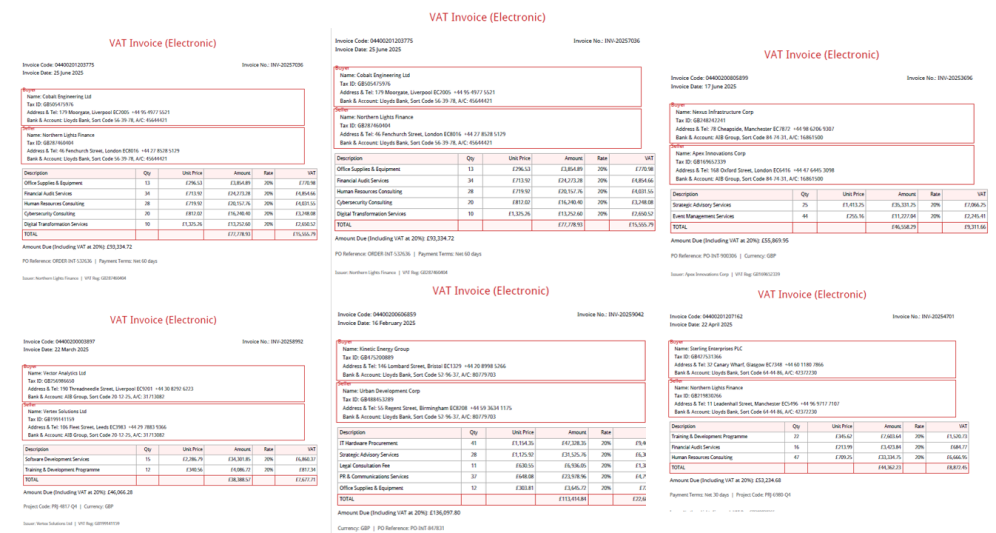 Extracted and exported Excel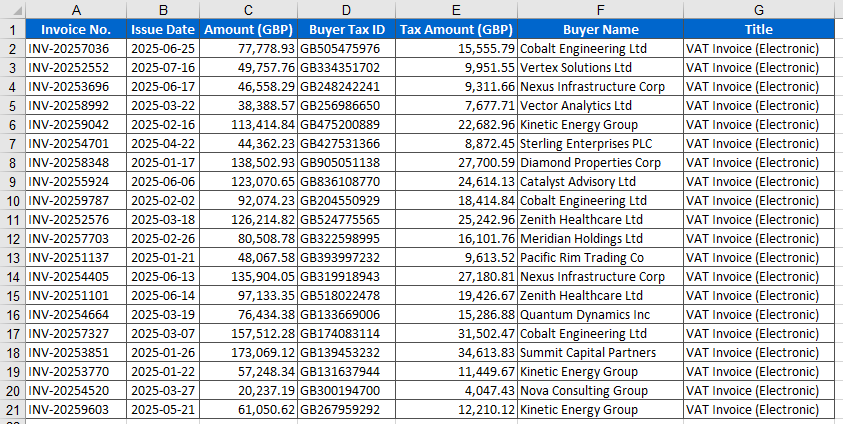
FAQ
The extracted amount or tax amount is incorrect
Reason: The invoice amount has both uppercase and lowercase forms, or the tax-inclusive/tax-exclusive basis is inconsistent.
Solution: Specify the extraction basis clearly in the instruction (e.g., "extract the total amount including tax", "extract the amount excluding tax"); the AI agent will extract according to the specified basis. If the invoice has two forms of amount, it is also recommended to state which one takes precedence to avoid ambiguity.
How are invoices with different layouts recognized?
Reason: Invoices from different suppliers have different layouts and field positions.
Solution: The AI agent can automatically understand the invoice layout and locate fields; for unusual layouts, you can add field hints in the instruction (e.g., "the invoice number is located in the upper-right corner") to help the agent locate more accurately.
The column order / field names of the result don't match expectations
Reason: By default the AI outputs fields in the order it recognizes them.
Solution: Specify the field names and order clearly in the instruction (e.g., "export in the order: invoice number, date, amount, tax amount, buyer"), and the agent will arrange the output columns as requested.
Getting a SpireToken Key
- Contact sales@e-iceblue.com or visit https://www.e-iceblue.com/TemLicense.html to obtain a trial/commercial API key
Configure it in code:
AIOptions options = new AIOptions();
options.SpireToken = key;